Windows Server VMs on Azure

A Windows Server Azure VM is where most company apps still run: file servers, line-of-business apps, SQL Server, domain controllers. Building one is similar to Linux, but the details differ: passwords instead of SSH keys, RDP instead of SSH, licensing, and Windows activation.

In this lesson you build win01 with Windows Server 2025 Datacenter: Azure Edition, Server Core. It fits the free account’s small B2ats v2 size, has no public IP, and you log in through Bastion.

Then you find a problem that catches many teams in 2026: a new Windows VM in a private subnet can’t activate, because Windows activation needs to reach Azure’s licensing servers over the internet.

TimeYou needCostBy the end you can
About 50 minutesvnet-saat, the CLI, a password managerAbout USD 0.05 if you clean up the temporary NAT Gateway within 1 hour; the VM uses the free account’s Windows B2ats v2 hoursBuild a private Windows Server VM, run PowerShell on it without RDP, connect with Bastion, and fix activation

What it is, in one line

A Windows Server VM on Azure is a licensed Windows server you rent by the minute, reached with RDP through Bastion and managed with PowerShell.

In Simple Words

The same flat, but with a front-desk register

A Windows VM is the same rented flat as the Linux one, with two differences. You get in with a password (Windows doesn’t use SSH keys for RDP), and the flat has to be registered with the building office before the lights stop flickering. That’s Windows activation.

The registration office is outside your gated colony. If your colony has no exit gate (no outbound internet), the flat can’t register. Everything still works for a while, then the warning signs appear on the walls.

Engineer's View

Images, sizes, licensing and activation

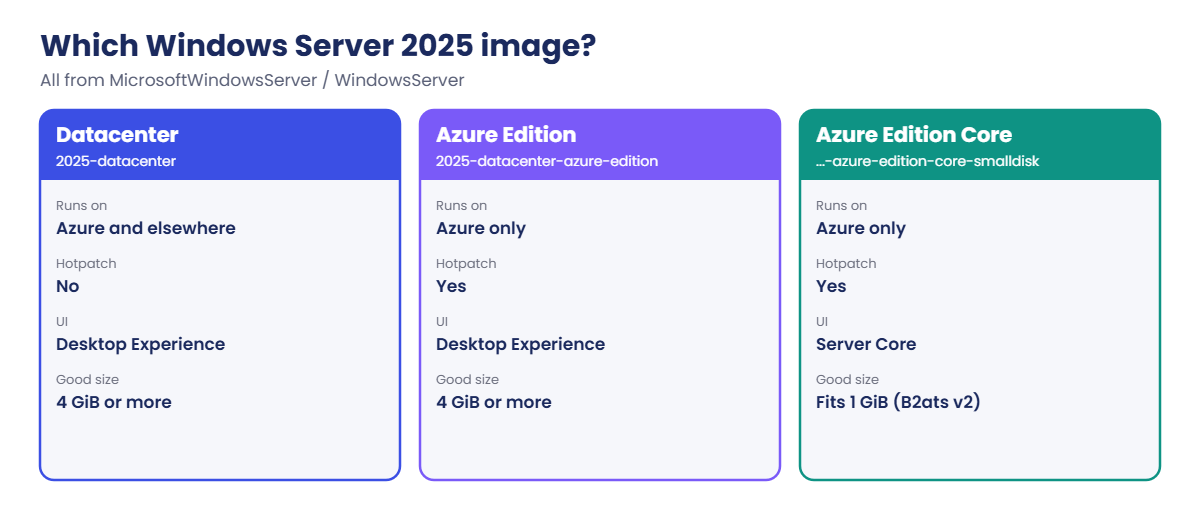
  • Images: publisher MicrosoftWindowsServer, offer WindowsServer, SKUs like 2025-datacenter-azure-edition (Desktop Experience) and 2025-datacenter-azure-edition-core (Server Core). Azure Edition runs only on Azure and supports hotpatching. -smalldisk variants have a 30 GB OS disk instead of 127 GB.
  • Size: Desktop Experience is comfortable from 4 GiB of memory. B2ats v2 has 1 GiB, so the course uses Server Core, which runs well in less memory and is what many production servers use anyway.
  • Login: Windows VMs need --admin-password. The CLI checks it locally: 12 to 123 characters, with three of lower case, upper case, numbers and symbols. Names like admin and administrator are refused.
  • Licensing: pay-as-you-go images include the Windows Server licence in the hourly price (that’s why Windows costs more than Linux in Lesson 1). With Software Assurance you can use Azure Hybrid Benefit (--license-type Windows_Server) and pay the Linux rate.
  • Activation: Azure VMs activate against Azure’s KMS servers at azkms.core.windows.net on TCP 1688. Those are public endpoints, so the VM needs outbound internet (NAT Gateway, firewall, or a route) to reach them. 168.63.129.16 doesn’t do activation.

Run Command works the same way as on Linux: RunPowerShellScript runs PowerShell as SYSTEM through the VM agent, with no RDP and no open port. It’s the fastest way to check or fix a Windows VM you can’t log in to.

How it works, step by step

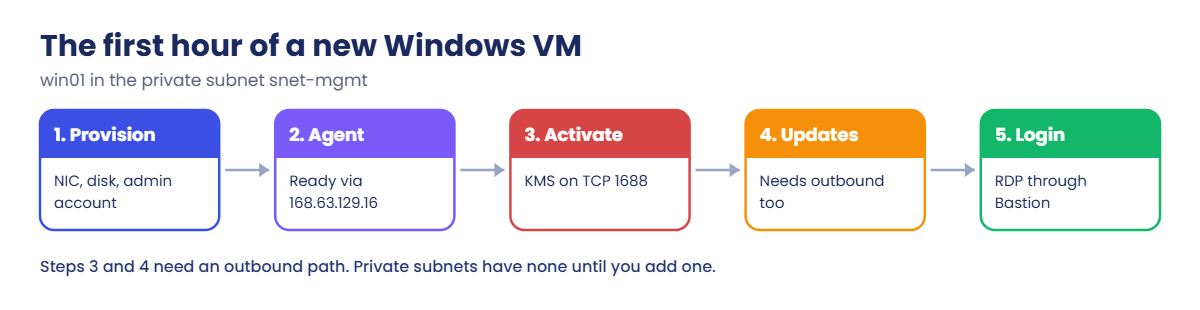
The first hour of a new Windows VM looks like this:

Windows Server Azure VM first hour: provisioning, agent, activation, updates, login
  1. Provisioning: Azure creates the NIC and disk, sets the admin account, and runs Windows setup (sysprep’s “specialise” pass). This takes a few minutes longer than Linux.
  2. Agent: the Azure VM agent starts and reports “Ready” through 168.63.129.16. Run Command and extensions now work.
  3. Activation: Windows tries to activate against Azure KMS on port 1688. Without outbound access, this fails quietly at first.
  4. Updates: Windows Update also needs outbound access to Microsoft’s update servers (or a patching service, Lesson 30).
  5. Login: you RDP in through Bastion with the admin account.

Steps 3 and 4 are why every Windows subnet needs an explicit outbound method from day one, even if the server itself never talks to the internet for its job.

Windows Server Azure VM image choices for Windows Server 2025

In the lab you build win01 in snet-mgmt, check it with Run Command, connect with Bastion, and then deal with activation.

Hands-on lab: build and activate win01

win01 stays (deallocated) for later Windows lessons. Load the network IDs first:

$v = Get-Content C:\azure-lab\vnet-saat.json | ConvertFrom-Json

1Find the Windows Server 2025 image names

Run this:

az vm image list-skus --location centralindia --publisher MicrosoftWindowsServer --offer WindowsServer --query "[?starts_with(name,'2025')].name" -o tsv

You should see something like this (shortened):

2025-datacenter
2025-datacenter-azure-edition
2025-datacenter-azure-edition-core
2025-datacenter-azure-edition-core-smalldisk
2025-datacenter-azure-edition-smalldisk
2025-datacenter-core
2025-datacenter-core-smalldisk
2025-datacenter-smalldisk
...

Pick 2025-datacenter-azure-edition-core-smalldisk: Azure Edition, Server Core, 30 GB image. You’ll grow the disk to 64 GB, which the free account covers. If your list shows a slightly different name, use the one with “azure-edition-core-smalldisk”.

2Create win01 with a generated password

Run this (about four minutes):

$pw = 'Lab-' + [guid]::NewGuid().ToString('N').Substring(0, 12) + '!'
"Save this password for win01 / azureuser: $pw"
az vm create --resource-group rg-saat-vms --name win01 --image MicrosoftWindowsServer:WindowsServer:2025-datacenter-azure-edition-core-smalldisk:latest --size Standard_B2ats_v2 --subnet $v.'snet-mgmt' --public-ip-address '""' --nsg '""' --admin-username azureuser --admin-password $pw --os-disk-size-gb 64 --tags course=saatvedha-azure lesson=16 keep=true role=admin --query "{name:name, power:powerState, privateIp:privateIpAddress}" -o table

You should see something like this:

Save this password for win01 / azureuser: Lab-5e1c09a7b3d4!
Name    Power       PrivateIp
------  ----------  -----------
win01   VM running  10.30.10.4

Copy the password into your password manager now. You’ll need it for Bastion. Never reuse it anywhere else.

3Check the VM with Run Command

Run this:

az vm run-command invoke --resource-group rg-saat-vms --name win01 --command-id RunPowerShellScript --scripts 'Get-CimInstance Win32_OperatingSystem | Select-Object Caption, Version, TotalVisibleMemorySize | Format-List' --query "value[0].message" -o tsv

You should see something like this:

Caption                : Microsoft Windows Server 2025 Datacenter: Azure Edition
Version                : 10.0.26100
TotalVisibleMemorySize : 967416

The memory is in kilobytes: about 945 MB usable of the 1 GiB. The single quotes around the script keep your laptop’s PowerShell from changing anything in it, and the script itself uses no double quotes, because Windows PowerShell 5.1 drops inner double quotes when it passes arguments to az. The script runs on the VM as SYSTEM.

4Turn on auto-shutdown

Run this:

az vm auto-shutdown --resource-group rg-saat-vms --name win01 --time 1330 -o none

5Connect with Bastion Developer

  1. In the portal, open win01 > Connect > Connect via Bastion and use the Developer option.
  2. Authentication type: VM Password. Username azureuser, the password you saved.
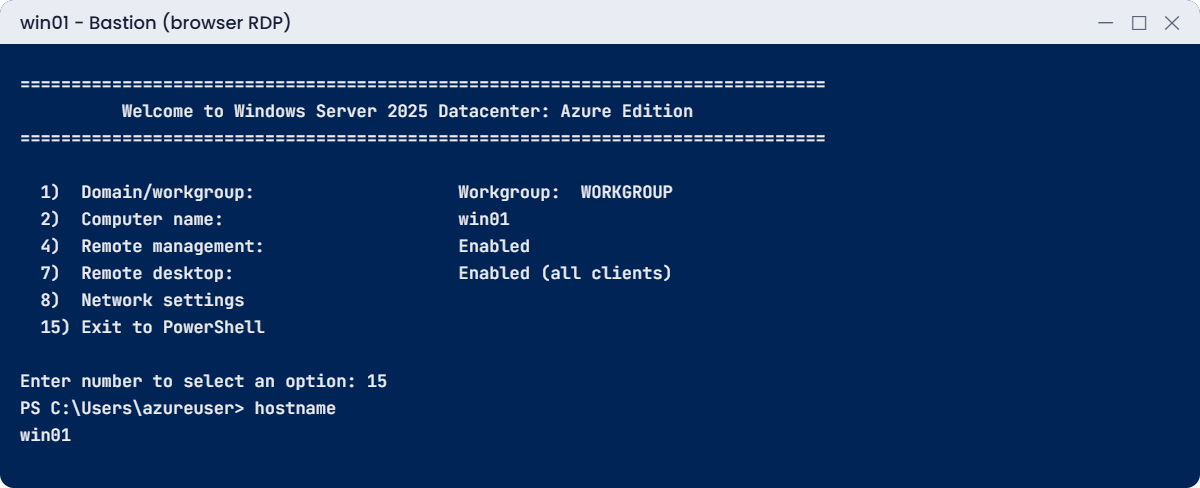
  3. A browser RDP session opens to Server Core: a command window with the SConfig menu. Type 15 and Enter to exit to PowerShell, then run hostname.
Windows Server Azure VM in Bastion with SConfig
Server Core in the browser: SConfig, then option 15 for PowerShell.
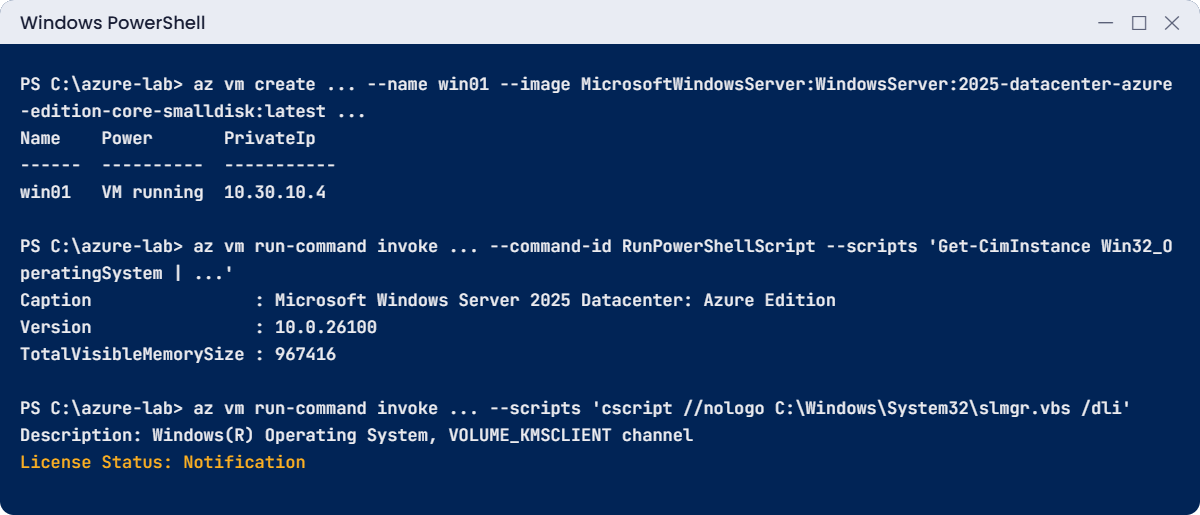
Windows Server Azure VM lab: win01 created and checked with Run Command
Example output. Your IP and values will be different.

6Check activation

Back on your laptop, run this:

az vm run-command invoke --resource-group rg-saat-vms --name win01 --command-id RunPowerShellScript --scripts 'cscript //nologo C:\Windows\System32\slmgr.vbs /dli' --query "value[0].message" -o tsv

You should see something like this:

Name: Windows(R), ServerDatacenterAzureEdition edition
Description: Windows(R) Operating System, VOLUME_KMSCLIENT channel
Partial Product Key: XXXXX
License Status: Notification
Notification Reason: 0xC004F056.

“Notification” means Windows is not activated. It hasn’t managed to reach a licensing server. Hold that thought: you’ll find out why in “Break It”.

✅ Checkpoint: win01 runs Windows Server 2025 Azure Edition Core with no public IP, you logged in through Bastion, and you’ve noticed it isn’t activated yet.

Break It, Then Fix It

The first mistake stops you before anything is built. The second shows up days later as a warning on every login, unless you know where to look.

1Break it: a password the CLI won’t accept

Run this:

az vm create --resource-group rg-saat-vms --name win99 --image MicrosoftWindowsServer:WindowsServer:2025-datacenter-azure-edition-core-smalldisk:latest --size Standard_B2ats_v2 --subnet $v.'snet-mgmt' --public-ip-address '""' --nsg '""' --admin-username azureuser --admin-password 'Winter2026'

You’ll get this error:

The password length must be between 12 and 123. Password must have the 3 of the following: 1 lower case character, 1 upper case character, 1 number and 1 special character.

The CLI checked it on your laptop, so nothing was sent to Azure. Winter2026 is 10 characters with no symbol: exactly the kind of password that password-spray attacks try first. Generate passwords instead, as in step 2.

2Break it: activate Windows from a private subnet

Ask Windows to activate now:

az vm run-command invoke --resource-group rg-saat-vms --name win01 --command-id RunPowerShellScript --scripts 'cscript //nologo C:\Windows\System32\slmgr.vbs /ato; Test-NetConnection azkms.core.windows.net -Port 1688 | Select-Object ComputerName, TcpTestSucceeded' --query "value[0].message" -o tsv

You’ll get output like this:

Activating Windows(R), ServerDatacenterAzureEdition edition (...) ...
Error: 0xC004F074 The Software Licensing Service reported that the computer could not be activated. No Key Management Service (KMS) could be contacted. Please see the Application Event Log for additional information.

ComputerName           TcpTestSucceeded
------------           ----------------
azkms.core.windows.net False

Port 1688 to Azure KMS can’t be reached, because snet-mgmt is a private subnet with no outbound method. Older VNets had default outbound access, so this used to “just work”. In new networks, unactivated servers show a watermark and remind users to activate, and some features are limited.

Fix it: give the subnet a way out for a moment, as in Lesson 13, and activate:

az group create --name rg-saat-l16 --tags course=saatvedha-azure lesson=16 -o none
az network public-ip create --resource-group rg-saat-l16 --name pip-saat-l16 --sku Standard --allocation-method Static --tags course=saatvedha-azure lesson=16 -o none
az network nat gateway create --resource-group rg-saat-l16 --name nat-saat-l16 --public-ip-addresses pip-saat-l16 --tags course=saatvedha-azure lesson=16 -o none
$nat = az network nat gateway show --resource-group rg-saat-l16 --name nat-saat-l16 --query id -o tsv
az network vnet subnet update --ids $v.'snet-mgmt' --nat-gateway $nat -o none
Start-Sleep -Seconds 60
az vm run-command invoke --resource-group rg-saat-vms --name win01 --command-id RunPowerShellScript --scripts 'cscript //nologo C:\Windows\System32\slmgr.vbs /ato; cscript //nologo C:\Windows\System32\slmgr.vbs /dli | Select-String License' --query "value[0].message" -o tsv

You should see something like this:

Activating Windows(R), ServerDatacenterAzureEdition edition (...) ...
Product activated successfully.

License Status: Licensed

KMS activation lasts 180 days and renews itself every 7 days when the server can reach KMS. Later lessons give snet-mgmt a permanent outbound path; for now, remove the temporary NAT Gateway.

Clean up and deallocate win01:

az network vnet subnet update --ids $v.'snet-mgmt' --remove natGateway -o none
az group delete --name rg-saat-l16 --yes
az vm deallocate --resource-group rg-saat-vms --name win01
C:\azure-lab\Find-LabResources.ps1 -Lesson 16

You should see this at the end (win01 and its disk and NIC stay, tagged lesson=16 and keep=true):

Resources:

name                          type                                     group       lesson
----                          ----                                     -----       ------
win01                         Microsoft.Compute/virtualMachines        rg-saat-vms 16
win01_OsDisk_1_...            Microsoft.Compute/disks                  RG-SAAT-VMS 16
win01VMNic                    Microsoft.Network/networkInterfaces      rg-saat-vms 16
shutdown-computevm-win01      microsoft.devtestlab/schedules           rg-saat-vms 16
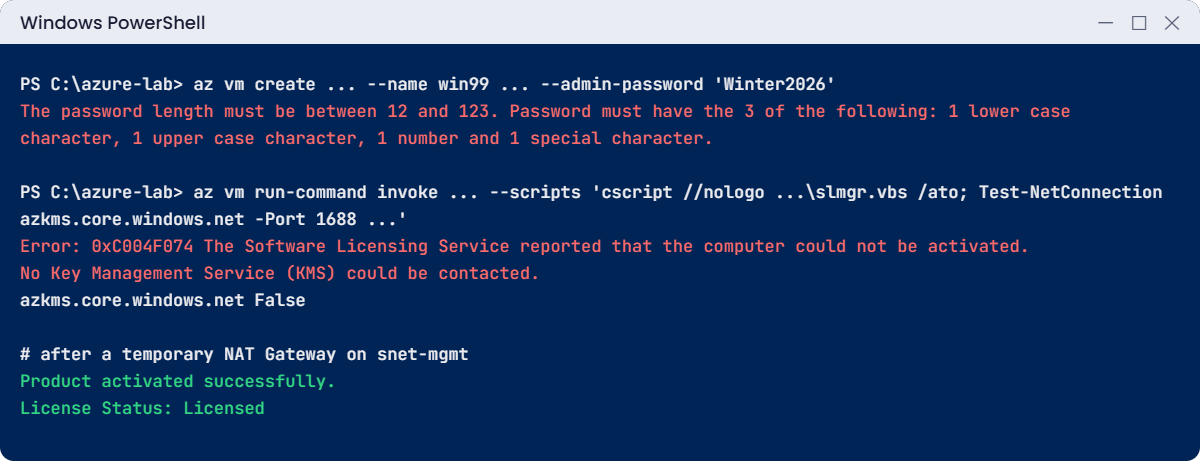
Windows Server Azure VM errors: weak password and KMS activation 0xC004F074
Example output of both problems and the fix.

✅ Checkpoint: win01 shows “Product activated successfully”, the temporary NAT Gateway is gone, and win01 is deallocated.

This happened at work

“Activate Windows” on 60 new servers

A bank built a new landing zone in 2026 with private subnets everywhere and a firewall that allowed only traffic the security team had approved. The migration team moved 60 Windows servers into it over a month. Everything worked, and the project was marked done.

A few weeks later the service desk started getting tickets: “My screen says Activate Windows”. Every migrated server was unactivated. The firewall had no rule for Azure KMS on port 1688, and with no default outbound access the servers couldn’t reach it.

Nobody had noticed during testing, because activation failures don’t stop applications from running.

What they changed: the firewall got an application rule for azkms.core.windows.net on TCP 1688, plus the Windows Update endpoints. The build checklist now includes slmgr /dli and a check that Test-NetConnection azkms.core.windows.net -Port 1688 succeeds. A monthly Run Command report across all Windows VMs lists any server whose licence status isn’t “Licensed”.

Common mistakes and troubleshooting

MistakeWhat you seeWhat to do
No outbound path for Windows subnets“Activate Windows”, 0xC004F074, update failuresAllow TCP 1688 to azkms.core.windows.net through NAT or the firewall.
Desktop Experience on a 1 GiB sizeVery slow logins and hangsUse Server Core, or a size with 4 GiB or more.
Weak or reused admin passwordsCLI refuses, or later a compromised serverGenerate passwords, store them in a password manager or Key Vault.
127 GB default disk on the free accountA P10 disk you pay forUse a smalldisk image and set 64 GB.
Opening RDP 3389 to the internetThousands of failed logins a dayNo public IP; use Bastion (Lesson 27) or JIT (Lesson 28).
Double quotes in Run Command scriptsLaptop PowerShell eats $ variablesUse single quotes around the script, and no double quotes inside it.

Interview questions

Click a question to open it. Each one is written the way an interviewer would ask it. Under it you will see why they ask it and one way you could answer, in your own words.

Fresher level

1. How is creating a Windows VM different from a Linux VM in Azure?

Why they ask this: They want the practical differences.

How you might answer: Windows needs an admin password instead of SSH keys, you connect with RDP instead of SSH, the image includes the Windows licence unless you use Azure Hybrid Benefit, and Windows must activate against Azure KMS. Provisioning also takes a few minutes longer.

2. What is Azure Hybrid Benefit for Windows Server?

Why they ask this: A common licensing question.

How you might answer: If the company owns Windows Server licences with Software Assurance, it can apply them to Azure VMs with --license-type Windows_Server and pay the base compute rate instead of the rate that includes the licence.

3. What does Run Command let you do on a Windows VM?

Why they ask this: They want to know your break-glass tools.

How you might answer: It runs a PowerShell script as SYSTEM through the VM agent, without RDP or any open port. I use it to check services, read logs, reset settings, or fix the firewall when I can’t log in.

2–5 years experience

4. New Windows VMs show “Activate Windows”. What’s your first check?

Why they ask this: They’re checking a very current, real-world issue.

How you might answer: I’d run slmgr /dli and test TCP 1688 to azkms.core.windows.net from the VM. In private subnets or behind a strict firewall, the VM often can’t reach Azure KMS. The fix is an outbound path or a firewall rule for KMS, then slmgr /ato.

5. Why would you choose Server Core over Desktop Experience?

Why they ask this: They want reasons beyond “it’s smaller”.

How you might answer: Server Core uses less memory and disk, has fewer components to patch and attack, and reboots less often. Most roles can be managed remotely with PowerShell, Windows Admin Center or Run Command, so a GUI on the server isn’t needed.

6. How do you manage Windows admin passwords for many VMs?

Why they ask this: They want secure, scalable practice.

How you might answer: Each VM gets a unique random password at build time, stored in Key Vault, and ideally Windows LAPS rotates the local admin password afterwards. Daily admin access goes through domain or Entra ID accounts, not the local admin.

Senior level

7. You’re designing a landing zone with private subnets and a firewall. What must Windows servers be allowed to reach?

Why they ask this: They want a concrete list, not “the internet”.

How you might answer: At minimum Azure KMS on TCP 1688 for activation, Windows Update or the company’s patch source, the Azure monitoring and management endpoints the agents use, and any certificate revocation endpoints. I’d use the firewall’s FQDN tags where they exist and test each one from a new server before migration.

8. How would you check licence status across 300 Windows VMs?

Why they ask this: They want a scalable method.

How you might answer: A Run Command script or Azure Policy guest configuration that runs slmgr /dli or reads the SoftwareLicensingProduct class, and reports anything not “Licensed”. Results go to Log Analytics, where a KQL query lists the failures for the team.

9. When would you still use Desktop Experience on Azure?

Why they ask this: They want balanced judgement.

How you might answer: For apps that need a GUI on the server, like some legacy line-of-business tools, or for Remote Desktop Session Hosts. I’d size those VMs with enough memory and keep the number small.

Quick quiz

Q1. Which image did the lab use for win01?

  1. 2025-datacenter (Desktop)
  2. 2025-datacenter-azure-edition-core-smalldisk
  3. 2022-datacenter
  4. windows-11
Show answer

B — Azure Edition, Server Core, with a 30 GB image grown to 64 GB.

Q2. Why did activation fail at first?

  1. Wrong product key
  2. The private subnet had no outbound path to Azure KMS on port 1688
  3. Server Core can’t be activated
  4. Bastion blocks it
Show answer

B — Activation needs outbound access to azkms.core.windows.net.

Q3. What does “License Status: Notification” mean?

  1. Activated
  2. Not activated
  3. Evaluation edition
  4. Licence expired permanently
Show answer

B — Notification means Windows isn’t activated.

Q4. Why put the Run Command script in single quotes in PowerShell?

  1. They’re faster
  2. So your laptop doesn’t expand $ variables before sending the script
  3. Azure requires them
  4. To hide the script
Show answer

B — The script then runs on the VM exactly as written.

Q5. Which minimum password length does the CLI enforce for VMs?

  1. 8
  2. 10
  3. 12
  4. 16
Show answer

C — 12 to 123 characters with three character types.

Quick recap

You can now build a private Windows server, manage it without RDP, and fix the activation problem that new networks bring.

  • Windows VMs use passwords and RDP; generate strong passwords and store them safely.
  • Server Core on B2ats v2 fits the free account; Desktop Experience needs more memory.
  • Azure Edition runs only on Azure and supports hotpatching.
  • Activation needs TCP 1688 to azkms.core.windows.net: private subnets need an outbound path.
  • win01 stays deallocated in rg-saat-vms for later lessons.

Next lesson

Lesson 17: Azure VM sizes: B, D, E and F series → You learn to read VM size names, compare families, and resize web01 safely.

Further reading: Windows Server Azure VM

Want to go deeper into Windows Server Azure VM? See Microsoft’s Create a Windows virtual machine with the Azure CLI and Troubleshoot Azure Windows virtual machine activation problems. You can also see the full plan for this course on the Azure Cloud Administration course page.

Scroll to Top