Azure Backup MARS agent: files and folders

The Azure MARS agent (Microsoft Azure Recovery Services agent) backs up chosen files, folders and system state from a Windows machine straight to an Azure vault. No backup server, no tapes: install the agent, register it, pick folders, set a schedule.

It’s the simplest way to get off-site backups for on-premises file servers, branch office machines, or the few folders on a VM that matter. It’s also where admins lose data by forgetting a passphrase or an exclusion rule.

This lab uses your own Windows laptop as the “on-premises server”. You back up C:\azure-lab, restore a file, then find out why a file is missing from the backup and why the vault won’t go away.

TimeYou needCostBy the end you can
About 60 minutesA Windows 10 or 11 laptop where you are an administrator, the CLI, Az PowerShellA few US cents: a protected-instance fee for a few days and a few MB of backup storageInstall and register MARS, schedule and restore file backups, and troubleshoot missing files

What it is, in one line

The MARS agent backs up files, folders and system state from a Windows machine directly into a Recovery Services vault.

In Simple Words

Posting copies of your homework to grandma

Every evening, you photocopy the folders you care about and post them to grandma, who keeps them in a locked box. If your bag gets lost, you ask her for yesterday’s copy. That’s MARS: your laptop is home, the vault is grandma’s house.

You lock every envelope with a padlock whose code only you know. Grandma can’t open it and nobody can tell you the code later. That code is the passphrase.

And if you told yourself “don’t bother copying rough notes”, don’t be surprised when the rough notes aren’t in grandma’s box. That’s an exclusion.

Engineer's View

How MARS works

  • What it protects: files and folders, and Windows system state, on Windows Server and Windows client, physical or virtual, on-premises or in any cloud.
  • Registration: a vault credentials file from the Recovery Services vault, valid for 10 days, registers the machine. Each machine appears under Protected servers.
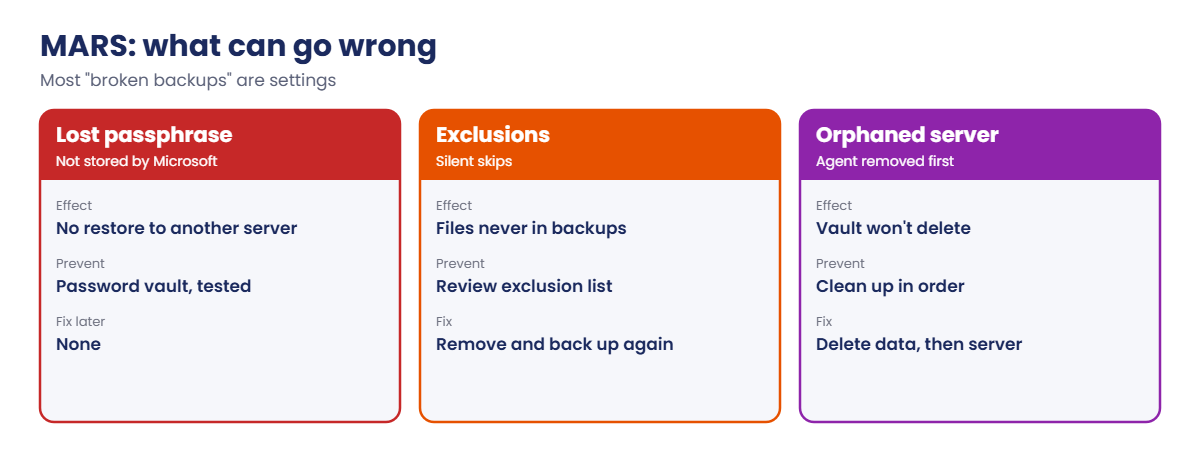
  • Encryption: data is encrypted on the machine with a passphrase of at least 16 characters before it leaves. Microsoft doesn’t keep the passphrase; lose it and you can’t restore to another machine.
  • Schedule and retention: up to three backups a day, with daily, weekly, monthly and yearly retention. After the first full copy, only changed blocks are sent.
  • Cache folder: the agent keeps metadata in a scratch folder (by default under its install path) that needs free space of about 5 to 10% of the data size.
  • Network: HTTPS 443 to Azure Backup and Entra ID endpoints. SSL-inspecting proxies are a common cause of failures.
  • Restore: individual files by mounting a recovery point as a drive letter, or a whole volume. “Another server” restores need the passphrase.

How it works, step by step

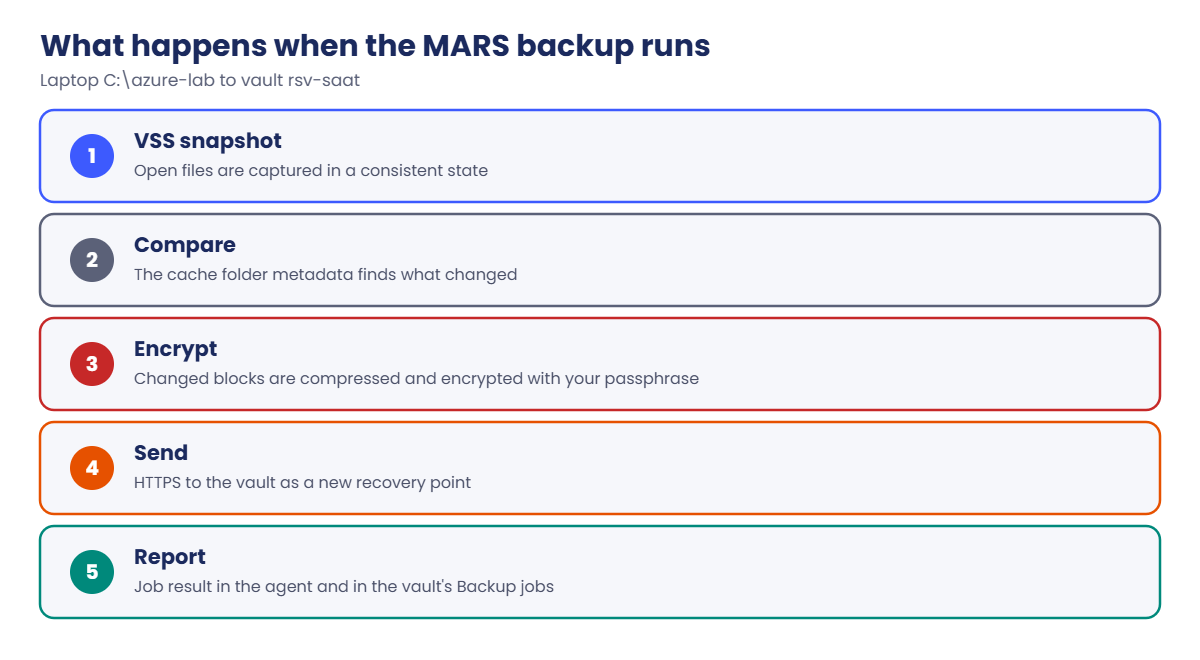
What happens at 21:30 when the scheduled backup runs:

Azure MARS agent backup flow from a Windows machine to the vault
  1. The agent takes a VSS snapshot of the volume, so open files are copied in a consistent state.
  2. It compares the files with the last backup, using the metadata in its cache folder.
  3. Changed blocks are compressed and encrypted with your passphrase.
  4. They’re sent over HTTPS to the vault and stored as a new recovery point.
  5. The job result shows in the agent console and in the vault’s Backup jobs.

MARS doesn’t know or care whether the machine is in Azure. That makes it the default answer for “we need off-site copies of this one file server”.

Azure MARS agent problems: passphrase, exclusions and orphaned servers

For whole Azure VMs, use Azure VM backup (Lesson 35). For large on-premises estates with many workloads, enterprise tools (Lessons 37 and 38) or Azure Backup Server take over.

Hands-on lab: the Azure MARS agent on your laptop

Open PowerShell as administrator on your laptop.

1Create a vault for MARS

Run this:

az backup vault create --resource-group rg-saat-core --name rsv-saat --location centralindia --tags course=saatvedha-azure lesson=36 -o none
az backup vault backup-properties set --resource-group rg-saat-core --name rsv-saat --backup-storage-redundancy LocallyRedundant -o none

2Get the vault credentials and the agent

Install the Recovery Services module once, sign in, then download both files:

Install-Module Az.RecoveryServices -Scope CurrentUser
Connect-AzAccount
$vault = Get-AzRecoveryServicesVault -ResourceGroupName rg-saat-core -Name rsv-saat
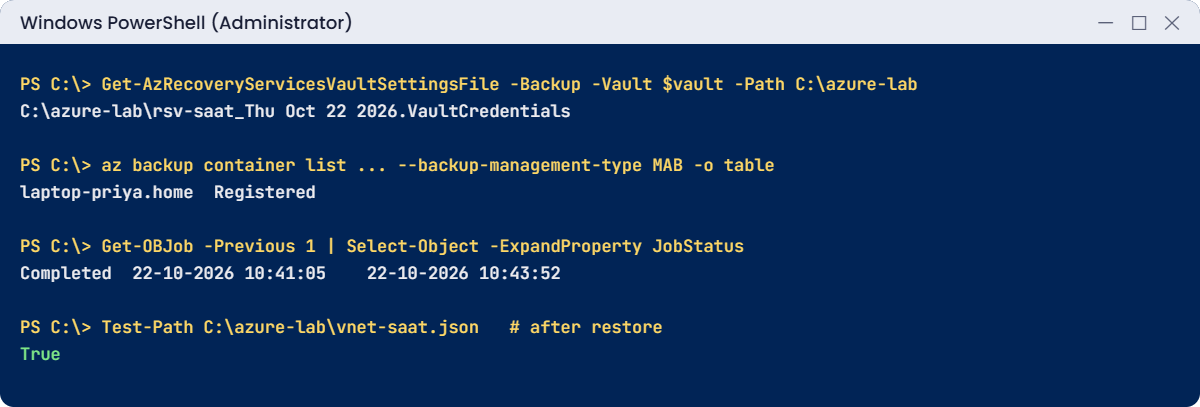
Get-AzRecoveryServicesVaultSettingsFile -Backup -Vault $vault -Path C:\azure-lab
Invoke-WebRequest -Uri https://aka.ms/azurebackup_agent -OutFile C:\azure-lab\MARSAgentInstaller.exe

You should see something like this:

FilePath
--------
C:\azure-lab\rsv-saat_Thu Oct 22 2026.VaultCredentials

The credentials file is valid for 10 days. Treat it like a password: anyone with it can register a machine to your vault.

3Install and register the agent

Install silently:

Start-Process -FilePath C:\azure-lab\MARSAgentInstaller.exe -ArgumentList '/q', '/nu' -Wait

Open Microsoft Azure Backup from the Start menu. Choose Register Server, browse to the .VaultCredentials file, and on the Encryption Setting page click Generate Passphrase. Save the passphrase in your password manager, not in C:\azure-lab.

Click Finish.
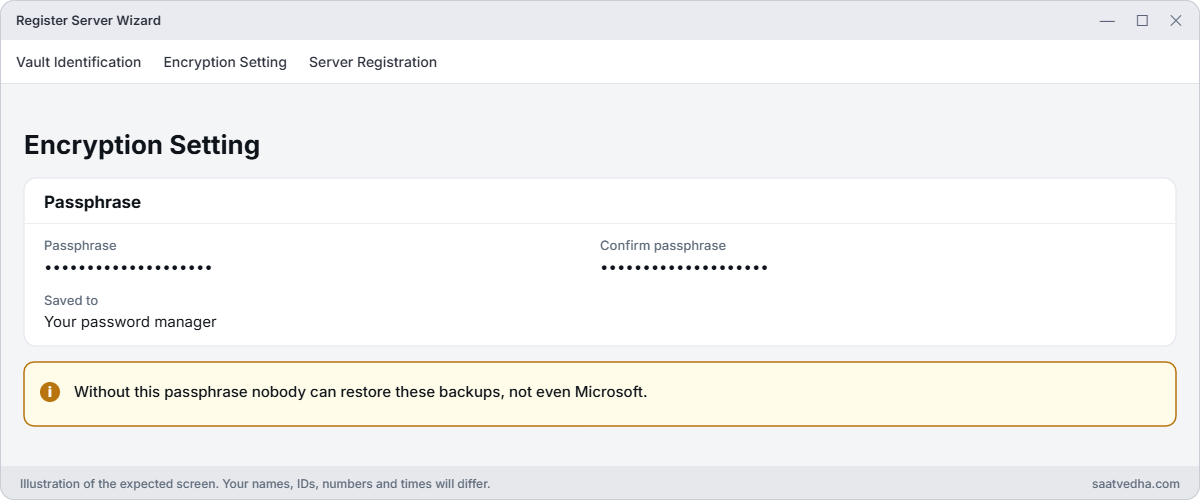
Azure MARS agent register server encryption passphrase
Register the laptop: generate the passphrase and save it in your password manager.

Check the registration from Azure:

az backup container list --resource-group rg-saat-core --vault-name rsv-saat --backup-management-type MAB --query "[].{server:properties.friendlyName, status:properties.registrationStatus}" -o table

You should see something like this:

Server             Status
-----------------  ----------
laptop-priya.home  Registered

4Schedule and run a backup

In the agent console, choose Schedule Backup. Add the folder C:\azure-lab. Leave the exclusions empty for now.

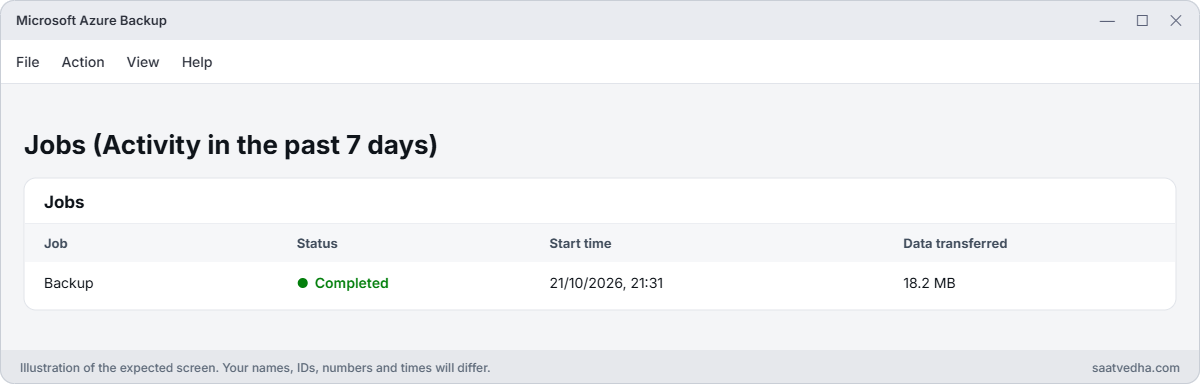
Schedule one backup a day at 21:30, keep daily backups for 30 days, and choose Online initial backup. Finish, then click Back Up Now and wait until the job shows Completed.
Azure MARS agent backup job completed
The first backup of C:\azure-lab has Completed.

Check the job from PowerShell on the laptop:

Import-Module 'C:\Program Files\Microsoft Azure Recovery Services Agent\bin\Modules\MSOnlineBackup'
Get-OBJob -Previous 1 | Select-Object -ExpandProperty JobStatus | Select-Object JobState, StartTime, EndTime

You should see something like this:

JobState   StartTime              EndTime
--------   ---------              -------
Completed  22-10-2026 10:41:05    22-10-2026 10:43:52

5Restore a single file

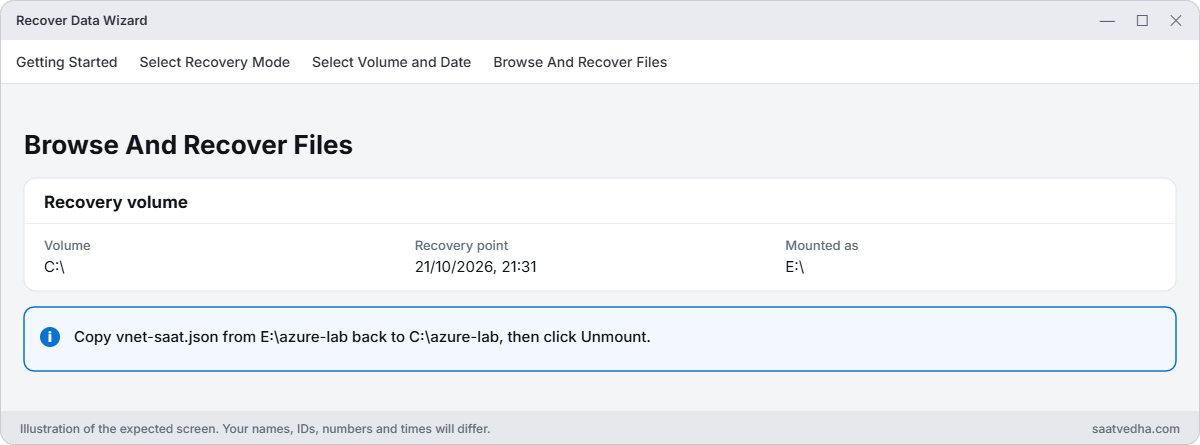
Delete C:\azure-lab\vnet-saat.json (the backup has it). In the agent console, choose Recover Data, This server, Individual files and folders, volume C:, and today’s recovery point. Click Mount: the recovery point appears as a new drive letter.

Copy vnet-saat.json from that drive back to C:\azure-lab, then click Unmount.
Azure MARS agent mount recovery point
The recovery point mounted as drive E:.

Check the file is back:

Test-Path C:\azure-lab\vnet-saat.json

You should see this:

True
Azure MARS agent lab: credentials, registration, backup job and restore
Credentials file, registration, a completed job, and a restored file.

✅ Checkpoint: Your laptop is registered to rsv-saat, C:\azure-lab has a completed backup, and you restored vnet-saat.json from it.

Break It, Then Fix It

Both of these turn up as “the backup is broken” tickets. Neither is.

1Break it: the file that was never backed up

Create a log file, then add an exclusion many admins use to save space:

New-Item -ItemType Directory -Path C:\azure-lab\logs -Force | Out-Null
Set-Content -Path C:\azure-lab\logs\app.log -Value 'important line'

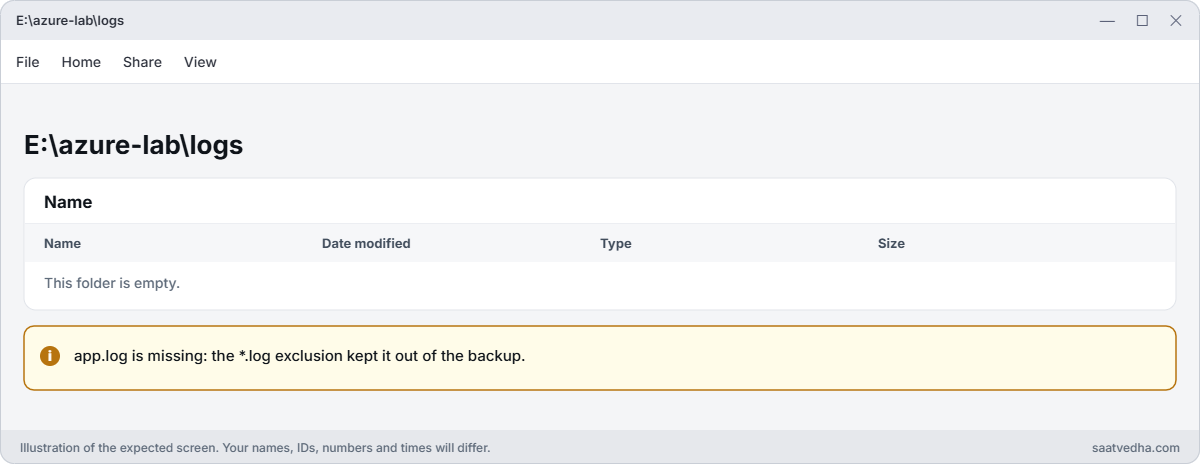
In the agent console, choose Schedule Backup, Change backup items, Exclusion Settings, and add the file type *.log for C:\. Finish, then Back Up Now. Next, delete C:\azure-lab\logs\app.log and try to recover it from today’s new recovery point, as in step 5.
Azure MARS agent exclusion leaves a file out of the backup
The logs folder in the new recovery point: no app.log.

In the mounted recovery point, look for the file:

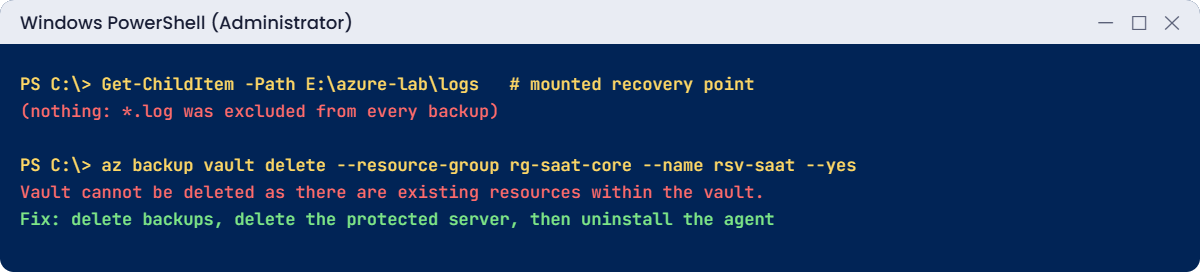
Get-ChildItem -Path E:\azure-lab\logs -ErrorAction SilentlyContinue | Select-Object Name

You should see nothing: the folder is empty or missing (use your mount’s drive letter instead of E:).

The backup ran perfectly; it just never included .log files, because you told it not to. Exclusions apply to every future backup, silently. When a user says “it was in that folder”, check the exclusions before anything else.

Fix it: remove the *.log exclusion in Schedule Backup, and back up again. New log files are protected from the next run on; the deleted one is gone, because no recovery point ever held it.

2Break it: the vault that won’t go away

Pretend the laptop is retired. Try to delete the vault while the laptop is still registered:

az backup vault delete --resource-group rg-saat-core --name rsv-saat --yes

You’ll get this error:

Vault cannot be deleted as there are existing resources within the vault. Please ensure there are no backup items, protected servers, or backup management servers associated with this vault. Unregister the following containers associated with this vault before proceeding for deletion.

The registered laptop is a “protected server”, and its backups are “backup items”. Uninstalling the agent from the laptop first doesn’t remove either; it just leaves an orphan in the vault.

Fix it, in the right order:

  1. In the agent console, choose Schedule Backup, Stop using this backup schedule and delete all the stored backups. Confirm with the security PIN from the vault (Properties, Security PIN) if asked.
  2. In the portal, open rsv-saat, Backup infrastructure, Protected servers, Azure Backup Agent, select your laptop and Delete.
  3. Uninstall Microsoft Azure Recovery Services Agent from Settings, Apps.
az backup container list --resource-group rg-saat-core --vault-name rsv-saat --backup-management-type MAB -o tsv
az backup vault delete --resource-group rg-saat-core --name rsv-saat --yes

The list prints nothing. The delete may still fail with the soft delete message from Lesson 35:

Recovery Services vault cannot be deleted as there are backup items in soft deleted state in the vault. ...

That’s fine: keep rsv-saat. It costs nothing while empty, the soft-deleted data has no charge, and Lesson 39 uses a Recovery Services vault again. Also delete the two downloaded files, including the credentials file, from C:\azure-lab.

Remove-Item C:\azure-lab\*.VaultCredentials, C:\azure-lab\MARSAgentInstaller.exe
Remove-Item C:\azure-lab\logs -Recurse
Azure MARS agent errors: excluded files and a vault that will not delete
Excluded files never reach the vault, and a registered server blocks vault deletion.

✅ Checkpoint: You found an exclusion hiding files, removed the laptop from the vault in the right order, and deleted the credentials file.

This happened at work

The branch office restore that needed a passphrase

A retail chain backed up the file server in each of its 40 shops with MARS. One shop’s server died completely. The IT team built a new server, installed MARS, registered it to the vault and chose “Another server” to restore the shop’s files.

The wizard asked for the passphrase of the old server. Nobody had it: the installer had generated it two years earlier and saved it to a file on the old server’s own C: drive. Microsoft doesn’t store passphrases, so the backups, all present in the vault, could not be decrypted.

The shop rebuilt its files from emails and paper.

What they changed: every passphrase now goes into the company password vault the day the agent is installed, with a monthly check that each server’s passphrase entry exists. Twice a year, IT does a test restore of one shop to a spare machine using “Another server”.

Common mistakes and troubleshooting

MistakeWhat you seeWhat to do
Passphrase saved only on the server itselfCan’t restore after the server diesKeep it in a password vault, tested.
Exclusions added and forgottenFiles missing from every recovery pointReview exclusions when a restore fails.
Vault credentials file older than 10 daysRegistration failsDownload a fresh credentials file.
Cache folder on a nearly full diskBackups fail or slow downMove the cache to a disk with space.
Uninstalling the agent before cleaning the vaultOrphaned server; vault won’t deleteStop backup, delete data, delete the server, then uninstall.
SSL-inspecting proxy in the pathConnection errors to AzureBypass inspection for Azure Backup endpoints.

Interview questions

Click a question to open it. Each one is written the way an interviewer would ask it. Under it you will see why they ask it and one way you could answer, in your own words.

Fresher level

1. What is the MARS agent?

Why they ask this: The basic concept.

How you might answer: The Microsoft Azure Recovery Services agent, which backs up files, folders and system state from Windows machines directly to a Recovery Services vault, without a backup server.

2. What do you need to register a server with MARS?

Why they ask this: A setup basics question.

How you might answer: A Recovery Services vault, a vault credentials file downloaded from it within the last 10 days, the agent installed, and an encryption passphrase of at least 16 characters.

3. Can Microsoft recover a lost MARS passphrase?

Why they ask this: A must-know warning.

How you might answer: No. Data is encrypted on the machine with the passphrase, and Microsoft doesn’t store it. Without it you can’t restore to another machine.

2–5 years experience

4. A user says a file is missing from yesterday’s backup. How do you investigate?

Why they ask this: A real ticket.

How you might answer: Check the job succeeded, then the protected items and exclusions in the schedule, then whether the file existed at backup time, and file type or path exclusions. Then mount the recovery point and look directly.

5. MARS backups started failing after a network change. What do you check?

Why they ask this: They want network thinking.

How you might answer: Outbound HTTPS to the Azure Backup and Entra ID endpoints, any new proxy or SSL inspection, DNS resolution, and the agent’s logs. A test from the server to the endpoints usually shows the problem.

6. When would you use MARS instead of Azure VM backup?

Why they ask this: They want the right tool.

How you might answer: For on-premises or other-cloud Windows machines, or when only certain folders on an Azure VM need protection. For whole Azure VMs, VM backup is simpler and restores the entire machine.

Senior level

7. How would you run MARS across 200 branch servers?

Why they ask this: They want scale.

How you might answer: Silent installs with a script, registration by PowerShell, standard policies, passphrases stored per server in a password vault, alerts from the vault for failed jobs, and a yearly restore test per region. For larger needs I’d look at Azure Backup Server or an enterprise backup tool.

8. How do you protect MARS backups from an attacker on the server?

Why they ask this: They want security depth.

How you might answer: Soft delete and security PIN requirements on the vault, so critical operations need a PIN from the portal. Separate admin accounts for the vault, alerts on deletions, and immutable vault settings where available.

9. What are MARS’s limits?

Why they ask this: They want honesty about the tool.

How you might answer: Windows only, file and folder or system state level, up to three backups a day, and restores need the passphrase. It isn’t an application-aware backup for databases, so SQL or Exchange need other methods.

Quick quiz

Q1. Which OS does the MARS agent support?

  1. Linux only
  2. Windows
  3. macOS
  4. Any
Show answer

B — MARS runs on Windows Server and client.

Q2. How long is a vault credentials file valid?

  1. 1 day
  2. 10 days
  3. 90 days
  4. Forever
Show answer

B — Download a fresh one if it’s older than 10 days.

Q3. What is the minimum passphrase length?

  1. 8
  2. 12
  3. 16
  4. 32
Show answer

C — At least 16 characters.

Q4. A *.log exclusion was added. What happens to .log files?

  1. Backed up anyway
  2. Never included
  3. Moved to Archive
  4. Encrypted twice
Show answer

B — Excluded types are silently skipped.

Q5. Why does a vault with a registered MARS server refuse deletion?

  1. Wrong region
  2. It has protected servers and items
  3. The passphrase is weak
  4. Soft delete is off
Show answer

B — Remove backup data and the server first.

Quick recap

You can now back up and restore files from any Windows machine to Azure, and avoid the classic traps.

  • MARS backs up files, folders and system state to a vault.
  • Credentials file valid 10 days; passphrase at least 16 characters.
  • Store the passphrase safely; Microsoft can’t recover it.
  • Exclusions silently skip files; check them first.
  • Clean up in order: data, server, then agent.

Next lesson

Lesson 37: Commvault with Azure Blob storage → You design a Commvault-to-Azure Blob setup and troubleshoot it with a simulated lab.

Further reading: Azure MARS agent

Want to go deeper into Azure MARS agent? See Microsoft’s About the MARS agent and Back up Windows machines with the MARS agent. You can also see the full plan for this course on the Azure Cloud Administration course page.

Scroll to Top