Microsoft Entra ID Basics: Tenant, Users, Groups

Microsoft Entra ID is where Azure decides who you are. Every sign-in to the portal, every CLI command and every Microsoft 365 login starts there. It used to be called Azure Active Directory (Azure AD), and you’ll still see that name in older scripts and blog posts.

In this lesson you look inside the tenant that was created with your free account, find its domain name, and see what your own account looks like from the inside. Then you create two users and a group, the same way a helpdesk does on a new joiner’s first day.

You’ll keep these users for the next lessons, where they get Azure roles and a Conditional Access policy.

TimeYou needCostBy the end you can
About 40 minutesThe Azure CLI from Lesson 3, signed in as the account ownerNothing (Entra ID Free is included)Find your tenant and domain, create users and groups, and explain directory roles vs Azure roles

What it is, in one line

Microsoft Entra ID is the company’s address book and security desk in the cloud: it holds the users and groups, and it checks who they are when they sign in.

In Simple Words

The school office and its register

Every school has an office with a register: each student’s name, class and roll number. When a student wants to borrow a library book, the librarian checks the register first.

Entra ID is that office for a company. The tenant is the whole school’s register. A user is one student.

A group is a class, so the teacher can give the whole class permission at once instead of naming each child.

The office only says who you are. What you’re allowed to borrow is decided by each library, and in Azure, that’s the next lesson’s topic.

Engineer's View

Tenants, objects and two kinds of roles

  • Tenant: one dedicated instance of Entra ID, with a unique tenant ID (a GUID) and at least one domain, like priyakoutlook.onmicrosoft.com. Companies add their own verified domain, such as contoso.com, so users sign in with familiar names.
  • Users: members (people in your organisation) and guests (people from outside, invited with B2B). Each has an object ID that never changes and a user principal name (UPN) that can.
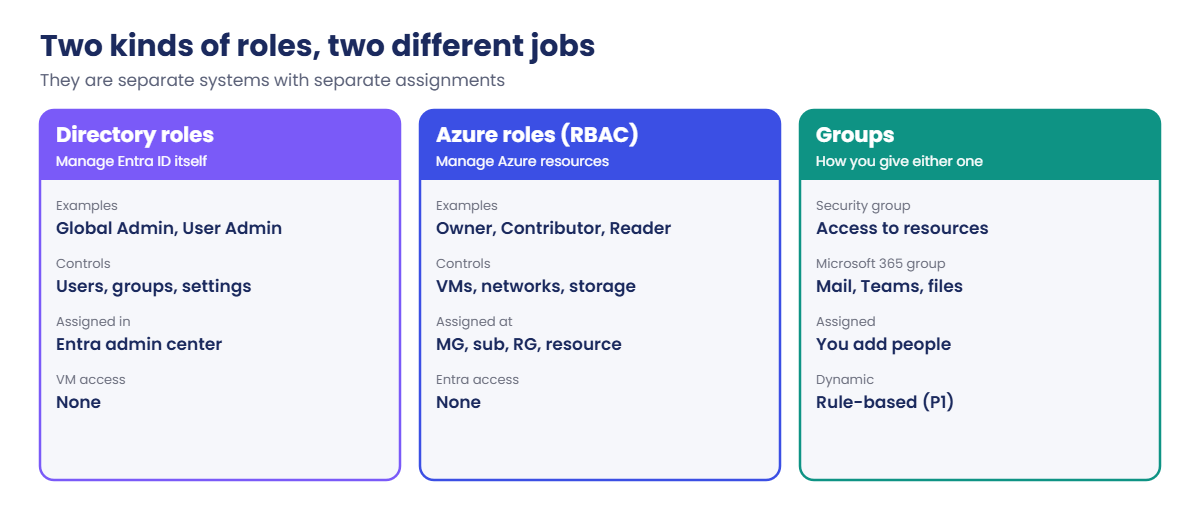
  • Groups: security groups for access, and Microsoft 365 groups for a shared mailbox, Teams and files. Membership is assigned (you add people) or dynamic (a rule like department equals “IT”). Dynamic groups need Entra ID P1.
  • Directory roles such as Global Administrator, User Administrator and Helpdesk Administrator control Entra ID itself: users, groups and settings. Azure roles (RBAC) such as Owner and Contributor control Azure resources. They are separate systems. A Global Administrator has no access to VMs until they elevate or get an Azure role.

Entra ID Free comes with every Azure subscription and is enough for users, groups and basic MFA through security defaults, which new tenants have turned on. P1 adds Conditional Access and dynamic groups; P2 adds Identity Protection and Privileged Identity Management (PIM).

If you signed up with a personal Microsoft account, you are an external identity in your own tenant. Your UPN looks like priya.k_outlook.com#EXT#@priyakoutlook.onmicrosoft.com: your email, with @ turned into _, then #EXT# and the tenant’s domain. Users you create in the tenant get normal UPNs.

How it works, step by step

Here is what happens when someone signs in to Azure with an Entra ID account:

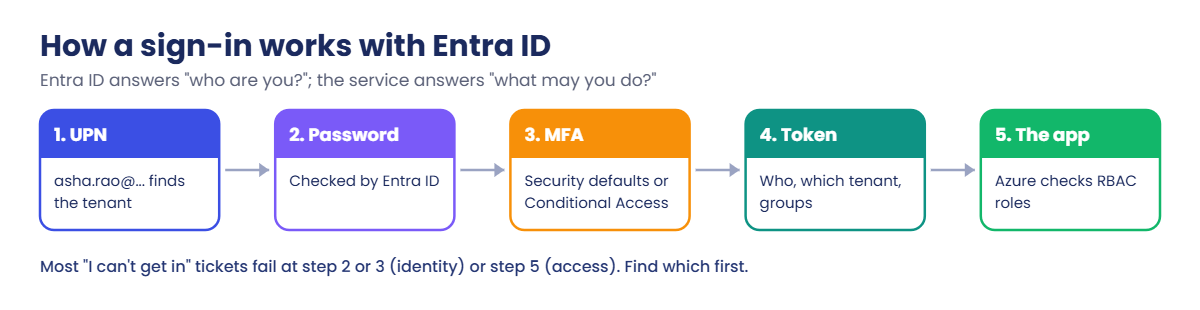
Microsoft Entra ID sign-in flow: UPN, password, MFA, token and app
  1. The user types their UPN. Entra ID looks up which tenant owns that domain.
  2. Entra ID checks the password, then MFA (security defaults or Conditional Access decide when MFA is needed).
  3. Entra ID issues a token that lists who the user is, which tenant, and, for some apps, which groups they’re in.
  4. The app, for example Azure Resource Manager, reads the token and decides what the user may do. For Azure, that decision is RBAC.

So Entra ID answers “who are you?”, and each service answers “what may you do?”. Most “I can’t get in” tickets are one of the two. Asking which one it is saves a lot of time.

Microsoft Entra ID directory roles compared with Azure RBAC roles and groups

The habit that makes all of this manageable: give access to groups, not to single people. When someone joins the helpdesk, you add them to the helpdesk group and they get everything at once. When they leave, you remove them once.

Hands-on lab: build a small helpdesk team

You read your tenant’s details, then create a small helpdesk team: two users and one security group. Everything here is free and stays in your tenant for the next lessons.

1Find your tenant’s domain

Run this:

az rest --method get --url "https://graph.microsoft.com/v1.0/domains" --query "value[].{name:id, isDefault:isDefault, verified:isVerified}" -o table

You should see something like this:

Name                           IsDefault    Verified
-----------------------------  -----------  ----------
priyakoutlook.onmicrosoft.com  True         True

az rest can call Microsoft Graph as well as Azure Resource Manager. Graph is the API for Entra ID and Microsoft 365. Save the domain for the next steps:

$domain = az rest --method get --url "https://graph.microsoft.com/v1.0/domains" --query "value[?isDefault].id" -o tsv
$domain

You should see something like this:

priyakoutlook.onmicrosoft.com

2See your own account from the inside

Run this:

az ad signed-in-user show --query "{name:displayName, upn:userPrincipalName}" -o table

You should see something like this:

Name     Upn
-------  ------------------------------------------------------
Priya K  priya.k_outlook.com#EXT#@priyakoutlook.onmicrosoft.com

If you signed up with a personal Microsoft account, you’ll see #EXT# like this. If you signed up some other way, you may see a normal UPN. Both are fine.

3Create two users

Each user needs a starting password. Instead of typing one, let PowerShell make a long random one. Users must change it at first sign-in.

Paste this whole block:

$users = @(
    @{ name = 'Asha Rao';   upn = "asha.rao@$domain" },
    @{ name = 'Ravi Menon'; upn = "ravi.menon@$domain" }
)
foreach ($u in $users) {
    $pw = 'Lab-' + [guid]::NewGuid().ToString('N').Substring(0, 12) + '!'
    az ad user create --display-name $u.name --user-principal-name $u.upn --password $pw --force-change-password-next-sign-in true -o none
    "{0}  {1}" -f $u.upn, $pw
}

You should see something like this (your passwords will be different):

asha.rao@priyakoutlook.onmicrosoft.com  Lab-3f9c0a61b7d2!
ravi.menon@priyakoutlook.onmicrosoft.com  Lab-a08e5c71f4b9!

Copy both lines into a password manager now. You’ll sign in as Asha in Lesson 7 and Lesson 9. If you lose them, you can set a new one later with az ad user update --id <upn> --password <new>.

4Create a security group and add the users

Run this:

az ad group create --display-name grp-saat-helpdesk --mail-nickname grp-saat-helpdesk --description "Course lab: helpdesk team" -o none
$asha = az ad user show --id "asha.rao@$domain" --query id -o tsv
$ravi = az ad user show --id "ravi.menon@$domain" --query id -o tsv
az ad group member add --group grp-saat-helpdesk --member-id $asha
az ad group member add --group grp-saat-helpdesk --member-id $ravi
az ad group member list --group grp-saat-helpdesk --query "[].{name:displayName, upn:userPrincipalName}" -o table

You should see something like this:

Name        Upn
----------  ----------------------------------------
Asha Rao    asha.rao@priyakoutlook.onmicrosoft.com
Ravi Menon  ravi.menon@priyakoutlook.onmicrosoft.com

--member-id needs the user’s object ID, not their UPN. That’s why you looked the IDs up first. Object IDs never change, even if the person’s name or UPN does.
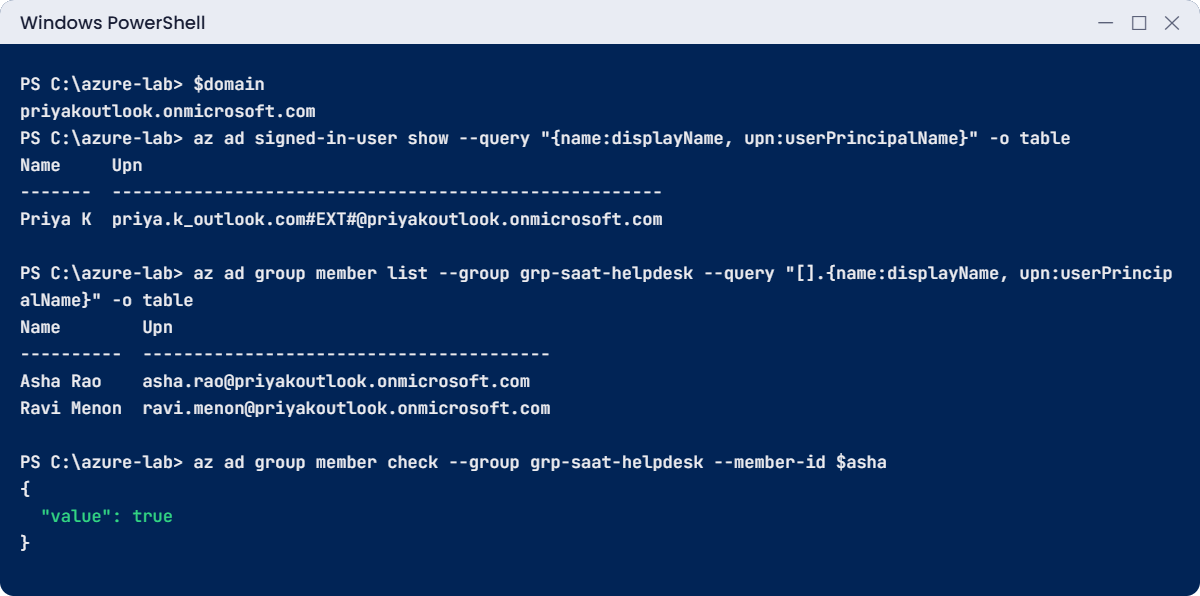
Microsoft Entra ID lab: domain, external account UPN and helpdesk group members
Example output. Your domain and names will be different.

5Check a membership the way an app would

Run this:

az ad group member check --group grp-saat-helpdesk --member-id $asha

You should see this:

{
  "value": true
}

6Sign in once as Asha

Open a private (InPrivate or Incognito) browser window and go to portal.azure.com. Sign in as asha.rao@ with her starting password. Entra ID asks for a new password, and because security defaults are on, it also asks Asha to set up Microsoft Authenticator.

Do both.

Asha now gets into the portal, but she sees no subscriptions and no resources. She has an identity, but no Azure role yet. That is exactly the split from the “How it works” section, and you’ll fix it in Lesson 7.

Close the private window.

✅ Checkpoint: grp-saat-helpdesk has two members, Asha has signed in once with MFA, and both passwords are saved somewhere safe.

There’s nothing to clean up: Entra ID users and groups cost nothing, and you’ll use them again. Running C:\azure-lab\Find-LabResources.ps1 still shows nothing, because Entra objects aren’t Azure resources.

Break It, Then Fix It

Two errors every helpdesk hits when creating users. Both are clear once you know what Entra ID is checking.

1Break it: a UPN with a domain you don’t own

Run this:

az ad user create --display-name "Test User" --user-principal-name "test.user@saatvedha.com" --password ('Lab-' + [guid]::NewGuid().ToString('N').Substring(0, 12) + '!')

You’ll get an error like this:

ERROR: The domain portion of the userPrincipalName property is invalid. You must use one of the verified domain names in your organization.

A UPN must end in a domain that is verified in this tenant. You’d see the same error at work if someone adds a user with the company’s email domain before the domain is verified in Entra ID, or with a typo in the domain.

Fix it: use the tenant’s domain:

az ad user create --display-name "Test User" --user-principal-name "test.user@$domain" --password ('Lab-' + [guid]::NewGuid().ToString('N').Substring(0, 12) + '!') --query userPrincipalName -o tsv

You should see something like this:

test.user@priyakoutlook.onmicrosoft.com

2Break it: a short, simple password

Run this:

az ad user update --id "test.user@$domain" --password "asha123"

You’ll get an error like this:

ERROR: The specified password does not comply with password complexity requirements. Please provide a different password.

Entra ID needs at least 8 characters, with three of these four: uppercase, lowercase, numbers and symbols. asha123 has only two of them. Good: helpdesks that “just set it to something easy” are how accounts get taken over.

Fix it: don’t invent passwords at all. Delete the test user, which you no longer need:

az ad user delete --id "test.user@$domain"
az ad user list --query "[?contains(userPrincipalName,'test.user')].userPrincipalName" -o tsv

You should see nothing printed by the second command.
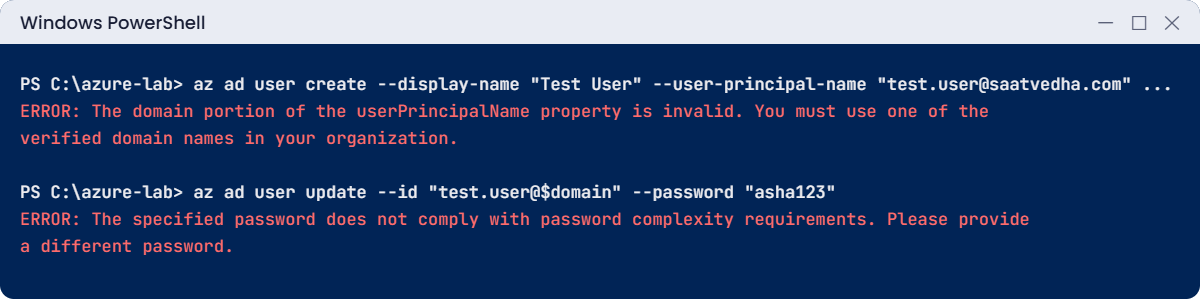
Microsoft Entra ID errors: unverified UPN domain and weak password
Example output of both mistakes.

✅ Checkpoint: Both errors reproduced, the test user deleted, and Asha and Ravi are still in grp-saat-helpdesk.

This happened at work

The admin account nobody remembered

A manufacturing company synced its office staff from on-premises Active Directory to Entra ID. Leavers were handled well: HR closed the AD account, and the cloud account was disabled within the hour.

But two years earlier, a contractor had been given a separate cloud-only account, admin.vendor@contoso.onmicrosoft.com, with the User Administrator role, to set up a new app. It wasn’t in Active Directory, so the leaver process never saw it. A password spray attack found it, the password was weak, and there was no MFA on it because it had been excluded “temporarily”.

The attacker reset passwords for a dozen accounts before the security team noticed odd sign-ins from abroad.

What they changed: no cloud-only accounts without an owner and an expiry date. A monthly report lists every account with a directory role, and each owner must confirm it. All admin roles now need MFA through Conditional Access, with no exclusions except two monitored emergency accounts.

Common mistakes and troubleshooting

MistakeWhat you seeWhat to do
Confusing directory roles with Azure rolesGlobal Admin “can’t see” a VMDirectory roles manage Entra ID. Give an Azure role (Lesson 7) for resources.
Using a UPN as --member-idAn error about the object IDLook up the object ID with az ad user show --query id.
Creating a group that already existsaz returns the old group, no errorCheck first, or pass --force only if you really want a second group.
Giving access to single usersAccess sprawl nobody can reviewGive access to groups; add and remove people from groups.
Typing passwords by handWeak or reused passwordsGenerate them, force a change at first sign-in, and use a password manager.
Cloud-only accounts with no ownerOld admin accounts that never get removedGive every account an owner and an expiry, and review directory roles monthly.

Interview questions

Click a question to open it. Each one is written the way an interviewer would ask it. Under it you will see why they ask it and one way you could answer, in your own words.

Fresher level

1. What is Microsoft Entra ID, in simple words?

Why they ask this: They want a clear basic definition, and to see you know the new name.

How you might answer: It’s Microsoft’s cloud identity service, the new name for Azure Active Directory. It holds users, groups and apps, checks who someone is when they sign in, and gives them a token that Azure and Microsoft 365 trust.

2. What’s the difference between a member user and a guest user?

Why they ask this: A common basic question about B2B.

How you might answer: A member belongs to our organisation and usually has a UPN in our domain. A guest is someone from outside, invited with B2B, who signs in with their own company or personal account and gets only the access we give them.

3. Why do we give access to groups instead of single users?

Why they ask this: They want to see good habits around access management.

How you might answer: Because people join, move and leave all the time. If access is on a group, I change one membership and everything follows. It’s also much easier to review who has access when there are a few groups instead of hundreds of single assignments.

2–5 years experience

4. A Global Administrator says they can’t see any VMs in the portal. How is that possible?

Why they ask this: They’re checking that you know Entra directory roles and Azure RBAC are separate.

How you might answer: Global Administrator is a directory role for Entra ID. It doesn’t give access to Azure resources by itself. They need an Azure role like Reader on the subscription, or they can use “Access management for Azure resources” to elevate, which gives User Access Administrator at the root scope so they can grant themselves a role.

I’d prefer a proper role assignment over elevation for daily work.

5. How would you create fifty new users for a new office quickly and safely?

Why they ask this: They want scripting skills plus safe password handling.

How you might answer: I’d take a CSV from HR and loop over it with the Azure CLI or Microsoft Graph PowerShell, generating a random starting password for each and forcing a change at first sign-in. I’d add them to the right groups in the same script.

If the company has on-premises AD, the right answer is often to create them there and let Entra Connect sync them.

6. What does “security defaults” do, and when would you turn it off?

Why they ask this: They want to know you understand baseline MFA and the move to Conditional Access.

How you might answer: Security defaults turn on MFA registration for everyone, require MFA for admins and for risky situations, and block legacy authentication. It costs nothing and is on by default for new tenants.

I’d only turn it off when I replace it with Conditional Access policies that do at least the same, which needs Entra ID P1.

Senior level

7. You find thirty cloud-only accounts with admin roles and no clear owner. What do you do?

Why they ask this: They want a careful clean-up plan that doesn’t cause an outage.

How you might answer: First I’d export them with their roles, last sign-in time and who created them, from the audit and sign-in logs. Accounts unused for 90 days I’d disable, not delete, and announce it; the rest get an owner who must confirm they’re needed.

Then I’d prevent it recurring: roles only through PIM with approval and expiry, and an access review every quarter.

8. How would you design admin accounts for a team of five Azure admins?

Why they ask this: They’re checking separation of daily and privileged identities.

How you might answer: Each admin gets a separate admin account, without mailbox, used only for admin work, with phishing-resistant MFA. Roles are eligible through PIM, not permanent, so they activate them for a few hours with a reason.

Two emergency accounts sit outside normal policies, use FIDO2 keys and alert on every sign-in.

9. A user’s UPN changed after marriage, and an app stopped recognising her. Why, and how do you prevent it?

Why they ask this: They want to see you know UPNs can change but object IDs don’t.

How you might answer: The app probably stored her UPN or email as the key. When the UPN changed, it looked like a new person. Apps should store the object ID, which never changes.

For now I’d update the mapping in the app, and I’d raise the design issue with the app owner.

Quick quiz

Q1. What was Microsoft Entra ID called before?

  1. Active Directory Domain Services
  2. Azure Active Directory
  3. Azure AD B2C
  4. Microsoft Account
Show answer

B — Azure AD was renamed Microsoft Entra ID.

Q2. A Global Administrator can’t see VMs. Why?

  1. Their MFA failed
  2. Directory roles don’t give access to Azure resources
  3. VMs are hidden from admins
  4. The tenant is full
Show answer

B — Azure resources need an Azure (RBAC) role.

Q3. What does az ad group member add need for --member-id?

  1. The UPN
  2. The display name
  3. The object ID
  4. The email address
Show answer

C — It needs the object ID, which never changes.

Q4. Why did test.user@saatvedha.com fail?

  1. The password was weak
  2. The domain isn’t verified in this tenant
  3. Users can’t have dots
  4. The CLI was too old
Show answer

B — A UPN must use a verified domain of the tenant.

Q5. Which feature needs Entra ID P1?

  1. Creating users
  2. Security groups
  3. Dynamic groups
  4. Security defaults
Show answer

C — Dynamic membership rules need P1. The others are in Entra ID Free.

Quick recap

You now know where identity lives in Azure, and you have a small helpdesk team to use in the coming lessons.

  • Entra ID (formerly Azure AD) answers “who are you?”; each service then decides what you may do.
  • A tenant has users, groups and at least one domain like name.onmicrosoft.com.
  • Directory roles manage Entra ID; Azure roles (RBAC) manage resources. They are separate.
  • Give access to groups, use object IDs in scripts, and never invent passwords by hand.
  • Asha, Ravi and grp-saat-helpdesk stay in your tenant for Lessons 7 to 9.

Next lesson

Lesson 6: The Azure hierarchy: management groups to resource groups → You build the layers above your resources: management groups, subscriptions and resource groups, and see how settings flow down.

Further reading: Microsoft Entra ID

Want to go deeper into Microsoft Entra ID? Start with Microsoft’s What is Microsoft Entra ID?, and compare the two kinds of roles in Azure roles, Microsoft Entra roles, and classic subscription administrator roles. You can also see the full plan for this course on the Azure Cloud Administration course page.

Scroll to Top