
Load the network IDs and start both VMs:
$v = Get-Content C:\azure-lab\vnet-saat.json | ConvertFrom-Json
az vm start --resource-group rg-saat-vms --name web01
az vm start --resource-group rg-saat-vms --name win011Create the course Log Analytics workspace
This workspace stays for the rest of the course. The daily cap of 0.1 GB protects you from a runaway bill:
az monitor log-analytics workspace create --resource-group rg-saat-core --name law-saat --location centralindia --retention-time 30 --quota 0.1 --tags course=saatvedha-azure lesson=32 keep=true -o none
$lawId = az monitor log-analytics workspace show --resource-group rg-saat-core --name law-saat --query id -o tsv
$ws = az monitor log-analytics workspace show --resource-group rg-saat-core --name law-saat --query customerId -o tsv
az monitor log-analytics workspace show --resource-group rg-saat-core --name law-saat --query "{name:name, sku:sku.name, retention:retentionInDays, dailyCapGb:workspaceCapping.dailyQuotaGb}" -o table
You should see this:
Name      Sku          Retention    DailyCapGb
--------  -----------  -----------  ------------
law-saat PerGB2018 30 0.12Give the VMs a way out
Same NAT Gateway as Lesson 30, for this lab only:
az network public-ip create --resource-group rg-saat-core --name pip-saat-natgw --sku Standard --location centralindia --tags course=saatvedha-azure lesson=32 -o none
az network nat gateway create --resource-group rg-saat-core --name natgw-saat --public-ip-addresses pip-saat-natgw --idle-timeout 4 --location centralindia --tags course=saatvedha-azure lesson=32 -o none
az network vnet subnet update --ids $v.'snet-web' --nat-gateway natgw-saat -o none
az network vnet subnet update --ids $v.'snet-mgmt' --nat-gateway natgw-saat -o none3Install the agent on both VMs
Turn on the system-assigned identity, then add the extension:
az vm identity assign --resource-group rg-saat-vms --name web01 -o none
az vm identity assign --resource-group rg-saat-vms --name win01 -o none
az vm extension set --resource-group rg-saat-vms --vm-name web01 --name AzureMonitorLinuxAgent --publisher Microsoft.Azure.Monitor --enable-auto-upgrade true -o none
az vm extension set --resource-group rg-saat-vms --vm-name win01 --name AzureMonitorWindowsAgent --publisher Microsoft.Azure.Monitor --enable-auto-upgrade true -o none
az vm extension list --resource-group rg-saat-vms --vm-name win01 --query "[?publisher=='Microsoft.Azure.Monitor'].{name:name, state:provisioningState}" -o table
You should see this:
Name                      State
------------------------  ---------
AzureMonitorWindowsAgent Succeeded4Write a data collection rule
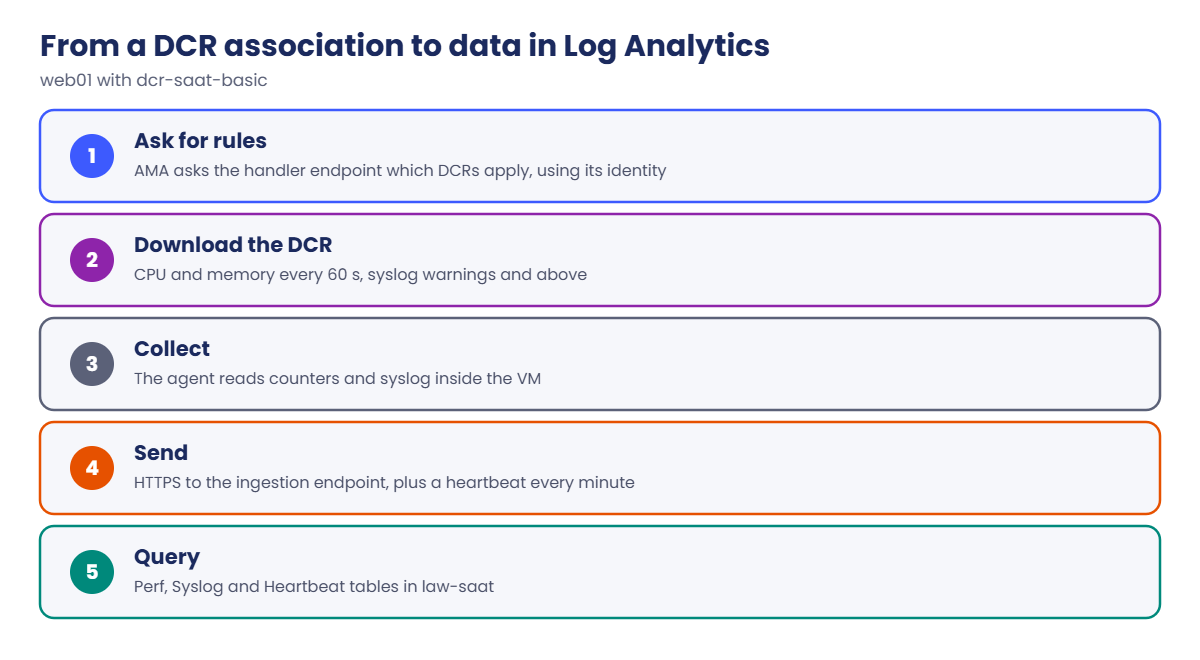
CPU and memory every 60 seconds, syslog warnings and above, and Windows System and Application errors and warnings:
$dcr = @{
  location   = 'centralindia'
  properties = @{
    dataSources = @{
      performanceCounters = @(@{ name = 'perfBasic'; streams = @('Microsoft-Perf'); samplingFrequencyInSeconds = 60
        counterSpecifiers = @('\Processor Information(_Total)\% Processor Time', '\Memory\Available Bytes',
                              'Processor(*)\% Processor Time', 'Memory(*)\Available MBytes Memory') })
      syslog = @(@{ name = 'syslogBasic'; streams = @('Microsoft-Syslog'); facilityNames = @('auth', 'daemon', 'syslog', 'user')
        logLevels = @('Warning', 'Error', 'Critical', 'Alert', 'Emergency') })
      windowsEventLogs = @(@{ name = 'eventsBasic'; streams = @('Microsoft-Event')
        xPathQueries = @('System!*[System[(Level=1 or Level=2 or Level=3)]]', 'Application!*[System[(Level=1 or Level=2 or Level=3)]]') })
    }
    destinations = @{ logAnalytics = @(@{ name = 'law'; workspaceResourceId = $lawId }) }
    dataFlows = @(@{ streams = @('Microsoft-Perf', 'Microsoft-Syslog', 'Microsoft-Event'); destinations = @('law') })
  }
}
$dcr | ConvertTo-Json -Depth 10 | Set-Content -Path C:\azure-lab\dcr-basic.json
$sub = az account show --query id -o tsv
$dcrId = "/subscriptions/$sub/resourceGroups/rg-saat-core/providers/Microsoft.Insights/dataCollectionRules/dcr-saat-basic"
az rest --method put --url "https://management.azure.com${dcrId}?api-version=2022-06-01" --body '@C:\azure-lab\dcr-basic.json' --query "properties.provisioningState" -o tsv
You should see this:
Succeeded5Associate it with web01 and check the data
Run this, then wait about 10 minutes:
Set-Content -Path C:\azure-lab\dcr-assoc.json -Value ('{"properties": {"dataCollectionRuleId": "' + $dcrId + '"}}')
$id = az vm show --resource-group rg-saat-vms --name web01 --query id -o tsv
az rest --method put --url "https://management.azure.com${id}/providers/Microsoft.Insights/dataCollectionRuleAssociations/dcra-saat-basic?api-version=2022-06-01" --body '@C:\azure-lab\dcr-assoc.json' -o none
az vm run-command invoke --resource-group rg-saat-vms --name web01 --command-id RunShellScript --scripts 'logger -p user.err saatvedha test error' -o none
Start-Sleep -Seconds 600
az monitor log-analytics query --workspace $ws --analytics-query "Heartbeat | summarize LastSeen=max(TimeGenerated) by Computer, Category" -o table
az monitor log-analytics query --workspace $ws --analytics-query "Syslog | where SyslogMessage has 'saatvedha' | project TimeGenerated, Computer, SeverityLevel, SyslogMessage" -o table
You should see something like this:
Category              Computer    LastSeen                      TableName
--------------------  ----------  ----------------------------  -------------
Azure Monitor Agent   web01       2026-10-20T18:52:10.000Z      PrimaryResult
Computer    SeverityLevel    SyslogMessage            TableName      TimeGenerated
----------  ---------------  -----------------------  -------------  ----------------------------
web01       err              saatvedha test error     PrimaryResult  2026-10-20T18:44:31.000Z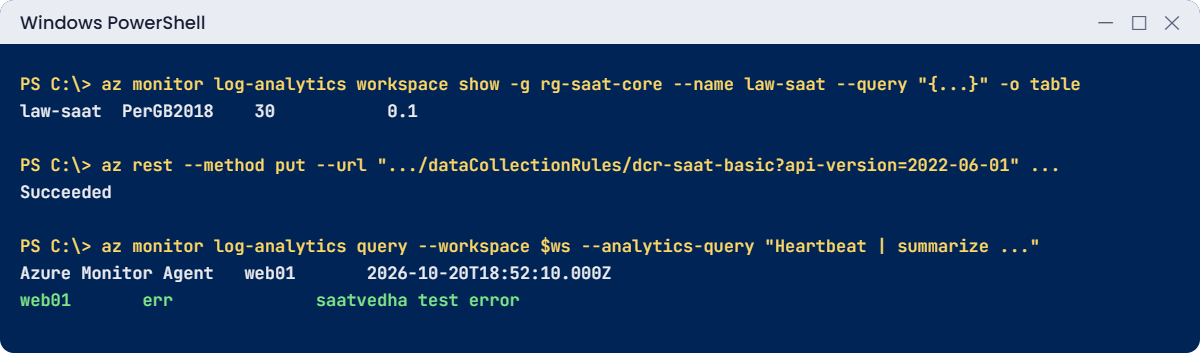
✅ Checkpoint: law-saat exists with a 0.1 GB daily cap, AMA runs on both VMs, and web01 sends heartbeats and syslog through dcr-saat-basic.
Keep both VMs running for these two.
1Break it: agent installed, no data
win01 has the agent and shows Succeeded. Write a test event on it and look for it:
az vm run-command invoke --resource-group rg-saat-vms --name win01 --command-id RunPowerShellScript --scripts 'eventcreate /T ERROR /ID 900 /L APPLICATION /SO SaatLab /D SaatvedhaTest' -o none
Start-Sleep -Seconds 300
az monitor log-analytics query --workspace $ws --analytics-query "Heartbeat | where Computer startswith 'win01' | count" -o table
You should see this:
Count    TableName
-------  -------------
0        PrimaryResult
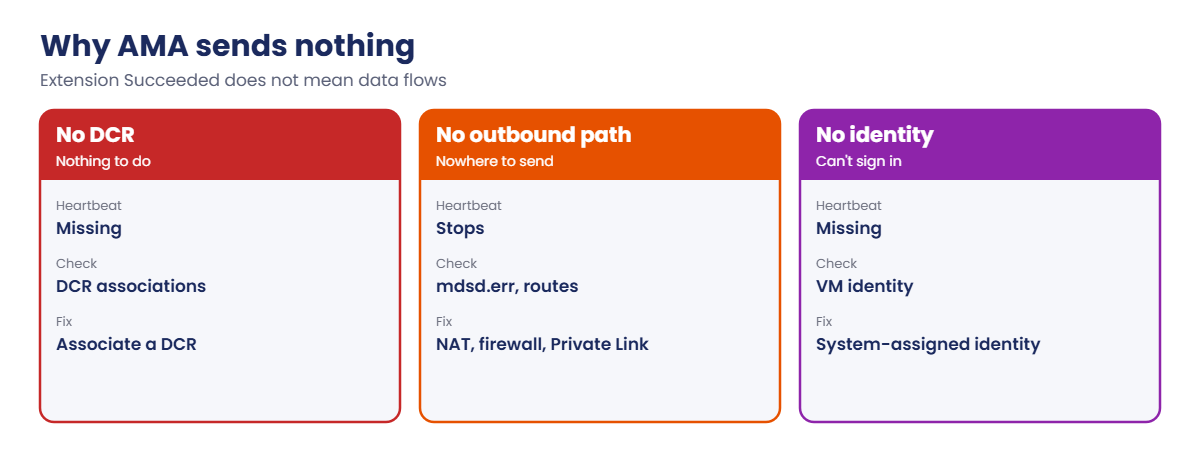
No heartbeat, no events. The agent is healthy but has no DCR, so it has nothing to do and nowhere to send it. This is the most common AMA ticket: the extension went on through a policy or a script, the DCR association didn’t.
Fix it: associate the DCR with win01, wait, and check again:
Set-Content -Path C:\azure-lab\dcr-assoc.json -Value ('{"properties": {"dataCollectionRuleId": "' + $dcrId + '"}}')
$id = az vm show --resource-group rg-saat-vms --name win01 --query id -o tsv
az rest --method put --url "https://management.azure.com${id}/providers/Microsoft.Insights/dataCollectionRuleAssociations/dcra-saat-basic?api-version=2022-06-01" --body '@C:\azure-lab\dcr-assoc.json' -o none
Start-Sleep -Seconds 300
az vm run-command invoke --resource-group rg-saat-vms --name win01 --command-id RunPowerShellScript --scripts 'eventcreate /T ERROR /ID 901 /L APPLICATION /SO SaatLab /D SaatvedhaTest' -o none
Start-Sleep -Seconds 300
az monitor log-analytics query --workspace $ws --analytics-query "Event | where Source == 'SaatLab' | project TimeGenerated, Computer, EventLevelName, RenderedDescription" -o table
You should see something like this:
Computer    EventLevelName    RenderedDescription    TableName      TimeGenerated
----------  ----------------  ---------------------  -------------  ----------------------------
win01       Error             SaatvedhaTest          PrimaryResult  2026-10-20T19:03:12.000Z
Events are collected from the moment the agent receives the rule, so write a fresh test event after any DCR change.
2Break it: the heartbeat stops
Remove the NAT Gateway from snet-web, wait, and compare the two VMs:
az network vnet subnet update --ids $v.'snet-web' --remove natGateway -o none
Start-Sleep -Seconds 900
az monitor log-analytics query --workspace $ws --analytics-query "Heartbeat | summarize LastSeen=max(TimeGenerated) by Computer | extend MinutesAgo=datetime_diff('minute', now(), LastSeen)" -o table
You should see something like this:
Computer    LastSeen                      MinutesAgo    TableName
----------  ----------------------------  ------------  -------------
web01       2026-10-20T19:05:10.000Z      14            PrimaryResult
win01       2026-10-20T19:19:40.000Z      0             PrimaryResult
web01 went quiet 14 minutes ago while win01 keeps reporting. The agent can’t reach the ingestion endpoints from a private subnet with no outbound path. Its local log on Linux, /var/opt/microsoft/azuremonitoragent/log/mdsd.err, shows connection errors.
In production this looks like “the server stopped logging” during the incident you most need logs for.
Fix it: restore an outbound path (NAT Gateway, firewall rules for the Azure Monitor endpoints, or Azure Monitor Private Link Scope), then check:
az network vnet subnet update --ids $v.'snet-web' --nat-gateway natgw-saat -o none
Start-Sleep -Seconds 300
az monitor log-analytics query --workspace $ws --analytics-query "Heartbeat | where Computer == 'web01' | summarize LastSeen=max(TimeGenerated)" -o table
You should see a time from the last few minutes.
Clean up: keep the workspace, DCR and agents; remove the NAT Gateway and stop the VMs:
az network vnet subnet update --ids $v.'snet-web' --remove natGateway -o none
az network vnet subnet update --ids $v.'snet-mgmt' --remove natGateway -o none
az network nat gateway delete --resource-group rg-saat-core --name natgw-saat
az network public-ip delete --resource-group rg-saat-core --name pip-saat-natgw
az vm deallocate --resource-group rg-saat-vms --name web01
az vm deallocate --resource-group rg-saat-vms --name win01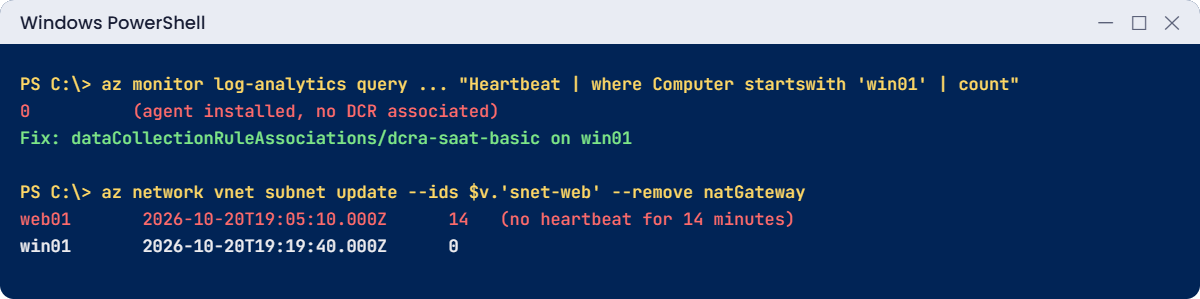
✅ Checkpoint: Both VMs sent heartbeats once they had a DCR and an outbound path. law-saat and dcr-saat-basic stay for Lessons 33 and 34.