Throttling and quotas: HTTP 429 and snapshot limits
-
Phase 0: Before you start
-
Phase 1: The foundation
-
Phase 2: Day-to-day operations
-
Phase 3: Enterprise architecture
-
Phase 4: Troubleshooting step by step
-
Phase 5: Final project and career
Azure throttling 429 errors (“Too Many Requests”) mean you asked an Azure service for more than it will accept in a short time. Azure protects every API with limits: Resource Manager, Resource Graph, Key Vault, Storage and the disk snapshot service all have them. Scripts, backup software and monitoring tools hit them far more often than people do.
Throttling is not an outage. The service is telling you to slow down, and usually how long to wait. The wrong reaction, retrying immediately and harder, makes it worse; the right one is to back off and spread the work.
In this lab you read the rate-limit headers Azure already sends, take incremental snapshots until you hit the per-disk limit, and then trigger real 429s from Resource Graph and fix them with a retry function that respects the wait time.
| Time | You need | Cost | By the end you can |
|---|---|---|---|
| About 45 minutes | A free account, the CLI and PowerShell | Under 1 US cent: a 4 GiB disk and a few snapshots for an hour | Read rate-limit headers, respect snapshot limits, and write retry logic that backs off on 429 |
What it is, in one line
A 429 means an Azure API is limiting how fast you call it; the fix is to slow down and retry after the time it tells you.
In Simple Words
The ATM queue
An ATM lets each card make a few withdrawals in a short time. Try a sixth time in one minute and the screen says, “Please wait 60 seconds.” The bank isn’t broken; it’s protecting itself and everyone else in the queue.
If you keep jamming the card in every second, the bank may lock you out for longer. If you wait the 60 seconds, the next withdrawal works.
A 429 is that screen. The Retry-After or quota-reset header is the “wait 60 seconds” part, and good scripts read it.
Engineer's View
Limits you meet in daily operations
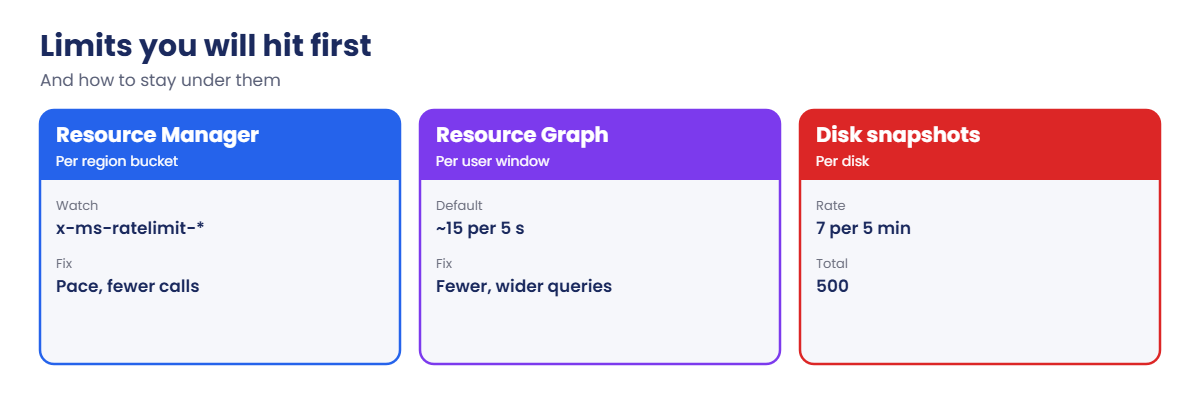
- Azure Resource Manager: requests are limited per subscription and principal with a token bucket per region. For subscription reads, the bucket holds about 250 requests and refills about 25 per second; writes and deletes have smaller buckets. Responses carry x-ms-ratelimit-remaining-* headers.
- Resource Graph: about 15 queries per 5 seconds per user by default. Headers x-ms-user-quota-remaining and x-ms-user-quota-resets-after tell you where you stand.
- Incremental disk snapshots: up to 7 per disk every five minutes, and up to 500 per disk in total at any time.
- Service limits: Key Vault, Storage and others have their own per-vault or per-account limits and return 429 or 503 ServerBusy.
- Retry-After: many 429 responses say how many seconds to wait. SDKs and the Azure CLI already retry with backoff; your own loops and parallel jobs usually don’t.
- Backup tools: Commvault, Rubrik and similar products snapshot many disks through the same APIs, so their concurrency settings decide whether they hit these limits.
How it works, step by step
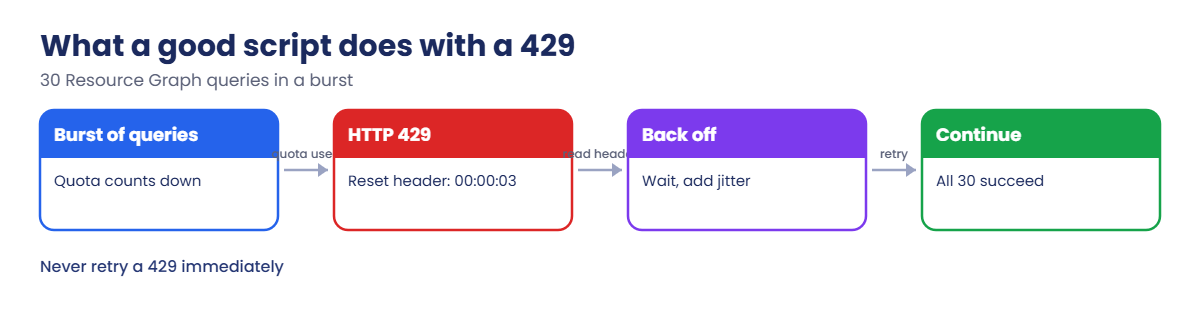
What happens when a script sends 30 Resource Graph queries in a few seconds:
- Each query is checked against the caller’s quota window, about 15 per 5 seconds.
- The first queries succeed; each response shows x-ms-user-quota-remaining going down.
- When the quota is used up, Resource Graph returns HTTP 429 with x-ms-user-quota-resets-after, for example 00:00:03.
- A naive script counts these as failures and moves on, or retries at once and gets more 429s.
- A good script waits for the reset time, then continues, and every query eventually succeeds.
The same pattern applies to every Azure API: watch the remaining-quota headers, back off on 429, and add jitter so many workers don’t retry at the same moment.
For long-running jobs, the real fix is usually design: fewer, bigger queries, caching, schedules that spread work out, and concurrency limits in tools.
Control concurrency in your own scripts
Most 429s from home-made automation come from parallel loops with no ceiling. PowerShell 7 makes parallel work easy, and also makes the ceiling easy to set. This runs a command for many VMs, but never more than four at a time, with a short random pause so workers don’t start in lockstep:
$vms = az vm list --query "[].{rg:resourceGroup, name:name}" -o json | ConvertFrom-Json
$vms | ForEach-Object -Parallel {
Start-Sleep -Milliseconds (Get-Random -Minimum 200 -Maximum 1500)
az vm get-instance-view --resource-group $_.rg --name $_.name --query "instanceView.statuses[1].displayStatus" -o tsv
} -ThrottleLimit 4The random sleep is the jitter. Without it, every retry and every new worker hits the API in the same second, which is how a small burst turns into a long wave of throttling. Four at a time is a starting point: raise it slowly while you watch the remaining-quota headers, and lower it the moment 429s appear.
Read Azure limits and hit two of them on purpose
1Read the limits Azure already tells you
Run a normal command with debug output and pick out the rate-limit headers:
az group list --debug 2>&1 | Select-String 'x-ms-ratelimit-remaining' | Select-Object -First 3You should see something like this (numbers vary):
DEBUG: cli.azure.cli.core.sdk.policies: 'x-ms-ratelimit-remaining-subscription-reads': '249'
DEBUG: cli.azure.cli.core.sdk.policies: 'x-ms-ratelimit-remaining-subscription-global-reads': '15999'
DEBUG: cli.azure.cli.core.sdk.policies: 'x-ms-ratelimit-remaining-tenant-reads': '249'Every Resource Manager response carries these. A script that logs them sees throttling coming long before it happens.
2A disk and its first incremental snapshot
Create a small disk and take one incremental snapshot:
az group create --name rg-saat-l68 --location centralindia --tags course=saatvedha-azure lesson=68 -o none
az disk create --resource-group rg-saat-l68 --name disk-l68 --size-gb 4 --sku StandardSSD_LRS -o none
$diskId = az disk show --resource-group rg-saat-l68 --name disk-l68 --query id -o tsv
az snapshot create --resource-group rg-saat-l68 --name snap-l68-0 --source $diskId --incremental true --query "{name:name, incremental:incremental, state:provisioningState}" -o tableYou should see something like this:
Name Incremental State
---------- ------------- ---------
snap-l68-0 True Succeeded3Save the two scripts
Save this as C:\azure-lab\l68\Test-GraphBurst.ps1:
# SaatVedha Azure Lesson 68: send 30 Resource Graph queries as fast as possible
$token = az account get-access-token --resource https://management.azure.com --query accessToken -o tsv
$headers = @{ Authorization = "Bearer $token"; 'Content-Type' = 'application/json' }
$url = 'https://management.azure.com/providers/Microsoft.ResourceGraph/resources?api-version=2022-10-01'
$body = '{"query":"Resources | summarize count()"}'
$ok = 0; $throttled = 0
foreach ($i in 1..30) {
try { Invoke-RestMethod -Method Post -Uri $url -Headers $headers -Body $body | Out-Null; $ok++ }
catch { if ($_.Exception.Response.StatusCode.value__ -eq 429) { $throttled++ } else { throw } }
}
"OK: $ok Throttled (429): $throttled"And this as C:\azure-lab\l68\Invoke-GraphWithRetry.ps1:
# SaatVedha Azure Lesson 68: Resource Graph query that backs off on HTTP 429
function Invoke-GraphWithRetry {
param([Parameter(Mandatory)][string]$Query, [int]$MaxTries = 6)
$token = az account get-access-token --resource https://management.azure.com --query accessToken -o tsv
$headers = @{ Authorization = "Bearer $token"; 'Content-Type' = 'application/json' }
$url = 'https://management.azure.com/providers/Microsoft.ResourceGraph/resources?api-version=2022-10-01'
$body = @{ query = $Query } | ConvertTo-Json
for ($try = 1; $try -le $MaxTries; $try++) {
try { return Invoke-RestMethod -Method Post -Uri $url -Headers $headers -Body $body }
catch {
if ($_.Exception.Response.StatusCode.value__ -ne 429) { throw }
$wait = [math]::Min(30, [math]::Pow(2, $try))
$reset = $_.Exception.Response.Headers['x-ms-user-quota-resets-after']
if ($reset) { $wait = [math]::Ceiling(([timespan]$reset).TotalSeconds) + 1 }
Write-Host "429 received, waiting $wait s (try $try of $MaxTries)"
Start-Sleep -Seconds $wait
}
}
throw "Still throttled after $MaxTries tries"
}
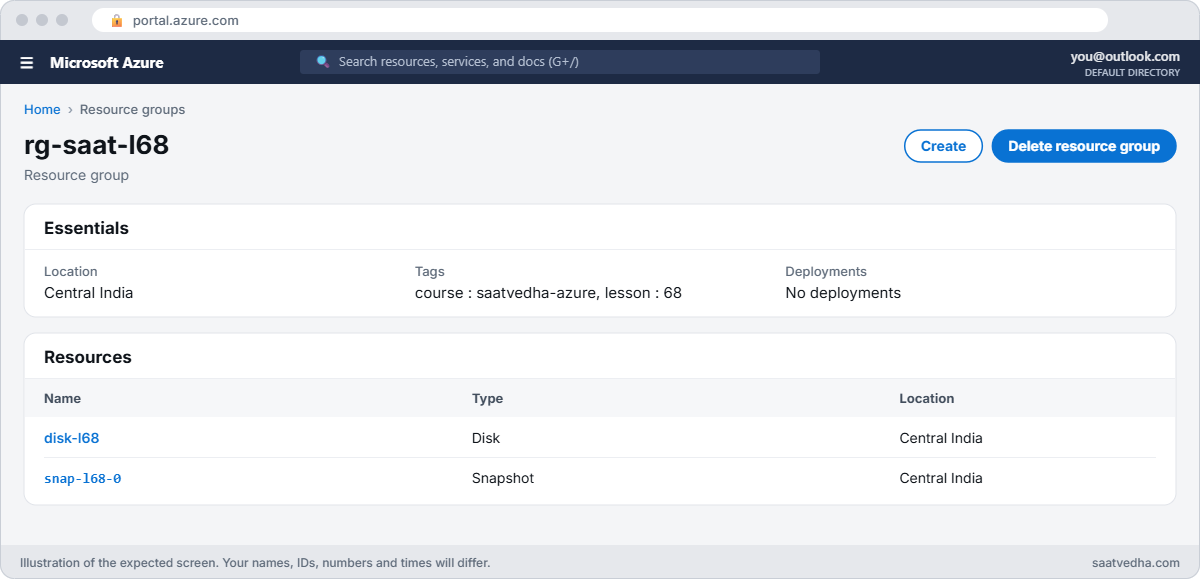

✅ Checkpoint: You can see ARM’s remaining-request headers, you have a disk with one incremental snapshot, and both scripts are saved.
Break It, Then Fix It
Keep the disk and snapshot for break 1.
1Break it: a snapshot loop that runs too fast
A home-made backup script takes a snapshot of the same disk every few seconds. Try eight in a row:
foreach ($i in 1..8) {
$r = az snapshot create --resource-group rg-saat-l68 --name "snap-l68-$i" --source $diskId --incremental true --query provisioningState -o tsv 2>&1
"$i : $r"
}You should see the first few succeed and the last one or two fail, something like this:
1 : Succeeded
2 : Succeeded
3 : Succeeded
4 : Succeeded
5 : Succeeded
6 : Succeeded
7 : ERROR: ... incremental snapshots ... limit ...The disk had one snapshot from the lab plus six from the loop, which is the limit of seven incremental snapshots per disk every five minutes. The exact error text can vary, but it names the snapshot limit. Nothing is wrong with the disk.
Fix it: wait for the five-minute window, and design the schedule so it never needs more than seven snapshots per disk in five minutes:
Start-Sleep -Seconds 300
az snapshot create --resource-group rg-saat-l68 --name snap-l68-retry --source $diskId --incremental true --query provisioningState -o tsv
az snapshot list --resource-group rg-saat-l68 --query "length([?incremental])"You should see Succeeded, and the count of incremental snapshots.
Real backup tools take one snapshot per disk per job. You hit this limit when several tools, or overlapping jobs, snapshot the same disk at the same time. Check that only one product owns each disk’s schedule.
2Break it: a report script that gets throttled
A monitoring script sends 30 Resource Graph queries in a burst:
C:\azure-lab\l68\Test-GraphBurst.ps1You should see something like this:
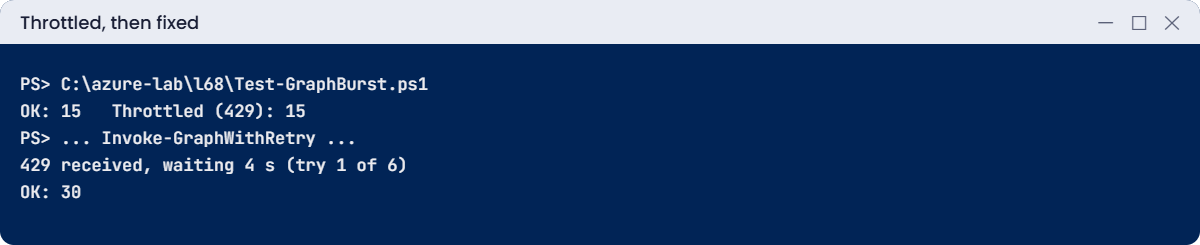
OK: 15 Throttled (429): 15Half the queries failed with 429. The script treats them as failures, so the report would be missing data. Retrying immediately would only make it worse, because the quota window hasn’t reset yet.
Fix it: use the retry function, which waits for the reset time the service gives:
. C:\azure-lab\l68\Invoke-GraphWithRetry.ps1
$ok = 0
foreach ($i in 1..30) { Invoke-GraphWithRetry -Query 'Resources | summarize count()' | Out-Null; $ok++ }
"OK: $ok"You should see something like this:
429 received, waiting 4 s (try 1 of 6)
429 received, waiting 3 s (try 1 of 6)
OK: 30Every query succeeded; the script just paused when told to. In a real report, the better fix is also to send fewer queries, for example one query that returns all subscriptions instead of one per subscription.
3Clean up
Delete the lab resource group, which removes the disk and all snapshots:
az group delete --name rg-saat-l68 --yes✅ Checkpoint: You hit two real Azure limits on purpose and fixed both by slowing down the right way.
This happened at work
The backup window that kept failing at 1 am
A hospital protected 300 VMs with a third-party backup product that used Azure disk snapshots. The vendor’s default allowed 100 concurrent jobs. Every night at 1 am, about 20 jobs failed with throttling errors, always different VMs, and the retries at 3 am mostly worked.
All jobs started at the same minute, under one service principal, in one subscription. They hammered Resource Manager with snapshot, disk and VM calls at once, used up the write and read buckets, and got 429s. The vendor’s retry waited only 10 seconds, so it hit the same wall.
What they changed: concurrency down to 25 jobs, start times spread over two hours by protection group, longer backoff in the product settings, and a workbook that charts 429s from the Activity log and the backup product’s logs. Failed jobs dropped to zero, and the whole window finished earlier than before.
Common mistakes and troubleshooting
| Mistake | What you see | What to do |
|---|---|---|
| Retrying immediately on 429 | More 429s, longer outage | Wait for Retry-After or the reset header. |
| Many parallel workers, one identity | Throttling at peak times | Limit concurrency; spread schedules. |
| Several tools snapshotting one disk | Snapshot limit errors | One owner per disk schedule. |
| One query per subscription | Graph quota used fast | Query many subscriptions in one call. |
| Ignoring rate-limit headers | Throttling comes as a surprise | Log the remaining-quota headers. |
| Treating 429 as an outage | Escalations, rollbacks | It’s a pacing signal, not a failure of Azure. |
Interview questions
Click a question to open it. Each one is written the way an interviewer would ask it. Under it you will see why they ask it and one way you could answer, in your own words.
Fresher level
1. What does HTTP 429 mean?
Why they ask this: The basic concept.
How you might answer: Too Many Requests: the service is limiting how fast you call it and you should wait before retrying.
2. What is Retry-After?
Why they ask this: Basic protocol.
How you might answer: A response header that says how many seconds to wait before the next request.
3. How many incremental snapshots can one disk have?
Why they ask this: A useful limit.
How you might answer: Up to 500 at any time, and up to seven new ones every five minutes.
2–5 years experience
4. A backup tool reports throttling every night. What do you check?
Why they ask this: A real troubleshooting path.
How you might answer: Concurrency and start times, the identity used, ARM 429s in logs, snapshot limits per disk, overlapping tools on the same disks, and the tool’s retry and backoff settings.
5. How do you write retry logic for Azure APIs?
Why they ask this: Engineering practice.
How you might answer: Retry only on throttling and transient codes, honour Retry-After or reset headers, use exponential backoff with jitter, cap the attempts, and log each retry.
6. How do you avoid Resource Graph throttling in reports?
Why they ask this: Practical depth.
How you might answer: Fewer, broader queries, paging with skip tokens, caching results, spacing queries over time, and reading x-ms-user-quota-remaining.
Senior level
7. How would you design automation that runs across 200 subscriptions?
Why they ask this: Scale thinking.
How you might answer: Batch reads with Resource Graph, queue writes with controlled concurrency, use several identities where appropriate, respect regional buckets, and monitor 429 rates as a health metric.
8. What is the difference between a quota and a throttling limit?
Why they ask this: Concepts.
How you might answer: A quota caps how much you can have (cores, snapshots per disk). A throttling limit caps how fast you can ask. Quotas need increases or design changes; throttling needs pacing.
9. How do you handle limits in multi-tool backup estates?
Why they ask this: Senior operations.
How you might answer: One tool per workload, staggered schedules, concurrency agreed with vendors, monitoring of 429s and snapshot errors, and tests at full scale before go-live.
Quick quiz
Q1. 429 means?
- Not found
- Too many requests
- Unauthorized
- Server down
Show answer
B — The service is limiting your rate.
Q2. Best response to a 429?
- Retry at once
- Wait for Retry-After, then retry
- Delete resources
- Open a support case
Show answer
B — Back off for the time given.
Q3. Incremental snapshots per disk every five minutes?
- 3
- 7
- 50
- 500
Show answer
B — Up to seven per five minutes.
Q4. Which header shows Resource Graph quota left?
- x-ms-request-id
- x-ms-user-quota-remaining
- Retry-After
- ETag
Show answer
B — It counts down within the window.
Q5. Quota vs throttling?
- Same thing
- Quota is how much; throttling is how fast
- Throttling is cost
- Quota is speed
Show answer
B — They need different fixes.
Quick recap
You can now recognise throttling, read the signals Azure gives, and pace scripts and tools so they finish reliably.
- 429 means slow down, not outage.
- Azure sends remaining-quota headers on every response.
- Back off for Retry-After or the reset time, with jitter.
- Disks allow seven incremental snapshots per five minutes.
- Limit concurrency and spread schedules in backup tools.
Next lesson
Lesson 69: Azure Backup failures → You fix Azure Backup failures: VM agent problems, snapshot timeouts and restore errors.
Further reading: Azure throttling 429
Want to go deeper into Azure throttling 429? See Microsoft’s Understand how Azure Resource Manager throttles requests and Guidance for throttled requests in Azure Resource Graph. You can also see the full plan for this course on the Azure Cloud Administration course page.
