Azure Update Manager: patch Windows and Linux
-
Phase 0: Before you start
-
Phase 1: The foundation
-
Phase 2: Day-to-day operations
-
Phase 3: Enterprise architecture
-
Phase 4: Troubleshooting step by step
-
Phase 5: Final project and career
Azure Update Manager checks, schedules and installs operating system updates on Windows and Linux VMs from one place. It replaced Automation Update Management, which retired in 2024, and it has no charge for Azure VMs.
Patching is the most regular maintenance job an Azure admin has. Most patching problems aren’t about the updates themselves: VMs that can’t reach the update servers, schedules that never ran, and servers “patched” but still waiting for a reboot.
In the lab you give web01 and win01 a way out to the update servers, assess and install updates, build a weekly schedule, and then break patching the two ways it really breaks.
| Time | You need | Cost | By the end you can |
|---|---|---|---|
| About 75 minutes (Windows updates on a small VM are slow) | web01, win01, vnet-saat, the CLI and the portal | About 15 US cents for a temporary NAT Gateway and its public IP over two hours; Update Manager itself has no charge for Azure VMs | Assess and install updates, schedule patching, and troubleshoot failed or half-done patch runs |
What it is, in one line
Azure Update Manager finds missing OS updates on your VMs and installs them on demand or on a schedule.
In Simple Words
The school nurse’s vaccination day
The nurse first checks every child’s card to see which vaccines are missing. That’s an assessment.
Then she books a day for each class and gives the shots: that’s a maintenance schedule and the install. Some vaccines need the child to rest afterwards before they work; that’s a reboot.
If the bus with the vaccines can’t reach the school, nothing happens on vaccination day, however good the plan is. For a VM, that bus is its route to the update servers.
Engineer's View
How Update Manager works
- No agent to install: it uses a VM extension pushed through the VM agent. Azure VMs have no Update Manager charge; Arc-enabled servers (Lesson 40) are billed per server per month.
- Assessment: on demand (
az vm assess-patches) or periodic, every 24 hours when periodic assessment is on. - One-time install:
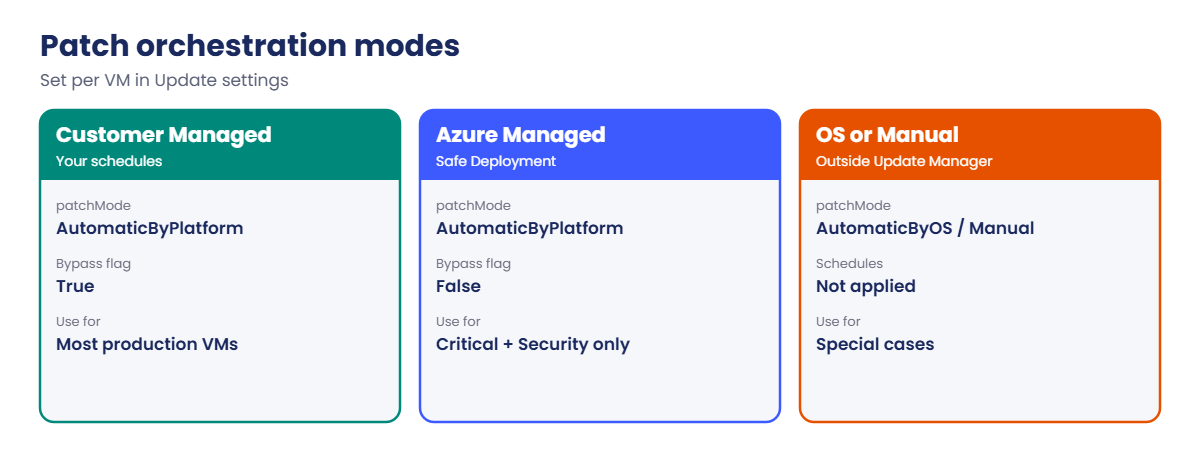
az vm install-patcheswith classifications, a maximum duration and a reboot setting (IfRequired, Never, Always). - Patch orchestration (the VM’s patch mode): Customer Managed Schedules (patchMode AutomaticByPlatform plus bypassPlatformSafetyChecksOnUserSchedule) is required for your own schedules. Azure Managed, Safe Deployment lets Azure patch critical and security updates in off-peak hours. Windows Automatic Updates and Manual are the other modes.
- Schedules are maintenance configurations (scope InGuestPatch) assigned to VMs directly or through dynamic scopes by tag, subscription or resource group. Updates start only while time is left in the window.
- Hotpatch: Windows Server 2025 Datacenter Azure Edition, like win01, can take most security updates without a reboot, with a planned baseline reboot about every three months.
- Network: the VM must reach its update source (Windows Update, or the Ubuntu archive mirrors in Azure). Private subnets need NAT Gateway, a firewall or an internal mirror.
How it works, step by step
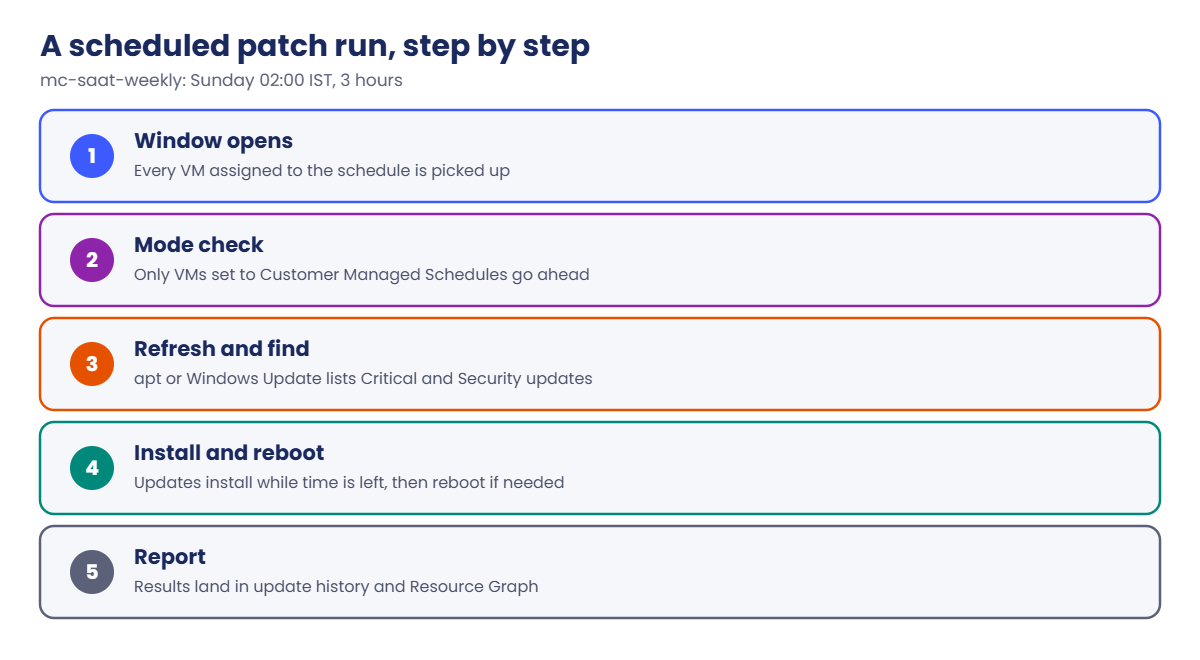
What happens on a scheduled Sunday at 02:00:
- The maintenance configuration’s window opens for every VM assigned to it.
- Update Manager checks each VM’s patch mode is Customer Managed Schedules.
- The extension inside the VM refreshes the package list and finds Critical and Security updates.
- It installs them while time is left in the 3-hour window, then reboots if needed.
- Results go to the update history and Azure Resource Graph, where you query them on Monday.
If step 3 can’t reach the update servers, the run fails for that VM, and nobody notices unless someone checks the history or an alert fires.
Patch dev and test VMs a few days before production with a separate schedule, so a bad update shows up where it hurts least.
Hands-on lab: Azure Update Manager on web01 and win01
Load the network IDs and start both VMs:
$v = Get-Content C:\azure-lab\vnet-saat.json | ConvertFrom-Json
az vm start --resource-group rg-saat-vms --name web01
az vm start --resource-group rg-saat-vms --name win011Give the private subnets a way out
snet-web and snet-mgmt are private subnets (Lesson 11), so add the NAT Gateway from Lesson 13 for the patching window:
az network public-ip create --resource-group rg-saat-core --name pip-saat-natgw --sku Standard --location centralindia --tags course=saatvedha-azure lesson=30 -o none
az network nat gateway create --resource-group rg-saat-core --name natgw-saat --public-ip-addresses pip-saat-natgw --idle-timeout 4 --location centralindia --tags course=saatvedha-azure lesson=30 -o none
az network vnet subnet update --ids $v.'snet-web' --nat-gateway natgw-saat -o none
az network vnet subnet update --ids $v.'snet-mgmt' --nat-gateway natgw-saat -o none2Set patch orchestration and periodic assessment
In the portal, open Azure Update Manager, then Machines. Tick web01 and win01, choose Settings, Update settings, and set Periodic assessment to Enable and Patch orchestration to Customer Managed Schedules. Save.
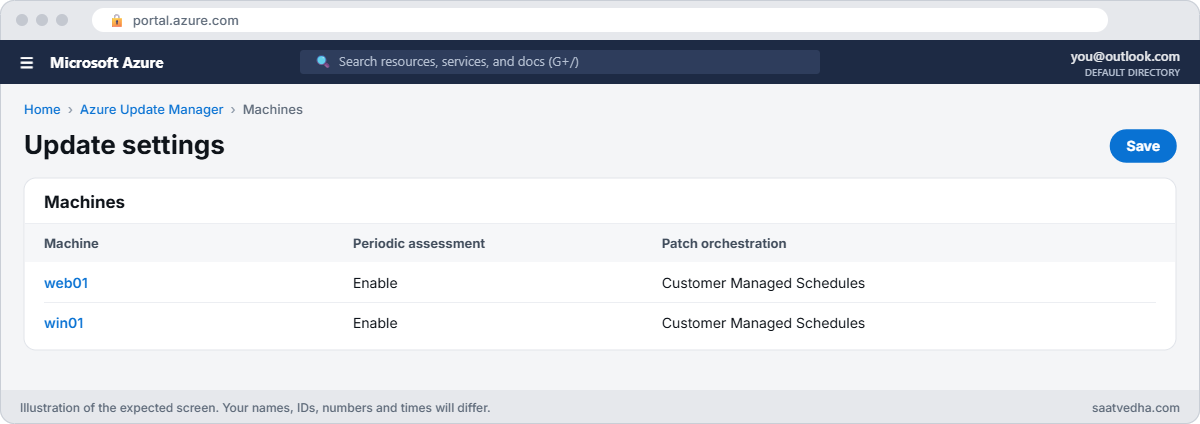
Check it from the CLI:
az vm show --resource-group rg-saat-vms --name web01 --query "osProfile.linuxConfiguration.patchSettings.{mode:patchMode, assessment:assessmentMode, bypass:automaticByPlatformSettings.bypassPlatformSafetyChecksOnUserSchedule}" -o table
az vm show --resource-group rg-saat-vms --name win01 --query "osProfile.windowsConfiguration.patchSettings.{mode:patchMode, assessment:assessmentMode, bypass:automaticByPlatformSettings.bypassPlatformSafetyChecksOnUserSchedule}" -o tableYou should see this for both:
Mode Assessment Bypass
------------------- ------------------- --------
AutomaticByPlatform AutomaticByPlatform True3Assess both VMs
Run this (a few minutes each):
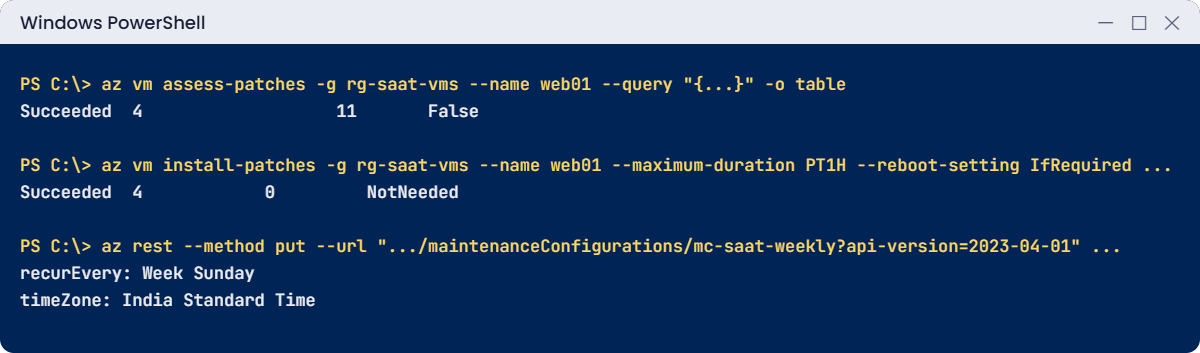
az vm assess-patches --resource-group rg-saat-vms --name web01 --query "{status:status, criticalSecurity:criticalAndSecurityPatchCount, other:otherPatchCount, rebootPending:rebootPending}" -o table
az vm assess-patches --resource-group rg-saat-vms --name win01 --query "{status:status, criticalSecurity:criticalAndSecurityPatchCount, other:otherPatchCount, rebootPending:rebootPending}" -o tableYou should see something like this:
Status CriticalSecurity Other RebootPending
--------- ------------------ ------- ---------------
Succeeded 4 11 False
Status CriticalSecurity Other RebootPending
--------- ------------------ ------- ---------------
Succeeded 2 1 False4Install security updates on web01
Run this:
az vm install-patches --resource-group rg-saat-vms --name web01 --maximum-duration PT1H --reboot-setting IfRequired --classifications-to-include-linux Critical Security --query "{status:status, installed:installedPatchCount, failed:failedPatchCount, reboot:rebootStatus}" -o tableYou should see something like this:
Status Installed Failed Reboot
--------- ----------- -------- -----------
Succeeded 4 0 NotNeeded5Create a weekly schedule and assign both VMs
Build the maintenance configuration (every Sunday 02:00 IST, 3 hours, Critical and Security):
$start = (Get-Date).Date.AddDays(7 - [int](Get-Date).DayOfWeek).ToString('yyyy-MM-dd') + ' 02:00'
$mc = @{
location = 'centralindia'
properties = @{
maintenanceScope = 'InGuestPatch'
extensionProperties = @{ InGuestPatchMode = 'User' }
maintenanceWindow = @{ startDateTime = $start; duration = '03:00'; timeZone = 'India Standard Time'; recurEvery = 'Week Sunday' }
visibility = 'Custom'
installPatches = @{
rebootSetting = 'IfRequired'
windowsParameters = @{ classificationsToInclude = @('Critical', 'Security') }
linuxParameters = @{ classificationsToInclude = @('Critical', 'Security') }
}
}
}
$mc | ConvertTo-Json -Depth 8 | Set-Content -Path C:\azure-lab\mc-weekly.json
$sub = az account show --query id -o tsv
$mcId = "/subscriptions/$sub/resourceGroups/rg-saat-vms/providers/Microsoft.Maintenance/maintenanceConfigurations/mc-saat-weekly"
az rest --method put --url "https://management.azure.com${mcId}?api-version=2023-04-01" --body '@C:\azure-lab\mc-weekly.json' --query "properties.maintenanceWindow" -o yamlYou should see something like this:
duration: 03:00
recurEvery: Week Sunday
startDateTime: 2026-10-25 02:00
timeZone: India Standard TimeAssign web01 and win01 to it:
Set-Content -Path C:\azure-lab\mc-assign.json -Value ('{"location": "centralindia", "properties": {"maintenanceConfigurationId": "' + $mcId + '"}}')
foreach ($vm in 'web01', 'win01') {
$id = az vm show --resource-group rg-saat-vms --name $vm --query id -o tsv
az rest --method put --url "https://management.azure.com${id}/providers/Microsoft.Maintenance/configurationAssignments/weekly?api-version=2023-04-01" --body '@C:\azure-lab\mc-assign.json' -o none
}
az rest --method get --url "https://management.azure.com${mcId}?api-version=2023-04-01" --query "name" -o tsvYou should see this:
mc-saat-weeklyIn the portal, Update Manager, Machines now shows both VMs with the schedule. Assigning by tag with a dynamic scope is better at scale, because new VMs join the schedule by themselves.
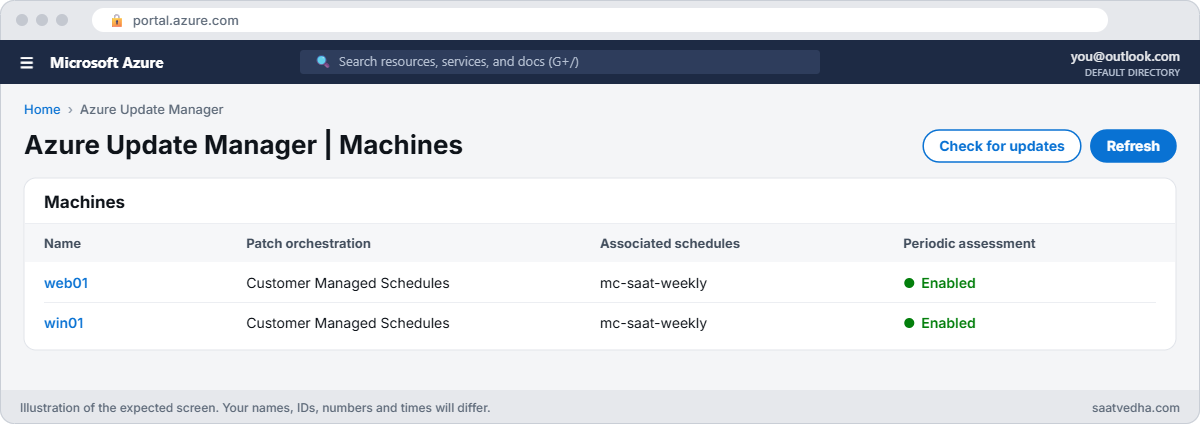
✅ Checkpoint: Both VMs use Customer Managed Schedules with periodic assessment, web01 has its security updates, and mc-saat-weekly covers both.
Break It, Then Fix It
Keep both VMs running. Remove the NAT Gateway first, the way it gets removed in real life: “it was only for the migration”.
1Break it: patching with no way out
Detach the NAT Gateway from snet-web and assess web01 again:
az network vnet subnet update --ids $v.'snet-web' --remove natGateway -o none
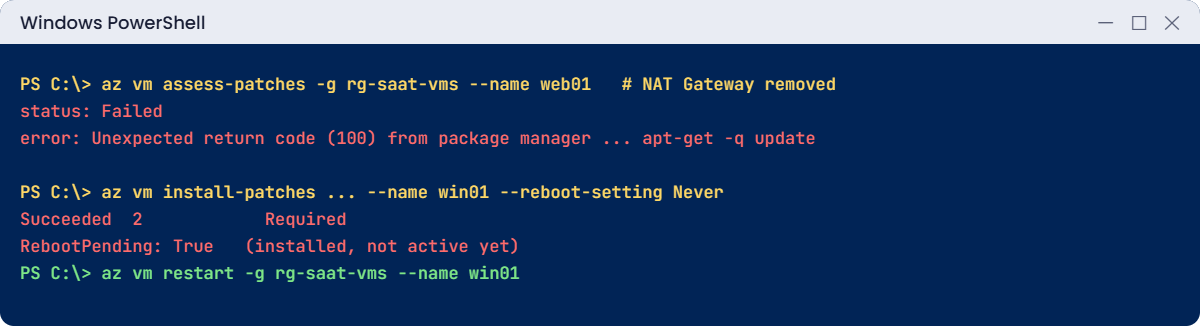
az vm assess-patches --resource-group rg-saat-vms --name web01 --query "{status:status, error:error.details[0].message}" -o yamlYou’ll see something like this:
error: 'Unexpected return code (100) from package manager on command: LANG=en_US.UTF8
sudo apt-get -q update'
status: Failedapt can’t reach the Ubuntu archive, so it exits with code 100. On a schedule this fails quietly every week while the dashboard shows a growing list of missing updates. Windows VMs fail the same way with a Windows Update connection error.
Fix it: give the subnet an outbound path again (NAT Gateway, Azure Firewall, or an internal mirror), then re-assess:
az network vnet subnet update --ids $v.'snet-web' --nat-gateway natgw-saat -o none
az vm assess-patches --resource-group rg-saat-vms --name web01 --query "{status:status, criticalSecurity:criticalAndSecurityPatchCount, other:otherPatchCount, rebootPending:rebootPending}" -o tableYou should see something like this:
Status CriticalSecurity Other RebootPending
--------- ------------------ ------- ---------------
Succeeded 0 11 False2Break it: patched, but not really
Install win01’s updates with reboots forbidden, as someone might during business hours:
az vm install-patches --resource-group rg-saat-vms --name win01 --maximum-duration PT2H --reboot-setting Never --classifications-to-include-win Critical Security --query "{status:status, installed:installedPatchCount, reboot:rebootStatus}" -o table
az vm assess-patches --resource-group rg-saat-vms --name win01 --query "{status:status, criticalSecurity:criticalAndSecurityPatchCount, other:otherPatchCount, rebootPending:rebootPending}" -o tableYou should see something like this:
Status Installed Reboot
--------- ----------- --------
Succeeded 2 Required
Status CriticalSecurity Other RebootPending
--------- ------------------ ------- ---------------
Succeeded 0 1 TrueThe report says Succeeded and zero missing security updates, but the fix for a cumulative update isn’t active until Windows restarts. Scanners and attackers both see the old, vulnerable files still loaded.
Fix it: restart in an agreed window, then confirm nothing is pending:
az vm restart --resource-group rg-saat-vms --name win01
az vm assess-patches --resource-group rg-saat-vms --name win01 --query "{status:status, criticalSecurity:criticalAndSecurityPatchCount, other:otherPatchCount, rebootPending:rebootPending}" -o tableYou should see something like this:
Status CriticalSecurity Other RebootPending
--------- ------------------ ------- ---------------
Succeeded 0 1 FalseClean up: remove the assignments, the schedule and the NAT Gateway, then stop both VMs:
foreach ($vm in 'web01', 'win01') {
$id = az vm show --resource-group rg-saat-vms --name $vm --query id -o tsv
az rest --method delete --url "https://management.azure.com${id}/providers/Microsoft.Maintenance/configurationAssignments/weekly?api-version=2023-04-01"
}
az rest --method delete --url "https://management.azure.com${mcId}?api-version=2023-04-01"
az network vnet subnet update --ids $v.'snet-web' --remove natGateway -o none
az network vnet subnet update --ids $v.'snet-mgmt' --remove natGateway -o none
az network nat gateway delete --resource-group rg-saat-core --name natgw-saat
az network public-ip delete --resource-group rg-saat-core --name pip-saat-natgw
az vm deallocate --resource-group rg-saat-vms --name web01
az vm deallocate --resource-group rg-saat-vms --name win01
C:\azure-lab\Find-LabResources.ps1 -Lesson 30You should see this:
Nothing tagged course=saatvedha-azure is left.
✅ Checkpoint: You fixed a failed assessment and a pending reboot. The schedule and NAT Gateway are gone, and both VMs are deallocated.
The patch settings from step 2 stay on both VMs; they cost nothing and are what you’d want in a real environment.
This happened at work
“All servers patched” for six months
A healthcare company’s monthly report showed 100% patch compliance on 300 VMs for half a year. Then an external penetration test found 60 servers missing a critical fix from four months earlier.
Those 60 servers sat in a spoke VNet whose outbound traffic went through Azure Firewall. A firewall rule change had blocked the Ubuntu archive and Windows Update for that spoke. Every scheduled run had failed, but the report counted VMs “in a schedule”, not VMs that finished one.
What they changed: the report now comes from Azure Resource Graph patch installation results, showing the last successful run per VM. An alert fires when any VM’s assessment fails or a run fails. And firewall changes now include a test that a VM in each spoke can still reach its update sources.
Common mistakes and troubleshooting
| Mistake | What you see | What to do |
|---|---|---|
| No outbound path from the subnet | Assessments fail; apt exit code 100 | NAT Gateway, Azure Firewall rules, or a mirror. |
| Wrong patch orchestration mode | Schedule assigned but never runs | Customer Managed Schedules on every VM. |
| Reboot set to Never and no follow-up | Updates installed but not active | Reboot in a window; check rebootPending. |
| Window too short | Updates skipped as the window closes | Allow enough time; split big groups. |
| Reporting on schedules, not results | Compliance looks perfect, servers aren’t | Report on installation results in Resource Graph. |
| Production and test in one schedule | A bad update hits everything at once | Test first, production a few days later. |
Interview questions
Click a question to open it. Each one is written the way an interviewer would ask it. Under it you will see why they ask it and one way you could answer, in your own words.
Fresher level
1. What is Azure Update Manager?
Why they ask this: The basic concept.
How you might answer: A service that assesses and installs OS updates for Azure VMs and Arc-enabled servers, on demand or on a schedule, from one place. It replaced Automation Update Management.
2. What is an update assessment?
Why they ask this: They want the difference between checking and installing.
How you might answer: A scan that lists missing updates by classification without installing anything. It can run on demand or every 24 hours with periodic assessment.
3. What does the reboot setting control?
Why they ask this: A basic configuration check.
How you might answer: Whether the VM may restart during patching: only if an update needs it, never, or always. Never can leave updates installed but not active.
2–5 years experience
4. A scheduled patch run didn’t patch some VMs. What do you check?
Why they ask this: A real troubleshooting path.
How you might answer: The VM’s patch orchestration mode, that it’s assigned to the schedule or matches the dynamic scope, that it was running in the window, its update history for errors, and whether it could reach its update source. Network blocks are the usual cause.
5. How do you patch VMs in private subnets?
Why they ask this: They’re checking the 2026 networking change.
How you might answer: Private subnets have no default outbound access, so they need an explicit path: NAT Gateway, Azure Firewall with rules for update endpoints, or an internal repository or WSUS. I’d test each spoke after any firewall change.
6. Why is Customer Managed Schedules needed?
Why they ask this: They want to see you know the prerequisite.
How you might answer: Update Manager only runs your maintenance configurations on VMs with patch mode AutomaticByPlatform and the bypass flag set, which together are called Customer Managed Schedules. Otherwise the platform or the OS controls patching instead.
Senior level
7. How would you design patching for 2,000 VMs?
Why they ask this: They want rings, scopes and reporting.
How you might answer: Rings by environment with dynamic scopes on tags: test first, then production in waves a few days apart. Policy sets patch mode and periodic assessment. Pre and post events stop and start apps, and Resource Graph reports drive alerts on failures and pending reboots.
8. What is hotpatch and when would you use it?
Why they ask this: They’re checking current Windows features.
How you might answer: On Windows Server 2025 Azure Edition and some other editions, hotpatch installs most security updates into running memory without a reboot. Baseline updates every few months still need a restart. It’s great for high-availability servers where reboots are hard to schedule.
9. How do you prove patch compliance to an auditor?
Why they ask this: They want evidence, not screenshots.
How you might answer: Export Resource Graph results for assessments and installations per VM over the period, showing last successful install, missing critical updates and pending reboots. Keep them in Log Analytics or storage for the audit retention period.
Quick quiz
Q1. Which patch mode is required for your own schedules?
- Manual
- ImageDefault
- Customer Managed Schedules
- AutomaticByOS
Show answer
C — AutomaticByPlatform plus the bypass flag.
Q2. How often does periodic assessment run?
- Every hour
- Every 24 hours
- Every week
- Never
Show answer
B — Periodic assessment runs about every 24 hours.
Q3. apt fails with exit code 100 during assessment on a private subnet. Likely cause?
- Wrong tier
- No outbound path to the archive
- Key rotated
- Disk full
Show answer
B — The VM can’t reach its update source.
Q4. Install with reboot setting Never on Windows. Risk?
- None
- Updates not active until reboot
- VM deleted
- Assessment disabled
Show answer
B — Many Windows updates need a restart to take effect.
Q5. What does Update Manager cost for Azure VMs?
- USD 5 per VM per month
- No charge
- Per update
- Per GB
Show answer
B — There is no Update Manager charge for Azure VMs.
Quick recap
You can now keep VMs patched and prove it.
- Assess first, then install on demand or on a schedule.
- Schedules need Customer Managed Schedules on each VM.
- Private subnets need an explicit route to update sources.
- Watch rebootPending; installed is not the same as active.
- Report on results, not on schedules.
Next lesson
Lesson 31: Azure Monitor: metrics, Activity log, alerts → You read VM metrics and the Activity log, and build alerts that page you when something breaks.
Further reading: Azure Update Manager
Want to go deeper into Azure Update Manager? See Microsoft’s About Azure Update Manager and Schedule recurring updates. You can also see the full plan for this course on the Azure Cloud Administration course page.
