Azure Files: SMB shares, snapshots, soft delete

An Azure file share is a network drive in the cloud. Windows, Linux and macOS mount it over SMB like any company file server, so old apps and users don’t have to change how they work.

Day-to-day work with shares is mostly three things: mounting them, getting a file back after someone overwrites it, and recovering from a delete. Snapshots and soft delete cover the last two.

In the lab you mount a share on win01, snapshot it, roll back a bad edit, bring back a deleted share, and fix a mount that broke after a key rotation.

TimeYou needCostBy the end you can
About 50 minutesThe storage account from Lesson 21, win01 from Lesson 16, the CLIA few US cents: a 5 GiB share with a few KB in it, and win01 for under an hourMount a share, use snapshots and soft delete, and troubleshoot SMB access

What it is, in one line

An Azure file share is a managed SMB or NFS network share that lives in a storage account.

In Simple Words

The class shared cupboard

Every teacher has a key to the staff room cupboard and keeps folders there. That’s a file share: one place, many people, everyone opens it the same way.

Each Friday the head teacher photographs every shelf. If someone scribbles over a worksheet on Monday, you print Friday’s photo. Those photos are snapshots.

If the whole cupboard is thrown out by mistake, it waits in the store room for a week before the bin lorry comes. That week is soft delete.

Engineer's View

How Azure Files works

  • Protocols: SMB 3.x on port 445 (Windows, Linux, macOS) for standard and premium shares; NFS 4.1 on premium only. Encryption in transit is on by default.
  • Tiers: standard shares in a StorageV2 account are Transaction optimized (default), Hot or Cool. Premium shares live on SSD in a FileStorage account and are billed by provisioned size.
  • Access with a key: mount as user localhost\<account> with an account key. Simple, but the key gives full access to the whole account.
  • Access with identity: join the account to AD DS, Microsoft Entra Domain Services or Microsoft Entra Kerberos. Then share-level RBAC roles (Storage File Data SMB Share Reader, Contributor, Elevated Contributor) and NTFS permissions apply to each user.
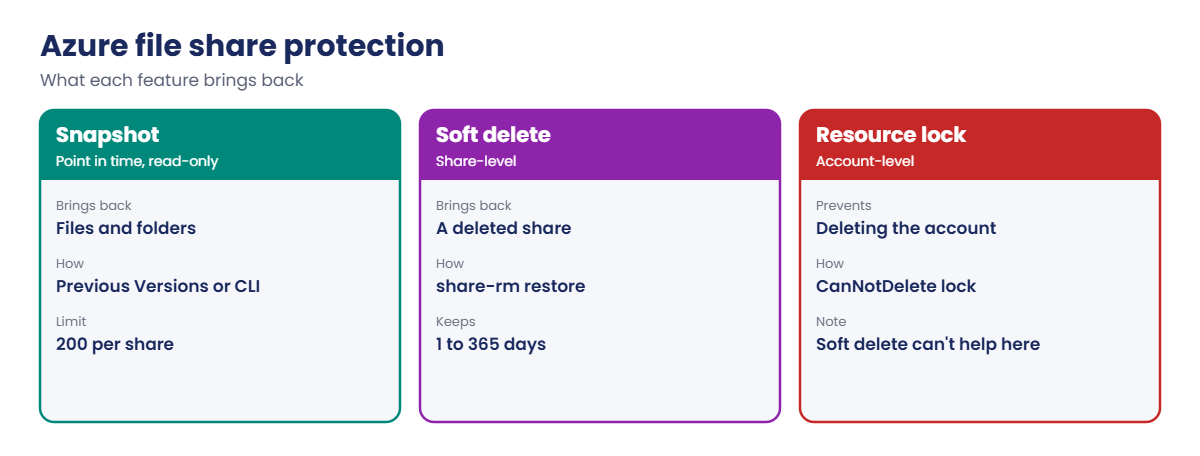
  • Snapshots: read-only, point-in-time, incremental copies of the whole share, up to 200 per share. Windows shows them under Previous Versions. Azure Backup for file shares uses them.
  • Soft delete: keeps a deleted share, with its snapshots, for 1 to 365 days. It works at share level, not for single files; snapshots cover files.
  • Network: many home and office networks block 445 (Lesson 22). VMs in the same region reach it, even from a private subnet. Azure File Sync caches a share on a local Windows server.

How it works, step by step

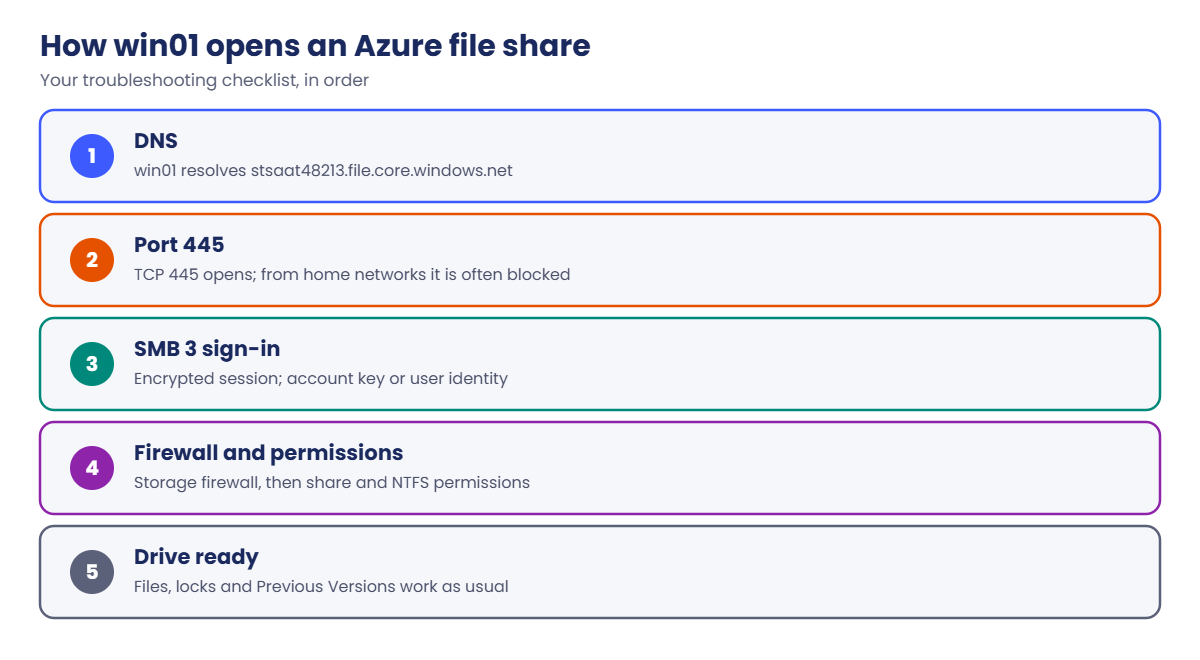
What happens when win01 opens \\stsaat48213.file.core.windows.net\share-ops:

Azure file share connection steps: DNS, port 445, SMB sign-in, permissions
  1. Windows looks up the storage account’s file endpoint in DNS.
  2. It opens TCP 445 to that address. From win01 this stays inside the Azure region.
  3. SMB 3 negotiates encryption and signs in, here with the account name and key.
  4. Storage checks the storage firewall (Lesson 26), then the credentials, then permissions.
  5. The share appears as a drive, and file locks work like on a normal file server.

When something goes wrong, those steps are your checklist: DNS, port 445, credentials, permissions. Most tickets are port 445 or a key that changed.

Azure file share protection: snapshots, soft delete and resource locks

Snapshots protect files, soft delete protects the share, and neither protects against deleting the storage account. A resource lock covers that.

Hands-on lab: an Azure file share on win01

Load your storage account name and key2 (key1 was rotated in Lesson 24):

$st = (Get-Content C:\azure-lab\storage.txt)
$key = az storage account keys list --resource-group rg-saat-data --account-name $st --query "[?keyName=='key2'].value" -o tsv

1Turn on share soft delete and create a share

Run this:

az storage account file-service-properties update --resource-group rg-saat-data --account-name $st --enable-delete-retention true --delete-retention-days 7 -o none
az storage share-rm create --resource-group rg-saat-data --storage-account $st --name share-ops --quota 5 -o none
az storage share-rm show --resource-group rg-saat-data --storage-account $st --name share-ops --query "{name:name, quotaGiB:shareQuota, tier:accessTier}" -o table

You should see this:

Name       QuotaGiB    Tier
---------  ----------  --------------------
share-ops  5           TransactionOptimized

2Mount it on win01 and write a file

Save a helper script that connects as the storage account, optionally writes report.txt, and lists the share:

$f = @'
param([string]$st, [string]$key, [string]$text)
"port 445: " + (Test-NetConnection -ComputerName "$st.file.core.windows.net" -Port 445 -WarningAction SilentlyContinue).TcpTestSucceeded
$cred = New-Object System.Management.Automation.PSCredential("localhost\$st", (ConvertTo-SecureString $key -AsPlainText -Force))
New-PSDrive -Name Z -PSProvider FileSystem -Root "\\$st.file.core.windows.net\share-ops" -Credential $cred -ErrorAction Stop | Out-Null
if ($text) { Set-Content -Path Z:\report.txt -Value $text }
Get-ChildItem Z:\ | ForEach-Object { "{0}  {1} bytes" -f $_.Name, $_.Length }
if (Test-Path Z:\report.txt) { "content: " + (Get-Content Z:\report.txt) }
'@
Set-Content -Path C:\azure-lab\files-share.ps1 -Value $f

Start win01 and run it (the key travels as a parameter, not inside the script):

az vm start --resource-group rg-saat-vms --name win01
az vm run-command invoke --resource-group rg-saat-vms --name win01 --command-id RunPowerShellScript --scripts '@C:\azure-lab\files-share.ps1' --parameters "st=$st" "key=$key" "text=monthly report v1" --query "value[0].message" -o tsv

You should see something like this:

port 445: True
report.txt  19 bytes
content: monthly report v1

Port 445 works from win01 because the traffic stays inside the region, unlike from most home networks. In a real setup, users would map the drive with their own identity, not the account key.

3Take a snapshot

Run this:

$snap = az storage share snapshot --account-name $st --name share-ops --query snapshot -o tsv
$snap
az storage share-rm list --resource-group rg-saat-data --storage-account $st --include-snapshot --query "[].{name:name, snapshot:snapshotTime}" -o table

You should see something like this:

2026-10-20T16:41:05.0000000Z
Name       Snapshot
---------  -------------------------
share-ops
share-ops  2026-10-20T16:41:05+00:00

4Overwrite the file by mistake, then roll it back

Write the wrong version, then copy the file back from the snapshot:

az vm run-command invoke --resource-group rg-saat-vms --name win01 --command-id RunPowerShellScript --scripts '@C:\azure-lab\files-share.ps1' --parameters "st=$st" "key=$key" "text=monthly report v2 WRONG" --query "value[0].message" -o tsv
az storage file download --account-name $st --share-name share-ops --path report.txt --snapshot $snap --dest C:\azure-lab\report-v1.txt -o none
az storage file upload --account-name $st --share-name share-ops --source C:\azure-lab\report-v1.txt --path report.txt -o none
az vm run-command invoke --resource-group rg-saat-vms --name win01 --command-id RunPowerShellScript --scripts '@C:\azure-lab\files-share.ps1' --parameters "st=$st" "key=$key" --query "value[0].message" -o tsv

You should see something like this at the end:

port 445: True
report.txt  19 bytes
content: monthly report v1

Users on Windows can do the same themselves: right-click the file, Properties, Previous Versions. Each snapshot shows up there.
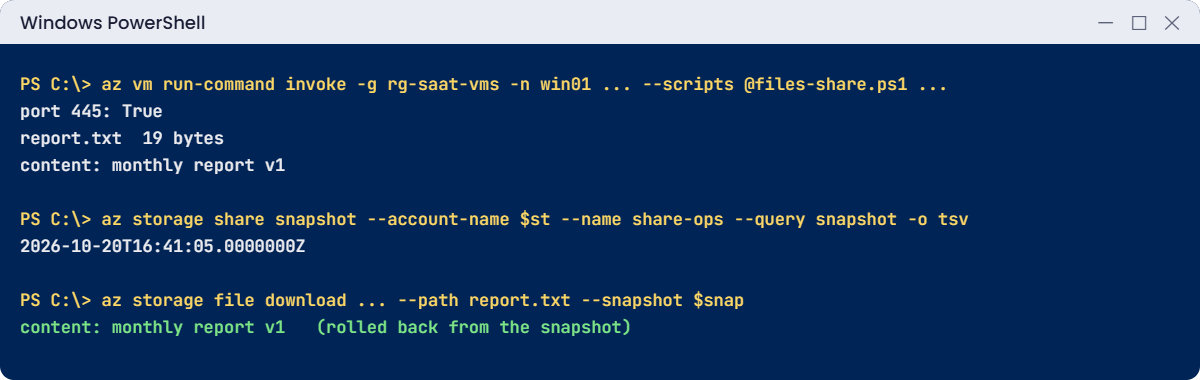
Azure file share lab: mounted on win01, snapshot and rollback
A share mounted on win01, a snapshot, and a file rolled back from it.

✅ Checkpoint: share-ops is mounted from win01, report.txt is back to v1, and one snapshot exists.

Break It, Then Fix It

Keep win01 running for both breaks.

1Break it: delete the share

Try to delete the share the quick way:

az storage share delete --account-name $st --name share-ops

You’ll get an error like this:

The share has snapshots and the operation requires no snapshots.
RequestId:...
Time:...
ErrorCode:ShareHasSnapshots

Azure stops you because the delete would take the snapshots too. Someone in a hurry adds the flag that deletes them, and the share is gone:

az storage share delete --account-name $st --name share-ops --delete-snapshots include
az vm run-command invoke --resource-group rg-saat-vms --name win01 --command-id RunPowerShellScript --scripts '@C:\azure-lab\files-share.ps1' --parameters "st=$st" "key=$key" --query "value[0].message" -o tsv

You’ll see the mount fail with something like this:

port 445: True
New-PSDrive : The network name cannot be found
...

Fix it: find the soft-deleted share and restore it:

$ver = az storage share-rm list --resource-group rg-saat-data --storage-account $st --include-deleted --query "[?name=='share-ops' && deleted].version" -o tsv
az storage share-rm restore --resource-group rg-saat-data --storage-account $st --name share-ops --deleted-version $ver -o none
az vm run-command invoke --resource-group rg-saat-vms --name win01 --command-id RunPowerShellScript --scripts '@C:\azure-lab\files-share.ps1' --parameters "st=$st" "key=$key" --query "value[0].message" -o tsv

You should see something like this:

port 445: True
report.txt  19 bytes
content: monthly report v1

The share came back with its files and its snapshot. Without step 1’s soft delete, there would be nothing to restore.

2Break it: the mount stopped working after a key rotation

Rotate key2, as a security team might, and run the script with the old key:

az storage account keys renew --resource-group rg-saat-data --account-name $st --key secondary -o none
az vm run-command invoke --resource-group rg-saat-vms --name win01 --command-id RunPowerShellScript --scripts '@C:\azure-lab\files-share.ps1' --parameters "st=$st" "key=$key" --query "value[0].message" -o tsv

You’ll see something like this:

port 445: True
New-PSDrive : The specified network password is not correct
...

Port 445 is fine, so the network isn’t the problem; the credentials are. Every server, script and saved credential that used key2 breaks the same way. This is the main reason to move shares to identity-based access.

Fix it: get the new key and use it:

$key = az storage account keys list --resource-group rg-saat-data --account-name $st --query "[?keyName=='key2'].value" -o tsv
az vm run-command invoke --resource-group rg-saat-vms --name win01 --command-id RunPowerShellScript --scripts '@C:\azure-lab\files-share.ps1' --parameters "st=$st" "key=$key" --query "value[0].message" -o tsv

You should see something like this:

port 445: True
report.txt  19 bytes
content: monthly report v1

Clean up: delete the share with its snapshots and stop win01:

az storage share delete --account-name $st --name share-ops --delete-snapshots include -o none
az vm deallocate --resource-group rg-saat-vms --name win01
C:\azure-lab\Find-LabResources.ps1 -Lesson 25

You should see this:

Nothing tagged course=saatvedha-azure is left.
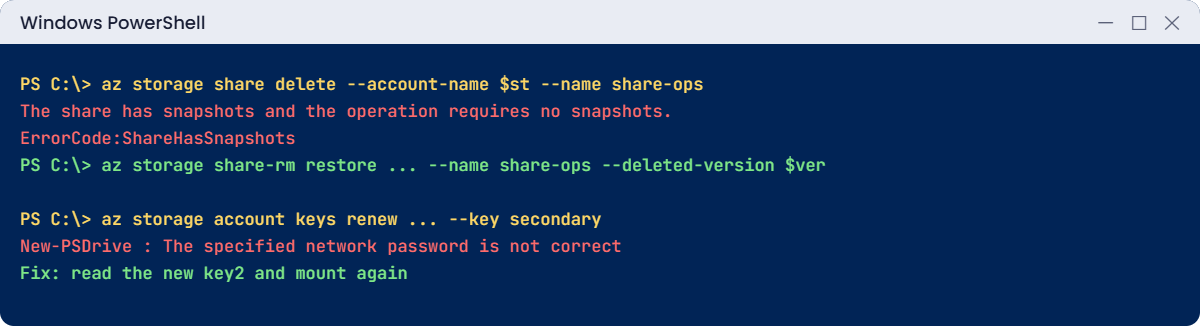
Azure file share errors: ShareHasSnapshots and wrong key after rotation
A share deleted with its snapshots and restored, and a mount broken by key rotation.

✅ Checkpoint: You restored a deleted share and fixed a mount after a key rotation. win01 is deallocated.

The deleted share waits in soft delete for 7 days and is then removed. Its few KB cost close to nothing.

This happened at work

Monday morning, and the S: drive was empty

An architecture firm moved its project drive to Azure Files, mapped as S: on 60 laptops through a VPN. One Monday, every user saw an empty or missing S: drive, and the helpdesk queue filled in minutes.

Over the weekend, a security review had rotated both storage account keys. The drive mappings stored key1 in Windows Credential Manager on every laptop, so all of them failed with “The specified network password is not correct”.

What they changed: the account was joined to their on-premises AD DS, and users now map S: with their own sign-in and share-level RBAC roles. Keys are rotated monthly without anyone noticing. Snapshots run every 4 hours and soft delete is set to 14 days, and the helpdesk runbook now starts with “test port 445, then check credentials”.

Common mistakes and troubleshooting

MistakeWhat you seeWhat to do
Mapping from a network that blocks 445Error 53, network path not foundVPN, a VM in Azure, or Azure File Sync.
Mounting with the account key everywhereMass failure after key rotationIdentity-based access with AD DS or Entra Kerberos.
Mapping a drive in a Run Command or serviceDrive missing for usersMap per user; SYSTEM mappings aren’t visible to them.
Soft delete offDeleted share gone for goodEnable share soft delete (7 to 14 days is common).
No snapshotsCan’t roll back an overwritten fileSchedule snapshots or Azure Backup for file shares.
Deleting a share with its snapshots in a hurryShare and history gone togetherCheck what --delete-snapshots include removes first.
Treating the share as a databaseLocking problems, slow appsUse a database; shares are for files.

Interview questions

Click a question to open it. Each one is written the way an interviewer would ask it. Under it you will see why they ask it and one way you could answer, in your own words.

Fresher level

1. What is Azure Files?

Why they ask this: The basic concept.

How you might answer: A managed file share service in a storage account. Clients mount it over SMB, or NFS on premium shares, like a normal network drive.

2. Which port does SMB use, and why does it matter?

Why they ask this: A classic troubleshooting basic.

How you might answer: TCP 445. Many home networks, internet providers and company firewalls block it outbound, so a share that works from an Azure VM may fail from a laptop.

3. What is the difference between a share snapshot and soft delete?

Why they ask this: They want to see both protections.

How you might answer: A snapshot is a read-only copy of the whole share at a point in time, used to bring back files. Soft delete keeps a deleted share, with its snapshots, for a set number of days so the whole share can be restored.

2–5 years experience

4. A user overwrote an important file on a share. How do you get it back?

Why they ask this: A very common ticket.

How you might answer: If snapshots or Azure Backup exist, the user can use Previous Versions in Windows, or I copy the file from the snapshot with the CLI or the portal. I’d restore to a new name first so we don’t overwrite anything newer.

5. Mapped drives fail for everyone after a key rotation. What happened and how do you fix it long term?

Why they ask this: They want root cause and design thinking.

How you might answer: The drives were mounted with the account key, so rotating it broke all of them. Short term, update the stored credential. Long term, use identity-based access with AD DS or Entra Kerberos, so users connect with their own accounts and keys can rotate freely.

6. How do you troubleshoot “network path not found” for an Azure file share?

Why they ask this: They want a step-by-step method.

How you might answer: Check DNS resolves the file endpoint, test TCP 445, check the storage firewall and private endpoint DNS, then credentials and permissions. Microsoft’s troubleshooting guide and AzFileDiagnostics script help.

Senior level

7. How would you migrate a large on-premises file server to Azure Files?

Why they ask this: They want a realistic plan.

How you might answer: Azure File Sync for a gradual move with a local cache and cloud tiering, or AzCopy or Robocopy for a straight copy. I’d set up identity-based access and NTFS ACLs first, plan around port 445, run a pilot, and keep snapshots and backup ready before cutover.

8. Standard or premium file shares: how do you decide?

Why they ask this: They want performance and cost reasoning.

How you might answer: Standard for general file sharing where latency isn’t critical. Premium for low latency and high IOPS, such as app data or profile containers, and when NFS is needed. Premium is billed by provisioned size, so I’d size it from measured usage.

9. How do you protect file shares from ransomware?

Why they ask this: They want layered defence.

How you might answer: Identity-based access with least privilege, snapshots on a schedule, Azure Backup with soft delete in a separate vault, share soft delete, a lock on the storage account, and private endpoints with the firewall so only expected networks reach it.

Quick quiz

Q1. Which port does SMB use?

  1. 443
  2. 445
  3. 3389
  4. 2049
Show answer

B — SMB uses TCP 445.

Q2. What does a share snapshot protect against?

  1. Deleting the storage account
  2. Overwritten or deleted files
  3. Port 445 blocks
  4. Key rotation
Show answer

B — Snapshots let you copy files back from a point in time.

Q3. What brings back a deleted share?

  1. Lifecycle rules
  2. Share soft delete
  3. RA-GRS
  4. A new SAS
Show answer

B — Soft delete keeps deleted shares for the retention period.

Q4. After a key rotation, mounts fail with “network password is not correct”. Fix?

  1. Open port 445
  2. Use the new key or identity-based access
  3. Delete snapshots
  4. Change the tier
Show answer

B — The stored key is no longer valid.

Q5. Which tier is the default for a standard share?

  1. Hot
  2. Cool
  3. Transaction optimized
  4. Premium
Show answer

C — Standard shares default to Transaction optimized.

Quick recap

You can now run Azure file shares day to day and recover from the usual mistakes.

  • Azure Files gives SMB (and NFS on premium) shares from a storage account.
  • Port 445 must be reachable; test it first.
  • Snapshots bring back files; soft delete brings back shares.
  • Key-based mounts break on key rotation; use identity-based access.
  • Lock the storage account to protect against account deletion.

Next lesson

Lesson 26: Storage networking: firewall, service endpoints, private endpoints → You lock the storage account to your VNet and make it reachable only through a private endpoint.

Further reading: Azure file share

Want to go deeper into Azure file share? See Microsoft’s What is Azure Files? and Azure Files share snapshots. You can also see the full plan for this course on the Azure Cloud Administration course page.

Scroll to Top