Azure Monitor: metrics, Activity log, alerts

Azure Monitor alerts tell you something is wrong before your users do. They watch metrics like CPU, events like “VM deallocated”, and logs, and send an email, SMS or webhook through an action group.

Azure Monitor collects a lot by default: platform metrics for every resource, and the Activity log for every change. Most teams under-use both, then discover an outage from a customer phone call.

In the lab you read metrics and the Activity log, build a CPU alert and make it fire, then fix the two alert gaps that cause the most missed incidents.

TimeYou needCostBy the end you can
About 50 minutesweb01, an email address you can read, the CLIA few US cents: one metric alert rule for an hour; Activity log alerts and the first 1,000 emails a month have no chargeRead metrics and the Activity log, create action groups and alerts, and close common alert gaps

What it is, in one line

Azure Monitor alerts watch metrics, events and logs, and notify you through action groups when a rule matches.

In Simple Words

The fire alarm and the visitor book

A school has a thermometer in every room: those are metrics, numbers measured every minute. It also has a visitor book at the gate that records who came in and what they did: that’s the Activity log.

An alert is the rule “if any room is hotter than 50 degrees for five minutes, ring the alarm”. The action group is the list of people the alarm calls.

But if a room’s thermometer is switched off, it never reads hot, and the alarm never rings. That gap is the first break in today’s lab.

Engineer's View

Signals, rules and action groups

  • Platform metrics: collected automatically every minute for most resources and kept 93 days. For VMs: Percentage CPU, Network In/Out, Disk read/write, Available Memory Bytes and more, measured from the host.
  • Activity log: every control-plane operation (create, update, delete, start, deallocate) with caller, time and status, kept 90 days. Export it to Log Analytics to keep it longer and query it.
  • Alert types: metric alerts (threshold or dynamic), log search alerts (KQL, Lesson 34), Activity log alerts (operations, Service Health, Resource Health) and smart detection.
  • Metric alert pieces: scope, condition (aggregation, metric, operator, threshold), window size, evaluation frequency, severity 0 to 4, and action groups. Alerts are stateful: they fire once, then resolve when the condition clears.
  • Action groups: reusable lists of notifications (email, SMS, push, voice) and actions (webhook, Logic App, Function, ITSM, Automation runbook). Email has rate limits, around 100 messages an hour per address.
  • Alert processing rules suppress notifications during planned maintenance or add action groups at scale.

How it works, step by step

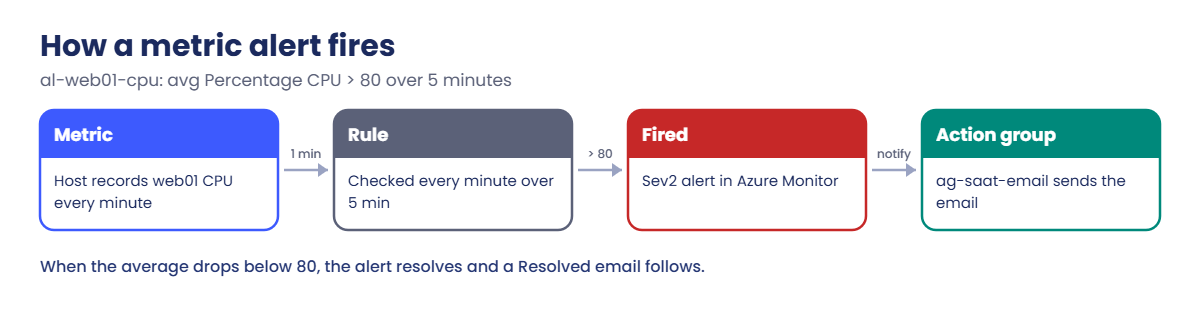
What happens when web01’s CPU goes above 80%:

Azure Monitor alerts: how a metric alert fires and notifies
  1. The host records Percentage CPU for web01 every minute.
  2. Every minute, the rule al-web01-cpu checks the average over the last 5 minutes.
  3. When the average is above 80, the alert fires with severity 2.
  4. The action group ag-saat-email sends the email. The alert shows in Azure Monitor, Alerts.
  5. When the average drops below 80, the alert resolves and you get a “Resolved” email.

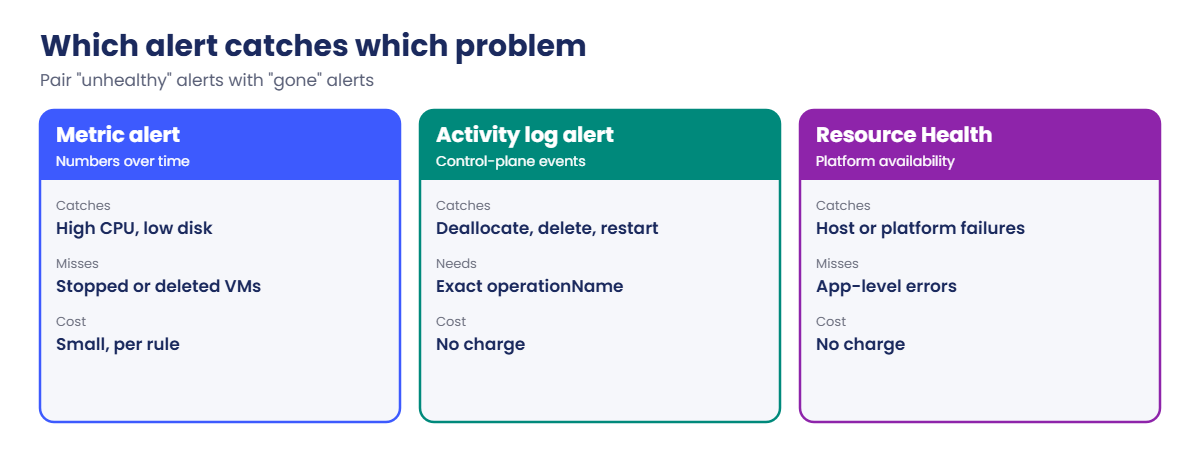
In Azure Monitor alerts, a metric rule can only judge data it receives. If the VM stops, the metric stops, and a threshold rule has nothing to compare.

Azure Monitor alerts compared: metric, Activity log and Resource Health

Good alerting pairs “it’s unhealthy” rules (metrics, logs) with “it’s gone” rules (Activity log, Resource Health, availability).

Hands-on lab: Azure Monitor alerts for web01

Set your email address and load IDs:

$mail = 'you@example.com'   # use your own address
$sub = az account show --query id -o tsv
$web01 = az vm show --resource-group rg-saat-vms --name web01 --query id -o tsv
az vm start --resource-group rg-saat-vms --name web01

1Create an action group

Run this:

az monitor action-group create --resource-group rg-saat-core --name ag-saat-email --short-name saatmail --action email admin $mail --tags course=saatvedha-azure lesson=31 keep=true -o none
$ag = az monitor action-group show --resource-group rg-saat-core --name ag-saat-email --query id -o tsv
az monitor action-group show --resource-group rg-saat-core --name ag-saat-email --query "emailReceivers[].{name:name, email:emailAddress, status:status}" -o table

You should see something like this:

Name    Email            Status
------  ---------------  --------
admin   you@example.com  Enabled

You’ll also get an email saying you were added to the action group. This group stays for the next lessons.

2Read web01’s metrics

Run this:

az monitor metrics list --resource $web01 --metric "Percentage CPU" --interval PT5M --aggregation Average --offset 1h --query "value[0].timeseries[0].data[-3:].{time:timeStamp, avg:average}" -o table

You should see something like this:

Time                       Avg
-------------------------  ------
2026-10-20T17:35:00+00:00  1.62
2026-10-20T17:40:00+00:00  0.88
2026-10-20T17:45:00+00:00  0.91

3Read the Activity log

See what changed on your VMs in the last two hours, and who did it:

az monitor activity-log list --resource-group rg-saat-vms --offset 2h --query "[?status.value=='Succeeded'].{time:eventTimestamp, operation:operationName.value, caller:caller}" -o table

You should see something like this:

Time                              Operation                                       Caller
--------------------------------  ----------------------------------------------  ----------------
2026-10-20T17:31:12.4400000Z      Microsoft.Compute/virtualMachines/start/action  you@example.com

Write down the exact operation name format; you’ll need it in Break It.

4Create a CPU alert and make it fire

Create the rule, then load both vCPUs for 8 minutes:

az monitor metrics alert create --resource-group rg-saat-vms --name al-web01-cpu --scopes $web01 --condition "avg Percentage CPU > 80" --window-size 5m --evaluation-frequency 1m --severity 2 --action $ag --description "web01 CPU above 80 percent" -o none
az vm run-command invoke --resource-group rg-saat-vms --name web01 --command-id RunShellScript --scripts 'for i in 1 2; do nohup timeout 480 yes >/dev/null 2>&1 & done; echo started' --query "value[0].message" -o tsv

Wait about 7 minutes, then check the metric:

az monitor metrics list --resource $web01 --metric "Percentage CPU" --interval PT1M --aggregation Average --offset 10m --query "value[0].timeseries[0].data[-2:].{time:timeStamp, avg:average}" -o table

You should see something like this, and an email:

Time                       Avg
-------------------------  ------
2026-10-20T17:58:00+00:00  99.71
2026-10-20T17:59:00+00:00  99.68

The email’s subject starts with “Fired:Sev2 Azure Monitor Alert al-web01-cpu”. About 5 minutes after the load stops, a “Resolved” email follows.
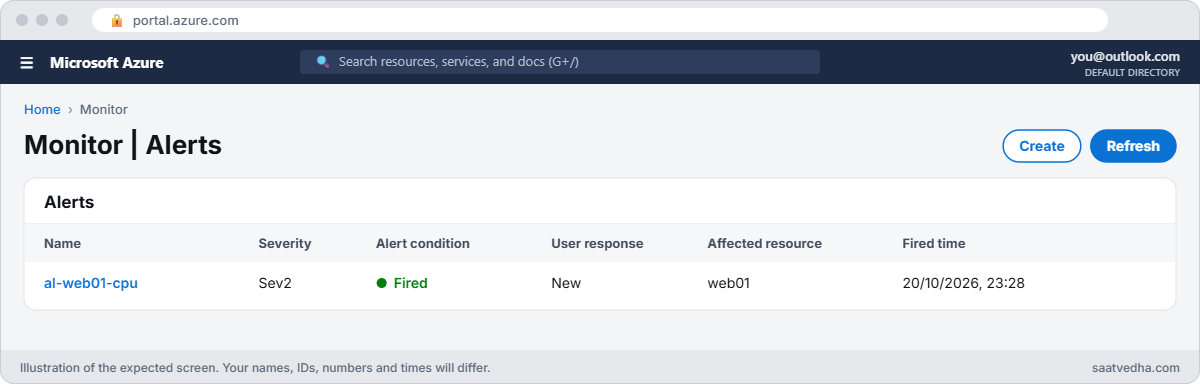
Azure Monitor alerts list with a fired CPU alert
al-web01-cpu has Fired.
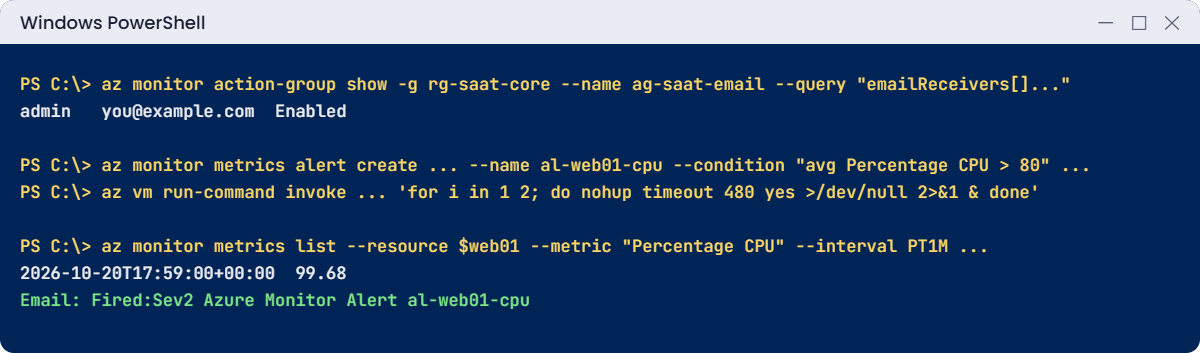
Azure Monitor alerts lab: action group, CPU alert and load test
An action group, a CPU rule, and a load test that makes it fire.

✅ Checkpoint: ag-saat-email exists, you read metrics and the Activity log, and al-web01-cpu fired and then resolved.

Break It, Then Fix It

Both of these Azure Monitor alerts gaps are silent: no error, just no email when you need one.

1Break it: the server is down and nobody hears

Deallocate web01, as an accident or a rogue script might, and wait 10 minutes:

az vm deallocate --resource-group rg-saat-vms --name web01
az monitor metrics list --resource $web01 --metric "Percentage CPU" --interval PT1M --aggregation Average --offset 10m --query "value[0].timeseries[0].data[-2:].{time:timeStamp, avg:average}" -o table

You should see something like this:

Time                       Avg
-------------------------  -----
2026-10-20T18:20:00+00:00
2026-10-20T18:21:00+00:00

No values, so the CPU rule has nothing to compare and stays quiet. Your only CPU alert can’t tell “idle” from “gone”.

Fix it: add an Activity log alert for deallocation, then test it:

az monitor activity-log alert create --resource-group rg-saat-core --name al-vm-deallocate --scope "/subscriptions/$sub/resourceGroups/rg-saat-vms" --condition "category=Administrative and operationName=Microsoft.Compute/virtualMachines/deallocate/action" --action-group $ag --description "web01 or win01 deallocated" -o none
az vm start --resource-group rg-saat-vms --name web01
az vm deallocate --resource-group rg-saat-vms --name web01

Within a few minutes you get an email for al-vm-deallocate, naming the VM and who did it. Resource Health alerts and the VM availability metric cover crashes that aren’t user actions.

2Break it: the Activity log alert that never fires

Add an alert for restarts, copying the operation name from memory, then restart win01:

az monitor activity-log alert create --resource-group rg-saat-core --name al-vm-restart --scope "/subscriptions/$sub/resourceGroups/rg-saat-vms" --condition "category=Administrative and operationName=Microsoft.Compute/virtualMachines/restart" --action-group $ag --description "web01 or win01 restarted" -o none
az vm start --resource-group rg-saat-vms --name win01
az vm restart --resource-group rg-saat-vms --name win01

Wait 10 minutes: no email. The rule was created without complaint, but the real operation name ends in /action, so the condition never matches.

Fix it: copy the name from a real event, then correct the rule:

az monitor activity-log list --resource-group rg-saat-vms --offset 1h --query "[?contains(operationName.value, 'restart')].operationName.value | [0]" -o tsv
az monitor activity-log alert delete --resource-group rg-saat-core --name al-vm-restart
az monitor activity-log alert create --resource-group rg-saat-core --name al-vm-restart --scope "/subscriptions/$sub/resourceGroups/rg-saat-vms" --condition "category=Administrative and operationName=Microsoft.Compute/virtualMachines/restart/action" --action-group $ag --description "web01 or win01 restarted" -o none
az vm restart --resource-group rg-saat-vms --name win01

The first command prints this, and an email arrives after the second restart:

Microsoft.Compute/virtualMachines/restart/action

Clean up: keep the action group, delete the rules, stop win01:

az monitor metrics alert delete --resource-group rg-saat-vms --name al-web01-cpu
az monitor activity-log alert delete --resource-group rg-saat-core --name al-vm-deallocate
az monitor activity-log alert delete --resource-group rg-saat-core --name al-vm-restart
az vm deallocate --resource-group rg-saat-vms --name win01
az monitor action-group list --resource-group rg-saat-core --query "[].name" -o tsv

You should see this:

ag-saat-email
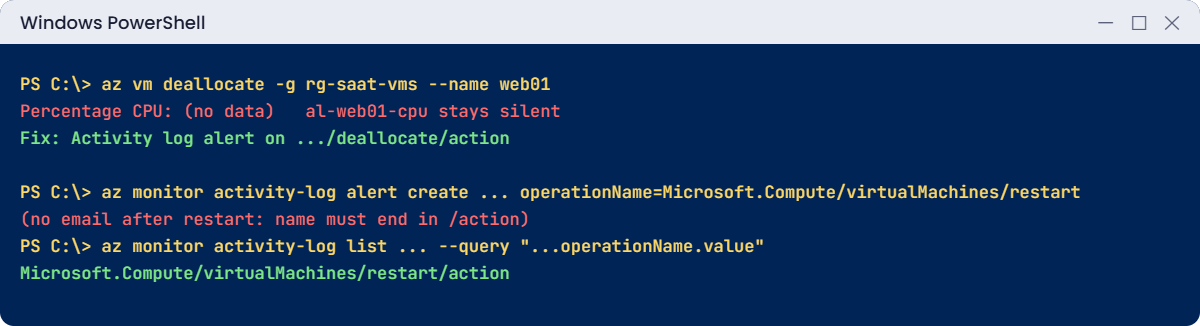
Azure Monitor alerts gaps: stopped VM and wrong operation name
A deallocated VM sends no CPU data, and an operation name without /action never matches.

✅ Checkpoint: You closed a “VM gone” gap and fixed a rule that could never match. Only ag-saat-email stays, and both VMs are deallocated.

This happened at work

The weekend nobody was paged

An e-commerce company had CPU, memory and disk alerts on every web server. On a Saturday night, a cost-saving script deallocated the whole web tier by mistake. The site was down for 9 hours, and not a single alert fired.

Every alert rule watched a metric from a running VM. With the VMs deallocated, the metrics simply stopped. The on-call engineer found out on Sunday morning from a customer tweet.

What they changed: Activity log alerts for deallocate, delete and power off on all production resource groups, Resource Health alerts for unplanned downtime, and an availability test that loads the home page every 5 minutes from three regions. The cost script now refuses to touch anything tagged env=prod.

Common mistakes and troubleshooting

MistakeWhat you seeWhat to do
Only metric alertsSilence when the VM is stopped or deletedAdd Activity log, Resource Health and availability alerts.
Operation name typed from memoryActivity log alert never firesCopy operationName from a real event.
Thresholds too lowAlerts all day, people stop reading themTune thresholds; use dynamic thresholds.
One person in the action groupAlert missed on leave or at nightUse a team mailbox, SMS or an on-call tool.
No alerts during maintenance planningNoise or missed real issuesUse alert processing rules for planned windows.
Short window with spiky metricsFires and resolves repeatedlyUse a longer window or more failing periods.

Interview questions

Click a question to open it. Each one is written the way an interviewer would ask it. Under it you will see why they ask it and one way you could answer, in your own words.

Fresher level

1. What is the difference between metrics and logs in Azure Monitor?

Why they ask this: The basic concept.

How you might answer: Metrics are numbers sampled at regular intervals, light and fast, good for thresholds and charts. Logs are detailed records stored in Log Analytics and queried with KQL for investigation and complex conditions.

2. What is an action group?

Why they ask this: A building block check.

How you might answer: A reusable list of notifications and actions, like email, SMS, webhooks or runbooks, that alert rules call when they fire.

3. What does the Activity log record?

Why they ask this: They want control-plane awareness.

How you might answer: Every management operation on Azure resources: who did what, when, on which resource, and whether it succeeded. It’s kept for 90 days unless exported.

2–5 years experience

4. A VM went down but no alert fired. Why, and what would you add?

Why they ask this: A real gap they want you to know.

How you might answer: Metric alerts need data, and a stopped VM sends none. I’d add Activity log alerts for deallocate and delete, Resource Health alerts for platform issues, and an availability or heartbeat check for the app.

5. What’s the difference between static and dynamic thresholds?

Why they ask this: They want tuning knowledge.

How you might answer: Static compares to a fixed number. Dynamic learns the metric’s normal pattern by time of day and week, and alerts on unusual deviation, which cuts noise for metrics that vary a lot.

6. How would you stop alerts during a planned maintenance window?

Why they ask this: They’re checking alert processing rules.

How you might answer: An alert processing rule scoped to the affected resources that suppresses notifications for the window. The alerts still fire and are recorded, so nothing is lost for the history.

Senior level

7. How would you design alerting for a production platform?

Why they ask this: They want structure, not a list of metrics.

How you might answer: Start from what users feel: availability tests and key app metrics. Then infrastructure health with metrics and Resource Health, change awareness with Activity log alerts, and log alerts for known failure patterns. Severities map to on-call routes, everything is deployed as code, and each alert has a runbook.

8. How do you manage alert rules across hundreds of resources?

Why they ask this: They want scale.

How you might answer: Multi-resource metric alerts scoped to a subscription or resource group, Azure Policy or the built-in recommended alerts to deploy rules, Bicep for consistency, and alert processing rules to route by tag.

9. How do you avoid alert fatigue?

Why they ask this: They want judgement.

How you might answer: Every alert must be actionable and owned. I’d review noisy alerts monthly, use dynamic thresholds and longer windows, group related alerts, and delete rules nobody acts on.

Quick quiz

Q1. How long are platform metrics kept by default?

  1. 7 days
  2. 30 days
  3. 93 days
  4. 1 year
Show answer

C — Platform metrics are kept for 93 days.

Q2. What does an action group do?

  1. Stores metrics
  2. Lists who and what to notify
  3. Creates VMs
  4. Runs KQL
Show answer

B — Action groups hold notifications and actions.

Q3. A VM is deallocated. Does its CPU alert fire?

  1. Yes, at 0%
  2. No, there is no data
  3. Only on weekends
  4. It deletes the VM
Show answer

B — No metric data means no threshold breach.

Q4. Which alert catches “VM deallocated”?

  1. Metric alert on CPU
  2. Activity log alert
  3. Smart detection
  4. Storage alert
Show answer

B — Deallocation is a control-plane operation in the Activity log.

Q5. An Activity log alert uses “…/restart” without /action. Result?

  1. Works
  2. Never matches
  3. Fires twice
  4. Error on create
Show answer

B — The condition must match the exact operation name.

Quick recap

You can now see what your resources are doing and set up Azure Monitor alerts that tell you when it matters.

Before you move on, open Azure Monitor, Alerts in the portal and look at the history of al-web01-cpu. Each fired and resolved event is listed with its time, severity and the value that crossed the line. In real teams, this history is the first thing reviewed after an incident: did the right alert fire, did it reach the right people, and how long did someone take to act on it?

  • Metrics are automatic; the Activity log records every change.
  • Metric alerts need data; add “it’s gone” alerts too.
  • Action groups are reusable notification lists.
  • Copy Activity log operation names from real events.
  • Every alert should be actionable and owned.

Next lesson

Lesson 32: Azure Monitor Agent and data collection rules → You install the Azure Monitor Agent and send VM logs and performance data to Log Analytics.

Further reading: Azure Monitor alerts

Want to go deeper into Azure Monitor alerts? See Microsoft’s Overview of Azure Monitor alerts and Action groups. You can also see the full plan for this course on the Azure Cloud Administration course page.

Scroll to Top