Azure Backup for VMs

Azure VM backup copies your whole VM, all its disks, on a schedule, and keeps restore points for days, months or years. When a disk is corrupted, ransomware strikes, or someone deletes the wrong VM, this is what brings it back.

Azure Backup is built in, needs no backup server, and works through the VM agent. The hard parts are the choices around it: the vault’s storage type, the policy, soft delete, and the restore you test before you need it.

In the lab you build a Recovery Services vault, back up web01, restore it as a new VM, then hit two walls that catch admins every week: a policy you can’t go back on, and a vault that won’t delete.

TimeYou needCostBy the end you can
About 90 minutes (the first backup takes 20 to 40 minutes)web01, the storage account from Lesson 21, the CLIAbout 50 US cents if you finish and clean up the same day: a protected-instance fee, snapshot and vault storage, and the restored VM for an hourBack up VMs, restore them, choose policies and vault settings, and clean up vaults safely

What it is, in one line

Azure VM backup takes scheduled snapshots of a VM’s disks, stores them in a vault, and restores the VM or its disks on demand.

In Simple Words

Photocopies of the school register

Every evening, the office photocopies the whole register and files the copy in a fireproof cabinet across the road. That’s a backup, and the cabinet is the vault.

The last few days’ copies are kept on the office shelf too, so a mistake from yesterday is fixed in minutes. Older copies are fetched from across the road. That’s the snapshot tier and the vault tier.

If someone throws a copy away, it waits in a locked bin for 14 days before it’s really gone. That’s soft delete, and it’s also why the cabinet can’t be removed while that bin has anything in it.

Engineer's View

How Azure VM backup works

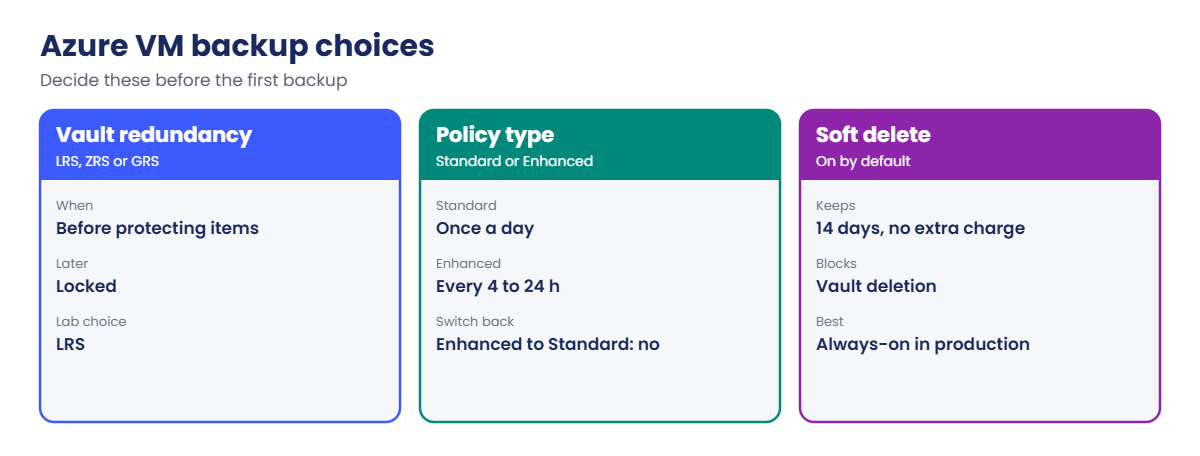
  • Recovery Services vault: holds backup data and policies for VMs, SQL in VMs, Azure Files and MARS (Lesson 36). Set storage redundancy (LRS, ZRS, GRS) and cross-region restore before protecting anything; it’s locked after.
  • How a backup runs: the backup extension, installed through the VM agent, takes an app-consistent snapshot (VSS on Windows, file-system freeze or pre/post scripts on Linux), then copies changed blocks to the vault.
  • Policies: Standard backs up once a day. Enhanced allows every 4 to 24 hours, keeps snapshots 1 to 30 days, and is needed for Ultra Disk and Premium SSD v2. A VM on Enhanced can’t move back to Standard.
  • Restore options: create a new VM, restore disks, replace the existing disks, or recover single files by mounting a recovery point.
  • Soft delete: on by default, keeps deleted backup data for 14 days at no extra charge. Enhanced soft delete can be made “always-on” so nobody can switch it off.
  • Cost: a monthly protected-instance fee per VM by size, plus backup storage and snapshot storage.

How it works, step by step

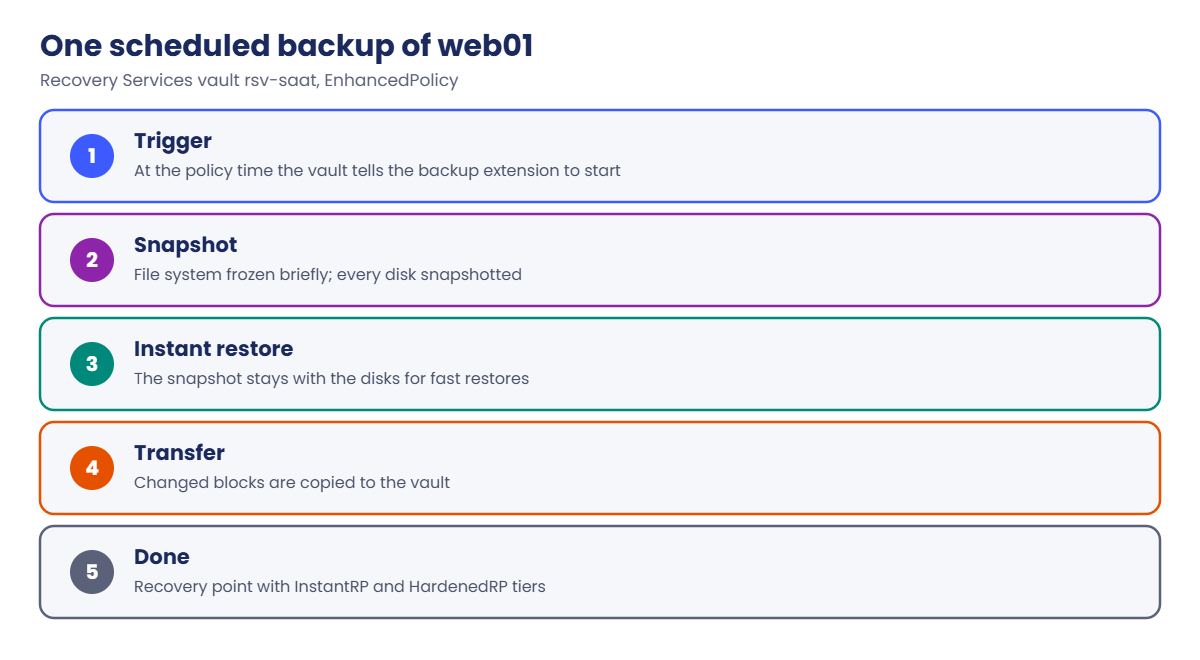
What happens during one scheduled backup of web01:

Azure VM backup flow: snapshot, instant restore and vault transfer
  1. At the policy time, the vault tells web01’s backup extension to start.
  2. The extension freezes the file system briefly and takes a snapshot of every disk.
  3. The snapshot stays with the disks as an instant restore point for the retention you set.
  4. Changed blocks are copied to the vault and kept as the vault-tier recovery point.
  5. The job reports Completed, and the recovery point appears with both tiers.

Restores from the snapshot tier take minutes; restores from the vault tier take longer because data is copied back from the vault.

Azure VM backup choices: vault redundancy, policy type and soft delete

A backup you haven’t restored is a hope, not a plan. Restore regularly into a separate resource group and check the app works.

Hands-on lab: Azure VM backup and restore for web01

Load the IDs you need and start web01:

$st = (Get-Content C:\azure-lab\storage.txt)
$web01 = az vm show --resource-group rg-saat-vms --name web01 --query id -o tsv
az vm start --resource-group rg-saat-vms --name web01

1Create the vault and set it to LRS first

Run this:

az backup vault create --resource-group rg-saat-core --name rsv-saat --location centralindia --tags course=saatvedha-azure lesson=35 -o none
az backup vault backup-properties set --resource-group rg-saat-core --name rsv-saat --backup-storage-redundancy LocallyRedundant --cross-region-restore-flag false -o none
az backup vault show --resource-group rg-saat-core --name rsv-saat --query "{name:name, redundancy:properties.redundancySettings.standardTierStorageRedundancy, crossRegionRestore:properties.redundancySettings.crossRegionRestore}" -o table

You should see something like this:

Name      Redundancy         CrossRegionRestore
--------  -----------------  --------------------
rsv-saat  LocallyRedundant   Disabled

A new vault defaults to geo-redundant storage. For a lab, LRS halves the storage cost. For production, decide now: once a VM is protected, the vault’s redundancy can’t be changed.

2Look at the built-in policies

Run this:

az backup policy list --resource-group rg-saat-core --vault-name rsv-saat --query "[?properties.backupManagementType=='AzureIaasVM'].{name:name, type:properties.policyType}" -o table

You should see something like this:

Name            Type
--------------  ------
DefaultPolicy   V1
EnhancedPolicy  V2

V1 is Standard, V2 is Enhanced. You’ll use EnhancedPolicy: every 4 hours, with snapshots kept for 7 days.

3Protect web01 and back it up now

Run this (the backup takes 20 to 40 minutes):

az backup protection enable-for-vm --resource-group rg-saat-core --vault-name rsv-saat --vm $web01 --policy-name EnhancedPolicy -o none
$job = az backup protection backup-now --resource-group rg-saat-core --vault-name rsv-saat --container-name web01 --item-name web01 --backup-management-type AzureIaasVM --retain-until (Get-Date).AddDays(30).ToString('dd-MM-yyyy') --query name -o tsv
az backup job wait --resource-group rg-saat-core --vault-name rsv-saat --name $job
az backup job show --resource-group rg-saat-core --vault-name rsv-saat --name $job --query "{operation:properties.operation, status:properties.status, duration:properties.duration}" -o table

You should see something like this:

Operation    Status     Duration
-----------  ---------  --------------
Backup       Completed  0:27:41.551018

4List the recovery points

Run this:

az backup recoverypoint list --resource-group rg-saat-core --vault-name rsv-saat --container-name web01 --item-name web01 --backup-management-type AzureIaasVM --query "[].{name:name, time:properties.recoveryPointTime, tiers:join(', ', properties.recoveryPointTierDetails[].type)}" -o table

You should see something like this:

Name            Time                              Tiers
--------------  --------------------------------  ---------------------
84716539204517  2026-10-21T04:12:09.512000+00:00  InstantRP, HardenedRP

InstantRP is the snapshot tier; HardenedRP is the copy in the vault. Restores use the snapshot while it exists.

5Restore web01 as a new VM

Restore into a separate resource group, then check the web page on the copy:

az group create --name rg-saat-l35 --location centralindia --tags course=saatvedha-azure lesson=35 -o none
$rp = az backup recoverypoint list --resource-group rg-saat-core --vault-name rsv-saat --container-name web01 --item-name web01 --backup-management-type AzureIaasVM --query "[0].name" -o tsv
$rjob = az backup restore restore-disks --resource-group rg-saat-core --vault-name rsv-saat --container-name web01 --item-name web01 --backup-management-type AzureIaasVM --rp-name $rp --restore-mode AlternateLocation --target-vm-name web01-restored --target-resource-group rg-saat-l35 --target-vnet-name vnet-saat --target-vnet-resource-group rg-saat-core --target-subnet-name snet-web --storage-account $st --storage-account-resource-group rg-saat-data --query name -o tsv
az backup job wait --resource-group rg-saat-core --vault-name rsv-saat --name $rjob
az vm run-command invoke --resource-group rg-saat-l35 --name web01-restored --command-id RunShellScript --scripts 'hostname; curl -s localhost' --query "value[0].message" -o tsv

You should see something like this:

Enable succeeded: 
[stdout]
web01
<h1>web01</h1>
<p>SaatVedha Azure course, Lesson 15</p>

[stderr]

The copy still calls itself web01, because the OS inside is identical. In a real restore test, you’d also change its hostname or keep it isolated so it doesn’t clash with the original.
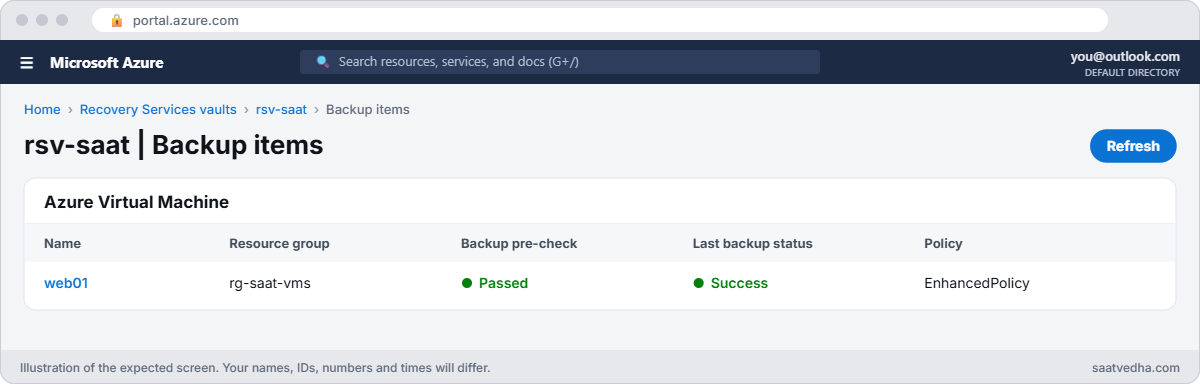
Azure VM backup items in a Recovery Services vault
web01 protected in rsv-saat with EnhancedPolicy.
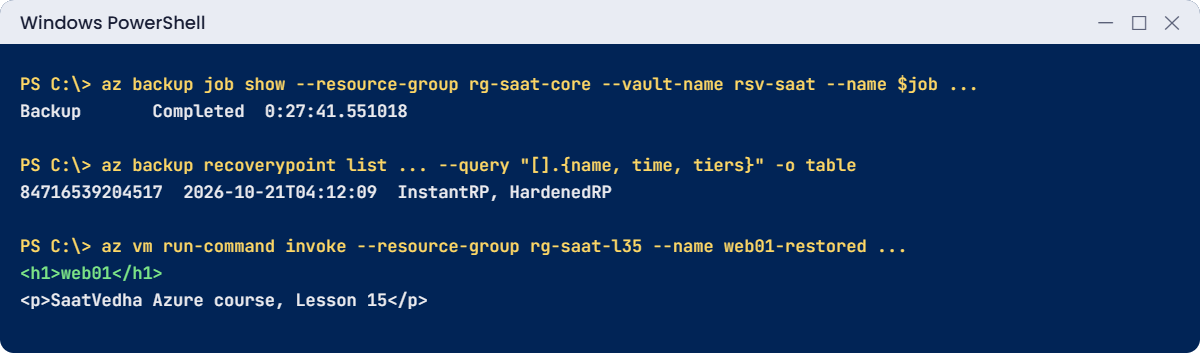
Azure VM backup lab: backup job, recovery points and a restored VM
A completed backup, its recovery point, and the restored copy serving the page.

✅ Checkpoint: web01 has a recovery point in both tiers, and web01-restored served the original page.

Break It, Then Fix It

Delete the restored VM first, so it stops costing money:

az group delete --name rg-saat-l35 --yes

1Break it: “let’s move it to the cheaper policy”

Someone tries to move web01 from Enhanced to the Standard policy:

az backup item set-policy --resource-group rg-saat-core --vault-name rsv-saat --container-name web01 --item-name web01 --backup-management-type AzureIaasVM --policy-name DefaultPolicy

The command fails: Azure refuses to change the policy type. Microsoft’s documentation is clear that a VM backed up with an Enhanced policy can’t be switched to a Standard one.

The only route is to stop protection, delete or keep the old data, and protect the VM again with a Standard policy.

Fix it: if Enhanced costs too much, make a cheaper Enhanced policy instead (every 24 hours, fewer snapshot days), and switch to that. Policy changes within the same type are allowed.

2Break it: the vault that won’t delete

Try to delete the vault while web01 is still protected:

az backup vault delete --resource-group rg-saat-core --name rsv-saat --yes

You’ll get this error:

Vault cannot be deleted as there are existing resources within the vault. Please ensure there are no backup items, protected servers, or backup management servers associated with this vault. Unregister the following containers associated with this vault before proceeding for deletion.

Stop protection and delete the backup data, then try again:

az backup protection disable --resource-group rg-saat-core --vault-name rsv-saat --container-name web01 --item-name web01 --backup-management-type AzureIaasVM --delete-backup-data true --yes
az backup vault delete --resource-group rg-saat-core --name rsv-saat --yes

You’ll get this error:

Recovery Services vault cannot be deleted as there are backup items in soft deleted state in the vault. The soft deleted items are permanently deleted after 14 days of delete operation. Please try vault deletion after the backup items are permanently deleted and there is no item in soft deleted state left in the vault.

That’s soft delete protecting you: an attacker who deletes your backups can’t delete the vault for 14 days either. It’s also why “clean up the lab” doesn’t finish today.

Fix it for the lab: bring the item back, switch soft delete off, delete the data again, then delete the vault. Never do this in production:

az backup protection undelete --resource-group rg-saat-core --vault-name rsv-saat --container-name web01 --item-name web01 --backup-management-type AzureIaasVM --workload-type VM -o none
az backup vault backup-properties set --resource-group rg-saat-core --name rsv-saat --soft-delete-feature-state Disable -o none
az backup protection disable --resource-group rg-saat-core --vault-name rsv-saat --container-name web01 --item-name web01 --backup-management-type AzureIaasVM --delete-backup-data true --yes
az backup vault delete --resource-group rg-saat-core --name rsv-saat --yes
az vm deallocate --resource-group rg-saat-vms --name web01
C:\azure-lab\Find-LabResources.ps1 -Lesson 35

You should see this:

Nothing tagged course=saatvedha-azure is left.
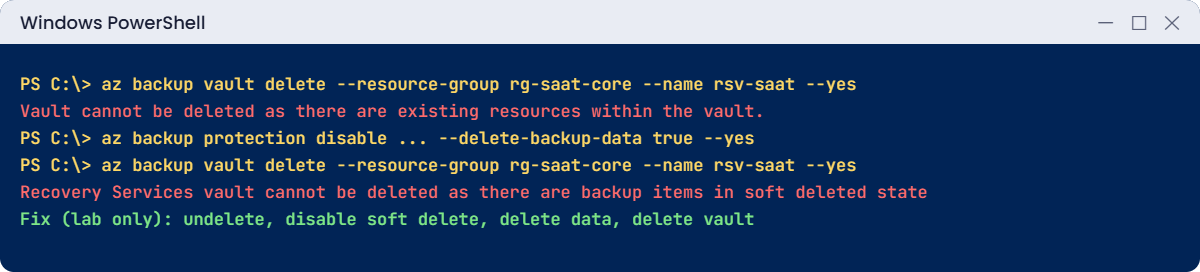
Azure VM backup errors when deleting a Recovery Services vault
Two vault delete errors: protected items, then soft-deleted items.

✅ Checkpoint: You hit the policy-type rule and both vault delete errors, and cleaned up the right way.

The backup extension stays on web01; it does nothing without a vault. Lesson 36 builds a new vault for the MARS agent.

This happened at work

The backups that were deleted before the ransom note

A logistics company was hit by ransomware on a Friday night. Before encrypting the servers, the attackers used a stolen admin account to stop backup and delete backup data for 70 VMs, then tried to delete the vault.

The vault delete failed: the deleted items were in soft delete for 14 days. On Monday, the team undeleted the backup items and restored the VMs from recovery points taken before the attack. They were back in 3 days instead of rebuilding from scratch.

What they changed: soft delete is now always-on and immutability is locked on the vault, so even a Global Administrator can’t shorten them. Critical operations need a second person through Resource Guard, and backup alerts go to a mailbox the IT admin accounts can’t change.

Common mistakes and troubleshooting

MistakeWhat you seeWhat to do
Leaving the vault on GRS by defaultDouble storage cost; can’t change laterSet redundancy before protecting the first item.
Choosing Enhanced without a reasonHigher snapshot cost; can’t go backUse Standard unless you need it; pick Enhanced deliberately.
Never testing restoresRestore fails during an incidentRestore monthly into a test resource group.
Turning soft delete off “to save money”Deleted backups gone instantlyKeep it on; it has no extra charge for 14 days.
Restoring next to the original with the same hostnameName and IP clashesIsolate or rename the restored copy.
Deleting a vault with soft-deleted items“Cannot be deleted as there are backup items in soft deleted state”Wait 14 days, or undelete and delete properly in labs.

Interview questions

Click a question to open it. Each one is written the way an interviewer would ask it. Under it you will see why they ask it and one way you could answer, in your own words.

Fresher level

1. What is a Recovery Services vault?

Why they ask this: The basic building block.

How you might answer: An Azure resource that stores backup data and policies for VMs, SQL in VMs, Azure Files and MARS backups, with settings for redundancy, soft delete and security.

2. What restore options does Azure VM backup offer?

Why they ask this: They want the menu.

How you might answer: Create a new VM, restore disks, replace the disks of the existing VM, or recover individual files by mounting a recovery point.

3. What is soft delete in Azure Backup?

Why they ask this: A security basics check.

How you might answer: Deleted backup data is kept for 14 days by default so it can be undeleted. It protects against mistakes and attackers deleting backups.

2–5 years experience

4. Standard or Enhanced policy: how do you choose?

Why they ask this: They want the trade-offs.

How you might answer: Standard does one backup a day and is cheaper. Enhanced allows several backups a day and longer snapshot retention, and supports Ultra Disk and Premium SSD v2. A VM can’t move from Enhanced back to Standard, so I choose deliberately.

5. A VM backup job fails. What do you check?

Why they ask this: A day-to-day troubleshooting path.

How you might answer: The VM agent and backup extension status, the job’s error code, disk and snapshot limits, VSS or file-system freeze errors inside the VM, and whether the VM is running. The error code usually names the cause and links to a fix.

6. Why can’t you delete a Recovery Services vault?

Why they ask this: A common ticket.

How you might answer: It still has protected items, registered servers, or soft-deleted items. Stop protection and delete data, wait for soft delete to expire, or in a lab undelete, disable soft delete and delete again.

Senior level

7. How would you protect backups against ransomware?

Why they ask this: They want layered defence.

How you might answer: Always-on soft delete, locked immutability, multi-user authorization with Resource Guard, separate admin accounts for backup, alerts on backup deletion, and cross-region or cross-subscription copies for critical systems.

8. How do you design backup for 1,000 VMs?

Why they ask this: They want scale and governance.

How you might answer: Azure Policy to auto-enable backup by tag, a few standard policies by tier, vaults per region and environment, Backup Center for monitoring, regular restore tests, and reports on unprotected VMs and failed jobs.

9. What RPO and RTO can Azure VM backup give?

Why they ask this: They want realistic numbers.

How you might answer: Standard gives an RPO of about 24 hours, Enhanced as low as 4 hours. RTO depends on restore type: snapshot restores take minutes, vault restores longer. For lower RPO and RTO I’d add Azure Site Recovery (Lesson 39).

Quick quiz

Q1. When must you set a vault’s storage redundancy?

  1. Any time
  2. Before protecting the first item
  3. After the first backup
  4. Never
Show answer

B — It can’t be changed once items are protected.

Q2. Which policy type allows backups every 4 hours?

  1. Standard
  2. Enhanced
  3. Archive
  4. Default
Show answer

B — Enhanced supports multiple backups a day.

Q3. Can a VM move from Enhanced to Standard policy?

  1. Yes
  2. No
  3. Only on Linux
  4. Only with GRS
Show answer

B — Changing back to Standard isn’t supported.

Q4. How long are soft-deleted backups kept by default?

  1. 1 day
  2. 7 days
  3. 14 days
  4. 90 days
Show answer

C — Soft delete keeps them 14 days.

Q5. Which tier gives the fastest restore?

  1. Vault tier
  2. Snapshot (instant restore) tier
  3. Archive tier
  4. Cool tier
Show answer

B — Snapshots restore in minutes.

Quick recap

You can now protect a VM, prove the backup works, and handle the vault safely.

  • Set vault redundancy before protecting anything.
  • Standard: daily. Enhanced: up to every 4 hours, and no way back.
  • Test restores into a separate resource group.
  • Soft delete keeps deleted backups 14 days and blocks vault deletion.
  • Protect backups from admins with always-on soft delete and Resource Guard.

Next lesson

Lesson 36: Azure Backup MARS agent: files and folders → You back up chosen folders from a Windows server with the MARS agent and restore a single file.

Further reading: Azure VM backup

Want to go deeper into Azure VM backup? See Microsoft’s About Azure VM backup and Delete a Recovery Services vault. You can also see the full plan for this course on the Azure Cloud Administration course page.

Scroll to Top