Azure VM won’t boot: Boot diagnostics and Serial Console

When an Azure VM won’t boot, you can’t SSH or RDP to it, Run Command doesn’t work, and the portal just says “Running”. Azure Serial Console and boot diagnostics are how you see what the VM is doing at that moment: the boot messages, the error, and a text console that works even without networking.

This lesson covers the most common Linux boot failure in Azure: an /etc/fstab entry for a disk that isn’t there. You’ll see it in the boot log, try the Serial Console, hit the locked root account, and fix the disk with Azure’s repair tooling.

The same method works for Windows: boot diagnostics shows the screenshot (a blue screen, “Applying updates” stuck at 30 percent), and the repair VM lets you fix the disk offline.

TimeYou needCostBy the end you can
About 60 minutesA free account, the CLI and PowerShellAbout 10 US cents: one small VM, a 4 GiB data disk and a temporary repair VM for under an hourRead boot diagnostics, use the Serial Console, and repair an unbootable Linux VM with az vm repair

What it is, in one line

Azure Serial Console is a text console to your VM through Azure itself, so you can see and fix boot problems when the network is unavailable.

In Simple Words

The car that won’t start

Your car won’t start. You can’t drive it to the garage, so the mechanic plugs a cable into the dashboard port and reads the error codes. That’s boot diagnostics and the Serial Console.

Sometimes the fix needs the engine out. The mechanic tows the car to the workshop, lifts the engine onto a bench, fixes it, and puts it back. That’s a repair VM: Azure copies your broken disk, attaches it to a healthy VM, you fix it there, and swap it back.

And if the dashboard port was taped over, the mechanic can’t read anything. That’s boot diagnostics turned off.

Engineer's View

Your tools for a VM that won’t boot

  • Boot diagnostics: captures the serial log (Linux) and a screenshot (Windows and Linux). Use managed storage; it’s simplest. It must be on for the Serial Console to work.
  • Serial Console: an interactive text console over the VM’s serial port, in the portal or with az serial-console connect. Needs a password-based account in the guest, and Contributor rights on the VM.
  • VM agent status: if the guest is stuck before the agent starts, the instance view shows the agent Not Ready and Run Command and extensions can’t help.
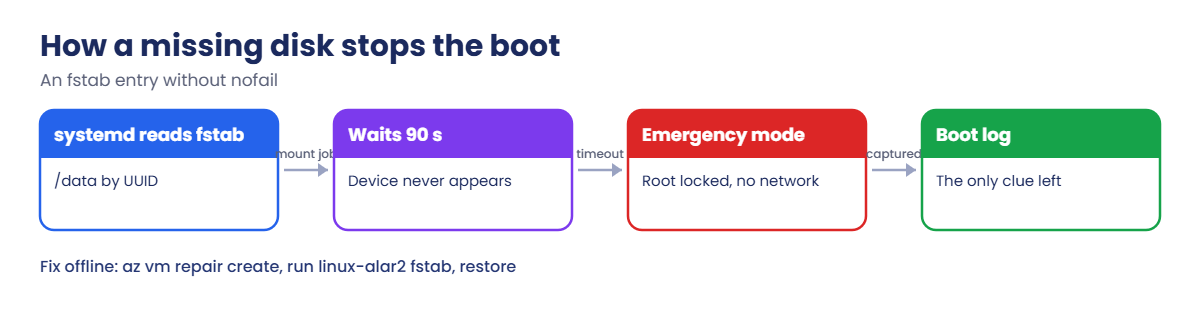
  • Emergency mode: systemd waits 90 seconds for a missing fstab device, then drops to emergency mode. On Azure Ubuntu images root is locked, so the emergency shell can’t be opened.
  • az vm repair: creates a repair VM, attaches a copy of the OS disk, runs fixes (including Azure Linux Auto Repair, ALAR, with actions such as fstab), then swaps the fixed copy back.
  • Prevention: use UUIDs and the nofail option for every data disk in /etc/fstab.

How it works, step by step

What happens when a VM boots with a bad fstab entry:

Azure Serial Console lesson: how a missing fstab disk stops the boot
  1. The kernel starts and systemd reads /etc/fstab.
  2. It creates a mount job for /data and waits for the device with that UUID.
  3. The disk was detached, so after 90 seconds the device job times out and “Dependency failed for /data” is logged.
  4. Because the entry has no nofail, systemd treats it as essential and enters emergency mode. Networking and the VM agent never start.
  5. The serial log, captured by boot diagnostics, is the only window into what happened.

From the outside the VM looks “Running” in the portal, which is why people waste time on NSGs and SSH keys.

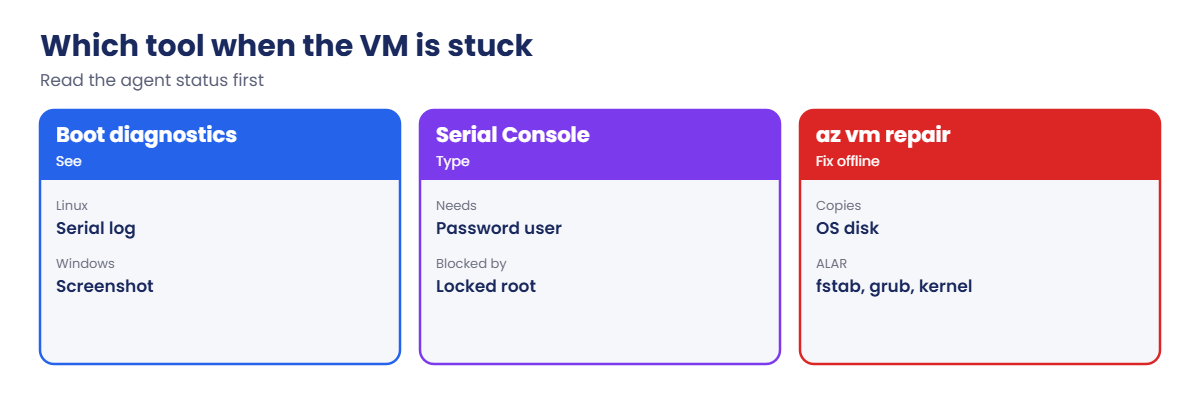
Boot diagnostics, Serial Console and az vm repair compared

The quickest tell: VM agent Not Ready plus a boot log that ends in emergency mode means a guest boot problem, not a network one.

Boot diagnostics, the Serial Console and a data disk

1A VM with boot diagnostics and a password for the console

Create the VM, turn on boot diagnostics with managed storage, and give azureuser a password so the Serial Console can log in:

$pw = 'Sv-' + (-join ((65..90) + (97..122) + (48..57) | Get-Random -Count 14 | ForEach-Object { [char]$_ })) + '9!'
az group create --name rg-saat-l60 --location centralindia --tags course=saatvedha-azure lesson=60 -o none
az vm create --resource-group rg-saat-l60 --name vm-boot --image Canonical:ubuntu-24_04-lts:server:latest --size Standard_B1s --public-ip-sku Standard --nsg-rule NONE --admin-username azureuser --generate-ssh-keys --tags course=saatvedha-azure lesson=60 -o none
az vm boot-diagnostics enable --resource-group rg-saat-l60 --name vm-boot -o none
az vm user update --resource-group rg-saat-l60 --name vm-boot --username azureuser --password $pw -o none

Keep $pw in this PowerShell window; you’ll need it at the console. In production, keep such a break-glass password in Key Vault.

2Add a data disk mounted through fstab

Attach a 4 GiB disk, then save this script as C:\azure-lab\boot\add-disk.sh and run it:

az vm disk attach --resource-group rg-saat-l60 --vm-name vm-boot --name data1 --new --size-gb 4 --lun 0 -o none
#!/bin/bash
# Format the data disk at LUN 0 and mount it on /data through /etc/fstab
mkfs.ext4 -q /dev/disk/azure/scsi1/lun0
mkdir -p /data
UUID=$(blkid -s UUID -o value /dev/disk/azure/scsi1/lun0)
echo "UUID=$UUID /data ext4 defaults 0 2" >> /etc/fstab
mount -a
tail -1 /etc/fstab
df -h /data | tail -1
az vm run-command invoke --resource-group rg-saat-l60 --name vm-boot --command-id RunShellScript --scripts '@C:\azure-lab\boot\add-disk.sh' --query "value[0].message" -o tsv

You should see something like this:

[stdout]
UUID=3f1c2a9e-5b7d-4c11-9e2f-8a6d4b0c7e15 /data ext4 defaults 0 2
/dev/sdc        3.9G   24K  3.7G   1% /data

Note the entry: defaults, no nofail. That’s how many guides still write it.

3Read a healthy boot and open the Serial Console

Check the agent and the end of the boot log, then connect to the console:

az vm get-instance-view --resource-group rg-saat-l60 --name vm-boot --query "instanceView.vmAgent.statuses[0].displayStatus" -o tsv
az vm boot-diagnostics get-boot-log --resource-group rg-saat-l60 --name vm-boot | Select-Object -Last 3
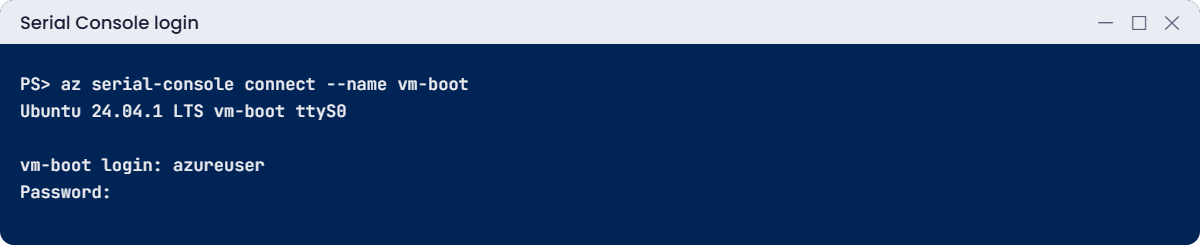
az serial-console connect --resource-group rg-saat-l60 --name vm-boot

The agent shows Ready. In the console, press Enter and you should see something like this:

Ubuntu 24.04.1 LTS vm-boot ttyS0

vm-boot login:

Log in as azureuser with $pw, run uptime, then leave with Ctrl+] followed by q.
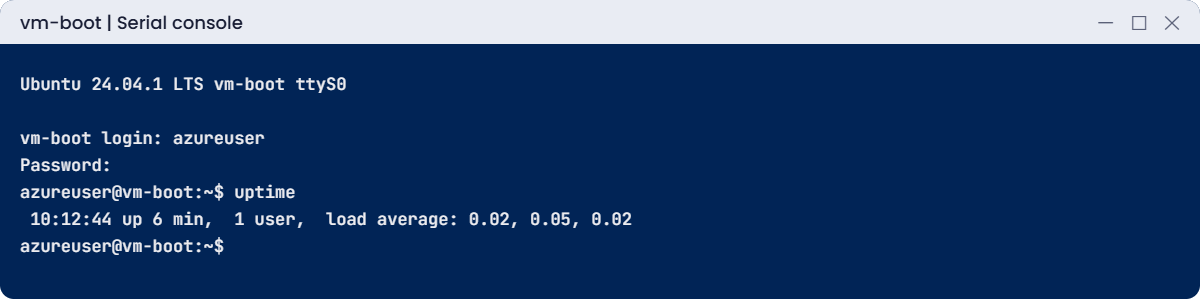
Azure serial console login prompt
Serial console on vm-boot: a login prompt even with no network.
Serial Console login prompt for an Azure Linux VM
A text console that works without networking.

✅ Checkpoint: vm-boot has boot diagnostics on, a data disk on /data, and you can log in through the Serial Console.

Break It, Then Fix It

Break 1 is quick; break 2 is the real incident.

1Break it: no boot diagnostics when you need it

A hardening script turns boot diagnostics off “to save storage”. Then someone tries the console:

az vm boot-diagnostics disable --resource-group rg-saat-l60 --name vm-boot -o none
az serial-console connect --resource-group rg-saat-l60 --name vm-boot

The CLI stops with an error saying the Serial Console needs boot diagnostics turned on.

The exact wording changes between CLI versions. The point is the same: with boot diagnostics off, you’re blind exactly when you need to see. That’s why Azure Policy has built-in definitions to require it.

Fix it: turn it back on with managed storage:

az vm boot-diagnostics enable --resource-group rg-saat-l60 --name vm-boot -o none

2Break it: the disk is gone, the VM won’t boot

The data disk is detached to move it to another VM, and the VM is restarted. Wait 3 minutes after the restart, then look:

az vm disk detach --resource-group rg-saat-l60 --vm-name vm-boot --name data1 -o none
az vm restart --resource-group rg-saat-l60 --name vm-boot -o none
az vm get-instance-view --resource-group rg-saat-l60 --name vm-boot --query "instanceView.vmAgent.statuses[0].displayStatus" -o tsv
az vm boot-diagnostics get-boot-log --resource-group rg-saat-l60 --name vm-boot | Select-String -Pattern 'emergency|Dependency failed|Timed out|root account' | Select-Object -Last 4

You should see something like this:

Not Ready
[ TIME ] Timed out waiting for device dev-disk-by\x2duuid-3f1c2a9e....device - /dev/disk/by-uuid/3f1c2a9e-5b7d-4c11-9e2f-8a6d4b0c7e15.
[DEPEND] Dependency failed for data.mount - /data.
You are in emergency mode. After logging in, type "journalctl -xb" to view system logs,
Cannot open access to console, the root account is locked.

The agent is Not Ready, so Run Command won’t work. The boot log names the problem exactly: /data’s device is missing and the system is in emergency mode. And the console can’t help, because emergency mode wants the root password and root is locked on Azure Ubuntu images.

Fix it: repair the OS disk on a repair VM with Azure Linux Auto Repair (about 15 minutes in total):

az vm repair create --resource-group rg-saat-l60 --name vm-boot --repair-username repairadmin --repair-password $pw --verbose
az vm repair run --resource-group rg-saat-l60 --name vm-boot --run-id linux-alar2 --parameters fstab --run-on-repair --verbose
az vm repair restore --resource-group rg-saat-l60 --name vm-boot --verbose

Then check the VM:

az vm get-instance-view --resource-group rg-saat-l60 --name vm-boot --query "instanceView.vmAgent.statuses[0].displayStatus" -o tsv
az vm run-command invoke --resource-group rg-saat-l60 --name vm-boot --command-id RunShellScript --scripts 'grep data /etc/fstab; ls /etc/fstab*' --query "value[0].message" -o tsv

You should see something like this:

Ready
[stdout]
UUID=3f1c2a9e-5b7d-4c11-9e2f-8a6d4b0c7e15 /data ext4 defaults,nofail 0 2
/etc/fstab  /etc/fstab.copy

ALAR copied the original file and added nofail, so a missing data disk no longer blocks boot. The VM is back, the agent is Ready, and you can attach the disk again whenever you want.

Boot log showing emergency mode after a missing data disk
The boot log names the missing device.

3Clean up

The repair tooling keeps the original OS disk in case you need it. Delete everything with the resource group:

az group delete --name rg-saat-l60 --yes
az group list --query "[?starts_with(name, 'repair-')].name" -o tsv

The second command should print nothing; if a repair group is left over, delete it too.

✅ Checkpoint: You re-enabled boot diagnostics, read an emergency-mode boot log, and repaired an unbootable VM without SSH, Run Command or root.

This happened at work

The patch night that took down 40 Linux servers

A retailer patched and rebooted 40 Linux VMs on a Saturday night. Twelve didn’t come back. SSH timed out, Run Command hung, and the team assumed a network change and spent an hour reviewing NSGs.

Months earlier, a migration had moved some data disks between servers. The /etc/fstab entries stayed behind, and nobody noticed because the servers hadn’t rebooted since. The patch reboot hit the missing disks and every one of them stopped in emergency mode.

Boot diagnostics was off on half of them, so the team couldn’t even see the message at first.

What they changed: Azure Policy requires boot diagnostics with managed storage, all images write fstab entries with nofail, a pre-patch script checks that every fstab device exists, and the runbook for “VM not reachable after reboot” now starts with the agent status and boot log, not the NSG.

Common mistakes and troubleshooting

MistakeWhat you seeWhat to do
fstab entry without nofailEmergency mode when the disk is missingUse UUID plus nofail for data disks.
Boot diagnostics offNo log or screenshot, no Serial ConsoleEnable managed boot diagnostics everywhere.
No password-based userSerial Console login impossibleKeep a break-glass account, password in Key Vault.
Chasing NSGs for an unbootable VMTime lost on the networkCheck VM agent status and the boot log first.
Expecting Run Command to fix boot issuesCommand never runsUse a repair VM when the agent is Not Ready.
Forgetting repair leftoversExtra disks and groups billedDelete repair resources after restore.

Interview questions

Click a question to open it. Each one is written the way an interviewer would ask it. Under it you will see why they ask it and one way you could answer, in your own words.

Fresher level

1. What is boot diagnostics?

Why they ask this: The basic concept.

How you might answer: A feature that captures the VM’s serial log and screenshot during boot, so you can see boot errors without network access.

2. What does the Serial Console need?

Why they ask this: A setup check.

How you might answer: Boot diagnostics enabled, a password-based account in the guest, and Contributor-level rights on the VM.

3. Why can’t you SSH into a VM stuck in emergency mode?

Why they ask this: Basic reasoning.

How you might answer: Networking and SSH never started; the boot stopped before those services.

2–5 years experience

4. A Linux VM is “Running” but unreachable after a reboot. What do you check?

Why they ask this: A real troubleshooting path.

How you might answer: VM agent status in the instance view, the boot log and screenshot, then Serial Console. If it’s a guest boot issue, fix fstab, GRUB or the kernel through the console or a repair VM.

5. How do you fix a VM when root is locked in emergency mode?

Why they ask this: A practical answer.

How you might answer: Use az vm repair to fix the OS disk on a repair VM (for example with ALAR fstab), or interrupt GRUB from the Serial Console to boot into a shell, then fix the file.

6. What would you check for a Windows VM stuck at boot?

Why they ask this: Windows parity.

How you might answer: The boot diagnostics screenshot (blue screen code, update progress), then Serial Console with SAC and CMD if enabled, or a repair VM to run chkdsk, roll back updates or fix BCD.

Senior level

7. How do you prevent boot failures across a fleet?

Why they ask this: They want prevention at scale.

How you might answer: Policy for boot diagnostics, image standards (nofail, UUIDs), pre-reboot checks, staged patch rings, and alerts on VM agent Not Ready after maintenance.

8. When would you rebuild instead of repair?

Why they ask this: Senior judgement.

How you might answer: When the VM is stateless or built from code, rebuilding from the image is faster and safer. Repair when the disk holds state you can’t easily recreate.

9. How do you give support teams console access safely?

Why they ask this: Security thinking.

How you might answer: Custom roles for Serial Console, just-in-time elevation, break-glass passwords in Key Vault with rotation, and auditing of console sessions.

Quick quiz

Q1. What must be on for the Serial Console to work?

  1. Bastion
  2. Boot diagnostics
  3. NSG flow logs
  4. Backup
Show answer

B — The console relies on boot diagnostics.

Q2. VM agent Not Ready and boot log shows emergency mode. Cause?

  1. NSG
  2. Guest boot failure
  3. DNS
  4. Quota
Show answer

B — The guest stopped during boot.

Q3. Which fstab option lets boot continue without a disk?

  1. defaults
  2. nofail
  3. noatime
  4. ro
Show answer

B — nofail makes the mount non-essential.

Q4. Which tool swaps a repaired OS disk back?

  1. az vm restart
  2. az vm repair restore
  3. az disk update
  4. az vm redeploy
Show answer

B — restore swaps the fixed copy back.

Q5. Why does emergency mode not help on Azure Ubuntu?

  1. No keyboard
  2. Root account is locked
  3. No disk
  4. No network
Show answer

B — Emergency mode needs root’s password.

Quick recap

You can now see inside a VM that won’t boot and fix it without network access.

  • Boot diagnostics and Serial Console are your view into a dead VM.
  • Agent Not Ready plus emergency mode means a guest boot problem.
  • Data disks in fstab need nofail.
  • az vm repair fixes the OS disk on a repair VM.
  • Keep boot diagnostics on everywhere, enforced by policy.

Next lesson

Lesson 61: Can’t RDP or SSH to an Azure VM → You work through RDP and SSH failures in order: NSG, guest firewall, service, credentials, and reset tools.

Further reading: Azure Serial Console

Want to go deeper into Azure Serial Console? See Microsoft’s Azure Serial Console for Linux and Use Azure Linux Auto Repair (ALAR). You can also see the full plan for this course on the Azure Cloud Administration course page.

Scroll to Top