KQL for operations: parse logs and log search alerts

Azure log search alerts run a KQL query on a schedule and notify you when the result matches a condition. They catch what metrics can’t: a pattern in an app’s log lines, a burst of failed sign-ins, or a server that stopped sending heartbeats.

Real logs are messy text. Before you can alert on them, you have to pull fields out of lines like “ERROR payment-api order=1002 user=ravi”. That’s what parse, extract and parse_json are for.

In the lab you parse an app log, then build a log search alert for missing heartbeats. Both have a quiet failure mode that hides real problems, and you’ll fix both.

TimeYou needCostBy the end you can
About 50 minuteslaw-saat from Lesson 32, ag-saat-email from Lesson 31, the CLI and the portalA few US cents: one log search alert rule checking every 5 minutes for under an hourParse text and JSON logs with KQL, and build log search alerts that don’t miss failures

What it is, in one line

A log search alert runs a KQL query every few minutes and fires when the results meet your condition.

In Simple Words

Reading the school’s complaint slips

Parents drop handwritten slips in a box: “Class 4, Monday, bus late 20 minutes”. To count late buses per route, someone has to read each slip and copy the route and minutes into columns. That’s parsing.

A teacher who checks the box every morning and phones the transport office if three slips mention the same route is a log search alert.

But a slip written in a different order gets skipped, and a teacher who only reads today’s slips never notices a bus that stopped coming last week. Today’s two breaks are exactly those.

Engineer's View

Parsing tools and log search alert settings

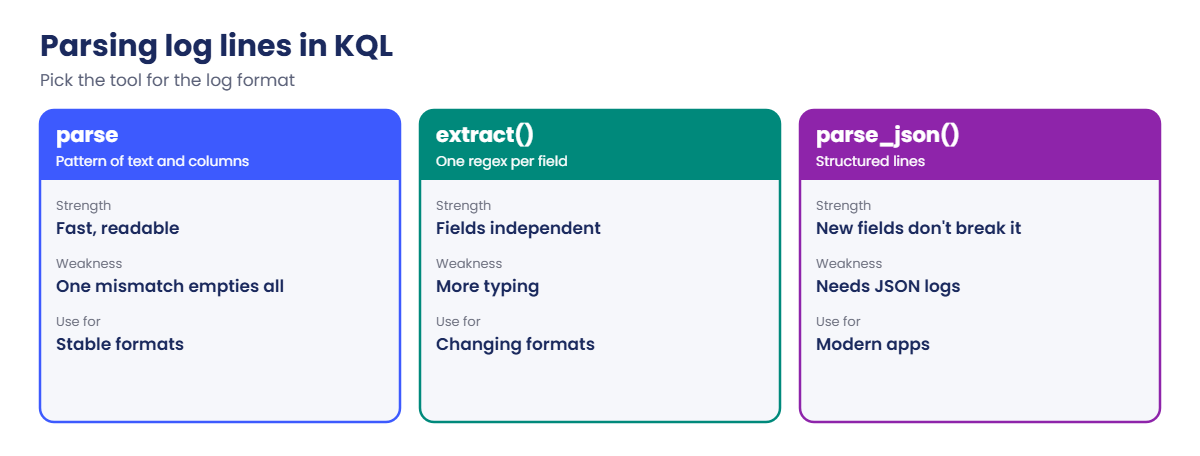
  • parse: a pattern of fixed text and column names. Fast and readable, but a line that doesn’t match leaves every new column empty. parse-where drops non-matching lines instead.
  • extract(): one regular expression per field, so one odd field doesn’t spoil the others. Use verbatim strings like @'user=(\S+)'.
  • parse_json(): for JSON lines; then read fields as j.level and convert with tostring(), toint() and so on.
  • Log search alert rule: scope (a workspace or resources), a KQL query, a measure (number of rows or a column), an operator and threshold, a window size (how far back the query looks, up to 2 days), a frequency (how often it runs), severity and action groups.
  • Dimensions: split one rule by a column like Computer so each server fires its own alert.
  • Cost: billed per rule and frequency, more for 1-minute checks. Stateful rules resolve on their own when the condition clears.

How it works, step by step

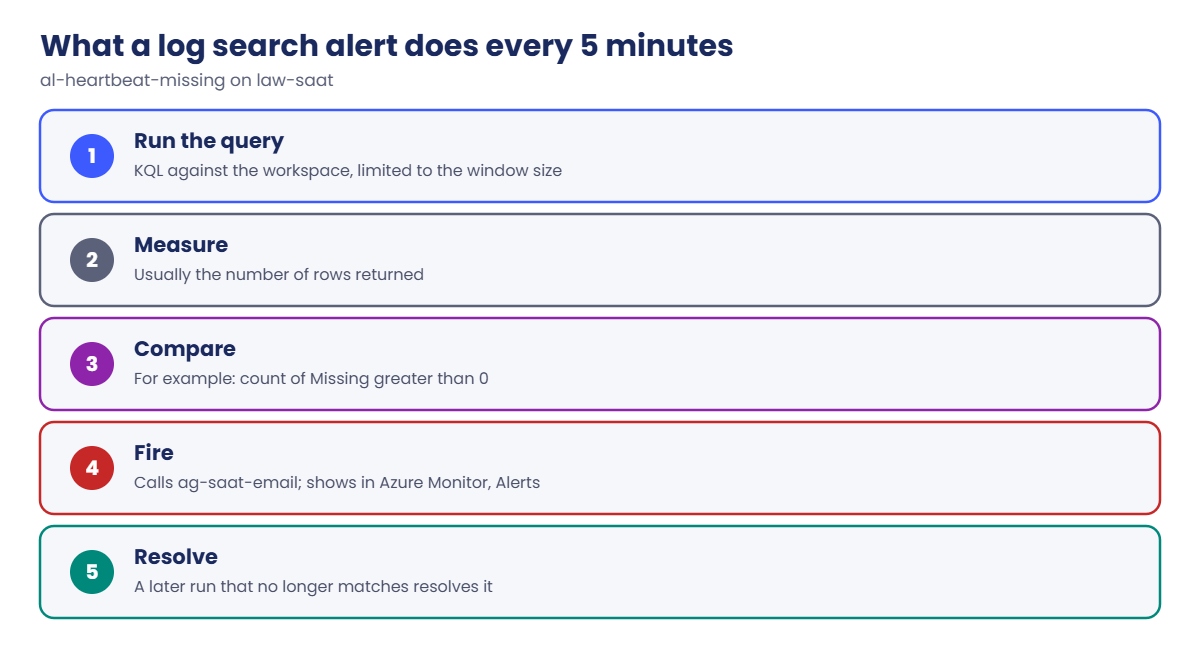
What a log search alert does every 5 minutes:

Azure log search alerts: what happens on every scheduled run
  1. Azure Monitor runs your KQL query against the workspace, limited to the window size (for example, the last hour).
  2. It measures the result, usually the number of rows.
  3. It compares that to your threshold, like “greater than 0”.
  4. If it matches for the required number of evaluations, the alert fires and calls the action group.
  5. Later runs that no longer match resolve the alert.

Step 1 is where heartbeat alerts go wrong: a server that has been silent for longer than the window has no rows at all, so “LastSeen older than 10 minutes” can’t be true for it.

Azure log search alerts input: parse vs extract vs parse_json

Rule of thumb: alert on the absence of data by comparing against a list of what you expect, not only against what happens to be in the window.

Hands-on lab: parse logs and build Azure log search alerts

Get your workspace and action group IDs, and save the sample app log as a function called AppLog:

$ws = az monitor log-analytics workspace show --resource-group rg-saat-core --name law-saat --query customerId -o tsv
$lawId = az monitor log-analytics workspace show --resource-group rg-saat-core --name law-saat --query id -o tsv
$ag = az monitor action-group show --resource-group rg-saat-core --name ag-saat-email --query id -o tsv
$t = @'
datatable(RawData:string) [
    '2026-10-20T10:01:12Z INFO payment-api order=1001 user=asha ms=120 msg=Paid',
    '2026-10-20T10:02:40Z ERROR payment-api order=1002 user=ravi ms=340 msg=Card declined',
    '2026-10-20T10:03:05Z ERROR payment-api order=1003 user=ravi ms=410 msg=Card declined',
    '2026-10-20T10:04:55Z WARN stock-api order=1004 user=meena ms=900 msg=Slow response',
    '2026-10-20T10:06:30Z ERROR stock-api order=1005 user=asha ms=1500 msg=Timeout calling warehouse',
    '2026-10-20T10:07:10Z INFO payment-api order=1006 user=meena ms=130 msg=Paid',
    '2026-10-20T10:08:45Z ERROR payment-api order=1007 user=ravi ms=380 msg=Card declined',
    '2026-10-20T10:09:59Z ERROR stock-api user=asha ms=1450 msg=Timeout calling warehouse'
]
'@
Set-Content -Path C:\azure-lab\applog.kql -Value $t
az monitor log-analytics workspace saved-search create --resource-group rg-saat-core --workspace-name law-saat --name applog --category saatvedha --display-name AppLog --func-alias AppLog --saved-query '@C:\azure-lab\applog.kql' -o none

Run the KQL steps in the portal: law-saat, Logs, KQL mode.
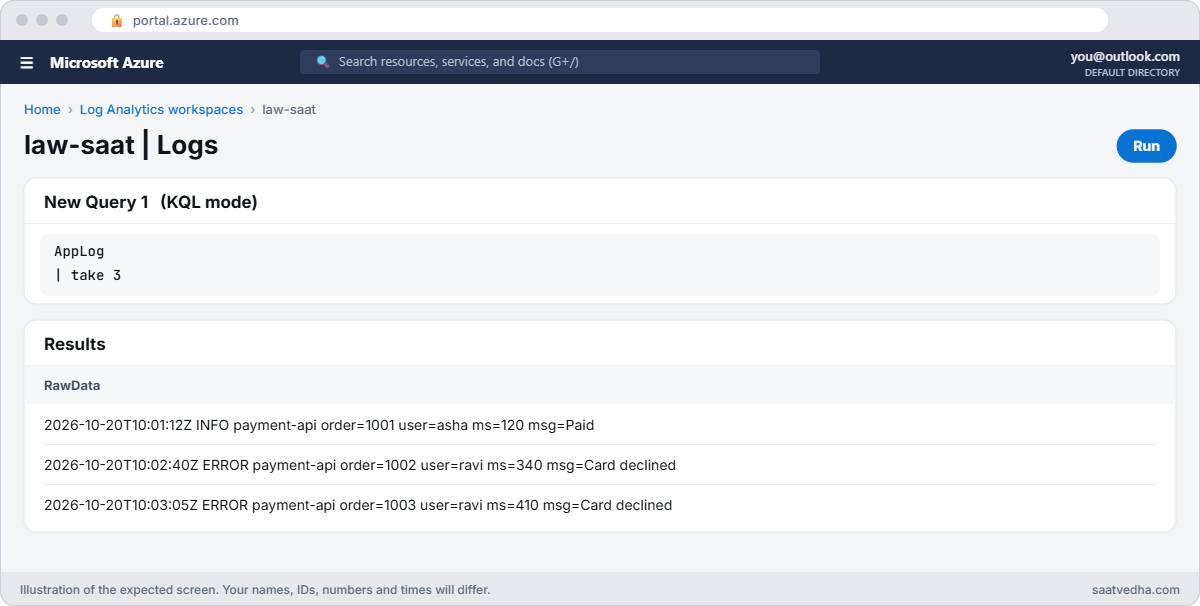
Azure log search alerts lab with the AppLog function in Log Analytics
law-saat Logs in KQL mode, running the AppLog function.

1Parse the log lines into columns

AppLog
| parse RawData with Time:datetime ' ' Level ' ' Service ' order=' Order:long ' user=' User ' ms=' Ms:long ' msg=' Message
| project Time, Level, Service, Order, User, Ms, Message

You should see this (first 3 of 8 rows):

Time                  Level  Service      Order  User  Ms   Message
2026-10-20 10:01:12   INFO   payment-api  1001   asha  120  Paid
2026-10-20 10:02:40   ERROR  payment-api  1002   ravi  340  Card declined
2026-10-20 10:03:05   ERROR  payment-api  1003   ravi  410  Card declined

2Count errors by user and message

AppLog
| parse RawData with Time:datetime ' ' Level ' ' Service ' order=' Order:long ' user=' User ' ms=' Ms:long ' msg=' Message
| where Level == 'ERROR'
| summarize Errors = count() by User, Message
| sort by Errors desc

You should see this:

User  Message                    Errors
ravi  Card declined              3
asha  Timeout calling warehouse  1

Hold on to that “1” for asha. It’s wrong, and Break It shows why.

3Parse a JSON log line

datatable(RawData:string) [
    '{"level":"ERROR","service":"stock-api","ms":1500}',
    '{"level":"INFO","service":"payment-api","ms":120}'
]
| extend j = parse_json(RawData)
| project Level = tostring(j.level), Service = tostring(j.service), Ms = toint(j.ms)

You should see this:

Level  Service      Ms
ERROR  stock-api    1500
INFO   payment-api  120

4Create a log search alert for missing heartbeats

This rule runs every 5 minutes, looks back 1 hour, and fires if any computer’s last heartbeat is older than 10 minutes:

az monitor scheduled-query create --resource-group rg-saat-core --name al-heartbeat-missing --scopes $lawId --condition "count 'Missing' > 0" --condition-query Missing="Heartbeat | summarize LastSeen = max(TimeGenerated) by Computer | where LastSeen < ago(10m)" --window-size 1h --evaluation-frequency 5m --severity 1 --action-groups $ag --description "A VM stopped sending heartbeats" -o none
az monitor scheduled-query show --resource-group rg-saat-core --name al-heartbeat-missing --query "{enabled:enabled, frequency:evaluationFrequency, window:windowSize, severity:severity}" -o table

You should see this:

Enabled    Frequency    Window    Severity
---------  -----------  --------  ----------
True       PT5M         PT1H      1
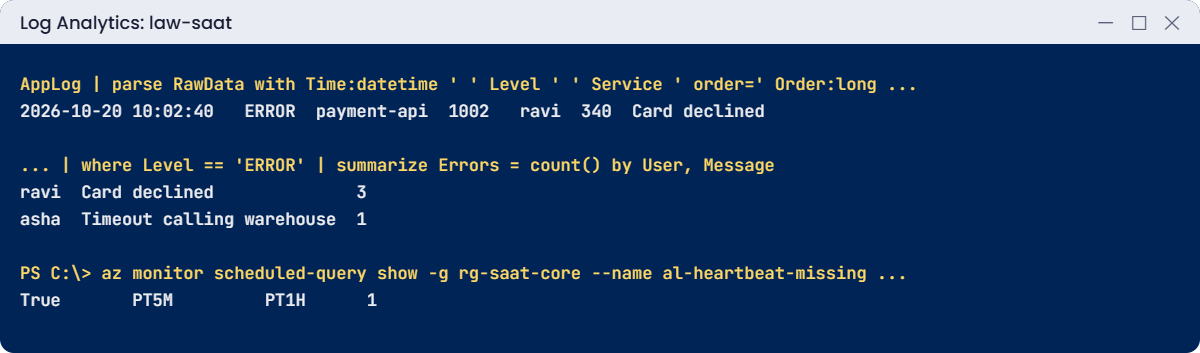
Azure log search alerts lab: parsed app log and heartbeat alert rule
Parsed app log lines and the heartbeat alert rule.

✅ Checkpoint: AppLog parses into columns, the JSON line splits into fields, and al-heartbeat-missing is enabled.

Break It, Then Fix It

Neither break gives an error. Both give you a wrong answer that looks right.

1Break it: the line that didn’t parse

Count all rows by Service after the parse:

AppLog
| parse RawData with Time:datetime ' ' Level ' ' Service ' order=' Order:long ' user=' User ' ms=' Ms:long ' msg=' Message
| summarize Rows = count(), Errors = countif(Level == 'ERROR') by Service

You should see this:

Service      Rows  Errors
payment-api  5     3
stock-api    2     1
             1     0

One row has no service at all. The last log line has no “order=” field, so the whole pattern failed and every parsed column stayed empty, including Level. That ERROR line vanished from the error count, which is why asha showed 1 timeout instead of 2.

Fix it: pull each field with its own regex, so one missing field doesn’t spoil the rest:

AppLog
| extend Level = extract(@'Z (\w+) ', 1, RawData),
         User = extract(@'user=(\S+)', 1, RawData),
         Message = extract(@'msg=(.*)', 1, RawData)
| where Level == 'ERROR'
| summarize Errors = count() by User, Message
| sort by Errors desc

You should see this:

User  Message                    Errors
ravi  Card declined              3
asha  Timeout calling warehouse  2

When you must use parse, add a check like | where isempty(Service) | count to your dashboard so unparsed lines show up instead of disappearing.

2Break it: the heartbeat alert that never fires

web01 and win01 are deallocated, so they’re down. Yet no email arrives. Run the alert’s query in the portal with the time range set to Last hour:

Heartbeat
| summarize LastSeen = max(TimeGenerated) by Computer
| where LastSeen < ago(10m)

You should see this:

No results found from the last hour

The VMs stopped sending heartbeats days ago, so the last hour has no heartbeat rows for them at all. A query can’t report a LastSeen that isn’t in its window. The longer a server is dead, the less this alert can see it.

Fix it: compare against the list of computers you expect, and look back the maximum 2 days:

az monitor scheduled-query update --resource-group rg-saat-core --name al-heartbeat-missing --condition-query Missing="let expected = datatable(Computer:string) ['web01', 'win01']; expected | join kind=leftouter (Heartbeat | summarize LastSeen = max(TimeGenerated) by Computer) on Computer | where isnull(LastSeen) or LastSeen < ago(10m) | project Computer, LastSeen" --window-size 2d -o none

Run the new query in the portal with the time range set to Last 48 hours. You should see something like this:

Computer  LastSeen
web01     2026-10-20 19:24:10
win01     2026-10-20 19:24:40

A computer with no heartbeat at all in 2 days shows LastSeen empty, and still counts. Within 5 to 10 minutes, ag-saat-email sends a “Fired” email. In production, the expected list comes from a watchlist or Azure Resource Graph instead of being typed in.

Clean up: delete the alert so it stops emailing you about your deallocated lab VMs, and keep the functions:

az monitor scheduled-query delete --resource-group rg-saat-core --name al-heartbeat-missing --yes
az monitor scheduled-query list --resource-group rg-saat-core -o tsv

The last command prints nothing.
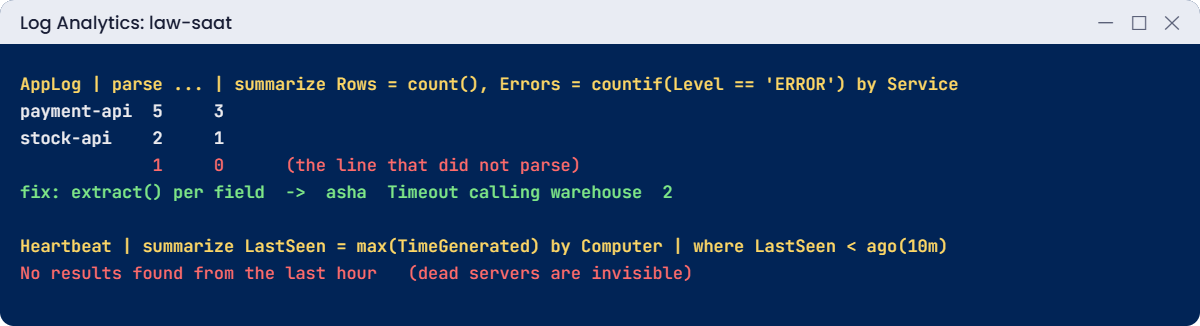
Azure log search alerts problems: unparsed line and blind heartbeat query
A line that failed to parse, and a heartbeat query that can’t see dead servers.

✅ Checkpoint: You found the unparsed line, counted 2 timeouts for asha, and turned a blind heartbeat alert into one that fires.

This happened at work

The payment errors the dashboard didn’t count

An online retailer’s on-call dashboard counted payment errors by parsing app log lines. After a release, the error count dropped to almost zero, and the team celebrated a cleaner build.

Two days later, finance noticed failed payments had tripled. The new release had added a “trace=” field in the middle of every log line. The parse pattern no longer matched any error line, so every one of them landed in an empty row the dashboard ignored.

What they changed: fields are now extracted with separate regexes, and the dashboard has a tile counting lines where parsing failed, which alerts above 1%. Developers log errors as JSON, so new fields don’t break anything, and log format changes are part of the release checklist.

Common mistakes and troubleshooting

MistakeWhat you seeWhat to do
parse pattern too strictRows with empty columns; counts too lowUse extract() per field or parse-where, and count failures.
Heartbeat alert based on last seen onlyLong-dead servers never alertCompare against an expected list; window up to 2 days.
Window shorter than frequencyEvents between runs are never checkedWindow at least as long as the frequency.
No dimensions on a multi-server ruleOne alert for many servers, details lostSplit by Computer.
1-minute frequency everywhereHigher cost, more noiseUse 5 to 15 minutes unless speed matters.
Alerting on raw text with containsSlow queries, timeoutsUse has, filter time first, parse once.

Interview questions

Click a question to open it. Each one is written the way an interviewer would ask it. Under it you will see why they ask it and one way you could answer, in your own words.

Fresher level

1. What is a log search alert?

Why they ask this: The basic concept.

How you might answer: An Azure Monitor alert that runs a KQL query on a schedule against Log Analytics and fires when the result, like the number of rows, crosses a threshold.

2. What does the parse operator do?

Why they ask this: A core KQL tool.

How you might answer: It matches a text column against a pattern of fixed strings and column names, and adds the matched parts as new columns. Lines that don’t match get empty values.

3. How do you read a field from a JSON log line in KQL?

Why they ask this: A practical skill.

How you might answer: Use parse_json() on the column, then access fields with dot or bracket notation and convert them with functions like tostring() or toint().

2–5 years experience

4. Your error count dropped after a release. How do you check it’s real?

Why they ask this: They want healthy suspicion.

How you might answer: Count rows where parsing failed or the level column is empty, and compare total log volume before and after. A format change that breaks parsing looks exactly like fewer errors.

5. How would you alert when a server stops sending data?

Why they ask this: A classic gap they test.

How you might answer: Compare an expected list of servers with the last heartbeat for each, using a left outer join, and flag missing or old ones. Use a long enough window, and add Activity log alerts for deallocation as a second signal.

6. What’s the difference between window size and frequency?

Why they ask this: They want the timing model.

How you might answer: Frequency is how often the query runs. Window size is how far back each run looks. The window should be at least as long as the frequency, or events between runs are never seen.

Senior level

7. How do you make log-based alerting reliable at scale?

Why they ask this: They want engineering discipline.

How you might answer: Standard parsing functions shared in the workspace, structured logging from apps, dimensions to split by resource, tested queries with known positive data, alerts deployed as code, and a dashboard tracking parse failures and ingestion gaps.

8. When would you choose a log search alert over a metric alert?

Why they ask this: They want trade-offs.

How you might answer: Metric alerts are faster and cheaper for numeric thresholds. Log search alerts are for patterns, joins, text and absence of data. Some teams also turn log queries into custom metrics to get the speed of metric alerts.

9. How do you reduce alert costs in Log Analytics?

Why they ask this: They’re checking cost awareness.

How you might answer: Fewer rules with dimensions instead of one per resource, sensible frequencies, efficient queries with time filters, and moving noisy, low-value detections to dashboards or reports instead of alerts.

Quick quiz

Q1. What happens to parse columns when a line doesn’t match the pattern?

  1. The query fails
  2. They are empty
  3. The line is deleted from the workspace
  4. They copy the previous row
Show answer

B — Non-matching lines get empty parsed columns.

Q2. Which keeps working when one field is missing from a line?

  1. parse
  2. extract() per field
  3. take
  4. render
Show answer

B — Each extract() is independent.

Q3. A heartbeat alert looks back 1 hour. A server died 3 days ago. Result?

  1. Fires every run
  2. Never fires
  3. Fires once
  4. Deletes the server
Show answer

B — No heartbeat rows exist in the window.

Q4. What is the maximum window size for a log search alert?

  1. 1 hour
  2. 6 hours
  3. 2 days
  4. 30 days
Show answer

C — Log search alerts can look back up to 2 days.

Q5. Which function reads fields from JSON text?

  1. parse_json()
  2. bin()
  3. dcount()
  4. ago()
Show answer

A — parse_json turns JSON text into a dynamic value.

Quick recap

You can now turn messy logs into numbers you can trust, and alert on them properly.

  • parse is fast but fails the whole line on any mismatch.
  • extract() per field survives format changes.
  • parse_json() handles structured logs.
  • Log search alerts: query, measure, threshold, window, frequency.
  • Alert on missing data by comparing with an expected list.

Next lesson

Lesson 35: Azure Backup for VMs → You protect web01 and win01 with Azure Backup, restore a file and a whole VM.

Further reading: Azure log search alerts

Want to go deeper into Azure log search alerts? See Microsoft’s Types of Azure Monitor alerts and parse operator. You can also see the full plan for this course on the Azure Cloud Administration course page.

Scroll to Top