Create Your First Azure VM (Linux)
-
Phase 0: Before you start
-
Phase 1: The foundation
-
Phase 2: Day-to-day operations
-
Phase 3: Enterprise architecture
-
Phase 4: Troubleshooting step by step
-
Phase 5: Final project and career
To create Azure VM resources well, you need to understand each choice in the command: the image, the size, the network card, the disk, the login method and the first-boot script. Get them right and the VM is secure and cheap from minute one.
Most quick-start guides give the VM a public IP and open SSH to the whole internet. Within minutes, bots start guessing passwords. This course does it the way production teams do: no public IP, an SSH key instead of a password, and access through Azure Bastion.
In the lab you build web01, the Linux web server you’ll keep using in the next lessons. It configures itself on first boot, shuts itself down every evening, and you connect to it from the portal without opening any port to the internet.
| Time | You need | Cost | By the end you can |
|---|---|---|---|
| About 50 minutes | vnet-saat, the ASGs and NSGs from Lesson 12, the CLI | Covered by the free account’s 12-month amounts (B2ats v2 hours, one 64 GB P6 disk) | Create a private Linux VM with cloud-init, reach it with Bastion Developer, and stop it without paying for compute |
What it is, in one line
An Azure VM is a computer you rent by the minute: you pick its image, size, network and disk, and Azure runs it on its hardware.
In Simple Words
Renting a furnished flat
Renting a VM is like renting a flat. You choose the layout (the image: Ubuntu or Windows), the size (how many rooms: CPU and memory), the address (which subnet it lives in), and the key you’ll use (an SSH key, not a weak password).
A good landlord also leaves a welcome note for the first day: “the kettle is in the cupboard, switch on the water heater”. That’s cloud-init, a script that sets the VM up on first boot.
And when you go home for the night, you hand the flat back so you stop paying rent for it. Just locking the door from inside doesn’t count.
Engineer's View
What az vm create really builds
- Image: a URN
publisher:offer:sku:version, for exampleCanonical:ubuntu-24_04-lts:server:latest. Ubuntu’sserverSKU is a Generation 2 image for x64 sizes like B2ats v2. The CLI’s older aliases (likeUbuntu2204) stop at 22.04, so use the URN for 24.04. - Size:
Standard_B2ats_v2: 2 vCPUs (AMD), 1 GiB memory, burstable. Lesson 17 covers sizes and credits. - Security type: new VMs default to Trusted Launch (secure boot and a virtual TPM) when the image and size support it.
- Network: a network interface (NIC) in your subnet, with a private IP from DHCP.
--public-ip-address '""'and--nsg '""'stop the CLI creating a public IP and a NIC-level NSG, so the subnet’s NSG from Lesson 12 does the filtering.--asgs asg-webputs the NIC in the web ASG. - Disk: a managed OS disk, Premium SSD by default for sizes that support it.
--os-disk-size-gb 64makes it a P6, which the free account covers. - Login:
--generate-ssh-keysuses~/.ssh/id_rsa.pub, or creates it. Passwords are off for Linux when you use keys. Some user names, likeadminandroot, aren’t allowed. - Custom data: a cloud-init file run on first boot. Here it writes a web page and starts a small Python web server on port 80, which needs no internet download.
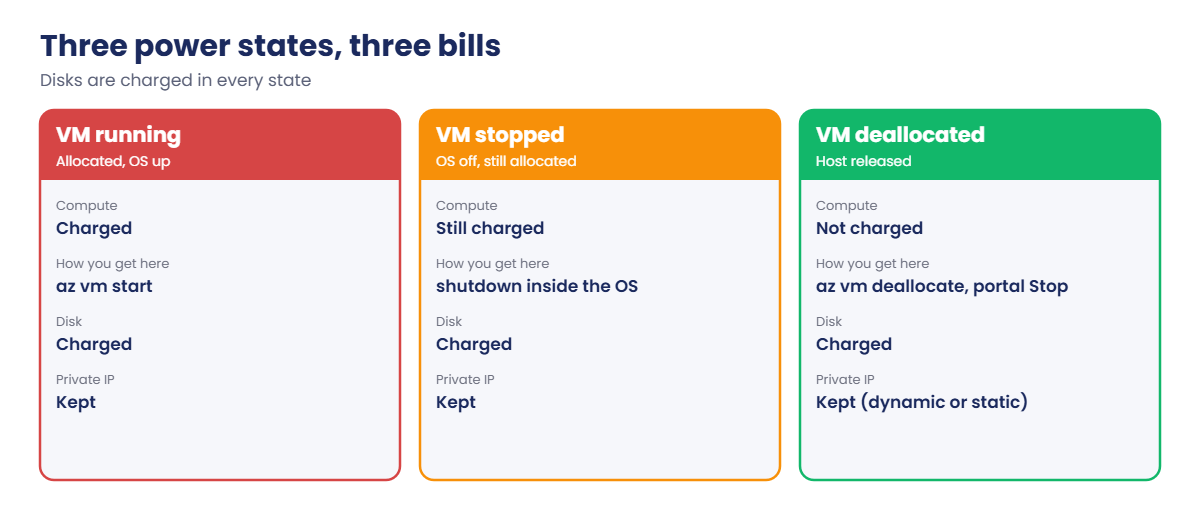
Power states matter for the bill: VM running (compute charged), VM stopped (shut down from inside, still allocated and charged), and VM deallocated (released by Azure, no compute charge). Disks are charged in every state.
How it works, step by step
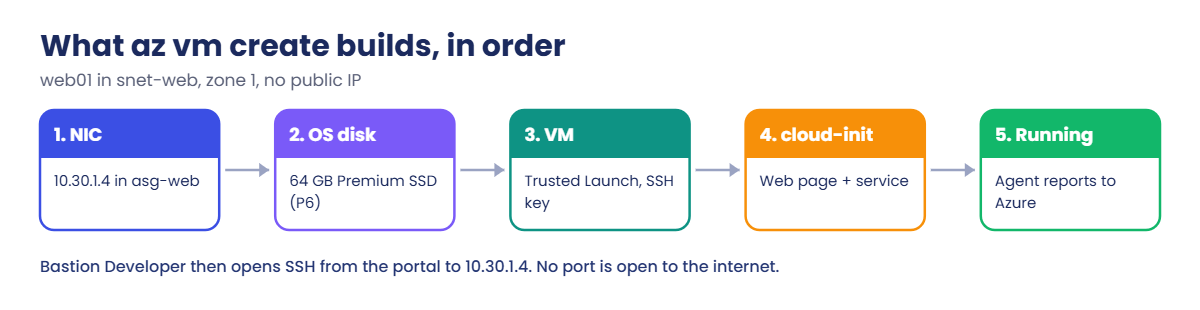
When you run az vm create, Azure Resource Manager builds several resources in order:
- The NIC in
snet-web, joined toasg-web, with a private IP such as 10.30.1.4. - The OS disk, created from the image.
- The VM itself on a host in your chosen zone, with your SSH public key placed in
/home/azureuser/.ssh/authorized_keys. - On first boot, the Azure Linux agent and cloud-init read the custom data and run it.
- The VM reports its state to Azure through
168.63.129.16, which is how the portal knows it’s running.
To log in, Bastion Developer opens an SSH session from the portal to the VM’s private IP. No public IP, no port 22 open to the internet. You upload your private key in the browser for that session only.
At the end of each lab you deallocate the VM. Auto-shutdown at 19:00 India time is a safety net for the days you forget.
Hands-on lab: build web01 the production way
You build web01 in a resource group that stays for the next lessons, check its first-boot setup, connect with Bastion Developer, and deallocate it.
$v = Get-Content C:\azure-lab\vnet-saat.json | ConvertFrom-Json
az group create --name rg-saat-vms --tags course=saatvedha-azure lesson=15 keep=true -o none1Look at the image before you use it
Run this:
az vm image show --location centralindia --urn Canonical:ubuntu-24_04-lts:server:latest --query "{name:name, generation:hyperVGeneration, arch:architecture, os:osDiskImage.operatingSystem}" -o tableYou should see something like this:
Name Generation Arch Os
----------------- ------------ ------ -----
24.04.202610090 V2 x64 Linuxlatest resolves to a dated version. Generation V2 and x64 match the B2ats v2 size. For production you’d pin a specific version so every rebuild is identical.
2Write the first-boot script
Paste this whole block:
$init = @'
#cloud-config
write_files:
- path: /var/www/index.html
content: |
<h1>web01</h1>
<p>SaatVedha Azure course, Lesson 15</p>
- path: /etc/systemd/system/saat-web.service
content: |
[Unit]
Description=SaatVedha lab web page
After=network-online.target
[Service]
ExecStart=/usr/bin/python3 -m http.server 80 --directory /var/www
Restart=always
[Install]
WantedBy=multi-user.target
runcmd:
- systemctl daemon-reload
- systemctl enable --now saat-web
'@
[IO.File]::WriteAllText('C:\azure-lab\web01-init.yaml', ($init -replace "`r`n", "`n"))WriteAllText with Unix line endings keeps Windows carriage returns out of the files cloud-init writes. YAML is fussy about indentation, so keep the spaces exactly as shown.
3Create web01
Run this (about two minutes):
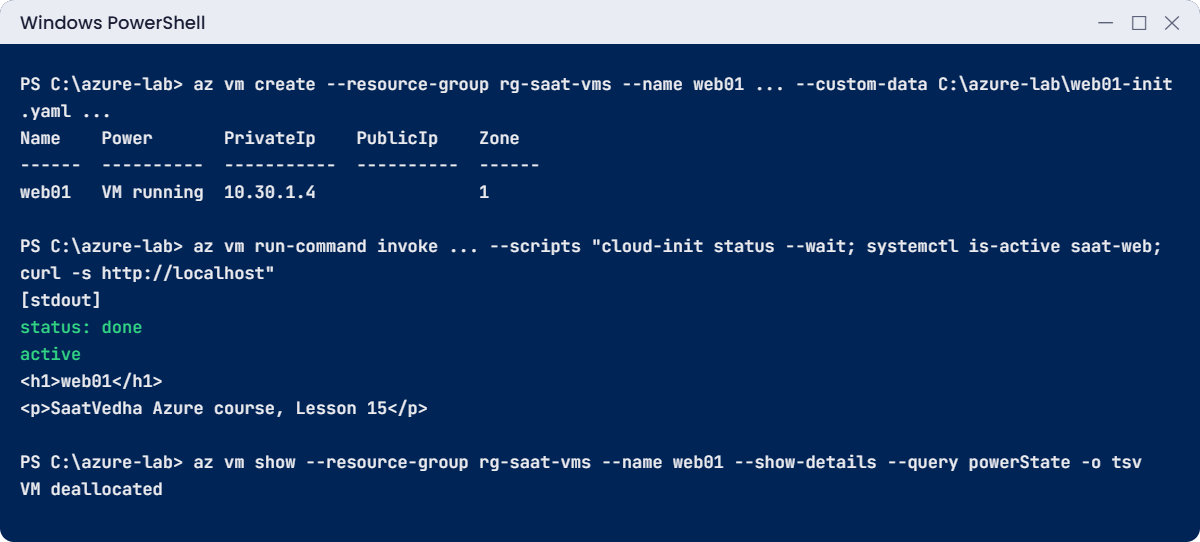
az vm create --resource-group rg-saat-vms --name web01 --image Canonical:ubuntu-24_04-lts:server:latest --size Standard_B2ats_v2 --zone 1 --subnet $v.'snet-web' --asgs asg-web --public-ip-address '""' --nsg '""' --admin-username azureuser --generate-ssh-keys --os-disk-size-gb 64 --custom-data C:\azure-lab\web01-init.yaml --tags course=saatvedha-azure lesson=15 keep=true role=web --query "{name:name, power:powerState, privateIp:privateIpAddress, publicIp:publicIpAddress, zone:zones}" -o tableYou should see something like this:
Name Power PrivateIp PublicIp Zone
------ ---------- ----------- ---------- ------
web01 VM running 10.30.1.4 1No public IP, as planned. --zone 1 places it in zone 1 of Central India; Lesson 18 is about why that matters. --generate-ssh-keys reused your key if you had one, or created %USERPROFILE%\.ssh\id_rsa.
4Check that first boot worked
Run this:
az vm run-command invoke --resource-group rg-saat-vms --name web01 --command-id RunShellScript --scripts "cloud-init status --wait; systemctl is-active saat-web; curl -s http://localhost" --query "value[0].message" -o tsvYou should see something like this:
Enable succeeded:
[stdout]
status: done
active
<h1>web01</h1>
<p>SaatVedha Azure course, Lesson 15</p>
[stderr]
5Turn on auto-shutdown
Run this (13:30 UTC is 19:00 in India):
az vm auto-shutdown --resource-group rg-saat-vms --name web01 --time 1330 -o none
az resource show --resource-group rg-saat-vms --resource-type Microsoft.DevTestLab/schedules --name shutdown-computevm-web01 --query "{status:properties.status, time:properties.dailyRecurrence.time, zone:properties.timeZoneId}" -o tableYou should see something like this:
Status Time Zone
-------- ------ -----
Enabled 1330 UTC6Connect with Bastion Developer
- In the portal, open web01 and choose Connect > Connect via Bastion.
- If asked, choose the Developer option (no cost, one session at a time). It’s ready in seconds, with nothing deployed into your VNet.
- Authentication type: SSH Private Key from Local File. Username
azureuser, and pick%USERPROFILE%\.ssh\id_rsa. - In the browser terminal, run
hostnameandcurl -s localhost.
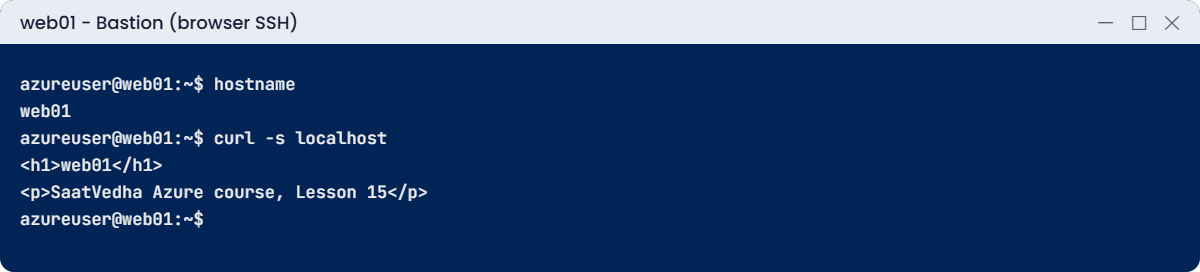
The NSG on snet-web keeps Azure’s default rules, which let Bastion’s connection in. Nothing on the internet can reach port 22.
7Deallocate it
Close the Bastion tab, then run this:
az vm deallocate --resource-group rg-saat-vms --name web01
az vm show --resource-group rg-saat-vms --name web01 --show-details --query powerState -o tsvYou should see this:
VM deallocated✅ Checkpoint: web01 served its page, you connected with Bastion Developer, and it is now VM deallocated with auto-shutdown on. Keep it: Lessons 17 to 19 use it.
Break It, Then Fix It
The first mistake the CLI catches before anything is created. The second one Azure lets you make, and bills you for.
1Break it: a user name Azure doesn’t allow
Run this:
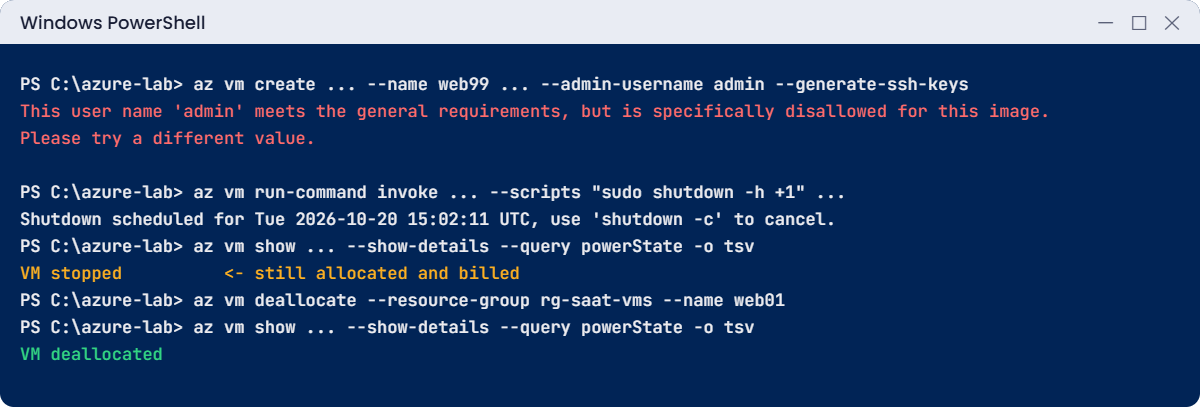
az vm create --resource-group rg-saat-vms --name web99 --image Canonical:ubuntu-24_04-lts:server:latest --size Standard_B2ats_v2 --subnet $v.'snet-web' --public-ip-address '""' --nsg '""' --admin-username admin --generate-ssh-keysYou’ll get this error:
This user name 'admin' meets the general requirements, but is specifically disallowed for this image. Please try a different value.Names like admin, root, administrator, test and user are blocked because attackers try them first. For Linux, upper-case letters and characters like @ are also refused. Nothing was created.
Fix it: use a normal name such as azureuser (or your own), as in step 3.
2Break it: shut it down from inside the OS
Start web01, then shut it down the way you would on a laptop:
az vm start --resource-group rg-saat-vms --name web01
az vm run-command invoke --resource-group rg-saat-vms --name web01 --command-id RunShellScript --scripts "sudo shutdown -h +1" --query "value[0].message" -o tsv
Start-Sleep -Seconds 120
az vm show --resource-group rg-saat-vms --name web01 --show-details --query powerState -o tsvYou should see something like this:
Enable succeeded:
[stdout]
[stderr]
Shutdown scheduled for Tue 2026-10-20 15:02:11 UTC, use 'shutdown -c' to cancel.
VM stopped“VM stopped” looks finished, but the VM is still allocated on its host and the compute meter is still running. Many people have paid for weeks of “stopped” VMs this way. The portal even warns about it on the VM’s overview page.
Fix it: deallocate from Azure:
az vm deallocate --resource-group rg-saat-vms --name web01
az vm show --resource-group rg-saat-vms --name web01 --show-details --query powerState -o tsvYou should see this:
VM deallocated
✅ Checkpoint: Both mistakes reproduced, and web01 is VM deallocated. Running C:\azure-lab\Find-LabResources.ps1 now lists rg-saat-vms and web01’s resources, which you’re keeping.
This happened at work
The test VM that was “stopped” for three months
An e-learning start-up gave each developer a large GPU VM for model experiments. The rule was “shut it down when you’re done”. Developers did exactly that, from inside Linux, with sudo poweroff.
The portal showed “Stopped”. Nobody looked closer until the quarterly finance review, when the Azure bill was nearly four times the forecast. Eleven GPU VMs had sat in “Stopped” state, still allocated and still billed for compute, most evenings and weekends for three months.
What they changed: an Azure Policy flags VMs in “Stopped” (not deallocated) for more than an hour, and a small runbook deallocates them automatically. Developers got a one-line alias, az vm deallocate, and the portal’s Stop button, which deallocates. All dev VMs also got auto-shutdown at 8 p.m.
Common mistakes and troubleshooting
| Mistake | What you see | What to do |
|---|---|---|
| Shutting down from inside the OS | VM stopped, still billed | Use the portal Stop button or az vm deallocate. |
| Public IP and open SSH on lab VMs | Login attempts from bots within minutes | No public IP; use Bastion. |
| Disallowed admin user name | “specifically disallowed for this image” | Use a normal name like azureuser. |
| Using the old Ubuntu alias | You get 22.04, not 24.04 | Use the URN Canonical:ubuntu-24_04-lts:server:latest. |
| Windows line endings in cloud-init | Services or scripts fail on first boot | Write the file with Unix line endings (WriteAllText with -replace). |
| Leaving the CLI to create an NSG on the NIC | Two NSGs to manage; rules seem ignored | Pass --nsg '""' and filter at the subnet. |
Interview questions
Click a question to open it. Each one is written the way an interviewer would ask it. Under it you will see why they ask it and one way you could answer, in your own words.
Fresher level
1. What does Azure create when you run az vm create?
Why they ask this: They want to see you know a VM is several resources.
How you might answer: A network interface in the subnet, an OS disk from the image, and the VM itself, plus a public IP and NSG unless you tell it not to. I usually skip the public IP and the NIC NSG and rely on Bastion and the subnet NSG.
2. What’s the difference between a stopped and a deallocated VM?
Why they ask this: A very common, money-related question.
How you might answer: Stopped means the OS is off but the VM is still allocated on a host, so compute is still billed. Deallocated means Azure released the host resources, so compute isn’t billed, although disks still are.
3. Why use SSH keys instead of passwords on Linux VMs?
Why they ask this: They want basic security habits.
How you might answer: Keys can’t be guessed by password-spray bots, and with keys Azure turns off password login. I keep the private key on my machine and never share it; for teams, Entra ID login for VMs or Bastion with keys in Key Vault is better still.
2–5 years experience
4. How do you configure a VM automatically on first boot?
Why they ask this: They’re checking cloud-init knowledge and good habits.
How you might answer: With custom data: a cloud-init file for Linux, or a script with the Custom Script extension for Windows. In my lab, cloud-init wrote a web page and a systemd service, and I checked it with cloud-init status --wait through Run Command.
For anything bigger I’d bake a golden image instead, so boots are fast and consistent.
5. A new VM in a private subnet works but cloud-init’s package installs failed. Why?
Why they ask this: They want you to connect cloud-init with outbound access.
How you might answer: The subnet probably has no outbound internet, which is the default for new VNets now, so apt couldn’t reach the mirrors. I’d add a NAT Gateway, or use only things that don’t need downloads, and check /var/log/cloud-init-output.log.
6. How would you connect to VMs that have no public IP?
Why they ask this: They want the modern, secure options.
How you might answer: Azure Bastion: Developer for single dev/test connections, Basic or Standard for teams, from the portal or the native client. Other options are a VPN into the VNet, or Run Command for quick commands without a login.
Senior level
7. How would you standardise VM builds across a team of twenty engineers?
Why they ask this: They want repeatability and guardrails.
How you might answer: A Bicep module with our defaults: no public IP, approved images pinned to versions, tags, auto-shutdown for dev, and managed identities. Images come from an Azure Compute Gallery built by a pipeline. Azure Policy denies public IPs on NICs and enforces tags, so even portal builds follow the rules.
8. Finance found many “stopped” VMs costing money. How do you fix it for good?
Why they ask this: They want a technical and a process answer.
How you might answer: First, deallocate them and confirm the cost drops. Then a policy or a scheduled runbook that finds VMs in the stopped state and deallocates them, auto-shutdown on dev and test VMs, and a weekly report.
I’d also teach the team that the portal’s Stop button deallocates, but shutting down inside the OS doesn’t.
9. When would you avoid the “latest” image version?
Why they ask this: They want stability thinking.
How you might answer: In production and in anything that must be rebuilt identically, like scale sets or disaster recovery. I’d pin a tested version and update it on purpose, after testing, so a rebuild doesn’t bring surprise changes.
Quick quiz
Q1. Which power state stops the compute charge?
- VM running
- VM stopped
- VM deallocated
- VM starting
Show answer
C — Deallocated releases the host; stopped is still billed.
Q2. What does --public-ip-address '""' do in Windows PowerShell?
- Creates a random IP
- Passes an empty value so no public IP is created
- Deletes all public IPs
- Nothing
Show answer
B — The quotes make PowerShell pass an empty value to the CLI.
Q3. Why was --admin-username admin refused?
- Too short
- It is on Azure’s list of disallowed user names
- Upper case letters
- SSH keys don’t allow it
Show answer
B — Common names like admin and root are blocked.
Q4. What runs the cloud-init file?
- Azure Policy
- The VM on first boot
- Bastion
- Azure Monitor
Show answer
B — cloud-init reads custom data on first boot.
Q5. How did you connect to web01 without a public IP?
- RDP
- Bastion Developer from the portal
- A VPN
- Port forwarding on your router
Show answer
B — Bastion connects to the private IP from the portal.
Quick recap
You’ve built a VM the way production teams do, and you know how to stop paying for it.
- A VM is a NIC, an OS disk and a VM; skip the public IP and NIC NSG for private servers.
- Use the image URN for Ubuntu 24.04, SSH keys, and a normal admin name.
- cloud-init sets the VM up on first boot; check it with cloud-init status.
- Bastion connects to private VMs without any open internet port.
- Deallocate, don’t just stop. web01 stays deallocated in rg-saat-vms for the next lessons.
Next lesson
Lesson 16: Windows Server VMs on Azure → You build a Windows Server 2025 VM, log in with Bastion, and handle Windows-specific settings like licensing and updates.
Further reading: create Azure VM
Want to go deeper into create Azure VM? Follow Microsoft’s Create a Linux virtual machine with the Azure CLI and read States and billing status of Azure Virtual Machines. You can also see the full plan for this course on the Azure Cloud Administration course page.