Traffic Manager: DNS-based global routing

Azure Traffic Manager sends users to the right endpoint by answering DNS queries. When someone looks up your app’s name, Traffic Manager replies with the address of a healthy endpoint chosen by your rule: the primary region, the closest region, or a weighted mix.

It never touches the traffic itself. That one fact explains almost every Traffic Manager surprise: why failover takes as long as the DNS TTL, why HTTPS certificates and host headers matter, and why it works for any protocol.

In this lab you put two web servers in Central India and South India behind one name, watch a real failover, and then break the health checks in a way that silently disables failover.

TimeYou needCostBy the end you can
About 50 minutesA free account and the CLI, PowerShell on WindowsUnder 10 US cents for an hour: two small VMs and their public IPs; Traffic Manager costs USD 0.54 per million DNS queries and USD 0.36 per Azure endpoint per month, charged for the hours used (Azure Retail Prices API, October 2026)Build a priority Traffic Manager profile, test failover, and read endpoint health to catch a broken probe

What it is, in one line

Traffic Manager is a smart DNS service that answers each lookup with the address of a healthy endpoint.

In Simple Words

The helpline that gives you a branch address

A bank has two branches. You don’t walk in blindly; you call the helpline and ask, “Where should I go?” The helpline checks which branch is open and gives you that address. Then you travel there yourself.

The helpline never carries you; it only tells you where to go. If you saved the address yesterday and the branch closes today, you’ll still go to the closed branch until you call again.

Traffic Manager is that helpline. DNS is the phone call, and the TTL is how long you trust the address you were given.

Engineer's View

How Traffic Manager works

  • Profile: gets a name such as yourname.trafficmanager.net, a routing method, a DNS TTL and health check settings.
  • Routing methods: Priority (failover), Weighted, Performance (closest by latency), Geographic, MultiValue and Subnet.
  • Endpoints: Azure endpoints (public IPs with a DNS name, App Service, and others), external endpoints (any FQDN or IP), and nested endpoints (another profile).
  • Health checks: HTTP, HTTPS or TCP from Traffic Manager’s probe servers. Normal interval is 30 seconds; fast probing uses 10 seconds. An endpoint that fails the tolerated number of checks becomes Degraded.
  • Answer: a CNAME to the chosen endpoint. Clients then connect straight to it, so the client sends its own Host header and checks the endpoint’s TLS certificate against the name it typed.
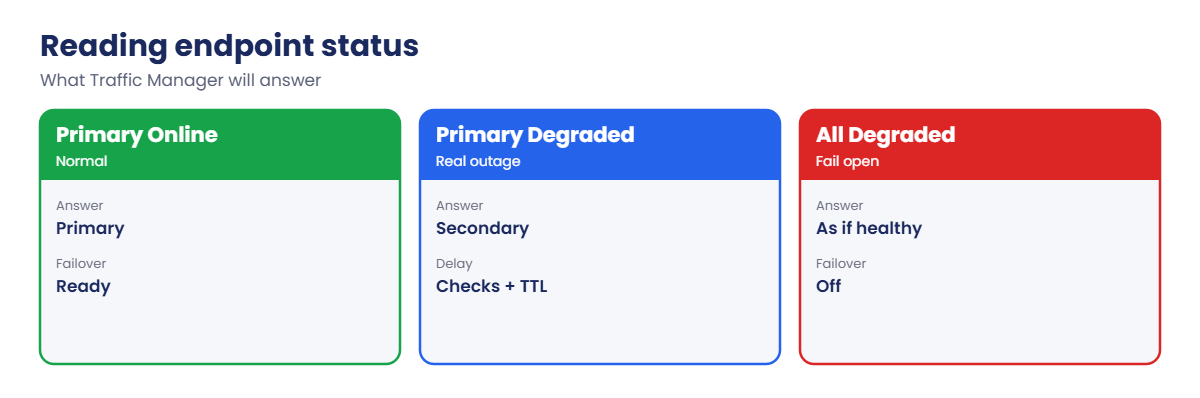
  • Fail open: if every endpoint is Degraded, Traffic Manager returns them as if all were healthy, so a broken health check never takes the whole site off DNS.

How it works, step by step

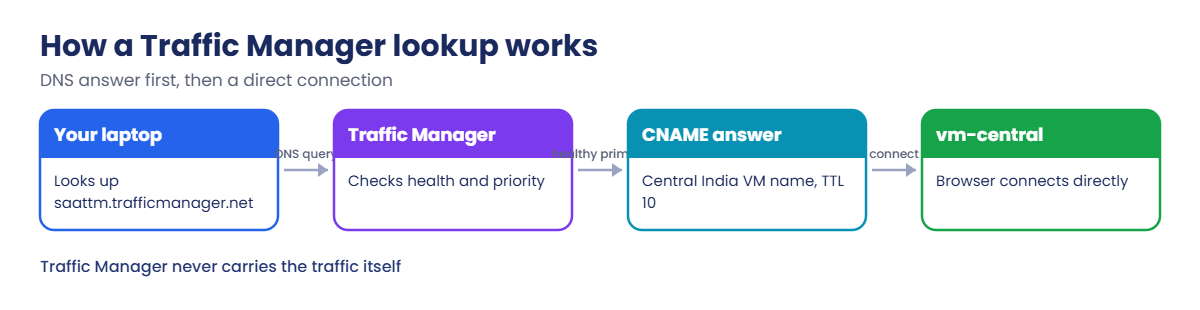
What happens when your laptop opens the Traffic Manager name:

How an Azure Traffic Manager DNS lookup chooses an endpoint
  1. Your laptop asks its DNS resolver for saattm12345.trafficmanager.net.
  2. The resolver asks Traffic Manager, which checks endpoint health and the Priority rule, and answers with a CNAME to the Central India VM’s DNS name and a TTL of 10 seconds.
  3. The resolver looks up that name and returns the VM’s public IP.
  4. Your browser connects directly to the Central India VM. Traffic Manager isn’t in the path.
  5. Every 10 seconds, Traffic Manager probes both VMs on port 80, path /. If Central India fails twice in a row, new DNS answers point to South India.

Failover time is roughly the time to detect the failure (interval times tolerated failures) plus the TTL plus any extra caching on the client.

Traffic Manager endpoint status and what it answers

So when someone says “Traffic Manager didn’t fail over”, check three things in order: endpoint status, DNS answer, and how long the client cached it.

Fail over between two regions with Traffic Manager

1Two web servers in two regions

Pick a random suffix so the DNS names are unique, then create one VM in each region with a public DNS name (about 5 minutes):

$sfx = Get-Random -Minimum 10000 -Maximum 99999
az group create --name rg-saat-l53 --location centralindia --tags course=saatvedha-azure lesson=53 -o none
az vm create --resource-group rg-saat-l53 --name vm-central --location centralindia --image Canonical:ubuntu-24_04-lts:server:latest --size Standard_B1s --public-ip-sku Standard --public-ip-address-dns-name saat53c$sfx --nsg-rule NONE --admin-username azureuser --generate-ssh-keys --tags course=saatvedha-azure lesson=53 -o none
az vm open-port --resource-group rg-saat-l53 --name vm-central --port 80 --priority 100 -o none
az vm create --resource-group rg-saat-l53 --name vm-south --location southindia --image Canonical:ubuntu-24_04-lts:server:latest --size Standard_B1s --public-ip-sku Standard --public-ip-address-dns-name saat53s$sfx --nsg-rule NONE --admin-username azureuser --generate-ssh-keys --tags course=saatvedha-azure lesson=53 -o none
az vm open-port --resource-group rg-saat-l53 --name vm-south --port 80 --priority 100 -o none

Start a small web server on each. Python is already on Ubuntu:

az vm run-command invoke --resource-group rg-saat-l53 --name vm-central --command-id RunShellScript --scripts 'mkdir -p /srv/www; echo Hello from Central India > /srv/www/index.html; systemd-run --unit web python3 -m http.server 80 --directory /srv/www; sleep 2; systemctl is-active web' --query "value[0].message" -o tsv
az vm run-command invoke --resource-group rg-saat-l53 --name vm-south --command-id RunShellScript --scripts 'mkdir -p /srv/www; echo Hello from South India > /srv/www/index.html; systemd-run --unit web python3 -m http.server 80 --directory /srv/www; sleep 2; systemctl is-active web' --query "value[0].message" -o tsv

Each should print active.

2Create a Priority profile

Fast health checks (every 10 seconds, 2 failures tolerated) and a short TTL make failover quick to watch:

az network traffic-manager profile create --resource-group rg-saat-l53 --name tm-saat --routing-method Priority --unique-dns-name saattm$sfx --ttl 10 --protocol HTTP --port 80 --path / --interval 10 --timeout 5 --max-failures 2 -o none
$c = az network public-ip show --resource-group rg-saat-l53 --name vm-centralPublicIP --query id -o tsv
$s = az network public-ip show --resource-group rg-saat-l53 --name vm-southPublicIP --query id -o tsv
az network traffic-manager endpoint create --resource-group rg-saat-l53 --profile-name tm-saat --name ep-central --type azureEndpoints --target-resource-id $c --priority 1 -o none
az network traffic-manager endpoint create --resource-group rg-saat-l53 --profile-name tm-saat --name ep-south --type azureEndpoints --target-resource-id $s --priority 2 -o none
$tmName = "saattm$sfx.trafficmanager.net"

3Check health, then DNS

Wait a minute for the first checks, then run:

az network traffic-manager endpoint list --resource-group rg-saat-l53 --profile-name tm-saat --query "[].{name:name, priority:priority, status:endpointMonitorStatus}" -o table
Clear-DnsClientCache; Resolve-DnsName $tmName -Type CNAME | Select-Object -ExpandProperty NameHost; curl.exe -s http://$tmName/

You should see something like this:

Name        Priority    Status
----------  ----------  --------
ep-central  1           Online
ep-south    2           Online
saat53c12345.centralindia.cloudapp.azure.com
Hello from Central India

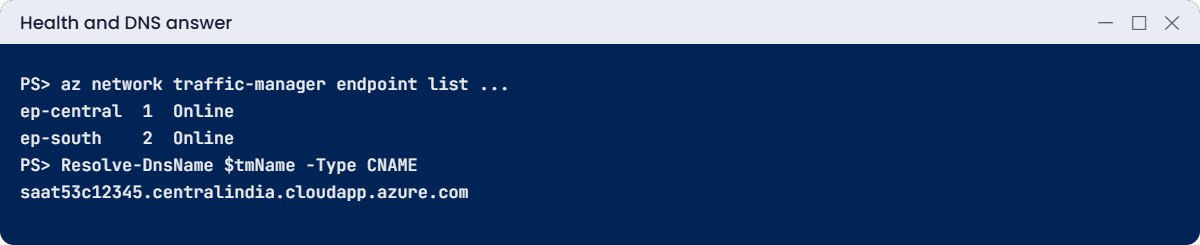
Both endpoints are Online, so Priority sends everyone to Central India. The CNAME shows exactly which endpoint Traffic Manager chose.
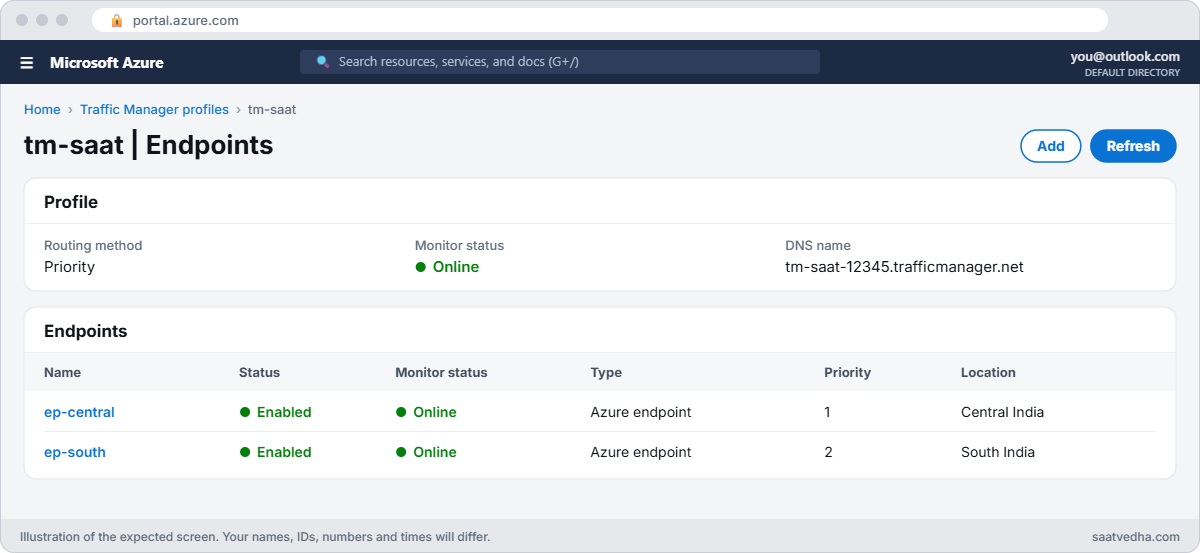
Azure Traffic Manager endpoints both online
tm-saat endpoints: both Online, Priority 1 goes to Central India.
Traffic Manager endpoints Online and the CNAME answer
Both endpoints Online; DNS points to the priority 1 endpoint.

✅ Checkpoint: tm-saat answers with the Central India endpoint, both endpoints are Online, and the page loads through the Traffic Manager name.

Break It, Then Fix It

Keep both VMs running for both breaks.

1Break it: the primary region goes down

Stop the web server in Central India, as if the region had an outage:

az vm run-command invoke --resource-group rg-saat-l53 --name vm-central --command-id RunShellScript --scripts 'systemctl stop web; systemctl is-active web' --query "value[0].message" -o tsv

Wait about 30 seconds, then check again:

az network traffic-manager endpoint list --resource-group rg-saat-l53 --profile-name tm-saat --query "[].{name:name, priority:priority, status:endpointMonitorStatus}" -o table
Clear-DnsClientCache; Resolve-DnsName $tmName -Type CNAME | Select-Object -ExpandProperty NameHost; curl.exe -s http://$tmName/

You should see something like this:

Name        Priority    Status
----------  ----------  --------
ep-central  1           Degraded
ep-south    2           Online
saat53s12345.southindia.cloudapp.azure.com
Hello from South India

Failover worked without anyone touching DNS. The Clear-DnsClientCache step matters: without it, your laptop keeps the old answer until the TTL runs out, and many real clients cache longer than the TTL says.

Fix it: bring Central India back and watch it fail back:

az vm run-command invoke --resource-group rg-saat-l53 --name vm-central --command-id RunShellScript --scripts 'systemd-run --unit web python3 -m http.server 80 --directory /srv/www; sleep 2; systemctl is-active web' --query "value[0].message" -o tsv
az network traffic-manager endpoint list --resource-group rg-saat-l53 --profile-name tm-saat --query "[].{name:name, priority:priority, status:endpointMonitorStatus}" -o table

After about 30 seconds ep-central is Online again and DNS points back to Central India. With Priority routing, failback is automatic, which you may not always want for a database-backed app.

2Break it: a health check that hides failures

The app team asks for a dedicated health URL, so someone changes the probe path before the page exists:

az network traffic-manager profile update --resource-group rg-saat-l53 --name tm-saat --path /health -o none
az network traffic-manager endpoint list --resource-group rg-saat-l53 --profile-name tm-saat --query "[].{name:name, priority:priority, status:endpointMonitorStatus}" -o table
Clear-DnsClientCache; Resolve-DnsName $tmName -Type CNAME | Select-Object -ExpandProperty NameHost; curl.exe -s http://$tmName/

After about 30 seconds you should see something like this:

Name        Priority    Status
----------  ----------  --------
ep-central  1           Degraded
ep-south    2           Degraded
saat53c12345.centralindia.cloudapp.azure.com
Hello from Central India

Both endpoints are Degraded, yet the site still works. That’s fail open: when every endpoint is Degraded, Traffic Manager answers as if all were healthy. It looks harmless, but failover is now switched off.

Prove it by stopping Central India again:

az vm run-command invoke --resource-group rg-saat-l53 --name vm-central --command-id RunShellScript --scripts 'systemctl stop web; systemctl is-active web' --query "value[0].message" -o tsv
Start-Sleep -Seconds 30
Clear-DnsClientCache; Resolve-DnsName $tmName -Type CNAME | Select-Object -ExpandProperty NameHost; curl.exe -s http://$tmName/

You should see something like this:

saat53c12345.centralindia.cloudapp.azure.com
(curl prints nothing: the connection is refused)

Users are sent to a dead region, because health checks can no longer tell a dead endpoint from a live one.

Fix it: create the health page on both VMs, start Central India again, and check that statuses are meaningful:

az vm run-command invoke --resource-group rg-saat-l53 --name vm-central --command-id RunShellScript --scripts 'echo ok > /srv/www/health; systemd-run --unit web python3 -m http.server 80 --directory /srv/www; sleep 2; systemctl is-active web' --query "value[0].message" -o tsv
az vm run-command invoke --resource-group rg-saat-l53 --name vm-south --command-id RunShellScript --scripts 'echo ok > /srv/www/health; systemctl is-active web' --query "value[0].message" -o tsv
az network traffic-manager endpoint list --resource-group rg-saat-l53 --profile-name tm-saat --query "[].{name:name, priority:priority, status:endpointMonitorStatus}" -o table

Both endpoints return to Online. From now on, a dead region shows as Degraded and gets no traffic.
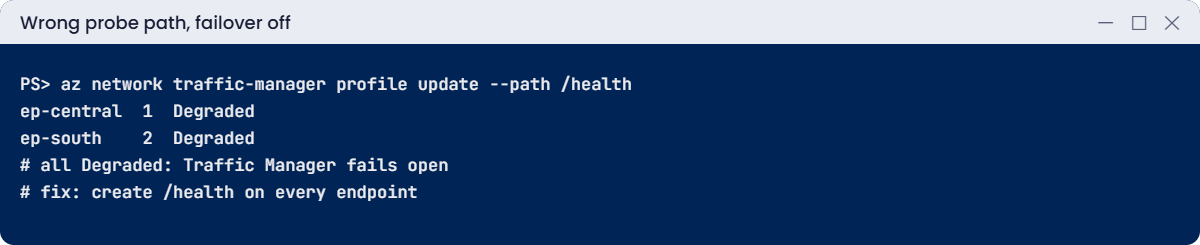
Both Traffic Manager endpoints Degraded after a probe path change
When everything is Degraded, failover is effectively off.

3Clean up

Delete the lab resource group:

az group delete --name rg-saat-l53 --yes
az resource list --tag lesson=53 -o table

The last command should print nothing.

✅ Checkpoint: You watched a real failover and failback, found a probe that disabled failover, and removed the lab.

This happened at work

The failover test that failed in front of the auditors

A broker’s trading portal ran in two regions behind Traffic Manager with Priority routing. During a yearly disaster recovery test, the team shut down the primary region in front of the auditors. Users kept landing on the dead site for 40 minutes.

Two things were wrong. The probe path pointed at a page that had been removed in a redesign, so both endpoints had been Degraded for months and Traffic Manager was failing open. And the TTL was 3,600 seconds, set years earlier “to reduce DNS costs”.

What they changed: a real /health endpoint that checks the app and its database, an Azure Monitor alert on the profile’s endpoint status metric, a TTL of 60 seconds, and a monthly failover drill in which someone reads endpoint status and DNS answers, not just the portal’s overall status.

Common mistakes and troubleshooting

MistakeWhat you seeWhat to do
Probe path that doesn’t existAll endpoints Degraded, site still worksFix the path; alert on endpoint status.
Long TTLFailover takes many minutesUse a short TTL (30 to 60 seconds) for failover profiles.
Expecting it to proxy trafficHost header or certificate errorsAdd the Traffic Manager name as a custom domain and certificate on the endpoint.
Probe blocked by NSG or firewallEndpoint Degraded while users reach itAllow the AzureTrafficManager service tag.
Testing without clearing DNS cache“Failover didn’t happen”Clear the client cache; check the CNAME answer.
Unwanted automatic failbackUsers bounce back too earlyDisable the primary endpoint until it’s ready.

Interview questions

Click a question to open it. Each one is written the way an interviewer would ask it. Under it you will see why they ask it and one way you could answer, in your own words.

Fresher level

1. What is Traffic Manager?

Why they ask this: The basic concept.

How you might answer: A DNS-based traffic router that answers lookups with the address of a healthy endpoint using a routing method such as Priority, Weighted or Performance.

2. Does Traffic Manager carry user traffic?

Why they ask this: A classic check.

How you might answer: No. It only answers DNS. Clients connect directly to the endpoint it returns.

3. Name three routing methods.

Why they ask this: Basic vocabulary.

How you might answer: Priority, Weighted, Performance, Geographic, MultiValue and Subnet.

2–5 years experience

4. Failover took 15 minutes. Why?

Why they ask this: A real troubleshooting path.

How you might answer: Detection time (interval times tolerated failures), the profile TTL, and client or resolver caching. Check endpoint status history, the TTL, and what the clients actually resolved.

5. All endpoints show Degraded but the site works. Explain.

Why they ask this: A subtle detail.

How you might answer: Traffic Manager fails open when every endpoint is Degraded. Usually the probe is wrong: path, port, protocol, host header or a firewall blocking probes. Failover is effectively off until it’s fixed.

6. Why do HTTPS sites behind Traffic Manager show certificate errors?

Why they ask this: They want DNS understanding.

How you might answer: The browser connects to the endpoint using the Traffic Manager or custom name, so the endpoint’s certificate must include that name, and the app must accept that host header.

Senior level

7. Traffic Manager or Front Door for a global web app?

Why they ask this: They want a design answer.

How you might answer: Front Door proxies HTTP at the edge with instant failover, caching and WAF. Traffic Manager is DNS only, works for any protocol and costs little, but failover depends on TTL and caching. For web apps Front Door is usually better; Traffic Manager suits non-HTTP or simple DR.

8. How would you design a health endpoint for failover?

Why they ask this: Operations depth.

How you might answer: It checks the app and its critical dependencies quickly, returns 200 only when the region can serve users, avoids heavy work, and is monitored with alerts so a wrong result is noticed.

9. How do you combine Performance routing with regional failover?

Why they ask this: A nested profile question.

How you might answer: A parent Performance profile with nested child Priority profiles per region, and minimum child endpoints set so a region is used only when enough of its endpoints are healthy.

Quick quiz

Q1. What does Traffic Manager return to a client?

  1. The web page
  2. A DNS answer pointing to an endpoint
  3. A TCP proxy
  4. A VPN tunnel
Show answer

B — It works only at the DNS layer.

Q2. Both endpoints are Degraded. What does Traffic Manager do?

  1. Returns nothing
  2. Returns endpoints as if healthy
  3. Deletes the profile
  4. Uses a backup IP
Show answer

B — It fails open.

Q3. Which setting most affects how fast clients follow a failover?

  1. Endpoint weight
  2. DNS TTL
  3. Resource group
  4. VM size
Show answer

B — Clients keep the old answer until the TTL ends.

Q4. Endpoint status during a regional outage should be?

  1. Online
  2. Degraded
  3. Disabled
  4. Inactive
Show answer

B — Failed probes mark it Degraded.

Q5. Routing method for active-passive failover?

  1. Weighted
  2. Priority
  3. Geographic
  4. MultiValue
Show answer

B — Priority sends all traffic to the first healthy endpoint.

Quick recap

You can now explain, build and test DNS-based failover, and catch the probe mistake that quietly breaks it.

  • Traffic Manager answers DNS; it never carries traffic.
  • Failover time is detection plus TTL plus client caching.
  • All endpoints Degraded means fail open and no real failover.
  • Clients connect directly, so certificates and host headers must fit.
  • Alert on endpoint status and drill failover regularly.

Next lesson

Lesson 54: Azure Policy: allowed regions, tags, remediation → You enforce allowed regions and required tags across your subscription and fix non-compliant resources with remediation.

Further reading: Azure Traffic Manager

Want to go deeper into Azure Traffic Manager? See Microsoft’s What is Traffic Manager? and Traffic Manager endpoint monitoring. You can also see the full plan for this course on the Azure Cloud Administration course page.

Scroll to Top