Ultra Disk and Premium SSD v2

Azure Ultra Disk and its younger sibling Premium SSD v2 are managed disks where you choose size, IOPS and throughput separately, and change them while the disk is in use. They’re built for databases such as SQL Server, Oracle and SAP HANA that need low latency and steady performance.

With older Premium SSD, performance comes with the size you buy: want more IOPS, buy a bigger disk. With these two, you pay for exactly the IOPS and MB/s you set, and you can dial them up for month-end and back down afterwards.

In this lab you create both disk types on a zonal VM, measure them with fio, change performance live, and hit the two errors that every first Ultra Disk project meets.

TimeYou needCostBy the end you can
About 60 minutesA free account and the CLIAbout USD 0.25 for an hour: a D2s_v5 VM, a 64 GiB Premium SSD v2 and an 8 GiB Ultra Disk with 1,000 IOPS (Azure Retail Prices API, October 2026)Create Ultra Disk and Premium SSD v2, measure and tune them live, and tell a disk limit from a VM limit

What it is, in one line

Ultra Disk and Premium SSD v2 let you set a disk’s capacity, IOPS and throughput separately and change them without downtime.

In Simple Words

A water pipe with a tap you can turn

An old water tank comes in fixed sizes: a bigger tank also has a wider pipe. If you need more water flow, you must buy a bigger tank even if you don’t need the space.

A modern tank lets you choose the tank size and turn the tap wider or narrower whenever you like. Busy morning? Open the tap.

Quiet night? Close it a little and pay less.

But the pipe into your house also has a maximum width. If the house pipe is narrow, opening the tank’s tap further doesn’t help. That’s the VM’s own disk limit.

Engineer's View

How these disks work

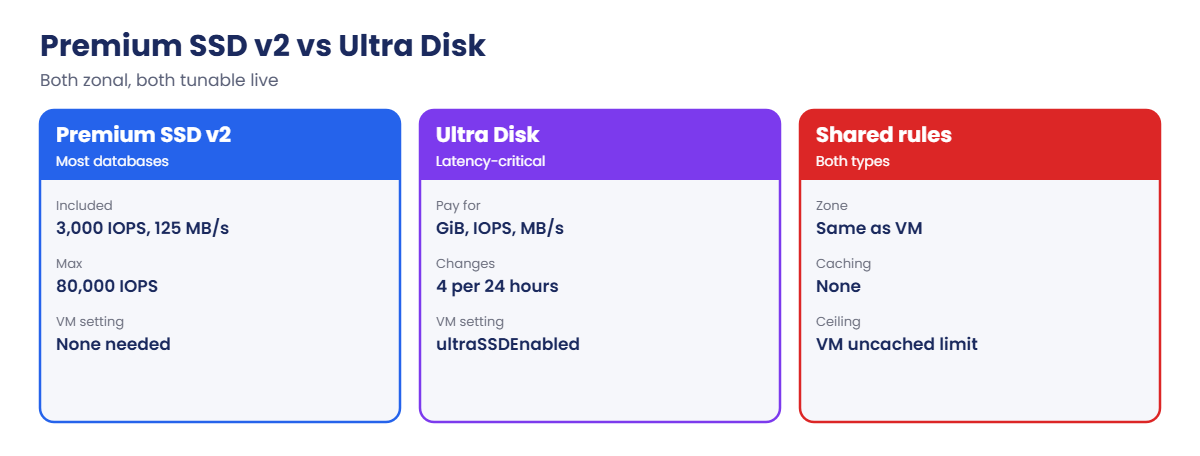
  • Premium SSD v2: 1 GiB to 64 TiB in 1 GiB steps. Every disk gets 3,000 IOPS and 125 MB/s at no extra charge; you pay for more, up to 80,000 IOPS and 1,200 MB/s per disk. No host caching. Zonal (LRS).
  • Ultra Disk: the top tier for latency-critical workloads, with much higher IOPS and throughput limits per disk. Sizes from 4 GiB. Performance can be changed a limited number of times a day (Microsoft documents four times in 24 hours for Ultra Disk).
  • Zones: both are zonal. The disk and VM must be in the same availability zone, and the VM size must support the disk type in that zone.
  • Ultra compatibility: a VM needs ultraSSDEnabled before an Ultra Disk can be attached. Turning it on requires the VM to be deallocated. While it’s on, you pay a small reservation charge per vCPU if no Ultra Disk is attached.
  • Pricing (Central India): Premium SSD v2 about USD 0.000125 per GiB per hour plus extra IOPS and MB/s; Ultra USD 0.00023 per GiB per hour, USD 0.000095 per IOPS per hour and USD 0.000502 per MB/s per hour.
  • Two ceilings: a disk delivers the lower of its own setting and the VM size’s uncached disk limit (with bursting on many sizes).

How it works, step by step

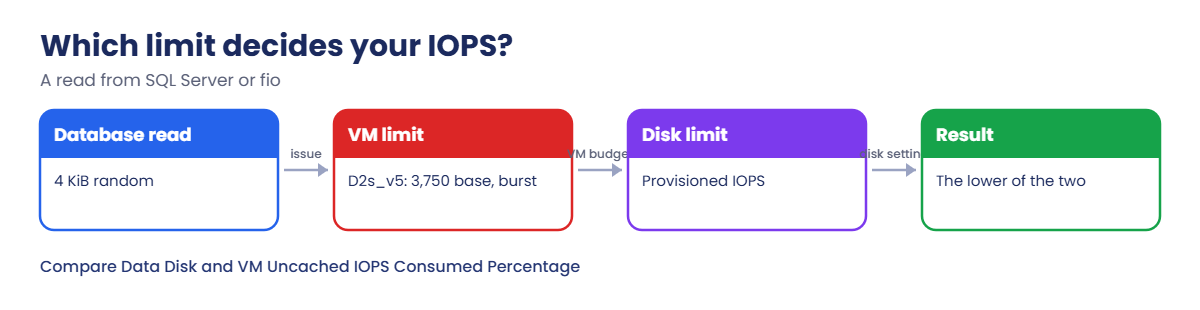
What happens when the database reads from the Premium SSD v2 disk:

Azure Ultra Disk and Premium SSD v2: disk limit versus VM limit
  1. SQL Server or fio issues a 4 KiB read to the disk at LUN 0.
  2. The VM checks its own uncached disk budget. D2s_v5 has a base limit around 3,750 IOPS and can burst higher for a while using credits.
  3. The disk checks its provisioned IOPS (3,000 in this lab at first).
  4. The read is served by Azure’s storage backend in the same zone with sub-millisecond latency.
  5. Whichever limit is lower, disk or VM, decides the IOPS you see.

Two metrics tell you which limit you’re hitting: Data Disk IOPS Consumed Percentage (the disk) and VM Uncached IOPS Consumed Percentage (the VM). The one at 100 percent is your bottleneck.

Premium SSD v2 compared with Ultra Disk

Raising disk IOPS when the VM is the bottleneck wastes money. Resizing the VM when the disk is the bottleneck wastes more.

Create, measure and tune Premium SSD v2 and Ultra Disk

1Check the zone support for your VM size

Ask Azure which zones support Ultra Disk for Standard_D2s_v5 in Central India:

az vm list-skus --resource-type virtualMachines --location centralindia --query "[?name=='Standard_D2s_v5'].locationInfo[0].zoneDetails[0].Name" -o tsv

You should see a list of zones, something like this. Pick one that’s listed:

1
2
3

If the command returns nothing, that size doesn’t support Ultra Disk in that region. Pick another size or region; this check saves you a failed deployment.

2A zonal VM and a Premium SSD v2 disk

Create the VM in zone 1, then a 64 GiB Premium SSD v2 disk with the included baseline performance, and attach it:

az group create --name rg-saat-l58 --location centralindia --tags course=saatvedha-azure lesson=58 -o none
az vm create --resource-group rg-saat-l58 --name vm-db --image Canonical:ubuntu-24_04-lts:server:latest --size Standard_D2s_v5 --zone 1 --public-ip-sku Standard --nsg-rule NONE --admin-username azureuser --generate-ssh-keys --tags course=saatvedha-azure lesson=58 -o none
az disk create --resource-group rg-saat-l58 --name pv2-data --sku PremiumV2_LRS --zone 1 --size-gb 64 --disk-iops-read-write 3000 --disk-mbps-read-write 125 --tags course=saatvedha-azure lesson=58 -o none
az vm disk attach --resource-group rg-saat-l58 --vm-name vm-db --name pv2-data --lun 0 -o none
az vm run-command invoke --resource-group rg-saat-l58 --name vm-db --command-id RunShellScript --scripts 'apt-get update -qq > /dev/null; DEBIAN_FRONTEND=noninteractive apt-get install -y -qq fio > /dev/null; fio --version' --query "value[0].message" -o tsv

The last command prints the fio version, for example fio-3.36.

3Measure it

Run 30 seconds of 4 KiB random reads with a deep queue:

az vm run-command invoke --resource-group rg-saat-l58 --name vm-db --command-id RunShellScript --scripts 'fio --name=rand --filename=/dev/disk/azure/scsi1/lun0 --rw=randread --bs=4k --iodepth=64 --ioengine=libaio --direct=1 --runtime=30 --time_based --group_reporting | grep IOPS=' --query "value[0].message" -o tsv

You should see something like this:

[stdout]
  read: IOPS=3016, BW=11.8MiB/s (12.4MB/s)(354MiB/30001msec)

About 3,000 IOPS: exactly what you provisioned. fio reads the raw device, so nothing on it is changed.

4Look at the VM’s own limit

Read the VM size’s uncached disk limits:

az vm list-skus --resource-type virtualMachines --location centralindia --size Standard_D2s_v5 --query "[0].capabilities[?name=='UncachedDiskIOPS' || name=='UncachedDiskBytesPerSecond'].{name:name, value:value}" -o table

You should see something like this:

Name                        Value
--------------------------  --------
UncachedDiskIOPS            3750
UncachedDiskBytesPerSecond  89128960

The VM’s base limit is 3,750 IOPS and 85 MiB/s. Right now the disk (3,000) is lower, so the disk is the ceiling.
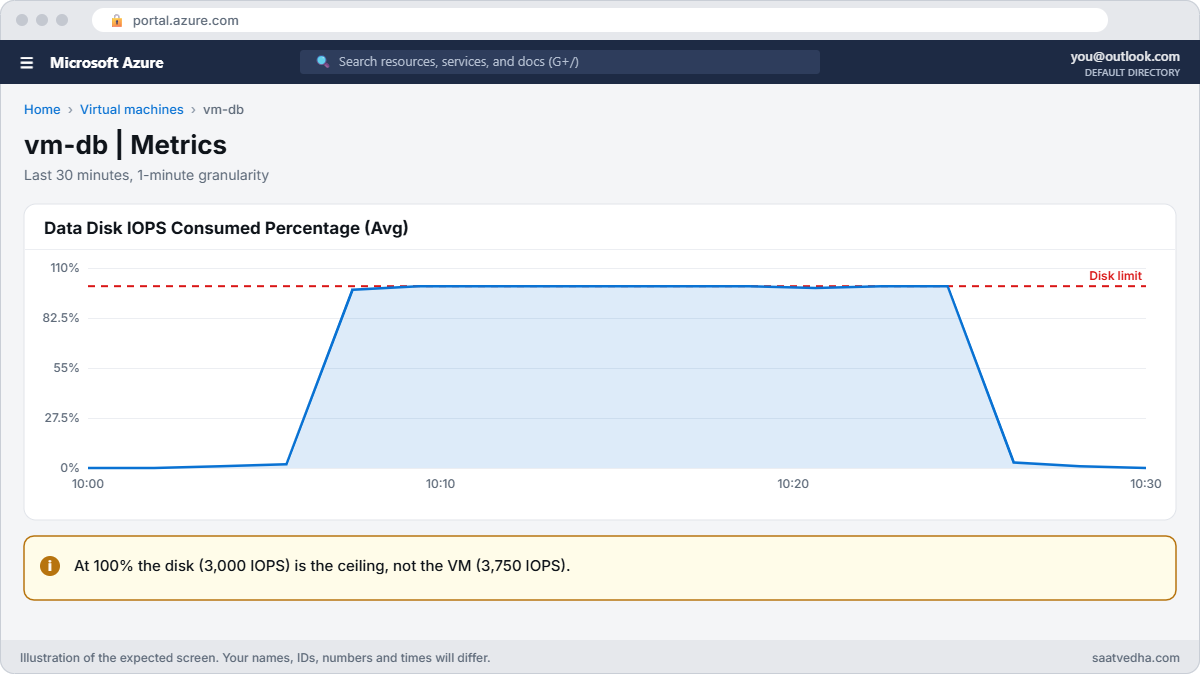

Azure Ultra Disk lab metrics with data disk IOPS consumed at 100 percent
vm-db during the fio run: Data Disk IOPS Consumed Percentage sits at 100%.
fio result on a Premium SSD v2 disk at 3,000 IOPS
The disk delivers what you provisioned.

✅ Checkpoint: vm-db runs in zone 1 with a Premium SSD v2 disk delivering about 3,000 IOPS, and you know the VM’s own uncached limit.

Break It, Then Fix It

Keep the VM running for both breaks.

1Break it: attaching an Ultra Disk to a normal VM

The DBA asks for an Ultra Disk for the transaction log. Create it and try to attach it:

az disk create --resource-group rg-saat-l58 --name ultra-log --sku UltraSSD_LRS --zone 1 --size-gb 8 --disk-iops-read-write 1000 --disk-mbps-read-write 50 --tags course=saatvedha-azure lesson=58 -o none
az vm disk attach --resource-group rg-saat-l58 --vm-name vm-db --name ultra-log --lun 1

You’ll get an error like this:

(InvalidParameter) StorageAccountType UltraSSD_LRS can be used only when additionalCapabilities.ultraSSDEnabled is set.
Code: InvalidParameter
Target: managedDisk.storageAccountType

The disk is fine and in the right zone. The VM hasn’t been made Ultra-compatible, and that switch can only change while the VM is deallocated.

Fix it: deallocate, enable Ultra compatibility, start, and attach (plan a short outage for this in production):

az vm deallocate --resource-group rg-saat-l58 --name vm-db
az vm update --resource-group rg-saat-l58 --name vm-db --ultra-ssd-enabled true -o none
az vm start --resource-group rg-saat-l58 --name vm-db
az vm disk attach --resource-group rg-saat-l58 --vm-name vm-db --name ultra-log --lun 1 -o none
az vm run-command invoke --resource-group rg-saat-l58 --name vm-db --command-id RunShellScript --scripts 'fio --name=rand --filename=/dev/disk/azure/scsi1/lun1 --rw=randread --bs=4k --iodepth=64 --ioengine=libaio --direct=1 --runtime=30 --time_based --group_reporting | grep IOPS=' --query "value[0].message" -o tsv

You should see something like this:

[stdout]
  read: IOPS=1004, BW=3.92MiB/s (4.11MB/s)(118MiB/30001msec)

The Ultra Disk delivers the 1,000 IOPS you set. Build new database VMs with Ultra compatibility from day one, so you never need that outage later.

2Break it: month-end and the disk is too slow

Month-end reports need more IOPS. Check which limit is hit during a fio run, then raise the Premium SSD v2 disk’s IOPS live, with no detach or reboot:

$vmIdDb = az vm show --resource-group rg-saat-l58 --name vm-db --query id -o tsv
az vm run-command invoke --resource-group rg-saat-l58 --name vm-db --command-id RunShellScript --scripts 'fio --name=rand --filename=/dev/disk/azure/scsi1/lun0 --rw=randread --bs=4k --iodepth=64 --ioengine=libaio --direct=1 --runtime=30 --time_based --group_reporting | grep IOPS=' --query "value[0].message" -o tsv
az monitor metrics list --resource $vmIdDb --metric "Data Disk IOPS Consumed Percentage" --interval PT1M --aggregation Maximum --query "value[0].timeseries[0].data[-3:].maximum" -o tsv
az disk update --resource-group rg-saat-l58 --name pv2-data --disk-iops-read-write 6000 --disk-mbps-read-write 200 -o none
az vm run-command invoke --resource-group rg-saat-l58 --name vm-db --command-id RunShellScript --scripts 'fio --name=rand --filename=/dev/disk/azure/scsi1/lun0 --rw=randread --bs=4k --iodepth=64 --ioengine=libaio --direct=1 --runtime=30 --time_based --group_reporting | grep IOPS=' --query "value[0].message" -o tsv

You should see something like this:

  read: IOPS=3019, BW=11.8MiB/s (12.4MB/s)(354MiB/30001msec)
100.0
100.0
  read: IOPS=6011, BW=23.5MiB/s (24.6MB/s)(704MiB/30001msec)

The disk metric was at 100 percent, so the disk was the bottleneck, and raising its IOPS doubled the result while the database kept running. The change can take a little while to apply; if fio still shows 3,000, wait a few minutes and run it again.

Notice that 6,000 is above the VM’s base limit of 3,750. D2s_v5 is using its burst credits. Under a long, steady load the credits run out and VM Uncached IOPS Consumed Percentage hits 100: then the fix is a bigger VM, not a faster disk.

Error attaching an Ultra Disk to a VM without Ultra compatibility
The VM needs Ultra compatibility before the disk can attach.

3Clean up

Delete the lab resource group (the Ultra Disk bills for its IOPS every hour):

az group delete --name rg-saat-l58 --yes
az resource list --tag lesson=58 -o table

The last command should print nothing.

✅ Checkpoint: You enabled Ultra compatibility to attach an Ultra Disk, raised Premium SSD v2 IOPS live, and know how to tell a disk limit from a VM limit.

This happened at work

The expensive disk that didn’t make SQL faster

A finance company moved its reporting SQL Server to Azure on an E8s_v5 VM with a large Premium SSD v2 data disk. Reports were slow, so the team raised the disk to 40,000 IOPS. Nothing improved, and the monthly bill jumped.

The disk metric showed about 30 percent consumed. The VM metric showed VM Uncached IOPS Consumed Percentage at 100 percent all day: the VM size’s own limit was far below what the disk could deliver. The team had been paying for IOPS the VM could never use.

What they changed: they moved to a VM size with a higher uncached limit, split data and log onto separate disks, set the data disk back to what the workload used plus headroom, and added a dashboard with both consumed-percentage metrics side by side. Every performance ticket now starts with that dashboard.

Common mistakes and troubleshooting

MistakeWhat you seeWhat to do
VM not Ultra-compatibleInvalidParameter: ultraSSDEnabled not setDeallocate, enable Ultra, start, attach.
Disk and VM in different zonesAttach failsCreate both in the same zone.
Raising disk IOPS when the VM is the limitNo improvement, higher billCheck VM Uncached IOPS Consumed Percentage first.
Expecting host cachingCache option not availableThese disks have no host caching; size IOPS instead.
Ultra enabled with no Ultra Disk attachedSmall hourly reservation chargeDisable Ultra compatibility when not needed.
Testing right after a performance changeOld numbers in fioAllow time for the change; adjustments are limited per day on Ultra.

Interview questions

Click a question to open it. Each one is written the way an interviewer would ask it. Under it you will see why they ask it and one way you could answer, in your own words.

Fresher level

1. What makes Premium SSD v2 different from Premium SSD?

Why they ask this: The basic concept.

How you might answer: You set size, IOPS and throughput separately, with an included baseline of 3,000 IOPS and 125 MB/s, instead of performance tied to fixed disk sizes.

2. When would you choose Ultra Disk?

Why they ask this: Basic positioning.

How you might answer: For the most demanding, latency-critical workloads such as SAP HANA, top-tier SQL or Oracle, transaction logs, where Premium SSD v2 limits aren’t enough.

3. Can you change Ultra Disk performance without downtime?

Why they ask this: A key feature.

How you might answer: Yes, IOPS and throughput can be changed while attached, a limited number of times per day.

2–5 years experience

4. A database is slow on Premium SSD v2. How do you troubleshoot?

Why they ask this: A real troubleshooting path.

How you might answer: Compare Data Disk IOPS and Bandwidth Consumed Percentage with the VM Uncached ones, check queue depth and latency in the OS, check whether bursting credits ran out, then tune the disk or resize the VM.

5. Why can’t you attach an Ultra Disk to an existing VM?

Why they ask this: Practical detail.

How you might answer: The VM needs ultraSSDEnabled, which requires deallocating it, and it must be in the same zone with a supported size.

6. How do you size IOPS for a new SQL Server?

Why they ask this: They want method.

How you might answer: Measure the current system with perfmon or DMVs over a busy period, take peaks for data and log, add headroom, choose a VM whose uncached limits exceed the total, then set disk IOPS and MB/s to match.

Senior level

7. How would you design storage for a 20 TB SQL Server on Azure?

Why they ask this: They want architecture.

How you might answer: Separate data, log and tempdb, Premium SSD v2 or Ultra for data and log with planned IOPS, tempdb on local NVMe or temp disk, a VM size with enough uncached throughput, and zone placement matching the availability design.

8. How do you control the cost of Ultra Disk?

Why they ask this: FinOps thinking.

How you might answer: Provision only needed IOPS and MB/s, lower them outside peak windows with automation, avoid idle Ultra compatibility, and consider Premium SSD v2 where its limits are enough.

9. What about high availability with zonal disks?

Why they ask this: Resilience thinking.

How you might answer: Zonal disks follow the VM’s zone, so use Always On availability groups or log shipping across zones or regions rather than relying on one disk.

Quick quiz

Q1. Included baseline performance on Premium SSD v2?

  1. 500 IOPS / 60 MB/s
  2. 3,000 IOPS / 125 MB/s
  3. 10,000 IOPS / 500 MB/s
  4. None
Show answer

B — Every disk gets 3,000 IOPS and 125 MB/s.

Q2. InvalidParameter: ultraSSDEnabled not set. Fix?

  1. Resize the disk
  2. Deallocate and enable Ultra compatibility
  3. Change the zone of the disk
  4. Use a bigger VM only
Show answer

B — The VM must be Ultra-compatible.

Q3. Data Disk IOPS Consumed Percentage is 100. Bottleneck?

  1. The VM
  2. The disk
  3. The network
  4. DNS
Show answer

B — The disk is at its provisioned limit.

Q4. Can you raise Premium SSD v2 IOPS while the VM runs?

  1. No
  2. Yes
  3. Only after detach
  4. Only on Windows
Show answer

B — Performance changes are online.

Q5. Ultra Disk and VM must be in?

  1. Different zones
  2. The same zone
  3. Any region
  4. Paired regions
Show answer

B — Both are zonal and must match.

Quick recap

That completes Phase 3: you’ve built enterprise networking and storage the way large companies run them. Phase 4 turns everything into a step-by-step troubleshooting method.

  • Premium SSD v2 and Ultra let you set IOPS and MB/s separately.
  • Both are zonal; check zone support with list-skus first.
  • Ultra Disk needs a VM with Ultra compatibility enabled.
  • Change performance live, within daily limits.
  • Compare disk and VM consumed-percentage metrics before spending.

Next lesson

Lesson 59: The Azure troubleshooting workflow → You learn the troubleshooting workflow that starts with one question, what changed, using the Activity log, change analysis, Service Health and Resource Health.

Further reading: Azure Ultra Disk

Want to go deeper into Azure Ultra Disk? See Microsoft’s Using Azure Ultra Disks and Deploy a Premium SSD v2. You can also see the full plan for this course on the Azure Cloud Administration course page.

Scroll to Top