Azure managed disks: types, data disks, snapshots, resize
-
Phase 0: Before you start
-
Phase 1: The foundation
-
Phase 2: Day-to-day operations
-
Phase 3: Enterprise architecture
-
Phase 4: Troubleshooting step by step
-
Phase 5: Final project and career
Azure managed disks are the hard drives of your VMs. Azure stores them, keeps three copies, and lets you pick the speed, grow them, and snapshot them. Most day-to-day VM tickets touch a disk: “the server is full”, “the app is slow”, “I deleted a file”.
This lesson covers the disk types, adding a data disk to web01, taking a snapshot and restoring a file from it, and growing a disk without a reboot.
You’ll also break a VM’s boot on purpose with one missing word in /etc/fstab. That one causes real outages every week somewhere.
| Time | You need | Cost | By the end you can |
|---|---|---|---|
| About 60 minutes | web01 from Lesson 15, the CLI | A few US cents: two 4 GiB Standard SSD disks and a small snapshot for about an hour | Add, format, snapshot, restore and grow a data disk, and keep a VM bootable when a disk goes missing |
What it is, in one line
A managed disk is a virtual hard drive that Azure stores and replicates for you, and you choose its type, size and speed.
In Simple Words
Notebooks in a school locker
Think of a VM as a student and disks as notebooks. The OS disk is the main notebook that comes with the student. Data disks are extra notebooks you add for each subject, so maths notes don’t fill up the main one.
A snapshot is a photocopy of a notebook on a given day. If someone tears out a page, you copy that page back from the photocopy.
A bigger notebook doesn’t help until you also draw the lines on the new pages. That’s why a grown disk needs one more step inside Linux before you can use the space.
Engineer's View
Disk types, sizes and the details that matter
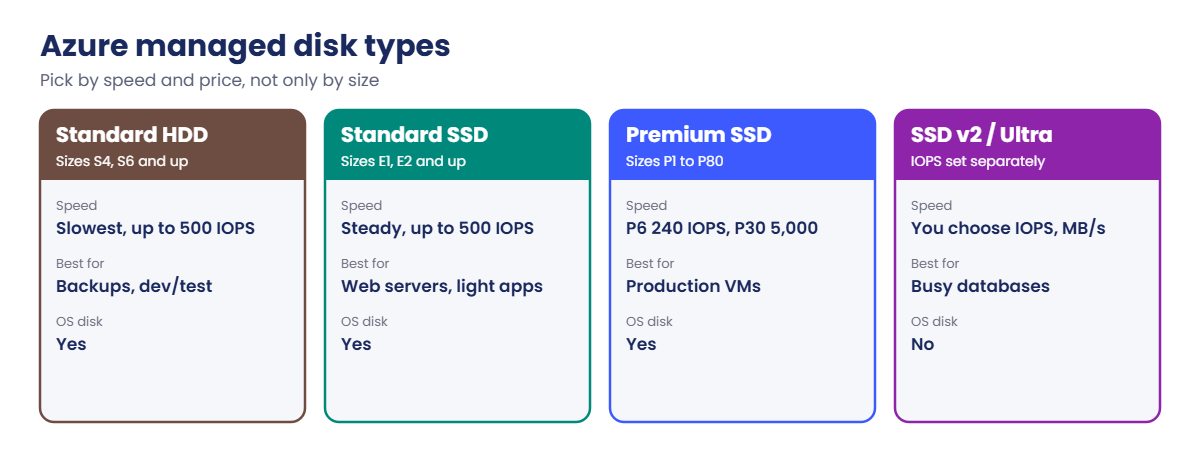
- Standard HDD (sizes named S4, S6 and up): cheapest, slow, fine for backups and dev/test.
- Standard SSD (E1, E2 and up): steady low latency for web servers and light apps.
- Premium SSD (P1 to P80): production default; IOPS and MB/s grow with size. A 64 GiB P6 gives 240 IOPS, a 1 TiB P30 gives 5,000.
- Premium SSD v2 and Ultra Disk: you set IOPS and throughput separately from size. Data disks only, no OS disks. They get their own lesson (Lesson 58).
- Billing is by tier, not bytes: a 33 GiB disk is billed as the 64 GiB tier. Pick sizes on the tier boundaries (4, 8, 16, 32, 64, 128 GiB and so on).
- Two speed limits apply: the disk’s limit and the VM size’s disk limit. The lower one wins, so a fast disk on a small VM is still slow.
- Host caching: ReadWrite for OS disks, ReadOnly for read-heavy data, None for write-heavy logs.
- Disk states: Attached (VM running), Reserved (VM deallocated), Unattached (no VM, still billed).
- Zones: a zonal VM can only use disks in the same zone.
- Snapshots: incremental snapshots store only changed blocks on Standard storage. The first one holds all used data. They’re crash-consistent, like pulling the power cord, so stop the app or use Azure Backup (Lesson 35) for databases.
- Grow, never shrink: most data disks up to 4 TiB grow while the VM runs. Shrinking isn’t supported.
Linux names disks sda, sdb, sdc in the order it finds them, and that order can change. Use /dev/disk/azure/scsi1/lun0 links and UUIDs in /etc/fstab, never /dev/sdc.
How it works, step by step
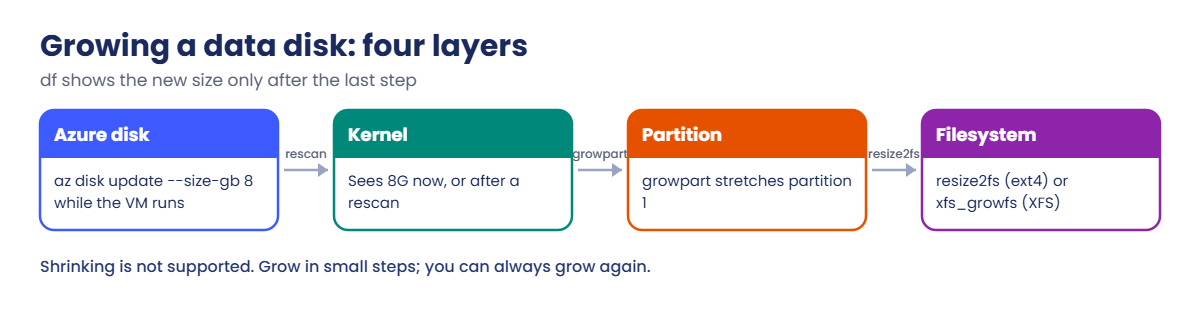
When you grow a data disk, four layers have to catch up, in order:
- Azure disk:
az disk update --size-gb 8grows the disk in storage. The VM keeps running. - Kernel: Linux notices the new size, or you tell it with a rescan.
- Partition:
growpartstretches partition 1 to the end of the disk. - Filesystem:
resize2fs(ext4) orxfs_growfs(XFS) fills the bigger partition. Only now doesdfshow the new size.
At boot, Linux reads /etc/fstab and mounts every line. If a disk on a line is missing and the line has no nofail, systemd waits about 90 seconds, then drops into emergency mode. On Azure that means no SSH, no Run Command, and a VM that looks “Running” in the portal.
That’s why every data disk line in fstab gets nofail: the VM boots without the disk, and the app complains instead of the whole server going dark.
Hands-on lab: Azure managed disks on web01
You add a data disk to web01, put a file on it, snapshot it, “lose” the file and get it back. Start web01 and check the disks you already have:
1Start web01 and list your disks
Run this:
az vm start --resource-group rg-saat-vms --name web01
az vm boot-diagnostics enable --resource-group rg-saat-vms --name web01
az disk list --resource-group rg-saat-vms --query "[].{name:name, sku:sku.name, sizeGb:diskSizeGB, tier:tier, state:diskState, zone:zones[0]}" -o tableYou should see something like this:
Name Sku SizeGb Tier State Zone
----------------------------------------------- ----------- -------- ------ -------- ------
web01_OsDisk_1_4c9e1d0b7a2f4e6c9b8a1d2e3f4a5b6c Premium_LRS 64 P6 Attached 1
win01_OsDisk_1_8f2a6c4e1b3d4f7a9c0e2b4d6f8a0c1e Premium_LRS 64 P6 Reservedweb01’s disk is Attached because it’s running. win01 is deallocated, so its disk shows Reserved. Boot diagnostics is now on, which you’ll need in the Break It lab.
2Create a 4 GiB data disk and attach it
Run this:
az disk create --resource-group rg-saat-vms --name web01-data01 --size-gb 4 --sku StandardSSD_LRS --zone 1 --tags course=saatvedha-azure lesson=19 -o none
az vm disk attach --resource-group rg-saat-vms --vm-name web01 --name web01-data01 --lun 0 --caching ReadOnly
az vm show --resource-group rg-saat-vms --name web01 --query "storageProfile.dataDisks[].{lun:lun, name:name, caching:caching}" -o tableYou should see this:
Lun Name Caching
----- ------------ ---------
0 web01-data01 ReadOnly--zone 1 matters: web01 lives in zone 1, so its disks must too. B2ats_v2 takes up to 4 data disks; bigger sizes take more.
3Partition, format and mount it
Save this script on your laptop. The last line saves it with Linux line endings, because Windows ones break bash:
$s = @'
set -e
D=$(readlink -f /dev/disk/azure/scsi1/lun0)
parted $D --script mklabel gpt mkpart data ext4 0% 100%
partprobe $D; sleep 2
mkfs.ext4 -q -L data ${D}1
mkdir -p /data
U=$(blkid -s UUID -o value ${D}1)
echo "UUID=$U /data ext4 defaults,nofail 0 2" >> /etc/fstab
mount -a
echo "invoice batch 2026-10-20" > /data/hello.txt
lsblk -o NAME,SIZE,MOUNTPOINT $D
df -h /data
'@
[IO.File]::WriteAllText('C:\azure-lab\disk-setup.sh', $s.Replace("`r`n", "`n"))Run it on web01:
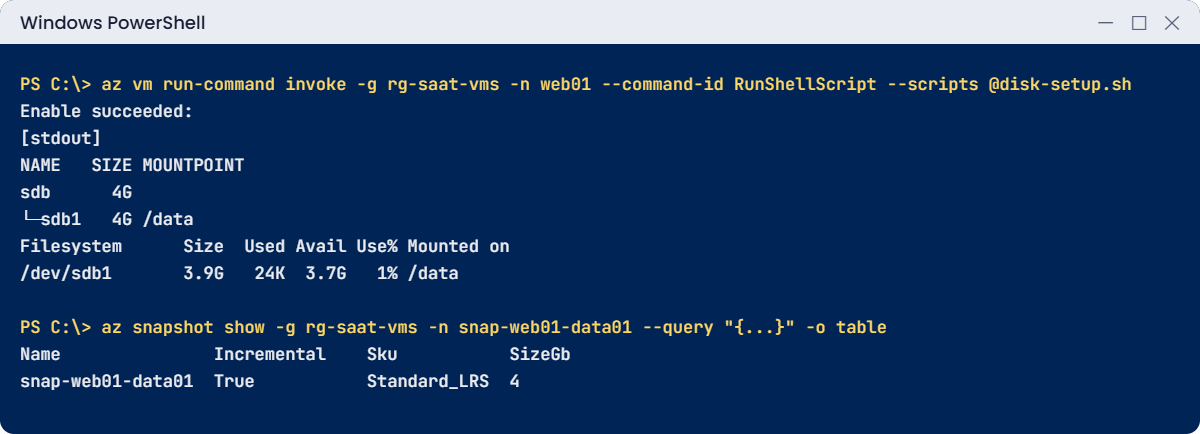
az vm run-command invoke --resource-group rg-saat-vms --name web01 --command-id RunShellScript --scripts '@C:\azure-lab\disk-setup.sh' --query "value[0].message" -o tsvYou should see something like this:
Enable succeeded:
[stdout]
NAME SIZE MOUNTPOINT
sdb 4G
└─sdb1 4G /data
Filesystem Size Used Avail Use% Mounted on
/dev/sdb1 3.9G 24K 3.7G 1% /data
[stderr]The script finds the disk by LUN, not by name. Your disk might be sdb or sdc, and that’s fine. The fstab line uses the UUID and nofail.
4Take an incremental snapshot
Run this:
az snapshot create --resource-group rg-saat-vms --name snap-web01-data01 --source web01-data01 --incremental true --sku Standard_LRS --tags course=saatvedha-azure lesson=19 -o none
az snapshot show --resource-group rg-saat-vms --name snap-web01-data01 --query "{name:name, incremental:incremental, sku:sku.name, sizeGb:diskSizeGB}" -o tableYou should see this:
Name Incremental Sku SizeGb
----------------- ------------- ------------ --------
snap-web01-data01 True Standard_LRS 45Lose the file, then restore it from the snapshot
Delete the file, as a user would by mistake:
az vm run-command invoke --resource-group rg-saat-vms --name web01 --command-id RunShellScript --scripts 'rm /data/hello.txt; ls /data' --query "value[0].message" -o tsvMake a new disk from the snapshot and attach it as LUN 1:
az disk create --resource-group rg-saat-vms --name web01-data01-restore --source snap-web01-data01 --sku StandardSSD_LRS --zone 1 --tags course=saatvedha-azure lesson=19 -o none
az vm disk attach --resource-group rg-saat-vms --vm-name web01 --name web01-data01-restore --lun 1Mount it read-only, copy the file back and unmount:
az vm run-command invoke --resource-group rg-saat-vms --name web01 --command-id RunShellScript --scripts 'mkdir -p /restore; mount -o ro /dev/disk/azure/scsi1/lun1-part1 /restore; cp /restore/hello.txt /data/; umount /restore; cat /data/hello.txt' --query "value[0].message" -o tsvYou should see this:
Enable succeeded:
[stdout]
invoice batch 2026-10-20
[stderr]You copied one file back without touching the rest of the live disk. Now detach the restore disk, so two disks with the same UUID aren’t left on one VM:
az vm disk detach --resource-group rg-saat-vms --vm-name web01 --name web01-data01-restore
az disk delete --resource-group rg-saat-vms --name web01-data01-restore --yes6Find disks nobody is using
This is the query you’ll run in every cost review. Detached disks keep billing:
az disk list --query "[?diskState=='Unattached'].{name:name, group:resourceGroup, sizeGb:diskSizeGB, sku:sku.name}" -o tableIf the restore disk delete went through, this list is empty. In a real subscription, it rarely is.
✅ Checkpoint: /data on web01 is mounted from web01-data01, hello.txt is back, and only the snapshot and web01-data01 are left from this lesson.
Break It, Then Fix It
Keep web01 running. Both breaks happen on real servers all the time.
1Break it: grow the disk, but Linux still shows the old size
Grow the disk to 8 GiB while web01 runs, then check:
az disk update --resource-group rg-saat-vms --name web01-data01 --size-gb 8 -o none
az vm run-command invoke --resource-group rg-saat-vms --name web01 --command-id RunShellScript --scripts 'lsblk -o NAME,SIZE,MOUNTPOINT /dev/disk/azure/scsi1/lun0; df -h /data' --query "value[0].message" -o tsvYou’ll see something like this:
[stdout]
NAME SIZE MOUNTPOINT
sdb 8G
└─sdb1 4G /data
Filesystem Size Used Avail Use% Mounted on
/dev/sdb1 3.9G 28K 3.7G 1% /dataThe disk is 8G, but the partition and filesystem are still 4G. If the disk itself still shows 4G, the kernel hasn’t noticed yet; the rescan below fixes that too. This is the most common “I resized it and nothing changed” ticket.
Fix it: rescan, grow the partition, grow the filesystem:
az vm run-command invoke --resource-group rg-saat-vms --name web01 --command-id RunShellScript --scripts 'D=$(readlink -f /dev/disk/azure/scsi1/lun0); echo 1 > /sys/class/block/$(basename $D)/device/rescan; growpart $D 1; resize2fs ${D}1; df -h /data' --query "value[0].message" -o tsvYou should see something like this:
[stdout]
CHANGED: partition=1 start=2048 old: size=8384512 end=8386559 new: size=16775135 end=16777182
Filesystem Size Used Avail Use% Mounted on
/dev/sdb1 7.8G 28K 7.4G 1% /data
[stderr]
resize2fs 1.47.0 (5-Feb-2023)
Filesystem at /dev/sdb1 is mounted on /data; on-line resizing requiredresize2fs writes its progress to stderr, so that part is normal. df now shows 7.8G, and the app never stopped.
2Break it: one missing word in /etc/fstab
Remove nofail from the line (many old guides leave it out), detach the disk and restart:
az vm run-command invoke --resource-group rg-saat-vms --name web01 --command-id RunShellScript --scripts 'sed -i /data/s/defaults,nofail/defaults/ /etc/fstab; grep /data /etc/fstab' --query "value[0].message" -o tsv
az vm disk detach --resource-group rg-saat-vms --vm-name web01 --name web01-data01
az vm restart --resource-group rg-saat-vms --name web01 --no-wait
Start-Sleep -Seconds 240
az vm boot-diagnostics get-boot-log --resource-group rg-saat-vms --name web01 | Select-String -Pattern 'Timed out|Dependency failed|emergency|locked'You’ll see something like this:
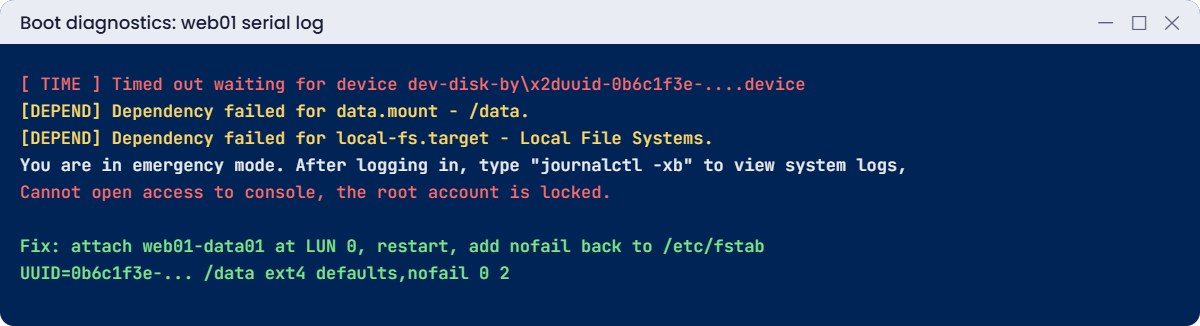
[ TIME ] Timed out waiting for device dev-disk-by\x2duuid-0b6c1f3e-....device - /dev/disk/by-uuid/0b6c1f3e-...
[DEPEND] Dependency failed for data.mount - /data.
[DEPEND] Dependency failed for local-fs.target - Local File Systems.
You are in emergency mode. After logging in, type "journalctl -xb" to view system logs,
Cannot open access to console, the root account is locked.web01 is stuck. The portal says “Running”, but SSH and Run Command can’t reach it because the agent never started. Ubuntu’s root account is locked, so the Serial Console can’t log in either (Lesson 60 covers the full rescue).
Fix it: give the VM its disk back, restart, then put nofail back:
az vm disk attach --resource-group rg-saat-vms --vm-name web01 --name web01-data01 --lun 0 --caching ReadOnly
az vm restart --resource-group rg-saat-vms --name web01
az vm run-command invoke --resource-group rg-saat-vms --name web01 --command-id RunShellScript --scripts 'sed -i /data/s/defaults/defaults,nofail/ /etc/fstab; grep /data /etc/fstab; df -h /data' --query "value[0].message" -o tsvYou should see something like this:
[stdout]
UUID=0b6c1f3e-... /data ext4 defaults,nofail 0 2
Filesystem Size Used Avail Use% Mounted on
/dev/sdb1 7.8G 28K 7.4G 1% /dataClean up: remove the fstab line first, then the disk and snapshot, then stop web01:
az vm run-command invoke --resource-group rg-saat-vms --name web01 --command-id RunShellScript --scripts 'umount /data; sed -i /data/d /etc/fstab' -o none
az vm disk detach --resource-group rg-saat-vms --vm-name web01 --name web01-data01
az disk delete --resource-group rg-saat-vms --name web01-data01 --yes
az snapshot delete --resource-group rg-saat-vms --name snap-web01-data01
az vm deallocate --resource-group rg-saat-vms --name web01
C:\azure-lab\Find-LabResources.ps1 -Lesson 19You should see this:
Nothing tagged course=saatvedha-azure is left.
✅ Checkpoint: You grew a live disk, rescued an unbootable VM, and web01 is deallocated with only its OS disk.
This happened at work
The 2 a.m. patch reboot that didn’t come back
An insurance company patched its Linux app servers every second Sunday. One night, three of twelve VMs didn’t come back after the reboot. The portal showed them as Running, but SSH timed out and the monitoring agent was silent.
Boot diagnostics showed the same screen on all three: “Timed out waiting for device” and emergency mode. Weeks earlier, someone had detached an old log disk from those VMs to save money. The fstab lines were still there, without nofail, and nothing broke until the next reboot.
What they changed: the on-call engineer attached a small empty disk at the same LUN to get past the boot, then removed the stale lines. The build template now writes every data disk line with UUID and nofail. A weekly check also compares fstab entries with the disks Azure says are attached.
Common mistakes and troubleshooting
| Mistake | What you see | What to do |
|---|---|---|
| Data disk in fstab without nofail | VM hangs in emergency mode after a reboot | Always add nofail; mount by UUID. |
| Mounting /dev/sdc in fstab | The wrong disk mounts after a reboot | Use UUID= or /dev/disk/azure/scsi1/lunN. |
| Grew the disk, skipped growpart/resize2fs | df still shows the old size | Rescan, growpart, then resize2fs or xfs_growfs. |
| Disk created without the VM’s zone | Attach fails | Create the disk in the same zone as the VM. |
| Buying size instead of speed | App slow on a big Standard HDD | Check the tier’s IOPS and the VM size’s disk limit. |
| Deleted VMs, forgot the disks | Bill keeps growing | Run the Unattached disk query every month. |
| Treating a snapshot as a backup plan | No history, no app-consistent copy | Use Azure Backup for policies and retention (Lesson 35). |
Interview questions
Click a question to open it. Each one is written the way an interviewer would ask it. Under it you will see why they ask it and one way you could answer, in your own words.
Fresher level
1. What managed disk types does Azure offer?
Why they ask this: A basic check that you know the options.
How you might answer: Standard HDD, Standard SSD, Premium SSD, Premium SSD v2 and Ultra Disk. Standard is for low-cost or dev/test, Premium SSD is the usual production choice, and Premium SSD v2 and Ultra let you set IOPS and throughput separately for databases.
2. What’s the difference between an OS disk and a data disk?
Why they ask this: They want the basic layout of a VM.
How you might answer: The OS disk holds the operating system and boots the VM. Data disks are extra disks for application data, logs or databases. Keeping data separate means you can resize, snapshot or move it without touching the OS.
3. You added space to a disk in the portal but Linux doesn’t show it. Why?
Why they ask this: A very common first ticket.
How you might answer: Growing the Azure disk doesn’t grow the partition or filesystem. I’d rescan the disk if needed, then run growpart for the partition and resize2fs or xfs_growfs for the filesystem.
2–5 years experience
4. A Linux VM won’t boot after someone removed a data disk. What happened and how do you fix it?
Why they ask this: They’re checking fstab knowledge and calm troubleshooting.
How you might answer: Most likely the fstab line for that disk has no nofail, so systemd waits for it and drops into emergency mode. I’d confirm it in boot diagnostics. The quickest fix is to attach the disk, or a blank one at the same LUN, restart, then fix fstab.
For the long term, every data disk line uses UUID and nofail.
5. An app on a Premium SSD is slow. What do you check?
Why they ask this: They want to see you know about the two limits.
How you might answer: First, the disk tier’s IOPS and throughput limits and whether the metrics show we’re hitting them. Second, the VM size’s own disk limit, because the lower of the two wins. Then caching settings, and whether bursting credits ran out on smaller Premium disks.
6. How do you restore one file from a managed disk snapshot?
Why they ask this: They want a practical method, not “restore the whole VM”.
How you might answer: Create a new disk from the snapshot in the same zone, attach it to the VM or a helper VM, mount it read-only and copy the file. Then detach and delete the temporary disk, so two disks with the same filesystem UUID aren’t left on one server.
Senior level
7. How would you control disk costs across a large estate?
Why they ask this: They want governance, not one-off cleanups.
How you might answer: Regular reports of Unattached disks and old snapshots with Resource Graph, tags for owner and expiry, and automation that flags them. I’d also right-size on tier boundaries, move idle data to cheaper types, and check that VM delete options remove OS disks where that’s wanted.
8. When would you choose Premium SSD v2 over Premium SSD?
Why they ask this: They want cost and performance reasoning.
How you might answer: When a database needs high IOPS on a small amount of data. With Premium SSD, I’d have to buy a large disk to get the IOPS. Premium SSD v2 lets me set capacity, IOPS and throughput separately, often for less. It can’t be an OS disk, and I’d check region and zone support.
9. Are disk snapshots enough to protect a production database?
Why they ask this: They want to see you know crash-consistency limits.
How you might answer: No. A snapshot is crash-consistent, like pulling the power cord, and it covers one disk at a time. For a database I’d use Azure Backup or the database’s own backups for application-consistent copies, retention policies and tested restores. Snapshots are good for a quick rollback before a change.
Quick quiz
Q1. A 33 GiB Premium SSD is billed as which size?
- 33 GiB
- 32 GiB
- 64 GiB
- 128 GiB
Show answer
C — Disks are billed by tier; 33 GiB rounds up to the 64 GiB P6 tier.
Q2. A disk on a deallocated VM shows which state?
- Attached
- Reserved
- Unattached
- Stopped
Show answer
B — Reserved means it belongs to a deallocated VM.
Q3. What makes a Linux VM boot when a data disk is missing?
- noatime
- nofail in /etc/fstab
- ReadOnly caching
- A bigger OS disk
Show answer
B — nofail lets boot continue without that disk.
Q4. After az disk update grows a disk, what else is needed in Linux?
- Nothing
- A reboot only
- growpart and resize2fs
- A new VM
Show answer
C — The partition and filesystem must grow too.
Q5. A zonal VM in zone 1 can use disks from:
- Any zone
- Zone 1 only
- Regional disks only
- Another region
Show answer
B — Disks for a zonal VM must be in the same zone.
Quick recap
You can now handle the disk tickets that make up a big part of VM support.
- Standard HDD, Standard SSD, Premium SSD, Premium SSD v2 and Ultra differ in speed and price.
- Billing is by tier; speed is the lower of the disk limit and the VM size limit.
- Mount data disks by UUID with nofail, and find them by LUN.
- Growing a disk needs growpart and resize2fs (or xfs_growfs) inside Linux.
- Restore a file by creating a disk from a snapshot and mounting it read-only.
Next lesson
Lesson 20: Images, Azure Compute Gallery and VM scale sets → You capture web01 as an image and run a set of identical web VMs that Azure can grow and shrink.
Further reading: Azure managed disks
Want to go deeper into Azure managed disks? See Microsoft’s Azure managed disk types and Expand virtual hard disks on a Linux VM. You can also see the full plan for this course on the Azure Cloud Administration course page.
