Can’t RDP or SSH to an Azure VM
-
Phase 0: Before you start
-
Phase 1: The foundation
-
Phase 2: Day-to-day operations
-
Phase 3: Enterprise architecture
-
Phase 4: Troubleshooting step by step
-
Phase 5: Final project and career
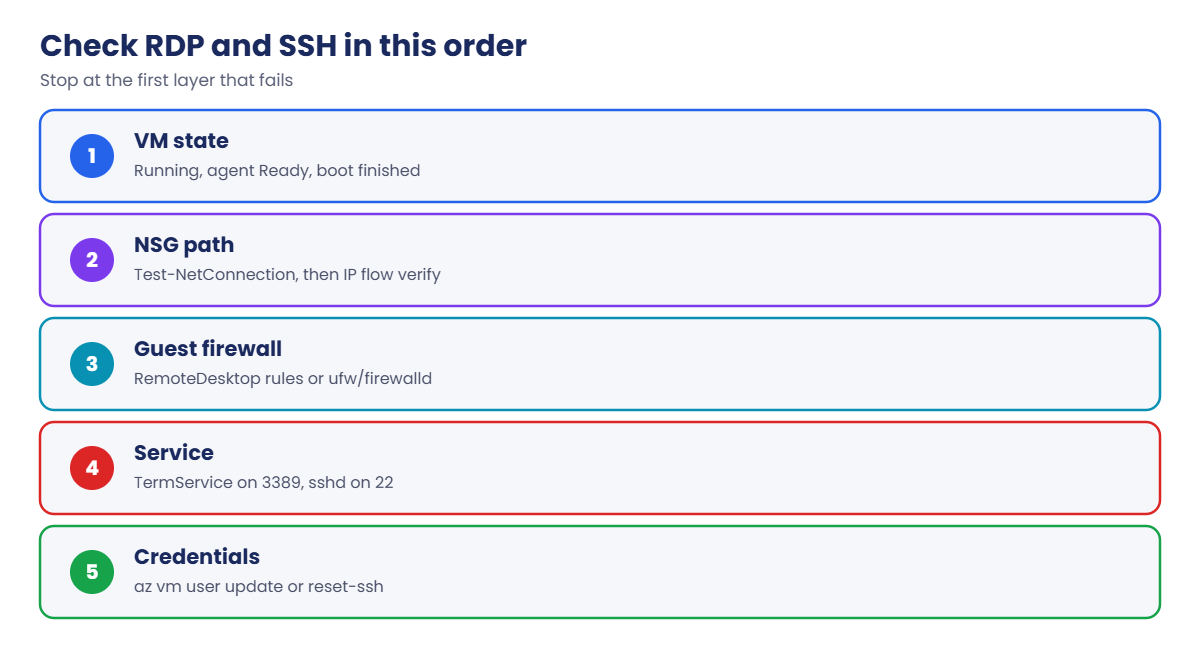
“Azure VM RDP not working” is one of the most searched Azure problems, and the same steps fix SSH on Linux. The trick is to stop guessing and check the path in order: is the VM up, does Azure let the packet in, does the guest firewall let it in, is the service listening, and do the credentials work.
Each layer has its own tool, and each tool tells you something definite. Test-NetConnection tells you whether TCP gets through. IP flow verify tells you whether an NSG allows it.
Run Command tells you what the guest thinks. Within ten minutes you know which layer is wrong.
In this lab you build a Windows Server VM you can RDP to, then break the NSG and the Windows Firewall, and fix each one from outside the VM.
| Time | You need | Cost | By the end you can |
|---|---|---|---|
| About 50 minutes | A free account, the CLI, PowerShell and Remote Desktop on your laptop | About 10 US cents: a small Windows VM and a public IP for under an hour | Find which layer blocks RDP or SSH in minutes, and fix it without logging in |
What it is, in one line
When RDP or SSH fails, check each layer in order: VM state, NSG, guest firewall, service, then credentials.
In Simple Words
Visiting a friend in a gated society
You can’t reach your friend’s flat. Before you complain, check in order. Is your friend at home (VM running)?
Did the society gate let you in (NSG)? Did the building door open (guest firewall)? Is anyone answering the flat’s doorbell (RDP service)?
Do you know the door code (credentials)?
Each check has its own sign. If the gatekeeper turned you away, there’s no point ringing the doorbell louder.
Engineers who jump to “reset the password” first are ringing the doorbell while still standing at the gate.
Engineer's View
The RDP and SSH path, layer by layer
- VM state: Running, agent Ready, boot finished (Lesson 60 if not).
- Network path: public IP or Bastion, NSGs on subnet and NIC (both must allow), route tables, and Azure Firewall if traffic goes through a hub.
- IP flow verify: Network Watcher tests a specific 5-tuple against the effective NSG rules and names the rule that allows or denies it.
- Guest firewall: Windows Firewall rules “Remote Desktop – User Mode (TCP-In)” (name RemoteDesktop-UserMode-In-TCP); on Linux, ufw, firewalld or iptables for port 22.
- Service: TermService listening on 3389 (or a changed port); sshd on 22 with a valid config.
- Credentials: reset with az vm user update (VMAccess extension) for passwords or SSH keys; on Linux, az vm user reset-ssh resets the SSH configuration.
- Better than public RDP: Bastion or just-in-time access (Lessons 27 and 28). Port 3389 open to the internet is attacked within minutes.
How it works, step by step
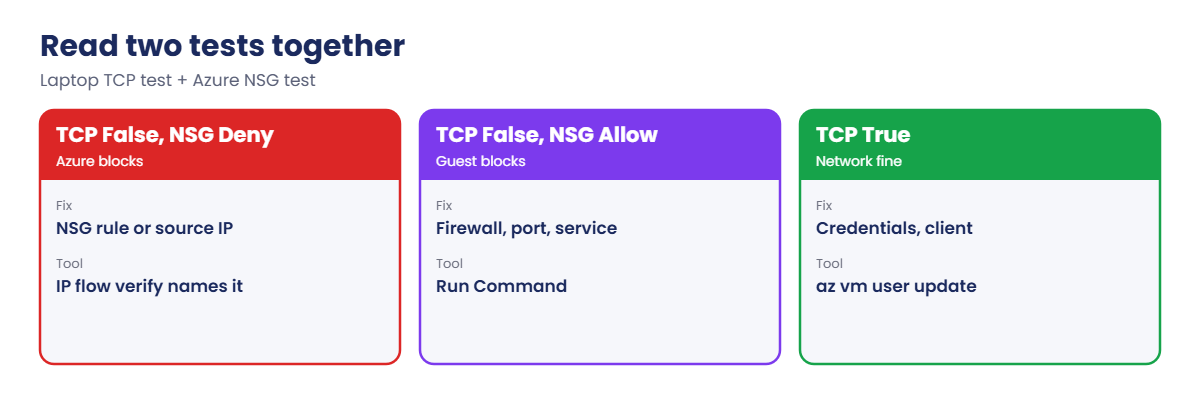
How to read the two most useful tests together:
- Run Test-NetConnection from your laptop to port 3389.
- If it succeeds, the network is fine: look at credentials, the RDP client, or the user’s rights.
- If it fails, run IP flow verify with your public IP. If it says Deny, the NSG is the problem and it names the rule.
- If IP flow verify says Allow but TCP still fails, the packet reaches the VM and something inside drops it: guest firewall or the service.
- Use Run Command to check the guest firewall and the listening port, and fix them without logging in.
That split, Azure says allow but TCP fails, is the single most useful clue in this whole lesson.
For Linux, swap 3389 for 22, Windows Firewall for ufw or firewalld, and TermService for sshd. The order stays the same.
The same checks for SSH on Linux
The SSH client’s error message already tells you which layer to look at, so read it carefully before doing anything:
| SSH error | What it means | Where to look |
|---|---|---|
| Connection timed out | Packets never got an answer | NSG, route tables, public IP, Azure Firewall |
| Connection refused | The VM answered, but nothing listens on 22 | sshd stopped, wrong port, or guest firewall reject |
| Permission denied (publickey) | Network fine, login rejected | User name, key, authorized_keys permissions |
| Host key verification failed | The VM was rebuilt with a new host key | Remove the old entry from known_hosts after checking |
For the guest checks, Run Command works the same way on Linux, with RunShellScript instead of RunPowerShellScript:
az vm run-command invoke --resource-group <rg> --name <vm> --command-id RunShellScript --scripts 'ss -tlnp | grep :22; ufw status | head -3; sshd -t && echo sshd config ok' --query "value[0].message" -o tsv
az vm user reset-ssh --resource-group <rg> --name <vm>
az vm user update --resource-group <rg> --name <vm> --username azureuser --ssh-key-value ~/.ssh/id_rsa.pubsshd -t tests the SSH configuration file and prints the exact line that’s wrong. reset-ssh puts the SSH configuration back to defaults, and user update replaces the key for one user. Both use the VMAccess extension, so the VM agent must be Ready.
Build an RDP path and test every layer
1A Windows VM that only your IP can reach
Find your public IP, create the VM, and allow RDP from that IP only (about 5 minutes):
$myIp = (Invoke-RestMethod https://api.ipify.org)
$pw = 'Sv-' + (-join ((65..90) + (97..122) + (48..57) | Get-Random -Count 14 | ForEach-Object { [char]$_ })) + '9!'
az group create --name rg-saat-l61 --location centralindia --tags course=saatvedha-azure lesson=61 -o none
az vm create --resource-group rg-saat-l61 --name vm-win --image Win2022Datacenter --size Standard_B2s --public-ip-sku Standard --nsg-rule NONE --admin-username azureadmin --admin-password $pw --tags course=saatvedha-azure lesson=61 -o none
az network nsg rule create --resource-group rg-saat-l61 --nsg-name vm-winNSG --name allow-rdp-me --priority 100 --direction Inbound --access Allow --protocol Tcp --source-address-prefixes $myIp --destination-port-ranges 3389 -o none
$ip = az vm show --resource-group rg-saat-l61 --name vm-win --show-details --query publicIps -o tsv
$priv = az vm show --resource-group rg-saat-l61 --name vm-win --show-details --query privateIps -o tsv2Test the path from outside
Check TCP from your laptop and ask Network Watcher what the NSG decides:
Test-NetConnection $ip -Port 3389 -WarningAction SilentlyContinue | Select-Object RemoteAddress, TcpTestSucceeded
az network watcher test-ip-flow --resource-group rg-saat-l61 --vm vm-win --direction Inbound --protocol TCP --local "${priv}:3389" --remote "${myIp}:50000" -o tableYou should see something like this:
RemoteAddress TcpTestSucceeded
------------- ----------------
20.x.x.x True
Access RuleName
-------- ---------------------------
Allow securityRules/allow-rdp-me3Connect
Open Remote Desktop to the VM and sign in as azureadmin with $pw:
mstsc /v:$ipAccept the certificate warning (the VM uses a self-signed RDP certificate). Sign out when you see the desktop.
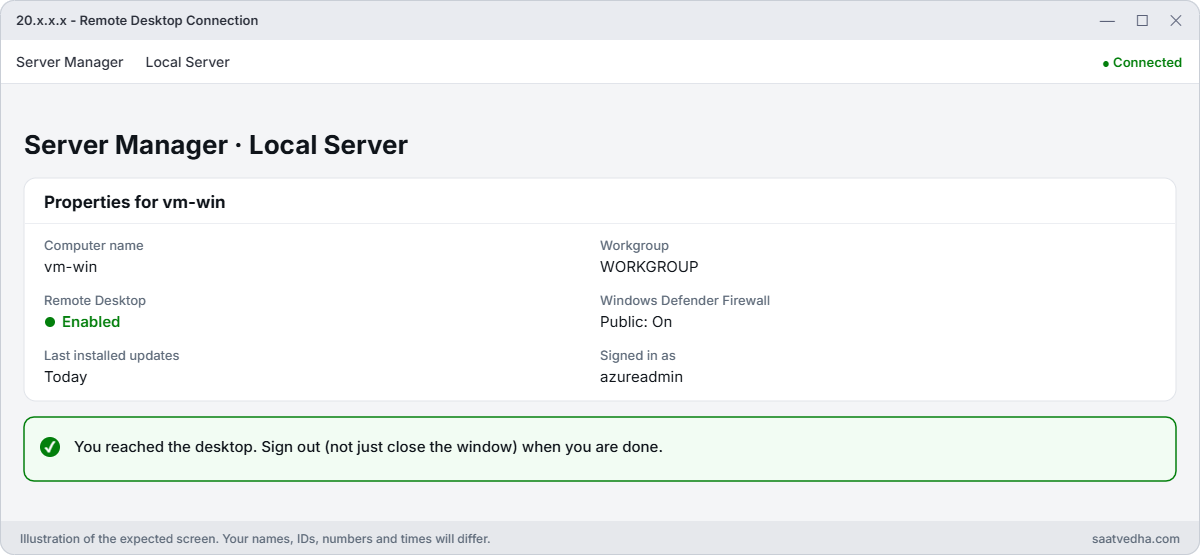
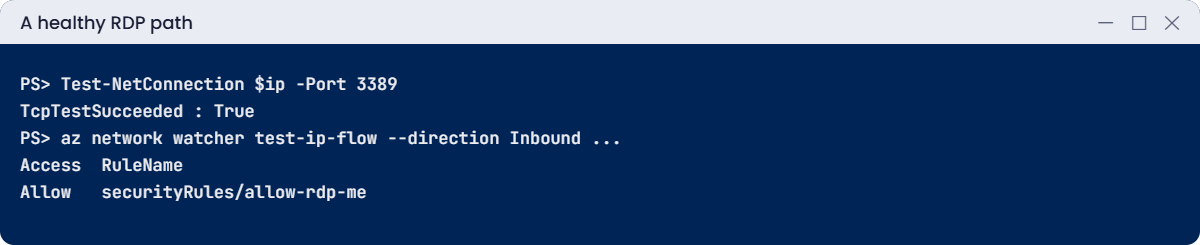
✅ Checkpoint: vm-win accepts RDP from your IP only, and you know what a healthy Test-NetConnection and IP flow verify look like.
Break It, Then Fix It
Keep the VM running for both breaks.
1Break it: your IP changed
Home and office internet IPs change. Simulate it by pointing the rule at a different address:
az network nsg rule update --resource-group rg-saat-l61 --nsg-name vm-winNSG --name allow-rdp-me --source-address-prefixes 203.0.113.10 -o none
Test-NetConnection $ip -Port 3389 -WarningAction SilentlyContinue | Select-Object RemoteAddress, TcpTestSucceeded
az network watcher test-ip-flow --resource-group rg-saat-l61 --vm vm-win --direction Inbound --protocol TCP --local "${priv}:3389" --remote "${myIp}:50000" -o tableYou should see something like this:
RemoteAddress TcpTestSucceeded
------------- ----------------
20.x.x.x False
Access RuleName
-------- ----------------------------------
Deny defaultSecurityRules/DenyAllInBoundTCP fails and Azure says Deny, naming the default rule. The NSG doesn’t know your current IP. Resetting the password or restarting the VM would change nothing.
Fix it: update the rule to your current IP, then test again:
$myIp = (Invoke-RestMethod https://api.ipify.org)
az network nsg rule update --resource-group rg-saat-l61 --nsg-name vm-winNSG --name allow-rdp-me --source-address-prefixes $myIp -o none
Test-NetConnection $ip -Port 3389 -WarningAction SilentlyContinue | Select-Object RemoteAddress, TcpTestSucceededTcpTestSucceeded is True again. For people whose IP changes often, Bastion or just-in-time access is the lasting fix.
2Break it: Azure allows it, the VM doesn’t
Someone “hardens” the server and disables the Remote Desktop firewall rules inside Windows:
az vm run-command invoke --resource-group rg-saat-l61 --name vm-win --command-id RunPowerShellScript --scripts 'Disable-NetFirewallRule -Name RemoteDesktop-UserMode-In-TCP,RemoteDesktop-UserMode-In-UDP' --query "value[0].message" -o tsv
Test-NetConnection $ip -Port 3389 -WarningAction SilentlyContinue | Select-Object RemoteAddress, TcpTestSucceeded
az network watcher test-ip-flow --resource-group rg-saat-l61 --vm vm-win --direction Inbound --protocol TCP --local "${priv}:3389" --remote "${myIp}:50000" -o tableYou should see something like this:
RemoteAddress TcpTestSucceeded
------------- ----------------
20.x.x.x False
Access RuleName
-------- ---------------------------
Allow securityRules/allow-rdp-meAzure says Allow, yet TCP fails. The packet reaches the VM and something inside drops it. That rules out the whole Azure network in one step.
Check the guest firewall and the listener from outside, then fix it:
az vm run-command invoke --resource-group rg-saat-l61 --name vm-win --command-id RunPowerShellScript --scripts 'Get-NetFirewallRule -Name RemoteDesktop-UserMode-In-TCP | Select-Object Name, Enabled; Get-NetTCPConnection -LocalPort 3389 -State Listen | Select-Object LocalPort, State' --query "value[0].message" -o tsv
az vm run-command invoke --resource-group rg-saat-l61 --name vm-win --command-id RunPowerShellScript --scripts 'Enable-NetFirewallRule -Name RemoteDesktop-UserMode-In-TCP,RemoteDesktop-UserMode-In-UDP' --query "value[0].message" -o tsv
Test-NetConnection $ip -Port 3389 -WarningAction SilentlyContinue | Select-Object RemoteAddress, TcpTestSucceededYou should see something like this:
Name Enabled
---- -------
RemoteDesktop-UserMode-In-TCP False
LocalPort State
--------- -----
3389 Listen
RemoteAddress TcpTestSucceeded
------------- ----------------
20.x.x.x TrueThe service was listening all along; only the firewall rule was off. After enabling it, RDP works again.

3Clean up
Delete the lab resource group:
az group delete --name rg-saat-l61 --yes✅ Checkpoint: You told an NSG block from a guest firewall block with two commands, and fixed both without logging in.
This happened at work
The RDP port that moved
A bank’s security team changed the RDP port on all Windows servers from 3389 to 50133 through Group Policy, to “reduce scanning”. The NSGs still allowed 3389. After the next policy refresh, the operations team couldn’t reach any server, and the change ticket had been closed as “no impact”.
IP flow verify on 3389 said Allow, so the NSGs looked fine. Test-NetConnection on 3389 failed. A Run Command with Get-NetTCPConnection showed the listener on 50133, not 3389.
The servers were healthy; they were simply listening somewhere else.
What they changed: RDP back to 3389, reachable only through Azure Bastion, with no public RDP at all. Changing ports was replaced by removing exposure. The change process now asks “which network rules depend on this setting?” for any guest-level security change.
Common mistakes and troubleshooting
| Mistake | What you see | What to do |
|---|---|---|
| Resetting the password first | Still can’t connect | Test TCP and IP flow verify before touching credentials. |
| Rule on NIC NSG but subnet NSG denies | IP flow verify Deny | Both NSGs must allow; check effective rules. |
| Guest firewall rule disabled | Azure Allow, TCP fails | Check with Run Command and re-enable the rule. |
| RDP port changed in the guest | Allow on 3389 but nothing listens | Check the listening port; align NSG or revert. |
| Home IP changed | Deny by DenyAllInBound | Update the source IP or use Bastion or JIT. |
| Linux sshd_config broken | Connection refused on 22 | az vm user reset-ssh or fix via Run Command. |
Interview questions
Click a question to open it. Each one is written the way an interviewer would ask it. Under it you will see why they ask it and one way you could answer, in your own words.
Fresher level
1. A user can’t RDP to a VM. What do you check first?
Why they ask this: The basic method.
How you might answer: That the VM is running, then whether TCP 3389 gets through with Test-NetConnection, then the NSG with IP flow verify.
2. What is IP flow verify?
Why they ask this: Tool knowledge.
How you might answer: A Network Watcher test that checks a specific source, destination, port and protocol against effective NSG rules and names the matching rule.
3. How do you reset a forgotten admin password?
Why they ask this: A practical task.
How you might answer: az vm user update or the portal’s Reset password, which use the VMAccess extension; the VM agent must be running.
2–5 years experience
4. IP flow verify says Allow, but RDP fails. Why?
Why they ask this: A real troubleshooting path.
How you might answer: The packet reaches the VM, so the guest drops it: Windows Firewall, a changed RDP port, a stopped service, or third-party security software. Check with Run Command.
5. RDP gives “An internal error has occurred”. What could it be?
Why they ask this: Experience question.
How you might answer: RDP certificate or TLS problems, a full disk, licensing in RDS setups, or CredSSP mismatches. Check event logs through Run Command and the boot screenshot.
6. How do you troubleshoot SSH on Linux the same way?
Why they ask this: Parity check.
How you might answer: Test TCP 22, IP flow verify, check ufw or firewalld, sshd status and sshd_config, then reset the SSH key or configuration with az vm user commands.
Senior level
7. How should administrators reach VMs in production?
Why they ask this: They want secure design.
How you might answer: No public RDP or SSH. Azure Bastion or a VPN, just-in-time access, Entra ID login with MFA, and NSGs that allow management only from the Bastion subnet or a jump host.
8. How do you troubleshoot at scale when 100 VMs lose RDP?
Why they ask this: Scale thinking.
How you might answer: Look for the common change: GPO, NSG, route or firewall update in the Activity log, then test a sample with IP flow verify and Run Command, and roll back the shared change.
9. What do you check when RDP through Bastion fails?
Why they ask this: Bastion depth.
How you might answer: Bastion subnet NSG rules, VM NSG allowing the Bastion subnet, the VM’s guest firewall, and whether the SKU supports the connection method being used.
Quick quiz
Q1. Test-NetConnection fails and IP flow verify says Deny. Problem is?
- Guest firewall
- An NSG
- Password
- DNS
Show answer
B — The NSG blocks the packet.
Q2. IP flow verify Allow but TCP fails. Look where?
- NSG
- Inside the guest
- Route table
- Subscription
Show answer
B — The packet reached the VM.
Q3. Which tool resets a VM password without logging in?
- az vm restart
- az vm user update
- az vm redeploy
- az network nsg
Show answer
B — It uses the VMAccess extension.
Q4. Windows Firewall rule name for RDP TCP?
- RDP-Allow
- RemoteDesktop-UserMode-In-TCP
- TermService-In
- Port3389
Show answer
B — That’s the built-in rule name.
Q5. Best long-term way to avoid IP-based NSG rules for admins?
- Open 3389 to all
- Bastion or JIT
- Change the port
- Disable NSGs
Show answer
B — Remove public RDP exposure.
Quick recap
You can now find the broken layer behind any RDP or SSH ticket in minutes, and fix it from outside.
- Check VM, NSG, guest firewall, service, then credentials.
- Test-NetConnection says whether TCP gets through.
- IP flow verify says whether the NSG allows it and which rule.
- Azure Allow plus TCP failure means the guest is blocking.
- Use Bastion or JIT instead of public RDP and SSH.
Next lesson
Lesson 62: Network Watcher: IP flow verify and Next hop → You use Network Watcher’s IP flow verify, next hop, connection troubleshoot and VNet flow logs to prove where packets go.
Further reading: Azure VM RDP not working
Want to go deeper into Azure VM RDP not working? See Microsoft’s Troubleshoot Remote Desktop connections to an Azure VM and IP flow verify overview. You can also see the full plan for this course on the Azure Cloud Administration course page.
