Billing surprises: find what costs money
-
Phase 0: Before you start
-
Phase 1: The foundation
-
Phase 2: Day-to-day operations
-
Phase 3: Enterprise architecture
-
Phase 4: Troubleshooting step by step
-
Phase 5: Final project and career
Azure unexpected charges almost never come from one big mistake. They come from small things that keep billing quietly: a VM that was stopped but not deallocated, disks and public IPs left behind, a gateway someone forgot after a test, snapshots nobody remembers taking. Each costs a little per hour, every hour.
In Lesson 44 you set up budgets, alerts and a first look at costs. This lesson is the troubleshooting side: the bill is higher than expected, so where is the money going, and what exactly do you switch off?
You’ll query costs by service and by resource, save a waste finder script you’ll use again in the final project, and then fix the two “I thought I turned it off” charges that surprise almost everyone.
| Time | You need | Cost | By the end you can |
|---|---|---|---|
| About 45 minutes | A free account, the CLI and PowerShell | About 2 US cents: one small VM for a short time | Find what is costing money by service and resource, and remove the common silent charges |
What it is, in one line
Unexpected Azure charges are traced by asking Cost Management which service and resource cost money, then finding resources that bill while doing nothing.
In Simple Words
The electricity bill that doubled
Your electricity bill doubles. You don’t throw away the fridge first. You read the bill: which meter, which month.
Then you walk through the house: the geyser left on in the guest bathroom, a TV on standby, an old freezer in the garage.
None of them is big on its own. Together, running 24 hours a day, they double the bill.
Cost Management is the bill broken down by meter. The waste finder script is the walk through the house.
Engineer's View
Where silent charges hide
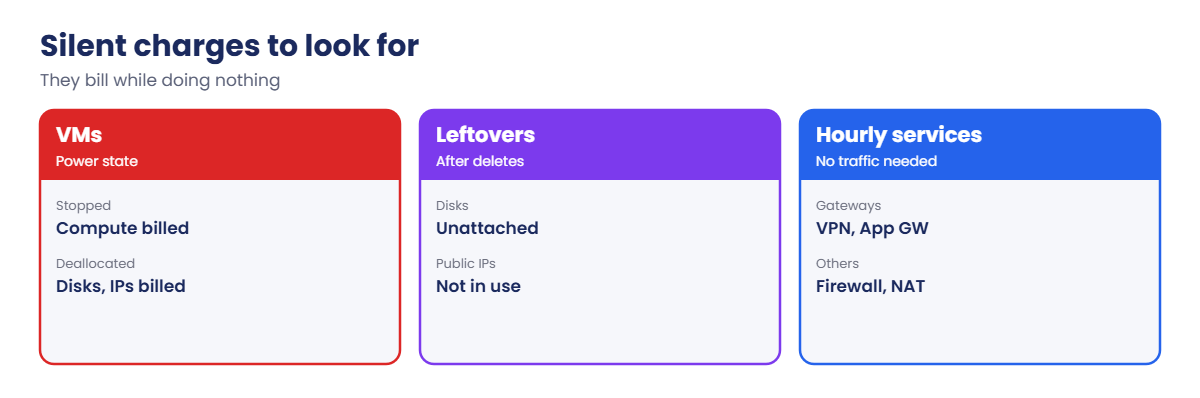
- Stopped vs deallocated: a VM shut down from inside the OS, or with az vm stop, is Stopped and still billed for compute. Only Stopped (deallocated) ends compute charges.
- Deallocated VMs still cost money: their disks (state Reserved) and Standard public IPs keep billing. Premium disks on parked VMs are the classic surprise.
- Leftovers: unattached disks, unused public IPs, NICs (free), and snapshots from old changes.
- Hourly services: VPN gateways, Azure Firewall, Application Gateway, NAT gateways and Bastion (except the Developer SKU) bill every hour they exist, with or without traffic.
- Data-based charges: Log Analytics ingestion, egress, and backup storage grow with use; check them by meter.
- Cost data delay: Cost Management usually lags by several hours to a day, so combine it with a live inventory of what exists now.
How it works, step by step
The order that finds the money fastest:
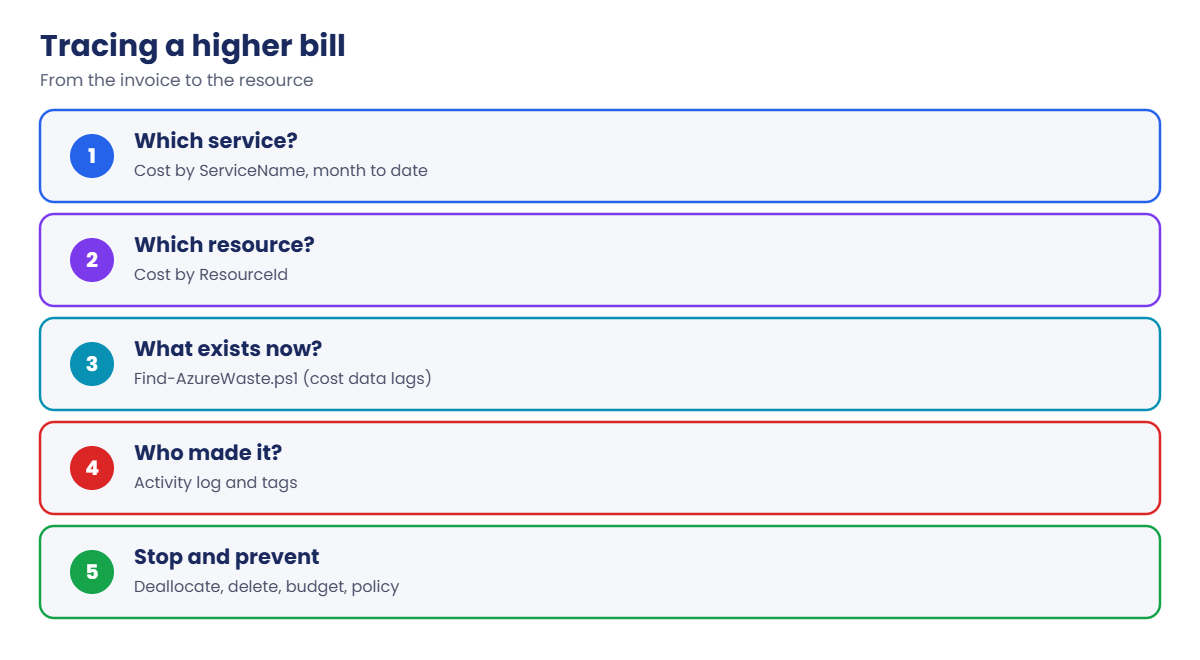
- Which service? Group month-to-date cost by service name. One or two services usually explain most of the increase.
- Which resources? Group by resource ID, or filter to that service, to get names.
- What exists right now? Run an inventory query for known waste patterns, because cost data lags.
- Who created it and why? Check the Activity log and tags before deleting anything (Lesson 59).
- Stop it, then prevent it: deallocate, delete or downgrade, then add a budget alert, auto-shutdown or a policy.
Never delete straight from a cost report. Find the owner first; that disk might be the only copy of something important.
Cost per hour is the number to keep in mind. A USD 0.20 per hour gateway is USD 146 a month, which on a free account’s credit is a large share.
When the surprise is Log Analytics
Monitoring is a common source of a growing bill, because ingestion grows quietly as you add machines and log levels. The Usage table in each workspace shows which data types bring in the most data. Run this in law-saat or any workspace:
Usage
| where TimeGenerated > ago(7d) and IsBillable == true
| summarize GB = round(sum(Quantity) / 1000, 3) by DataType
| top 5 by GB descQuantity is in megabytes. If one table dominates, look at the data collection rule that feeds it (Lesson 70), lower the level or add a transformation, and consider a daily cap for non-production workspaces, as law-saat has.
Trace costs and find what bills while idle
1Cost by service, month to date
Ask Cost Management for this month’s cost grouped by service:
New-Item -ItemType Directory -Force C:\azure-lab\l73 | Out-Null
$sub = az account show --query id -o tsv
@{ type = 'ActualCost'; timeframe = 'MonthToDate'; dataset = @{ granularity = 'None'; aggregation = @{ totalCost = @{ name = 'Cost'; function = 'Sum' } }; grouping = @(@{ type = 'Dimension'; name = 'ServiceName' }) } } | ConvertTo-Json -Depth 10 | Set-Content C:\azure-lab\l73\cost-by-service.json
$r = az rest --method post --url "https://management.azure.com/subscriptions/$sub/providers/Microsoft.CostManagement/query?api-version=2023-03-01" --body '@C:\azure-lab\l73\cost-by-service.json' | ConvertFrom-Json
$r.properties.rows | Sort-Object { [double]$_[0] } -Descending | Select-Object -First 6 | ForEach-Object { '{0,-40} {1,10:N2} {2}' -f ($_[1] -split '/')[-1], [double]$_[0], $_[2] }You should see your own list, something like this:
Virtual Machines 0.62 USD
Virtual Network 0.48 USD
Storage 0.21 USD
Log Analytics 0.09 USD
Bandwidth 0.01 USD2Cost by resource
Change the grouping to see which resources cost the most:
@{ type = 'ActualCost'; timeframe = 'MonthToDate'; dataset = @{ granularity = 'None'; aggregation = @{ totalCost = @{ name = 'Cost'; function = 'Sum' } }; grouping = @(@{ type = 'Dimension'; name = 'ResourceId' }) } } | ConvertTo-Json -Depth 10 | Set-Content C:\azure-lab\l73\cost-by-resource.json
$r = az rest --method post --url "https://management.azure.com/subscriptions/$sub/providers/Microsoft.CostManagement/query?api-version=2023-03-01" --body '@C:\azure-lab\l73\cost-by-resource.json' | ConvertFrom-Json
$r.properties.rows | Sort-Object { [double]$_[0] } -Descending | Select-Object -First 6 | ForEach-Object { '{0,-40} {1,10:N2} {2}' -f ($_[1] -split '/')[-1], [double]$_[0], $_[2] }You should see resource names with their cost, for example disks, public IPs and gateways from earlier lessons.
3Save the waste finder
Save this as C:\azure-lab\Find-AzureWaste.ps1. You’ll use it again in Lesson 74:
param([int]$SnapshotAgeDays = 30)
# SaatVedha Azure Lesson 73: list resources that cost money while doing nothing useful
$checks = [ordered]@{
'VM stopped, not deallocated' = "resources | where type =~ 'microsoft.compute/virtualmachines' | where tostring(properties.extended.instanceView.powerState.code) == 'PowerState/stopped' | project name, resourceGroup, detail = tostring(properties.hardwareProfile.vmSize)"
'Disk of a deallocated VM' = "resources | where type =~ 'microsoft.compute/disks' | where tostring(properties.diskState) == 'Reserved' | project name, resourceGroup, detail = strcat(tostring(sku.name), ' ', tostring(properties.diskSizeGB), ' GiB')"
'Unattached disk' = "resources | where type =~ 'microsoft.compute/disks' | where tostring(properties.diskState) == 'Unattached' | project name, resourceGroup, detail = strcat(tostring(sku.name), ' ', tostring(properties.diskSizeGB), ' GiB')"
'Public IP not in use' = "resources | where type =~ 'microsoft.network/publicipaddresses' | where isnull(properties.ipConfiguration) and isnull(properties.natGateway) | project name, resourceGroup, detail = tostring(sku.name)"
'Hourly network service' = "resources | where type in~ ('microsoft.network/azurefirewalls', 'microsoft.network/applicationgateways', 'microsoft.network/virtualnetworkgateways', 'microsoft.network/natgateways', 'microsoft.network/bastionhosts') | where not(type =~ 'microsoft.network/bastionhosts' and tostring(sku.name) == 'Developer') | project name, resourceGroup, detail = type"
"Snapshot older than $SnapshotAgeDays days" = "resources | where type =~ 'microsoft.compute/snapshots' | where todatetime(properties.timeCreated) < ago(${SnapshotAgeDays}d) | project name, resourceGroup, detail = strcat(tostring(properties.diskSizeGB), ' GiB')"
}
$found = foreach ($c in $checks.GetEnumerator()) {
$rows = (az graph query -q $c.Value --first 1000 -o json | ConvertFrom-Json).data
foreach ($r in $rows) { [pscustomobject]@{ Finding = $c.Key; Name = $r.name; ResourceGroup = $r.resourceGroup; Detail = $r.detail } }
}
if ($found) { $found | Sort-Object Finding, Name | Format-Table -AutoSize } else { 'Nothing found.' }Run it:
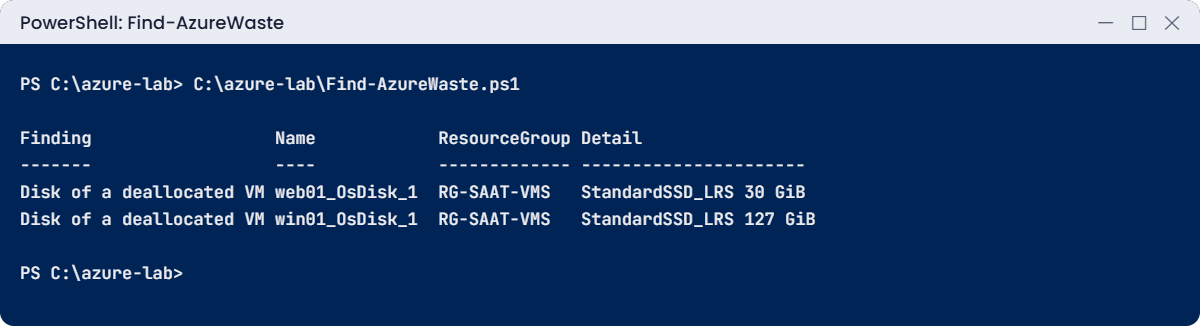
C:\azure-lab\Find-AzureWaste.ps1You should see something like this:
Finding Name ResourceGroup Detail
------- ---- ------------- ----------------------
Disk of a deallocated VM web01_OsDisk_1 RG-SAAT-VMS StandardSSD_LRS 30 GiB
Disk of a deallocated VM win01_OsDisk_1 RG-SAAT-VMS StandardSSD_LRS 127 GiBYour list depends on what you kept from earlier lessons. The parked web01 and win01 disks show up because deallocated VMs still pay for their disks.

✅ Checkpoint: You can see this month’s cost by service and by resource, and the waste finder lists what exists right now.
Break It, Then Fix It
Both breaks use one small test VM.
1Break it: “I stopped the VM”
Create a VM and stop it the way many people do, with stop instead of deallocate:
az group create --name rg-saat-l73 --location centralindia --tags course=saatvedha-azure lesson=73 -o none
az vm create --resource-group rg-saat-l73 --name vm-idle --image Canonical:ubuntu-24_04-lts:server:latest --size Standard_B1s --public-ip-sku Standard --nsg-rule NONE --admin-username azureuser --generate-ssh-keys --tags course=saatvedha-azure lesson=73 -o none
az vm stop --resource-group rg-saat-l73 --name vm-idle
az vm get-instance-view --resource-group rg-saat-l73 --name vm-idle --query "instanceView.statuses[1].displayStatus" -o tsv
C:\azure-lab\Find-AzureWaste.ps1You should see something like this:
VM stopped
Finding Name ResourceGroup Detail
------- ---- ------------- ------------
VM stopped, not deallocated vm-idle rg-saat-l73 Standard_B1s
...The CLI even prints a warning when you use az vm stop: the VM is still allocated and still billed for compute. Shutting down from inside the OS has the same effect. Many teams pay for “off” VMs for months.
Fix it: deallocate, and check the state:
az vm deallocate --resource-group rg-saat-l73 --name vm-idle
az vm get-instance-view --resource-group rg-saat-l73 --name vm-idle --query "instanceView.statuses[1].displayStatus" -o tsvYou should see VM deallocated. For VMs that should be off at night, use auto-shutdown, which deallocates, or the runbook from Lesson 43.
2Break it: “I deallocated it, why am I still paying?”
vm-idle is deallocated, but run the finder again and look at its disk and public IP:
C:\azure-lab\Find-AzureWaste.ps1
az disk list --resource-group rg-saat-l73 --query "[].{name:name, sku:sku.name, sizeGiB:diskSizeGB, state:diskState}" -o table
az network public-ip list --resource-group rg-saat-l73 --query "[].{name:name, sku:sku.name, ip:ipAddress}" -o tableYou should see something like this:
Name Sku SizeGiB State
------------------------- ----------- ------- --------
vm-idle_OsDisk_1_8f3c... Premium_LRS 30 Reserved
Name Sku Ip
--------------- -------- ------------
vm-idlePublicIP Standard 20.x.x.xDeallocation stopped compute charges, but the Premium SSD and the Standard public IP keep billing every hour. For a VM parked for weeks, that’s money for nothing.
Fix it: for a parked VM, move the disk to Standard HDD while it’s deallocated, and release the public IP if nothing needs it (switch the disk back before you start the VM for real work):
$disk = az disk list --resource-group rg-saat-l73 --query "[0].name" -o tsv
az disk update --resource-group rg-saat-l73 --name $disk --sku Standard_LRS --query sku.name -o tsv
az network nic ip-config update --resource-group rg-saat-l73 --nic-name vm-idleVMNic --name ipconfigvm-idle --remove publicIpAddress -o none
az network public-ip delete --resource-group rg-saat-l73 --name vm-idlePublicIPThe disk now shows Standard_LRS and the public IP is gone. If a VM is truly finished, take a snapshot or backup if needed, then delete it with its disks.

3Clean up
Delete the test group. Keep Find-AzureWaste.ps1:
az group delete --name rg-saat-l73 --yes✅ Checkpoint: You traced costs by service and resource, and removed a stopped-but-billed VM and the leftovers of a parked one.
This happened at work
The student project that cost more than the course fee
A college ran an Azure lab for 60 students. Each student built a small environment with a VM, a VPN gateway for a networking exercise and a few disks. At the end of the module, students were told to “stop everything”.
The next month’s bill was larger than the module’s budget.
Most students had shut down VMs from inside Windows, which left them Stopped, not deallocated. Every VPN gateway was still running, because there’s no “stop” for a gateway; it bills until deleted. Premium disks on parked VMs added the rest.
What they changed: every student group gets a budget with alerts at 50 and 90 percent, an Automation runbook deallocates all VMs nightly, gateways are created only through a template that also creates a deletion reminder, and a weekly run of a waste finder script goes to the instructors.
Common mistakes and troubleshooting
| Mistake | What you see | What to do |
|---|---|---|
| Stopping instead of deallocating | Compute still billed | Deallocate, or use auto-shutdown. |
| Parking VMs on Premium disks | Disk charges with no use | Switch to Standard HDD while parked, or snapshot and delete. |
| Forgetting hourly gateways | Steady hourly charges | Delete gateways, firewalls and App Gateways after labs. |
| Deleting from a cost report | Lost data or broken services | Find the owner and check the Activity log first. |
| Relying only on cost data | Recent waste not visible yet | Run a live inventory too. |
| No budget alerts | Surprise at month end | Budgets with alerts on every subscription. |
Interview questions
Click a question to open it. Each one is written the way an interviewer would ask it. Under it you will see why they ask it and one way you could answer, in your own words.
Fresher level
1. What’s the difference between Stopped and Stopped (deallocated)?
Why they ask this: The basic concept.
How you might answer: Stopped keeps the VM allocated and billed for compute. Deallocated releases the hardware and stops compute charges.
2. What keeps billing after a VM is deallocated?
Why they ask this: A common surprise.
How you might answer: Managed disks, Standard public IPs, snapshots and backup storage.
3. Where do you see what costs money?
Why they ask this: Tool knowledge.
How you might answer: Cost Management: cost analysis by service, resource group and resource, budgets and anomaly alerts.
2–5 years experience
4. The bill doubled this month. How do you investigate?
Why they ask this: A real troubleshooting path.
How you might answer: Group cost by service, then by resource; compare with last month; run an inventory for hourly services and leftovers; check the Activity log for who created them; then stop or remove with the owner.
5. How do you find unattached disks and unused public IPs at scale?
Why they ask this: Practical skill.
How you might answer: Resource Graph queries on disk state Unattached and public IPs without an ip configuration, across all subscriptions.
6. How do you save money on dev and test VMs?
Why they ask this: Cost habits.
How you might answer: Auto-shutdown or runbooks that deallocate, B-series where suitable, Standard disks for parked VMs, dev/test pricing where eligible, and deleting environments after use.
Senior level
7. How would you build cost governance for a company?
Why they ask this: They want a program.
How you might answer: Tagging policy for owner and cost centre, budgets per subscription and team, anomaly alerts, weekly waste reports, reservations and savings plans for steady use, and showback to teams.
8. When do reservations or savings plans make sense?
Why they ask this: FinOps judgement.
How you might answer: For steady, predictable workloads after right-sizing; reservations for specific sizes and regions, savings plans for flexible compute.
9. How do you stop expensive resources being created in labs?
Why they ask this: Guardrails.
How you might answer: Azure Policy to deny certain SKUs or types in lab subscriptions, budgets with action groups, and templates that create resources with expiry tags and clean-up automation.
Quick quiz
Q1. A VM shut down from inside Windows is billed for?
- Nothing
- Compute and disks
- Only disks
- Only IPs
Show answer
B — It’s Stopped, not deallocated.
Q2. Disk state of a deallocated VM’s disk?
- Attached
- Reserved
- Unattached
- Deleted
Show answer
B — Reserved disks still bill.
Q3. Which keeps billing hourly with no traffic?
- NIC
- VPN gateway
- Route table
- NSG
Show answer
B — Gateways bill until deleted.
Q4. Why run a live inventory as well as cost reports?
- Cost data lags by hours
- It’s cheaper
- Required by law
- Faster login
Show answer
A — Cost Management isn’t real time.
Q5. Before deleting an expensive unknown resource, you should?
- Delete it now
- Find the owner and check the Activity log
- Restart it
- Resize it
Show answer
B — It might be needed.
Quick recap
That completes Phase 4. You now have a troubleshooting method and scripts for the problems Azure engineers actually face. Phase 5 puts everything together.
- Trace cost by service, then by resource.
- Stopped is billed; deallocated is not, but disks and IPs are.
- Hourly network services bill until deleted.
- Find-AzureWaste.ps1 shows what exists right now.
- Find the owner before deleting anything.
Next lesson
Lesson 74: Final project: build it, break it, fix it → You build a small company on Azure from scratch, then fix 10 broken scenarios using everything in this course.
Further reading: Azure unexpected charges
Want to go deeper into Azure unexpected charges? See Microsoft’s Common cost analysis uses and States and billing status of Azure VMs. You can also see the full plan for this course on the Azure Cloud Administration course page.
