Azure VM performance: credits and disk caps
-
Phase 0: Before you start
-
Phase 1: The foundation
-
Phase 2: Day-to-day operations
-
Phase 3: Enterprise architecture
-
Phase 4: Troubleshooting step by step
-
Phase 5: Final project and career
“The VM is slow” is one of the vaguest tickets in IT, and Azure VM performance problems have a few causes that don’t exist on physical servers. The two biggest are credits and caps: burstable B-series VMs and small Premium SSD disks run fast while they have credits, then drop to a much lower baseline, and every VM size has its own disk and network caps.
That’s why a VM can be “fast in testing, slow in production”. Testing ran for ten minutes on full credits; production runs all day on baseline.
In this lab you run a B1s VM and a small Premium SSD until their credits run out, watch the metrics that prove it, and fix each one by choosing the right size instead of guessing.
| Time | You need | Cost | By the end you can |
|---|---|---|---|
| About 2 hours (mostly waiting while credits drain) | A free account and the CLI | About USD 0.40: a B1s and then a D2as_v5 VM, a 32 GiB Premium SSD and a short time at the P30 performance tier | Read CPU credit and disk burst metrics, spot steal time, and right-size VMs and disks for sustained load |
What it is, in one line
Azure VM performance depends on the VM size’s CPU baseline and caps and on each disk’s baseline, and burst credits only hide those limits for a while.
In Simple Words
The mobile data pack with a speed limit
Your phone plan gives you fast internet until you use your daily high-speed data, then drops you to a slow speed for the rest of the day. In the morning everything is quick. By evening, videos buffer, even though nothing about your phone changed.
B-series VMs and small Premium disks work like that pack. They save up credits when idle and spend them on bursts. Run them hard all day and they fall back to their slow baseline.
The fix isn’t a better phone. It’s a plan whose normal speed fits how you actually use it: a VM size or disk tier whose baseline matches your steady load.
Engineer's View
Credits, baselines and caps
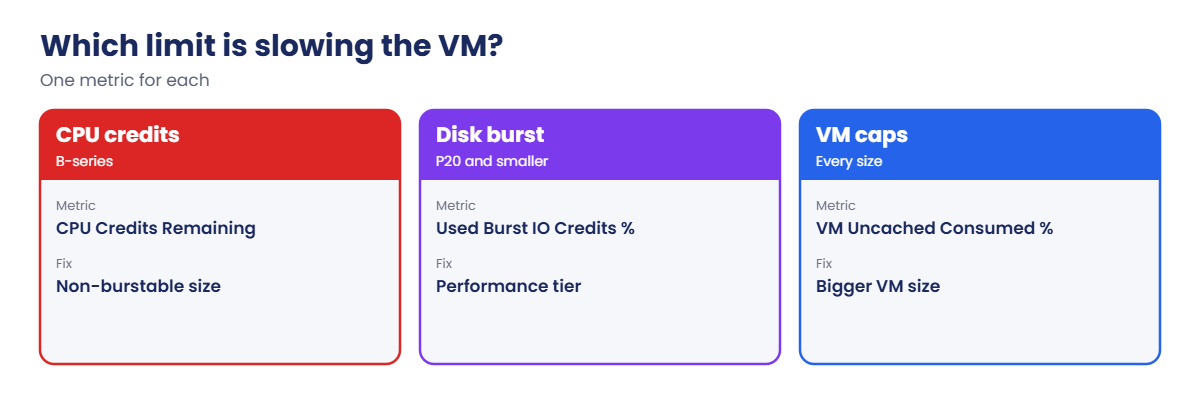
- B-series CPU credits: each size has a baseline (B1s: 10 percent of one vCPU), earns credits per hour below baseline, and spends them above it. With no credits left, the VM is held at baseline. Metrics: CPU Credits Remaining and CPU Credits Consumed.
- Steal time: inside a throttled VM, the “st” column in vmstat or top rises, because the hypervisor is withholding CPU.
- Premium SSD bursting: disks P20 and smaller have a baseline (P4: 120 IOPS and 25 MB/s) and can burst to 3,500 IOPS and 170 MB/s for up to 30 minutes on credits. Metric: Data Disk Used Burst IO Credits Percentage.
- Performance tiers: a Premium SSD can run at a higher tier (for example P30, 5,000 IOPS) without changing its size, and be set back later.
- VM caps: every size has uncached disk IOPS and MB/s limits and network bandwidth limits (Lesson 58). Some sizes also burst.
- Consumed percentage metrics: VM Uncached IOPS Consumed Percentage and Data Disk IOPS Consumed Percentage show which limit is hit.
How it works, step by step
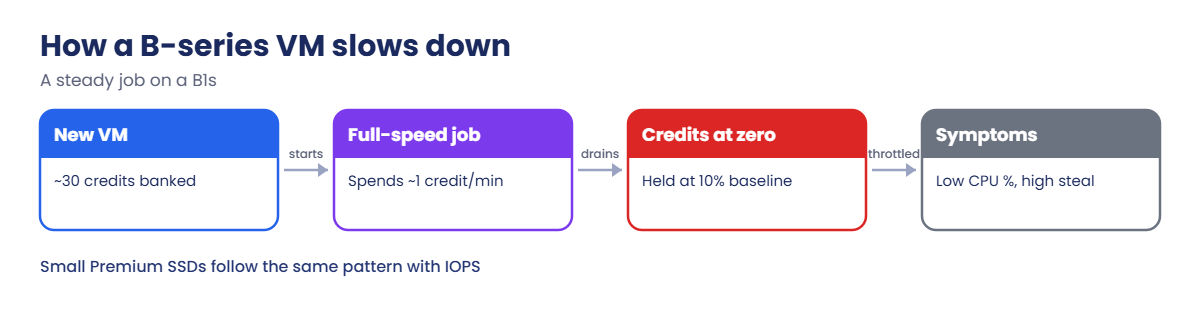
What happens to a B1s VM running a steady CPU-heavy job:
- A new B1s starts with some credits and earns more each hour it runs below 10 percent.
- The job uses a full vCPU, so the VM spends about one credit per minute and earns only a few per hour.
- For a while, Percentage CPU shows close to 100 and the job runs fast.
- When CPU Credits Remaining reaches zero, the platform holds the VM at its 10 percent baseline.
- Percentage CPU drops to around 10, the job slows by a factor of ten, and steal time inside the VM climbs.
Nothing restarted, no error appears, and the app’s own logs just show everything getting slower. Only the credit metric explains it.
Small Premium SSD disks follow the same pattern with I/O instead of CPU. The rule for both: size for the sustained load, and treat bursting as a bonus for short peaks.
Drain CPU and disk credits and read the metrics
1A B1s VM with a small Premium SSD
Create the VM and a 32 GiB Premium SSD (P4), then install the load tools:
az group create --name rg-saat-l72 --location centralindia --tags course=saatvedha-azure lesson=72 -o none
az vm create --resource-group rg-saat-l72 --name vm-perf --image Canonical:ubuntu-24_04-lts:server:latest --size Standard_B1s --public-ip-sku Standard --nsg-rule NONE --admin-username azureuser --generate-ssh-keys --tags course=saatvedha-azure lesson=72 -o none
az vm disk attach --resource-group rg-saat-l72 --vm-name vm-perf --name data-p4 --new --size-gb 32 --sku Premium_LRS --lun 0 -o none
az vm run-command invoke --resource-group rg-saat-l72 --name vm-perf --command-id RunShellScript --scripts 'apt-get update -qq > /dev/null; DEBIAN_FRONTEND=noninteractive apt-get install -y -qq stress-ng fio > /dev/null; stress-ng --version; fio --version' --query "value[0].message" -o tsv
$vmId = az vm show --resource-group rg-saat-l72 --name vm-perf --query id -o tsv2Read the starting point
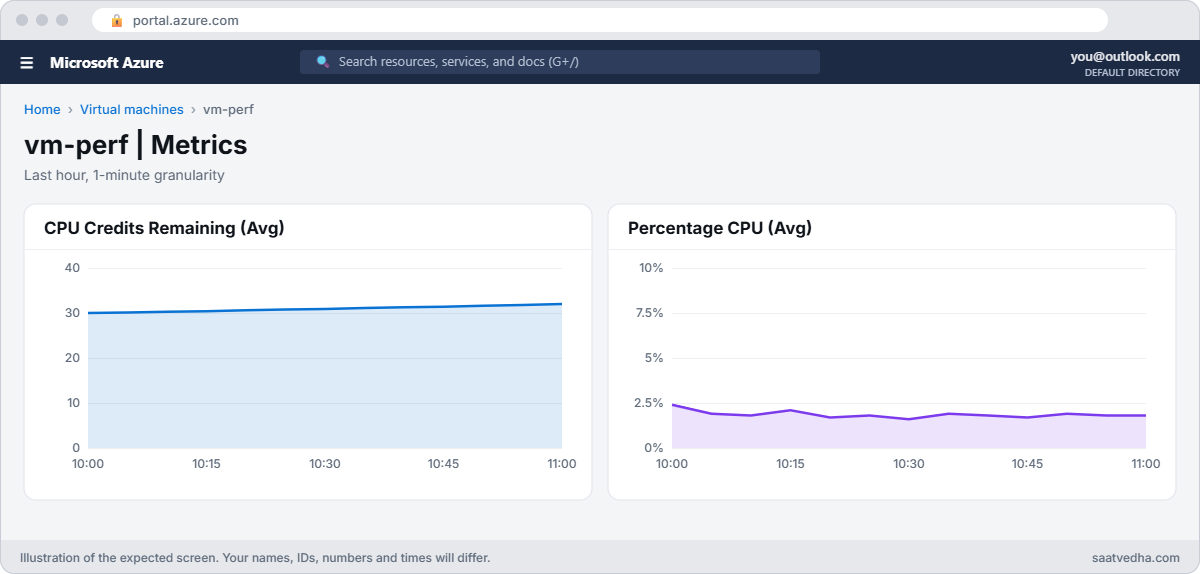
Check the CPU credits and CPU use, and look at steal time inside the VM:
az monitor metrics list --resource $vmId --metric "CPU Credits Remaining" "Percentage CPU" --interval PT5M --aggregation Average --query "value[].{metric:name.value, latest:timeseries[0].data[-2].average}" -o table
az vm run-command invoke --resource-group rg-saat-l72 --name vm-perf --command-id RunShellScript --scripts 'vmstat 5 2 | tail -1' --query "value[0].message" -o tsvYou should see something like this (metrics take 5 to 10 minutes to appear for a new VM):
Metric Latest
--------------------- ------
CPU Credits Remaining 30.0
Percentage CPU 1.8
[stdout]
0 0 0 512340 21404 245380 0 0 2 8 45 80 1 0 99 0 0The last column of vmstat is st, steal time: 0 now. The VM has about 30 credits, the starting amount for B1s.

✅ Checkpoint: vm-perf is running with credits in the bank, a P4 data disk attached, and you can read credit, CPU and steal-time numbers.
Break It, Then Fix It
Both breaks need time for credits to drain. Start each one, then wait as shown.
1Break it: the batch job that slows down after half an hour
Start a CPU-heavy job for one hour, wait 45 minutes, then look again:
az vm run-command invoke --resource-group rg-saat-l72 --name vm-perf --command-id RunShellScript --scripts 'systemd-run --unit burn stress-ng --cpu 1 --timeout 3600s; echo started' --query "value[0].message" -o tsv
Start-Sleep -Seconds 2700
az monitor metrics list --resource $vmId --metric "CPU Credits Remaining" "Percentage CPU" --interval PT5M --aggregation Average --query "value[].{metric:name.value, latest:timeseries[0].data[-2].average}" -o table
az vm run-command invoke --resource-group rg-saat-l72 --name vm-perf --command-id RunShellScript --scripts 'vmstat 5 2 | tail -1' --query "value[0].message" -o tsvYou should see something like this:
Metric Latest
--------------------- ------
CPU Credits Remaining 0.0
Percentage CPU 10.2
[stdout]
1 0 0 498112 21500 250012 0 0 0 4 210 160 10 0 0 0 90The job still wants 100 percent, but the VM runs at about 10 percent with steal time near 90: the hypervisor is holding it at the B1s baseline because the credits are gone. In the first 20 to 30 minutes the same job ran at full speed, which is how it passed testing.
Fix it: a steady CPU load needs a size whose baseline is 100 percent. Stop the job and resize to a non-burstable size (the VM restarts):
az vm run-command invoke --resource-group rg-saat-l72 --name vm-perf --command-id RunShellScript --scripts 'systemctl stop burn; echo stopped' --query "value[0].message" -o tsv
az vm resize --resource-group rg-saat-l72 --name vm-perf --size Standard_D2as_v5 -o none
az vm show --resource-group rg-saat-l72 --name vm-perf --query hardwareProfile.vmSize -o tsvYou should see Standard_D2as_v5. B-series is still a good choice for VMs that are mostly idle, such as small web servers and jump boxes.
2Break it: the disk that was fast on day one
Run a steady random-read test against the P4 disk for 45 minutes, reporting every 5 minutes, then read the start and the end:
az vm run-command invoke --resource-group rg-saat-l72 --name vm-perf --command-id RunShellScript --scripts 'systemd-run --unit io fio --name=steady --filename=/dev/disk/azure/scsi1/lun0 --rw=randread --bs=4k --iodepth=32 --ioengine=libaio --direct=1 --runtime=2700 --time_based --status-interval=300 --output=/root/fio.log; echo started' --query "value[0].message" -o tsv
Start-Sleep -Seconds 2760
az vm run-command invoke --resource-group rg-saat-l72 --name vm-perf --command-id RunShellScript --scripts 'grep -E read:.IOPS= /root/fio.log | head -2; grep -E read:.IOPS= /root/fio.log | tail -2' --query "value[0].message" -o tsv
az monitor metrics list --resource $vmId --metric "Data Disk Used Burst IO Credits Percentage" --interval PT5M --aggregation Average --query "value[].{metric:name.value, latest:timeseries[0].data[-2].average}" -o tableYou should see something like this:
[stdout]
read: IOPS=3496, BW=13.7MiB/s (14.3MB/s)(4097MiB/300001msec)
read: IOPS=3412, BW=13.3MiB/s (13.9MB/s)(3998MiB/300002msec)
read: IOPS=121, BW=484KiB/s (496kB/s)(142MiB/300003msec)
read: IOPS=120, BW=482KiB/s (493kB/s)(141MiB/300001msec)
Metric Latest
----------------------------------------- ------
Data Disk Used Burst IO Credits Percentage 100.0For about half an hour the disk burst to around 3,500 IOPS. When its burst credits were used up, it dropped to the P4 baseline of 120 IOPS. Anyone who benchmarked it for five minutes would have expected 3,500 forever.
Fix it: raise the disk’s performance tier to match the sustained need, without resizing or detaching it, and test again for 5 minutes:
az disk update --resource-group rg-saat-l72 --name data-p4 --performance-tier P30 -o none
az disk show --resource-group rg-saat-l72 --name data-p4 --query "{tier:tier, iops:diskIOPSReadWrite, mbps:diskMBpsReadWrite}" -o table
az vm run-command invoke --resource-group rg-saat-l72 --name vm-perf --command-id RunShellScript --scripts 'fio --name=check --filename=/dev/disk/azure/scsi1/lun0 --rw=randread --bs=4k --iodepth=32 --ioengine=libaio --direct=1 --runtime=300 --time_based --group_reporting | grep IOPS=' --query "value[0].message" -o tsvYou should see the tier P30 with 5,000 IOPS, and fio showing a steady result in the thousands. On D2as_v5 the VM’s own uncached limit, about 3,750 IOPS, may now be the ceiling, which you can confirm with VM Uncached IOPS Consumed Percentage.

3Clean up
Delete the lab resource group:
az group delete --name rg-saat-l72 --yes✅ Checkpoint: You proved a CPU credit throttle and a disk burst throttle with metrics, and fixed each by sizing for sustained load.
This happened at work
The report server that was fast every Monday
A logistics company ran its nightly reports on a B4ms VM because it was cheap and “fast enough in testing”. Reports finished in 40 minutes on Mondays and took more than four hours by Thursday. The team suspected the database, then the network, then a memory leak.
The VM sat idle all weekend and banked credits. Monday’s run spent them and finished quickly. From Tuesday on, the nightly runs started with almost no credits, and the VM ran at its baseline most of the night.
CPU Credits Remaining showed a perfect weekly saw-tooth pattern that nobody had looked at.
What they changed: the report server moved to a D-series size, the database disk was set to a tier that matched its sustained IOPS, and every B-series VM in the company got an alert when CPU Credits Remaining stays below 10 percent of its maximum for an hour.
Common mistakes and troubleshooting
| Mistake | What you see | What to do |
|---|---|---|
| B-series for steady CPU load | Fast at first, then about baseline | Use a non-burstable size; alert on credits. |
| Benchmarking for a few minutes | Burst numbers mistaken for normal | Test longer than the burst period. |
| Small Premium disk for a database | 3,500 IOPS, then 120 | Pick tier or size by baseline; use performance tiers. |
| Raising disk IOPS when the VM is capped | No improvement | Check VM Uncached Consumed Percentage first. |
| Ignoring steal time | “CPU is idle” inside, but slow | Check st in vmstat or top. |
| Looking only at Percentage CPU | Misreading a throttle as low load | Read CPU Credits Remaining alongside it. |
Interview questions
Click a question to open it. Each one is written the way an interviewer would ask it. Under it you will see why they ask it and one way you could answer, in your own words.
Fresher level
1. What is a B-series VM?
Why they ask this: The basic concept.
How you might answer: A burstable VM that runs at a baseline CPU level, earns credits when below it and spends them to burst above it.
2. What happens when B-series credits run out?
Why they ask this: Key behaviour.
How you might answer: The VM is held at its baseline CPU, which can be 10 to 40 percent of its vCPUs, until it earns credits again.
3. What is Premium SSD bursting?
Why they ask this: Disk basics.
How you might answer: Small Premium SSD disks can exceed their baseline IOPS and throughput for a limited time using credits earned while idle.
2–5 years experience
4. A VM is fast in the morning and slow in the afternoon. What do you check?
Why they ask this: A real troubleshooting path.
How you might answer: CPU Credits Remaining, Percentage CPU and steal time for B-series, disk burst credit and consumed metrics, VM uncached caps, and the workload pattern over the day.
5. How do you choose between a bigger disk and a performance tier?
Why they ask this: Practical decision.
How you might answer: A performance tier raises IOPS and throughput without paying for unused space and can be lowered later; a bigger size is permanent and also adds capacity.
6. What does high steal time tell you?
Why they ask this: Linux depth.
How you might answer: The hypervisor isn’t giving the VM the CPU it wants, typical of B-series throttling or an overcommitted host.
Senior level
7. How would you right-size 300 VMs?
Why they ask this: They want a method.
How you might answer: Collect 30 days of CPU, memory, disk and network metrics, compare with size baselines and caps, use Azure Advisor, move steady loads off burstable sizes, and validate with load tests longer than burst windows.
8. When is B-series the right choice?
Why they ask this: Cost judgement.
How you might answer: For low average utilisation with short peaks: small web servers, dev VMs, jump boxes, domain controllers in small sites.
9. How do you monitor for credit exhaustion at scale?
Why they ask this: Operations.
How you might answer: Azure Monitor alerts on CPU Credits Remaining and Data Disk Used Burst IO Credits Percentage, scoped by tag to burstable VMs and small disks.
Quick quiz
Q1. B1s baseline CPU?
- 100 percent
- 10 percent of one vCPU
- 50 percent
- No baseline
Show answer
B — B1s runs at 10 percent once credits are gone.
Q2. Which metric proves a B-series throttle?
- Network In
- CPU Credits Remaining
- Disk Read Bytes
- Available Memory
Show answer
B — Zero credits means held at baseline.
Q3. P4 baseline IOPS?
- 3,500
- 120
- 500
- 5,000
Show answer
B — 3,500 is only the burst figure.
Q4. How do you raise a Premium SSD’s IOPS without resizing?
- Change the VM
- Set a higher performance tier
- Enable caching
- Add a NIC
Show answer
B — Performance tiers change IOPS online.
Q5. High steal time inside the VM means?
- Disk full
- The hypervisor is withholding CPU
- DNS failure
- Memory leak
Show answer
B — Typical of credit throttling.
Quick recap
You can now explain “fast at first, slow later” on Azure, and prove it with the right metric instead of guessing.
- Burst credits hide baselines for a limited time.
- CPU Credits Remaining at zero means held at baseline.
- Small Premium SSDs burst to 3,500 IOPS, then fall to baseline.
- Size VMs and disks for sustained load.
- Check consumed-percentage metrics before spending more.
Next lesson
Lesson 73: Billing surprises: find what costs money → You find what is costing money, from forgotten disks to idle gateways, and stop it before the bill arrives.
Further reading: Azure VM performance
Want to go deeper into Azure VM performance? See Microsoft’s B-series CPU credit model and Managed disk bursting. You can also see the full plan for this course on the Azure Cloud Administration course page.
