The Azure troubleshooting workflow
-
Phase 0: Before you start
-
Phase 1: The foundation
-
Phase 2: Day-to-day operations
-
Phase 3: Enterprise architecture
-
Phase 4: Troubleshooting step by step
-
Phase 5: Final project and career
This is the first lesson of the Azure troubleshooting phase. Before any tool, it teaches a habit: when something breaks, first ask “what changed, and is it us or Azure?” Most outages are caused by a change, and Azure records almost every change, if you know where to look.
Four places answer that question: Resource Health (is this resource healthy, and why not), the Activity log (who did what, when), Change Analysis in Resource Graph (exactly which property changed), and Service Health (is Azure itself having a problem).
In the lab you stage a real incident on a web VM, then investigate it the way an on-call engineer would, using a small script you’ll keep for the rest of Phase 4. Then you meet the two traps that make people say “nothing changed” when something did.
| Time | You need | Cost | By the end you can |
|---|---|---|---|
| About 45 minutes | A free account, the CLI and PowerShell | About 3 US cents: one small VM and a public IP for under an hour | Find what changed, who changed it and whether Azure is at fault, for any incident, in under five minutes |
What it is, in one line
Azure troubleshooting starts with one question, “what changed?”, answered from Resource Health, the Activity log, Change Analysis and Service Health.
In Simple Words
The building’s visitor register
A shop in a mall can’t open its shutter one morning. Before calling a mechanic, the manager asks three questions. Is the whole mall closed today (Service Health)?
What does the shutter’s own panel say (Resource Health)? And who came in last night, according to the security register (Activity log)?
The register says: “Electrician, 11:40 pm, worked on shutter wiring.” Now the manager knows where to look.
But the register only shows who entered the building. If the shopkeeper’s own staff moved things inside the shop, the register doesn’t know. That’s the difference between Azure’s records and changes made inside your VM.
Engineer's View
The four places to look
- Resource Health: the health of one resource as Azure sees it: Available, Unavailable, Degraded or Unknown, with a reason such as “stopped by an authorized user” or a platform event.
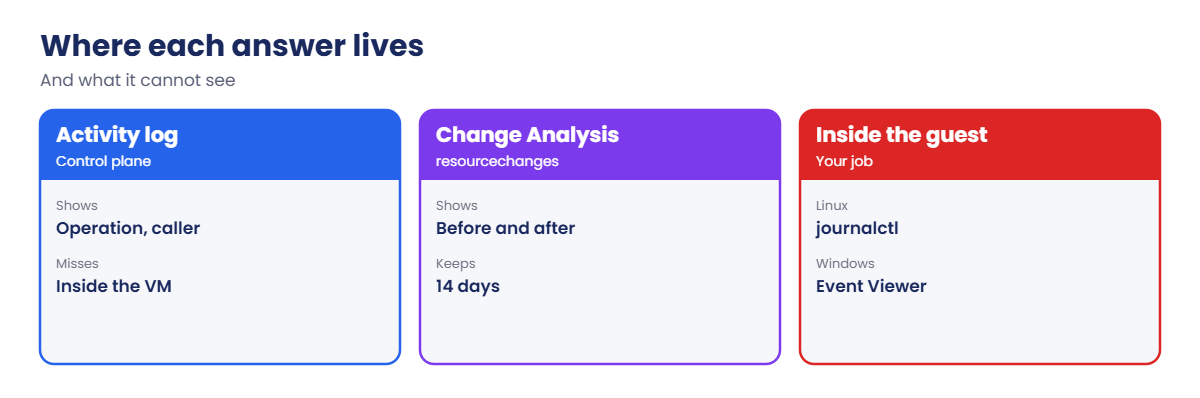
- Activity log: control-plane operations (create, update, delete, start, stop, run command) with time, caller and status, kept for 90 days. It doesn’t record what happens inside a VM or data reads.
- Change Analysis: the resourcechanges table in Azure Resource Graph shows property-level before and after values for changes in the last 14 days, often with who made them.
- Service Health: Azure incidents, planned maintenance and advisories for your subscriptions and regions, also queryable from Resource Graph.
- Time: Azure stores times in UTC. Filters such as
--start-timemust be UTC, or your window is shifted by your time zone. - Inside the VM: guest changes (a stopped service, a firewall rule, a config file) need guest tools: Run Command, journalctl, Event Viewer, or Change Tracking and Inventory.
How it works, step by step
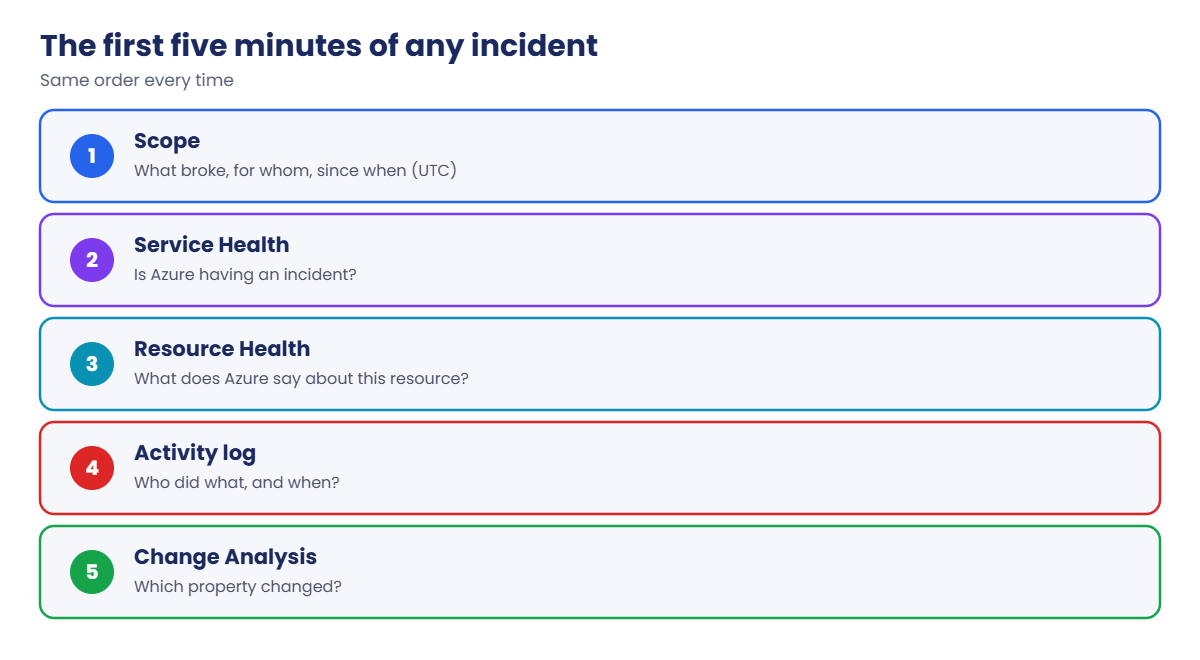
The order an experienced engineer follows when paged:
- Scope: what exactly is broken, since when, for whom? Write down the time in UTC.
- Is it Azure? Check Service Health for the region and service, and Resource Health for the resource.
- What changed? Read the Activity log for the resource group around that time, with the caller.
- What exactly changed? Look up the property-level difference in Change Analysis.
- Fix and confirm: revert or correct the change, then test the way the user does.
If steps 2 to 4 show nothing, the change is probably inside the guest or in a dependency (DNS, certificates, a partner API), and that’s where you go next.
Every lesson in Phase 4 uses this order and then goes deep into one kind of failure.
Stage an incident and find what changed
1A small web VM to break
Create a VM with nginx and an NSG rule for HTTP (about 4 minutes):
az group create --name rg-saat-l59 --location centralindia --tags course=saatvedha-azure lesson=59 -o none
az vm create --resource-group rg-saat-l59 --name vm-web --image Canonical:ubuntu-24_04-lts:server:latest --size Standard_B1s --public-ip-sku Standard --nsg-rule NONE --admin-username azureuser --generate-ssh-keys --tags course=saatvedha-azure lesson=59 -o none
az network nsg rule create --resource-group rg-saat-l59 --nsg-name vm-webNSG --name allow-http --priority 100 --direction Inbound --access Allow --protocol Tcp --destination-port-ranges 80 -o none
az vm run-command invoke --resource-group rg-saat-l59 --name vm-web --command-id RunShellScript --scripts 'apt-get update -qq > /dev/null; DEBIAN_FRONTEND=noninteractive apt-get install -y -qq nginx > /dev/null; systemctl is-active nginx' --query "value[0].message" -o tsv
$ip = az vm show --resource-group rg-saat-l59 --name vm-web --show-details --query publicIps -o tsv
$vmId = az vm show --resource-group rg-saat-l59 --name vm-web --query id -o tsv
curl.exe -sI --max-time 5 http://$ip/ | Select-Object -First 1You should see:
HTTP/1.1 200 OK2Stage the incident
Make two changes, then wait 5 minutes and pretend you’ve just been paged with “the website is down”:
az network nsg rule delete --resource-group rg-saat-l59 --nsg-name vm-webNSG --name allow-http
az vm deallocate --resource-group rg-saat-l59 --name vm-web3Is it Azure? Service Health and Resource Health
Check for active Azure incidents, then the VM’s own health:
az graph query -q "servicehealthresources | where type =~ 'Microsoft.ResourceHealth/events' | extend kind = tostring(properties.EventType), status = tostring(properties.Status), title = tostring(properties.Title) | where kind == 'ServiceIssue' and status == 'Active' | project title" --query "data[].title" -o tsv
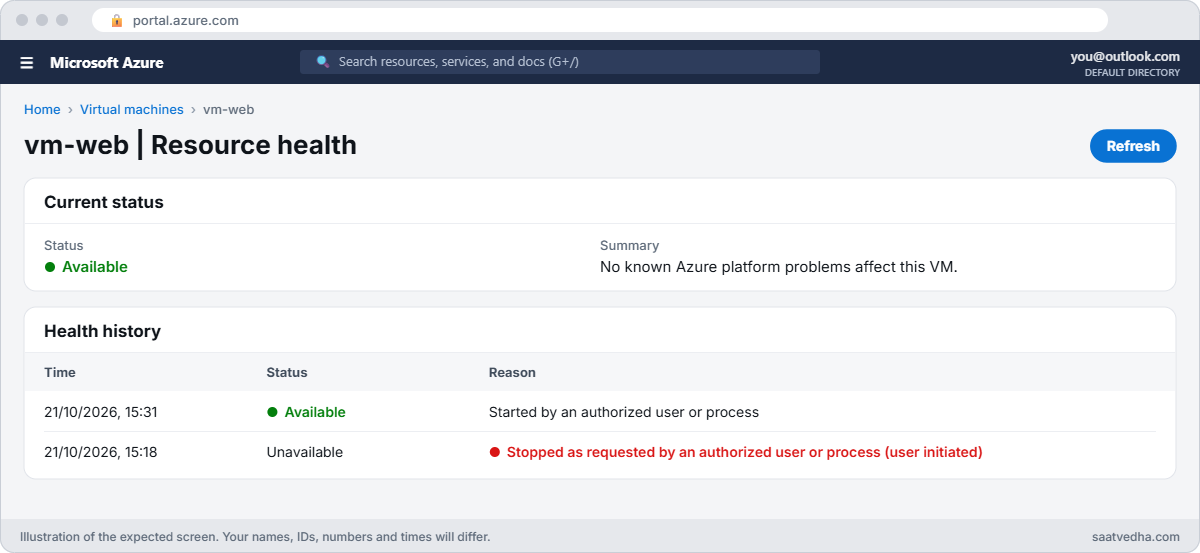
az rest --method get --url "https://management.azure.com${vmId}/providers/Microsoft.ResourceHealth/availabilityStatuses/current?api-version=2020-05-01" --query "properties.{state:availabilityState, summary:summary, reason:reasonType}"You should see something like this (the first command prints nothing when Azure has no active incident):
{
"reason": "Customer Initiated",
"state": "Unavailable",
"summary": "This virtual machine is stopping and deallocating as requested by an authorized user or process."
}Azure isn’t having an incident, and the VM was stopped on purpose by someone with access. That’s already most of the answer, in two commands.
4Who did what: the Activity log
Save this as C:\azure-lab\Get-RecentChanges.ps1. You’ll use it in every Phase 4 lesson:
param(
[Parameter(Mandatory)][string]$ResourceGroup,
[int]$Hours = 2
)
# SaatVedha Azure Lesson 59: who changed what in a resource group, newest first
$start = (Get-Date).AddHours(-$Hours).ToUniversalTime().ToString('yyyy-MM-ddTHH:mm:ssZ')
$events = az monitor activity-log list --resource-group $ResourceGroup --start-time $start --query "[?status.value=='Succeeded' && !contains(operationName.value, '/read')]" -o json | ConvertFrom-Json
if (-not $events) { "No changes in $ResourceGroup in the last $Hours hour(s)."; return }
$events |
Sort-Object { [datetime]$_.eventTimestamp } -Descending |
Select-Object @{ n = 'Time'; e = { ([datetime]$_.eventTimestamp).ToLocalTime().ToString('HH:mm:ss') } },
@{ n = 'Operation'; e = { $_.operationName.localizedValue } },
@{ n = 'Resource'; e = { ($_.resourceId -split '/')[-1] } },
@{ n = 'Who'; e = { $_.caller } } |
Format-Table -AutoSizeRun it:
C:\azure-lab\Get-RecentChanges.ps1 -ResourceGroup rg-saat-l59 -Hours 1You should see something like this (your times are local, your account is the caller):
Time Operation Resource Who
---- --------- -------- ---
10:42:40 Deallocate Virtual Machine vm-web priya@contoso.com
10:41:02 Delete Security Rule allow-http priya@contoso.com
10:36:15 Run Command on Virtual Machine vm-web priya@contoso.com
10:35:51 Create or Update Security Rule allow-http priya@contoso.com5Exactly what changed: Change Analysis
Query Resource Graph for property-level changes in the group:
az graph query -q "resourcechanges | extend ts = todatetime(properties.changeAttributes.timestamp), target = tostring(properties.targetResourceId), kind = tostring(properties.changeType), who = tostring(properties.changeAttributes.changedBy) | where target contains 'rg-saat-l59' | project ts, kind, who, target, changes = properties.changes | order by ts desc | take 5" --query "data[].{time:ts, kind:kind, who:who, resource:target}" -o tableYou should see something like this:
Time Kind Who Resource
---------------------------- ------ ----------------- -------------------------------------------------------------
2026-10-21T05:12:40.0000000Z Update priya@contoso.com /subscriptions/.../virtualMachines/vm-web
2026-10-21T05:11:02.0000000Z Delete priya@contoso.com /subscriptions/.../securityRules/allow-httpAdd changes to the --query to see the before and after values of each property, such as the VM’s power state. Then fix it:
az vm start --resource-group rg-saat-l59 --name vm-web
az network nsg rule create --resource-group rg-saat-l59 --nsg-name vm-webNSG --name allow-http --priority 100 --direction Inbound --access Allow --protocol Tcp --destination-port-ranges 80 -o none
$ip = az vm show --resource-group rg-saat-l59 --name vm-web --show-details --query publicIps -o tsv
curl.exe -sI --max-time 5 http://$ip/ | Select-Object -First 1The site answers HTTP/1.1 200 OK again.

✅ Checkpoint: You found both changes, who made them and when, ruled out Azure, and restored the site.
Break It, Then Fix It
Keep the VM running for both breaks.
1Break it: “nothing changed” because of the time zone
A colleague in India checks the Activity log from 10:30, typing the time the way they see it on their clock:
az monitor activity-log list --resource-group rg-saat-l59 --start-time 2026-10-21T10:30:00 --query "[?status.value=='Succeeded'].operationName.localizedValue" -o tsvYou should see nothing at all.
Azure read 10:30 as UTC, which is 16:00 in India, a time that hasn’t happened yet. The colleague concludes “no changes” and goes looking in the wrong place.
Fix it: convert local time to UTC first (or use the script, which does this for you):
$start = (Get-Date '2026-10-21 10:30').ToUniversalTime().ToString('yyyy-MM-ddTHH:mm:ssZ')
$start
az monitor activity-log list --resource-group rg-saat-l59 --start-time $start --query "[?status.value=='Succeeded'].operationName.localizedValue" -o tsvYou should see something like this:
2026-10-21T05:00:00Z
Create or Update Security Rule
Start Virtual Machine
...Use your actual date and time. Always write incident times in UTC in tickets, and convert to local only when talking to people.
2Break it: a change Azure didn’t record
Someone signs in to the VM and stops nginx. Simulate it, then investigate the usual way:
az vm run-command invoke --resource-group rg-saat-l59 --name vm-web --command-id RunShellScript --scripts 'systemctl stop nginx' -o none
curl.exe -sI --max-time 5 http://$ip/ | Select-Object -First 1
az rest --method get --url "https://management.azure.com${vmId}/providers/Microsoft.ResourceHealth/availabilityStatuses/current?api-version=2020-05-01" --query "properties.{state:availabilityState, summary:summary, reason:reasonType}"
C:\azure-lab\Get-RecentChanges.ps1 -ResourceGroup rg-saat-l59 -Hours 1You should see something like this:
curl: (7) Failed to connect to 20.x.x.x port 80 after 21 ms: Could not connect to server
{
"reason": null,
"state": "Available",
"summary": "There aren't any known Azure platform problems affecting this virtual machine."
}
Time Operation Resource Who
---- --------- -------- ---
10:58:12 Run Command on Virtual Machine vm-web priya@contoso.com
...The VM is healthy and no Azure resource changed. The only clue is a Run Command, which tells you that someone ran something inside, not what. “Connection refused” also helps: the packet reached the VM, so the NSG is fine and nothing is listening.
Fix it: look inside the guest, find what stopped, and start it:
az vm run-command invoke --resource-group rg-saat-l59 --name vm-web --command-id RunShellScript --scripts 'journalctl -u nginx --since -30min --no-pager | tail -3; systemctl start nginx; systemctl is-active nginx' --query "value[0].message" -o tsv
curl.exe -sI --max-time 5 http://$ip/ | Select-Object -First 1The journal shows nginx being stopped, the service is active again, and the site returns 200.

3Clean up
Delete the lab resource group. Keep Get-RecentChanges.ps1:
az group delete --name rg-saat-l59 --yes✅ Checkpoint: You avoided the UTC trap and traced a guest-level change from a Run Command entry to the service logs.
This happened at work
The certificate nobody changed
An e-commerce site started failing for some customers at exactly 05:30 IST on a Monday. The on-call team checked the Activity log: nothing in the last 24 hours. Service Health: no incidents.
They spent two hours looking at the network.
The change wasn’t in Azure at all. A TLS certificate on the application gateway’s backend servers had expired at 00:00 UTC, which is 05:30 IST. Nobody had changed anything; time had.
Some customers hit cached sessions and didn’t notice at first.
What they changed: the on-call checklist now has a fourth question after “what changed?”: “what expired or ran out?” (certificates, secrets, credits, quotas). Key Vault certificates got expiry alerts 30 days ahead, and every incident timeline is written in UTC, which made the 00:00 pattern obvious.
Common mistakes and troubleshooting
| Mistake | What you see | What to do |
|---|---|---|
| Local time passed as UTC | Empty Activity log | Convert to UTC with ToUniversalTime(). |
| Looking too soon | Recent change missing | Allow a few minutes for logs to appear. |
| Assuming the Activity log sees inside VMs | “Nothing changed” | Check guest logs, Run Command entries and Change Tracking. |
| Skipping Resource Health | Hours chasing a platform event | Check Service and Resource Health first. |
| Filtering only failed operations | Missing the successful change that broke things | Look at successful writes and deletes. |
| Forgetting things that expire | No change found anywhere | Check certificates, secrets, credits and quotas. |
Interview questions
Click a question to open it. Each one is written the way an interviewer would ask it. Under it you will see why they ask it and one way you could answer, in your own words.
Fresher level
1. What is the Activity log?
Why they ask this: The basic concept.
How you might answer: A record of control-plane operations on Azure resources: who did what and when, kept for 90 days, with status and caller.
2. Resource Health vs Service Health?
Why they ask this: Basic vocabulary.
How you might answer: Resource Health is the health of one of your resources. Service Health covers Azure-wide incidents, maintenance and advisories affecting your regions and services.
3. Where do you start when something breaks?
Why they ask this: They want a method.
How you might answer: Scope the problem and its start time, check Service and Resource Health, then find what changed in the Activity log and Change Analysis.
2–5 years experience
4. The Activity log shows nothing, but the app broke. What next?
Why they ask this: A real troubleshooting path.
How you might answer: Check the time window in UTC, widen it, then look for guest changes, expired certificates or secrets, dependencies such as DNS and partner services, and Run Command entries.
5. How do you find exactly which property changed?
Why they ask this: A tool question.
How you might answer: Change Analysis through the resourcechanges table in Resource Graph or the Change Analysis view, which shows before and after values.
6. How do you keep Activity logs longer than 90 days?
Why they ask this: Operations practice.
How you might answer: Send them with a diagnostic setting to a Log Analytics workspace or storage account, and query them with KQL.
Senior level
7. How would you design incident response for 30 subscriptions?
Why they ask this: They want scale.
How you might answer: Activity logs from all subscriptions to a central workspace, Service Health alerts per region, Resource Health alerts for critical resources, saved KQL for “what changed”, runbooks per symptom, and timelines in UTC.
8. How do you prevent change-caused outages?
Why they ask this: Prevention thinking.
How you might answer: Infrastructure as code with reviews and what-if, deployment rings, resource locks on critical items, Azure Policy, and alerts on sensitive operations such as NSG or route changes.
9. How do you separate a platform issue from your own?
Why they ask this: Senior judgement.
How you might answer: Correlate Resource Health reasons, Service Health events and regional patterns, test from more than one place, and compare with resources outside the change. Platform issues usually affect many resources at once.
Quick quiz
Q1. Which shows who stopped a VM?
- Service Health
- The Activity log
- Azure Advisor
- Cost Management
Show answer
B — Control-plane operations and callers are there.
Q2. A start time of 10:30 typed in IST returns nothing. Why?
- Logs deleted
- Azure reads it as UTC
- No permission
- Wrong region
Show answer
B — Times must be UTC.
Q3. Which shows the before and after value of a property?
- Resource Health
- Change Analysis (resourcechanges)
- Advisor
- Service Health
Show answer
B — It records property-level changes.
Q4. Resource Health says Available, nothing in the Activity log. Likely?
- Azure outage
- A change inside the guest
- Deleted VM
- Expired subscription
Show answer
B — Guest changes aren’t in Azure logs.
Q5. First question when paged?
- Which VM size?
- What changed, and is it Azure?
- How much does it cost?
- Who is on leave?
Show answer
B — Most incidents follow a change.
Quick recap
You now have a repeatable first five minutes for any Azure incident, and a script to speed it up.
- Ask what changed, and whether it is Azure, before touching anything.
- Service Health and Resource Health rule the platform in or out.
- The Activity log names the operation and the caller.
- Change Analysis shows the exact property change.
- Use UTC, and remember guest changes are not in Azure logs.
Next lesson
Lesson 60: Azure VM won’t boot: Boot diagnostics and Serial Console → You rescue VMs that won’t boot, using boot diagnostics and the Serial Console for a broken /etc/fstab and other classic faults.
Further reading: Azure troubleshooting
Want to go deeper into Azure troubleshooting? See Microsoft’s Azure Monitor activity log and Get resource changes with Resource Graph. You can also see the full plan for this course on the Azure Cloud Administration course page.
