Azure Arc-enabled servers
-
Phase 0: Before you start
-
Phase 1: The foundation
-
Phase 2: Day-to-day operations
-
Phase 3: Enterprise architecture
-
Phase 4: Troubleshooting step by step
-
Phase 5: Final project and career
Azure Arc-enabled servers bring Windows and Linux machines that live outside Azure (in your data centre, a branch office or another cloud) into Azure Resource Manager. Each one becomes an Azure resource you can tag, put under Azure Policy, monitor with the Azure Monitor Agent and patch with Update Manager, just like a VM.
For most companies this is the bridge to hybrid operations: one inventory, one set of policies, one monitoring workspace for every server, wherever it runs.
There’s no on-premises lab here, so you’ll use Microsoft’s supported evaluation method: a throwaway Azure VM made to look like an outside server. You’ll connect it, send its logs to law-saat, and fix the two connection problems every Arc admin meets.
| Time | You need | Cost | By the end you can |
|---|---|---|---|
| About 75 minutes | vnet-saat, the Developer Bastion, law-saat and dcr-saat-basic, the CLI | About 15 US cents: a small test VM and a NAT Gateway for about an hour; the Arc connection itself has no charge | Onboard a server to Azure Arc, manage it like an Azure VM, and fix disconnected agents |
What it is, in one line
Azure Arc-enabled servers are machines outside Azure that run the Connected Machine agent and appear as resources in Azure.
In Simple Words
Visiting pupils on the school register
A school runs a summer camp, and children from other schools join. They aren’t the school’s pupils, but the camp puts them on its register so it can take attendance, share notices and call parents, just like its own pupils.
Each visiting child wears a camp badge. That badge is the Connected Machine agent, and the register entry is the Arc resource in Azure.
If a child stops answering roll call for a while, the register marks them “not seen”. That’s a Disconnected server, and it’s this lesson’s first break.
Engineer's View
How Arc-enabled servers work
- Connected Machine agent (
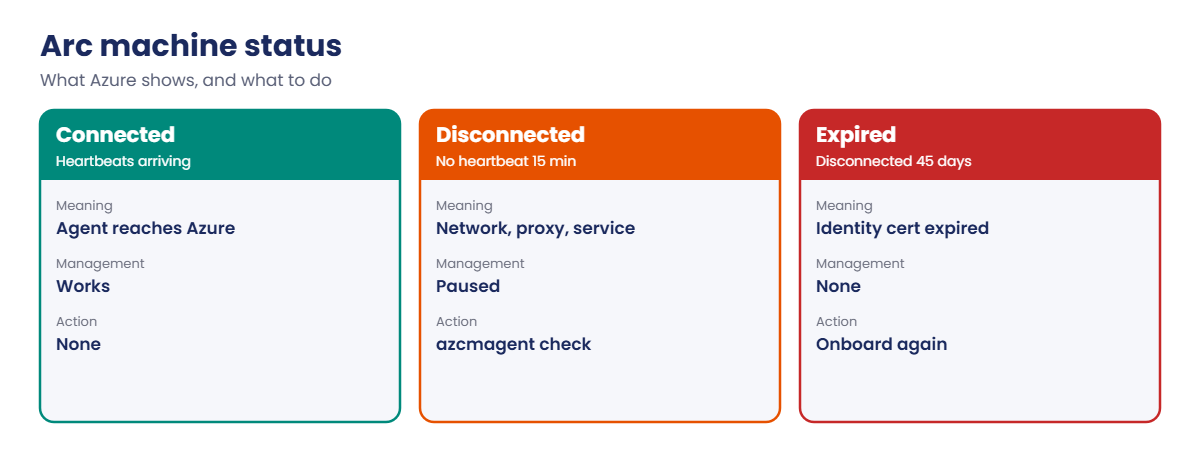
azcmagent): installed on the server, it creates aMicrosoft.HybridCompute/machinesresource and a managed identity for it. - Heartbeat: the agent checks in every 5 minutes. After 15 minutes without a heartbeat the status becomes Disconnected; after 45 days it becomes Expired and must be reconnected.
- Network: outbound HTTPS 443 only, to Arc, Entra ID and Resource Manager endpoints, directly, through a proxy, or through Azure Arc private link scope.
- What you get: tags, RBAC, Azure Policy and machine configuration, extensions (Azure Monitor Agent, Defender, Custom Script), Update Manager, inventory in Resource Graph and run commands.
- Cost: connecting the server and core management have no charge; add-ons such as Update Manager, Defender for Servers and some machine configuration features are billed per server.
- Evaluation on Azure VMs: the agent refuses to run where it can reach the Azure Instance Metadata Service (169.254.169.254). Microsoft’s test method removes the Azure VM agent and blocks that address. Never do this to a VM you need.
How it works, step by step
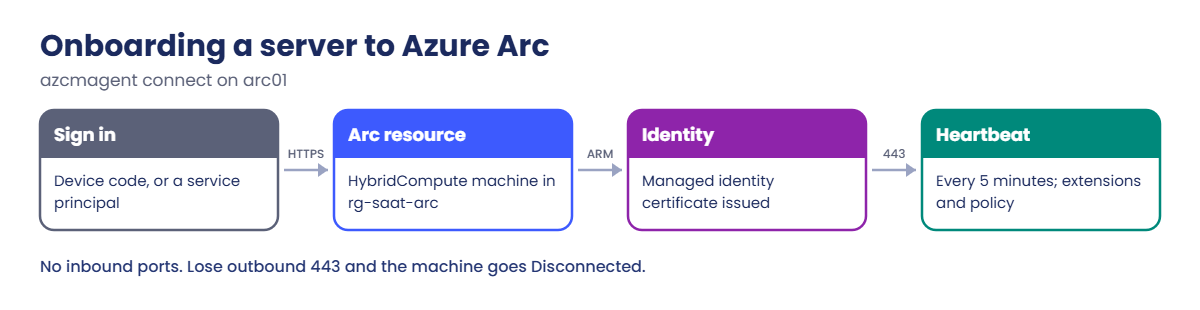
What happens when you run azcmagent connect on a server:
- You sign in (device code here; a service principal for bulk onboarding).
- The agent creates the Arc resource in the chosen resource group and region.
- Azure issues a managed identity certificate to the server.
- The agent starts sending heartbeats and polls for extensions and policies.
- The server shows as Connected; you manage it from Azure from now on.
From step 4 on, everything depends on outbound HTTPS. Most Arc tickets are network tickets.
Arc doesn’t move workloads to Azure. The server stays where it is; only its management moves.
Hands-on lab: Azure Arc-enabled servers with arc01
Load the network IDs and add outbound access for this lab:
$v = Get-Content C:\azure-lab\vnet-saat.json | ConvertFrom-Json
$sub = az account show --query id -o tsv
$tenant = az account show --query tenantId -o tsv
az network public-ip create --resource-group rg-saat-core --name pip-saat-natgw --sku Standard --location centralindia --tags course=saatvedha-azure lesson=40 -o none
az network nat gateway create --resource-group rg-saat-core --name natgw-saat --public-ip-addresses pip-saat-natgw --idle-timeout 4 --location centralindia --tags course=saatvedha-azure lesson=40 -o none
az network vnet subnet update --ids $v.'snet-web' --nat-gateway natgw-saat -o none1Create a throwaway “outside” server
A small Ubuntu VM in its own group, and a separate group for the Arc resource:
az group create --name rg-saat-l40 --location centralindia --tags course=saatvedha-azure lesson=40 -o none
az group create --name rg-saat-arc --location centralindia --tags course=saatvedha-azure lesson=40 -o none
az vm create --resource-group rg-saat-l40 --name arc01 --image Canonical:ubuntu-24_04-lts:server:latest --size Standard_B2ats_v2 --subnet $v.'snet-web' --public-ip-address '""' --nsg '""' --admin-username azureuser --generate-ssh-keys --tags course=saatvedha-azure lesson=40 -o none
"subscription: $sub"
"tenant: $tenant"2Make it look like a non-Azure server
Open arc01 in the portal, Connect, Bastion, and sign in as azureuser with your SSH key. In the browser terminal, run Microsoft’s evaluation steps: stop and remove the Azure VM agent, and block the metadata service.
current_hostname=$(hostname)
sudo systemctl stop walinuxagent
sudo waagent -deprovision -force
sudo rm -rf /var/lib/waagent
sudo hostnamectl set-hostname $current_hostname
sudo ufw --force enable
sudo ufw deny out from any to 169.254.169.254
sudo ufw default allow incoming
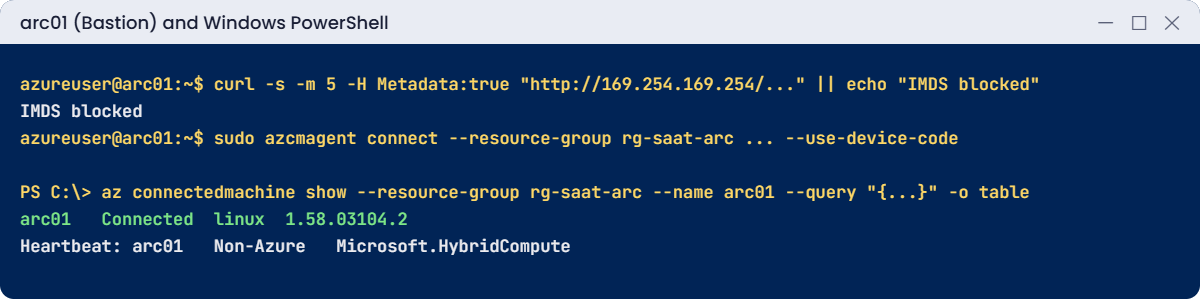
curl -s -m 5 -H Metadata:true "http://169.254.169.254/metadata/instance?api-version=2021-02-01" || echo "IMDS blocked"The last line should print this:
IMDS blockedFrom now on, Run Command and VM extensions no longer work on arc01; it behaves like a server outside Azure. Keep the Bastion tab open.
3Install the agent and connect
Still in the Bastion terminal (use the subscription and tenant IDs printed in step 1):
wget -q https://aka.ms/azcmagent -O ~/install_linux_azcmagent.sh
sudo bash ~/install_linux_azcmagent.sh
sudo azcmagent connect --resource-group rg-saat-arc --location centralindia --subscription-id <subscription-id> --tenant-id <tenant-id> --use-device-codeThe agent prints a device code. Open the link on your laptop, enter the code and sign in. After a minute it reports that the machine is connected.
Check from your laptop:
az connectedmachine show --resource-group rg-saat-arc --name arc01 --query "{name:name, status:status, os:osName, agent:agentVersion, lastSeen:lastStatusChange}" -o tableYou should see something like this:
Name Status Os Agent LastSeen
------ --------- ----- ------------ --------------------------------
arc01 Connected linux 1.58.03104.2 2026-10-22T09:41:20.117000+00:004Manage it like an Azure VM
Tag it, add the Azure Monitor Agent as an Arc extension, and point it at the DCR from Lesson 32:
$arcId = az connectedmachine show --resource-group rg-saat-arc --name arc01 --query id -o tsv
az tag update --resource-id $arcId --operation Merge --tags env=lab owner=saatvedha -o none
az connectedmachine extension create --resource-group rg-saat-arc --machine-name arc01 --name AzureMonitorLinuxAgent --publisher Microsoft.Azure.Monitor --type AzureMonitorLinuxAgent --location centralindia -o none
$dcrId = "/subscriptions/$sub/resourceGroups/rg-saat-core/providers/Microsoft.Insights/dataCollectionRules/dcr-saat-basic"
Set-Content -Path C:\azure-lab\dcr-assoc.json -Value ('{"properties": {"dataCollectionRuleId": "' + $dcrId + '"}}')
az rest --method put --url "https://management.azure.com${arcId}/providers/Microsoft.Insights/dataCollectionRuleAssociations/dcra-saat-basic?api-version=2022-06-01" --body '@C:\azure-lab\dcr-assoc.json' -o noneAfter about 10 minutes, query law-saat in the portal:
Heartbeat
| where Computer == 'arc01'
| summarize LastSeen = max(TimeGenerated) by Computer, ComputerEnvironment, ResourceProviderYou should see something like this:
Computer ComputerEnvironment ResourceProvider LastSeen
arc01 Non-Azure Microsoft.HybridCompute 2026-10-22 09:55:10Same workspace, same DCR, same KQL as your Azure VMs, but this machine counts as non-Azure. That’s the whole idea of Arc.
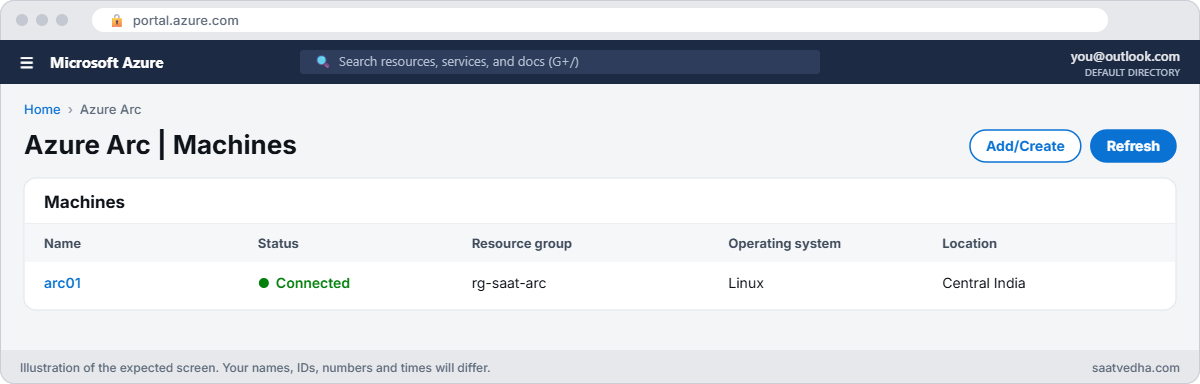
✅ Checkpoint: arc01 shows as a Connected Arc machine with tags, the Azure Monitor Agent, and heartbeats in law-saat as Non-Azure.
Break It, Then Fix It
Keep the Bastion session to arc01 open for both.
1Break it: the server goes Disconnected
Remove the NAT Gateway, as a firewall change might, and wait 20 minutes:
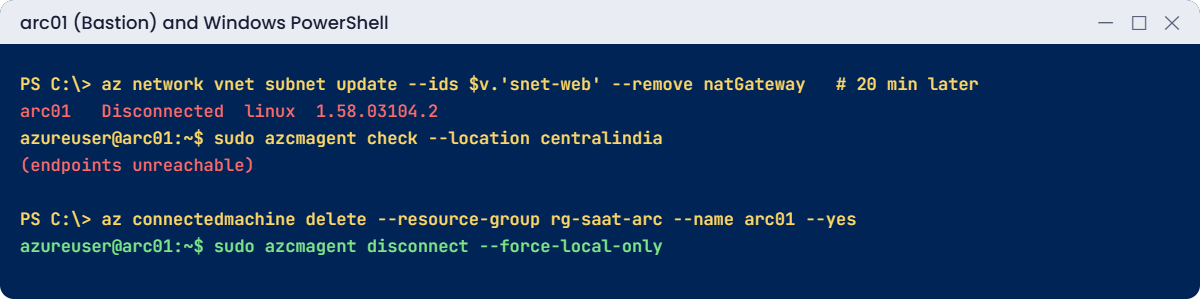
az network vnet subnet update --ids $v.'snet-web' --remove natGateway -o none
Start-Sleep -Seconds 1200
az connectedmachine show --resource-group rg-saat-arc --name arc01 --query "{name:name, status:status, os:osName, agent:agentVersion, lastSeen:lastStatusChange}" -o tableYou should see something like this:
Name Status Os Agent LastSeen
------ ------------ ----- ------------ --------------------------------
arc01 Disconnected linux 1.58.03104.2 2026-10-22T10:16:20.117000+00:00The agent missed three heartbeats, so Azure marks it Disconnected after 15 minutes. Policies, extensions and monitoring stop updating for it. In the Bastion terminal, the agent’s own checker shows why:
sudo azcmagent check --location centralindiaYou should see some endpoints fail their reachability test.
Fix it: restore outbound HTTPS (NAT, firewall rules, a proxy with azcmagent config set proxy.url, or Arc private link), then wait for the next heartbeat:
az network vnet subnet update --ids $v.'snet-web' --nat-gateway natgw-saat -o none
Start-Sleep -Seconds 600
az connectedmachine show --resource-group rg-saat-arc --name arc01 --query "{name:name, status:status, os:osName, agent:agentVersion, lastSeen:lastStatusChange}" -o tableStatus should be Connected again. If a server stays disconnected for 45 days, it becomes Expired and must be onboarded again.
2Break it: deleted in Azure, still connected on the server
A tidy-up script deletes the Arc resource from Azure, but nobody tells the server:
az connectedmachine delete --resource-group rg-saat-arc --name arc01 --yesIn the Bastion terminal, check the agent and try to connect again:
sudo azcmagent show | grep -i -E 'status|resource name'
sudo azcmagent connect --resource-group rg-saat-arc --location centralindia --subscription-id <subscription-id> --tenant-id <tenant-id> --use-device-codeThe agent still believes it’s connected to a resource that no longer exists, and the new connect is refused because the machine is already set up with a connection. The server is in limbo: unmanaged in Azure, and stuck locally.
Fix it: clear the local connection, then connect again:
sudo azcmagent disconnect --force-local-only
sudo azcmagent connect --resource-group rg-saat-arc --location centralindia --subscription-id <subscription-id> --tenant-id <tenant-id> --use-device-codeThe right way to retire an Arc server is the other way round: run sudo azcmagent disconnect on the server first, which removes both the local configuration and the Azure resource.
Clean up: first disconnect properly in the Bastion terminal:
sudo azcmagent disconnect --use-device-codeThen remove everything this lesson created, from your laptop:
az group delete --name rg-saat-arc --yes
az group delete --name rg-saat-l40 --yes
az network vnet subnet update --ids $v.'snet-web' --remove natGateway -o none
az network nat gateway delete --resource-group rg-saat-core --name natgw-saat
az network public-ip delete --resource-group rg-saat-core --name pip-saat-natgw
C:\azure-lab\Find-LabResources.ps1 -Lesson 40The last command should print this:
Nothing tagged course=saatvedha-azure is left.
✅ Checkpoint: You brought a Disconnected server back and fixed a server stuck after its Arc resource was deleted. All lesson resources are gone.
This happened at work
400 servers, 70 of them silent
A retailer onboarded 400 store servers to Azure Arc and moved all patching to Update Manager. Three months later, the security team found 70 store servers missing two months of patches.
Every one of them showed Disconnected or Expired in Azure. A new web proxy had been rolled out to stores, and the Arc agent wasn’t configured to use it. The servers were fine; Azure simply couldn’t reach them, so no schedule ran.
What they changed: the store build now sets the proxy with azcmagent config, and the agent’s connectivity check runs after every network change. An Azure Monitor alert fires when any Arc machine stays Disconnected for more than an hour, and a weekly Resource Graph report lists all non-Connected machines by store.
Common mistakes and troubleshooting
| Mistake | What you see | What to do |
|---|---|---|
| No outbound path or proxy not set | Status Disconnected, then Expired | Open 443 to Arc endpoints or set proxy.url. |
| Deleting the Arc resource before the agent | Server stuck; connect refused | Run azcmagent disconnect on the server first. |
| Onboarding a normal Azure VM | Agent refuses (IMDS reachable) | Use Azure VM features; Arc is for outside machines. |
| Using a personal account for bulk onboarding | Onboarding breaks when the person leaves | Use a service principal with the Arc onboarding role. |
| Expecting Arc to be a migration | Server still on-premises | Arc moves management, not workloads. |
| Ignoring Expired machines | Stale inventory and missed patches | Alert on Disconnected; reonboard Expired. |
Interview questions
Click a question to open it. Each one is written the way an interviewer would ask it. Under it you will see why they ask it and one way you could answer, in your own words.
Fresher level
1. What is Azure Arc-enabled servers?
Why they ask this: The basic concept.
How you might answer: A service that connects Windows and Linux servers outside Azure to Azure Resource Manager through the Connected Machine agent, so you can manage them with Azure tools like Policy, Monitor and Update Manager.
2. What network access does the Arc agent need?
Why they ask this: A practical requirement.
How you might answer: Outbound HTTPS on 443 to Azure Arc, Entra ID and Resource Manager endpoints, directly, through a proxy, or through Azure Arc private link scope. No inbound ports are needed.
3. What do the statuses Connected, Disconnected and Expired mean?
Why they ask this: They want the lifecycle.
How you might answer: Connected means heartbeats are arriving. Disconnected means none for 15 minutes. Expired means disconnected for 45 days; the identity certificate has expired and the server must be onboarded again.
2–5 years experience
4. An Arc server shows Disconnected. How do you troubleshoot?
Why they ask this: A real ticket.
How you might answer: Run azcmagent check and azcmagent show on the server, check DNS, proxy and firewall for the Arc endpoints, check the himds service is running, and look at agent logs. Most cases are network or proxy changes.
5. How do you onboard hundreds of servers?
Why they ask this: They want scale.
How you might answer: A service principal with the Azure Connected Machine Onboarding role, a script generated from the portal, deployed with existing tools like Configuration Manager, Group Policy or Ansible, with tags and resource groups set at connect time.
6. How do you monitor Arc servers?
Why they ask this: They want the link to earlier lessons.
How you might answer: Install the Azure Monitor Agent as an Arc extension, often by policy, and associate DCRs, the same way as Azure VMs. Data lands in the same workspace with ComputerEnvironment set to Non-Azure.
Senior level
7. How would you design hybrid management for 2,000 servers with Arc?
Why they ask this: They want governance.
How you might answer: Resource groups by location or business unit, tags at onboarding, policy initiatives for AMA, DCRs, Defender and machine configuration, Update Manager schedules by dynamic scope, Arc private link where needed, and alerts on disconnected machines.
8. What are the security considerations for Arc?
Why they ask this: They want risk awareness.
How you might answer: Arc extends Azure RBAC to on-premises servers, so Azure roles can now run commands there. I’d limit extension and run command permissions, use PIM, restrict allowed extensions on the agent, and monitor the Activity log for Arc operations.
9. When would you not use Arc?
Why they ask this: They want judgement.
How you might answer: For servers about to be retired or migrated soon, isolated networks that can’t reach Azure even through a proxy or private link, or where an existing tool already does the job well and Arc adds cost through paid add-ons.
Quick quiz
Q1. What does Azure Arc move into Azure?
- The workload
- The management of the server
- The disks
- The network
Show answer
B — The server stays where it is.
Q2. After how long without heartbeats is a machine Disconnected?
- 5 minutes
- 15 minutes
- 1 hour
- 45 days
Show answer
B — Expired comes after 45 days.
Q3. What port does the agent need?
- Inbound 3389
- Outbound 443
- Inbound 22
- Outbound 25
Show answer
B — Only outbound HTTPS.
Q4. Why does the evaluation method block 169.254.169.254?
- To save cost
- So the agent doesn’t detect an Azure VM
- To stop SSH
- For DNS
Show answer
B — The agent refuses to run where IMDS is reachable.
Q5. How should you retire an Arc server?
- Delete it in the portal first
- Run azcmagent disconnect on the server
- Unplug it
- Rotate keys
Show answer
B — Disconnect removes local config and the Azure resource.
Quick recap
You can now bring outside servers into Azure management and keep them connected.
- The Connected Machine agent turns a server into an Azure resource.
- Only outbound 443 is needed; proxy and firewall changes cause most issues.
- Disconnected after 15 minutes, Expired after 45 days.
- Manage Arc servers with the same AMA, DCRs and policies as VMs.
- Disconnect on the server before deleting in Azure.
Next lesson
Lesson 41: From ARM templates to Bicep → You turn a portal-exported ARM template into clean Bicep and deploy it.
Further reading: Azure Arc-enabled servers
Want to go deeper into Azure Arc-enabled servers? See Microsoft’s Azure Arc-enabled servers overview and Evaluate Azure Arc-enabled servers on an Azure VM. You can also see the full plan for this course on the Azure Cloud Administration course page.
