Blob, File, Queue and Table storage: which one to use
-
Phase 0: Before you start
-
Phase 1: The foundation
-
Phase 2: Day-to-day operations
-
Phase 3: Enterprise architecture
-
Phase 4: Troubleshooting step by step
-
Phase 5: Final project and career
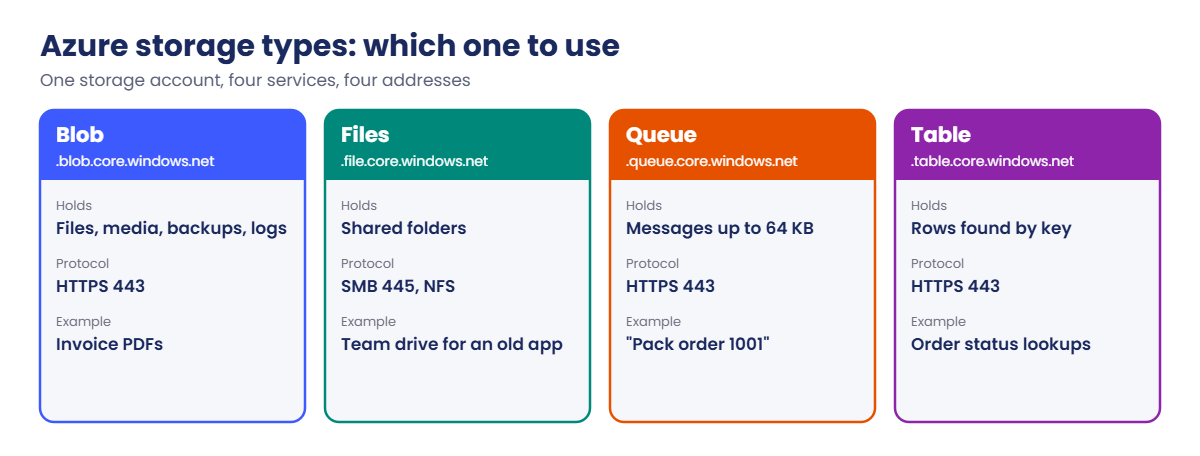
Azure storage types are the four services inside every storage account: Blob, File, Queue and Table. They share one account and one bill, but they solve very different problems.
Picking the wrong one is a common design mistake: log files in a file share, orders in a blob, app settings in a queue. Each works for a week, then gets slow, costly or fragile.
In the lab you put real data in all four, using the account from Lesson 21, then fix a queue message that keeps coming back and a share you can’t reach from home.
| Time | You need | Cost | By the end you can |
|---|---|---|---|
| About 45 minutes | The storage account from Lesson 21, the CLI | Under one US cent: a few small items in your existing account | Choose the right storage type for a job and work with each from the CLI |
What it is, in one line
Blobs store files as objects, Files gives you network shares, Queues pass messages between apps, and Tables store simple rows of data.
In Simple Words
A school office
The store room holds boxes of anything: old exam papers, photos, videos. You find a box by its label. That’s Blob storage.
The shared cupboard in the staff room has folders every teacher can open, just like a drive on their computer. That’s Azure Files.
The in-tray on the clerk’s desk holds notes like “print 40 copies”; the clerk takes one, does it and throws it away. That’s a Queue. The register with one row per student is a Table.
Engineer's View
The four services in detail
- Blob: objects over HTTPS. Block blobs for files, backups and media; append blobs for logs that only grow; page blobs for disks. Tiers Hot, Cool, Cold and Archive (Lesson 23). With hierarchical namespace it becomes Data Lake Storage Gen2.
- Files: SMB 3 shares (and NFS 4.1 on premium) that Windows, Linux and macOS mount like a drive. SMB uses TCP 445. Up to 100 TiB per share. Good for lift-and-shift apps and shared folders (Lesson 25).
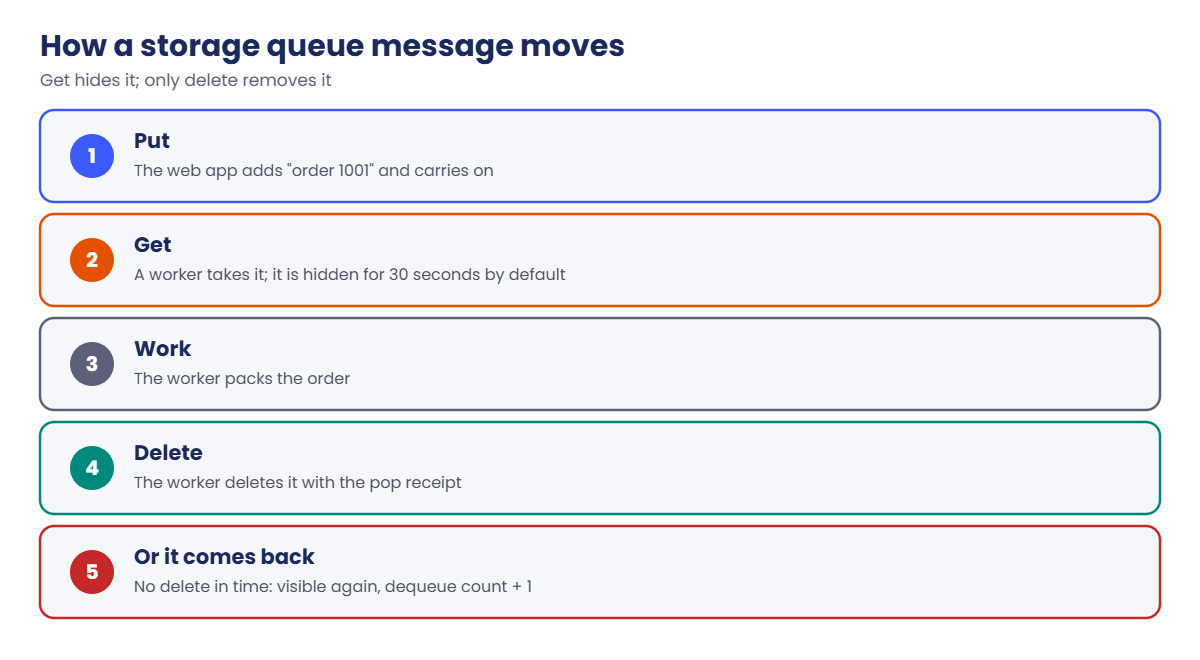
- Queue: simple messages up to 64 KB, kept for 7 days by default. A reader gets a message, which hides it for 30 seconds by default; if the reader doesn’t delete it in time, it comes back with a higher dequeue count.
- Table: schemaless NoSQL rows (entities) found by PartitionKey and RowKey, up to 1 MB each. Cheap and fast for lookups by key; no joins. For global scale, Azure Cosmos DB for Table uses the same API.
Data roles are per service: Storage Blob Data, Storage Queue Data and Storage Table Data roles. Azure Files has its own story with identity-based SMB access, covered in Lesson 25.
How it works, step by step
Use this table when someone asks “where should we put this?”:
| If the data is… | Use | Why |
|---|---|---|
| Files, images, backups, logs, exports | Blob | Cheapest per GB, HTTPS from anywhere, tiers |
| A folder that apps or people open as a drive | Files | SMB/NFS share, no app changes |
| A to-do list between two apps | Queue | Decouples sender and worker, survives restarts |
| Small records looked up by a key | Table | Cheap key-value lookups |
| A VM’s operating system or database files | Managed disk | Block storage for one VM (Lesson 19) |
Here is how a queue keeps two apps apart, step by step:
- The web app puts “order 1001” on the queue and moves on.
- A worker gets the message. It’s hidden from other workers for 30 seconds.
- The worker packs the order and deletes the message using its pop receipt.
- If the worker crashes first, the message reappears and another worker picks it up.
- A message that keeps failing (dequeue count 5, say) is moved to a “poison” queue for a human to check.
The same account serves all four services at different addresses: .blob.core.windows.net, .file.core.windows.net, .queue.core.windows.net and .table.core.windows.net. Firewall rules and private endpoints (Lesson 26) are set per service.
Blob and Files speak different protocols. Blob is HTTPS on port 443, which works almost everywhere. SMB to Azure Files needs port 445, which many home and office networks block.
Hands-on lab: all four Azure storage types
Open PowerShell and load your storage account name from Lesson 21:
$st = (Get-Content C:\azure-lab\storage.txt)
$id = az storage account show --resource-group rg-saat-data --name $st --query id -o tsv
$me = az ad signed-in-user show --query id -o tsv1Blob: add an append blob for a log
Run this:
Set-Content -Path C:\azure-lab\app.log -Value 'start'
az storage blob upload --account-name $st --auth-mode login --container-name lab --name app.log --file C:\azure-lab\app.log --type append -o none
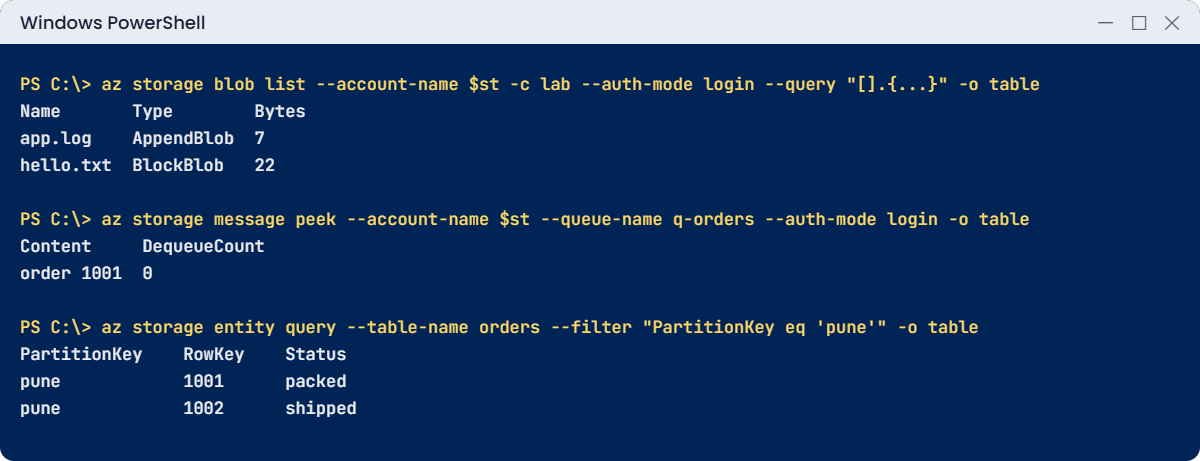
az storage blob list --account-name $st --auth-mode login --container-name lab --query "[].{name:name, type:properties.blobType, bytes:properties.contentLength}" -o tableYou should see this:
Name Type Bytes
--------- ---------- -------
app.log AppendBlob 7
hello.txt BlockBlob 222Files: create a share and upload a file
Run this:
az storage share-rm create --resource-group rg-saat-data --storage-account $st --name share-lab --quota 5 -o none
az storage file upload --account-name $st --share-name share-lab --source C:\azure-lab\hello.txt -o none
az storage file list --account-name $st --share-name share-lab --query "[].name" -o tsvYou should see something like this:
WARNING:
There are no credentials provided in your command and environment, we will query for account key for your storage account.
It is recommended to provide --connection-string, --account-key or --sas-token in your command as credentials.
...
hello.txtshare-rm works through Azure Resource Manager, so your Owner role is enough. The file commands fell back to the account key, which the warning tells you. Lesson 25 sets up identity-based access instead.
3Queue and Table: add the data roles
Run this, then wait two minutes:
foreach ($r in 'Storage Queue Data Contributor', 'Storage Table Data Contributor') {
az role assignment create --assignee $me --role $r --scope $id -o none
}
Start-Sleep -Seconds 1204Queue: send, peek, receive and delete
Run this:
az storage queue create --account-name $st --auth-mode login --name q-orders -o none
az storage message put --account-name $st --auth-mode login --queue-name q-orders --content 'order 1001' -o none
az storage message peek --account-name $st --auth-mode login --queue-name q-orders --query "[].{content:content, dequeueCount:dequeueCount}" -o table
$m = az storage message get --account-name $st --auth-mode login --queue-name q-orders | ConvertFrom-Json
az storage message delete --account-name $st --auth-mode login --queue-name q-orders --id $m.id --pop-receipt $m.popReceipt
az storage message peek --account-name $st --auth-mode login --queue-name q-orders -o tsvYou should see this:
Content DequeueCount
---------- --------------
order 1001 0Peek only looks; get takes the message and hides it; delete removes it for good. The last peek prints nothing because the queue is empty.
5Table: insert and query rows
Run this:
az storage table create --account-name $st --auth-mode login --name orders -o none
az storage entity insert --account-name $st --auth-mode login --table-name orders --entity PartitionKey=pune RowKey=1001 status=packed -o none
az storage entity insert --account-name $st --auth-mode login --table-name orders --entity PartitionKey=pune RowKey=1002 status=shipped -o none
az storage entity insert --account-name $st --auth-mode login --table-name orders --entity PartitionKey=delhi RowKey=2001 status=packed -o none
az storage entity query --account-name $st --auth-mode login --table-name orders --filter "PartitionKey eq 'pune'" -o tableYou should see this:
PartitionKey RowKey Status
-------------- -------- --------
pune 1001 packed
pune 1002 shippedA query on PartitionKey goes straight to one partition, which is fast. A filter on status alone would scan every row, which gets slow and costly as the table grows. Design keys around how you’ll look data up.
✅ Checkpoint: Your account now holds an append blob, a share with hello.txt, an empty q-orders queue and an orders table with three rows.
Break It, Then Fix It
Two problems that come up with queues and file shares in real projects.
1Break it: the message that keeps coming back
Put a message, take it, “crash” (don’t delete), and look again after 40 seconds:
az storage message put --account-name $st --auth-mode login --queue-name q-orders --content 'order 1003' -o none
az storage message get --account-name $st --auth-mode login --queue-name q-orders --query "[].{content:content, dequeueCount:dequeueCount}" -o table
az storage message peek --account-name $st --auth-mode login --queue-name q-orders -o tsv
Start-Sleep -Seconds 40
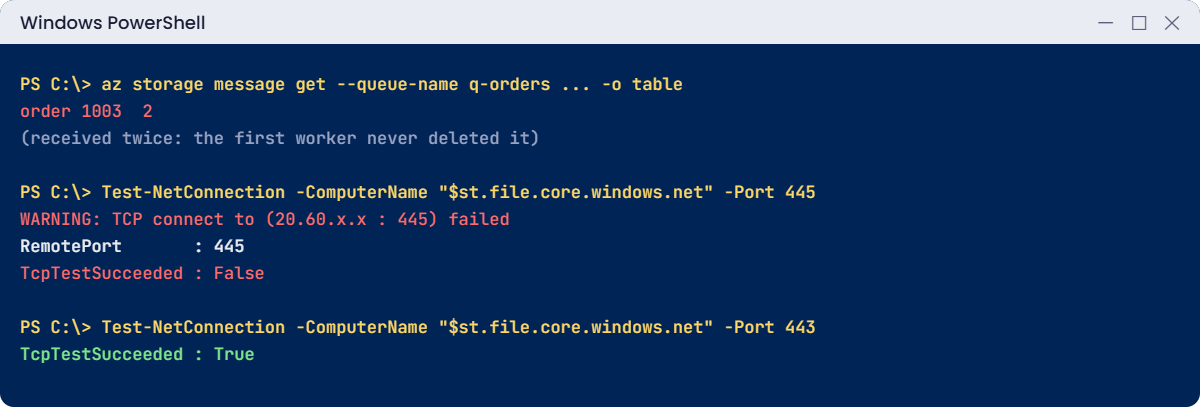
az storage message get --account-name $st --auth-mode login --queue-name q-orders --query "[].{content:content, dequeueCount:dequeueCount}" -o tableYou should see something like this:
Content DequeueCount
---------- --------------
order 1003 1
Content DequeueCount
---------- --------------
order 1003 2The peek in the middle printed nothing: the message was hidden, not gone. After 30 seconds it came back with dequeue count 2. In production, a worker that crashes or takes longer than the timeout makes orders get packed twice.
Fix it: delete the message after the work is done, and give slow jobs a longer timeout:
$m = az storage message get --account-name $st --auth-mode login --queue-name q-orders --visibility-timeout 300 | ConvertFrom-Json
# ... do the work ...
az storage message delete --account-name $st --auth-mode login --queue-name q-orders --id $m.id --pop-receipt $m.popReceipt
az storage message peek --account-name $st --auth-mode login --queue-name q-orders -o tsvThe last peek prints nothing. Workers must also handle a duplicate safely (check if order 1003 is already packed), because a message can still be delivered twice.
2Break it: “I can’t map the share from home”
Test SMB from your laptop:
Test-NetConnection -ComputerName "$st.file.core.windows.net" -Port 445On many home and office networks you’ll see something like this:
WARNING: TCP connect to (20.60.x.x : 445) failed
ComputerName : stsaat48213.file.core.windows.net
RemoteAddress : 20.60.x.x
RemotePort : 445
InterfaceAlias : Wi-Fi
SourceAddress : 192.168.1.20
TcpTestSucceeded : FalseMany internet providers and company firewalls block outbound port 445 because of old SMB worms. net use then fails with “The network path was not found” (error 53), even though the share is fine. If your test says True, your network allows it.
Fix it: confirm HTTPS works, use it for now, and mount from inside Azure or over a VPN:
Test-NetConnection -ComputerName "$st.file.core.windows.net" -Port 443 | Select-Object TcpTestSucceeded
az storage file download --account-name $st --share-name share-lab --path hello.txt --dest C:\azure-lab\hello-from-share.txt -o none
Get-Content C:\azure-lab\hello-from-share.txtYou should see this:
TcpTestSucceeded
----------------
True
hello from lesson 21Real fixes are a VPN or ExpressRoute into Azure, mounting from a VM inside Azure (Lesson 25 does this on win01), or Azure File Sync to a local server. Asking the provider to open 445 is rarely the answer.
Clean up: keep the account, remove this lesson’s items:
az storage queue delete --account-name $st --auth-mode login --name q-orders -o none
az storage table delete --account-name $st --auth-mode login --name orders -o none
az storage blob delete --account-name $st --auth-mode login --container-name lab --name app.log
az storage share-rm delete --resource-group rg-saat-data --storage-account $st --name share-lab --yes
✅ Checkpoint: You fixed a returning message and diagnosed a blocked port. The account keeps lab/hello.txt for Lesson 23.
This happened at work
The invoice that was emailed four times
A billing team moved invoice emails to a queue and a worker. It ran fine for months. Then customers started getting the same invoice two, three, even four times, but only at month-end.
At month-end the PDF step took about 50 seconds per invoice. The worker used the default 30-second visibility timeout, so the message reappeared while it was still working. A second worker picked it up and sent it again.
What they changed: the worker now asks for a 5-minute timeout and extends it for long jobs. Before sending, it checks a Table entity keyed by invoice number and skips duplicates. Messages with a dequeue count over 5 go to a poison queue that pages the on-call engineer.
Common mistakes and troubleshooting
| Mistake | What you see | What to do |
|---|---|---|
| Not deleting queue messages | Work repeats; dequeue count climbs | Delete with the pop receipt after the work. |
| Timeout shorter than the job | Duplicates at busy times | Set a longer visibility timeout; make workers idempotent. |
| Mapping Azure Files from home | Error 53, port 445 test fails | VPN, a VM in Azure, or Azure File Sync. |
| Logs written to a file share | Locks, slow writes, high cost | Use append blobs or Log Analytics. |
| Table queries without PartitionKey | Slow, costly scans | Design keys around how you look data up. |
| Expecting Owner to cover queues and tables | AuthorizationPermissionMismatch | Assign the matching Queue or Table data role. |
Interview questions
Click a question to open it. Each one is written the way an interviewer would ask it. Under it you will see why they ask it and one way you could answer, in your own words.
Fresher level
1. What are the four data services in an Azure storage account?
Why they ask this: The basic layout.
How you might answer: Blob for objects and files over HTTPS, Files for SMB or NFS shares, Queue for messages between apps, and Table for simple key-value rows.
2. What are the three blob types?
Why they ask this: They want more than “blobs store files”.
How you might answer: Block blobs for most files, append blobs for data that only grows like logs, and page blobs for random read and write, which is how disks are stored.
3. When would you use a queue?
Why they ask this: They’re checking you understand decoupling.
How you might answer: When one app needs to hand work to another without waiting, like a web page placing an order and a worker processing it. The queue holds the work if the worker is slow or down.
2–5 years experience
4. A worker processes some queue messages twice. Why?
Why they ask this: A very common production issue.
How you might answer: The work took longer than the visibility timeout, or the worker crashed before deleting the message, so it became visible again. I’d raise the timeout, delete only after success, and make the worker idempotent so a repeat does no harm.
5. A user can’t map an Azure file share from home. How do you troubleshoot?
Why they ask this: They want a method, not a guess.
How you might answer: Test-NetConnection to the file endpoint on 445. If it fails and 443 works, the network is blocking SMB. Then I check the storage firewall and credentials. The fix is usually a VPN, a VM in Azure, or Azure File Sync.
6. How do you design PartitionKey and RowKey for Table storage?
Why they ask this: They want to see you think about queries.
How you might answer: Around the most common lookup. Rows queried together share a PartitionKey, and RowKey makes each row unique within it. I’d avoid one huge partition and avoid queries that skip the PartitionKey, because those scan the table.
Senior level
7. Storage queues or Service Bus: how do you choose?
Why they ask this: They want trade-offs.
How you might answer: Storage queues are simple and cheap, hold millions of messages, and suit basic work hand-offs. Service Bus adds ordering, sessions, dead-lettering, transactions and topics with subscribers. If I need guaranteed order or publish-subscribe, I’d pick Service Bus.
8. Table storage or Cosmos DB for Table?
Why they ask this: They’re checking scale and SLA thinking.
How you might answer: Table storage is cheap and fine for moderate key lookups in one region. Cosmos DB for Table uses the same API but adds global distribution, guaranteed low latency and automatic indexing on all properties, at a higher price.
9. How would you secure access to all four services for different apps?
Why they ask this: They want least privilege per service.
How you might answer: Managed identities for each app with the narrowest data role: Blob Data Reader on one container, Queue Data Message Sender for the producer and Processor for the worker, Table Data Reader where needed. Shared key access off where possible, and private endpoints per service.
Quick quiz
Q1. Which service gives you an SMB share you can map as a drive?
- Blob
- Files
- Queue
- Table
Show answer
B — Azure Files serves SMB (and NFS) shares.
Q2. Which blob type suits a log that only grows?
- Block
- Append
- Page
- Archive
Show answer
B — Append blobs only add to the end.
Q3. What happens to a queue message that is received but not deleted?
- It is lost
- It reappears after the visibility timeout
- It moves to Archive
- It is copied to a table
Show answer
B — It comes back with a higher dequeue count.
Q4. Mapping a share from home fails; the port 445 test fails. Likely cause?
- Wrong redundancy
- The network blocks SMB
- Table not created
- Missing append blob
Show answer
B — Many networks block outbound 445.
Q5. Which keys find a Table entity?
- Id and Version
- PartitionKey and RowKey
- Name and Tier
- Queue and Receipt
Show answer
B — PartitionKey plus RowKey is the unique key.
Quick recap
You can now match a job to the right storage service and spot the classic mistakes.
- Blob for objects, Files for shares, Queue for work hand-offs, Table for key lookups.
- Delete queue messages after the work, and make workers safe to repeat.
- SMB needs port 445; test before blaming the share.
- Design table keys around your queries.
- Each service has its own data roles.
Next lesson
Lesson 23: Blob access tiers and lifecycle rules → You move blobs between Hot, Cool, Cold and Archive and automate it with a lifecycle rule.
Further reading: Azure storage types
Want to go deeper into Azure storage types? See Microsoft’s Introduction to Azure Storage and Troubleshoot Azure Files SMB connectivity. You can also see the full plan for this course on the Azure Cloud Administration course page.
