Azure VM Sizes: B, D, E and F Series

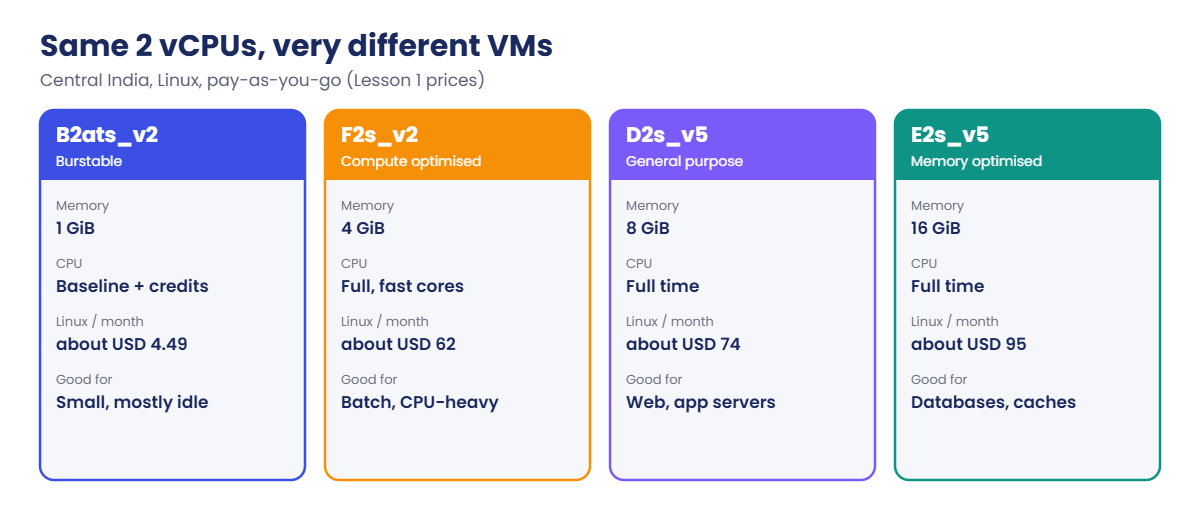
Choosing Azure VM sizes is where most cloud money is won or lost. Pick too small and the app crawls; pick too big and you pay for idle CPUs every hour of every day. In Lesson 1 you saw that two VMs with the same 2 vCPUs can differ by 15 times in price.

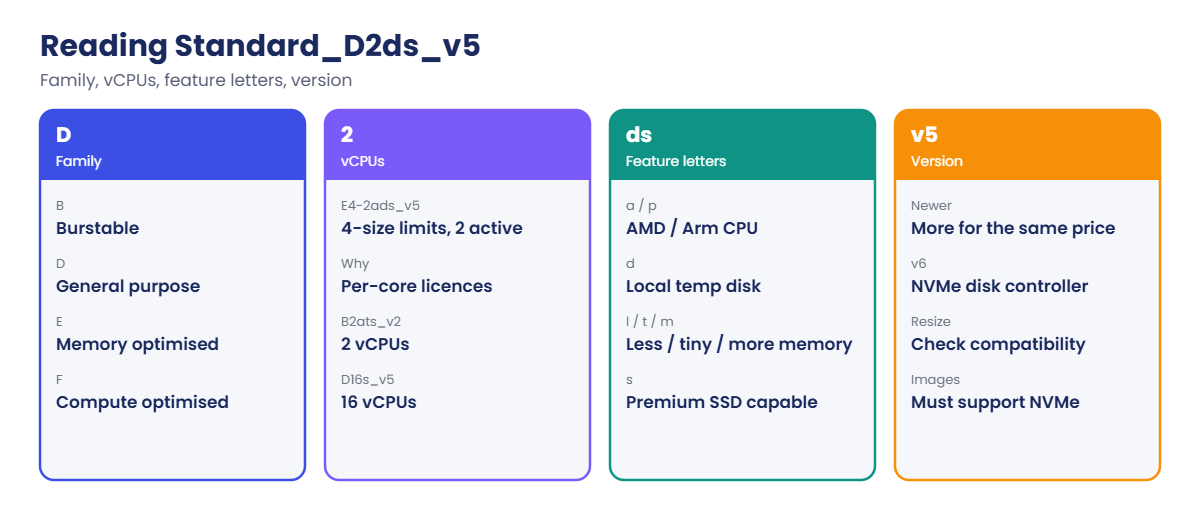
Size names look like a secret code (Standard_E4-2ads_v5), but every letter means something. Once you can read them, you can shortlist the right family in seconds and explain your choice to a manager.

In the lab you decode size names with a small script, compare four families, resize web01 safely while it’s deallocated, and hit the two resize errors that block people most often.

TimeYou needCostBy the end you can
About 40 minutesweb01 from Lesson 15 (deallocated), the CLINothing (web01 stays deallocated; no resize is started)Read any VM size name, pick a family for a workload, and resize without surprises

What it is, in one line

A VM size sets how many CPUs, how much memory, and how much disk and network speed a VM gets, and what it costs per hour.

In Simple Words

Picking the right vehicle

You wouldn’t use a truck to deliver one letter, or a scooter to move house. Vehicles come in families: scooters for short trips (B-series), cars for everyday use (D-series), trucks with a big boot for heavy loads (E-series, lots of memory), and sports cars that go fast but carry little (F-series, strong CPUs).

The scooter is cheap because you don’t ride it all day. It has a small fuel tank that refills while it’s parked. Ride it hard all day and it slows down.

That’s how B-series CPU credits work.

Engineer's View

How to read a size name

The pattern is: family, optional sub-family, vCPUs, optional constrained vCPUs, feature letters, then version. For example Standard_D2ds_v5 is D-family, 2 vCPUs, features d and s, version 5.

  • Families: B burstable (cheap, CPU credits), D general purpose (about 4 GiB per vCPU), E memory optimised (about 8 GiB per vCPU), F compute optimised (about 2 GiB per vCPU), L storage optimised, M very large memory, N GPU.
  • Feature letters: a AMD, p Arm (Ampere or Cobalt), l low memory, t tiny memory, m more memory, d local temp disk, i isolated host, b faster remote disk throughput, s Premium SSD capable.
  • Constrained vCPUs: E4-2ads_v5 has the memory and disk limits of an E4 but only 2 active vCPUs, to save per-core licence costs for software like SQL Server.
  • Versions: newer versions (v5, v6) usually give more performance for the same price. v6 sizes use NVMe disk controllers and need images that support them.

B-series credits: each B size has a baseline CPU percentage. Below it, the VM banks credits; above it, it spends them. When credits run out, CPU is held at the baseline, which looks like a sudden slowdown.

Watch the CPU Credits Remaining metric.

Resizing: a resize restarts the VM. If the new size isn’t available on the current hardware cluster, the VM must be deallocated first. Some changes are blocked outright: between sizes with and without a local temp disk, between x64 and Arm, and between SCSI and NVMe disk controllers.

How it works, step by step

A simple way to choose a size for a new workload:

Azure VM sizes naming: family, vCPUs, feature letters and version
  1. Measure first. If the app runs somewhere today, check its real CPU and memory use over a busy week, not the size of its old server.
  2. Pick the family from the shape of the load: steady and balanced (D), memory-heavy like databases and caches (E), CPU-heavy like batch jobs (F), mostly idle with short bursts (B).
  3. Pick the smallest size in that family that fits the peak with some room, and check it’s offered in your region and zone.
  4. Check the disk limits of the size: maximum data disks and maximum IOPS and throughput. A small VM can cap a fast disk (Lesson 72).
  5. Watch it for two weeks and resize up or down. Azure Advisor also suggests right-sizing.

Resizing is cheap to try and easy to undo, as long as you stay within compatible sizes. Plan a short restart window for it.

Azure VM sizes with 2 vCPUs compared by memory and monthly price

In the lab, everything happens while web01 is deallocated, so nothing is billed and nothing restarts.

Hands-on lab: decode, compare and resize

You decode size names, compare four families, see which sizes web01 can move to, and do a resize and resize back.

1Decode size names with a small script

Paste this whole block:

function Read-VmSize {
    param([Parameter(Mandatory)][string]$Size)
    $families = @{ B = 'Burstable'; D = 'General purpose'; E = 'Memory optimised'; F = 'Compute optimised'; L = 'Storage optimised'; M = 'Very large memory'; N = 'GPU' }
    $letters = [ordered]@{ a = 'AMD CPU'; p = 'Arm CPU'; l = 'low memory'; t = 'tiny memory'; m = 'more memory'; d = 'local temp disk'; i = 'isolated'; b = 'faster remote disks'; s = 'Premium SSD capable' }
    $m = [regex]::Match($Size, '^Standard_([A-Z]+)(\d+)(-\d+)?([a-z]*)(_v(\d+))?$')
    if (-not $m.Success) { throw "Not a size name I can read: $Size" }
    $f = $m.Groups[1].Value
    $feat = $m.Groups[4].Value.ToCharArray() | ForEach-Object { $letters["$_"] } | Where-Object { $_ }
    [pscustomobject]@{
        Size     = $Size
        Family   = '{0} ({1})' -f $f, $families[$f.Substring(0,1)]
        vCPUs    = [int]$m.Groups[2].Value
        Features = $feat -join ', '
        Version  = if ($m.Groups[6].Success) { 'v' + $m.Groups[6].Value } else { 'v1' }
    }
}
'Standard_B2ats_v2','Standard_D2s_v5','Standard_E2s_v5','Standard_F2s_v2','Standard_D2ds_v5','Standard_B2pts_v2' |
    ForEach-Object { Read-VmSize $_ } | Format-Table -AutoSize

You should see this:

Size              Family                vCPUs Features                                  Version
----              ------                ----- --------                                  -------
Standard_B2ats_v2 B (Burstable)             2 AMD CPU, tiny memory, Premium SSD capable v2
Standard_D2s_v5   D (General purpose)       2 Premium SSD capable                       v5
Standard_E2s_v5   E (Memory optimised)      2 Premium SSD capable                       v5
Standard_F2s_v2   F (Compute optimised)     2 Premium SSD capable                       v2
Standard_D2ds_v5  D (General purpose)       2 local temp disk, Premium SSD capable      v5
Standard_B2pts_v2 B (Burstable)             2 Arm CPU, tiny memory, Premium SSD capable v2

This output is exact: the script just reads the letters. Notice Standard_B2pts_v2, the free account’s other free size: it’s Arm, which matters in “Break It”.

2Compare real specs from Azure

Run this:

$want = 'Standard_B2ats_v2','Standard_D2s_v5','Standard_E2s_v5','Standard_F2s_v2'
$skus = az vm list-skus --location centralindia --resource-type virtualMachines -o json | ConvertFrom-Json | Where-Object { $want -contains $_.name }
$skus | ForEach-Object {
    $cap = @{}; $_.capabilities | ForEach-Object { $cap[$_.name] = $_.value }
    [pscustomobject]@{ Size = $_.name; vCPUs = $cap.vCPUs; MemoryGB = $cap.MemoryGB; MaxDataDisks = $cap.MaxDataDiskCount; Arch = $cap.CpuArchitectureType }
} | Sort-Object { [double]$_.MemoryGB } | Format-Table -AutoSize

You should see something like this:

Size              vCPUs MemoryGB MaxDataDisks Arch
----              ----- -------- ------------ ----
Standard_B2ats_v2 2     1        4            x64
Standard_F2s_v2   2     4        4            x64
Standard_D2s_v5   2     8        4            x64
Standard_E2s_v5   2     16       4            x64

Same 2 vCPUs, memory from 1 to 16 GiB. Put that next to the prices from Lesson 1 (about USD 4.49, 62, 74 and 95 a month for Linux) and you can explain to anyone why the family matters. az vm list-skus downloads a large list, so it takes a few seconds.

3See what web01 can resize to

Run this:

$opts = az vm list-vm-resize-options --resource-group rg-saat-vms --name web01 --query "[].name" -o tsv
"$($opts.Count) sizes available"
$opts | Where-Object { $_ -match '^Standard_B2' }

You should see something like this:

412 sizes available
Standard_B2als_v2
Standard_B2as_v2
Standard_B2ats_v2
Standard_B2ls_v2
Standard_B2s_v2
...

Because web01 is deallocated, Azure lists every size in the region, not just the ones on its current hardware. A running VM gets a shorter list.

4Resize while deallocated, then put it back

Run this:

az vm resize --resource-group rg-saat-vms --name web01 --size Standard_B2als_v2 -o none
az vm show --resource-group rg-saat-vms --name web01 --show-details --query "{size:hardwareProfile.vmSize, power:powerState}" -o table
az vm resize --resource-group rg-saat-vms --name web01 --size Standard_B2ats_v2 -o none
az vm show --resource-group rg-saat-vms --name web01 --query hardwareProfile.vmSize -o tsv

You should see something like this:

Size               Power
-----------------  --------------
Standard_B2als_v2  VM deallocated
Standard_B2ats_v2

B2als_v2 has 4 GiB of memory (the “l” means low memory compared with B2as_v2’s 8 GiB). Resizing a deallocated VM is instant and costs nothing; you’d only pay once you start it. You put web01 back on the size the free account covers.

5Find the B-series credit metrics

Run this:

$id = az vm show --resource-group rg-saat-vms --name web01 --query id -o tsv
az monitor metrics list-definitions --resource $id --query "[?contains(name.value,'Credit')].name.value" -o tsv

You should see this:

CPU Credits Remaining
CPU Credits Consumed

When a B-series VM feels slow, check CPU Credits Remaining first. A flat line at zero with CPU stuck at the baseline percentage means the VM needs a bigger or non-burstable size.
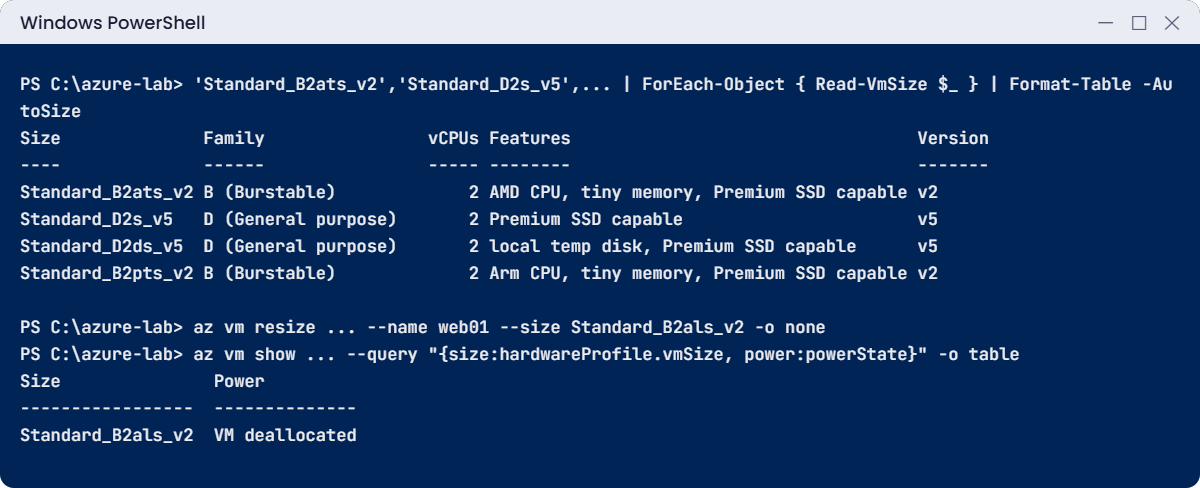
Azure VM sizes lab: Read-VmSize output and a resize while deallocated
The Read-VmSize output is exact; the resize output is an example.

✅ Checkpoint: You can decode a size name, web01 is back on Standard_B2ats_v2 and still deallocated.

Break It, Then Fix It

Two resizes that look reasonable and are refused. Both protect you from a VM that wouldn’t boot.

1Break it: add a local temp disk by resizing

Run this:

az vm resize --resource-group rg-saat-vms --name web01 --size Standard_D2ds_v5

You’ll get an error like this:

(OperationNotAllowed) Unable to resize the VM 'web01' since changing from resource disk to non-resource disk VM size and vice-versa is not allowed. Please refer to https://aka.ms/AAah4sj for more details.
Code: OperationNotAllowed

B2ats_v2 has no local temp disk; D2ds_v5 has one (the “d”). An OS set up without a temp disk, or with its swap or page file on one, may not boot after the switch, so Azure blocks it. It’s the same in the other direction.

Fix it: choose a size without “d” if you need D-series, for example Standard_D2s_v5, or rebuild the VM on the new size. Here, leave web01 as it is.

2Break it: an x64 image on an Arm size

Try to build a VM on the Arm size (also covered by the free account) with the x64 Ubuntu image:

$v = Get-Content C:\azure-lab\vnet-saat.json | ConvertFrom-Json
az vm create --resource-group rg-saat-vms --name arm99 --image Canonical:ubuntu-24_04-lts:server:latest --size Standard_B2pts_v2 --subnet $v.'snet-mgmt' --public-ip-address '""' --nsg '""' --admin-username azureuser --generate-ssh-keys

You’ll get an error like this:

Cannot create a VM of size 'Standard_B2pts_v2' because this VM size only supports a CPU Architecture of 'Arm64', but an image or disk with CPU Architecture 'x64' was given. Please check that the CPU Architecture of the image or disk is compatible with that of the VM size.

The “p” in B2pts_v2 means Arm. Arm sizes need Arm64 images, and software built only for x64 won’t run on them. Nothing was created.

Fix it: use the Arm64 image if your software supports Arm. Check it first:

az vm image show --location centralindia --urn Canonical:ubuntu-24_04-lts:server-arm64:latest --query architecture -o tsv

You should see this:

Arm64

You don’t need to create the Arm VM. Clean up anything the failed attempt left behind:

az resource list --resource-group rg-saat-vms --query "[?contains(name,'arm99')].name" -o tsv

You should see nothing printed. If anything is listed, delete it with az resource delete --ids.
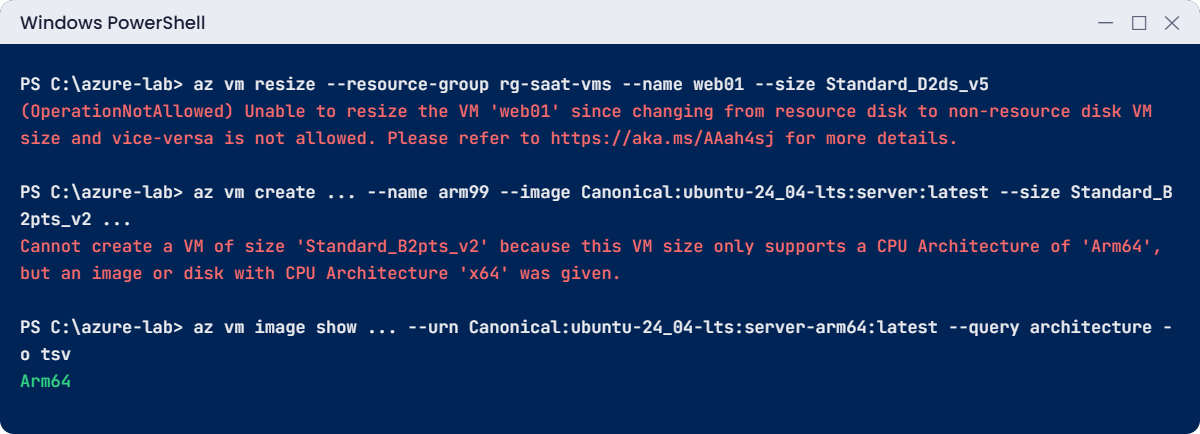
Azure VM sizes errors: temp disk resize blocked and x64 image on an Arm size
Example output of both errors.

✅ Checkpoint: Both resize problems reproduced, nothing new was created, and web01 is unchanged and deallocated.

This happened at work

The reporting database that ran out of credits every month-end

An accounting firm moved its reporting database to Azure on a Standard_B4ms, because “it only works hard at month-end”. For three weeks of the month the VM idled and banked credits. On the last two days, the finance team ran heavy reports from morning to night.

By the afternoon of the first month-end, the VM had spent all its credits and dropped to its baseline CPU. Reports that took 4 minutes took 40. The team blamed the new storage, then the network, and spent a day adding disks before someone looked at CPU Credits Remaining: flat at zero since noon.

What they changed: the database moved to a Standard_E4s_v5, sized for its real memory use, with a reserved instance to cut the cost. B-series stayed for small, really bursty servers. Every B-series VM now has an alert when credits fall below 20 percent, so the team hears about it before users do.

Common mistakes and troubleshooting

MistakeWhat you seeWhat to do
Sizing by the old server’s specsPaying for idle CPUsMeasure real use, then pick the smallest size that fits the peak.
Busy, steady workloads on B-seriesSudden slowdowns when credits run outWatch CPU Credits Remaining; use D, E or F for steady load.
Resizing between temp-disk and no-temp-disk sizesOperationNotAllowedStay within the same kind, or rebuild on the new size.
Arm size with an x64 image“only supports a CPU Architecture of Arm64”Use an Arm64 image, or an x64 size.
Resizing a running VM in a busy hourAn unplanned restartA resize always restarts the VM; plan a short window.
Ignoring disk limits of small sizesFast disks that feel slowCheck the size’s maximum IOPS and throughput (Lesson 72).

Interview questions

Click a question to open it. Each one is written the way an interviewer would ask it. Under it you will see why they ask it and one way you could answer, in your own words.

Fresher level

1. What do the letters in Standard_D2s_v5 mean?

Why they ask this: A basic check that you can read size names.

How you might answer: D is the general-purpose family, 2 is the number of vCPUs, s means it supports Premium SSD, and v5 is the version.

2. When would you choose an E-series VM over a D-series?

Why they ask this: They want to match family to workload.

How you might answer: When the workload needs more memory per CPU, like SQL Server, SAP or a big cache. E-series gives about 8 GiB per vCPU, twice the D-series.

3. Does resizing a VM restart it?

Why they ask this: A practical, common question.

How you might answer: Yes. A resize always restarts the VM, and if the new size isn’t on the current hardware, the VM has to be deallocated first. So I plan resizes in a quiet window.

2–5 years experience

4. Users say a B-series VM gets very slow every afternoon. What do you check?

Why they ask this: They’re checking that you know about CPU credits.

How you might answer: I’d check the CPU Credits Remaining and Percentage CPU metrics. If credits hit zero and CPU is stuck at the baseline, the VM is credit-starved. The fix is a bigger B size if the load is still bursty, or a D, E or F size if it’s steady.

5. A resize fails with “changing from resource disk to non-resource disk VM size is not allowed”. What does it mean?

Why they ask this: They want you to know this real restriction.

How you might answer: The current and target sizes differ in having a local temp disk. Azure blocks that resize because the OS may depend on the temp disk, or not have one set up. I’d pick a target size of the same kind, or rebuild the VM on the new size.

6. How would you right-size a fleet of 100 VMs?

Why they ask this: They want a data-driven method.

How you might answer: I’d pull CPU and memory metrics for a few weeks into Log Analytics, and use Azure Advisor’s right-sizing recommendations as a starting list. Then I’d resize the clear cases in batches, during agreed windows, and watch performance for a week before the next batch.

Senior level

7. When would you consider constrained vCPU sizes like E4-2s_v5?

Why they ask this: They want licence-cost awareness.

How you might answer: For software licensed per core, like SQL Server Enterprise, when the workload needs the memory and disk throughput of a bigger size but not all the cores. You pay the VM price of the full size but licence fewer cores, which can save a lot overall.

8. Should a company move workloads to Arm-based VMs?

Why they ask this: They want a balanced view.

How you might answer: Arm sizes often give better price-performance, so they’re worth testing for Linux workloads built for Arm64, like many web apps and containers. Anything with x64-only binaries, many commercial apps, or Windows needs testing first; some won’t run at all.

I’d start with a stateless service, compare cost and performance for a few weeks, then decide.

9. Your v5 VMs need to move to v6 sizes. What do you plan for?

Why they ask this: They’re checking awareness of NVMe and temp disk changes.

How you might answer: v6 sizes use NVMe disk controllers and present temp disks differently, so the OS image must support NVMe and some resizes are blocked. I’d test the image on a v6 size first, check the temp disk and page file setup, and for blocked cases rebuild instead of resizing.

Quick quiz

Q1. What does the “d” in Standard_D2ds_v5 mean?

  1. Double memory
  2. Local temp disk
  3. Dedicated host
  4. Disk encryption
Show answer

B — d means the size has a local temporary disk.

Q2. Which family is memory optimised?

  1. B
  2. D
  3. E
  4. F
Show answer

C — E-series gives about 8 GiB per vCPU.

Q3. What happens when a B-series VM runs out of CPU credits?

  1. It stops
  2. It is held at its baseline CPU percentage
  3. It resizes itself
  4. Nothing
Show answer

B — It slows to the baseline until it banks credits again.

Q4. Why did creating a VM on Standard_B2pts_v2 with the x64 Ubuntu image fail?

  1. No quota
  2. B2pts_v2 is an Arm size and needs an Arm64 image
  3. The region doesn’t have it
  4. SSH keys aren’t allowed
Show answer

B — The “p” means Arm.

Q5. Why can you see more resize options for a deallocated VM?

  1. It’s cheaper
  2. It isn’t tied to its current hardware cluster
  3. Azure is faster at night
  4. Deallocated VMs have no limits
Show answer

B — A running VM can only move to sizes on its current cluster.

Quick recap

You can now read size names, choose families with reasons, and resize without nasty surprises.

  • Name = family, vCPUs, feature letters, version: D2ds_v5 is general purpose, 2 vCPUs, temp disk, Premium SSD, v5.
  • B burstable, D general, E memory, F compute; pick by the shape of the load.
  • B-series runs on credits; watch CPU Credits Remaining.
  • Resizes restart the VM; temp-disk changes and x64-to-Arm changes are blocked.
  • Resize while deallocated to see every size and pay nothing.

Next lesson

Lesson 18: Availability sets vs availability zones → You learn how Azure keeps VMs apart so one failure doesn’t take them all down.

Further reading: Azure VM sizes

Want to go deeper into Azure VM sizes? See Microsoft’s Sizes for virtual machines in Azure and Azure virtual machine sizes naming conventions. You can also see the full plan for this course on the Azure Cloud Administration course page.

Scroll to Top