Images, Azure Compute Gallery and VM scale sets
-
Phase 0: Before you start
-
Phase 1: The foundation
-
Phase 2: Day-to-day operations
-
Phase 3: Enterprise architecture
-
Phase 4: Troubleshooting step by step
-
Phase 5: Final project and career
Azure VM scale sets run many identical VMs as one group. You build the server once as an image, store it in an Azure Compute Gallery, and the scale set stamps out copies across zones. Azure can then add or remove copies on its own when load changes.
This is how web farms, batch workers and Kubernetes node pools run. It’s also where a whole new set of tickets comes from: “I changed the scale set and nothing happened” and “it won’t scale past 2”.
In the lab you build a web server, turn it into an image, run two copies across zones, add autoscale rules, then meet both of those tickets.
| Time | You need | Cost | By the end you can |
|---|---|---|---|
| About 75 minutes (image copies take 10 to 15 minutes) | vnet-saat, the CLI | Covered by the free account’s B2ats v2 hours, plus a few US cents for image storage | Capture an image to a gallery, run a zonal scale set from it, roll out a change, and read a quota error |
What it is, in one line
A VM scale set runs many identical VMs from one image and one model, and grows or shrinks the group for you.
In Simple Words
The school uniform tailor
A tailor makes one perfect school uniform and keeps the pattern. When 50 new students join, the tailor cuts 50 copies from the same pattern instead of measuring each child from scratch.
The pattern is the image. The cupboard where patterns are stored, with labels like “version 1” and “version 2”, is the gallery. The class wearing the uniforms is the scale set.
If the school changes the button colour, the tailor updates the pattern. Uniforms already worn don’t change by themselves; someone has to swap them. That’s the first ticket you’ll fix today.
Engineer's View
Images, galleries and scale sets in detail
- Generalized image: machine-specific data (users, host keys, hostname) removed with
waagent -deprovision+user(Linux) or Sysprep (Windows). Each new VM gets a fresh identity. The source VM can’t be used again. - Specialized image: an exact copy, same users and settings. Good for cloning one server, not for fleets.
- Azure Compute Gallery: holds image definitions (publisher, offer, SKU, OS, generation, security type) and numbered image versions (1.0.0, 1.0.1). Versions can be copied to other regions and shared with other subscriptions. Gallery names allow letters, numbers, underscores and periods, but no hyphens.
- Managed images are the older single-region way. Use the gallery for anything new.
- Orchestration mode: Flexible (the CLI default, recommended for new work, normal VM objects, sizes can mix) or Uniform (identical instances managed through the scale set API; still common, and the easiest place to learn model updates).
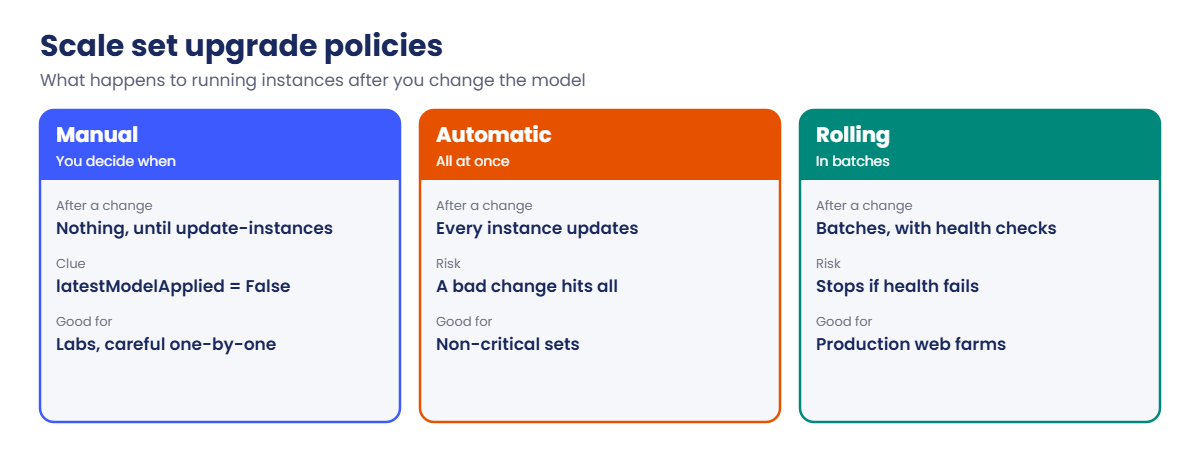
- Model and upgrade policy: the scale set holds a model (image, size, extensions). After you change it, Manual waits for you to update instances, Automatic updates them all at once, and Rolling updates in batches with health checks.
- Overprovisioning (Uniform): Azure briefly creates extra instances and deletes the slow ones, so instance IDs can skip numbers. You aren’t billed for the extras.
- Autoscale: rules on metrics like Percentage CPU, with a minimum, maximum and default count and a cool-down (5 minutes by default).
- Quotas: every scale-out needs vCPU quota, both for the VM family and in total for the region. A free account has small limits.
How it works, step by step
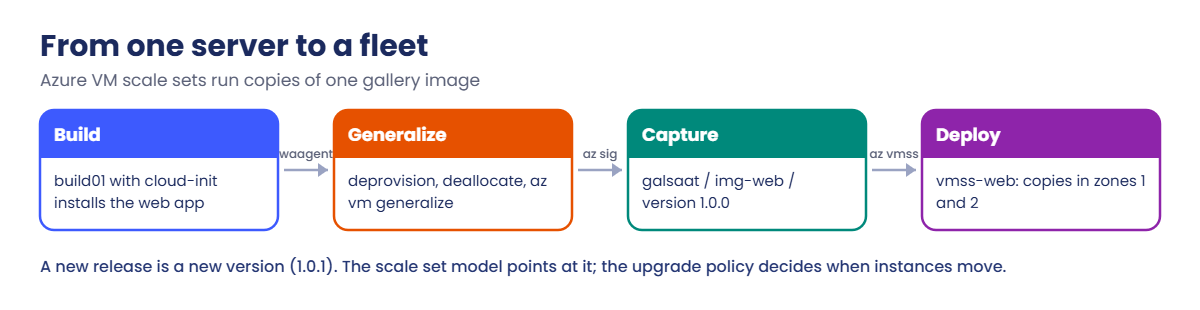
From one built server to a fleet, in four moves:
- Build: create build01 and install the app, here with cloud-init.
- Generalize: deprovision inside Linux, deallocate, then mark it generalized with
az vm generalize. - Capture: create image version 1.0.0 in the gallery from build01. Delete build01 after.
- Deploy: create the scale set from the image version, spread across zones, and add autoscale rules.
Later changes follow the same path. A new app release becomes image version 1.0.1, you point the scale set model at it, and the upgrade policy decides when running instances move to it.
Nothing about an instance should be special. If you SSH in and fix something by hand, the next scale-out or reimage throws it away. Every fix goes into the image or the model.
Hands-on lab: Azure VM scale sets from a gallery image
Load the network IDs and create the lab group:
$v = Get-Content C:\azure-lab\vnet-saat.json | ConvertFrom-Json
az group create --name rg-saat-l20 --tags course=saatvedha-azure lesson=20 -o none1Build the source VM
Save the cloud-init file, then create build01 (about two minutes):
$y = @'
#cloud-config
write_files:
- path: /var/www/index.html
content: |
<h1>img-web 1.0.0</h1>
- path: /etc/systemd/system/saat-web.service
content: |
[Unit]
Description=SaatVedha lab web page
After=network-online.target
[Service]
ExecStart=/usr/bin/python3 -m http.server 80 --directory /var/www
Restart=always
[Install]
WantedBy=multi-user.target
runcmd:
- systemctl daemon-reload
- systemctl enable --now saat-web
'@
[IO.File]::WriteAllText('C:\azure-lab\img-web-init.yaml', $y.Replace("`r`n", "`n"))
az vm create --resource-group rg-saat-l20 --name build01 --image Canonical:ubuntu-24_04-lts:server:latest --size Standard_B2ats_v2 --subnet $v.'snet-web' --public-ip-address '""' --nsg '""' --admin-username azureuser --generate-ssh-keys --custom-data C:\azure-lab\img-web-init.yaml --tags course=saatvedha-azure lesson=20 -o noneCheck the page is served:
az vm run-command invoke --resource-group rg-saat-l20 --name build01 --command-id RunShellScript --scripts 'cloud-init status --wait; curl -s localhost' --query "value[0].message" -o tsvYou should see this:
Enable succeeded:
[stdout]
status: done
<h1>img-web 1.0.0</h1>
[stderr]2Generalize it
Run this:
az vm run-command invoke --resource-group rg-saat-l20 --name build01 --command-id RunShellScript --scripts 'waagent -deprovision+user -force' -o none
az vm deallocate --resource-group rg-saat-l20 --name build01
az vm generalize --resource-group rg-saat-l20 --name build01Deprovision removes azureuser, SSH host keys and the hostname. If the first command reports a timeout, carry on: the deprovision still ran. build01 can never start again after this; it exists only to be copied.
3Create the gallery, image definition and version 1.0.0
Run this (the version takes 10 to 15 minutes):
az sig create --resource-group rg-saat-l20 --gallery-name galsaat --tags course=saatvedha-azure lesson=20 -o none
az sig image-definition create --resource-group rg-saat-l20 --gallery-name galsaat --gallery-image-definition img-web --publisher SaatVedha --offer web --sku ubuntu2404 --os-type Linux --os-state Generalized -o none
$vmId = az vm show --resource-group rg-saat-l20 --name build01 --query id -o tsv
az sig image-version create --resource-group rg-saat-l20 --gallery-name galsaat --gallery-image-definition img-web --gallery-image-version 1.0.0 --virtual-machine $vmId --replica-count 1 --storage-account-type Standard_LRS --tags course=saatvedha-azure lesson=20 -o none
az sig image-version list --resource-group rg-saat-l20 --gallery-name galsaat --gallery-image-definition img-web --query "[].{version:name, state:provisioningState, regions:join(', ', publishingProfile.targetRegions[].name)}" -o table
az vm delete --resource-group rg-saat-l20 --name build01 --yesYou should see this:
Version State Regions
--------- --------- -------------
1.0.0 Succeeded Central IndiaThe CLI set the definition to Gen2 with Trusted Launch support, matching the Ubuntu 24.04 build VM.
4Create the scale set across two zones
Run this (about three minutes):
$img = az sig image-version show --resource-group rg-saat-l20 --gallery-name galsaat --gallery-image-definition img-web --gallery-image-version 1.0.0 --query id -o tsv
az vmss create --resource-group rg-saat-l20 --name vmss-web --image $img --vm-sku Standard_B2ats_v2 --instance-count 2 --zones 1 2 --orchestration-mode Uniform --upgrade-policy-mode Manual --subnet $v.'snet-web' --lb '""' --admin-username azureuser --generate-ssh-keys --tags course=saatvedha-azure lesson=20 -o none
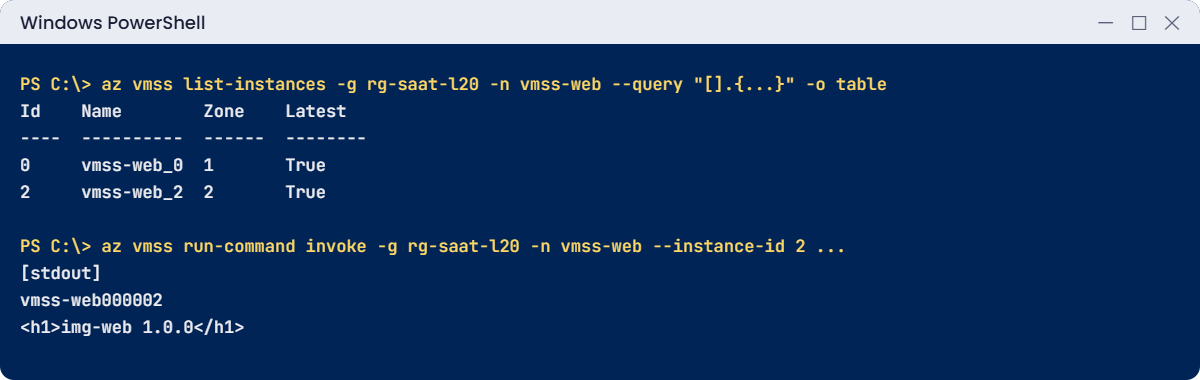
az vmss list-instances --resource-group rg-saat-l20 --name vmss-web --query "[].{id:instanceId, name:name, zone:zones[0], latest:latestModelApplied}" -o tableYou should see something like this:
Id Name Zone Latest
---- ---------- ------ --------
0 vmss-web_0 1 True
2 vmss-web_2 2 TrueThe IDs may skip a number: that’s overprovisioning. One instance in each zone, both on the latest model. There’s no load balancer yet; it joins in Lesson 51.
5Check both copies serve the page
Run this:
$ids = az vmss list-instances --resource-group rg-saat-l20 --name vmss-web --query "[].instanceId" -o tsv
foreach ($id in $ids) { az vmss run-command invoke --resource-group rg-saat-l20 --name vmss-web --instance-id $id --command-id RunShellScript --scripts 'hostname; curl -s localhost' --query "value[0].message" -o tsv }You should see something like this:
Enable succeeded:
[stdout]
vmss-web000000
<h1>img-web 1.0.0</h1>
[stderr]
Enable succeeded:
[stdout]
vmss-web000002
<h1>img-web 1.0.0</h1>
[stderr]Different hostnames, same app, nothing installed by hand.
6Add autoscale rules
Run this:
az monitor autoscale create --resource-group rg-saat-l20 --resource vmss-web --resource-type Microsoft.Compute/virtualMachineScaleSets --name as-vmss-web --min-count 1 --max-count 2 --count 2 -o none
az monitor autoscale rule create --resource-group rg-saat-l20 --autoscale-name as-vmss-web --condition "Percentage CPU > 70 avg 5m" --scale out 1 -o none
az monitor autoscale rule create --resource-group rg-saat-l20 --autoscale-name as-vmss-web --condition "Percentage CPU < 25 avg 10m" --scale in 1 -o none
az monitor autoscale rule list --resource-group rg-saat-l20 --autoscale-name as-vmss-web --query "[].{metric:metricTrigger.metricName, op:metricTrigger.operator, threshold:metricTrigger.threshold, action:scaleAction.direction}" -o tableYou should see this:
Metric Op Threshold Action
-------------- ----------- ----------- --------
Percentage CPU GreaterThan 70.0 Increase
Percentage CPU LessThan 25.0 DecreaseMaximum 2 keeps the lab inside your quota. With idle CPU, autoscale may scale in to 1 after about 10 minutes; that’s the rule working. In production, the scale-in threshold sits well below scale-out, so the set doesn’t flap between sizes.
✅ Checkpoint: Image version 1.0.0 is in galsaat, vmss-web runs copies in zones 1 and 2, and both rules are listed.
Break It, Then Fix It
Both of these are weekly tickets in teams that run scale sets.
1Break it: change the scale set, nothing happens
Roll out a small fix with the Custom Script extension. The settings go in a file, so PowerShell can’t eat the quotes:
Set-Content -Path C:\azure-lab\cse.json -Value '{"commandToExecute": "echo img-web 1.0.0 plus fix 1 > /var/www/index.html"}'
$ids = az vmss list-instances --resource-group rg-saat-l20 --name vmss-web --query "[].instanceId" -o tsv
az vmss extension set --resource-group rg-saat-l20 --vmss-name vmss-web --name CustomScript --publisher Microsoft.Azure.Extensions --version 2.1 --settings '@C:\azure-lab\cse.json' -o none
az vmss list-instances --resource-group rg-saat-l20 --name vmss-web --query "[].{id:instanceId, latest:latestModelApplied}" -o table
foreach ($id in $ids) { az vmss run-command invoke --resource-group rg-saat-l20 --name vmss-web --instance-id $id --command-id RunShellScript --scripts 'curl -s localhost' --query "value[0].message" -o tsv }You’ll see something like this:
Id Latest
---- --------
0 False
2 False
Enable succeeded:
[stdout]
<h1>img-web 1.0.0</h1>
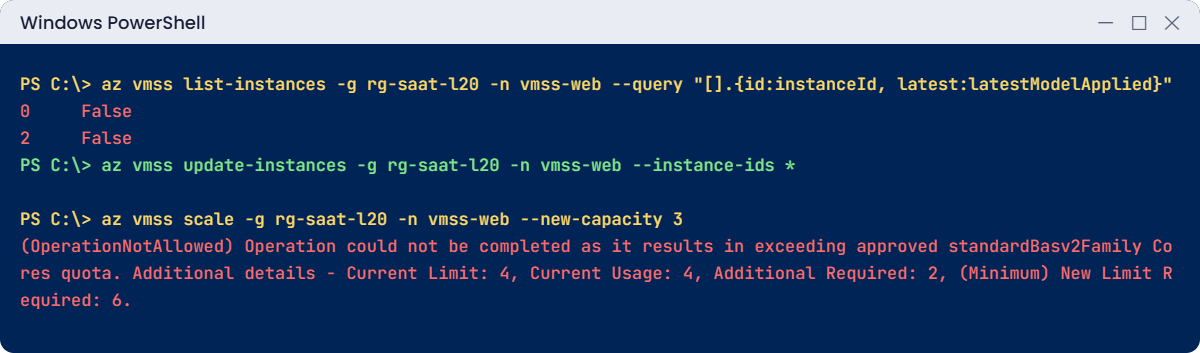
...The command “succeeded”, but the page is unchanged. The fix went into the scale set model, and with upgrade policy Manual, no instance takes a new model until you say so. Latest = False is the clue.
Fix it: update the instances. In production you would do one or a few at a time:
az vmss update-instances --resource-group rg-saat-l20 --name vmss-web --instance-ids '*'
az vmss list-instances --resource-group rg-saat-l20 --name vmss-web --query "[].{id:instanceId, latest:latestModelApplied}" -o table
foreach ($id in $ids) { az vmss run-command invoke --resource-group rg-saat-l20 --name vmss-web --instance-id $id --command-id RunShellScript --scripts 'curl -s localhost' --query "value[0].message" -o tsv }You should see something like this:
Id Latest
---- --------
0 True
2 True
Enable succeeded:
[stdout]
img-web 1.0.0 plus fix 1
...If instances are missing from the list now, autoscale scaled in; that’s fine. For real releases, bake the fix into image version 1.0.1 and use a Rolling policy with health checks, so a bad release stops after the first batch.
2Break it: the scale set won’t grow
Check your quota for this VM family and for the region:
$fam = az vm list-skus --location centralindia --size Standard_B2ats_v2 --query "[0].family" -o tsv
az vm list-usage --location centralindia --query "[?name.value=='$fam' || name.value=='cores'].{name:localName, current:currentValue, limit:limit}" -o tableYou should see something like this (your numbers may differ):
Name Current Limit
------------------------------- --------- -------
Total Regional vCPUs 4 4
Standard Basv2 Family vCPUs 4 4Now ask for more instances than the limit allows. Remove autoscale first, because it would fight a manual change anyway:
az monitor autoscale delete --resource-group rg-saat-l20 --name as-vmss-web
$limit = az vm list-usage --location centralindia --query "min([?name.value=='$fam' || name.value=='cores'].limit)" -o tsv
$cap = [math]::Floor([int]$limit / 2) + 1
if ($cap -le 6) { az vmss scale --resource-group rg-saat-l20 --name vmss-web --new-capacity $cap } else { "Your limit is $limit, so skip this step rather than create $cap VMs." }You’ll get an error like this:
(OperationNotAllowed) Operation could not be completed as it results in exceeding approved standardBasv2Family Cores quota. Additional details - Deployment Model: Resource Manager, Location: centralindia, Current Limit: 4, Current Usage: 4, Additional Required: 2, (Minimum) New Limit Required: 6. Submit a request for Quota increase ...
Code: OperationNotAllowedThe safety check stops the command if your limit is high, so you never create a big set by accident. The error tells you exactly which quota, the current limit and the new limit to ask for. Autoscale hits the same wall silently: its activity log shows the failure while the set stays small during a traffic spike.
Fix it: request a quota increase (portal: Quotas, then Compute) before you need it, or scale within the limit. For this lab, scale within it, then clean up:
az vmss scale --resource-group rg-saat-l20 --name vmss-web --new-capacity 1
az group delete --name rg-saat-l20 --yes
C:\azure-lab\Find-LabResources.ps1 -Lesson 20You should see this:
Nothing tagged course=saatvedha-azure is left.
✅ Checkpoint: You rolled out a model change with update-instances, read a quota error, and nothing from Lesson 20 is left.
Deleting the group also removes the gallery and image. Free accounts often can’t raise quota until upgraded to pay-as-you-go.
This happened at work
Sale day, and the web farm stopped at 10
An online electronics shop ran its storefront on a scale set with autoscale from 4 to 30 instances. On the first morning of a festival sale, CPU hit 95% and pages slowed to 20 seconds. The autoscale chart showed it trying to scale out every five minutes, and failing.
The activity log had the answer: the family quota was 40 vCPUs, and 10 instances of a 4 vCPU size used all of it. Nobody had raised the quota when the maximum went from 10 to 30 the month before.
What they changed: an emergency quota request was approved within the hour. After the sale, the team added a check to every scaling change: max instances times vCPUs must fit the quota with 20% to spare. Quota usage now raises an alert at 80%.
Common mistakes and troubleshooting
| Mistake | What you see | What to do |
|---|---|---|
| Changing the model with Manual upgrade policy | latestModelApplied False, old behaviour | update-instances, or use Rolling. |
| Max instances above quota | Scale-out fails; OperationNotAllowed in activity log | Check list-usage; request quota ahead. |
| Fixing an instance by hand | Fix disappears on the next scale-out or reimage | Bake fixes into the image or model. |
| Capturing without generalizing | Image version fails, or clones share identity | Deprovision, deallocate, az vm generalize. |
| Hyphen in a gallery name | Create fails on the name | Use letters, numbers, underscores, periods. |
| Scale-in threshold close to scale-out | Instance count flaps all day | Keep a wide gap, like 70% out and 25% in. |
| Manual scale with autoscale on | Count snaps back | Change the autoscale min, max or default instead. |
Interview questions
Click a question to open it. Each one is written the way an interviewer would ask it. Under it you will see why they ask it and one way you could answer, in your own words.
Fresher level
1. What is a VM scale set?
Why they ask this: The basic definition.
How you might answer: A group of identical VMs created from one image and one model, managed together. It can spread them across zones and grow or shrink the group automatically with autoscale rules.
2. What’s the difference between a generalized and a specialized image?
Why they ask this: They want to know when each is used.
How you might answer: A generalized image has machine-specific data removed, so each new VM gets its own identity. A specialized image is an exact copy with the same users and settings. Fleets and scale sets use generalized images.
3. What is an Azure Compute Gallery?
Why they ask this: They’re checking you know the modern image service.
How you might answer: A place to store and version images. It holds image definitions and numbered versions, copies them to other regions and shares them with other subscriptions. It replaces single-region managed images for most work.
2–5 years experience
4. You changed a scale set’s extension but instances behave the same. Why?
Why they ask this: A very common operational ticket.
How you might answer: The change updated the model only. With upgrade policy Manual, instances keep the old model until you run update-instances. I’d check latestModelApplied, then update one instance, test it, and roll out the rest.
5. Autoscale is set to 30 but the set is stuck at 10 during a spike. What do you check?
Why they ask this: They want quota and activity log knowledge.
How you might answer: The autoscale run history and the activity log for failed scale operations, then vCPU quota for the family and the region with az vm list-usage. Quota is the usual cause. I’d also check the subnet has enough free IP addresses.
6. Flexible or Uniform orchestration: which would you choose?
Why they ask this: They’re checking current guidance.
How you might answer: Flexible for new work: it’s the default and recommended mode, instances are normal VMs, and sizes can mix. Uniform is still used for very large sets of identical instances and some older tools. I’d pick Flexible unless something specific needs Uniform.
Senior level
7. How would you roll out a new app version to a scale set safely?
Why they ask this: They want a release process, not one command.
How you might answer: Build image version 1.0.1 in a pipeline, test it, then point the model at it with a Rolling upgrade policy and application health checks. Rolling updates a batch at a time and stops if health fails. I’d keep 1.0.0 in the gallery for quick rollback.
8. How do you design autoscale rules that don’t flap?
Why they ask this: They want practical tuning experience.
How you might answer: A wide gap between scale-out and scale-in thresholds, longer windows for scale-in, cool-downs, and a sensible default count. I’d scale out fast and in slowly, and add a schedule-based profile for known busy hours.
9. What would you include in an image pipeline?
Why they ask this: They’re checking image governance.
How you might answer: Start from a supported marketplace image, apply OS updates and hardening, install agents and the app, test, generalize and publish a new version to the gallery with replicas in the regions we use. Old versions get an end-of-life date, and scale sets are moved forward on a schedule.
Quick quiz
Q1. What does generalizing a Linux VM remove?
- The OS disk
- Users, host keys and hostname
- The network card
- The image definition
Show answer
B — Generalizing strips machine-specific identity so each copy is unique.
Q2. A scale set uses upgrade policy Manual. After a model change, instances:
- Update at once
- Update in batches
- Keep the old model until you update them
- Are deleted
Show answer
C — Manual means nothing changes until you run update-instances.
Q3. Which property shows an instance runs the current model?
- provisioningState
- latestModelApplied
- powerState
- zones
Show answer
B — latestModelApplied is False until the instance is updated.
Q4. Scale-out fails with OperationNotAllowed and “Cores quota”. What do you do?
- Delete the gallery
- Request a quota increase or scale within it
- Change the zone
- Restart autoscale
Show answer
B — The error names the quota and the new limit needed.
Q5. Which is a valid gallery name?
- gal-saat
- gal saat
- galsaat
- gal/saat
Show answer
C — Letters, numbers, underscores and periods only.
Quick recap
You can build an image pipeline in miniature and run a fleet from it.
- Generalize, capture to a gallery, then deploy many copies from a version.
- A scale set runs from a model; the upgrade policy decides when instances take changes.
- latestModelApplied tells you which instances are behind.
- Autoscale needs vCPU quota; check list-usage before raising the maximum.
- Never fix instances by hand; fix the image or the model.
Next lesson
Lesson 21: Azure storage accounts and redundancy → You create a storage account and see how LRS, ZRS and GRS keep your data safe.
Further reading: Azure VM scale sets
Want to go deeper into Azure VM scale sets? See Microsoft’s Virtual Machine Scale Sets overview and Store and share images in an Azure Compute Gallery. You can also see the full plan for this course on the Azure Cloud Administration course page.
