Your Azure Lab Toolkit: Azure CLI, PowerShell, Cloud Shell
-
Phase 0: Before you start
-
Phase 1: The foundation
-
Phase 2: Day-to-day operations
-
Phase 3: Enterprise architecture
-
Phase 4: Troubleshooting step by step
-
Phase 5: Final project and career
A clean Azure CLI setup on your laptop saves you hours in every lesson that follows. The portal is good for looking around, but checking twenty VMs, or rebuilding a lab in two minutes, needs commands.
In this lesson you install the Azure CLI, the Az PowerShell module and the Bicep tools, sign in with MFA, and set a few defaults. You also create your first tagged resource group, find it with a query, and delete it.
At the end you save a small script that lists everything this course has created in your subscription. Every lab from now on finishes with it, so nothing is left running by mistake.
| Time | You need | Cost | By the end you can |
|---|---|---|---|
| About 45 minutes | Windows 10 or 11, the Azure account from Lesson 2, admin rights to install apps | Nothing (a resource group is free) | Run az and Az PowerShell commands against your subscription, use tags and queries, and clean up with one script |
What it is, in one line
The Azure CLI (az) and Az PowerShell let you do anything the portal does, as commands you can repeat, check and share.
In Simple Words
Ordering food by phone instead of walking to the counter
The Azure portal is like walking up to a restaurant counter and pointing at pictures. It’s easy, but slow when you want the same order for twenty people.
The Azure CLI is like phoning the restaurant with a written list: “twenty plates, no onions, deliver at one”. You say it once, clearly, and you can read the same list again next week.
Both go to the same kitchen. The food is the same. The phone list is just faster and harder to get wrong.
Engineer's View
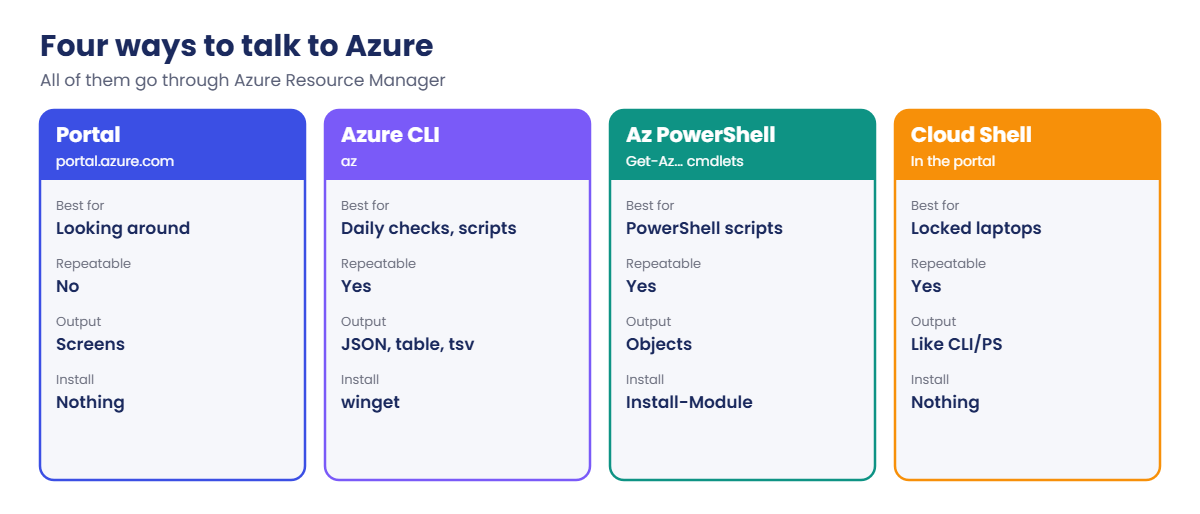
Three tools, one front door
- Azure CLI (
az): a cross-platform command-line tool written in Python. Output is JSON by default, and every command accepts--query(JMESPath) and--output(json,table,tsv,yaml). This course uses it for most labs. - Az PowerShell module: cmdlets such as
Get-AzVMandNew-AzResourceGroupthat return real PowerShell objects. Handy when you already script in PowerShell. You can install only the parts you need, likeAz.AccountsandAz.Resources. - Bicep: a language for describing resources in files. The Azure CLI can install the Bicep tools for you with
az bicep install. You’ll use it from Lesson 41. - Cloud Shell: a browser shell in the portal with all of the above already installed, signed in as you. It’s the fallback when you are on a locked-down laptop.
All of them call Azure Resource Manager at management.azure.com, exactly like the portal. On Windows the CLI signs in through the Windows sign-in broker (WAM) by default, and after sign-in it shows a list of your subscriptions to choose from. Because MFA is mandatory for create, update and delete actions from these tools, your token must include MFA, which it does when you sign in interactively.
The CLI keeps its settings in %USERPROFILE%\.azure. Defaults such as the location live in the config file there, and the CLI shows each one in its help text, so you always know where a value came from.
How it works, step by step
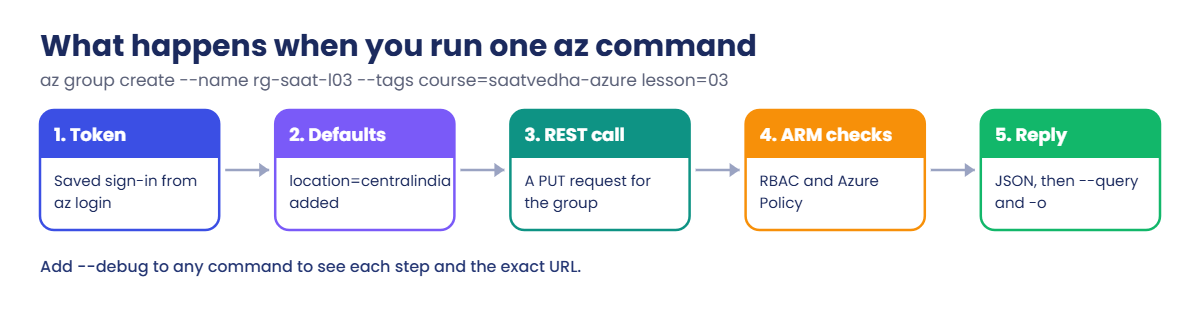
Here is what happens when you run one command, for example az group create:
- The CLI reads your saved sign-in token and your default subscription.
- It fills in defaults you set, such as
location=centralindia. - It turns your arguments into a REST request, for example a
PUTto/subscriptions/<id>/resourcegroups/rg-saat-l03. - Azure Resource Manager checks RBAC and Azure Policy, then creates the group.
- The reply comes back as JSON, which
--queryfilters and--outputformats.
Add --debug to any command to see each of those steps, including the exact URL. It’s the fastest way to understand an error that doesn’t make sense.
And here is the habit that keeps your bill at zero: every resource this course creates gets two tags, course=saatvedha-azure and lesson=NN. A tag is just a name and value stuck on a resource, like a label on a box. With the tags in place, one query finds everything you forgot to delete.
Hands-on lab: install, sign in, tag and clean up
You install the tools, sign in, set defaults, create a tagged resource group, find it two ways, then delete it. Run everything in Windows PowerShell unless a step says otherwise.
1Install the Azure CLI
Run this:
winget install --exact --id Microsoft.AzureCLIWhen it finishes, close PowerShell and open a new window. The installer adds az to your PATH, but windows that were already open don’t see the change.
In the new window, run this:
Set-Location C:\azure-lab
az versionYou should see something like this:
{
"azure-cli": "2.91.0",
"azure-cli-core": "2.91.0",
"azure-cli-telemetry": "1.1.0",
"extensions": {}
}2Sign in
Run this:
az loginA Windows sign-in window opens. Choose the account from Lesson 2 and approve the MFA prompt. Back in PowerShell, the CLI lists your subscriptions and asks you to pick one.
Press Enter to keep the one marked with *.
Then run this:
az account show --query "{subscription:name, user:user.name, tenant:tenantId}" -o tableYou should see something like this:
Subscription User Tenant
-------------------- --------------------- ------------------------------------
Azure subscription 1 priya.k@outlook.com 9a8b7c6d-1e2f-4a3b-8c9d-0e1f2a3b4c5d3Set your defaults
Run this:
az configure --defaults location=centralindia
az configure --list-defaults -o tableYou should see something like this:
Name Source Value
-------- ---------------------------------- ------------
location C:\Users\priya\.azure\config centralindiaNow commands that need a location use Central India unless you say otherwise. We don’t set a default resource group: each lab has its own, and a forgotten default group is a classic way to create things in the wrong place.
4Create a tagged resource group
A resource group is a folder for related resources. Deleting the folder deletes everything inside it, which makes cleanup easy.
Run this:
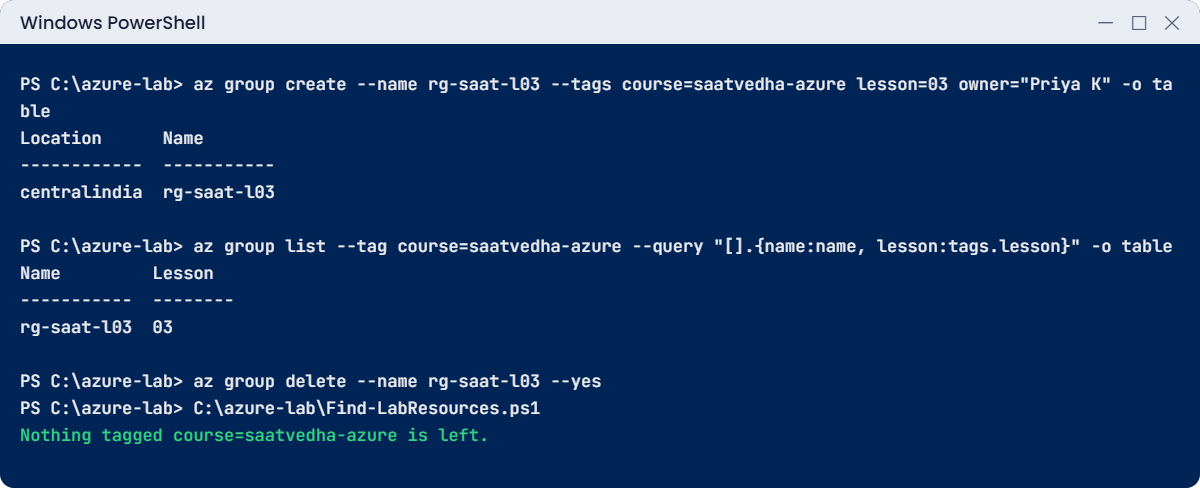
az group create --name rg-saat-l03 --tags course=saatvedha-azure lesson=03 owner="Priya K" -o tableYou should see something like this:
Location Name
------------ -----------
centralindia rg-saat-l03Check the tags:
az group show --name rg-saat-l03 --query tagsYou should see something like this:
{
"course": "saatvedha-azure",
"lesson": "03",
"owner": "Priya K"
}5Find it with a query
Run this:
az group list --tag course=saatvedha-azure --query "[].{name:name, lesson:tags.lesson, location:location}" -o tableYou should see something like this:
Name Lesson Location
----------- -------- ------------
rg-saat-l03 03 centralindia--tag asks Azure to filter on the server side. --query then picks only the fields you want. You’ll use this pattern in almost every lab.
6Do the same with Az PowerShell
Run this (it takes a few minutes the first time):
Install-Module Az.Accounts, Az.Resources -Scope CurrentUser -Repository PSGallery -Force
Connect-AzAccount
Get-AzResourceGroup -Tag @{ course = 'saatvedha-azure' } | Select-Object ResourceGroupName, LocationIf PowerShell asks to install the NuGet provider, answer Y. Connect-AzAccount opens the same sign-in window, then may ask you to choose a subscription.
You should see something like this at the end:
ResourceGroupName Location
----------------- --------
rg-saat-l03 centralindiaSame group, same answer, different tool. The CLI gives you text and JSON; Az PowerShell gives you objects you can pipe into other cmdlets.
7Add VS Code and the Bicep tools
Run this:
winget install --exact --id Microsoft.VisualStudioCode
az bicep install
az bicep versionYou should see something like this:
Bicep CLI version 0.48.1 (cec7951cf6)Open VS Code once, go to Extensions, and install Bicep (by Microsoft). You’ll start using it in Lesson 41; installing it now saves time later.
8Save the cleanup checker you’ll use in every lab
Paste this whole block:
@'
param([string]$Lesson)
$groups = az group list --tag course=saatvedha-azure --query "[].{name:name, lesson:tags.lesson, location:location}" -o json | ConvertFrom-Json
$items = az resource list --tag course=saatvedha-azure --query "[].{name:name, type:type, group:resourceGroup, lesson:tags.lesson}" -o json | ConvertFrom-Json
if ($Lesson) {
$groups = $groups | Where-Object lesson -eq $Lesson
$items = $items | Where-Object lesson -eq $Lesson
}
if (-not $groups -and -not $items) { 'Nothing tagged course=saatvedha-azure is left.'; return }
if ($groups) { 'Resource groups:'; $groups | Format-Table -AutoSize | Out-String -Width 200 }
if ($items) { 'Resources:'; $items | Format-Table -AutoSize | Out-String -Width 200 }
'@ | Set-Content C:\azure-lab\Find-LabResources.ps1
C:\azure-lab\Find-LabResources.ps1You should see something like this:
Resource groups:
name lesson location
---- ------ --------
rg-saat-l03 03 centralindiaThe group shows up, but no resources, because it’s empty. If Windows says scripts are disabled, run Set-ExecutionPolicy -Scope CurrentUser RemoteSigned once, then try again.
9Clean up
Run this:
az group delete --name rg-saat-l03 --yes
C:\azure-lab\Find-LabResources.ps1You should see this:
Nothing tagged course=saatvedha-azure is left.✅ Checkpoint: az version and Get-AzResourceGroup both work, your default location is centralindia, and Find-LabResources.ps1 says nothing is left.
Break It, Then Fix It
Two problems you’ll meet on almost every new laptop or script. The first stops you completely. The second slips through and makes a mess of your tags.
1Break it: run az in an old window
Open a PowerShell window before you install a tool, install it from another window, then go back to the first one. Or simply run this in a window that was open during step 1:
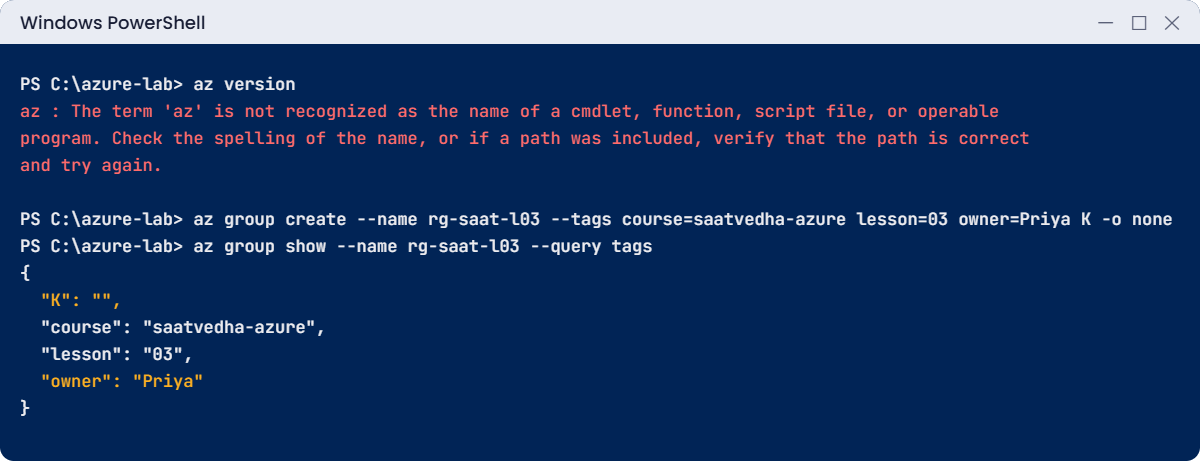
az versionYou’ll get this error:
az : The term 'az' is not recognized as the name of a cmdlet, function, script file, or operable program.
Check the spelling of the name, or if a path was included, verify that the path is correct and try again.
At line:1 char:1
+ az version
+ ~~
+ CategoryInfo : ObjectNotFound: (az:String) [], CommandNotFoundException
+ FullyQualifiedErrorId : CommandNotFoundExceptionThe tool is installed, but this window still has the old PATH. Each process copies the PATH when it starts.
Fix it: close the window and open a new one. To check where az lives, run:
Get-Command az | Select-Object SourceYou should see something like this:
Source
------
C:\Program Files\Microsoft SDKs\Azure\CLI2\wbin\az.cmd2Break it: a tag value with a space and no quotes
Run this:
az group create --name rg-saat-l03 --tags course=saatvedha-azure lesson=03 owner=Priya K -o none
az group show --name rg-saat-l03 --query tagsYou should see something like this:
{
"K": "",
"course": "saatvedha-azure",
"lesson": "03",
"owner": "Priya"
}No error at all. --tags takes a list separated by spaces, so K became its own tag with an empty value, and the owner is now just “Priya”. Reports that group costs by owner will now be wrong.
Fix it: remove the stray tag and set the owner with quotes:
az group update --name rg-saat-l03 --remove tags.K --set tags.owner="Priya K" -o none
az group show --name rg-saat-l03 --query tagsYou should see something like this:
{
"course": "saatvedha-azure",
"lesson": "03",
"owner": "Priya K"
}Then clean up again:
az group delete --name rg-saat-l03 --yes
C:\azure-lab\Find-LabResources.ps1
✅ Checkpoint: You can explain both errors, the tags are fixed, and the checker says nothing is left.
This happened at work
The script that ran in the wrong subscription
An IT team at a hospital group had a nightly script that deleted test resource groups older than seven days. It ran on an admin’s jump server with az, using whatever subscription was the default.
One afternoon the admin used the same server to check something in production and ran az account set to the production subscription. He forgot to switch back. That night the cleanup script ran against production and deleted three resource groups whose names started with “test-“: one of them held the integration server for the lab results system.
Lab reports stopped reaching doctors until a restore finished the next morning.
What they changed: the script now sets the subscription by ID on its first line and refuses to run if the subscription name contains “prod”. Deletes need a tag (autodelete=true) instead of a name pattern. And the script runs as a managed identity with Contributor only on the test subscription, so even a mistake can’t touch production.
Common mistakes and troubleshooting
| Mistake | What you see | What to do |
|---|---|---|
| Running az in a window opened before installing | The term az is not recognized | Open a new window. Check with Get-Command az. |
| Tag values with spaces and no quotes | Extra tags with empty values | Quote the whole value: owner=”Priya K”. Read tags back after creating. |
| A default resource group you forgot about | Resources appear in an old group | Don’t set a default group, or check az configure --list-defaults. |
| Bicep not installed | Bicep CLI not found. Install it now by running “az bicep install”. | Run az bicep install once. |
| Two tools signed in to different subscriptions | CLI and PowerShell show different results | Check az account show and Get-AzContext before you change anything. |
| Scripts blocked by policy | running scripts is disabled on this system | Set-ExecutionPolicy -Scope CurrentUser RemoteSigned. |
Interview questions
Click a question to open it. Each one is written the way an interviewer would ask it. Under it you will see why they ask it and one way you could answer, in your own words.
Fresher level
1. What’s the difference between the Azure CLI and Azure PowerShell?
Why they ask this: They want to know you can use both and pick sensibly.
How you might answer: Both talk to Azure Resource Manager and can do the same things. The CLI is a command-line tool that returns JSON, good for quick checks and bash or PowerShell scripts, while the Az module returns PowerShell objects that fit naturally into PowerShell pipelines.
I use the CLI for most day-to-day checks and Az PowerShell when I’m already writing a PowerShell script.
2. How do you check which subscription you’re working in before running a command?
Why they ask this: They want to see a safe habit, because wrong-subscription mistakes are common and costly.
How you might answer: I run az account show or, in PowerShell, Get-AzContext. If I’m going to change something, I set the subscription explicitly with its ID first.
3. What is a resource group, in simple words?
Why they ask this: This is a basic concept check.
How you might answer: It’s a folder for resources that share a life cycle, like the VM, disk, network card and IP of one app. You can give access, apply tags and policies, see costs and delete everything at once at that level.
2–5 years experience
4. A command works in Cloud Shell but fails on your laptop. How would you find out why?
Why they ask this: They want a methodical comparison rather than guessing.
How you might answer: I’d compare the account and subscription in both with az account show, then the CLI versions with az version, and any defaults with az configure --list-defaults. Then I’d run the failing command with --debug to see the exact request and response.
Often it’s a different subscription, an old CLI version or a proxy on the company network.
5. How do you get just the names and IPs of all VMs from the CLI, in a table?
Why they ask this: They’re checking that you know --query and output formats, which you use every day.
How you might answer: I’d use az vm list-ip-addresses with a JMESPath query, something like --query "[].{vm:virtualMachine.name, ip:virtualMachine.network.privateIpAddresses[0]}" -o table. JMESPath lets me pick and rename fields, and -o table formats them.
6. Why do you tag resources, and what tags would you start with?
Why they ask this: They want practical tagging, not theory.
How you might answer: Tags let me find, report and clean up resources by owner, app and environment, and they show up in cost reports. I’d start with owner, app, environment and cost centre, and enforce them with Azure Policy on new resources.
In my lab I tag everything with course and lesson, so one query shows anything I forgot to delete.
Senior level
7. How would you stop people from running cleanup scripts against the wrong subscription?
Why they ask this: They want controls, not just “be careful”.
How you might answer: I’d make scripts set the subscription by ID and check its name or a tag before doing anything destructive. The script should run as a managed identity or service principal with rights only where it’s meant to work, so a mistake can’t reach production.
Deletes should be driven by tags like an expiry date, not by name patterns, and logged to a place the team can review.
8. Your team mixes portal clicks, CLI scripts and Bicep. How would you bring some order?
Why they ask this: They’re checking if you can move a team toward repeatable work without blocking them.
How you might answer: I’d keep the portal for looking and emergencies, and move anything we build more than once into Bicep in a Git repo with pull requests. Small checks and reports can stay as CLI scripts in the same repo.
Then I’d add Azure Policy for required tags and allowed regions, so even portal changes follow the same rules.
9. What would you check when a new engineer’s CLI gets AuthorizationFailed but the portal works?
Why they ask this: They want to see you know about tenants, subscriptions and token differences.
How you might answer: First, whether the CLI is signed in to the same tenant and subscription as the portal. Then whether the role was granted recently, because a token issued before the role change won’t have it, so a fresh az login can fix it.
If it still fails, I’d read the error, which names the action and scope, and compare it with the role assignment.
Quick quiz
Q1. After installing the Azure CLI, an old PowerShell window says az is not recognized. Why?
- The install failed
- The window still has the old PATH
- You need to sign in first
- The CLI only works in Cloud Shell
Show answer
B — Each process reads PATH when it starts. Open a new window.
Q2. What does --query do?
- Filters the JSON reply with a JMESPath expression
- Sends a search to Bing
- Runs a KQL query
- Makes the command faster on the server
Show answer
A — The --query option runs a JMESPath expression on the reply, on your machine.
Q3. You run --tags owner=Priya K without quotes. What happens?
- An error
- owner is “Priya K”
- owner is “Priya” and a tag K with an empty value is added
- The tag is ignored
Show answer
C — Tags are separated by spaces, so K becomes its own tag.
Q4. Where does az configure --defaults save the location?
- In Azure Resource Manager
- In the config file in your .azure folder
- In the registry only
- In Cloud Shell
Show answer
B — Defaults are saved locally in %USERPROFILE%\.azure\config.
Q5. Why does every course resource get course and lesson tags?
- Tags make resources cheaper
- So one query finds everything left to delete
- Azure requires tags
- To make the portal faster
Show answer
B — Tags let Find-LabResources.ps1 list anything you forgot to clean up.
Quick recap
Your laptop now has the same tools Azure admins use every day, and a habit that keeps your bill at zero.
- The Azure CLI, Az PowerShell and Bicep all go through Azure Resource Manager, like the portal.
- Open a new window after installing a tool; old windows keep the old PATH.
- Set a default location, but not a default resource group.
- Quote tag values that contain spaces, and read the tags back.
- Finish every lab with C:\azure-lab\Find-LabResources.ps1.
Next lesson
Lesson 4: Azure regions, availability zones and billing → You list the regions and zones you can use, see which services each has, and learn how tags and Cost analysis show you what you spend.
Further reading: Azure CLI setup
Want to go deeper into Azure CLI setup? Microsoft’s install guide is Install the Azure CLI on Windows, and JMESPath queries are explained in How to query Azure CLI command output. You can also see the full plan for this course on the Azure Cloud Administration course page.
