Log Analytics workspaces and KQL basics

KQL queries (Kusto Query Language) are how you read everything Azure Monitor collects: heartbeats, performance counters, syslog, Windows events, sign-ins and more, all stored in a Log Analytics workspace.

KQL reads like a pipeline: start from a table, then filter, shape and summarize step by step with the pipe character. Ten operators cover most of an admin’s daily work, and this lesson teaches those ten.

You’ll practise on a small sign-in table you create yourself, so every answer below is exact, then run the same patterns on the real data from Lesson 32.

TimeYou needCostBy the end you can
About 45 minutesThe law-saat workspace from Lesson 32, the portal and the CLINothing extra: queries on data already in the workspaceWrite KQL to filter, summarize, bin and chart data, and read KQL error messages

What it is, in one line

KQL is a read-only query language where each pipe step filters or reshapes the rows from the step before.

In Simple Words

Sorting the school’s sign-in register

Imagine the register at the school gate: every row has a time, a door, a name and whether the card worked. To find out who keeps failing at the door, you’d go step by step.

First, keep only the failed rows. Then, count them by name. Then, sort with the biggest count on top.

Each step takes the result of the one before.

That’s exactly how a KQL query works. The pipe sign | is just “and then”.

Engineer's View

The ten operators you’ll use most

OperatorWhat it doesExample
whereKeeps rows that matchwhere Result == ‘Failure’
projectPicks and renames columnsproject TimeGenerated, User
extendAdds a calculated columnextend Slow = LatencyMs > 300
summarizeGroups and aggregatessummarize count() by User
bin()Buckets time or numbersby bin(TimeGenerated, 1h)
sort by / topOrders rowstop 5 by LatencyMs desc
takeAny N rows, for a quick looktake 10
renderDraws a chart in the portalrender timechart
letNames a value or querylet since = ago(1d);
joinCombines two tables on a keyjoin kind=inner (Perf) on Computer
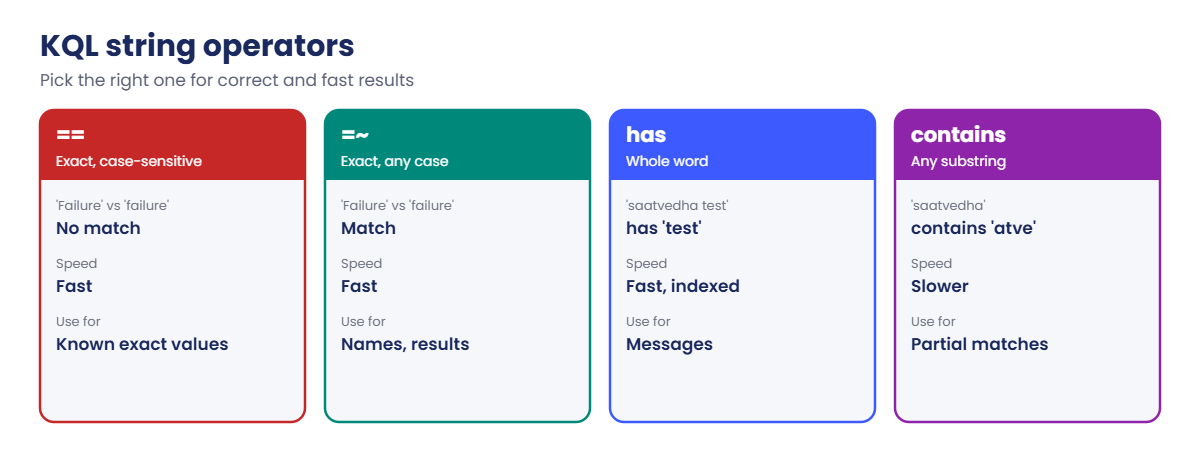
  • Strings: == is case-sensitive, =~ isn’t. has matches whole words and is fast; contains matches any substring and is slower.
  • Time first: filter on TimeGenerated early, and set the portal’s time range. The portal adds the time range unless your query sets its own.
  • Workspace basics: each data type has a table (Heartbeat, Perf, Syslog, Event). Retention is set per workspace and per table. Queries are read-only and billed only for some table plans.

How it works, step by step

How KQL runs this query, step by step:

SignIns
| where Result == 'Failure'
| summarize Failures = count() by User
| sort by Failures desc
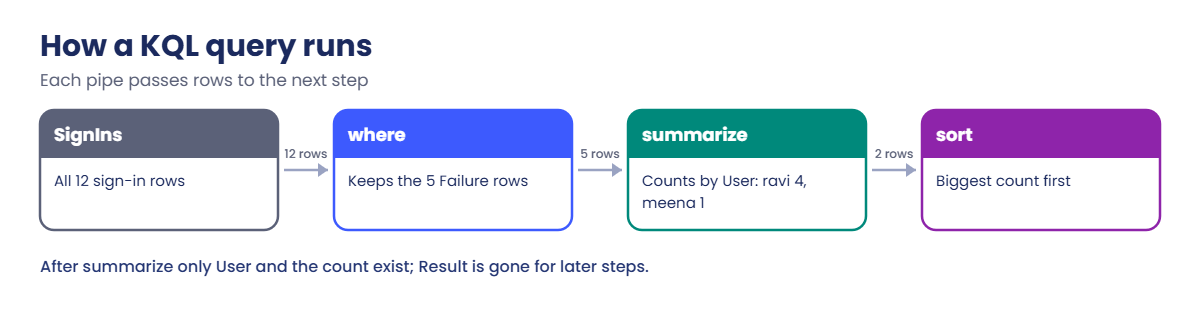
KQL queries pipeline: rows flowing through where, summarize and sort
  1. SignIns returns all 12 rows.
  2. where keeps the 5 rows where Result is exactly Failure.
  3. summarize groups those 5 rows by User and counts each group: ravi 4, meena 1.
  4. sort puts the biggest count first.
  5. Only what leaves the last step is shown. Columns dropped by summarize no longer exist for later steps.

That last point is behind the most common KQL error, which you’ll trigger on purpose in Break It.

KQL queries string operators compared: ==, =~, has and contains

Write queries in that order: time filter, other filters, then shape and summarize. It’s easier to read and much faster on big tables.

Hands-on lab: KQL queries on a practice table

Get your workspace ID, and save the sample data as a KQL function so every query can call it by name:

$ws = az monitor log-analytics workspace show --resource-group rg-saat-core --name law-saat --query customerId -o tsv
$t = @'
datatable(TimeGenerated:datetime, Computer:string, User:string, Result:string, LatencyMs:int) [
    datetime(2026-10-20 09:05:00), 'web01', 'asha', 'Success', 120,
    datetime(2026-10-20 09:12:00), 'web01', 'ravi', 'Failure', 340,
    datetime(2026-10-20 09:15:00), 'win01', 'asha', 'Success', 95,
    datetime(2026-10-20 09:40:00), 'web01', 'ravi', 'Failure', 410,
    datetime(2026-10-20 09:58:00), 'web01', 'ravi', 'Failure', 380,
    datetime(2026-10-20 10:02:00), 'win01', 'meena', 'Success', 150,
    datetime(2026-10-20 10:20:00), 'web01', 'asha', 'Success', 110,
    datetime(2026-10-20 10:31:00), 'win01', 'ravi', 'Failure', 520,
    datetime(2026-10-20 10:45:00), 'web01', 'meena', 'Success', 130,
    datetime(2026-10-20 11:03:00), 'win01', 'asha', 'Success', 90,
    datetime(2026-10-20 11:10:00), 'web01', 'ravi', 'Success', 200,
    datetime(2026-10-20 11:30:00), 'win01', 'meena', 'Failure', 610
]
'@
Set-Content -Path C:\azure-lab\signins.kql -Value $t
az monitor log-analytics workspace saved-search create --resource-group rg-saat-core --workspace-name law-saat --name signins --category saatvedha --display-name SignIns --func-alias SignIns --saved-query '@C:\azure-lab\signins.kql' -o none
az monitor log-analytics query --workspace $ws --analytics-query "SignIns | count" --query "[0].Count" -o tsv

You should see this:

12

Now open the portal, go to law-saat, then Logs, and switch to KQL mode. Run each query below. Times show in UTC here; the portal may show your local time.
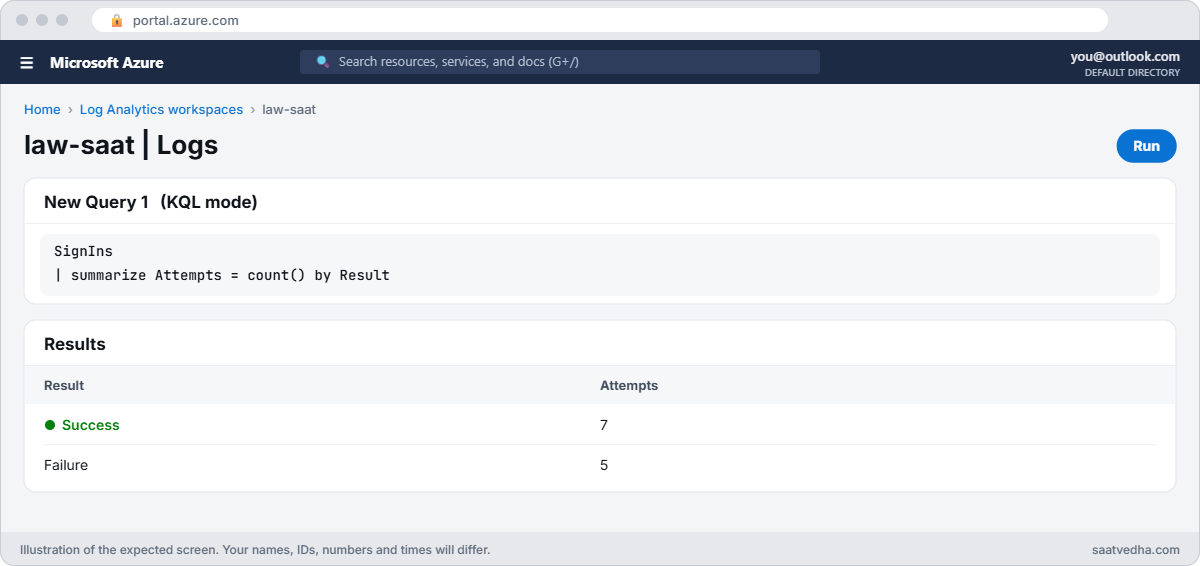
KQL queries in Log Analytics with the SignIns function
law-saat Logs in KQL mode with the SignIns function.

1Filter and pick columns

SignIns
| where Result == 'Failure'
| project TimeGenerated, Computer, User, LatencyMs
| sort by TimeGenerated asc

You should see this:

TimeGenerated         Computer  User   LatencyMs
2026-10-20 09:12:00   web01     ravi   340
2026-10-20 09:40:00   web01     ravi   410
2026-10-20 09:58:00   web01     ravi   380
2026-10-20 10:31:00   win01     ravi   520
2026-10-20 11:30:00   win01     meena  610

2Count by user

SignIns
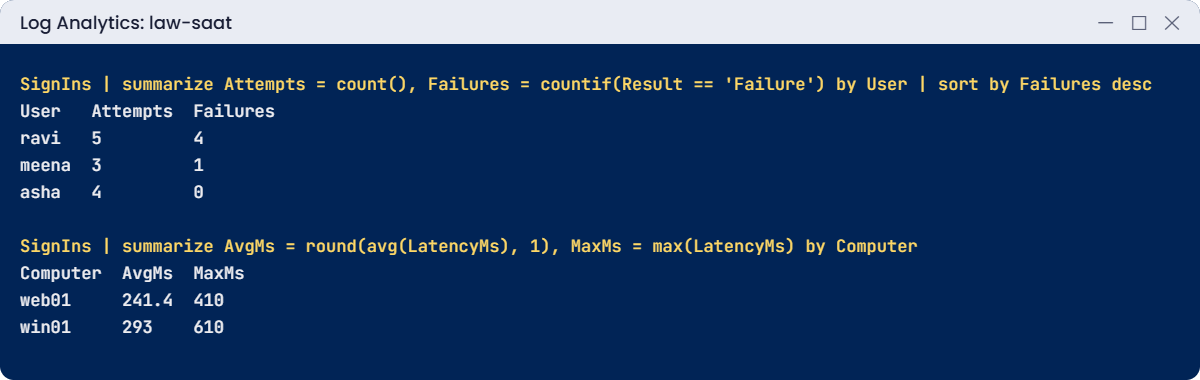
| summarize Attempts = count(), Failures = countif(Result == 'Failure') by User
| sort by Failures desc

You should see this:

User   Attempts  Failures
ravi   5         4
meena  3         1
asha   4         0

ravi failed 4 of 5 times. In a real sign-in log, that pattern is worth a look.

3Averages and maximums by server

SignIns
| summarize AvgMs = round(avg(LatencyMs), 1), MaxMs = max(LatencyMs) by Computer

You should see this:

Computer  AvgMs  MaxMs
web01     241.4  410
win01     293    610

4Bucket by hour and chart it

SignIns
| summarize Attempts = count() by bin(TimeGenerated, 1h)
| sort by TimeGenerated asc
| render columnchart

You should see this (as a chart in the portal):

TimeGenerated         Attempts
2026-10-20 09:00:00   5
2026-10-20 10:00:00   4
2026-10-20 11:00:00   3

5The same patterns on real data

These use what web01 and win01 sent in Lesson 32. Set the time range to the last 7 days:

Heartbeat
| summarize LastSeen = max(TimeGenerated) by Computer

Perf
| where CounterName == '% Processor Time'
| summarize AvgCpu = avg(CounterValue) by bin(TimeGenerated, 5m), Computer
| render timechart

Run them one at a time (select the lines, then Run). You’ll see when each VM last reported and its CPU curve during the Lesson 32 lab.
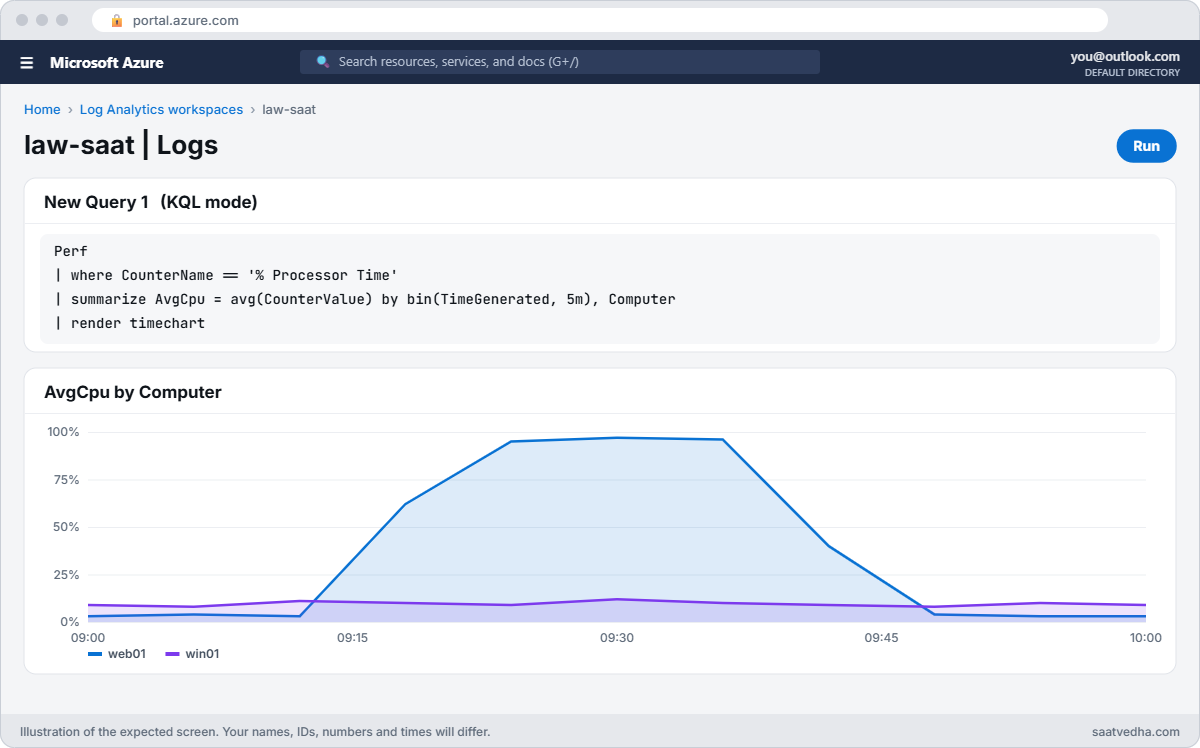
KQL timechart of CPU from Log Analytics
Your CPU curve from the Lesson 32 lab. Your times and values will differ.

6Use let, top and dcount

Two more operators you’ll use every week. let names a value once so you don’t repeat it, and top returns the biggest N rows without sorting the whole table first.

let slow = 300;
SignIns
| where LatencyMs > slow
| top 3 by LatencyMs desc
| project TimeGenerated, Computer, User, LatencyMs

You should see this:

TimeGenerated         Computer  User   LatencyMs
2026-10-20 11:30:00   win01     meena  610
2026-10-20 10:31:00   win01     ravi   520
2026-10-20 09:40:00   web01     ravi   410

Now count how many different users signed in on each server. dcount() counts distinct values, which is what you want for “how many users”, “how many computers” or “how many IP addresses”.

SignIns
| summarize Users = dcount(User), SignIns = count() by Computer

You should see this:

Computer  Users  SignIns
web01     3      7
win01     3      5

Both servers saw all three users, but web01 handled more sign-ins. In a real workspace, the same query on SigninLogs or SecurityEvent tells you which servers are shared and which belong to one person or one app.

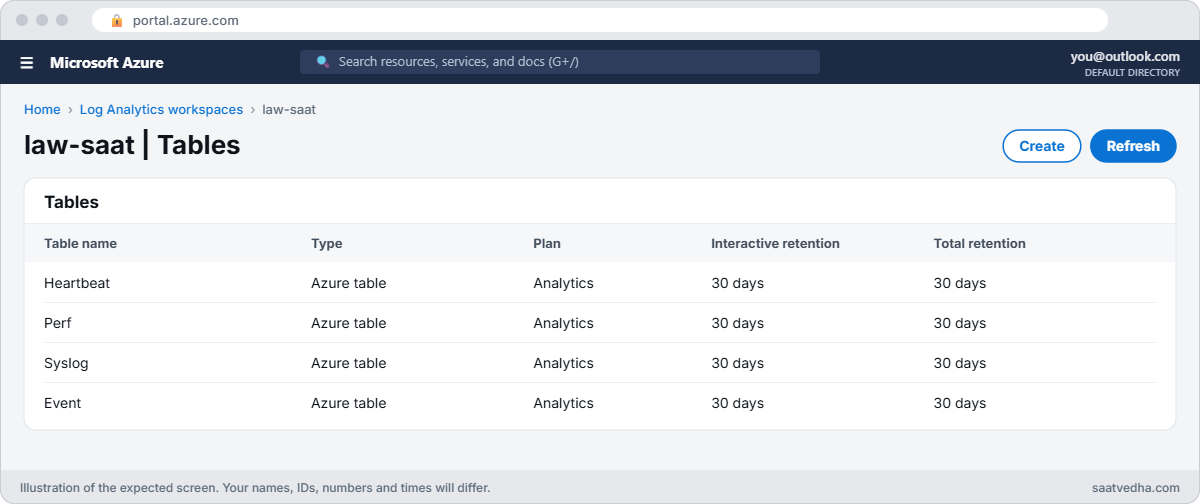
Finally, look at how the workspace itself is set up. In the portal, open law-saat, then Tables. Each table shows its plan (Analytics or Basic) and its retention.

You can keep Heartbeat for 30 days and security events for a year in the same workspace, so you pay for long retention only where an auditor needs it.
Log Analytics workspace tables with plan and retention
law-saat Tables: each table has its own plan and retention.
KQL queries lab: counts by user and averages by server
Two of the lab queries and their exact results.

✅ Checkpoint: The SignIns function returns 12 rows, and your results for steps 1 to 4 match exactly.

Break It, Then Fix It

One of these returns nothing, the other returns an error. Both are everyday KQL mistakes.

1Break it: the filter that finds nothing

SignIns
| where Result == 'failure'
| count

You should see this:

Count
0

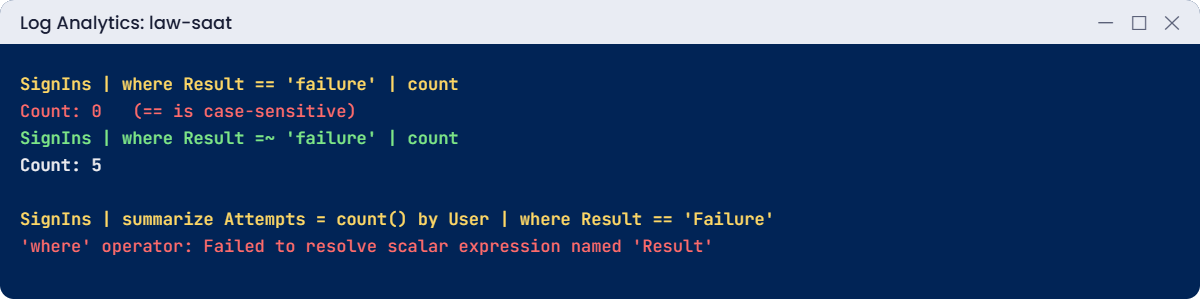
Zero, though there are 5 failures. == is case-sensitive, and the data says Failure with a capital F. Queries that “prove” nothing happened often have this bug.

Fix it: use the case-insensitive operator, or match the exact case:

SignIns
| where Result =~ 'failure'
| count

You should see this:

Count
5

2Break it: the column that disappeared

SignIns
| summarize Attempts = count() by User
| where Result == 'Failure'

You’ll get this error:

'where' operator: Failed to resolve scalar expression named 'Result'

After summarize, only User and Attempts exist. The where runs on the summarized rows, where Result is gone. The error names both the operator and the missing column, which is all you need.

Fix it: filter before you summarize:

SignIns
| where Result == 'Failure'
| summarize Failures = count() by User

You should see this:

User   Failures
ravi   4
meena  1

Keep the SignIns function; Lesson 34 uses it. Nothing else to clean up.

A habit worth building now: when KQL queries return nothing or throw an error, read them from the top one pipe at a time. Run the first line alone, then add the next step and run again. The step where the row count drops to zero, or where the error appears, is the step to fix.

This works on a five-line query and on a fifty-line one.
KQL queries errors: case-sensitive match and a column dropped by summarize
A case-sensitive filter that finds nothing, and a column summarize threw away.

✅ Checkpoint: You found 5 failures with =~ and fixed a query that used a column summarize had dropped.

This happened at work

“No failed logins last night”

After a security alert, a support engineer was asked whether anyone had failed to sign in to a jump server overnight. They ran a query filtering on the account name in lower case, got zero rows, and reported “no failures”.

Two days later, the security team found 3,000 failed attempts for the same account, stored with a capital letter. The incident response had been closed early, and the attacker had kept trying.

What they changed: the team’s query library now uses =~ and has for names and messages. Every “nothing found” answer must include a positive control: the same query on a time window where you know events exist. Saved queries are reviewed by a second person before they go into a runbook.

Common mistakes and troubleshooting

MistakeWhat you seeWhat to do
== on mixed-case dataZero rows when data existsUse =~ or the exact case.
Using a column after summarize drops it“Failed to resolve scalar expression”Filter and extend before summarize.
No time filter on big tablesSlow queries, timeoutsFilter TimeGenerated first.
contains everywhereSlow searchesPrefer has for whole words.
Wrong portal time rangeOld events missingCheck the picker or set ago() in the query.
Trusting an empty resultFalse “nothing happened”Test the query on a window with known data.

Interview questions

Click a question to open it. Each one is written the way an interviewer would ask it. Under it you will see why they ask it and one way you could answer, in your own words.

Fresher level

1. What is KQL?

Why they ask this: The basic concept.

How you might answer: Kusto Query Language, a read-only language for querying data in Log Analytics, Azure Data Explorer and other Azure services. Queries start from a table and pass rows through operators with the pipe character.

2. What does summarize do?

Why they ask this: A core operator check.

How you might answer: It groups rows by the columns you list and calculates aggregates like count, avg, max or dcount for each group. Columns not in the by clause or the aggregates are dropped.

3. What is the difference between == and =~?

Why they ask this: A detail that matters in real queries.

How you might answer: == is a case-sensitive equality check; =~ ignores case. Using == on data with mixed case can silently return nothing.

2–5 years experience

4. How would you find the busiest hours for failed sign-ins?

Why they ask this: They want bin and summarize.

How you might answer: Filter to failures, then summarize count() by bin(TimeGenerated, 1h), sort by time, and render a column chart. If I want hour of day across many days, I’d use hourofday(TimeGenerated) instead of bin.

5. A query works in the portal but is slow. How do you speed it up?

Why they ask this: They want query hygiene.

How you might answer: Filter on TimeGenerated first, then on indexed string conditions with has rather than contains, project only needed columns early, avoid unbounded joins, and summarize before joining when possible.

6. How do you reuse a query across a team?

Why they ask this: They’re checking saved searches and functions.

How you might answer: Save it as a function with an alias in the workspace, or in a query pack shared across workspaces. Then people call it by name, and fixes happen in one place.

Senior level

7. How do you query across several workspaces?

Why they ask this: They want scale knowledge.

How you might answer: With the workspace() function and union, or by querying at a resource or resource group scope from the portal. I’d keep the number of workspaces low to avoid this being the normal case.

8. How would you prove to an auditor that no admin signed in outside hours?

Why they ask this: They want rigour.

How you might answer: A documented query over the full period, with the time range in the query itself, case-insensitive matching, and a positive control showing the query finds known sign-ins. I’d export results and the query text together.

9. What table plans exist in Log Analytics, and how do they affect queries?

Why they ask this: They’re checking cost awareness.

How you might answer: Analytics tables support full KQL and alerts. Basic and Auxiliary tables cost less to ingest but have query limits and per-query charges. High-volume, low-value logs often go to cheaper plans.

Quick quiz

Q1. What does the pipe | mean in KQL?

  1. OR
  2. Pass the rows to the next step
  3. Comment
  4. Join
Show answer

B — Each step works on the output of the one before.

Q2. Which operator groups and counts rows?

  1. where
  2. extend
  3. summarize
  4. take
Show answer

C — summarize aggregates by groups.

Q3. where Result == ‘failure’ returns 0, but failures exist. Why?

  1. Wrong table
  2. == is case-sensitive
  3. Time range
  4. Missing render
Show answer

B — Use =~ or match the case exactly.

Q4. Which buckets time into hours?

  1. bin(TimeGenerated, 1h)
  2. take 1h
  3. sort by 1h
  4. project 1h
Show answer

A — bin groups values into fixed-size buckets.

Q5. “Failed to resolve scalar expression named ‘Result'” after summarize means:

  1. Result was dropped by summarize
  2. The table is empty
  3. The workspace is deleted
  4. You need a join
Show answer

A — Only by-columns and aggregates survive summarize.

Quick recap

You can now read Azure Monitor data like a pipeline and trust what your queries tell you.

  • KQL flows top to bottom: table, then filters, then shape and summarize.
  • == is case-sensitive; =~ isn’t.
  • summarize keeps only the by-columns and aggregates.
  • Filter on time first for speed.
  • Save shared queries as functions.

Next lesson

Lesson 34: KQL for operations: parse logs and log search alerts → You parse messy log lines with KQL and turn a query into an alert.

Further reading: KQL queries

Want to go deeper into KQL queries? See Microsoft’s Kusto Query Language overview and Log Analytics tutorial. You can also see the full plan for this course on the Azure Cloud Administration course page.

Scroll to Top