VM tools: Run Command, extensions, Custom Script
-
Phase 0: Before you start
-
Phase 1: The foundation
-
Phase 2: Day-to-day operations
-
Phase 3: Enterprise architecture
-
Phase 4: Troubleshooting step by step
-
Phase 5: Final project and career
Azure Run Command runs a script inside a VM from outside, through the Azure VM agent, with no SSH, RDP or open port. Together with VM extensions like Custom Script, it’s how admins fix, configure and inspect servers they can’t log in to.
You’ve used Run Command since Lesson 15 without looking under the hood. This lesson opens it up: the old and new versions, their limits, how extensions run, and where their logs live when something goes wrong.
In the lab you check the VM agent, use both Run Command versions, run a Custom Script, then fix a script that “didn’t run” and output that went missing.
| Time | You need | Cost | By the end you can |
|---|---|---|---|
| About 40 minutes | web01, the CLI | Covered by the free account’s B2ats v2 hours | Run scripts through the VM agent, manage extensions, and troubleshoot both |
What it is, in one line
Run Command and extensions let Azure run scripts inside a VM through its agent, without logging in.
In Simple Words
Notes passed through the school office
The head teacher can’t walk into every classroom. So she writes a note, the office runner carries it to the class teacher, and the teacher writes back the answer. That’s Run Command, and the runner is the VM agent.
Some notes are standing orders: “every new class gets a fire drill on day one”. Those are extensions.
If the runner is off sick, no notes get through, however important they are. So the first check is always: is the agent alive?
Engineer's View
Run Command, managed Run Command and extensions
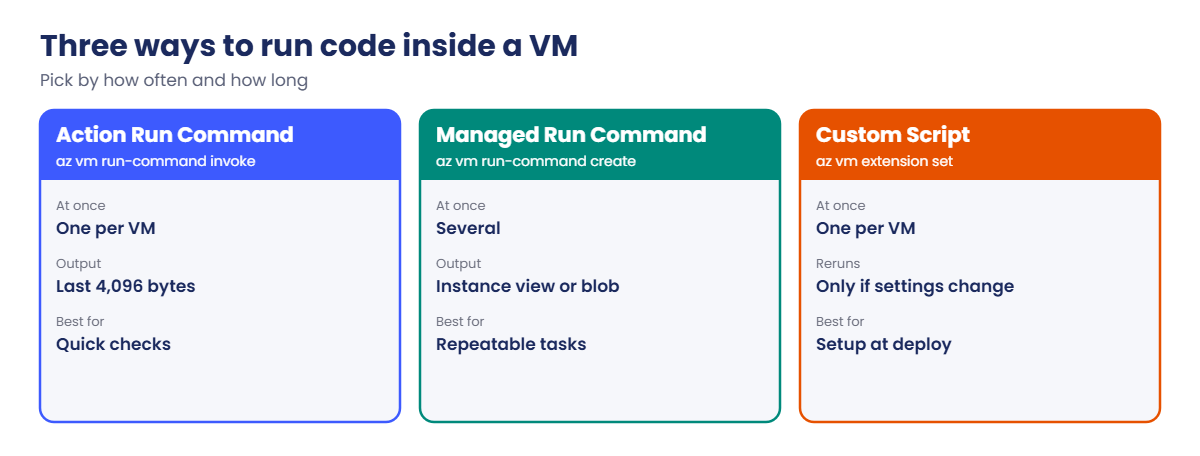
| Action Run Command | Managed Run Command | Custom Script extension | |
|---|---|---|---|
| CLI | az vm run-command invoke | az vm run-command create | az vm extension set |
| At once per VM | One | Several | One CustomScript per VM |
| Output | Last 4,096 bytes in the reply | Instance view, or full output to a blob | Status message; logs on the VM |
| Timeout | 90 minutes | You set it | 90 minutes (Linux handler) |
| Best for | Quick checks and fixes | Repeatable or long tasks, run as a user | Setup at deploy time |
- The VM agent (waagent on Linux, the Windows guest agent) must be Ready. Check it with
az vm get-instance-view. Every tool in this lesson stops working without it. - Scripts run elevated: root on Linux, SYSTEM on Windows, unless you set a user on a managed run command.
- Custom Script runs once per configuration. Re-applying the same settings does nothing; change the settings or use
--force-update. - Secrets go in protected settings, which are encrypted and never shown back.
- Logs on Linux:
/var/log/azure/run-command/handler.log,/var/log/azure/custom-script/handler.logand the script output under/var/lib/waagent/custom-script/download/0/. - Logs on Windows:
C:\WindowsAzure\Logs\Plugins\and downloads underC:\Packages\Plugins\.
How it works, step by step
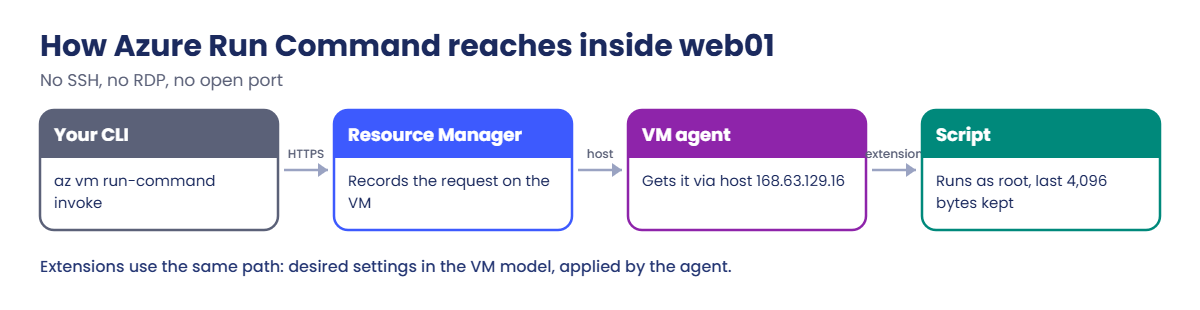
What happens when you run az vm run-command invoke:
- Azure Resource Manager records the request against the VM.
- The VM agent picks it up through the host (the wire server at 168.63.129.16).
- The agent installs or reuses the Run Command extension and starts your script as root.
- The script runs; the extension keeps the last 4,096 bytes of output.
- The agent reports status back, and the CLI prints it.
Extensions follow the same path. Azure stores the desired extension settings in the VM model; the agent applies them and reports the result as the extension’s provisioning state.
So when a script or extension “does nothing”, check in this order: the agent, the extension’s status message, then the logs on the VM.
Hands-on lab: Azure Run Command and extensions on web01
Start web01:
az vm start --resource-group rg-saat-vms --name web011Check the VM agent
Run this:
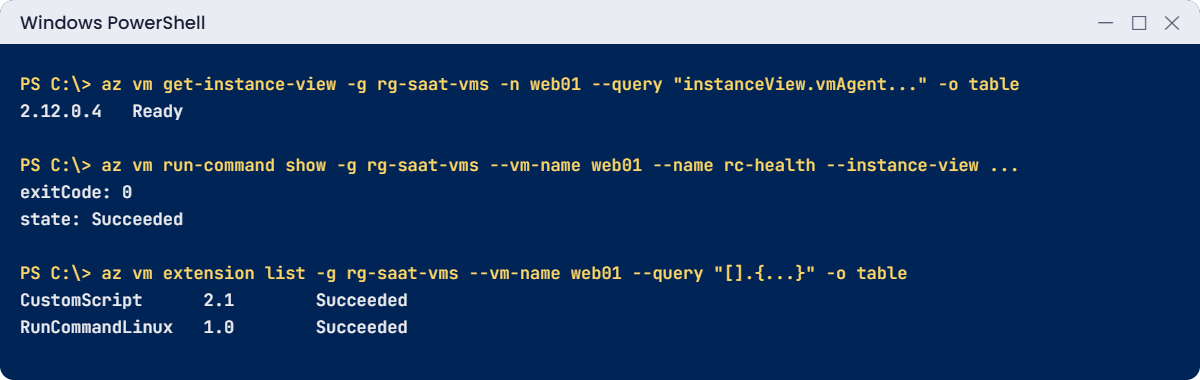
az vm get-instance-view --resource-group rg-saat-vms --name web01 --query "instanceView.vmAgent.{version:vmAgentVersion, status:statuses[0].displayStatus}" -o tableYou should see something like this:
Version Status
--------- --------
2.12.0.4 Ready2Action Run Command: a quick check
Run this:
az vm run-command invoke --resource-group rg-saat-vms --name web01 --command-id RunShellScript --scripts 'uptime -p; df -h / | tail -1; systemctl is-active saat-web' --query "value[0].message" -o tsvYou should see something like this:
Enable succeeded:
[stdout]
up 2 minutes
/dev/root 62G 2.1G 60G 4% /
active
[stderr]3Managed Run Command: named, stored, with an exit code
Run this:
az vm run-command create --resource-group rg-saat-vms --vm-name web01 --name rc-health --script "uptime -p; systemctl is-active saat-web" --timeout-in-seconds 120 -o none
az vm run-command show --resource-group rg-saat-vms --vm-name web01 --name rc-health --instance-view --query "instanceView.{state:executionState, exitCode:exitCode, output:output}" -o yamlYou should see something like this:
exitCode: 0
output: |
up 3 minutes
active
state: SucceededUnlike action Run Command, this one is a resource on the VM. You can run several, see their history and exit codes, and send long output to a blob with --output-blob-uri.
4Custom Script extension
Save the settings in a file, apply them, and check the result:
Set-Content -Path C:\azure-lab\cse-web01.json -Value '{"commandToExecute": "echo cse ran at $(date -u +%H:%M:%S) >> /var/www/cse.log"}'
az vm extension set --resource-group rg-saat-vms --vm-name web01 --name CustomScript --publisher Microsoft.Azure.Extensions --version 2.1 --settings '@C:\azure-lab\cse-web01.json' -o none
az vm extension list --resource-group rg-saat-vms --vm-name web01 --query "[].{name:name, version:typeHandlerVersion, state:provisioningState}" -o table
az vm run-command invoke --resource-group rg-saat-vms --name web01 --command-id RunShellScript --scripts 'cat /var/www/cse.log' --query "value[0].message" -o tsvYou should see something like this:
Name Version State
---------------- --------- ---------
CustomScript 2.1 Succeeded
RunCommandLinux 1.0 Succeeded
[stdout]
cse ran at 17:02:41RunCommandLinux is the extension behind action Run Command; it was installed the first time you used it in Lesson 15. The settings live in a file so PowerShell 5.1 can’t strip the quotes.
✅ Checkpoint: The agent is Ready, both Run Command versions work, and Custom Script wrote one line to /var/www/cse.log.
Break It, Then Fix It
Neither of these gives you an error. That’s what makes them hard.
1Break it: “I ran the extension again and nothing happened”
Apply exactly the same Custom Script settings again, then look at the log:
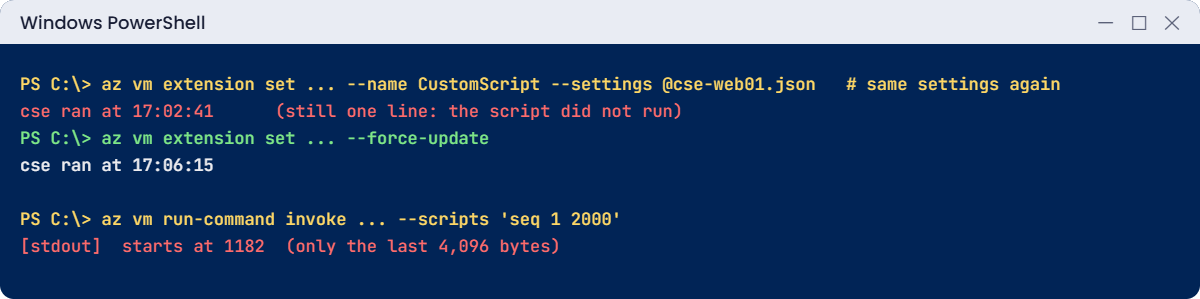
az vm extension set --resource-group rg-saat-vms --vm-name web01 --name CustomScript --publisher Microsoft.Azure.Extensions --version 2.1 --settings '@C:\azure-lab\cse-web01.json' -o none
az vm run-command invoke --resource-group rg-saat-vms --name web01 --command-id RunShellScript --scripts 'cat /var/www/cse.log' --query "value[0].message" -o tsvYou should see this:
[stdout]
cse ran at 17:02:41Still one line. The command “succeeded”, but Azure saw no change to the extension’s settings, so the agent had nothing new to do. People lose hours to this, rerunning a fix that never runs.
Fix it: force the update (or change something in the settings, like a timestamp):
az vm extension set --resource-group rg-saat-vms --vm-name web01 --name CustomScript --publisher Microsoft.Azure.Extensions --version 2.1 --settings '@C:\azure-lab\cse-web01.json' --force-update -o none
az vm run-command invoke --resource-group rg-saat-vms --name web01 --command-id RunShellScript --scripts 'cat /var/www/cse.log; tail -3 /var/log/azure/custom-script/handler.log' --query "value[0].message" -o tsvYou should see something like this:
[stdout]
cse ran at 17:02:41
cse ran at 17:06:15
time=2026-10-20T17:06:16Z version=v2.1.x operation=enable seq=1 event="enabled"
...2Break it: the missing output
Run a command that prints a lot:
az vm run-command invoke --resource-group rg-saat-vms --name web01 --command-id RunShellScript --scripts 'seq 1 2000' --query "value[0].message" -o tsv | Select-Object -First 4You should see something like this:
Enable succeeded:
[stdout]
1182Where are lines 1 to 1181? Action Run Command keeps only the last 4,096 bytes of output, and seq 1 2000 prints 8,893 bytes. A long log dump or inventory script silently loses its top half.
Fix it: write the full output to a file on the VM and return a summary; for long jobs use a managed run command with an output blob:
az vm run-command invoke --resource-group rg-saat-vms --name web01 --command-id RunShellScript --scripts 'seq 1 2000 > /tmp/report.txt; wc -l /tmp/report.txt; head -2 /tmp/report.txt' --query "value[0].message" -o tsvYou should see this:
Enable succeeded:
[stdout]
2000 /tmp/report.txt
1
2
[stderr]Clean up: remove the extension, the managed run command and the files, then stop web01:
az vm extension delete --resource-group rg-saat-vms --vm-name web01 --name CustomScript
az vm run-command delete --resource-group rg-saat-vms --vm-name web01 --name rc-health --yes
az vm run-command invoke --resource-group rg-saat-vms --name web01 --command-id RunShellScript --scripts 'rm -f /var/www/cse.log /tmp/report.txt' --query "value[0].message" -o tsv
az vm deallocate --resource-group rg-saat-vms --name web01
✅ Checkpoint: You re-ran a Custom Script with a forced update and got the full output back. Only RunCommandLinux is left on web01, and web01 is deallocated.
This happened at work
The certificate fix that never ran
A payments team pushed a renewed TLS certificate to 40 Linux VMs with the Custom Script extension. The pipeline was green, and the portal showed every extension as Succeeded. Two days later, the old certificate expired and the API went down on all 40 servers.
The pipeline had redeployed the same Custom Script settings as the previous month; only the certificate file in storage had changed. Azure saw identical settings, so no VM ran the script. The handler logs on every VM showed no new enable operation.
What they changed: the pipeline now adds a timestamp parameter to the extension settings on every run, and checks the script’s output file on each VM before marking the job done. Certificate expiry is now monitored separately, 30 days ahead, through Key Vault (Lesson 55).
Common mistakes and troubleshooting
| Mistake | What you see | What to do |
|---|---|---|
| Re-applying unchanged CSE settings | Succeeded, but the script didn’t run | Use a forced update or change the settings. |
| Large output from action Run Command | Top of the output missing | Write to a file; return a summary. |
| VM agent not Ready | Run Command and extensions time out | Fix the agent first (Lesson 60). |
| Two Run Commands at once | Second one refused or queued | Wait, or use managed run commands. |
| Secrets in public settings | Passwords visible in the portal and logs | Use protected settings or Key Vault. |
| Scripts that wait for input | Run hangs until timeout | Make scripts non-interactive. |
| fileUris from the internet on a private subnet | Download fails | Host scripts in same-region storage. |
Interview questions
Click a question to open it. Each one is written the way an interviewer would ask it. Under it you will see why they ask it and one way you could answer, in your own words.
Fresher level
1. What is Azure Run Command?
Why they ask this: The basic concept.
How you might answer: A way to run scripts inside a VM through the Azure VM agent, from the portal, CLI or API, without RDP or SSH. It’s useful when you can’t log in or don’t want to open ports.
2. What does the VM agent do?
Why they ask this: They want the foundation.
How you might answer: It runs inside the VM, talks to the Azure host, reports health and installs and runs extensions, including Run Command and Custom Script. Without a Ready agent, none of those work.
3. What is the Custom Script extension used for?
Why they ask this: A common configuration tool.
How you might answer: Running a script on a VM, usually at deployment time, to install software or configure settings. It can download files from storage and run a command, and reports the result as the extension status.
2–5 years experience
4. A Custom Script extension shows Succeeded but the change isn’t there. Why?
Why they ask this: A real production trap.
How you might answer: Most often the settings didn’t change, so Azure didn’t rerun it, or the script exited 0 even though a step failed. I’d check the handler log and stdout on the VM, then rerun with a forced update or changed settings.
5. When would you use managed Run Command instead of action Run Command?
Why they ask this: They want the difference.
How you might answer: For long or repeated tasks, when I need several scripts at once, an exit code and history, a specific user, or the full output saved to a blob. Action Run Command is better for quick one-off checks.
6. Run Command times out on a VM. How do you troubleshoot?
Why they ask this: They want a method.
How you might answer: Check the VM agent status in the instance view, then boot diagnostics and whether the VM is under heavy load. Check that the guest can reach the host at 168.63.129.16 and has the outbound access Run Command needs, then read the handler log if I can get in another way.
Senior level
7. How do you configure 500 VMs consistently after deployment?
Why they ask this: They want scale thinking.
How you might answer: Bake as much as possible into images, then use Azure Policy with machine configuration or extensions applied through policy, and configuration tools like Ansible. Custom Script is fine for small bootstrap steps but hard to track at scale.
8. How would you control who can use Run Command?
Why they ask this: They’re checking the security angle.
How you might answer: Run Command executes as root or SYSTEM, so the runCommand actions are as powerful as admin access. I’d limit them through custom roles and PIM, log them in the Activity log, and alert on use in production.
9. How do you keep secrets out of extension settings?
Why they ask this: They want secure patterns.
How you might answer: Put secrets in protected settings at the very least. Better, give the VM a managed identity and let the script read secrets from Key Vault at run time, so nothing sensitive is stored in the VM model at all.
Quick quiz
Q1. How much output does action Run Command return?
- All of it
- The first 4,096 bytes
- The last 4,096 bytes
- Nothing
Show answer
C — Output is cut to the last 4,096 bytes.
Q2. What must be Ready for Run Command to work?
- Bastion
- The VM agent
- Public IP
- NSG
Show answer
B — Run Command and extensions run through the agent.
Q3. You re-apply the same Custom Script settings. What happens?
- It runs again
- Nothing runs
- The VM restarts
- An error
Show answer
B — Unchanged settings don’t trigger a new run.
Q4. Which runs several scripts on one VM at the same time?
- Action Run Command
- Managed Run Command
- Bastion
- JIT
Show answer
B — Managed run commands are separate resources.
Q5. Where should secrets for an extension go?
- Public settings
- Protected settings or Key Vault
- The script file name
- Tags
Show answer
B — Protected settings are encrypted and hidden.
Quick recap
You can now run code inside any VM without logging in, and tell when it didn’t really run.
- The VM agent is the gateway for Run Command and extensions.
- Action Run Command: one at a time, last 4,096 bytes, 90 minutes.
- Managed Run Command: several, exit codes, output to a blob.
- Custom Script reruns only when its settings change.
- Read the handler logs when status says Succeeded but nothing changed.
Next lesson
Lesson 30: Azure Update Manager: patch Windows and Linux → You check, schedule and install updates on web01 and win01, and fix a VM that won’t patch.
Further reading: Azure Run Command
Want to go deeper into Azure Run Command? See Microsoft’s Run scripts in your VM by using Run Command and Custom Script Extension for Linux. You can also see the full plan for this course on the Azure Cloud Administration course page.
