MFA, Security Defaults and Conditional Access
-
Phase 0: Before you start
-
Phase 1: The foundation
-
Phase 2: Day-to-day operations
-
Phase 3: Enterprise architecture
-
Phase 4: Troubleshooting step by step
-
Phase 5: Final project and career
Conditional Access policies are the “if this, then that” rules of Microsoft Entra ID. If an admin signs in to Azure, then require MFA. If someone from the helpdesk group tries to manage Azure from outside the office network, then block it.
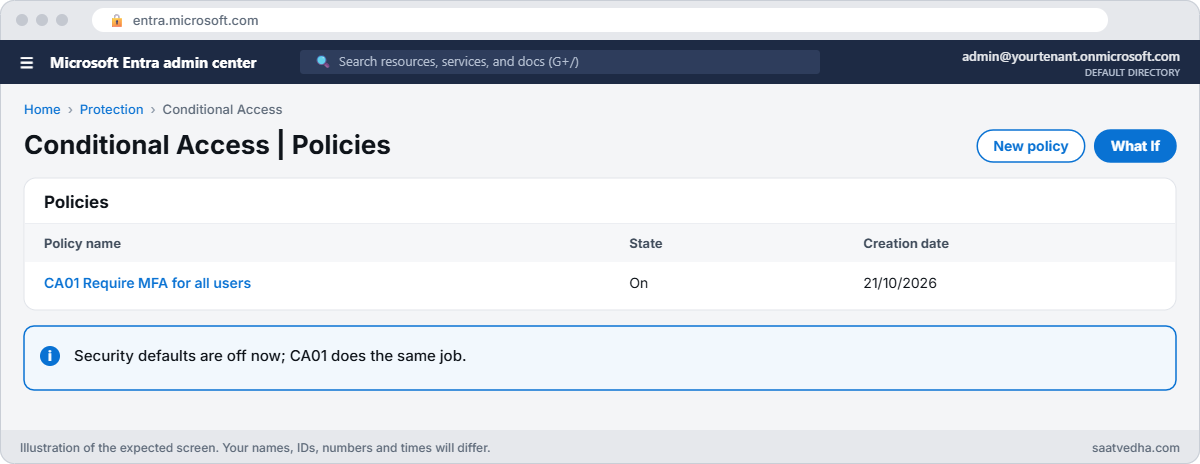
Security defaults, which your tenant has had since Lesson 2, give everyone a basic MFA setup with no choices. Conditional Access replaces them with your own rules, per user, app, location and device. It needs Entra ID P1 or P2, so in this lesson you start the 30-day P2 trial.
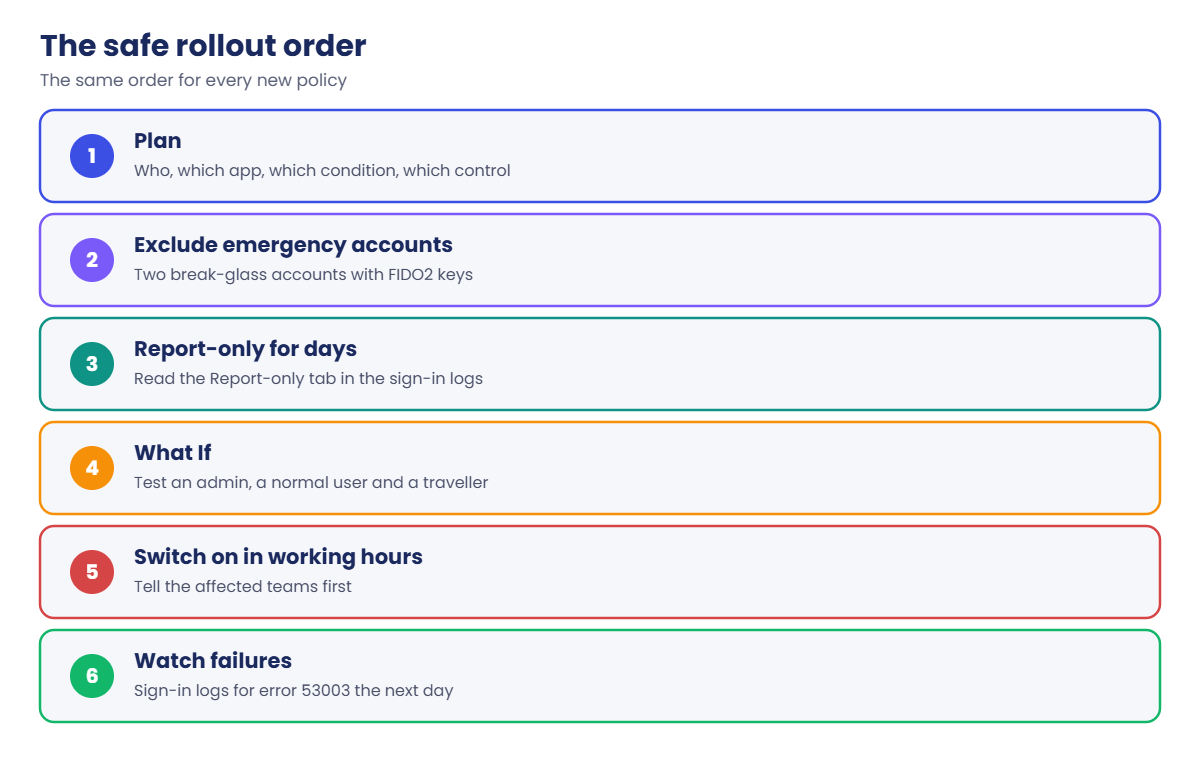
The lab follows the safe order used at work: plan, build in report-only mode, test with the What If tool, then switch on, and keep a way back in if something goes wrong.
| Time | You need | Cost | By the end you can |
|---|---|---|---|
| About 60 minutes | The account owner login, Asha’s login, a private browser window | Nothing (30-day Entra ID P2 trial) | Replace security defaults with Conditional Access safely and read a policy block from the sign-in logs |
What it is, in one line
Conditional Access checks each sign-in against your rules (who, which app, from where, on what device) and then allows it, asks for MFA, or blocks it.
In Simple Words
The security guard with a rule book
A building has one guard at the gate. With security defaults, the guard has a single rule for everyone: “show your ID card and a code from your phone”.
With Conditional Access, you give the guard a rule book. “Office staff during the day: ID card is enough. Anyone going to the server room: ID card and phone code.
Helpdesk staff coming from outside the city: don’t let them into the server room at all.”
Before a new rule goes live, a careful manager asks the guard to just write down what he would have done for a week. That’s report-only mode.
Engineer's View
What a policy is made of
- Assignments: users (include and exclude users, groups, roles), target resources (apps such as “Windows Azure Service Management API”, which covers the portal, CLI and PowerShell), and conditions (locations, device platforms, client apps, sign-in risk with P2).
- Access controls: grant (block, or require MFA, a compliant device, an authentication strength) and session (sign-in frequency and similar).
- State: Off, Report-only, or On. Report-only evaluates the policy at every sign-in and writes the result to the sign-in logs, without enforcing it.
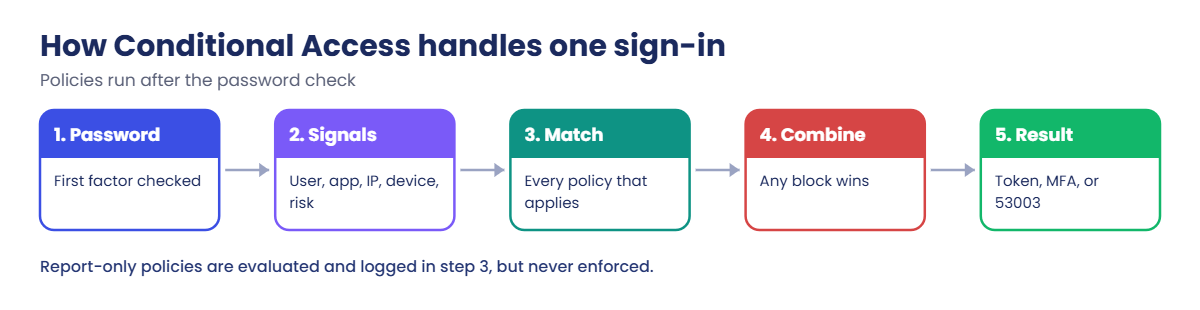
Every policy that applies to a sign-in is evaluated; all their grant controls must be met, and a block in any one of them wins. Policies apply after the first factor (password) has been checked.
Security defaults and Conditional Access can’t both be on. Turning security defaults off removes the baseline MFA rules at once, so you build your replacement MFA policy in the same sitting. Tenants with P1 or P2 can also get Microsoft-managed policies, which Microsoft creates in report-only mode for you to review.
When a policy blocks a sign-in, users see error AADSTS53003: access has been blocked by Conditional Access policies. The sign-in log entry shows which policy did it, under the Conditional Access tab.
Two safety rules: keep two emergency access accounts excluded from blocking policies (still with phishing-resistant MFA, as mandatory MFA applies to them too), and never switch a policy straight to On without a report-only period and a What If test.
How it works, step by step
Here is how Entra ID applies Conditional Access to one sign-in:
- The user enters a username and password (first factor).
- Entra ID collects signals: user and groups, the app being signed in to, IP address and named location, device platform, and risk (with P2).
- It finds every policy whose assignments match those signals.
- Report-only policies are recorded but not enforced. Enforced policies are combined: any block wins; otherwise every required control must be satisfied.
- If MFA is required and not yet done, the user is asked. Then a token is issued, or AADSTS53003 is returned.
The What If tool in the portal runs this same evaluation for a made-up sign-in (“Asha, Azure management, from this IP”) and shows which policies would apply. It’s the fastest way to test a policy before anyone gets locked out.
In the lab you replace security defaults with one MFA policy for everyone, then add a stricter rule for the helpdesk group, test it in report-only mode, and finally watch it block Asha.
Hands-on lab: replace security defaults safely
Most of this lab happens in the Microsoft Entra admin center at entra.microsoft.com, because that’s where Conditional Access is managed. You use the CLI to find your IP address and to test Asha’s sign-in. Do the steps in order.
1Start the Entra ID P2 trial and license Asha
- Sign in to
entra.microsoft.comas the account owner. - Go to Billing > Licenses > All products > Try / Buy, open Microsoft Entra ID P2 and choose Activate for the trial.
- Wait a few minutes, then open Users > Asha Rao > Properties and set Usage location to India. A licence can’t be assigned without a usage location.
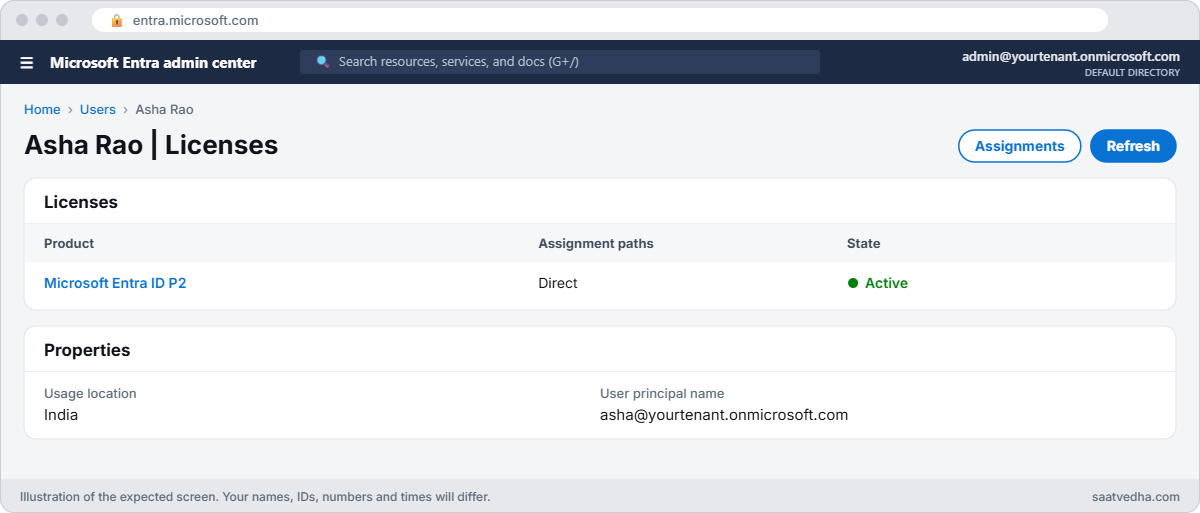
- Open Licenses on Asha’s page, choose Assignments, tick Microsoft Entra ID P2 and save. Do the same for Ravi.
2Find your public IP and create a named location
In Windows PowerShell, run this:
(Invoke-RestMethod -Uri 'https://ifconfig.me/ip').Trim()You should see something like this:
49.37.112.18In the Entra admin center, go to Protection > Conditional Access > Named locations > IP ranges location. Name it loc-saat-office, add your IP with /32 at the end (for example 49.37.112.18/32), and tick Mark as trusted location. Home and mobile IPs change sometimes; if yours does, update this range.
3Turn off security defaults and add an MFA policy at once
- Go to Identity > Overview > Properties > Manage security defaults, set it to Disabled, pick the reason “My organization is planning to use Conditional Access” and save.
- Straight away, go to Conditional Access > Create new policy. Name:
CA01 Require MFA for all users. - Users: Include All users. Target resources: All resources. Grant: Require multifactor authentication.
- Enable policy: On. Create.
This one goes straight to On because it only replaces what security defaults already did: everyone does MFA. You have MFA set up, so you won’t be locked out.
4Build a stricter helpdesk rule in report-only mode
Create a second policy named CA02 Block Azure management for helpdesk outside office:
- Users: Include the group
grp-saat-helpdesk. - Target resources: Select resources > Windows Azure Service Management API. This covers the portal, Azure CLI and Azure PowerShell.
- Network (under Conditions): Configure Yes, Include Any network or location, Exclude Selected networks and locations >
loc-saat-office. - Grant: Block access.
- Enable policy: Report-only. Create.
In words: “If someone in the helpdesk group signs in to Azure management from anywhere except the office IP, block it.” Right now it only reports.
5Sign in as Asha and read the report
In a second PowerShell window (Asha’s window), sign in as Asha:
$env:AZURE_CONFIG_DIR = 'C:\azure-lab\asha-cli'
az login --tenant <your-tenant-id> --allow-no-subscriptions
az account show --query user.name -o tsvYou should see something like this:
asha.rao@priyakoutlook.onmicrosoft.comShe gets in, because she is at the office IP and the policy is report-only anyway. Now open Monitoring & health > Sign-in logs in the Entra admin center, select Asha’s newest sign-in to “Azure CLI”, and open the Report-only tab. CA02 shows Report-only: Not applied, because the location was excluded.
That’s what you want to see before switching it on.
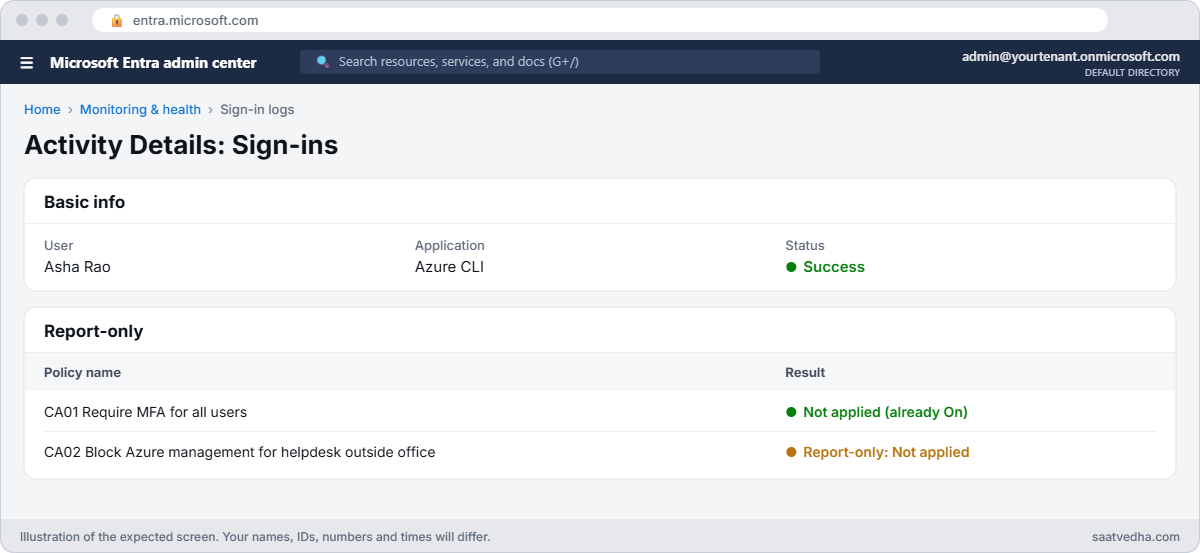
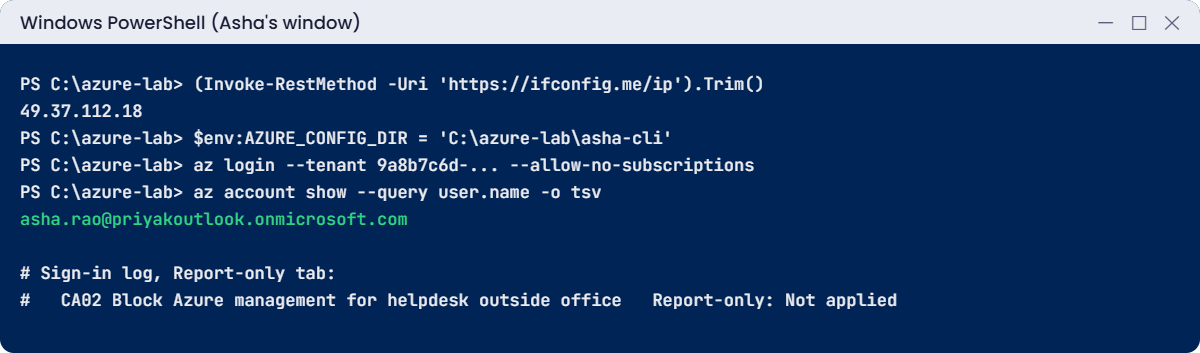
✅ Checkpoint: CA01 is On, CA02 is Report-only, and Asha’s sign-in log shows CA02 evaluated and not applied.
Break It, Then Fix It
Policies fail in two ways: the rule is wrong, or the rule is right but would also catch you. You’ll see both, safely.
1Break it: a wrong office IP, then switch the policy on
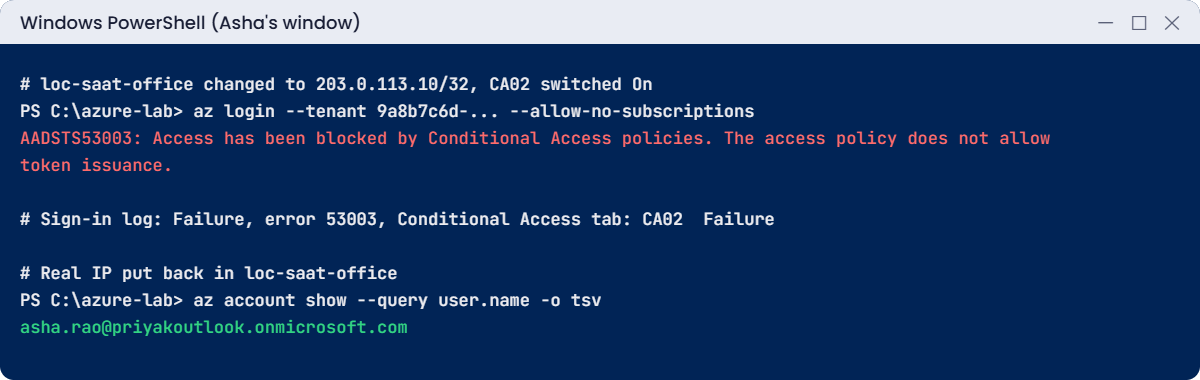
Edit the named location loc-saat-office and replace your IP with 203.0.113.10/32, an address reserved for documentation that you’re definitely not using. Then edit CA02 and set it to On.
In Asha’s window, sign out and in again:
az logout
az login --tenant <your-tenant-id> --allow-no-subscriptionsYou’ll get an error like this:
AADSTS53003: Access has been blocked by Conditional Access policies. The access policy does not allow token issuance.Now Asha appears to be “outside the office”, so the block applies. In the sign-in logs her entry shows Failure, error code 53003, and on the Conditional Access tab, CA02 with result Failure. The log names the policy, so nobody has to guess.
Fix it: put your real IP back in loc-saat-office, wait a minute, and sign in again:
az login --tenant <your-tenant-id> --allow-no-subscriptions
az account show --query user.name -o tsvYou should see something like this:
asha.rao@priyakoutlook.onmicrosoft.com2Break it (on paper): a block rule that would catch you
Imagine you copied CA02 but chose All users instead of the helpdesk group. Don’t create it. Instead, open Conditional Access > Policies > What If, choose your own account, the app Windows Azure Service Management API, and IP 203.0.113.10, then select What If.
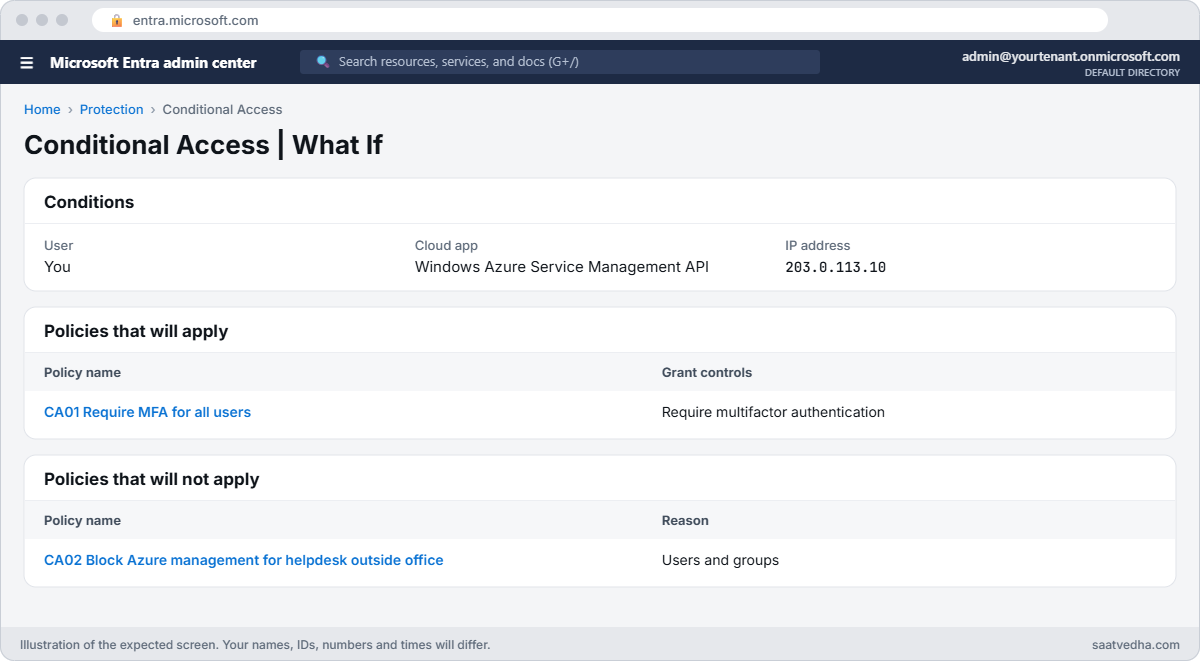
The tool lists CA01 (MFA), and CA02 does not apply because you’re not in the helpdesk group. If CA02 targeted All users, it would appear in the list with “Block”, and a sign-in from a new IP, such as your phone’s mobile data, would lock you out of Azure.
The fix at work: two emergency access accounts excluded from every blocking policy, What If before every change, and report-only first. In this lab you’re the only admin, so you simply never target All users with a block.
3Clean up
The P2 trial ends after 30 days, and policies can stop working cleanly when the licence goes. So put the tenant back to its simple, safe state:
- In Asha’s window:
az logout,Remove-Item Env:AZURE_CONFIG_DIR, then deleteC:\azure-lab\asha-cli. - Delete CA02, then CA01, and delete the named location
loc-saat-office. - Turn security defaults back on (Identity > Overview > Properties).
✅ Checkpoint: No Conditional Access policies remain, security defaults are enabled again, and Asha can still sign in with MFA.
This happened at work
The policy that locked out every admin at 2 a.m.
A logistics company wanted to block sign-ins from outside India. An engineer created a policy, “All users, All cloud apps, Exclude location: India, Block”, and switched it straight to On late one evening.
At 2 a.m. an alert fired. The on-call admin was travelling for a conference in Singapore. His sign-in was blocked.
So was the second admin’s, who was on a VPN that exited in Europe. Nobody could reach the portal to change the policy, and the two emergency accounts had been deleted months earlier “because nobody used them”. It took a support case with Microsoft and most of the next day to get back in.
What they changed: two cloud-only emergency accounts with FIDO2 keys, excluded from every policy, with an alert on any sign-in. Every new policy spends at least a week in report-only, and the change record must include What If screenshots for an admin, a normal user and a travelling user. Location blocks now target specific groups and apps instead of “All users, All cloud apps”.
Common mistakes and troubleshooting
| Mistake | What you see | What to do |
|---|---|---|
| Switching a new block policy straight to On | People, or admins, locked out | Report-only first, What If, then On. |
| Turning off security defaults with nothing to replace them | No MFA for anyone | Create the MFA policy in the same sitting. |
| No emergency accounts excluded | Nobody can fix a bad policy | Two excluded break-glass accounts with FIDO2 keys and sign-in alerts. |
| Home or mobile IP in a trusted location | Blocks when the IP changes | Use company IP ranges or compliant devices instead of home IPs. |
| Guessing which policy blocked someone | Hours of trial and error | Open the sign-in log: the Conditional Access tab names the policy and result. |
| Expecting a report-only policy to block | “The policy doesn’t work” | Report-only never enforces. Check the Report-only tab for what it would have done. |
Interview questions
Click a question to open it. Each one is written the way an interviewer would ask it. Under it you will see why they ask it and one way you could answer, in your own words.
Fresher level
1. What is Conditional Access, in simple words?
Why they ask this: They want a clear, non-jargon explanation.
How you might answer: It’s a set of if-then rules in Entra ID that run at sign-in. If a certain user signs in to a certain app from a certain place or device, then allow, require MFA, or block.
2. What’s the difference between security defaults and Conditional Access?
Why they ask this: They want to know when each fits.
How you might answer: Security defaults are one fixed set of MFA rules for everyone, included with every tenant. Conditional Access lets you write your own rules per user, app and condition, but needs Entra ID P1 or P2. You can’t use both at once.
3. A user says “access blocked” with error 53003. Where do you look?
Why they ask this: They want the right tool, not guesses.
How you might answer: 53003 means a Conditional Access policy blocked the sign-in. I’d open the user’s entry in the Entra sign-in logs and check the Conditional Access tab, which shows exactly which policy failed and why, for example the location.
2–5 years experience
4. How do you roll out a new Conditional Access policy safely?
Why they ask this: They’re checking for a careful, staged process.
How you might answer: I build it in report-only mode first and leave it for a few days, watching the Report-only tab in the sign-in logs for people it would affect. I test edge cases with the What If tool, including an admin and a traveller, and make sure emergency accounts are excluded.
Then I switch it on during working hours with the affected teams told, and watch the sign-in failures for a day.
5. Which app would you target to protect Azure administration?
Why they ask this: They want specific knowledge about Azure management sign-ins.
How you might answer: Windows Azure Service Management API, which covers the Azure portal, Azure CLI and Azure PowerShell. For all admin portals across Microsoft 365 and Entra too, there’s also the Microsoft Admin Portals option.
6. Why should you not use home IP addresses as trusted locations?
Why they ask this: They want practical judgement about network-based controls.
How you might answer: Home and mobile IPs change, so people get blocked or trusted for the wrong reasons, and a shared home IP could be used by others. Location is a weak signal; device compliance or phishing-resistant MFA are stronger.
I’d use company egress IP ranges for locations and require compliant devices for sensitive access.
Senior level
7. Design a Conditional Access baseline for a 500-person company.
Why they ask this: They want a sensible, layered set, not one giant policy.
How you might answer: MFA for all users on all apps; stronger, phishing-resistant MFA for admin roles; block legacy authentication; require compliant or hybrid-joined devices for admins and sensitive apps; and with P2, risk-based policies for risky sign-ins and users.
Two emergency accounts are excluded from all of them, and every policy goes through report-only and What If before it’s switched on.
8. An admin got locked out by a bad policy and there are no emergency accounts. What now?
Why they ask this: They’re checking calm recovery thinking and lessons learned.
How you might answer: First, check if any other Global or Conditional Access Administrator can still sign in from a place the policy allows, for example the office. If not, open a support case with Microsoft, which will need ownership proof and takes time.
Afterwards I’d create two emergency accounts with FIDO2 keys, excluded from all policies, monitored, and tested every quarter.
9. How would you prove to an auditor that only the helpdesk group is blocked outside the office?
Why they ask this: They want evidence-based answers.
How you might answer: I’d export the policy’s settings, show What If results for a helpdesk user and a non-helpdesk user from an outside IP, and show sign-in log entries where CA02 applied and where it didn’t.
For ongoing evidence I’d send sign-in logs to a Log Analytics workspace and keep a saved query that lists every CA02 result.
Quick quiz
Q1. What does report-only mode do?
- Blocks and logs
- Evaluates and logs, but never enforces
- Turns the policy off
- Sends an email to the user
Show answer
B — Report-only records what would have happened without enforcing it.
Q2. Which licence does Conditional Access need?
- Entra ID Free
- Entra ID P1 or P2
- Microsoft 365 Basic
- None
Show answer
B — Conditional Access is a P1 feature, and P2 includes it.
Q3. What error code does a user get when a policy blocks them?
- AADSTS50126
- AADSTS53003
- AADSTS700016
- AADSTS50076
Show answer
B — 53003 means access was blocked by Conditional Access.
Q4. Which target resource covers the Azure portal, CLI and PowerShell?
- Office 365
- Windows Azure Service Management API
- Microsoft Graph
- Azure Storage
Show answer
B — Windows Azure Service Management API covers Azure management sign-ins.
Q5. Why keep emergency access accounts excluded from blocking policies?
- They are cheaper
- So someone can still sign in if a policy goes wrong
- They don’t need MFA
- Microsoft requires it for billing
Show answer
B — They are your way back in after a bad policy.
Quick recap
You’ve replaced the one-size rule with your own, tested it the safe way, and read a real block from the logs.
- Conditional Access: if this user, app, location or device, then allow, require MFA, or block.
- It needs Entra ID P1 or P2; security defaults must be off.
- Report-only and What If come before On, every time.
- AADSTS53003 means a policy blocked the sign-in; the sign-in log names it.
- Keep emergency accounts excluded, and never block “All users” casually.
Next lesson
Lesson 10: Managed identities and service principals → You give an app its own identity, so scripts stop carrying passwords and keys.
Further reading: Conditional Access policies
Want to go deeper into Conditional Access policies? Microsoft’s guide is What is Conditional Access?, and the testing tool is described in Use the What If tool to troubleshoot Conditional Access policies. You can also see the full plan for this course on the Azure Cloud Administration course page.
