Azure storage accounts and redundancy

An Azure storage account is the container for all your blobs, file shares, queues and tables. It gives them one name, one set of network and security rules, and one choice of how many copies Azure keeps and where.

That last choice, redundancy, decides whether your data survives a disk failure, a data centre fire, or a whole region going down. It’s also one of the easiest ways to double a storage bill by accident.

In the lab you create the storage account you’ll use for the next five lessons, switch its redundancy, and fix the two permission errors every new admin hits.

TimeYou needCostBy the end you can
About 40 minutesThe CLI, your signed-in accountA few US cents per month for a few files on LRS, inside the free account’s 5 GB of hot blob storageCreate a secure storage account, choose and change redundancy, and use Entra ID data roles

What it is, in one line

A storage account is a named home for your Azure data that sets how it’s secured, reached and copied.

In Simple Words

Copies of your family photos

Keeping three prints of a photo in one album is LRS: one torn page is fine, but a flood in the house takes all three.

Keeping one print in each of three rooms on different floors is ZRS. Sending another set to your aunt in another city is GRS; you can only look at her set if she agrees to show it, which is what RA-GRS adds.

None of this helps if you throw a photo in the bin yourself. Every copy follows you, so the deleted photo disappears everywhere. That needs soft delete and backups, not more copies.

Engineer's View

Account types, redundancy and secure defaults

  • Standard general-purpose v2 (StorageV2): blobs, files, queues and tables, all redundancy options. Use it unless you need premium speed.
  • Premium block blobs, premium file shares and premium page blobs: SSD-backed, one data type each, LRS or ZRS only.
  • Names: 3 to 24 lowercase letters and numbers, unique across all of Azure, because each becomes a web address like stsaat12345.blob.core.windows.net.
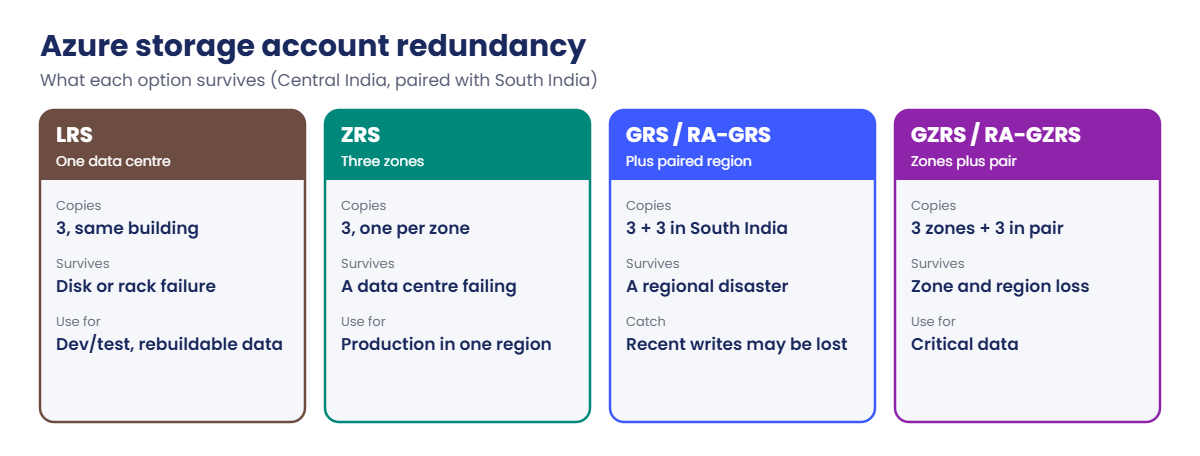
  • LRS: 3 copies in one data centre.
  • ZRS: 3 copies across 3 zones in the region. Survives a building failure with no data loss.
  • GRS: LRS plus an asynchronous copy (3 more) in the paired region, South India for Central India. Recent writes can be lost in a regional failover.
  • GZRS: ZRS plus the paired-region copy.
  • RA-GRS / RA-GZRS: also lets you read the secondary copy at a -secondary address.
  • Changing it: LRS and GRS/RA-GRS switch with az storage account update --sku. Moving to or from ZRS or GZRS is a conversion (az storage account migration start) that can take hours or days, or you copy to a new account.
  • Secure defaults for new accounts: HTTPS only, minimum TLS 1.2, anonymous blob access off. Keep them.
  • Control plane vs data plane: Owner or Contributor lets you manage the account, not read its data with Entra ID. Data needs roles like Storage Blob Data Contributor.
  • CLI gotcha: az storage account create defaults to Standard_RAGRS. Always pass --sku.

How it works, step by step

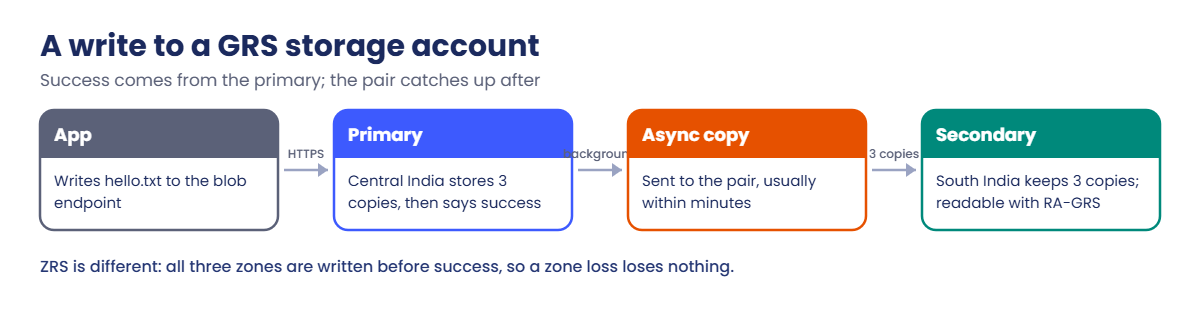
What happens when an app writes a blob to a GRS account:

Azure storage account redundancy options compared
  1. The app sends the write to the primary region (Central India).
  2. Azure writes 3 copies in the primary data centre and only then says “success”.
  3. In the background, Azure copies the change to the paired region (South India), usually within minutes.
  4. The paired region keeps its own 3 copies. You can’t read them unless the account is RA-GRS, or until a failover.
  5. In a failover, the secondary becomes primary. Anything not copied yet is lost, and the account becomes LRS until you set GRS again.

ZRS works differently: the write lands in three zones at once before Azure says “success”. A whole zone can fail with no data lost and no failover needed.

Azure storage account GRS write path from Central India to South India

Rule of thumb: ZRS for production in regions with zones, GZRS when the data must survive a regional disaster, LRS for dev/test and data you can rebuild.

Hands-on lab: create your Azure storage account

1Check a name before you create it

Try a bad name and a good one:

az storage account check-name --name St-Saat
$st = "stsaat" + (Get-Random -Minimum 10000 -Maximum 99999)
az storage account check-name --name $st --query nameAvailable

You should see something like this:

{
  "message": "St-Saat is not a valid storage account name. Storage account name must be between 3 and 24 characters in length and use numbers and lower-case letters only.",
  "nameAvailable": false,
  "reason": "AccountNameInvalid"
}
true

2Create the course storage account

This account stays for Lessons 22 to 26, so it goes in its own kept group. Save the name for later:

az group create --name rg-saat-data --tags course=saatvedha-azure lesson=21 keep=true -o none
az storage account create --resource-group rg-saat-data --name $st --location centralindia --sku Standard_LRS --kind StorageV2 --access-tier Hot --min-tls-version TLS1_2 --https-only true --allow-blob-public-access false --tags course=saatvedha-azure lesson=21 keep=true -o none
Set-Content -Path C:\azure-lab\storage.txt -Value $st
az storage account show --resource-group rg-saat-data --name $st --query "{name:name, kind:kind, sku:sku.name, tier:accessTier, tls:minimumTlsVersion, publicBlob:allowBlobPublicAccess, blob:primaryEndpoints.blob}" -o table

You should see something like this:

Name         Kind       Sku           Tier    Tls     PublicBlob    Blob
-----------  ---------  ------------  ------  ------  ------------  ---------------------------------------
stsaat48213  StorageV2  Standard_LRS  Hot     TLS1_2  False         https://stsaat48213.blob.core.windows.net/

In a new PowerShell window later, load the name with $st = (Get-Content C:\azure-lab\storage.txt).

3Give yourself a data role and upload a file

Run this:

$id = az storage account show --resource-group rg-saat-data --name $st --query id -o tsv
$me = az ad signed-in-user show --query id -o tsv
az role assignment create --assignee $me --role "Storage Blob Data Contributor" --scope $id -o none
Start-Sleep -Seconds 120
az storage container create --account-name $st --name lab --auth-mode login -o none
Set-Content -Path C:\azure-lab\hello.txt -Value 'hello from lesson 21'
az storage blob upload --account-name $st --container-name lab --name hello.txt --file C:\azure-lab\hello.txt --auth-mode login -o none
az storage blob list --account-name $st --container-name lab --auth-mode login --query "[].{name:name, bytes:properties.contentLength, tier:properties.blobTier}" -o table

You should see this:

Name       Bytes    Tier
---------  -------  ------
hello.txt  22       Hot

--auth-mode login uses your Entra ID sign-in, not the account key. The two-minute wait gives the role assignment time to reach the storage service.

4Switch to GRS and see the paired region

Run this:

az storage account update --resource-group rg-saat-data --name $st --sku Standard_GRS -o none
az storage account show --resource-group rg-saat-data --name $st --query "{sku:sku.name, primary:primaryLocation, secondary:secondaryLocation, secondaryStatus:statusOfSecondary}" -o table

You should see something like this:

Sku           Primary       Secondary    SecondaryStatus
------------  ------------  -----------  -----------------
Standard_GRS  centralindia  southindia   available

South India is Central India’s pair, so that’s where the copy goes. If Azure says the change isn’t allowed at the moment, wait and try again; it happens occasionally.

5Switch back to LRS

GRS bills more, so go back for the lab:

az storage account update --resource-group rg-saat-data --name $st --sku Standard_LRS -o none
az storage account show --resource-group rg-saat-data --name $st --query "sku.name" -o tsv

You should see this:

Standard_LRS
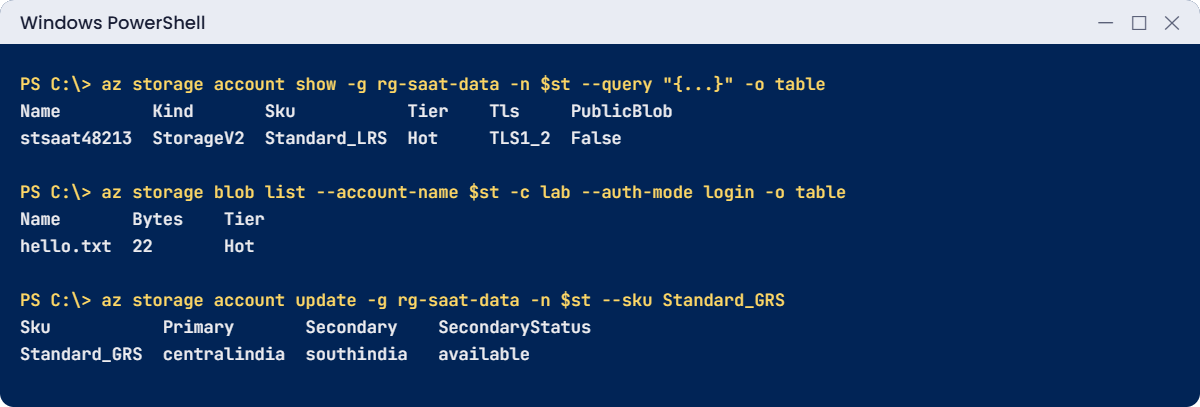
Azure storage account lab: secure defaults, a blob upload and GRS
Secure defaults, a blob uploaded with Entra ID, and the paired region under GRS.

✅ Checkpoint: Your storage account is Standard_LRS, StorageV2, Hot, TLS 1.2, no public access, and lab/hello.txt is in it. Its name is in C:\azure-lab\storage.txt.

Break It, Then Fix It

Two errors that land on every storage admin’s desk, usually in their first week.

1Break it: “But I’m the Owner!”

Remove your data role (as if you were a teammate who only has Owner), wait, and list the blobs:

az role assignment delete --assignee $me --role "Storage Blob Data Contributor" --scope $id
Start-Sleep -Seconds 120
az storage blob list --account-name $st --container-name lab --auth-mode login -o table

You’ll get this error:

You do not have the required permissions needed to perform this operation.
Depending on your operation, you may need to be assigned one of the following roles:
    "Storage Blob Data Owner"
    "Storage Blob Data Contributor"
    "Storage Blob Data Reader"
    "Storage Queue Data Contributor"
    "Storage Queue Data Reader"
    "Storage Table Data Contributor"
    "Storage Table Data Reader"

If you want to use the old authentication method and allow querying for the right account key, please use the "--auth-mode" parameter and "key" value.

Owner covers the control plane: creating, changing and deleting the account. Reading blobs with Entra ID is the data plane and needs a data role. The service code behind this message is AuthorizationPermissionMismatch.

Fix it: assign the smallest data role that does the job, at the smallest scope (here, the account):

az role assignment create --assignee $me --role "Storage Blob Data Contributor" --scope $id -o none
Start-Sleep -Seconds 120
az storage blob list --account-name $st --container-name lab --auth-mode login --query "[].name" -o tsv

You should see this:

hello.txt

Switching to --auth-mode key is not the fix. Account keys open everything in the account, and many companies turn them off (Lesson 24).

2Break it: “Just make the container public”

Try to create a container anyone on the internet can read:

az storage container create --account-name $st --name public --public-access blob --auth-mode login

You’ll get an error like this:

Public access is not permitted on this storage account.
ErrorCode:PublicAccessNotPermitted

The account setting wins over the container setting. That’s the secure default doing its job, and it’s why “public” links that worked on an old account fail on a new one.

Fix it: keep the container private and share with a time-limited SAS link (Lesson 24). Create it private:

az storage container create --account-name $st --name public --auth-mode login -o none
az storage container delete --account-name $st --name public --auth-mode login -o none
C:\azure-lab\Find-LabResources.ps1 -Lesson 21

You should see something like this (the kept account only):

Resource groups:

name         lesson location
----         ------ --------
rg-saat-data 21     centralindia


Resources:

name        type                              group        lesson
----        ----                              -----        ------
stsaat48213 Microsoft.Storage/storageAccounts rg-saat-data 21
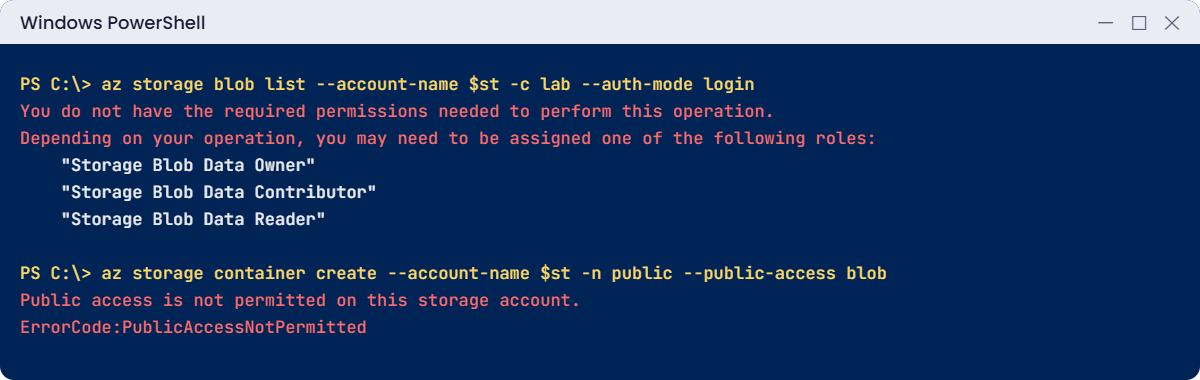
Azure storage account errors: missing data role and public access not permitted
Owner without a data role, and a public container on an account that blocks it.

✅ Checkpoint: Your data role is back, no public container exists, and the storage account is kept for Lesson 22.

This happened at work

“Azure keeps three copies, so we’re safe”

A logistics company stored five years of delivery proofs (signed photos) in one storage account. The account was GRS, and the team was proud of it: six copies in two regions.

During a cleanup, a script with the wrong container name deleted 1.2 million blobs in under an hour. The delete reached the secondary region minutes later, as designed. Blob soft delete was off, there was no backup, and the customer disputes that needed those photos started a week later.

What they changed: soft delete for blobs and containers (Lesson 23), versioning on the proofs container, a resource lock on the account, and Azure Backup for blobs. Cleanup scripts now run with a data role scoped to one container, and redundancy is described as “protection from hardware loss”, never as backup.

Common mistakes and troubleshooting

MistakeWhat you seeWhat to do
No --sku on az storage account createRA-GRS bill on a dev accountAlways pass --sku Standard_LRS or ZRS.
Owner, but no data role“You do not have the required permissions”Assign Storage Blob Data Reader/Contributor.
Using account keys to get around RBACFull access leaked in scriptsUse --auth-mode login and data roles.
Expecting public containers on new accountsPublicAccessNotPermittedUse SAS links or a CDN; keep public access off.
Treating GRS as backupDeletes replicate everywhereTurn on soft delete, versioning and backups.
Trying update --sku to reach ZRSChange refusedUse az storage account migration start or copy to a new account.
Capital letters or hyphens in the nameAccountNameInvalid3 to 24 lowercase letters and numbers.

Interview questions

Click a question to open it. Each one is written the way an interviewer would ask it. Under it you will see why they ask it and one way you could answer, in your own words.

Fresher level

1. What redundancy options does Azure Storage offer?

Why they ask this: The core concept.

How you might answer: LRS keeps 3 copies in one data centre, ZRS 3 copies across zones, GRS adds 3 copies in the paired region, and GZRS combines ZRS with the paired region. RA-GRS and RA-GZRS also let you read the secondary copy.

2. What are the rules for a storage account name?

Why they ask this: A basic but common check.

How you might answer: 3 to 24 characters, lowercase letters and numbers only, and unique across all of Azure, because the name becomes part of the public endpoint address.

3. I’m Owner of the subscription. Why can’t I list blobs?

Why they ask this: They’re checking control plane vs data plane.

How you might answer: Owner manages the resource but doesn’t grant data access with Entra ID. I need a data role like Storage Blob Data Reader or Contributor on the account or container.

2–5 years experience

4. ZRS or GRS for a production app in Central India?

Why they ask this: They want reasoning, not a slogan.

How you might answer: ZRS protects against a zone failure with no data loss and no failover, which covers most outages. GRS protects against a regional disaster but replicates asynchronously, so recent writes can be lost. If both matter, I’d choose GZRS.

5. How do you change an account from LRS to ZRS?

Why they ask this: They want to know it isn’t a simple update.

How you might answer: Switching between LRS and GRS is an update. Reaching ZRS needs a conversion with az storage account migration start, which can take a long time, or a copy to a new ZRS account with AzCopy. I’d plan it as a change, not a quick fix.

6. A developer asks you to make a container public. What do you do?

Why they ask this: They’re checking security judgement.

How you might answer: I’d ask what needs to read it and for how long. Usually a SAS with a short expiry, or a CDN in front, covers it. New accounts block anonymous access by default, and I’d keep it that way.

Senior level

7. How would you design storage security for a large company?

Why they ask this: They want layered controls.

How you might answer: Entra ID data roles with least privilege, shared key access turned off where apps allow it, private endpoints and the storage firewall, TLS 1.2 minimum, Azure Policy to enforce those settings, and Defender for Storage. Soft delete, versioning and locks protect against mistakes.

8. What happens in a customer-managed failover of a GRS account?

Why they ask this: They want the details that bite later.

How you might answer: The secondary region becomes primary and DNS for the endpoints moves there. Writes not yet replicated are lost, so I’d check the last sync time first. After failover the account is LRS in the new region, and I’d set geo-redundancy again.

9. Redundancy versus backup: how do you explain the difference to management?

Why they ask this: They want clear communication.

How you might answer: Redundancy keeps the service running when hardware or a site fails. Backup lets us go back in time after a mistake, attack or corruption. Redundancy copies deletes and ransomware just as faithfully, so we need both.

Quick quiz

Q1. Which redundancy keeps 3 copies across availability zones?

  1. LRS
  2. ZRS
  3. GRS
  4. RA-GRS
Show answer

B — ZRS writes to three zones in the region.

Q2. What is the CLI default SKU for az storage account create?

  1. Standard_LRS
  2. Standard_ZRS
  3. Standard_RAGRS
  4. Premium_LRS
Show answer

C — Always pass --sku to avoid paying for RA-GRS.

Q3. Which is a valid storage account name?

  1. St-Saat
  2. stsaat48213
  3. st_saat
  4. s
Show answer

B — Lowercase letters and numbers, 3 to 24 characters.

Q4. An Owner gets AuthorizationPermissionMismatch listing blobs. Why?

  1. Wrong region
  2. No data-plane role
  3. Account is LRS
  4. TLS too old
Show answer

B — Owner is control plane; reading blobs needs a data role.

Q5. Does GRS protect against accidental deletion?

  1. Yes, always
  2. Only with RA-GRS
  3. No, deletes replicate
  4. Only in South India
Show answer

C — Use soft delete, versioning and backup for that.

Quick recap

Your storage account is ready for the rest of this phase.

  • StorageV2 is the default account type; premium types are for one data type at SSD speed.
  • LRS, ZRS, GRS and GZRS decide how many copies and where.
  • Always pass --sku; the CLI default is RA-GRS.
  • Owner is not enough for data; use Storage Blob Data roles.
  • Redundancy is not backup.

Next lesson

Lesson 22: Blob, File, Queue and Table storage: which one to use → You put real data into all four services and see which job each one fits.

Further reading: Azure storage account

Want to go deeper into Azure storage account? See Microsoft’s Storage account overview and Azure Storage redundancy. You can also see the full plan for this course on the Azure Cloud Administration course page.

Scroll to Top