Windows Server on EC2: RDP, passwords and user data

Many companies run their Active Directory, file servers and SQL Server on Windows. Running Windows Server on EC2 works much like Linux, with three differences that trip people up: the key type, how you get the Administrator password, and how you connect.

In this lesson you launch win01 with Windows Server 2025, let a start-up script install IIS, decrypt the password on your laptop and open a Remote Desktop session from your IP only.

TimeYou needBy the end you can
60 minutes (instance running for about an hour)saat-vpc and saat-web-sg, your laptop signed in with aws login --profile saat-admin, and Remote Desktop Connection (mstsc, built into Windows). Cost: about USD 0.15 if you terminate within an hour.Launch a Windows Server instance with an RSA key, retrieve and decrypt its password, connect over RDP, run user data on Windows and spot the silent ED25519 and blocked-port problems.

What it is, in one line

Windows Server on EC2 is a Windows virtual machine with the licence included in the hourly price, reached with RDP and an Administrator password encrypted with your key.

In Simple Words

A locker with a combination sent in a sealed envelope

Imagine renting a locker at a railway station. When you rent it, the office sets a new combination and puts it in an envelope that only your personal key can open. You collect the envelope, open it at home and then go to the locker.

If you gave the office a key it can’t use to seal envelopes, it still gives you a locker, but your envelope never comes. That is what happens when you launch Windows with the wrong key type.

And if the locker room is only open to people from your street, you can’t get in from your friend’s house. That is the “my IP changed” problem with RDP.

Engineer's View

How Windows on EC2 works

Windows AMIs from Amazon include the Windows Server licence; you pay for it in the hourly price, which is why Windows instances cost more than Linux of the same size. Lesson 41 covers bringing your own licence. AWS publishes the latest AMI IDs in public SSM parameters such as /aws/service/ami-windows-latest/Windows_Server-2025-English-Full-Base.

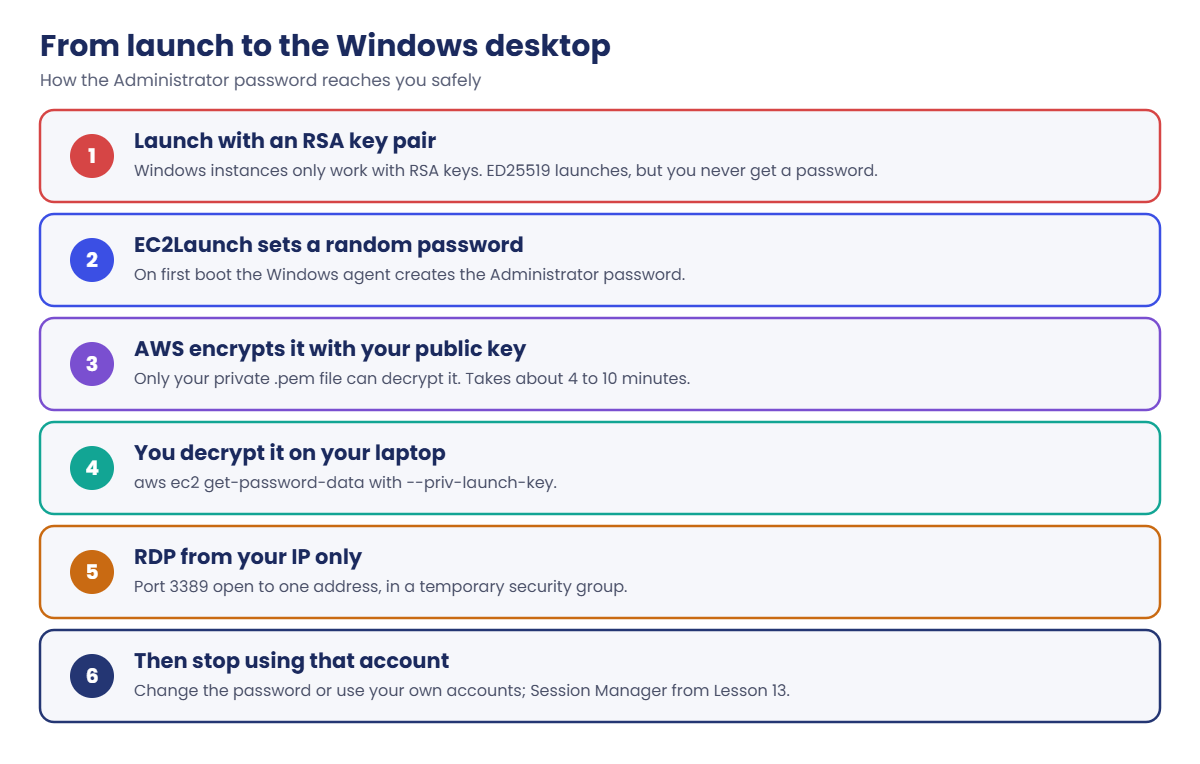
On first boot, the EC2Launch v2 agent sets a random password for the local Administrator account, encrypts it with the public half of your key pair and hands it to EC2. aws ec2 get-password-data downloads it, and with --priv-launch-key the CLI decrypts it locally with your .pem file. This only works with RSA keys. An ED25519 key launches the instance happily, but the password is never available.

Windows user data goes inside <powershell>...</powershell> tags and runs once, as Local System, through EC2Launch. Remote Desktop uses TCP 3389, which you open only to your own IP for this lab. From Lesson 13 you’ll stop opening 3389 at all.

Size matters more on Windows: 1 GiB is not enough. Use t3.medium (4 GiB) for a lab server; the default root volume is 30 GiB.

How it works, step by step

The password travels in a sealed envelope from the instance to your laptop.

1Create an RSA key pair

saat-rsa for Windows servers. Keep saat-key (ED25519) for Linux.

Windows Server on EC2: how the Administrator password reaches you

2Launch with user data

A <powershell> block installs IIS and writes a page, so you can check the server from outside before you even log in.

3Wait for the password

Windows takes longer than Linux to boot. The password usually appears 4 to 10 minutes after launch; until then get-password-data returns an empty value, not an error.

4Connect and look around

RDP from your IP. Inside, check that the AWS agents (EC2Launch, SSM Agent) are running, because you’ll need them in the next lesson.

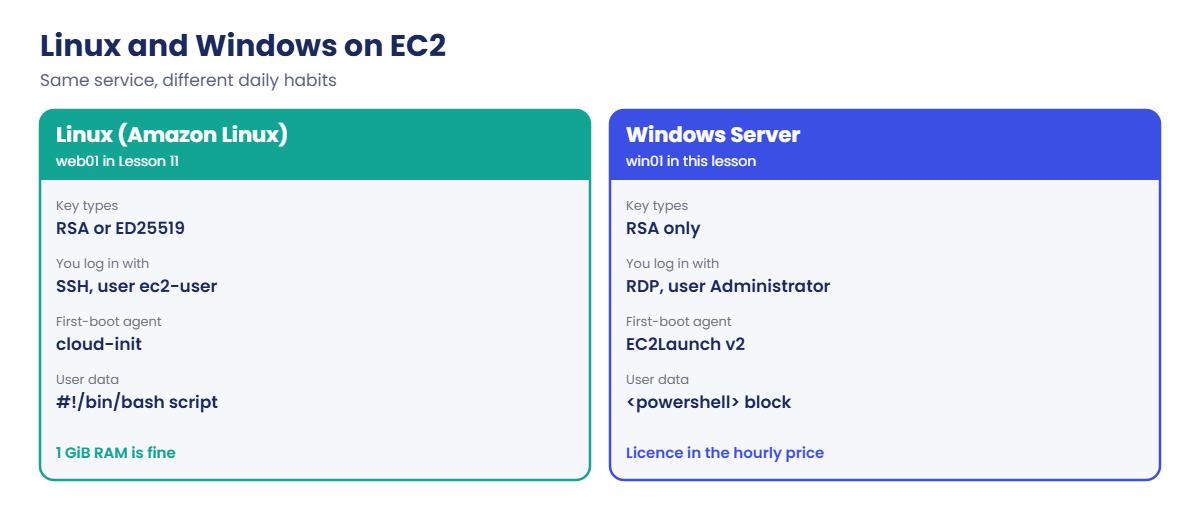
Here is what changes compared with the Linux server from Lesson 11.

Windows Server on EC2 compared with Linux on EC2

The habits are the same: no admin ports open to the world, tags on everything, IMDSv2 required, terminate when finished.

✅ Checkpoint: You can say why Windows needs an RSA key, where the password comes from and why it can take minutes to appear.

Hands-on lab: Windows Server on EC2 with IIS and RDP

Start as usual:

cd C:\aws-lab
aws login --profile saat-admin
$env:AWS_PROFILE = 'saat-admin'
$v = Get-Content C:\aws-lab\saat-vpc.json | ConvertFrom-Json

1Create an RSA key pair for Windows

Paste this whole block:

$key = aws ec2 create-key-pair --key-name saat-rsa --key-type rsa --key-format pem --tag-specifications 'ResourceType=key-pair,Tags=[{Key=course,Value=saatvedha-aws},{Key=lesson,Value=12}]' --query KeyMaterial --output text
[IO.File]::WriteAllText('C:\aws-lab\saat-rsa.pem', (($key -join "`n") + "`n"))
icacls C:\aws-lab\saat-rsa.pem /inheritance:r /grant:r "$($env:USERNAME):(R)"

2Find the Windows Server 2025 image

Run this:

$ami = aws ssm get-parameter --name /aws/service/ami-windows-latest/Windows_Server-2025-English-Full-Base --query Parameter.Value --output text
$ami

You should see an AMI ID, something like this:

ami-0e1f2a3b4c5d6e7f8

3Allow RDP from your IP only

Paste this whole block:

$myip = (Invoke-RestMethod https://checkip.amazonaws.com).Trim()
$rdpSg = aws ec2 create-security-group --group-name saat-rdp-temp --description "RDP from one admin IP (temporary)" --vpc-id $v.VpcId --tag-specifications 'ResourceType=security-group,Tags=[{Key=Name,Value=saat-rdp-temp},{Key=course,Value=saatvedha-aws},{Key=lesson,Value=12}]' --query GroupId --output text
aws ec2 authorize-security-group-ingress --group-id $rdpSg --protocol tcp --port 3389 --cidr "$myip/32" | Out-Null

4Launch win01

Paste this whole block:

@'
<powershell>
Install-WindowsFeature Web-Server -IncludeManagementTools
Set-Content -Path C:\inetpub\wwwroot\index.html -Value '<h1>Hello from win01</h1>'
</powershell>
'@ | Set-Content C:\aws-lab\win01-userdata.txt
$id = aws ec2 run-instances --image-id $ami --instance-type t3.medium --key-name saat-rsa --subnet-id $v.PublicA --security-group-ids $v.WebSg $rdpSg --user-data file://win01-userdata.txt --metadata-options HttpTokens=required --tag-specifications 'ResourceType=instance,Tags=[{Key=Name,Value=win01},{Key=course,Value=saatvedha-aws},{Key=lesson,Value=12},{Key=owner,Value=yourname.admin}]' 'ResourceType=volume,Tags=[{Key=course,Value=saatvedha-aws},{Key=lesson,Value=12}]' --query "Instances[0].InstanceId" --output text
aws ec2 wait instance-running --instance-ids $id
$ip = aws ec2 describe-instances --instance-ids $id --query "Reservations[0].Instances[0].PublicIpAddress" --output text
"$id  $ip"

Windows user data is fine with Windows line endings, so Set-Content is OK here.

5Wait for and decrypt the password

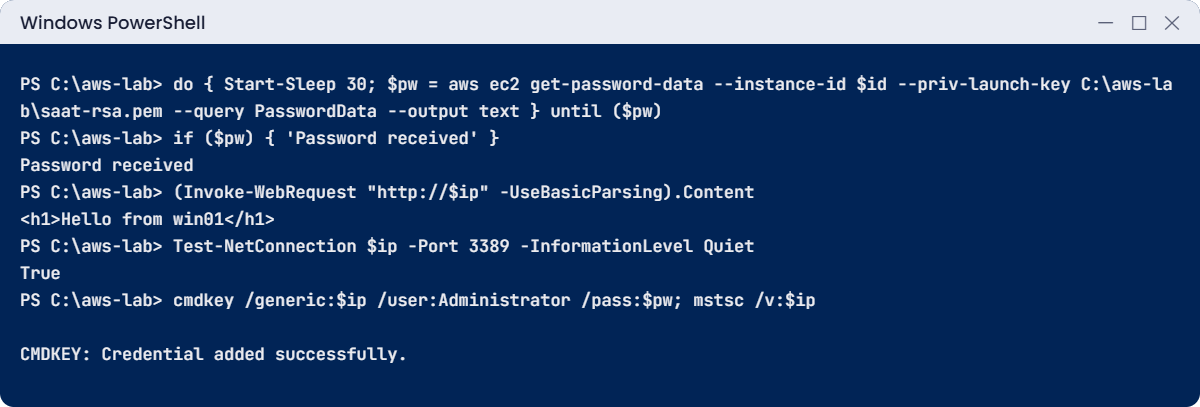
Paste this whole block (it checks every 30 seconds and usually finishes within 10 minutes):

do { Start-Sleep 30; $pw = aws ec2 get-password-data --instance-id $id --priv-launch-key C:\aws-lab\saat-rsa.pem --query PasswordData --output text } until ($pw)
if ($pw) { 'Password received' }

You should see this:

Password received

6Check the web page and the RDP port

Run this:

(Invoke-WebRequest "http://$ip" -UseBasicParsing).Content
Test-NetConnection $ip -Port 3389 -InformationLevel Quiet

You should see this (if the page isn’t there yet, IIS is still installing; wait two minutes):

<h1>Hello from win01</h1>
True
Windows Server on EC2 lab: password, IIS page and RDP
Password, IIS page, RDP check and connection. Something like this.

7Connect with Remote Desktop

Run this:

cmdkey /generic:$ip /user:Administrator /pass:$pw
mstsc /v:$ip

Accept the certificate warning (the server uses a self-signed certificate). In the remote session, open Windows PowerShell and run:

$t = Invoke-RestMethod -Method Put -Uri http://169.254.169.254/latest/api/token -Headers @{ 'X-aws-ec2-metadata-token-ttl-seconds' = '300' }
Invoke-RestMethod -Uri http://169.254.169.254/latest/meta-data/instance-type -Headers @{ 'X-aws-ec2-metadata-token' = $t }
Get-Service AmazonSSMAgent | Select-Object Status, Name

You should see something like this:

t3.medium

 Status Name
 ------ ----
Running AmazonSSMAgent

The SSM Agent is already installed and running on Amazon’s Windows AMIs. In Lesson 13 it will let you manage servers with no RDP port open at all.

✅ Checkpoint: win01 served “Hello from win01”, get-password-data gave you a password, and RDP worked from your IP. Keep win01 for the break lab; cleanup is at its end.

Break It, Then Fix It

Both of these produce no error message, just nothing, which is why they waste so much time.

1Break it: launch Windows with the ED25519 key

Launch a second, smaller test server with your Linux key, wait 10 minutes, then ask for its password:

$id2 = aws ec2 run-instances --image-id $ami --instance-type t3.medium --key-name saat-key --subnet-id $v.PublicA --security-group-ids $rdpSg --metadata-options HttpTokens=required --tag-specifications 'ResourceType=instance,Tags=[{Key=Name,Value=win02},{Key=course,Value=saatvedha-aws},{Key=lesson,Value=12}]' --query "Instances[0].InstanceId" --output text
Start-Sleep 600
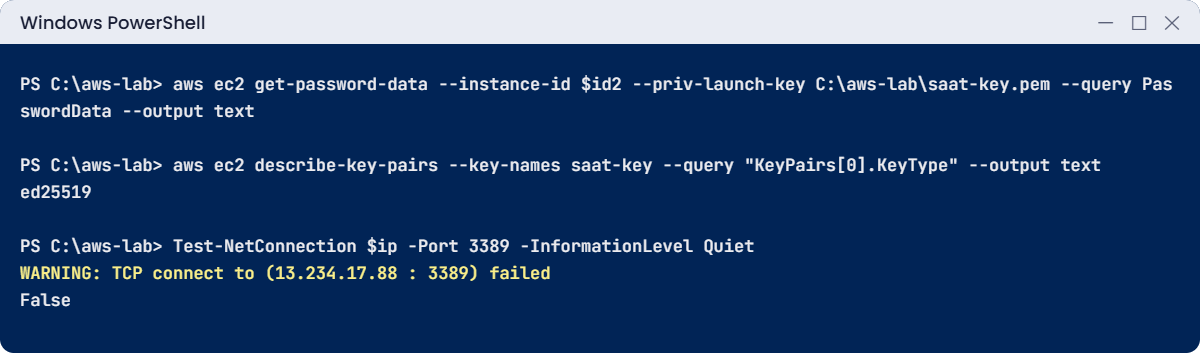
aws ec2 get-password-data --instance-id $id2 --priv-launch-key C:\aws-lab\saat-key.pem --query PasswordData --output text
aws ec2 describe-key-pairs --key-names saat-key --query "KeyPairs[0].KeyType" --output text

You should see an empty line, then the key type (something like this):


ed25519
Windows Server on EC2 break lab: empty password with an ED25519 key and a blocked RDP port
An empty password with an ED25519 key, then a blocked RDP port. Something like this.

The console shows “Password is not available” for this instance. Nothing tells you the reason. Fix: Windows needs an RSA key pair.

You can’t change the key of a running instance, so terminate it and launch again with saat-rsa.

2Break it: your IP changed

This happens when you move from office Wi-Fi to home, or your provider changes your address. Simulate it by replacing your rule with someone else’s IP:

aws ec2 revoke-security-group-ingress --group-id $rdpSg --protocol tcp --port 3389 --cidr "$myip/32"
aws ec2 authorize-security-group-ingress --group-id $rdpSg --protocol tcp --port 3389 --cidr 203.0.113.10/32 | Out-Null
Test-NetConnection $ip -Port 3389 -InformationLevel Quiet

You’ll get this (something like this):

WARNING: TCP connect to (13.234.17.88 : 3389) failed
False

RDP just says it can’t connect. Fix: compare your current IP with the rule, then correct it:

(Invoke-RestMethod https://checkip.amazonaws.com).Trim()
aws ec2 describe-security-group-rules --filters "Name=group-id,Values=$rdpSg" --query 'SecurityGroupRules[?IsEgress==`false`].CidrIpv4' --output text
aws ec2 revoke-security-group-ingress --group-id $rdpSg --protocol tcp --port 3389 --cidr 203.0.113.10/32
aws ec2 authorize-security-group-ingress --group-id $rdpSg --protocol tcp --port 3389 --cidr "$myip/32" | Out-Null

3Clean up

Paste this whole block:

aws ec2 terminate-instances --instance-ids $id $id2 | Out-Null
aws ec2 wait instance-terminated --instance-ids $id $id2
aws ec2 delete-security-group --group-id $rdpSg
cmdkey /delete:$ip
.\Find-LabResources.ps1

Keep the saat-rsa key pair and its .pem file for later Windows lessons.

✅ Checkpoint: You saw an empty password caused by the key type and a silent RDP failure caused by an IP change, fixed both, and terminated both instances.

This happened at work

The “quick test” RDP port

A consultant set up a Windows server for a client demo and opened RDP 3389 to 0.0.0.0/0 “just for the afternoon”. To make logging in easier, he changed the generated Administrator password to something short that he could type quickly.

The demo went well and the port stayed open. Within a day, the Windows Security log showed tens of thousands of failed logins (event 4625) from addresses all over the world. On day four one of them succeeded.

The attacker installed ransomware, which encrypted the server and a mapped file share.

The client restored from backups and lost two days of work. The rules afterwards: no 3389 or 22 open to the internet, ever; admin access through Systems Manager Session Manager or Fleet Manager; an AWS Config rule that flags any security group with 3389 open to the world; and generated passwords stored in a password manager, not replaced with easy ones.

Common mistakes and troubleshooting

MistakeWhat happensWhat to do
Launching Windows with an ED25519 key“Password is not available”, foreverUse an RSA key pair for Windows
Asking for the password straight after launchEmpty result, looks brokenWait 4 to 10 minutes; loop until it appears
t3.micro for WindowsSlow, unresponsive servert3.medium (4 GiB) or larger
RDP open to 0.0.0.0/0Brute-force attempts within hoursYour IP only now; Session Manager from Lesson 13
Rule for an old IP addressRDP times out with no explanationCheck your current IP and the rule
Forgetting the licence costWindows costs more than Linux per hourTerminate test servers; consider Linux where possible

Interview questions

Click a question to open it. Each one is written the way an interviewer would ask it. Under it you will see why they ask it and one way you could answer, in your own words.

Fresher level

1. You’ve just launched a Windows instance. How do you get the Administrator password to log in?

Why they ask this: They want to check the basics of running Windows on EC2. It’s the first thing you need on any new Windows server.

How you might answer: On first boot, EC2Launch sets a random password and encrypts it with the instance’s public key. I get it with aws ec2 get-password-data and decrypt it with my private key.

In the console, the Get password button does the same thing.

2. A manager asks why the Windows instance costs more than a Linux one of the same size. What would you tell them?

Why they ask this: They want to see basic licensing awareness. Cost questions like this come up often from managers.

How you might answer: I’d explain that Amazon’s Windows AMIs include the Windows Server licence, and that’s billed in the hourly price.

Bringing our own licence is possible, but it has extra rules under Microsoft licensing and may need dedicated hosts.

3. You created an ED25519 key pair and launched a Windows instance with it. Why might you be in trouble?

Why they ask this: They want to see that you know a small detail that causes real problems. It shows hands-on experience, not just reading.

How you might answer: Windows instances only work with RSA key pairs for the password. ED25519 is fine for Linux, but on Windows I can’t retrieve the Administrator password with it.

2–5 years experience

4. A user says they can’t RDP to a Windows instance. Walk me through what you’d check.

Why they ask this: They want to see a clear troubleshooting order, from the outside in. Jumping straight to rebooting is the habit they want to avoid.

How you might answer: I’d check the instance state and status checks, then the security group rule for 3389 against my current IP, then the network ACL and route table. I’d also confirm it has a public IP, or that I’m on the right private path, and check Windows Firewall.

Test-NetConnection to port 3389 tells me if it’s a network or a login problem. If the network is fine but RDP isn’t, I’d use the EC2 serial console or Session Manager.

5. How is user data on a Windows instance different from Linux?

Why they ask this: They want to see that you can automate Windows servers too. The tags and log locations are different, and that trips people up.

How you might answer: On Windows the script goes inside <powershell> or <script> tags, or YAML for EC2Launch v2. It runs as Local System through EC2Launch, and by default only on first boot.

If it fails, I look at the logs under C:\ProgramData\Amazon\EC2Launch\log.

6. Say you’re asked to manage 100 Windows servers, but RDP is closed. How would you do your job?

Why they ask this: They want to see modern operations habits. Managing servers without open inbound ports is safer and scales better.

How you might answer: I’d use Systems Manager for almost everything. Session Manager gives me a shell, Run Command runs scripts, and Patch Manager handles updates.

Fleet Manager gives a remote desktop through the console when I need one, and State Manager keeps the configuration in place. None of it needs inbound ports.

Senior level

7. A team wants to lift-and-shift 50 Windows servers to EC2. What would you plan for before the first move?

Why they ask this: They want to see real migration thinking. Licensing, identity and access are where these projects usually go wrong.

How you might answer: I’d plan licensing, included or bring-your-own, and size instances from real metrics. I’d also cover domain membership and DNS, storage layout, and backup and patching through AWS Backup and Patch Manager.

Admin access would be without open RDP. For the move itself I’d use a tool like AWS Application Migration Service, with test cutovers first.

8. How would you keep the local Administrator account safe across a whole fleet of Windows servers?

Why they ask this: They want to see how you handle identity on servers. A shared local password across a fleet is a big risk.

How you might answer: I’d rotate the password per server with Windows LAPS or Secrets Manager, and nobody uses it for daily work. Servers join a domain or AWS Managed Microsoft AD, and we audit logons.

And RDP stays closed to the internet.

Quick quiz

Q1. Which key pair type must you use for a Windows instance?

  1. ED25519
  2. RSA
  3. Either
  4. None
Show answer

B — Windows needs RSA keys to deliver the encrypted Administrator password.

Q2. get-password-data returns an empty value 2 minutes after launch. What is the most likely reason?

  1. The key is wrong
  2. The password isn’t ready yet
  3. RDP is closed
  4. The instance is Linux
Show answer

B — Windows usually needs 4 to 10 minutes before the password is available.

Q3. Which port does Remote Desktop use?

  1. 22
  2. 80
  3. 443
  4. 3389
Show answer

D — RDP uses TCP 3389.

Q4. How does Windows user data need to be wrapped?

  1. #!/bin/bash
  2. <powershell> … </powershell>
  3. { “script”: … }
  4. No wrapping
Show answer

B — EC2Launch runs scripts inside <powershell> or <script> tags.

Q5. Which smallest instance type is sensible for a Windows Server lab?

  1. t3.nano
  2. t3.micro
  3. t3.medium
  4. x2iedn.32xlarge
Show answer

C — Windows needs more memory; t3.medium has 4 GiB.

Quick recap

  • Windows on EC2 needs an RSA key pair; ED25519 launches but gives no password.
  • EC2Launch v2 sets and encrypts the Administrator password; get-password-data with --priv-launch-key decrypts it after 4 to 10 minutes.
  • Windows user data goes in <powershell> tags; use t3.medium or larger.
  • RDP 3389 only from your current IP for now; an IP change looks like a silent timeout.
  • The SSM Agent is already running on Amazon Windows AMIs, ready for Lesson 13.

Next lesson

Lesson 13: Systems Manager Session Manager → You’ll reach both Linux and Windows servers with no SSH or RDP port open at all.

Further reading: Windows Server on EC2

Want to go deeper into Windows Server on EC2? Read Connect to your Windows instance using RDP and Configure a Windows instance using EC2Launch v2. You can also see the full plan for this course on the AWS Cloud Administration course page.

Scroll to Top