Create RDS for SQL Server

Every SQL Server lesson from here on needs a database to work with. This RDS SQL Server setup lesson builds it properly: saat-sql, a SQL Server 2022 Express instance in the private database subnets, with its own parameter and option groups and a master password kept in Secrets Manager.

You’ll also build two helper scripts that open a secure Session Manager tunnel from your laptop, so sqlcmd (or SSMS) connects to a database that has no public address at all. Then you’ll fix a failed login and a parameter change RDS refuses.

TimeYou needBy the end you can
90 minutes (most of it waiting for RDS to create the instance)saat-vpc with saat-db-a/b and saat-db-sg (Lessons 8 to 10), Start-SsmEndpoints.ps1 and Stop-SsmEndpoints.ps1, saat-ec2-ssm-profile, your laptop signed in as saat-admin, sqlcmd (winget install Microsoft.Sqlcmd). Cost: about USD 0.20 an hour while the lab runs; the stopped database costs about USD 2.50 a month for storage.Create a DB subnet group, parameter group and option group, launch RDS for SQL Server with a managed master password, connect through a port-forwarding tunnel, change parameters correctly, and stop the instance to save money.

What it is, in one line

RDS SQL Server setup means creating the network, parameter and option groups an instance needs, launching it with secure defaults, and connecting to it from your tools.

In Simple Words

A locker in the bank’s back room

Your database is a locker in a room with no street door. Customers can’t walk in from the road. Staff reach it through an internal corridor that only opens for people with the right badge.

From home, you phone the bank and a staff member walks to your locker and holds the phone to it. That’s the tunnel: your laptop talks to 127.0.0.1, Session Manager carries it inside, and a small server in the private subnet does the last few steps.

The locker key isn’t written on a sticky note. It’s in the bank’s own safe (Secrets Manager), and the bank can change it without asking you.

Engineer's View

What an RDS SQL Server instance really needs

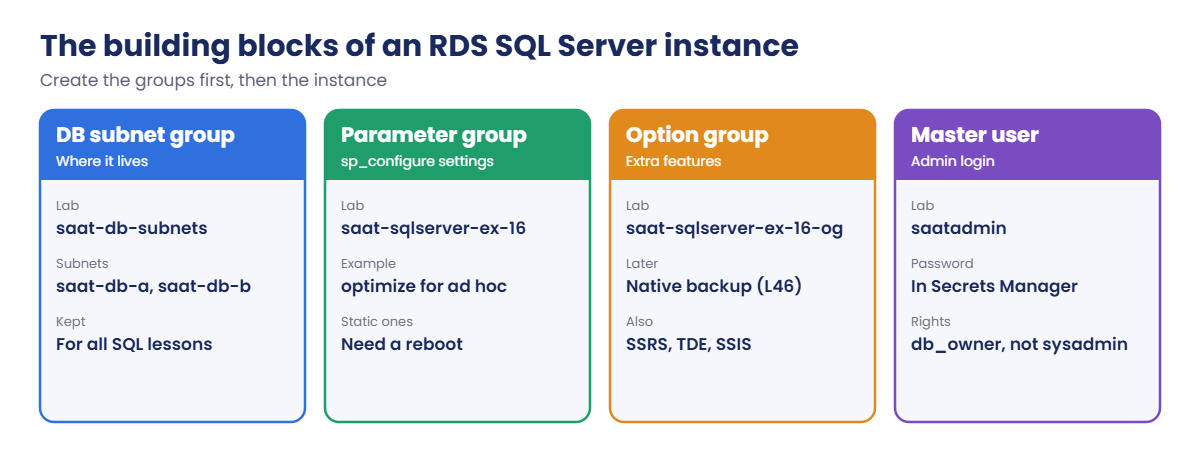
A DB subnet group lists subnets in at least two Availability Zones; RDS places the instance (and a Multi-AZ standby) there. A parameter group holds sp_configure-style settings: dynamic ones apply immediately, static ones wait for a reboot and show pending-reboot. An option group adds features such as native backup to S3, TDE, SSRS or SSIS.

Both are tied to an engine edition and major version (for example sqlserver-ex-16.0).

With --manage-master-user-password, RDS generates the master password, stores it in Secrets Manager and can rotate it. The master user has db_owner on user databases and can create logins and databases, but isn’t sysadmin. Storage is encrypted with KMS when --storage-encrypted is set, which can’t be added later without a snapshot copy.

Instances in private subnets with --no-publicly-accessible have no public endpoint; you reach them from inside the VPC, over VPN or Direct Connect, or through Session Manager port forwarding with AWS-StartPortForwardingSessionToRemoteHost. RDS SQL Server can be stopped for up to 7 days, after which AWS starts it again automatically.

How it works, step by step

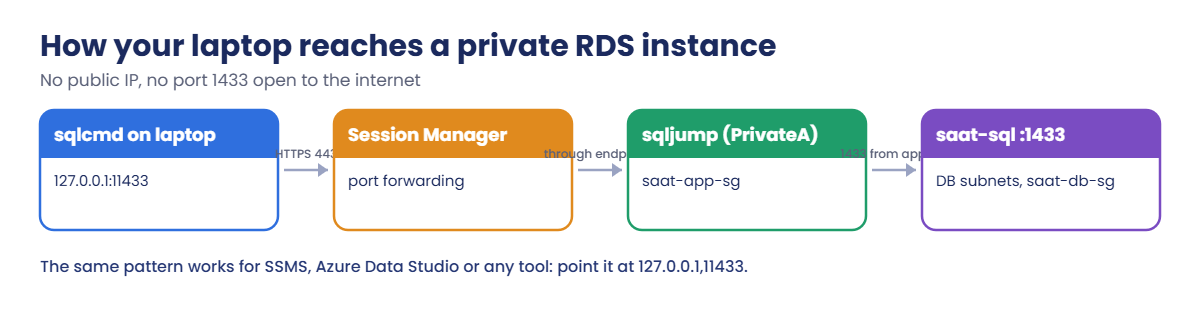
Here is how your laptop will reach saat-sql.

1sqlcmd talks to your own computer

The tunnel listens on 127.0.0.1 port 11433 on your laptop. Tools think the database is local.

How a laptop reaches private RDS SQL Server through Session Manager port forwarding

2Session Manager carries the traffic

The bytes travel over HTTPS to Systems Manager and through the VPC endpoints to sqljump, a tiny instance in saat-private-a.

3sqljump forwards to port 1433

sqljump is in saat-app-sg, which saat-db-sg already trusts on 1433 (Lesson 10). The database itself never faces the internet.

4Build the groups first

An instance is only as good as the groups it’s created with:

RDS SQL Server building blocks: DB subnet group, parameter group, option group, master user

Creating your own parameter and option groups now saves a reboot later: the default groups can’t be changed, and switching groups on a running instance usually needs a restart.

✅ Checkpoint: You can explain DB subnet, parameter and option groups, static versus dynamic parameters, and how the tunnel reaches a private database.

Hands-on lab: RDS SQL Server setup with a secure tunnel

Install sqlcmd if you haven’t, then sign in in a new PowerShell window:

winget install Microsoft.Sqlcmd
cd C:\aws-lab
aws login --profile saat-admin
$env:AWS_PROFILE = 'saat-admin'
$v = Get-Content C:\aws-lab\saat-vpc.json | ConvertFrom-Json

1Create the subnet, parameter and option groups

Paste this whole block:

aws rds create-db-subnet-group --db-subnet-group-name saat-db-subnets --db-subnet-group-description "saat-vpc database subnets" --subnet-ids $v.DbA $v.DbB --tags Key=course,Value=saatvedha-aws --query "DBSubnetGroup.SubnetGroupStatus" --output text
aws rds create-db-parameter-group --db-parameter-group-name saat-sqlserver-ex-16 --db-parameter-group-family sqlserver-ex-16.0 --description "saat-sql parameters" --tags Key=course,Value=saatvedha-aws --query "DBParameterGroup.DBParameterGroupName" --output text
aws rds create-option-group --option-group-name saat-sqlserver-ex-16-og --engine-name sqlserver-ex --major-engine-version 16.00 --option-group-description "saat-sql options" --tags Key=course,Value=saatvedha-aws --query "OptionGroup.OptionGroupName" --output text

You should see this:

Complete
saat-sqlserver-ex-16
saat-sqlserver-ex-16-og

2Create saat-sql

Paste this whole block. Creation usually takes 15 to 25 minutes; the last command waits for it:

$v22 = aws rds describe-db-engine-versions --engine sqlserver-ex --query "DBEngineVersions[?starts_with(EngineVersion, '16.00')] | [-1].EngineVersion" --output text
aws rds create-db-instance --db-instance-identifier saat-sql --engine sqlserver-ex --engine-version $v22 --license-model license-included --db-instance-class db.t3.micro --allocated-storage 20 --storage-type gp3 --storage-encrypted --master-username saatadmin --manage-master-user-password --db-subnet-group-name saat-db-subnets --vpc-security-group-ids $v.DbSg --no-publicly-accessible --db-parameter-group-name saat-sqlserver-ex-16 --option-group-name saat-sqlserver-ex-16-og --backup-retention-period 1 --copy-tags-to-snapshot --enable-cloudwatch-logs-exports error agent --tags Key=course,Value=saatvedha-aws Key=Name,Value=saat-sql --query "DBInstance.DBInstanceStatus" --output text
aws rds wait db-instance-available --db-instance-identifier saat-sql
aws rds describe-db-instances --db-instance-identifier saat-sql --query "DBInstances[0].[DBInstanceStatus,Endpoint.Address,PubliclyAccessible,StorageEncrypted]" --output text

You should see something like this:

creating
available       saat-sql.c1a2b3c4d5e6.ap-south-1.rds.amazonaws.com    False   True

No public access, encrypted storage, and nobody ever typed the password. While you wait, write the two helper scripts in the next step.

3Write the tunnel helpers and connect

Paste this whole block. Start-SqlLab.ps1 starts what’s needed and opens the tunnel in a second window; Stop-SqlLab.ps1 cleans up:

@'
param([string]$Db = 'saat-sql', [int]$LocalPort = 11433)
$v = Get-Content C:\aws-lab\saat-vpc.json | ConvertFrom-Json
$env:Path += ';C:\Program Files\Amazon\SessionManagerPlugin\bin'
& C:\aws-lab\Start-SsmEndpoints.ps1
$st = aws rds describe-db-instances --db-instance-identifier $Db --query "DBInstances[0].DBInstanceStatus" --output text
if ($st -eq 'stopped') { aws rds start-db-instance --db-instance-identifier $Db | Out-Null }
aws rds wait db-instance-available --db-instance-identifier $Db
$ep = aws rds describe-db-instances --db-instance-identifier $Db --query "DBInstances[0].Endpoint.Address" --output text
$jump = aws ec2 describe-instances --filters "Name=tag:Name,Values=sqljump" "Name=instance-state-name,Values=running" --query "Reservations[0].Instances[0].InstanceId" --output text
if (-not $jump -or $jump -eq 'None') {
  $base = aws ssm get-parameter --name /aws/service/ami-amazon-linux-latest/al2023-ami-kernel-default-x86_64 --query Parameter.Value --output text
  $jump = aws ec2 run-instances --image-id $base --instance-type t3.micro --subnet-id $v.PrivateA --security-group-ids $v.AppSg --iam-instance-profile Name=saat-ec2-ssm-profile --metadata-options HttpTokens=required --tag-specifications 'ResourceType=instance,Tags=[{Key=Name,Value=sqljump},{Key=course,Value=saatvedha-aws}]' --query "Instances[0].InstanceId" --output text
}
do { Start-Sleep 15; $p = aws ssm describe-instance-information --filters "Key=InstanceIds,Values=$jump" --query "InstanceInformationList[0].PingStatus" --output text } until ($p -eq 'Online')
@{ host = @($ep); portNumber = @('1433'); localPortNumber = @("$LocalPort") } | ConvertTo-Json | Set-Content C:\aws-lab\tunnel.json
Start-Process powershell -ArgumentList '-NoExit', '-Command', "aws ssm start-session --target $jump --document-name AWS-StartPortForwardingSessionToRemoteHost --parameters file://C:/aws-lab/tunnel.json"
$secretArn = aws rds describe-db-instances --db-instance-identifier $Db --query "DBInstances[0].MasterUserSecret.SecretArn" --output text
$s = aws secretsmanager get-secret-value --secret-id $secretArn --query SecretString --output text | ConvertFrom-Json
$env:SQLCMDPASSWORD = $s.password
Start-Sleep 8
"Tunnel ready on 127.0.0.1,$LocalPort for $($s.username) (password is in SQLCMDPASSWORD for this window)"
'@ | Set-Content C:\aws-lab\Start-SqlLab.ps1
@'
param([string]$Db = 'saat-sql', [switch]$KeepDbRunning)
$jump = aws ec2 describe-instances --filters "Name=tag:Name,Values=sqljump" "Name=instance-state-name,Values=pending,running,stopped" --query "Reservations[].Instances[].InstanceId" --output text
if ($jump) { aws ec2 terminate-instances --instance-ids ($jump -split '\s+') | Out-Null }
& C:\aws-lab\Stop-SsmEndpoints.ps1
if (-not $KeepDbRunning) { aws rds stop-db-instance --db-instance-identifier $Db --query "DBInstance.DBInstanceStatus" --output text }
Remove-Item Env:SQLCMDPASSWORD -ErrorAction SilentlyContinue
"Close the tunnel window if it is still open."
'@ | Set-Content C:\aws-lab\Stop-SqlLab.ps1
.\Start-SqlLab.ps1
sqlcmd -S "127.0.0.1,11433" -U saatadmin -C -Q "SELECT SERVERPROPERTY('Edition') AS edition, SERVERPROPERTY('ProductVersion') AS version"

You should see something like this (and a second window showing “Waiting for connections…”):

Tunnel ready on 127.0.0.1,11433 for saatadmin (password is in SQLCMDPASSWORD for this window)
edition                     version
--------------------------- ------------
Express Edition (64-bit)    16.0.4265.3

-C trusts the server certificate for now; Lesson 44 sets up proper TLS checks. In SSMS you’d connect to 127.0.0.1,11433 with SQL Server authentication and the same login.
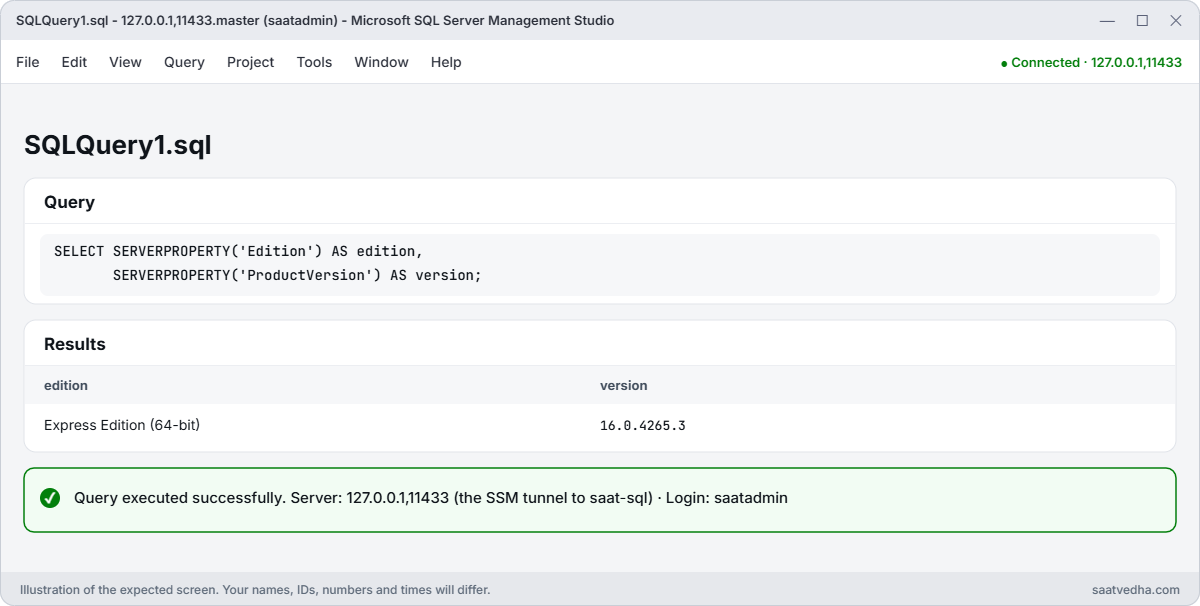
SSMS connected to RDS SQL Server through the tunnel at 127.0.0.1,11433 showing Express Edition 16.0
SSMS through the tunnel: connect to 127.0.0.1,11433 with SQL Server authentication and you reach saat-sql.
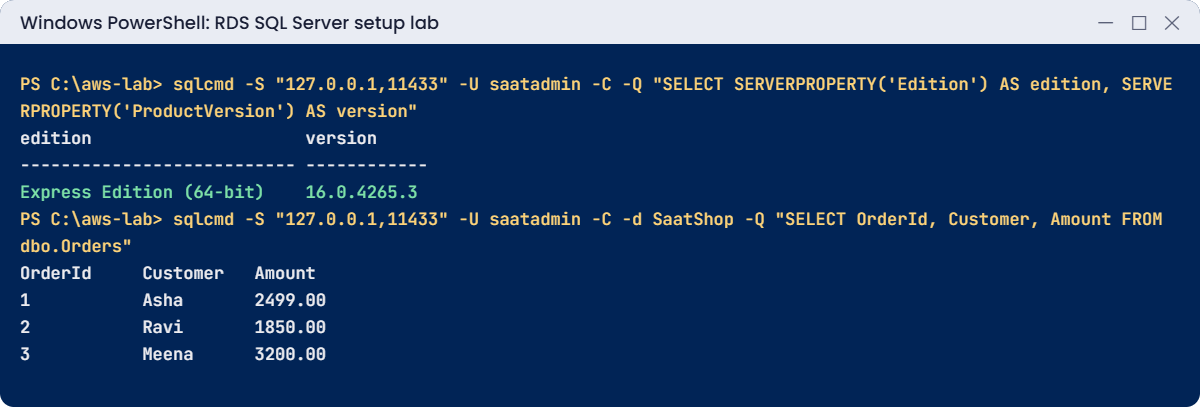
RDS SQL Server setup lab output: edition and version, and rows in SaatShop
Edition and version through the tunnel, and the SaatShop rows. Something like this.

4Create a database and change a parameter

Paste this whole block:

sqlcmd -S "127.0.0.1,11433" -U saatadmin -C -Q "CREATE DATABASE SaatShop"
sqlcmd -S "127.0.0.1,11433" -U saatadmin -C -d SaatShop -Q "CREATE TABLE dbo.Orders (OrderId int IDENTITY PRIMARY KEY, Customer nvarchar(100), Amount decimal(10,2), CreatedAt datetime2 DEFAULT SYSUTCDATETIME()); INSERT dbo.Orders (Customer, Amount) VALUES (N'Asha', 2499.00), (N'Ravi', 1850.00), (N'Meena', 3200.00);"
sqlcmd -S "127.0.0.1,11433" -U saatadmin -C -d SaatShop -Q "SELECT OrderId, Customer, Amount FROM dbo.Orders"
'[ { "ParameterName": "optimize for ad hoc workloads", "ParameterValue": "1", "ApplyMethod": "immediate" } ]' | Set-Content adhoc.json
aws rds modify-db-parameter-group --db-parameter-group-name saat-sqlserver-ex-16 --parameters file://adhoc.json | Out-Null
Start-Sleep 60
sqlcmd -S "127.0.0.1,11433" -U saatadmin -C -h -1 -Q "SET NOCOUNT ON; SELECT value_in_use FROM sys.configurations WHERE name = 'optimize for ad hoc workloads'"

You should see something like this:

(3 rows affected)
OrderId     Customer   Amount
----------- ---------- ---------
1           Asha       2499.00
2           Ravi       1850.00
3           Meena      3200.00
1

The parameter is dynamic, so it applied without a restart. You couldn’t run sp_configure yourself on RDS for most settings; the parameter group is how you change them, and it applies the same settings to every instance that uses the group.

✅ Checkpoint: saat-sql is available, private and encrypted, the tunnel connects sqlcmd on 127.0.0.1,11433, SaatShop has three orders, and optimize for ad hoc workloads is 1. Keep everything for the break lab.

Break It, Then Fix It

Two problems you’ll meet in the first week with any RDS SQL Server.

1Break it: log in with an old password

Pretend you saved the password last month, before it rotated:

$saved = $env:SQLCMDPASSWORD
$env:SQLCMDPASSWORD = 'Password-from-last-month-1'
sqlcmd -S "127.0.0.1,11433" -U saatadmin -C -Q "SELECT 1"

You’ll get an error like this:

mssql: login error: Login failed for user 'saatadmin'.

Managed master passwords can rotate, and copies in config files, password managers or someone’s notes go stale. The error log (exported to CloudWatch Logs) shows the failed attempt with error 18456. Fix: always read the current value from the secret, as Start-SqlLab.ps1 does, and never copy it anywhere else:

$secretArn = aws rds describe-db-instances --db-instance-identifier saat-sql --query "DBInstances[0].MasterUserSecret.SecretArn" --output text
$env:SQLCMDPASSWORD = (aws secretsmanager get-secret-value --secret-id $secretArn --query SecretString --output text | ConvertFrom-Json).password
sqlcmd -S "127.0.0.1,11433" -U saatadmin -C -h -1 -Q "SET NOCOUNT ON; SELECT SUSER_NAME()"

You should see this:

saatadmin

2Break it: apply a static parameter immediately

Try to change user connections, a static setting, with immediate apply:

'[ { "ParameterName": "user connections", "ParameterValue": "200", "ApplyMethod": "immediate" } ]' | Set-Content user-conn.json
aws rds modify-db-parameter-group --db-parameter-group-name saat-sqlserver-ex-16 --parameters file://user-conn.json

You’ll get this error:

An error occurred (InvalidParameterCombination) when calling the ModifyDBParameterGroup operation: cannot use immediate apply method for static parameter
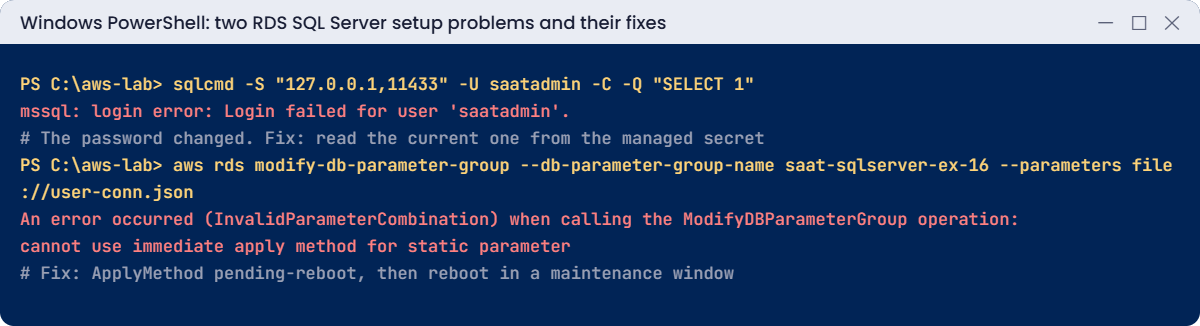
RDS SQL Server setup problems: login failed and static parameter with immediate apply
Both problems and their fixes. Something like this.

Static parameters only take effect after a restart. RDS refuses to pretend otherwise, which is helpful: the dangerous version is the one where the change is accepted as pending-reboot and nobody reboots, so the setting silently never applies. Fix: use pending-reboot, then reboot in a maintenance window, and check the status:

aws rds describe-db-parameters --db-parameter-group-name saat-sqlserver-ex-16 --query "Parameters[?ParameterName=='user connections'].[ApplyType,AllowedValues]" --output text
aws rds describe-db-instances --db-instance-identifier saat-sql --query "DBInstances[0].DBParameterGroups[0].ParameterApplyStatus" --output text

You should see something like this:

static  0-32767
in-sync

The instance is in-sync because nothing was changed; you just checked how a static parameter would be applied. Now stop the lab. saat-sql is stopped, not deleted, because the next lessons use it:

Remove-Item adhoc.json, user-conn.json
.\Stop-SqlLab.ps1

You should see something like this:

stopping
Close the tunnel window if it is still open.

RDS starts a stopped instance again after 7 days. If you pause the course for longer, either run Stop-SqlLab.ps1 again after it restarts, or snapshot and delete saat-sql (Lesson 52 shows how to restore it).

✅ Checkpoint: You fixed a login failure by reading the current password from the managed secret, and saw RDS refuse immediate apply for a static parameter. saat-sql is stopping, the tunnel helpers are saved, and sqljump and the endpoints are gone.

This happened at work

The port 1433 that was open to the world

A start-up created its first RDS SQL Server in a hurry for a demo. To connect from laptops, a developer made it publicly accessible and added a security group rule for 1433 from 0.0.0.0/0. It worked, and the demo went well.

Within days, the error log showed thousands of failed logins a day from scanners trying “sa” and common passwords. The master password was strong, so nothing was breached, but the noise hid a real problem: an app was failing to log in after a password change, and nobody noticed for a week.

They moved the instance to private subnets, removed public access, used a bastion and later Session Manager port forwarding for admin access, and switched to a managed master password with an alert on repeated login failures.

Common mistakes and troubleshooting

MistakeWhat happensWhat to do
Publicly accessible with 1433 openConstant brute-force attemptsPrivate subnets; tunnel, VPN or bastion for admin access
Using the default parameter and option groupsCan’t change settings without switching groups laterCreate your own groups before the instance
Copying the master password into config filesLogins break after rotationRead it from Secrets Manager at runtime
Static parameter set to pending-reboot and forgottenSetting never appliesCheck ParameterApplyStatus; reboot in a window
Creating unencrypted storageEncryption can’t simply be turned on laterUse --storage-encrypted from the start
Leaving a lab instance stopped for weeksIt restarts after 7 days and billsRe-stop it, or snapshot and delete

Interview questions

Click a question to open it. Each one is written the way an interviewer would ask it. Under it you will see why they ask it and one way you could answer, in your own words.

Fresher level

1. You’re about to create your first RDS SQL Server instance in a custom VPC. What do you need to have ready first?

Why they ask this: They want to know you understand the pieces RDS needs before it can launch. Missing them is the most common reason a first build fails.

How you might answer: I need a DB subnet group with subnets in at least two Availability Zones, and a security group that allows the app on port 1433. Ideally I’d also create my own parameter group and option group, instead of using the defaults.

2. How would you explain the difference between a parameter group and an option group to a new DBA?

Why they ask this: They are checking that you know where RDS settings and features live. You need both when you tune or extend an instance.

How you might answer: I’d say a parameter group holds the engine settings, a bit like what you’d change with sp_configure on a normal server. An option group adds extra features, such as native backup to S3, TDE or SSRS.

3. Your RDS instance isn’t publicly accessible, and you need to connect to it from your laptop. How would you do that?

Why they ask this: They want to see that you can reach a private database safely. Making the database public just to connect is a bad habit.

How you might answer: I’d connect from inside the VPC, or over VPN or Direct Connect if we have them. Otherwise I’d go through a bastion host, or use Session Manager port forwarding to the RDS endpoint, which doesn’t need any open inbound ports.

2–5 years experience

4. You changed a static parameter in the parameter group, but nothing seems different. What’s going on?

Why they ask this: They want to see that you understand how RDS applies parameter changes. This confuses many people after their first change.

How you might answer: Static parameters only take effect after a reboot, and the instance shows pending-reboot until then. RDS refuses an immediate apply for static parameters, so I’d plan a reboot at a quiet time.

5. Why would you create an RDS instance with --manage-master-user-password instead of typing a password yourself?

Why they ask this: They are checking your security habits. They want to know you avoid passwords that people know and store in random places.

How you might answer: With that option, RDS generates the master password and stores it in Secrets Manager, encrypted with KMS, and it can rotate it. So nobody needs to know the password or save it in a file or a ticket.

6. Security finds an RDS instance that was created without encryption. Can you just turn encryption on?

Why they ask this: They want to know you understand the encryption limits of RDS. It shows whether you can plan the fix and its downtime.

How you might answer: Not directly. I’d take a snapshot, copy that snapshot with encryption enabled, and then restore a new instance from the encrypted copy.

Then I’d point the app to the new instance, so I’d plan this with the app team.

Senior level

7. You need to build 40 RDS SQL Server instances that all follow the same standard. How would you set that up?

Why they ask this: They want to see platform thinking and repeatability. They are checking that you avoid 40 slightly different hand-built databases.

How you might answer: I’d build everything with infrastructure as code, using shared subnet groups and versioned parameter and option groups per edition and version. Every instance would use managed master passwords, encryption with customer managed keys, and private subnets only.

I’d add standard tags, log exports and Database Insights, and set backups and maintenance windows per environment.

8. An app suddenly can’t log in to RDS SQL Server, and nothing was deployed today. How would you troubleshoot?

Why they ask this: They want to see a calm troubleshooting order. They are checking that you use the error details and recent changes instead of guessing.

How you might answer: First I’d get the exact error, and check the 18456 state in the error log, because the state tells me why the login failed. Then I’d check whether the password or secret rotated, the login is enabled and not locked, and the default database still exists.

After that I’d check network reachability and look in CloudTrail for recent changes.

Quick quiz

Q1. Which group adds features like native backup to S3?

  1. Parameter group
  2. Option group
  3. Subnet group
  4. Security group
Show answer

B — Option groups add features.

Q2. Why did immediate apply fail for user connections?

  1. Wrong value
  2. It is a static parameter
  3. No permission
  4. The instance was stopped
Show answer

B — Static parameters need a reboot.

Q3. Where is the managed master password stored?

  1. In the parameter group
  2. In Secrets Manager
  3. In CloudTrail
  4. On the instance
Show answer

B — RDS stores and can rotate it in Secrets Manager.

Q4. What does the laptop connect to when using the tunnel?

  1. The RDS public IP
  2. 127.0.0.1 on a local port
  3. The NAT gateway
  4. The ALB
Show answer

B — Session Manager forwards the local port.

Q5. What happens to a stopped RDS instance after 7 days?

  1. It is deleted
  2. AWS starts it again
  3. It stays stopped forever
  4. It becomes Multi-AZ
Show answer

B — Re-stop it or snapshot and delete.

Quick recap

  • Create a DB subnet group, parameter group and option group before the instance.
  • Keep SQL Server private; reach it with Session Manager port forwarding.
  • Let RDS manage the master password in Secrets Manager.
  • Dynamic parameters apply now; static ones need a reboot.
  • Start-SqlLab.ps1 and Stop-SqlLab.ps1 run every SQL lesson from now on.

Next lesson

Lesson 43: Storage for SQL Server: gp3 vs io2, tempdb → You’ll measure SQL Server I/O on RDS, see where gp3 limits bite, and learn when io2 and tempdb placement matter.

Further reading: RDS SQL Server setup

Want to go deeper into RDS SQL Server setup? Read Creating an Amazon RDS DB instance and Start a Session Manager session, including port forwarding. You can also see the full plan for this course on the AWS Cloud Administration course page.

Scroll to Top