Patch Manager for Linux and Windows

Unpatched servers are how most breaches start, and “we’ll patch next month” is how they stay unpatched. AWS Patch Manager, part of Systems Manager, scans servers for missing patches, installs the ones your rules approve, and reports compliance, for Linux and Windows, without logging in to a single server.

You’ll launch a server from a six-month-old Amazon Linux image so it really needs patches, write a patch baseline, scan, install, and schedule a Sunday-night maintenance window. Then you’ll fix the two problems that quietly leave servers unpatched.

TimeYou needBy the end you can
60 minutes (one small instance and the Session Manager endpoints for under an hour)saat-vpc, Start-SsmEndpoints.ps1 and Stop-SsmEndpoints.ps1, saat-ec2-ssm-profile, your laptop signed in as saat-admin. Cost: about USD 0.08. Patch Manager itself has no extra charge for EC2 instances.Create a patch baseline and patch group, run scans and installs with AWS-RunPatchBaseline, read patch compliance, schedule a maintenance window, and troubleshoot patch group and instance state problems.

What it is, in one line

AWS Patch Manager scans and patches EC2 and on-premises servers using patch baselines (which patches are approved) and maintenance windows (when to install them).

In Simple Words

The building maintenance checklist

A building manager doesn’t fix every leaking tap the moment it drips. They keep a checklist of what must be fixed (fire alarms always, paint only if peeling badly) and a time when work is allowed, Sunday night, when nobody is in the office.

The checklist is a patch baseline. The Sunday slot is a maintenance window. The label on each floor saying which checklist applies is the patch group.

If someone writes the floor label wrong, that floor gets the default checklist, which may be very different from what you planned.

Engineer's View

How Patch Manager really works

A patch baseline is per operating system: approval rules (classification such as Security or Bugfix, severity, auto-approve after N days), approved and rejected patch lists, and compliance level. AWS provides predefined baselines, such as AWS-AmazonLinux2023DefaultPatchBaseline and AWS-DefaultPatchBaseline for Windows (Critical and Security updates, approved 7 days after release).

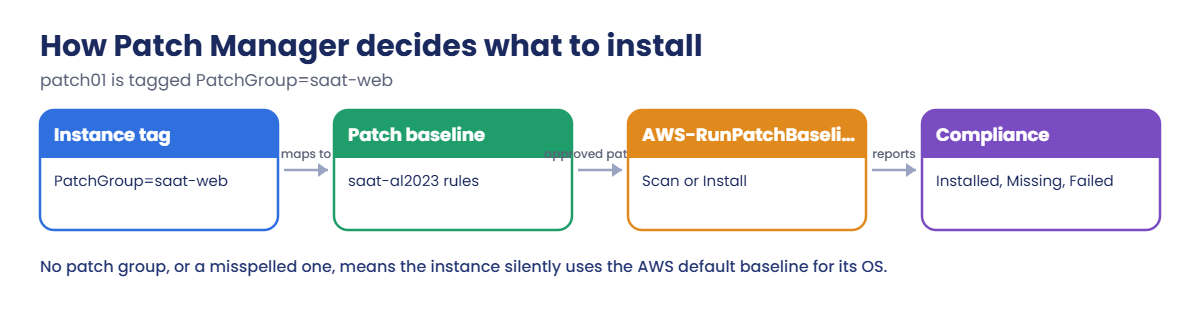
A patch group links instances to a custom baseline through the PatchGroup (or Patch Group) tag. Instances without a matching group use the default baseline for their OS. The AWS-RunPatchBaseline document does the work: Operation=Scan only reports, Operation=Install installs approved patches and, with RebootOption=RebootIfNeeded, reboots when required.

On Amazon Linux 2023, Patch Manager uses the latest repository version even if the server is locked to an older release. Linux servers need their package repositories (here through the S3 gateway endpoint); Windows servers need Windows Update or WSUS access. Maintenance windows run tasks on a schedule with concurrency and error limits; newer accounts can also use patch policies through Quick Setup across an organization.

How it works, step by step

Here is how a server gets patched in this lab.

1The tag picks the baseline

patch01 has PatchGroup=saat-web. That group is registered to the saat-al2023 baseline, so its approval rules apply.

AWS Patch Manager flow: patch group tag, baseline, AWS-RunPatchBaseline, compliance

2A scan reports the gap

AWS-RunPatchBaseline with Scan compares installed packages with approved updates and reports Installed, Missing and Failed counts to Systems Manager.

3An install closes it

The same document with Install applies only approved patches, reboots if a kernel or core library needs it, and reports again.

4A window makes it routine

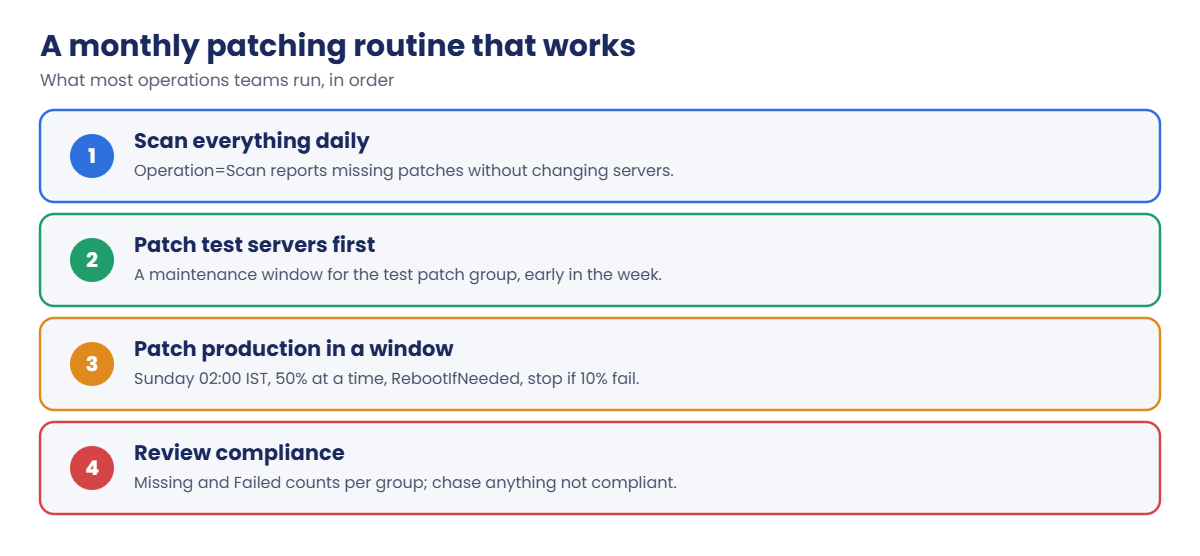
Nobody should run installs by hand every month. A routine looks like this:

Monthly patching routine with AWS Patch Manager: scan, test, production window, review

The order matters: test groups first, production a few days later, so a bad patch is caught before it reaches customers.

✅ Checkpoint: You can explain baselines, patch groups and the default baseline, Scan versus Install, and what a maintenance window adds.

Hands-on lab: patch a real server with AWS Patch Manager

Start as usual, and add a small helper that waits for a Run Command to finish:

cd C:\aws-lab
aws login --profile saat-admin
$env:AWS_PROFILE = 'saat-admin'
$v = Get-Content C:\aws-lab\saat-vpc.json | ConvertFrom-Json
.\Start-SsmEndpoints.ps1
function Wait-Command([string]$CommandId, [string]$InstanceId) {
  do { Start-Sleep 15; $st = aws ssm get-command-invocation --command-id $CommandId --instance-id $InstanceId --query Status --output text 2>$null } until ($st -in 'Success', 'Failed', 'Cancelled', 'TimedOut')
  $st
}

1Launch a server that needs patches

Paste this whole block. It picks an Amazon Linux 2023 image at least six months old:

$old = aws ec2 describe-images --owners amazon --include-deprecated --filters "Name=name,Values=al2023-ami-2023.*-kernel-6.1-x86_64" --query 'sort_by(Images,&CreationDate)[].[CreationDate,ImageId,Name]' --output text |
  ForEach-Object { $d, $id, $n = $_ -split "`t"; [pscustomobject]@{ Date = [datetime]$d; Id = $id; Name = $n } } |
  Where-Object { $_.Date -lt (Get-Date).AddMonths(-6) } | Select-Object -Last 1
$old.Name
$i = aws ec2 run-instances --image-id $old.Id --instance-type t3.micro --subnet-id $v.PrivateA --security-group-ids $v.AppSg --iam-instance-profile Name=saat-ec2-ssm-profile --metadata-options HttpTokens=required --tag-specifications 'ResourceType=instance,Tags=[{Key=Name,Value=patch01},{Key=PatchGroup,Value=saat-web},{Key=course,Value=saatvedha-aws},{Key=lesson,Value=27}]' --query "Instances[0].InstanceId" --output text
do { Start-Sleep 20; $p = aws ssm describe-instance-information --filters "Key=InstanceIds,Values=$i" --query "InstanceInformationList[0].PingStatus" --output text } until ($p -eq 'Online')
$p

You should see something like this:

al2023-ami-2023.7.20250414.0-kernel-6.1-x86_64
Online

Teams don’t do this on purpose, but old images are common: an Auto Scaling group whose launch template nobody updated, or a server built from a “golden” AMI two years ago.

2Create a baseline and a patch group

Paste this whole block:

@'
{
  "PatchRules": [
    {
      "PatchFilterGroup": {
        "PatchFilters": [
          { "Key": "CLASSIFICATION", "Values": [ "Security" ] },
          { "Key": "SEVERITY", "Values": [ "Critical", "Important" ] }
        ]
      },
      "ApproveAfterDays": 7,
      "ComplianceLevel": "HIGH"
    }
  ]
}
'@ | Set-Content patch-rules.json
$pb = aws ssm create-patch-baseline --name saat-al2023 --operating-system AMAZON_LINUX_2023 --description "Security, Critical and Important, after 7 days" --approval-rules file://patch-rules.json --tags Key=course,Value=saatvedha-aws --query BaselineId --output text
aws ssm register-patch-baseline-for-patch-group --baseline-id $pb --patch-group saat-web | Out-Null
aws ssm describe-patch-groups --query "Mappings[].[PatchGroup,BaselineIdentity.BaselineName]" --output text

You should see this:

saat-web        saat-al2023

Waiting seven days before auto-approving gives the wider world time to find a bad patch before it reaches you. Emergency patches can still be added to the approved list by hand.

3Scan, then install

Paste this whole block (the install usually takes five to ten minutes, including a reboot):

$scan = aws ssm send-command --document-name AWS-RunPatchBaseline --targets "Key=tag:PatchGroup,Values=saat-web" --parameters Operation=Scan --comment "lesson 27 scan" --query Command.CommandId --output text
Wait-Command $scan $i
aws ssm describe-instance-patch-states --instance-ids $i --query "InstancePatchStates[0].[Operation,InstalledCount,MissingCount,FailedCount]" --output text
aws ssm describe-instance-patches --instance-id $i --filters Key=State,Values=Missing --query "Patches[:3].[Title,Severity]" --output text
$inst = aws ssm send-command --document-name AWS-RunPatchBaseline --targets "Key=tag:PatchGroup,Values=saat-web" --parameters "Operation=Install,RebootOption=RebootIfNeeded" --comment "lesson 27 install" --query Command.CommandId --output text
Wait-Command $inst $i
aws ssm describe-instance-patch-states --instance-ids $i --query "InstancePatchStates[0].[Operation,InstalledCount,MissingCount,FailedCount]" --output text

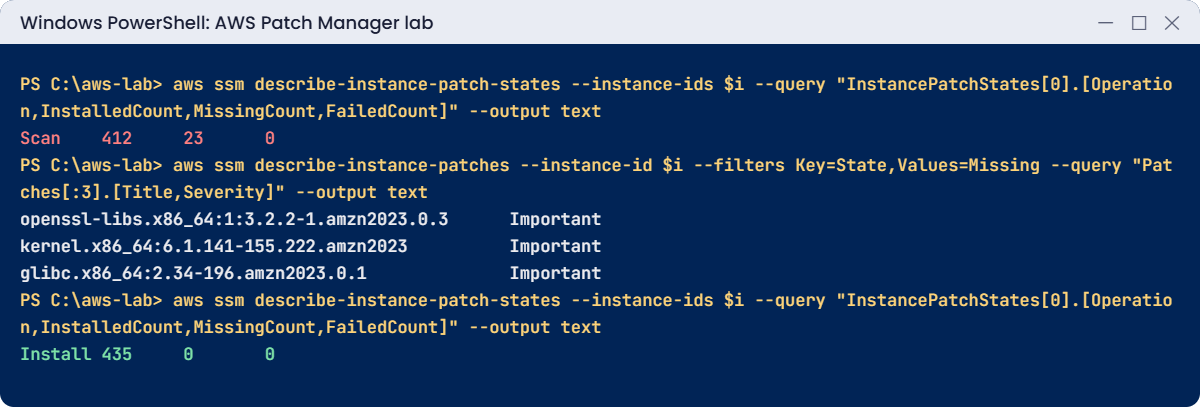
You should see something like this (your counts will differ):

Success
Scan    412     23      0
openssl-libs.x86_64:1:3.2.2-1.amzn2023.0.3      Important
kernel.x86_64:6.1.141-155.222.amzn2023          Important
glibc.x86_64:2.34-196.amzn2023.0.1              Important
Success
Install 435     0       0

Twenty-three approved security patches were missing, including the kernel, and now none are. You targeted by tag, so this would have patched every server in the group the same way. Check Systems Manager, then Patch Manager, then Compliance reporting in the console for the same view.
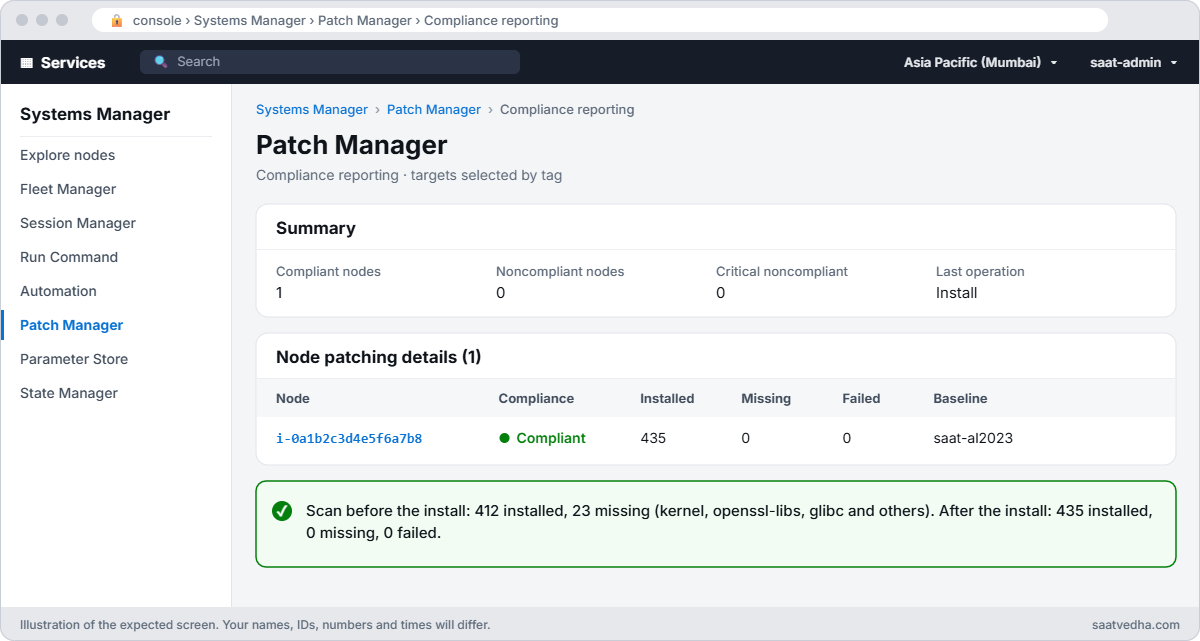
AWS Patch Manager compliance report showing the server compliant with 435 installed and 0 missing patches
Patch Manager’s compliance report: the server went from 23 missing patches to none.
AWS Patch Manager lab output: 23 missing patches, then zero after install
Missing patches before, and none after the install. Something like this.

4Schedule Sunday-night patching

Paste this whole block:

$mw = aws ssm create-maintenance-window --name saat-sunday-patching --schedule "cron(0 2 ? * SUN *)" --schedule-timezone Asia/Kolkata --duration 3 --cutoff 1 --no-allow-unassociated-targets --tags Key=course,Value=saatvedha-aws --query WindowId --output text
$wt = aws ssm register-target-with-maintenance-window --window-id $mw --resource-type INSTANCE --targets "Key=tag:PatchGroup,Values=saat-web" --query WindowTargetId --output text
'{ "RunCommand": { "Parameters": { "Operation": [ "Install" ], "RebootOption": [ "RebootIfNeeded" ] } } }' | Set-Content mw-task.json
aws ssm register-task-with-maintenance-window --window-id $mw --task-type RUN_COMMAND --task-arn AWS-RunPatchBaseline --targets "Key=WindowTargetIds,Values=$wt" --task-invocation-parameters file://mw-task.json --max-concurrency 50% --max-errors 10% --priority 1 | Out-Null
aws ssm get-maintenance-window --window-id $mw --query "[Name,Schedule,ScheduleTimezone,NextExecutionTime]" --output text

You should see something like this:

saat-sunday-patching    cron(0 2 ? * SUN *)     Asia/Kolkata    2026-10-25T02:00+05:30

Every Sunday at 2 a.m. India time, half the servers in saat-web at a time get patched, and the run stops if more than 10 percent fail. The window closes new tasks one hour before its three-hour end, so nothing starts too late.

✅ Checkpoint: patch01 went from 23 missing patches to 0 using the saat-al2023 baseline, and saat-sunday-patching shows its next run. Keep everything for the break lab.

Break It, Then Fix It

Two reasons servers stay unpatched while everyone thinks they’re covered.

1Break it: a typo in the patch group tag

Retag patch01 with saat-wbe and scan it by instance ID:

aws ec2 create-tags --resources $i --tags Key=PatchGroup,Value=saat-wbe
$scan = aws ssm send-command --document-name AWS-RunPatchBaseline --instance-ids $i --parameters Operation=Scan --query Command.CommandId --output text
Wait-Command $scan $i
aws ssm describe-instance-patch-states --instance-ids $i --query "InstancePatchStates[0].[PatchGroup,BaselineId]" --output text

You should see something like this:

Success
saat-wbe        arn:aws:ssm:ap-south-1:111122223333:patchbaseline/pb-0f0e0d0c0b0a09080
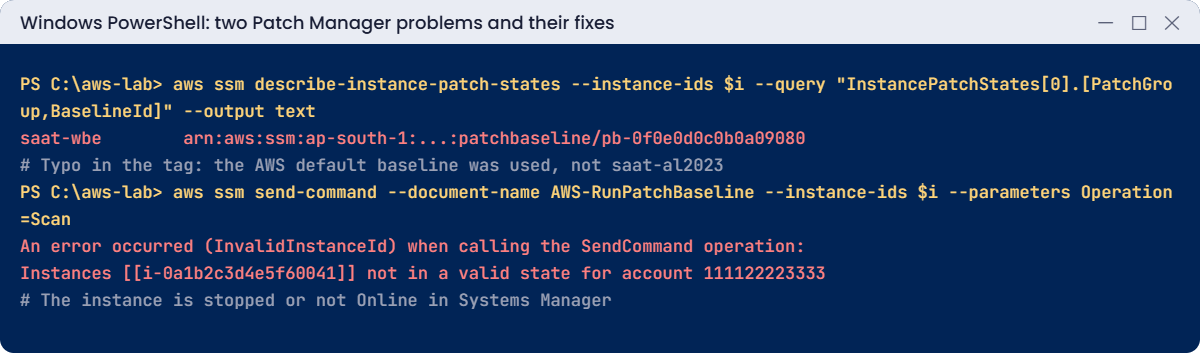
Patch Manager problems: misspelled patch group uses default baseline, InvalidInstanceId
Both problems and their fixes. Something like this.

The scan succeeded and nothing complained, but the baseline is AWS’s default for Amazon Linux 2023, not saat-al2023. Its rules may be close to yours or very different, and the server has also dropped out of the maintenance window’s tag target. Fix: correct the tag, rescan and check the baseline name:

aws ec2 create-tags --resources $i --tags Key=PatchGroup,Value=saat-web
$scan = aws ssm send-command --document-name AWS-RunPatchBaseline --instance-ids $i --parameters Operation=Scan --query Command.CommandId --output text
Wait-Command $scan $i
aws ssm describe-instance-patch-states --instance-ids $i --query "InstancePatchStates[0].[PatchGroup,BaselineId]" --output text
$pb

You should see the same baseline ID twice, something like this:

Success
saat-web        pb-0a9b8c7d6e5f43210
pb-0a9b8c7d6e5f43210

2Break it: patch a server that is stopped

Stop patch01, then try to scan it:

aws ec2 stop-instances --instance-ids $i | Out-Null
aws ec2 wait instance-stopped --instance-ids $i
aws ssm send-command --document-name AWS-RunPatchBaseline --instance-ids $i --parameters Operation=Scan

You’ll get an error like this:

An error occurred (InvalidInstanceId) when calling the SendCommand operation: Instances [[i-0a1b2c3d4e5f60041]] not in a valid state for account 111122223333

Run Command can only reach instances that are running and Online in Systems Manager. The same error appears for servers whose agent lost its role or its route to the endpoints. Maintenance windows skip them quietly, so they fall behind month after month.

Fix: start the server, wait until it is Online, then patch; and report regularly on managed instances that are not Online:

aws ec2 start-instances --instance-ids $i | Out-Null
do { Start-Sleep 20; $p = aws ssm describe-instance-information --filters "Key=InstanceIds,Values=$i" --query "InstanceInformationList[0].PingStatus" --output text } until ($p -eq 'Online')
aws ssm describe-instance-information --query "InstanceInformationList[?PingStatus!='Online'].InstanceId" --output text
$p

You should see this (the middle command prints nothing when everything is Online):

Online

Now clean up:

aws ssm delete-maintenance-window --window-id $mw | Out-Null
aws ssm deregister-patch-baseline-for-patch-group --baseline-id $pb --patch-group saat-web | Out-Null
aws ssm delete-patch-baseline --baseline-id $pb | Out-Null
aws ec2 terminate-instances --instance-ids $i | Out-Null
aws ec2 wait instance-terminated --instance-ids $i
.\Stop-SsmEndpoints.ps1
Remove-Item patch-rules.json, mw-task.json
.\Find-LabResources.ps1

✅ Checkpoint: You found a server silently using the default baseline because of a tag typo, and saw InvalidInstanceId for a stopped server. The window, baseline, patch group and patch01 are gone.

This happened at work

The servers that skipped a year of patches

A logistics company patched its fleet every month through a maintenance window targeting PatchGroup=prod. The compliance dashboard was green, and the security team relied on it.

A vulnerability scan by an outside auditor found 31 servers missing critical patches from more than a year earlier. Some had been launched by a team that tagged them Patch-Group=prod; others had lost their instance role in a cleanup and were no longer managed at all. Neither group appeared as non-compliant, because Patch Manager wasn’t looking at them.

The fix was dull and effective: a Config rule requiring the PatchGroup tag with allowed values, a weekly report comparing all running instances with Systems Manager managed instances, and Default Host Management Configuration so new instances are managed even without an instance profile.

Common mistakes and troubleshooting

MistakeWhat happensWhat to do
Misspelled or missing PatchGroup tagDefault baseline, outside your maintenance windowEnforce allowed tag values with Config or tag policies
Only looking at compliance of managed instancesUnmanaged servers never appearCompare EC2 inventory with Systems Manager managed instances
Install without RebootIfNeeded for kernel patchesPatches installed but not activeReboot in the window, or track InstalledPendingReboot
Patching production firstA bad patch hits customersTest patch group earlier in the week
Windows servers with no route to updatesScan and install failAllow Windows Update through NAT or use WSUS
100% concurrency in the windowEvery server reboots at onceUse 25 to 50 percent and an error threshold

Interview questions

Click a question to open it. Each one is written the way an interviewer would ask it. Under it you will see why they ask it and one way you could answer, in your own words.

Fresher level

1. Can you explain in simple words what Patch Manager does in AWS?

Why they ask this: They want to know you understand how servers are kept up to date in AWS. Patching is one of the most common tasks for a cloud admin.

How you might answer: Patch Manager is part of Systems Manager. It scans managed instances for missing operating system patches, installs them based on baselines and schedules, and reports which servers are compliant.

So instead of logging in to each server, I manage patching for Linux and Windows from one place.

2. What is a patch baseline, and what would you normally put in one?

Why they ask this: They are checking that you understand how Patch Manager decides which patches to install. Without this, you can’t explain why a server did or didn’t get a patch.

How you might answer: A patch baseline is a set of rules for one operating system that says which patches are approved. A common rule is Security updates with Critical or Important severity, approved 7 days after release.

I can also add patches to an approved list or a rejected list when I need to make an exception.

3. What’s the difference between running Scan and running Install in Patch Manager?

Why they ask this: They want to see that you know which action is safe to run any time and which one changes servers. That decides when you can run each one.

How you might answer: Scan only reports which patches are missing, and it doesn’t change the server. Install actually applies the approved patches and can reboot the server if it needs to.

So I’m happy to run Scan during the day, but I schedule Install for a maintenance window.

2–5 years experience

4. You built a custom baseline for your web servers, but they’re still using the default one. How do you fix that?

Why they ask this: They want to see that you understand patch groups. This is a very common reason a baseline seems to be ignored.

How you might answer: An instance only gets a custom baseline through a patch group. I’d tag the web servers with PatchGroup (or Patch Group) and register that group to my custom baseline.

Without a matching group, Patch Manager uses the default baseline for that operating system, which is what was happening here.

5. Patching worked on most servers last night, but failed on a few Windows servers. Walk me through what you’d check.

Why they ask this: They want to see a logical troubleshooting order. They are checking that you start with the basics before digging into individual updates.

How you might answer: First I’d check that SSM Agent is running and the instance shows as Online, and that the instance role is correct. Then I’d check network access to Windows Update or WSUS, free disk space, and whether a reboot was already pending.

Finally I’d read the command output for the failed run to see which KBs failed and why.

6. Your team is worried that patching will reboot every server at the same time. How would you prevent that?

Why they ask this: They want to know you think about availability, not only about getting patches installed. Taking down a whole app during patching is a classic mistake.

How you might answer: I’d run patching through maintenance windows with a max concurrency, for example 25 percent, and an error threshold so it stops if too many fail. I’d also use separate windows per patch group or per AZ.

For servers behind a load balancer, I’d make sure they are drained before they reboot.

Senior level

7. Say you join a company with 2,000 servers across 20 AWS accounts and patching is done by hand. How would you design a better setup?

Why they ask this: They want to see that you can design for scale and safety. They are checking that you think about coverage, staging and reporting, not only installing patches.

How you might answer: I’d use patch policies through Quick Setup across the organization, with baselines per operating system and environment. Patching would run in stages: dev first, then test, then production.

I’d turn on Default Host Management Configuration so new servers are covered automatically. Compliance would go to a central account and Security Hub, and I’d track any exceptions.

8. An auditor says some servers are missing patches, but Patch Manager shows them as compliant. How would you investigate?

Why they ask this: They want to see that you don’t blindly trust a green dashboard. They are checking that you look for gaps in coverage and in the rules.

How you might answer: First I’d check if those servers are really managed and Online, and when they last reported. Then I’d check their patch group and baseline, and the baseline rules, for example a severity filter that skips Medium patches, or an approval delay.

I’d fix coverage first, so every server reports, and then fix the rules so compliant really means patched.

Quick quiz

Q1. Which document runs patch scans and installs?

  1. AWS-RunShellScript
  2. AWS-RunPatchBaseline
  3. AWS-UpdateSSMAgent
  4. AWS-StartInteractiveCommand
Show answer

B — AWS-RunPatchBaseline with Operation Scan or Install.

Q2. What happens to an instance whose PatchGroup tag matches no group?

  1. It is skipped
  2. It uses the default baseline for its OS
  3. Patching fails
  4. It is rebooted
Show answer

B — The default baseline applies silently.

Q3. Why did send-command return InvalidInstanceId?

  1. Wrong document
  2. The instance was stopped
  3. The baseline was missing
  4. The tag was wrong
Show answer

B — Run Command needs a running, Online managed instance.

Q4. What does ApproveAfterDays 7 mean?

  1. Patches install 7 days after the scan
  2. Patches are approved 7 days after release
  3. Scans run every 7 days
  4. Reboots wait 7 days
Show answer

B — It gives time for bad patches to be found.

Q5. On Amazon Linux 2023, which repository version does Patch Manager use?

  1. The version locked on the server
  2. The latest repository version
  3. The AMI version only
  4. None
Show answer

B — Patch Manager uses the latest repository versions.

Quick recap

  • Baselines define which patches are approved; patch groups attach them through a tag.
  • A missing or misspelled tag means the default baseline, silently.
  • Scan reports, Install patches, and RebootIfNeeded makes kernel patches active.
  • Maintenance windows run patching on a schedule with concurrency limits.
  • Coverage matters: stopped or unmanaged servers are never patched.

Next lesson

Lesson 28: Run Command, Automation and State Manager → You’ll run commands across servers, automate fixes with Automation runbooks and keep settings in place with State Manager.

Further reading: AWS Patch Manager

Want to go deeper into AWS Patch Manager? Read AWS Systems Manager Patch Manager and How patch baseline rules work on Linux-based systems. You can also see the full plan for this course on the AWS Cloud Administration course page.

Scroll to Top