Network Reachability: Reachability Analyzer and VPC Flow Logs

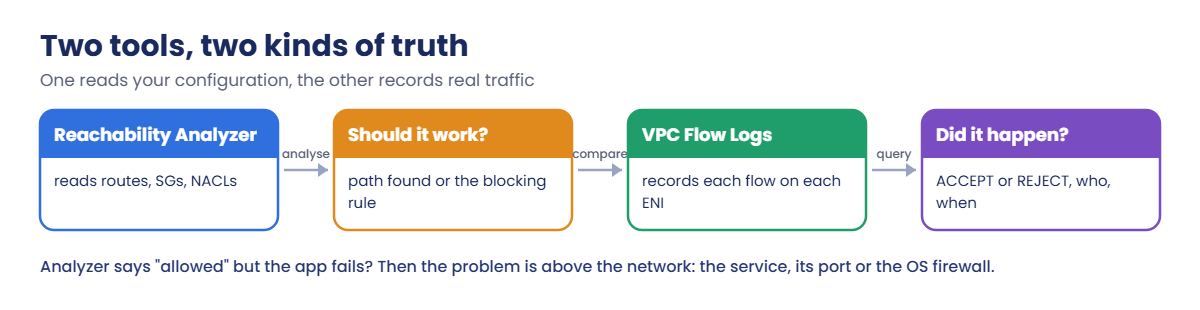
“The app can’t reach the database” starts more arguments between network and app teams than any other ticket. VPC Flow Logs settle it with evidence: every flow on every network interface, accepted or rejected. Reachability Analyzer adds the other half: whether your configuration should allow the path at all, and which rule blocks it if not.

You’ll build a small app-to-database path, turn on flow logs for saat-vpc, query them with Logs Insights, and run Reachability Analyzer. Then you’ll break the path two different ways and see how the two tools together tell you which team owns the fix.

TimeYou needBy the end you can
75 minutesLessons 8 to 13 and 24 done (saat-vpc, endpoint scripts, Logs Insights), Lesson 57 done, signed in as saat-admin. Cost: about USD 0.50 (Reachability Analyzer charges per analysis, flow logs per GB, plus two small instances and the SSM endpoints for an hour).Turn on VPC Flow Logs to CloudWatch Logs, query them with Logs Insights, run Reachability Analyzer, read its explanations, and tell network problems from application problems.

What it is, in one line

VPC Flow Logs record the IP traffic going to and from network interfaces in a VPC, with an ACCEPT or REJECT for each flow; Reachability Analyzer checks whether your configuration allows a path.

In Simple Words

The gate register and the map

A housing society keeps a register at the gate: every visitor, which flat, time in, and whether the guard let them in. That’s a flow log. It tells you what really happened.

The society also has a map with all the gates and rules. Before a visitor even comes, you can trace a route on the map and see which gate would stop them. That’s Reachability Analyzer.

If the map says the route is open and the register says the visitor got in, but your friend still didn’t open the door, the problem is inside the flat, not at the gate.

Engineer's View

How the two tools work

VPC Flow Logs can be enabled per VPC, subnet or network interface, for ACCEPT, REJECT or ALL traffic, and sent to CloudWatch Logs, S3 or Firehose. Each record has source and destination address and port, protocol, packets, bytes, a time window and the action.

Records are aggregated over 1 or 10 minutes and arrive after a delay, so they’re evidence, not a live view. CloudWatch Logs Insights discovers the default fields (srcAddr, dstPort, action) automatically.

Flow logs don’t capture packet contents, DNS queries to the Amazon resolver, or traffic to the instance metadata service. A REJECT is decided by a security group or network ACL; an ACCEPT only means the network let it through, not that an application answered.

Reachability Analyzer doesn’t send packets. It models routes, security groups, NACLs, gateways and peering between a source and destination, and returns NetworkPathFound with an explanation code and the component that blocks the path.

Each analysis is billed. Network Access Analyzer is its cousin for finding unwanted access across a whole VPC.

How it works, step by step

Here is how to use them together on a “can’t reach” ticket.

1Ask the map

Run Reachability Analyzer between the two resources on the right port. If it names a blocking rule, you’re done in minutes.

Reachability Analyzer reads configuration while VPC Flow Logs record traffic

2Read the register

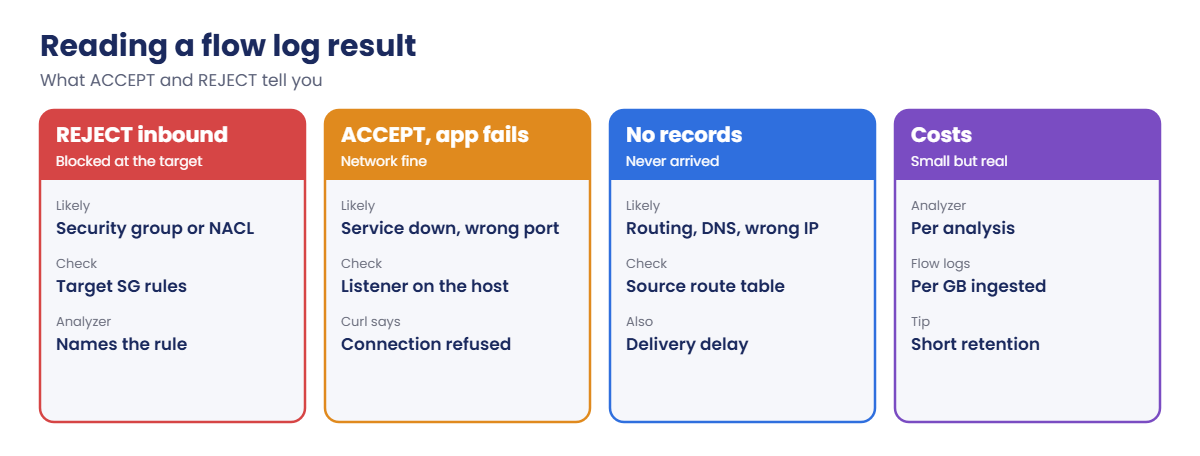
Query flow logs for that port and those addresses. REJECT confirms a security group or NACL; no records suggest routing, DNS or the wrong IP.

3Look above the network

If the analyzer says reachable and flows are ACCEPT, the network is fine. Check the service, its port and the host firewall.

4Read the results correctly

Each pattern points to a different owner:

How to read VPC Flow Logs results: REJECT, ACCEPT with failures, no records

Bring both outputs to the incident call. It ends the “it’s the network” versus “it’s the app” argument quickly.

✅ Checkpoint: You can say what flow logs record and don’t, what Reachability Analyzer checks, and what ACCEPT with a failing app means.

Hands-on lab: prove where app58 to db58 breaks

Sign in, start the endpoints and set names:

cd C:\aws-lab
aws login --profile saat-admin
$env:AWS_PROFILE = 'saat-admin'
$v = Get-Content C:\aws-lab\saat-vpc.json | ConvertFrom-Json
.\Start-SsmEndpoints.ps1

1Build an app-to-database path

Paste this whole block. db58 runs a small web service on port 8080 that app58 calls:

$dbSg = aws ec2 create-security-group --group-name saat-db58-sg --description "db58 port 8080 from app tier" --vpc-id $v.VpcId --query GroupId --output text
aws ec2 authorize-security-group-ingress --group-id $dbSg --ip-permissions "IpProtocol=tcp,FromPort=8080,ToPort=8080,UserIdGroupPairs=[{GroupId=$($v.AppSg),Description=8080-from-app}]" | Out-Null
$ami = aws ssm get-parameter --name /aws/service/ami-amazon-linux-latest/al2023-ami-kernel-default-x86_64 --query Parameter.Value --output text
$app = aws ec2 run-instances --image-id $ami --instance-type t3.micro --subnet-id $v.PrivateA --security-group-ids $v.AppSg --iam-instance-profile Name=saat-ec2-ssm-profile --metadata-options HttpTokens=required --tag-specifications 'ResourceType=instance,Tags=[{Key=Name,Value=app58},{Key=course,Value=saatvedha-aws},{Key=lesson,Value=58}]' --query "Instances[0].InstanceId" --output text
$db = aws ec2 run-instances --image-id $ami --instance-type t3.micro --subnet-id $v.PrivateB --security-group-ids $dbSg --iam-instance-profile Name=saat-ec2-ssm-profile --metadata-options HttpTokens=required --user-data "#!/bin/bash
systemd-run --unit=web8080 python3 -m http.server 8080 --directory /tmp" --tag-specifications 'ResourceType=instance,Tags=[{Key=Name,Value=db58},{Key=course,Value=saatvedha-aws},{Key=lesson,Value=58}]' --query "Instances[0].InstanceId" --output text
foreach ($x in $app, $db) { do { Start-Sleep 20; $p = aws ssm describe-instance-information --filters "Key=InstanceIds,Values=$x" --query "InstanceInformationList[0].PingStatus" --output text } until ($p -eq 'Online') }
$dbIp = aws ec2 describe-instances --instance-ids $db --query "Reservations[0].Instances[0].PrivateIpAddress" --output text
function Invoke-Linux([string]$Id, [string[]]$Lines) {
  @{ commands = $Lines } | ConvertTo-Json | Set-Content lx-cmd.json
  $cmd = aws ssm send-command --document-name AWS-RunShellScript --instance-ids $Id --parameters file://lx-cmd.json --query Command.CommandId --output text
  do { Start-Sleep 5; $st = aws ssm get-command-invocation --command-id $cmd --instance-id $Id --query Status --output text 2>$null } until ($st -in 'Success', 'Failed', 'TimedOut')
  aws ssm get-command-invocation --command-id $cmd --instance-id $Id --query StandardOutputContent --output text
}
function Test-App { Invoke-Linux $app @(('curl -s -o /dev/null -w "%{http_code}\n" --max-time 5 http://' + $dbIp + ':8080/; echo "curl exit $?"')) }
Test-App

You should see something like this:

200
curl exit 0

app58 in saat-private-a reaches db58 in saat-private-b on port 8080. This is the “it worked yesterday” baseline.

2Turn on VPC Flow Logs and query them

Paste this whole block. Flow records take up to about 10 minutes to arrive, so it makes traffic, then waits:

aws logs create-log-group --log-group-name /saat/vpc-flow
aws logs put-retention-policy --log-group-name /saat/vpc-flow --retention-in-days 1
'{ "Version": "2012-10-17", "Statement": [ { "Effect": "Allow", "Principal": { "Service": "vpc-flow-logs.amazonaws.com" }, "Action": "sts:AssumeRole" } ] }' | Set-Content fl-trust.json
'{ "Version": "2012-10-17", "Statement": [ { "Effect": "Allow", "Action": ["logs:CreateLogStream", "logs:PutLogEvents", "logs:DescribeLogGroups", "logs:DescribeLogStreams"], "Resource": "*" } ] }' | Set-Content fl-policy.json
$flRole = aws iam create-role --role-name saat-flowlogs-role --assume-role-policy-document file://fl-trust.json --query Role.Arn --output text
aws iam put-role-policy --role-name saat-flowlogs-role --policy-name write-logs --policy-document file://fl-policy.json
Start-Sleep 15
$fl = aws ec2 create-flow-logs --resource-type VPC --resource-ids $v.VpcId --traffic-type ALL --log-destination-type cloud-watch-logs --log-group-name /saat/vpc-flow --deliver-logs-permission-arn $flRole --max-aggregation-interval 60 --query "FlowLogIds[0]" --output text
1..5 | ForEach-Object { Test-App | Out-Null }
Start-Sleep 600
function Get-Flows([int]$Port, [int]$Minutes = 15) {
  $e = [DateTimeOffset]::UtcNow.ToUnixTimeSeconds(); $s = $e - $Minutes * 60
  $q = "fields srcAddr, dstAddr, dstPort, action | filter dstPort = $Port | stats count(*) as flows by srcAddr, dstAddr, action"
  $qid = aws logs start-query --log-group-name /saat/vpc-flow --start-time $s --end-time $e --query-string $q --query queryId --output text
  do { Start-Sleep 3; $r = aws logs get-query-results --query-id $qid | ConvertFrom-Json } until ($r.status -in 'Complete', 'Failed', 'Cancelled')
  $r.results | ForEach-Object { $h = @{}; $_ | ForEach-Object { $h[$_.field] = $_.value }; '{0,-14} -> {1,-14} {2,-7} {3}' -f $h.srcAddr, $h.dstAddr, $h.action, $h.flows }
}
Get-Flows 8080

You should see something like this:

10.20.11.37    -> 10.20.12.84    ACCEPT  6

Each line is one source, destination and action, with the number of flow records. app58’s calls to db58 on 8080 were accepted.
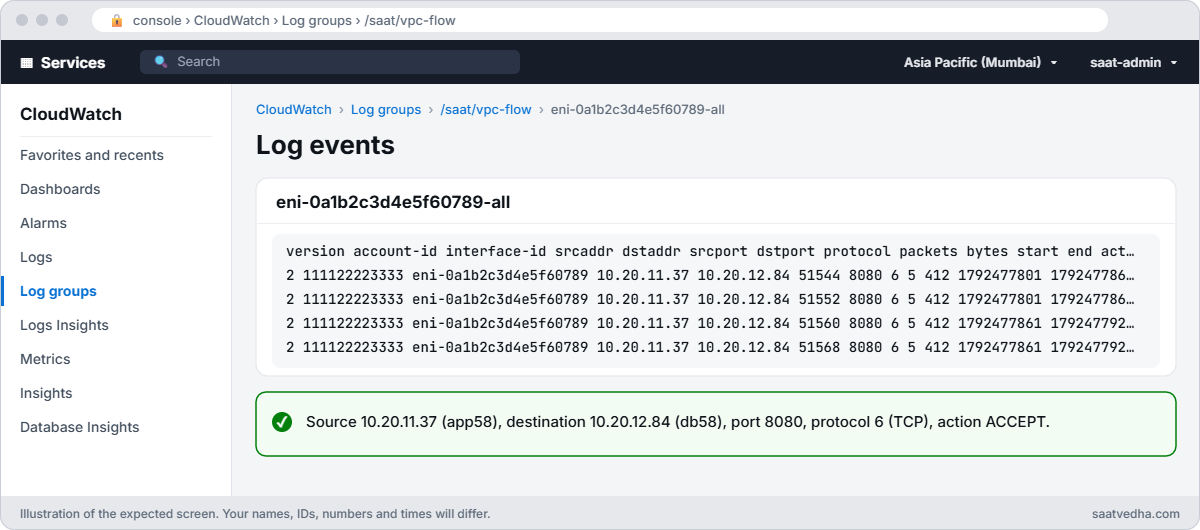
CloudWatch log stream of VPC flow logs showing ACCEPT records from app58 to db58 on port 8080
The flow log stream for the network interface: app58’s connections to db58 on port 8080, each one ACCEPT.
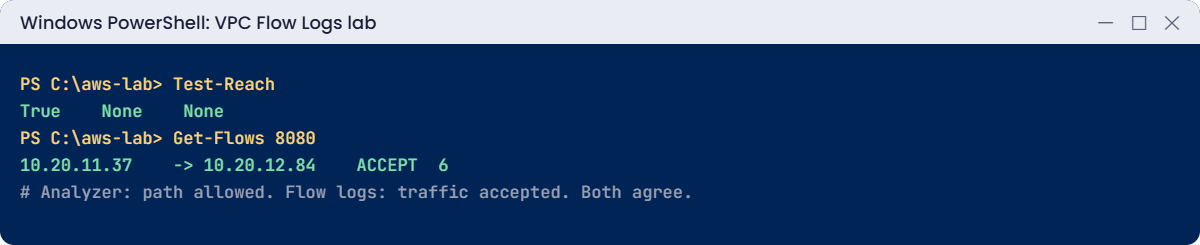
VPC Flow Logs lab output: path found and accepted flows on port 8080
Accepted flows on port 8080. Something like this.

3Ask Reachability Analyzer

Paste this whole block:

$path = aws ec2 create-network-insights-path --source $app --destination $db --protocol tcp --destination-port 8080 --tag-specifications 'ResourceType=network-insights-path,Tags=[{Key=Name,Value=app58-to-db58},{Key=course,Value=saatvedha-aws}]' --query NetworkInsightsPath.NetworkInsightsPathId --output text
function Test-Reach {
  $a = aws ec2 start-network-insights-analysis --network-insights-path-id $path --query NetworkInsightsAnalysis.NetworkInsightsAnalysisId --output text
  do { Start-Sleep 10; $st = aws ec2 describe-network-insights-analyses --network-insights-analysis-ids $a --query "NetworkInsightsAnalyses[0].Status" --output text } until ($st -ne 'running')
  aws ec2 describe-network-insights-analyses --network-insights-analysis-ids $a --query "NetworkInsightsAnalyses[0].[NetworkPathFound,Explanations[0].ExplanationCode,Explanations[0].SecurityGroup.Id]" --output text
}
Test-Reach

You should see something like this:

True    None    None

The configuration allows the path, and the flow logs show it being used. In the console, open VPC > Reachability Analyzer and the analysis to see the hop-by-hop path: ENI, security groups, route table, NACLs, target ENI.
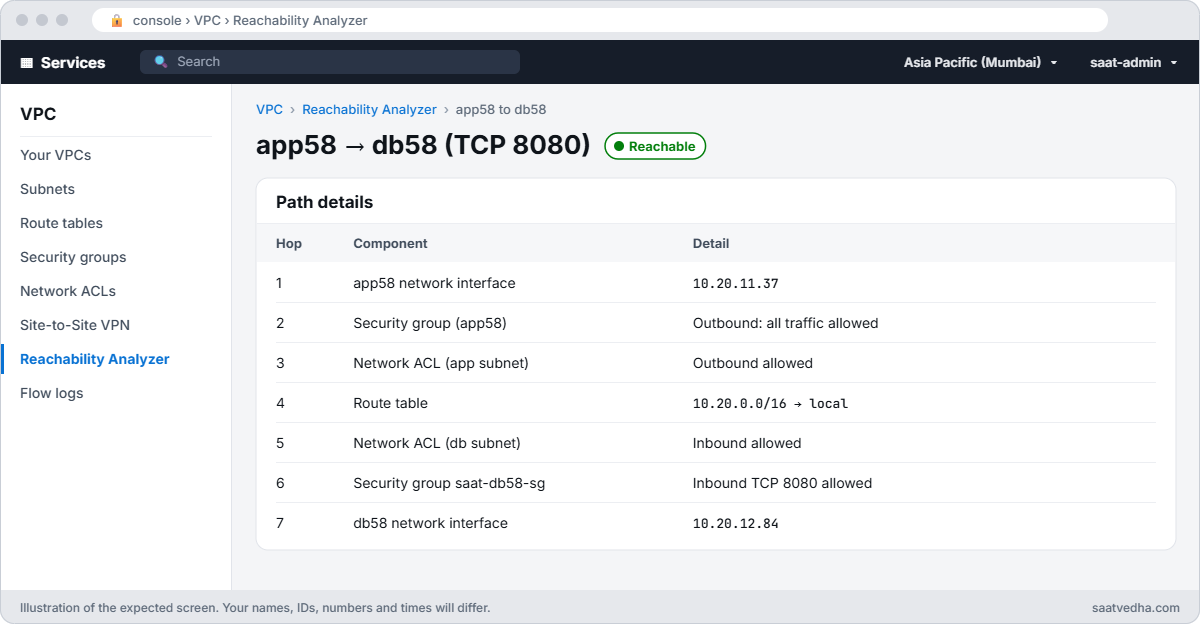
VPC Reachability Analyzer path from app58 to db58 on TCP 8080 marked Reachable with every hop
Reachability Analyzer’s path from app58 to db58: every hop allows TCP 8080, so the network is not the problem.

✅ Checkpoint: curl returns 200, Get-Flows shows ACCEPT flows to 10.x.x.x on 8080, and Test-Reach returns True.

Break It, Then Fix It

Two failures with the same complaint, “the app can’t reach the database”, and different owners.

1Break it: a security group rule removed

Remove db58’s rule, call it again, then ask both tools:

aws ec2 revoke-security-group-ingress --group-id $dbSg --ip-permissions "IpProtocol=tcp,FromPort=8080,ToPort=8080,UserIdGroupPairs=[{GroupId=$($v.AppSg)}]" | Out-Null
1..3 | ForEach-Object { Test-App }
Test-Reach
Start-Sleep 600
Get-Flows 8080 -Minutes 12

You’ll get something like this:

000
curl exit 28
False   ENI_SG_RULES_MISMATCH   sg-0db58a1b2c3d4e5f6
10.20.11.37    -> 10.20.12.84    REJECT  3

curl timed out (exit 28), the analyzer names db58’s security group, and flow logs record REJECT at db58. That’s a network-side fix, and you can prove it in one message to the team. Fix: put the rule back:

aws ec2 authorize-security-group-ingress --group-id $dbSg --ip-permissions "IpProtocol=tcp,FromPort=8080,ToPort=8080,UserIdGroupPairs=[{GroupId=$($v.AppSg),Description=8080-from-app}]" | Out-Null
Test-App

You should see this:

200
curl exit 0

2Break it: the service stops

Stop the web service on db58, then ask the same questions:

Invoke-Linux $db @('systemctl stop web8080; echo stopped') | Out-Null
1..3 | ForEach-Object { Test-App }
Test-Reach
Start-Sleep 600
Get-Flows 8080 -Minutes 12

You’ll get something like this:

000
curl exit 7
True    None    None
10.20.11.37    -> 10.20.12.84    ACCEPT  9
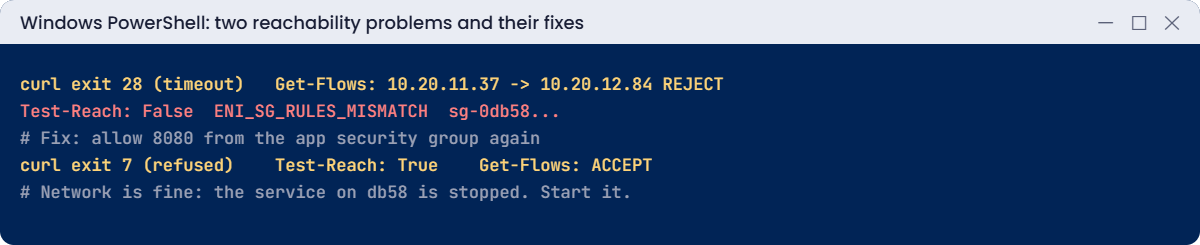
Reachability problems: security group reject and service stopped behind an accepted flow
Both failures and their fixes. Something like this.

Exit 7 is “connection refused”: packets arrived and the OS replied that nothing listens on 8080. The analyzer says the path is allowed and flow logs show ACCEPT, so no firewall change will help.

This is the app team’s fix. Fix: start the service:

Invoke-Linux $db @('systemd-run --unit=web8080 python3 -m http.server 8080 --directory /tmp; sleep 2; ss -ltn | grep 8080')
Test-App

You should see something like this:

LISTEN 0      5            0.0.0.0:8080      0.0.0.0:*
200
curl exit 0

Now clean up:

aws ec2 delete-flow-logs --flow-log-ids $fl | Out-Null
aws logs delete-log-group --log-group-name /saat/vpc-flow
aws iam delete-role-policy --role-name saat-flowlogs-role --policy-name write-logs
aws iam delete-role --role-name saat-flowlogs-role
$an = aws ec2 describe-network-insights-analyses --network-insights-path-id $path --query "NetworkInsightsAnalyses[].NetworkInsightsAnalysisId" --output text
foreach ($x in ($an -split '\s+')) { if ($x) { aws ec2 delete-network-insights-analysis --network-insights-analysis-id $x | Out-Null } }
aws ec2 delete-network-insights-path --network-insights-path-id $path | Out-Null
aws ec2 terminate-instances --instance-ids $app $db | Out-Null
aws ec2 wait instance-terminated --instance-ids $app $db
aws ec2 delete-security-group --group-id $dbSg
.\Stop-SsmEndpoints.ps1
Remove-Item fl-trust.json, fl-policy.json, lx-cmd.json

✅ Checkpoint: You found a security group block with REJECT plus an analyzer explanation, and a stopped service with ACCEPT plus a refused connection. The flow log, log group, role, analyses, path, instances and security group are gone.

This happened at work

Three days of “it’s the firewall”

A bank’s loan app started failing to reach a new pricing service. The app team raised a firewall ticket; the network team checked rules and said everything was open. The ticket bounced between them for three days.

A cloud engineer finally turned on flow logs for the pricing service’s subnet. Every request showed ACCEPT, and Reachability Analyzer agreed the path was open.

The pricing service had been deployed listening on 127.0.0.1 instead of 0.0.0.0, so it refused every connection from outside the host.

The fix was one line of config. The bank now keeps flow logs on in production with short retention, and its incident template asks for a Reachability Analyzer result and a flow log query before any firewall ticket is raised.

Common mistakes and troubleshooting

MistakeWhat happensWhat to do
Reading ACCEPT as “the app works”Chasing the network for an app bugACCEPT only means the network allowed it
Checking flow logs immediatelyEmpty results, wrong conclusionAllow up to about 10 minutes for delivery
Flow logs with long retention on busy VPCsLarge log billsShort retention, S3 for long-term, filter REJECT
Expecting DNS or metadata traffic in flow logsMissing recordsUse Route 53 Resolver query logs for DNS
Running analyzer for every testCharges add upRun it when a path is in question
Raising firewall tickets without evidenceDays of back and forthAttach analyzer output and a flow log query

Interview questions

Click a question to open it. Each one is written the way an interviewer would ask it. Under it you will see why they ask it and one way you could answer, in your own words.

Fresher level

1. Can you explain in simple words what VPC Flow Logs record?

Why they ask this: They want to check that you know what flow logs can and can’t show, so you don’t expect them to answer every question.

How you might answer: Flow logs record details about IP traffic on network interfaces. That means the addresses, ports, protocol, packets, bytes, the time window, and whether it was ACCEPT or REJECT.

They don’t show what’s inside the packets. I explain it like a phone bill: you see who called whom and for how long, but not what was said.

2. What does Reachability Analyzer do, and when would you use it?

Why they ask this: They want to see that you know a tool that checks the network design without sending any real traffic.

How you might answer: It looks at your configuration between a source and a destination, meaning routes, security groups, NACLs and gateways. Then it tells you if a path exists, or which piece blocks it.

I use it when something can’t connect and I want to know which rule to look at, without guessing.

3. You’re turning on flow logs for a VPC. Where can you send them?

Why they ask this: They want to check basic setup knowledge, and whether you think about where the logs will be most useful.

How you might answer: I can send them to CloudWatch Logs, Amazon S3 or Kinesis Data Firehose.

For quick searching I’d pick CloudWatch Logs. For keeping a lot of logs at low cost, I’d send them to S3.

2–5 years experience

4. Flow logs show ACCEPT for the traffic, but the app still gets “connection refused”. What would you check next?

Why they ask this: They want to see that you can read the evidence and stop blaming the network when it’s clearly fine.

How you might answer: ACCEPT means the network let the traffic through, so I’d move up to the server. I check the service is running and listening on the right interface and port.

Then I check the host firewall, because the network rules in AWS don’t cover that.

5. You see REJECT records on the target network interface. How would you find the rule that’s blocking it?

Why they ask this: They want to see that you go from a symptom to the exact rule, and then find out how it got there.

How you might answer: I’d run Reachability Analyzer for that source and destination, because it names the security group or NACL entry that blocks the path.

Then I’d check CloudTrail for recent changes to that rule, to see who changed it and when.

6. A colleague is searching flow logs for DNS traffic and finds nothing. What would you tell them?

Why they ask this: They want to know you understand the blind spots of flow logs, so you don’t waste time searching for records that never exist.

How you might answer: I’d tell them flow logs don’t capture DNS queries to the Amazon resolver. They also skip instance metadata, Windows license activation, DHCP and some other AWS-internal traffic.

For DNS, the right place is Route 53 Resolver query logs.

Senior level

7. How would you design network visibility for a regulated company with many AWS accounts?

Why they ask this: They want to see how you combine central logging, querying and compliance checks, while keeping cost under control.

How you might answer: I’d send flow logs from every VPC to a central S3 bucket in a log account, in Parquet and partitioned, and query them with Athena. A short CloudWatch retention would cover quick, hot searches.

I’d add Route 53 Resolver query logs and Network Access Analyzer scopes for compliance. Alerts would fire on unusual REJECT patterns.

8. The flow log bill has become a problem. How would you bring the cost down?

Why they ask this: They want to see that you can keep the visibility you need without paying for logs nobody reads.

How you might answer: I’d log at the right level, only the ENIs or subnets where it’s needed, and use REJECT-only where that’s enough. I’d send logs to S3 with a lifecycle rule instead of CloudWatch.

I’d also use a custom format with only the fields we need, and the 10-minute aggregation interval.

Quick quiz

Q1. What does a REJECT in flow logs mean?

  1. App crashed
  2. A security group or NACL dropped it
  3. DNS failed
  4. Disk full
Show answer

B — Network controls decided to drop it.

Q2. curl exit 7 with ACCEPT flows means?

  1. SG blocked it
  2. Nothing listens on the port
  3. Route missing
  4. Wrong Region
Show answer

B — Connection refused by the host.

Q3. Does Reachability Analyzer send real packets?

  1. Yes
  2. No, it analyses configuration
  3. Only ICMP
  4. Only on weekends
Show answer

B — It models the path.

Q4. Why might flow logs show nothing right after a test?

  1. They’re off
  2. Delivery delay
  3. Wrong port
  4. IAM
Show answer

B — Records arrive after aggregation and delivery.

Q5. Which traffic do flow logs not capture?

  1. TCP 443
  2. DNS to the Amazon resolver
  3. SSH
  4. HTTP
Show answer

B — Use Resolver query logs for DNS.

Quick recap

  • Reachability Analyzer says whether configuration allows a path, and what blocks it.
  • VPC Flow Logs show what traffic actually crossed, with ACCEPT or REJECT.
  • REJECT = security group or NACL; ACCEPT + failure = look at the app.
  • Allow about 10 minutes for flow records; query them with Logs Insights.
  • Keep retention short and bring evidence to every firewall ticket.

Next lesson

Lesson 59: IAM AccessDenied decoded → You’ll decode encoded authorization messages and find which policy, boundary or SCP is denying a request.

Further reading: VPC Flow Logs

Want to go deeper into VPC Flow Logs? Read Logging IP traffic using VPC Flow Logs and What is Reachability Analyzer?. You can also see the full plan for this course on the AWS Cloud Administration course page.

Scroll to Top