CloudWatch Logs and Logs Insights

When something breaks at 2 a.m., logs tell you what happened. But logs spread across ten servers are useless if you have to log in to each one. CloudWatch Logs Insights lets you query all of them in one place, in seconds, with a few lines of query language.

You’ll run a small app that writes JSON request logs, ship them with the CloudWatch agent, set retention, and answer real questions: which pages fail, how slow is checkout, what happened in the last five minutes. Then you’ll turn errors into a metric you can alarm on.

TimeYou needBy the end you can
60 minutes (one small instance and five interface endpoints for under an hour)Lesson 23 done (saat-alerts, the agent parameter and policy), Start-SsmEndpoints.ps1 and Stop-SsmEndpoints.ps1, your laptop signed in as saat-admin. Cost: about USD 0.20, mostly endpoints; the logs themselves are a few MB.Ship log files with the CloudWatch agent, set log retention, write Logs Insights queries with filter, stats and bin, and create a metric filter for errors.

What it is, in one line

CloudWatch Logs Insights is a query tool for log data in CloudWatch Logs: you filter, group and count log events across many servers with a short pipe-based query.

In Simple Words

The school register

Every class keeps a register: who came, when, and who was late. If the principal asks “how many children were late on Monday across all classes?”, someone has to read every register page by page.

Now imagine every register is copied into one big book every few seconds, and the book has a helper who answers questions instantly. “Late on Monday, grouped by class” comes back in seconds.

CloudWatch Logs is the big book. Logs Insights is the helper. Retention is how many months you keep the book before throwing old pages away.

Engineer's View

How CloudWatch Logs really works

Logs are stored in log groups (one per app or source, such as /saat/app) made of log streams (usually one per instance or container). Each event has a timestamp and a message. Retention is set per log group; the default is never expire, which is the most common surprise on the bill.

The CloudWatch agent tails files and sends events with PutLogEvents. Other sources include Lambda, ECS, VPC Flow Logs, CloudTrail and Route 53 query logs. From private subnets, the agent needs the logs interface endpoint or NAT.

Logs Insights queries are commands joined with pipes: fields, filter, stats, sort, limit, parse. JSON fields are discovered automatically, and names are case-sensitive. You pay per GB scanned, so narrow the time range and log groups.

Metric filters turn matching events into CloudWatch metrics you can alarm on, and Live Tail streams new events as they arrive.

How it works, step by step

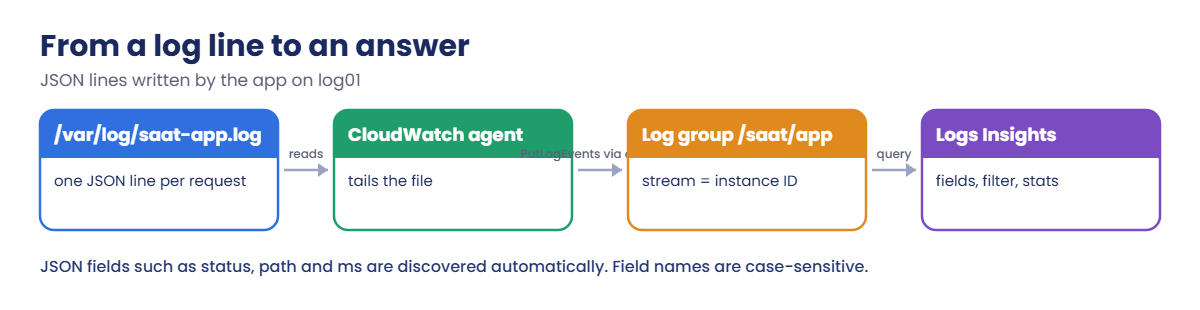
Here is the path of one log line in this lab.

1The app writes a JSON line

Each request becomes one line in /var/log/saat-app.log, such as {"path": "/checkout", "status": 503, "ms": 712}. Structured logs make every later step easier.

CloudWatch Logs Insights flow: app log file, agent, log group, queries

2The agent ships it

The agent tails the file and sends batches to the /saat/app log group, one stream per instance ID, through the logs endpoint.

3Retention keeps the cost in check

The agent config sets 7 days. Production often uses 30 to 90 days in CloudWatch, with long-term archives in S3.

4You ask questions

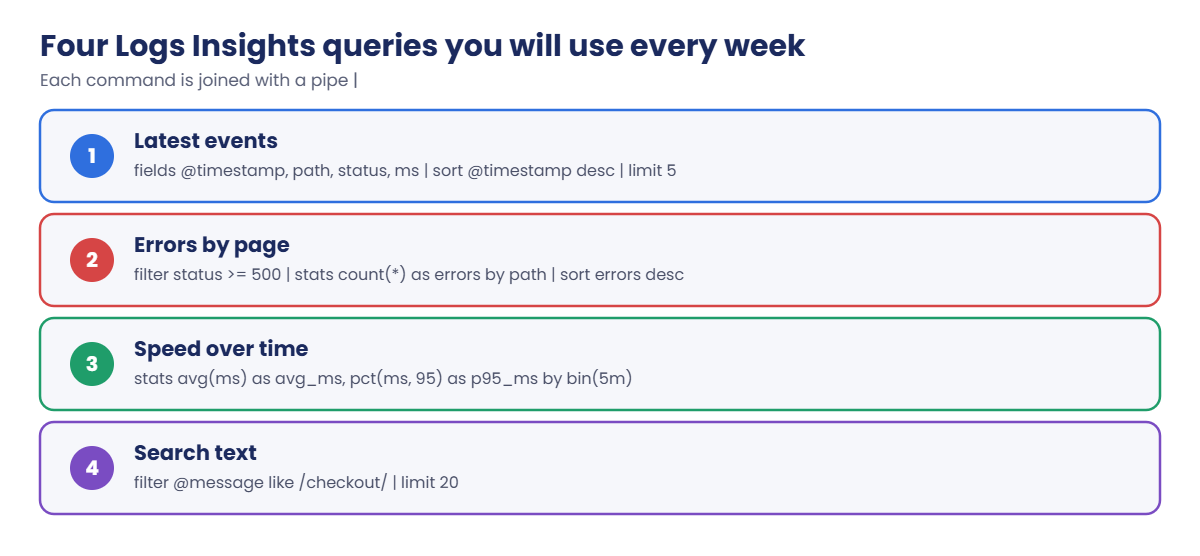
These four queries cover most daily work:

Four CloudWatch Logs Insights queries: latest events, errors by page, speed, text search

Start every investigation with the narrowest time range you can. It makes queries faster and cheaper, and it keeps old noise out of the answer.

✅ Checkpoint: You can explain log groups, streams and retention, why private servers need the logs endpoint, and how a pipe-based query is built.

Hands-on lab: ship logs and query them with CloudWatch Logs Insights

Start as usual. This lab adds two endpoints of its own, for CloudWatch Logs and metrics:

cd C:\aws-lab
aws login --profile saat-admin
$env:AWS_PROFILE = 'saat-admin'
$env:Path += ';C:\Program Files\Amazon\SessionManagerPlugin\bin'
$v = Get-Content C:\aws-lab\saat-vpc.json | ConvertFrom-Json
.\Start-SsmEndpoints.ps1
$extra = foreach ($svc in 'logs', 'monitoring') {
  aws ec2 create-vpc-endpoint --vpc-id $v.VpcId --vpc-endpoint-type Interface --service-name com.amazonaws.ap-south-1.$svc --subnet-ids $v.PrivateA --security-group-ids $v.EndpointSg --private-dns-enabled --tag-specifications "ResourceType=vpc-endpoint,Tags=[{Key=Name,Value=saat-$svc-ep},{Key=course,Value=saatvedha-aws},{Key=lesson,Value=24}]" --query VpcEndpoint.VpcEndpointId --output text
}
do { Start-Sleep 15; $s = aws ec2 describe-vpc-endpoints --vpc-endpoint-ids $extra --query "VpcEndpoints[].State" --output text } until ($s -notmatch 'pending')
$s

You should see this:

available       available

1Add a logs section to the agent config

Paste this whole block:

@'
{
  "agent": { "metrics_collection_interval": 60 },
  "metrics": {
    "namespace": "CWAgent",
    "append_dimensions": { "InstanceId": "${aws:InstanceId}", "InstanceType": "${aws:InstanceType}" },
    "metrics_collected": { "mem": { "measurement": [ "mem_used_percent" ] } }
  },
  "logs": {
    "logs_collected": {
      "files": {
        "collect_list": [
          { "file_path": "/var/log/saat-app.log", "log_group_name": "/saat/app", "log_stream_name": "{instance_id}", "retention_in_days": 7 }
        ]
      }
    }
  }
}
'@ | Set-Content cwagent.json
aws ssm put-parameter --name AmazonCloudWatch-saat-linux --type String --value file://cwagent.json --overwrite --query Version --output text

You should see something like this:

2

Version 2 of the parameter now tells the agent to tail the app log, name the stream after the instance and keep logs for 7 days.

2Launch log01 with the demo app

Paste this whole block:

$ud = @'
#!/bin/bash
dnf install -y amazon-cloudwatch-agent
cat > /usr/local/bin/saat-loggen.py <<'PY'
import json, random, time, datetime
paths = ['/', '/login', '/cart', '/checkout', '/api/orders']
codes = [200, 200, 200, 200, 200, 301, 404, 500, 503]
while True:
    s = random.choice(codes)
    rec = {"ts": datetime.datetime.now(datetime.timezone.utc).isoformat(), "level": "ERROR" if s >= 500 else "INFO",
           "path": random.choice(paths), "status": s, "ms": random.randint(5, 900), "user": "u" + str(random.randint(1, 40))}
    print(json.dumps(rec), flush=True)
    time.sleep(0.5)
PY
cat > /etc/systemd/system/saat-loggen.service <<'UNIT'
[Unit]
Description=saat demo log generator
[Service]
ExecStart=/usr/bin/python3 /usr/local/bin/saat-loggen.py
StandardOutput=append:/var/log/saat-app.log
Restart=always
[Install]
WantedBy=multi-user.target
UNIT
systemctl daemon-reload
systemctl enable --now saat-loggen
/opt/aws/amazon-cloudwatch-agent/bin/amazon-cloudwatch-agent-ctl -a fetch-config -m ec2 -s -c ssm:AmazonCloudWatch-saat-linux
'@
[IO.File]::WriteAllText('C:\aws-lab\log-userdata.sh', ($ud -replace "`r`n", "`n"))
$base = aws ssm get-parameter --name /aws/service/ami-amazon-linux-latest/al2023-ami-kernel-default-x86_64 --query Parameter.Value --output text
$i = aws ec2 run-instances --image-id $base --instance-type t3.micro --subnet-id $v.PrivateA --security-group-ids $v.AppSg --iam-instance-profile Name=saat-ec2-ssm-profile --metadata-options HttpTokens=required --user-data file://log-userdata.sh --tag-specifications 'ResourceType=instance,Tags=[{Key=Name,Value=log01},{Key=course,Value=saatvedha-aws},{Key=lesson,Value=24}]' --query "Instances[0].InstanceId" --output text
do { Start-Sleep 20; $streams = aws logs describe-log-streams --log-group-name /saat/app --query "logStreams[].logStreamName" --output text 2>$null } until ($streams)
$streams
aws logs describe-log-groups --log-group-name-prefix /saat --query "logGroups[].[logGroupName,retentionInDays]" --output text

You should see something like this (it takes three or four minutes):

i-0e1f2a3b4c5d60031
/saat/app       7

The agent created the log group, set 7-day retention and opened a stream named after the instance. The demo app writes two lines a second, about one in five of them errors.

3Query the logs

Paste the helper function first, then the queries. Wait two or three minutes after step 2 so there is data:

function Invoke-LogsQuery([string]$Group, [string]$Query, [int]$Minutes = 15) {
  $end = [DateTimeOffset]::UtcNow.ToUnixTimeSeconds()
  $qid = aws logs start-query --log-group-name $Group --start-time ($end - $Minutes * 60) --end-time $end --query-string $Query --query queryId --output text
  do { Start-Sleep 2; $r = aws logs get-query-results --query-id $qid --output json | ConvertFrom-Json } until ($r.status -in 'Complete', 'Failed', 'Cancelled')
  if (-not $r.results) { '(no rows)'; return }
  foreach ($row in $r.results) { ($row | Where-Object { $_.field -ne '@ptr' } | ForEach-Object { "$($_.field)=$($_.value)" }) -join '  ' }
}
Invoke-LogsQuery /saat/app 'fields @timestamp, path, status, ms | sort @timestamp desc | limit 5'
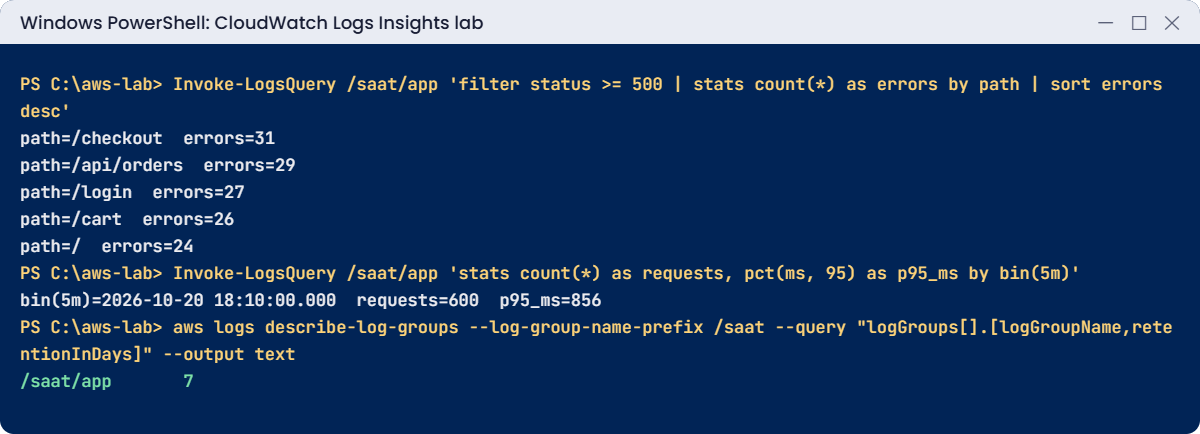
Invoke-LogsQuery /saat/app 'filter status >= 500 | stats count(*) as errors by path | sort errors desc'
Invoke-LogsQuery /saat/app 'stats count(*) as requests, pct(ms, 95) as p95_ms by bin(5m)'

You should see something like this (your numbers will differ):

@timestamp=2026-10-20 18:14:51.513  path=/cart  status=200  ms=118
@timestamp=2026-10-20 18:14:51.012  path=/checkout  status=503  ms=712
@timestamp=2026-10-20 18:14:50.511  path=/login  status=200  ms=64
@timestamp=2026-10-20 18:14:50.010  path=/api/orders  status=404  ms=331
@timestamp=2026-10-20 18:14:49.509  path=/  status=200  ms=27
path=/checkout  errors=31
path=/api/orders  errors=29
path=/login  errors=27
path=/cart  errors=26
path=/  errors=24
bin(5m)=2026-10-20 18:10:00.000  requests=600  p95_ms=856

You never told CloudWatch about status, path or ms; it found them in the JSON. The helper strips the internal @ptr field and prints each row on one line. The same queries work in the console under Logs Insights, with charts.
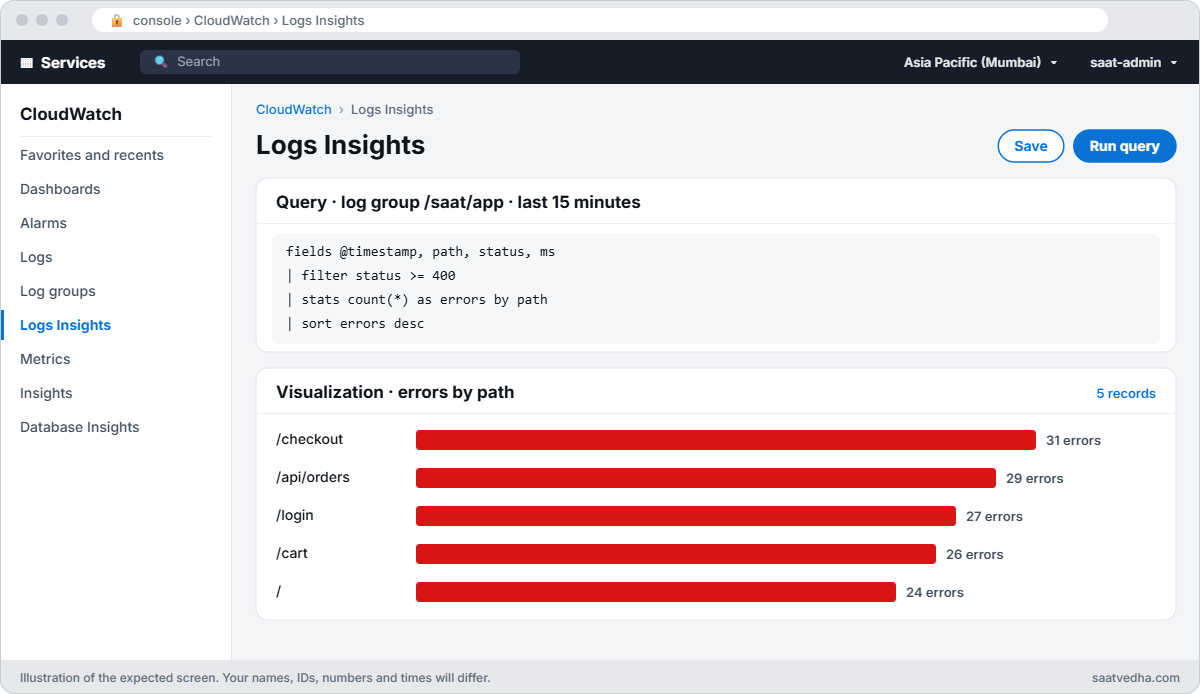
CloudWatch Logs Insights query on /saat/app counting errors by path with a bar chart
The same query in the console: Logs Insights counts the errors by path and draws them for you.
CloudWatch Logs Insights lab output: errors by path, p95 latency, retention
Errors by page, p95 latency and retention. Something like this.

4Turn errors into a metric

Paste this whole block, then wait three minutes:

aws logs put-metric-filter --log-group-name /saat/app --filter-name app-5xx --filter-pattern '{ $.status >= 500 }' --metric-transformations metricName=App5xx,metricNamespace=Saat/App,metricValue=1,defaultValue=0
Start-Sleep 180
aws cloudwatch get-metric-statistics --namespace Saat/App --metric-name App5xx --start-time (Get-Date).ToUniversalTime().AddMinutes(-10).ToString('o') --end-time (Get-Date).ToUniversalTime().ToString('o') --period 60 --statistics Sum --query "sort_by(Datapoints, &Timestamp)[].Sum" --output text

You should see something like this:

0.0     24.0    25.0    23.0

The first minute is 0 because the filter only counts events that arrive after it’s created. App5xx is now an ordinary CloudWatch metric, so an alarm such as “more than 50 errors in 5 minutes, notify saat-alerts” is one put-metric-alarm away.

✅ Checkpoint: /saat/app receives logs with 7-day retention, the three queries return rows, and App5xx shows error counts per minute. Keep everything for the break lab.

Break It, Then Fix It

One mistake gives you no answer at all; the other gives you a bill that grows every month.

1Break it: one capital letter

Run the error query with Status instead of status:

Invoke-LogsQuery /saat/app 'filter Status >= 500 | stats count(*) as errors by path'

You should see this:

(no rows)
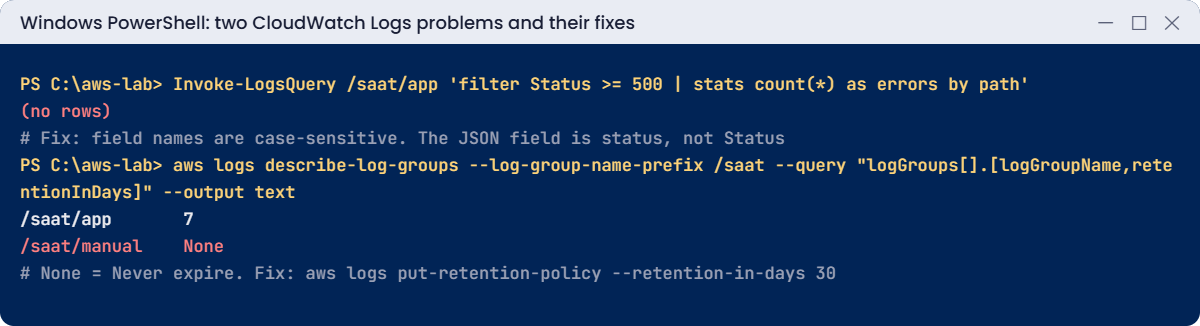
CloudWatch Logs problems: case-sensitive field returns no rows, log group that never expires
Both problems and their fixes. Something like this.

No error, no warning, just nothing. Field names are case-sensitive, and no event has a field called Status. During an incident this looks like “no errors happened”, which is the worst possible wrong answer.

Fix: check real field names first, with fields @message | limit 1 or the discovered fields list in the console, then filter:

Invoke-LogsQuery /saat/app 'fields @message | limit 1'
Invoke-LogsQuery /saat/app 'filter status >= 500 | stats count(*) as errors'

You should see something like this:

@message={"ts": "2026-10-20T18:19:02.811+00:00", "level": "INFO", "path": "/cart", "status": 200, "ms": 140, "user": "u17"}
errors=212

2Break it: a log group that never expires

Someone creates a log group by hand for a new service:

aws logs create-log-group --log-group-name /saat/manual --tags course=saatvedha-aws,lesson=24
aws logs describe-log-groups --log-group-name-prefix /saat --query "logGroups[].[logGroupName,retentionInDays]" --output text

You should see this:

/saat/app       7
/saat/manual    None

None means never expire. Every byte sent there is stored and billed forever, and in big accounts these forgotten groups add up to thousands of dollars a year. Fix: always set retention, and look for groups without it:

aws logs put-retention-policy --log-group-name /saat/manual --retention-in-days 30
aws logs describe-log-groups --query "logGroups[?retentionInDays==null].logGroupName" --output text

The second command prints nothing once every log group has a retention period.

Now clean up. Deleting a log group also deletes its metric filters and stored events:

aws logs delete-log-group --log-group-name /saat/app
aws logs delete-log-group --log-group-name /saat/manual
aws ec2 terminate-instances --instance-ids $i | Out-Null
aws ec2 delete-vpc-endpoints --vpc-endpoint-ids $extra | Out-Null
aws ec2 wait instance-terminated --instance-ids $i
.\Stop-SsmEndpoints.ps1
Remove-Item cwagent.json, log-userdata.sh
.\Find-LabResources.ps1

✅ Checkpoint: You saw a case mistake return “no rows” and fixed it by checking field names, and found and fixed a log group with no retention. Log groups, log01 and all endpoints are gone.

This happened at work

The query that said there were no errors

A ticketing company’s checkout failed for some customers during a concert sale. The on-call engineer ran a Logs Insights query for filter Level = "ERROR" over the last hour and got nothing. They told the incident channel the app was clean and started checking the payment provider.

Forty minutes later a developer ran the same query with level in lowercase and found 18,000 errors from a connection pool limit in the checkout service. The team had changed its logging library a month earlier, and field names had changed from Level to level.

The company now keeps a shared library of saved queries per service, reviews them when logging changes, and has a metric filter and alarm for 5xx responses, so nobody has to find errors by query during the first minutes of an incident.

Common mistakes and troubleshooting

MistakeWhat happensWhat to do
Wrong case in a field name“no rows”, which looks like “no errors”Check fields with fields @message | limit 1
Log groups with no retentionStorage grows and is billed foreverSet retention on every group; audit for null
Plain-text logs for apps you controlEvery query needs parse and regexLog JSON with consistent field names
Querying 30 days when you need 30 minutesSlow, expensive queriesNarrow time range and log groups first
Private servers without the logs endpoint or NATAgent can’t send; no streams appearAdd the logs interface endpoint
Finding errors only by querySlow response during incidentsMetric filter plus alarm for error counts

Interview questions

Click a question to open it. Each one is written the way an interviewer would ask it. Under it you will see why they ask it and one way you could answer, in your own words.

Fresher level

1. Can you explain in simple words the difference between a log group and a log stream?

Why they ask this: They want to know you understand how CloudWatch Logs is organised. This is the base for everything else you do with logs.

How you might answer: I think of a log group as a folder for one app or source, and that folder holds the retention setting and the permissions. Inside it, each log stream is the sequence of events from one source, usually one instance or one container.

So if my web app runs on three servers, I’d have one log group for the app and three log streams inside it.

2. A developer asks you to get their application logs from an EC2 instance into CloudWatch. What would you do?

Why they ask this: They want to see that you know the full setup, not only the install step. Missing permissions or network access is the usual reason logs never show up.

How you might answer: First I’d install the CloudWatch agent on the instance and make sure the instance role has permission to write logs. Then I’d configure the agent with the files to collect, the log group name and the retention.

Finally I’d check the instance can reach the CloudWatch Logs endpoint, and confirm new events appear in the log group.

3. You create a new log group and don’t change any settings. How long will AWS keep those logs?

Why they ask this: They are checking cost awareness. Many teams pay for years of old logs because nobody changed the default.

How you might answer: By default a log group never expires, so the logs stay forever and you keep paying to store them. That’s why I always set a retention period when I create a log group, based on what the team really needs.

2–5 years experience

4. The team wants to know which five pages of the app are the slowest. How would you find that with Logs Insights?

Why they ask this: They want to see that you can actually write a query, not only say that Logs Insights exists. They also like to hear that you think about scan cost.

How you might answer: I’d first narrow the time range, because Logs Insights charges for the data it scans. Then I’d run something like stats avg(ms) as avg_ms, pct(ms, 95) as p95 by path | sort p95 desc | limit 5.

I sort by p95 rather than the average, because the slow requests users complain about are hidden by the average.

5. How would you explain a metric filter to a new team member, and when would you use one?

Why they ask this: They want to know if you can turn logs into something you can alarm on. That link between logs and alerts is a daily part of the job.

How you might answer: I’d say a metric filter watches the log events coming into a log group, and when an event matches a pattern it counts it or pulls out a value. It publishes that as a CloudWatch metric.

For example, I’d count lines that contain ERROR, graph them, and put an alarm on the count so we hear about problems before users do.

6. Audit says you must keep application logs for seven years, but the budget is tight. How would you set that up?

Why they ask this: They want to see that you know CloudWatch is not the cheap place for long-term storage. They are checking that you can design a retention plan that meets the rule and controls cost.

How you might answer: I’d keep only a short retention in CloudWatch for day-to-day troubleshooting. At the same time I’d stream the logs to S3, for example with a subscription filter and Firehose, or export them there.

In S3 I’d add lifecycle rules to move older logs to Glacier, and turn on Object Lock if the auditors need proof the logs can’t be changed.

Senior level

7. Say you join a company with 40 microservices across 5 AWS accounts, and every team logs differently. How would you design logging for them?

Why they ask this: They want to see platform thinking: standards, central visibility and cost control across many teams. They also want to hear that you think about sensitive data.

How you might answer: First I’d agree on a standard: structured JSON logs with a request ID, so one request can be followed across services. Each service and environment gets its own log group with retention enforced.

Then I’d send logs to a central log account with cross-account subscriptions or cross-account observability, and build saved queries and dashboards per service. I’d add metric filters for the key errors, and data protection policies to mask sensitive fields.

8. Your manager comes to you and says the CloudWatch Logs bill doubled this month. How would you find out why?

Why they ask this: They want to see a calm, data-driven approach to a cost problem. They are checking that you fix the source, not only the symptom.

How you might answer: I’d start with the IncomingBytes metric per log group to see which groups and streams grew. Usually it’s debug logging left on after a release, or an error stuck in a loop.

I’d also check retention settings and how much data Logs Insights queries are scanning. Then I’d fix the source, set retention, and look at the Infrequent Access log class for groups we rarely query.

Quick quiz

Q1. What is the default retention of a new log group?

  1. 1 day
  2. 30 days
  3. 1 year
  4. Never expire
Show answer

D — Always set retention explicitly.

Q2. Why did the Status query return no rows?

  1. No errors existed
  2. Field names are case-sensitive
  3. The log group was empty
  4. The agent was stopped
Show answer

B — The field is status, not Status.

Q3. Which command groups and counts results?

  1. fields
  2. filter
  3. stats
  4. limit
Show answer

C — stats count(*) by field groups and counts.

Q4. What do private-subnet servers need for the agent to send logs?

  1. A public IP
  2. The logs interface endpoint or NAT
  3. Port 22 open
  4. An S3 bucket
Show answer

B — The agent calls the CloudWatch Logs API.

Q5. What does a metric filter create?

  1. A dashboard
  2. A CloudWatch metric from matching events
  3. A log group
  4. An SNS topic
Show answer

B — You can then alarm on that metric.

Quick recap

  • Logs live in log groups and streams; retention defaults to never expire.
  • The agent ships files; private servers need the logs endpoint.
  • Logs Insights queries pipe fields, filter, stats, sort and limit.
  • Field names are case-sensitive, so check them before trusting “no rows”.
  • Metric filters turn log patterns into metrics you can alarm on.

Next lesson

Lesson 25: CloudTrail: who did what, and when → You’ll use CloudTrail to find who changed a security group, set up a trail to S3 and query events like an investigator.

Further reading: CloudWatch Logs Insights

Want to go deeper into CloudWatch Logs Insights? Read Analyzing log data with CloudWatch Logs Insights and CloudWatch Logs Insights query syntax. You can also see the full plan for this course on the AWS Cloud Administration course page.

Scroll to Top