RDS High CPU and Slow Queries

When RDS SQL Server CPU sits at 95%, the first instinct is a bigger instance. Usually the real cause is one query reading the whole table thousands of times. Fixing RDS SQL Server high CPU properly means finding that query with Database Insights, proving the cost with Query Store, and changing the query or index, then measuring again.

You’ll put a realistic lookup workload on saat-sql’s 100,003 orders, find it, and fix it with an index. Then you’ll meet the two classic reasons an index exists but isn’t used: a function on the column and a data type mismatch. This is also the last lesson that uses saat-sql, so you’ll retire the SQL Server lab at the end.

TimeYou needBy the end you can
90 minutesLessons 42 to 52 done (saat-sql with 100,003 orders and Database Insights on, Start-SqlLab.ps1), Windows PowerShell 5.1, signed in as saat-admin. Cost: a few cents for saat-sql running about an hour and a half. At the end you delete saat-sql, onprem-sql and the SQL lab’s supporting pieces.Trace high CPU from CloudWatch to Database Insights to Query Store, read avg CPU and logical reads per execution, compare plans before and after an index, and fix non-sargable predicates and implicit conversions.

What it is, in one line

RDS SQL Server high CPU is almost always a few expensive queries, often scanning tables because an index is missing or can’t be used, rather than an instance that’s too small.

In Simple Words

Finding one name in a phone book

To find “Ravi” in a phone book, you jump straight to R: an index seek. Now imagine the book isn’t sorted: you’d read every page, every time someone asks. That’s a scan, and doing it 1,000 times an hour wears out any reader.

Sometimes the book is sorted, but the question is “whose name, written in capitals, is RAVI?” You can’t jump to R for that; you read everything again.

Or the book is in English and the question arrives in a different script. You translate every entry before comparing. That’s an implicit conversion, and it’s just as slow.

Engineer's View

How to read CPU on RDS SQL Server

CPUUtilization says when; Database Insights’ DB load by SQL says which statements; Query Store (on by default for new databases in SQL Server 2022) says how much each costs per execution: avg_cpu_time, avg_logical_io_reads and executions, per plan. sys.dm_exec_query_stats gives the same since the last restart.

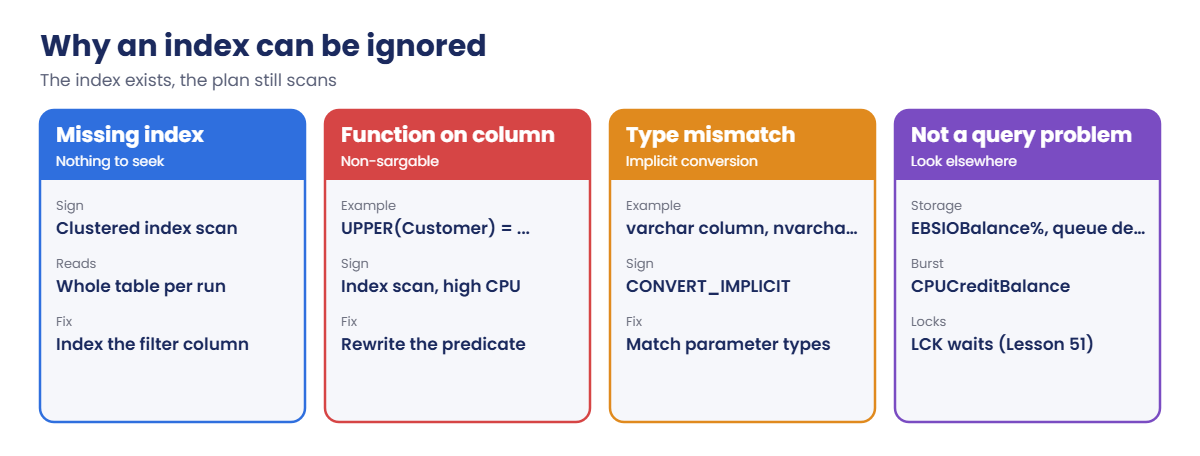
A query that reads hundreds of pages to return one row is scanning. Common causes: no suitable index; a non-sargable predicate such as UPPER(col), LEFT(col, n) or col + 0, which stops SQL Server seeking; and implicit conversion, for example an nvarchar parameter against a varchar column under a SQL collation, shown as CONVERT_IMPLICIT in the plan.

Rule out other causes too: burstable classes and CPUCreditBalance, storage limits (EBSIOBalance%, DiskQueueDepth, Lesson 43), and blocking (Lesson 51). Scale up only once the expensive queries are fixed.

How it works, step by step

Here is the path from symptom to fix.

1When and how much

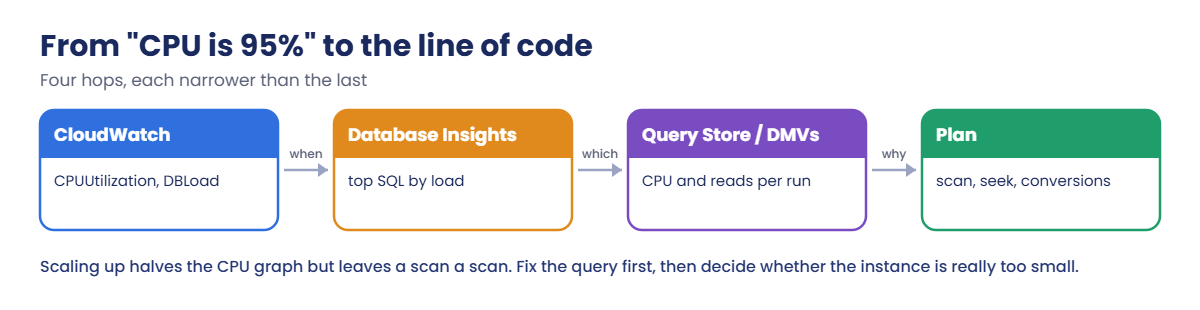
CloudWatch CPU and DB load give the time window and size of the problem.

From high CPU on RDS SQL Server to the query plan in four steps

2Which query

Database Insights’ top SQL for that window, then Query Store for CPU and reads per execution and the plan used.

3Why, then fix and measure

Read the plan: scan or seek, any conversions. Change the index or query, run the same workload, and compare the numbers.

4Know why indexes get ignored

“We have an index” doesn’t mean it’s used:

Why SQL Server ignores an index: missing index, functions, type mismatch

Before-and-after numbers from Query Store make the change request easy to approve and easy to roll back.

✅ Checkpoint: You can trace high CPU to a query, explain avg CPU and reads per execution, and name two reasons an existing index isn’t used.

Hands-on lab: find, fix and prove a CPU-heavy query

Sign in, start the SQL lab and add the helpers. Start-Load runs two clients for a few minutes; Get-QueryStats reads Query Store per plan:

cd C:\aws-lab
aws login --profile saat-admin
$env:AWS_PROFILE = 'saat-admin'
.\Start-SqlLab.ps1
function Get-SqlPw([string]$Db) {
  $a = aws rds describe-db-instances --db-instance-identifier $Db --query "DBInstances[0].MasterUserSecret.SecretArn" --output text
  (aws secretsmanager get-secret-value --secret-id $a --query SecretString --output text | ConvertFrom-Json).password
}
$csb = New-Object System.Data.SqlClient.SqlConnectionStringBuilder
$csb['Data Source'] = '127.0.0.1,11433'; $csb['Initial Catalog'] = 'SaatShop'; $csb['User ID'] = 'saatadmin'; $csb['Password'] = (Get-SqlPw saat-sql); $csb['Encrypt'] = $true; $csb['TrustServerCertificate'] = $true
$load = {
  param($cs, $sql, $type, $prefix, $seconds)
  $end = (Get-Date).AddSeconds($seconds)
  $cn = New-Object System.Data.SqlClient.SqlConnection $cs; $cn.Open()
  $cm = $cn.CreateCommand(); $cm.CommandText = $sql
  $p = $cm.Parameters.Add('@v', [System.Data.SqlDbType]$type, 100)
  while ((Get-Date) -lt $end) { $p.Value = $prefix + (Get-Random -Minimum 1 -Maximum 100000); [void]$cm.ExecuteScalar() }
  $cn.Close()
}
function Start-Load([string]$Sql, [string]$Type = 'NVarChar', [string]$Prefix = 'Customer ', [int]$Seconds = 300) {
  1..2 | ForEach-Object { Start-Job -ScriptBlock $load -ArgumentList $csb.ConnectionString, $Sql, $Type, $Prefix, $Seconds } | Out-Null
  Get-Job | Wait-Job | Receive-Job; Get-Job | Remove-Job
}
function Get-QueryStats {
  sqlcmd -S "127.0.0.1,11433" -U saatadmin -C -d SaatShop -W -Q "SET NOCOUNT ON; SELECT RIGHT(qt.query_sql_text, 34) AS query_end, p.plan_id, CASE WHEN p.query_plan LIKE '%Index Seek%' THEN 'seek' ELSE 'scan' END AS op, CASE WHEN p.query_plan LIKE '%CONVERT_IMPLICIT%' THEN 'yes' ELSE 'no' END AS conversion, SUM(rs.count_executions) AS execs, CAST(SUM(rs.avg_cpu_time * rs.count_executions) / NULLIF(SUM(rs.count_executions), 0) / 1000.0 AS decimal(10,2)) AS avg_cpu_ms, CAST(SUM(rs.avg_logical_io_reads * rs.count_executions) / NULLIF(SUM(rs.count_executions), 0) AS int) AS avg_reads FROM sys.query_store_query_text qt JOIN sys.query_store_query q ON q.query_text_id = qt.query_text_id JOIN sys.query_store_plan p ON p.query_id = q.query_id JOIN sys.query_store_runtime_stats rs ON rs.plan_id = p.plan_id WHERE qt.query_sql_text LIKE '%dbo.Orders WHERE%' AND qt.query_sql_text NOT LIKE '%query_store%' GROUP BY qt.query_sql_text, p.plan_id, p.query_plan ORDER BY p.plan_id"
}
function Get-CpuMax([int]$Minutes = 6) {
  $e = (Get-Date).ToUniversalTime(); $s = $e.AddMinutes(-$Minutes)
  aws cloudwatch get-metric-statistics --namespace AWS/RDS --metric-name CPUUtilization --dimensions Name=DBInstanceIdentifier,Value=saat-sql --start-time $s.ToString('o') --end-time $e.ToString('o') --period 60 --statistics Maximum --query "max(Datapoints[].Maximum)" --output text
}
sqlcmd -S "127.0.0.1,11433" -U saatadmin -C -d SaatShop -Q "ALTER DATABASE SaatShop SET QUERY_STORE = ON (OPERATION_MODE = READ_WRITE); ALTER DATABASE SaatShop SET QUERY_STORE CLEAR; SELECT COUNT(*) AS orders FROM dbo.Orders;"

You should see something like this:

orders
-----------
     100003

1Run a lookup workload and watch CPU

Paste this whole block. Two clients look up random customers for 5 minutes:

Start-Load 'SELECT COUNT(*), SUM(Amount) FROM dbo.Orders WHERE Customer = @v'
"CPU max in the last 6 minutes: $(Get-CpuMax)%"

You should see something like this:

CPU max in the last 6 minutes: 94.2%

saat-sql’s CPU went close to 100% for a lookup that returns one row each time. Open CloudWatch > Database Insights for saat-sql: DB load sits near the vCPU line, almost all of it CPU, and one statement dominates the top SQL list.
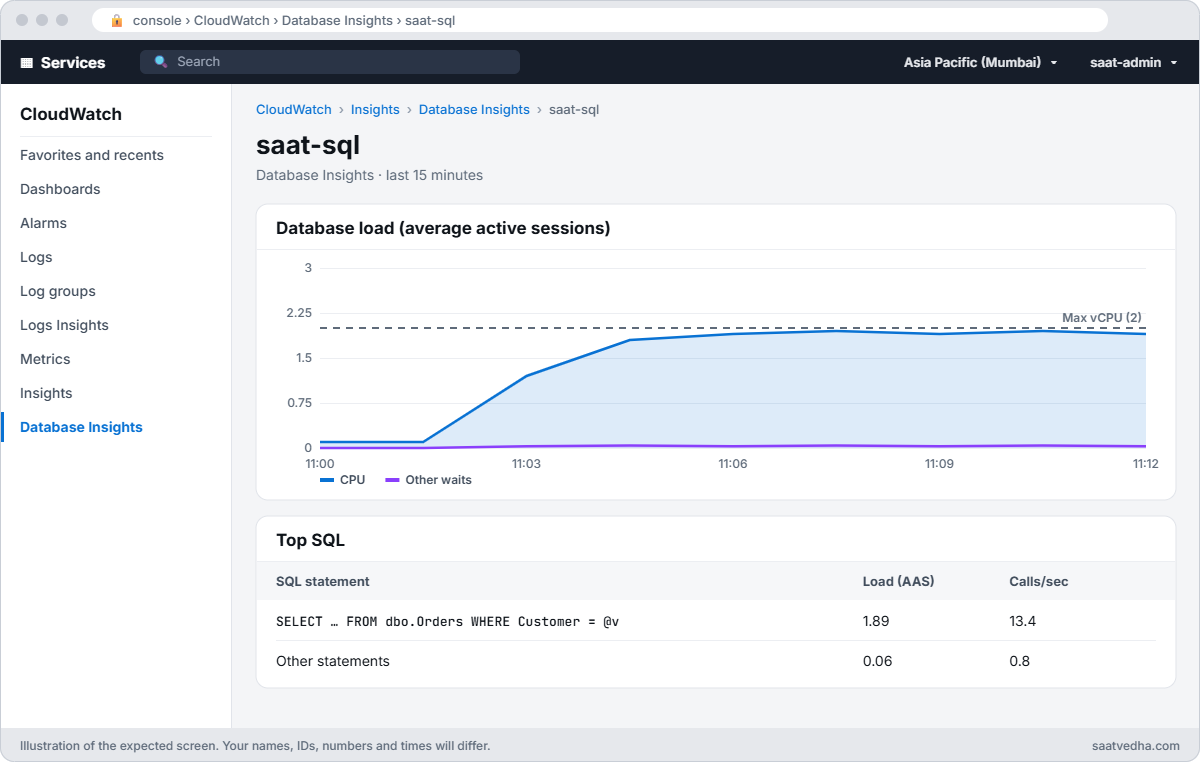
CloudWatch Database Insights for saat-sql with DB load at the vCPU line, nearly all CPU, from one statement
Database Insights during the spike: load sits on the vCPU line, nearly all of it CPU, and one statement tops the list.

2Prove the cost with Query Store

Paste this:

Get-QueryStats

You should see something like this:

query_end                          plan_id op   conversion execs avg_cpu_ms avg_reads
---------------------------------- ------- ---- ---------- ----- ---------- ---------
dbo.Orders WHERE Customer = @v           1 scan no          2412      38.71       812

About 40 ms of CPU and 812 page reads per execution to find one customer: the whole table, every time. That’s what “high CPU” usually looks like up close.
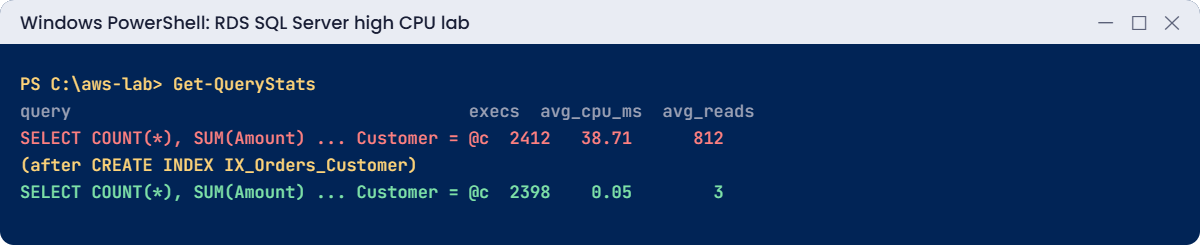
RDS SQL Server high CPU lab output: Query Store before and after an index
Query Store per plan, before and after. Something like this.

3Fix it with an index and measure again

Paste this whole block:

sqlcmd -S "127.0.0.1,11433" -U saatadmin -C -d SaatShop -Q "CREATE INDEX IX_Orders_Customer ON dbo.Orders (Customer) INCLUDE (Amount);"
Start-Load 'SELECT COUNT(*), SUM(Amount) FROM dbo.Orders WHERE Customer = @v' -Seconds 180
"CPU max in the last 4 minutes: $(Get-CpuMax 4)%"
Get-QueryStats

You should see something like this:

CPU max in the last 4 minutes: 23.5%
query_end                          plan_id op   conversion execs avg_cpu_ms avg_reads
---------------------------------- ------- ---- ---------- ----- ---------- ---------
dbo.Orders WHERE Customer = @v           1 scan no          2412      38.71       812
dbo.Orders WHERE Customer = @v           2 seek no         61530       0.05         3

The same query got a new plan: a seek with 3 reads and a twentieth of a millisecond of CPU, so the clients ran 25 times as many lookups at a quarter of the CPU. No instance change, no downtime.
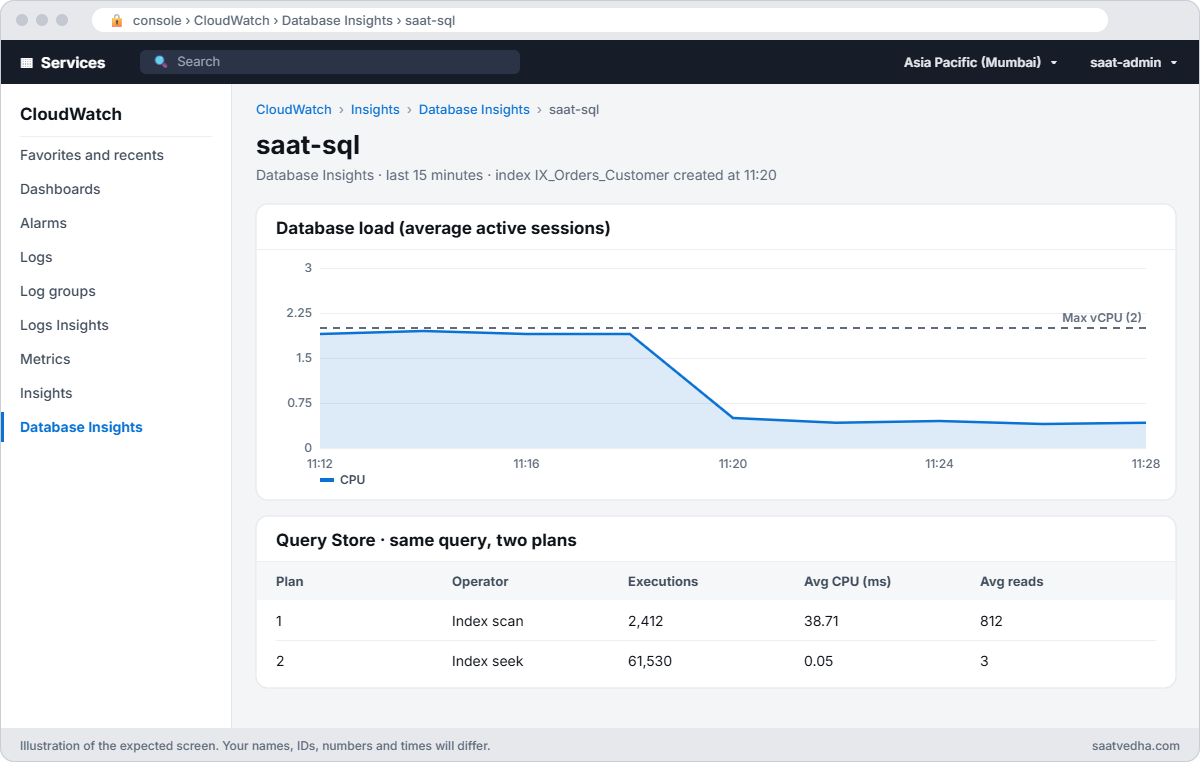
Database Insights after adding an index with DB load dropping well below the vCPU line
After the index, the same lookups take a twentieth of a millisecond of CPU and DB load drops well below the vCPU line.

✅ Checkpoint: CPU was over 90% under the lookup workload, Query Store showed a scan with about 800 reads per run, and after the index the new plan seeks with about 3 reads.

Break It, Then Fix It

Two releases that bring the CPU straight back, with the index still in place.

1Break it: a function on the column

A developer makes the search “case-insensitive” by adding UPPER():

Start-Load 'SELECT COUNT(*), SUM(Amount) FROM dbo.Orders WHERE UPPER(Customer) = UPPER(@v)' -Seconds 180
"CPU max: $(Get-CpuMax 4)%"
Get-QueryStats | Select-String 'UPPER|plan_id'

You’ll get something like this:

CPU max: 92.8%
query_end                          plan_id op   conversion execs avg_cpu_ms avg_reads
er) = UPPER(@v)                          3 scan no          2280      41.20       431

UPPER() has to be applied to every row before comparing, so SQL Server can’t seek; it scans the index instead.

And it was never needed: RDS uses a case-insensitive collation (CI), so Customer = @v already ignores case. Fix: compare the column as it is (the query from step 3). If you truly need a transformed value, index a computed column instead.

2Break it: a type mismatch

A new feature adds a varchar reference column with its own index, but the app sends the parameter as nvarchar, as many ORMs do by default:

sqlcmd -S "127.0.0.1,11433" -U saatadmin -C -d SaatShop -Q "ALTER TABLE dbo.Orders ADD Ref varchar(20) NULL;"
sqlcmd -S "127.0.0.1,11433" -U saatadmin -C -d SaatShop -Q "UPDATE dbo.Orders SET Ref = 'R' + CAST(OrderId AS varchar(10)); CREATE INDEX IX_Orders_Ref ON dbo.Orders (Ref) INCLUDE (Amount);"
Start-Load 'SELECT COUNT(*), SUM(Amount) FROM dbo.Orders WHERE Ref = @v' -Type NVarChar -Prefix 'R' -Seconds 180
"CPU max: $(Get-CpuMax 4)%"
Get-QueryStats | Select-String 'Ref|plan_id'

You’ll get something like this:

CPU max: 88.1%
query_end                          plan_id op   conversion execs avg_cpu_ms avg_reads
dbo.Orders WHERE Ref = @v                4 scan yes         2655      33.90       405

High CPU traps: function on a column and implicit conversion
Both traps and their fixes. Something like this.

To compare varchar with nvarchar, SQL Server converts every Ref value (CONVERT_IMPLICIT), and under RDS’s SQL collation that rules out a seek. This one hides in ORMs and drivers, and the query text looks perfect. Fix: send the parameter as varchar(20), matching the column:

Start-Load 'SELECT COUNT(*), SUM(Amount) FROM dbo.Orders WHERE Ref = @v' -Type VarChar -Prefix 'R' -Seconds 120
Get-QueryStats | Select-String 'Ref|plan_id'

You should see something like this:

query_end                          plan_id op   conversion execs avg_cpu_ms avg_reads
dbo.Orders WHERE Ref = @v                4 scan yes         2655      33.90       405
dbo.Orders WHERE Ref = @v                5 seek no         44120       0.06         3

Now retire the SQL Server lab. This is the last lesson that uses saat-sql and onprem-sql, so they and their supporting pieces are deleted (keep a final snapshot instead of --skip-final-snapshot if you want to come back later):

$acct = aws sts get-caller-identity --query Account --output text
.\Stop-SqlLab.ps1 -KeepDbRunning
aws rds delete-db-instance --db-instance-identifier saat-sql --skip-final-snapshot --delete-automated-backups --query "DBInstance.DBInstanceStatus" --output text
$src = aws ec2 describe-instances --filters "Name=tag:Name,Values=onprem-sql" "Name=instance-state-name,Values=stopped,running" --query "Reservations[0].Instances[0].InstanceId" --output text
if ($src -and $src -ne 'None') { aws ec2 terminate-instances --instance-ids $src | Out-Null; aws ec2 wait instance-terminated --instance-ids $src }
$srcSg = aws ec2 describe-security-groups --filters "Name=group-name,Values=saat-onprem-sql-sg" --query "SecurityGroups[0].GroupId" --output text
if ($srcSg -and $srcSg -ne 'None') { aws ec2 delete-security-group --group-id $srcSg }
aws rds wait db-instance-deleted --db-instance-identifier saat-sql
aws rds delete-option-group --option-group-name saat-sqlserver-ex-16-og
aws rds delete-db-parameter-group --db-parameter-group-name saat-sqlserver-ex-16
aws iam delete-role-policy --role-name saat-rds-backup-role --policy-name saat-sqlbak-s3
aws iam delete-role --role-name saat-rds-backup-role
aws s3 rb "s3://saat-sqlbak-$acct-ap-south-1-an" --force | Out-Null
aws rds describe-db-instances --query "DBInstances[].DBInstanceIdentifier" --output text

The last command should print nothing.

✅ Checkpoint: You fixed a non-sargable UPPER() by comparing the column directly and an implicit conversion by matching the parameter type. saat-sql, onprem-sql, their security group, groups, backup role and bucket are gone.

This happened at work

The bigger instance that bought one week

A ticketing company’s RDS SQL Server hit 100% CPU every evening during sales. They doubled the instance class; CPU dropped to 60% and climbed back to 100% a week later as traffic grew. They doubled it again.

A consultant opened Query Store and sorted by total CPU. One query, checking seat availability, used 70% of it: the app sent the event code as nvarchar to a varchar column, so every check scanned a 40-million-row table.

One line in the data access layer fixed the type. CPU at peak fell to 15% and they went back two instance sizes, saving more each month than the consultant cost. Their code review checklist now includes parameter types for every new query.

Common mistakes and troubleshooting

MistakeWhat happensWhat to do
Scaling up firstCosts rise, scans continueFind and fix the top queries
Functions on indexed columnsIndex scans, high CPURewrite predicates or use computed columns
Parameter types that don’t match columnsCONVERT_IMPLICIT, scansMatch types in the app or ORM
Measuring with one runNoise hides the changeSame workload before and after, per-execution numbers
Query Store off or read-onlyNo history when you need itKeep it on, sized, READ_WRITE
Ignoring CPU credits on db.t classesThrottled or surprise costsWatch CPUCreditBalance; use m or r classes for steady load

Interview questions

Click a question to open it. Each one is written the way an interviewer would ask it. Under it you will see why they ask it and one way you could answer, in your own words.

Fresher level

1. Users say the app is slow, and you see the RDS SQL Server instance sitting at 90 percent CPU. Where would you start looking?

Why they ask this: They want to see that you find the cause before you change anything. They also want to know you can use the AWS and SQL Server tools together.

How you might answer: First I’d check the CPUUtilization graph in CloudWatch to see when it started, and whether that lines up with a release or a batch job. Then I’d open Database Insights for the instance and look at the top SQL, because one statement usually explains most of the load.

For that statement I’d check Query Store, or sys.dm_exec_query_stats, to see CPU and reads per run. That tells me if the query itself is the problem.

2. You see a query that returns one row, but it does about 800 logical reads every time. What does that tell you?

Why they ask this: They are checking that you can read the numbers and connect them to how SQL Server finds rows.

How you might answer: It tells me SQL Server is scanning the table or index instead of seeking straight to the row. A one-row lookup should need only a handful of reads.

Next I’d look at the plan, the indexes on that column, and the data type of the parameter.

3. Can you explain in simple words what Query Store is and why you’d turn it on?

Why they ask this: They want to know if you have used it for real, not just heard the name.

How you might answer: Query Store is a feature inside each database that saves the query text, the plans it used, and how much CPU and reads each plan took over time. I turn it on so that when a query suddenly gets slower, I can see which plan it used before and after the change.

If I need a quick fix, I can force the old plan from there.

2–5 years experience

4. There is an index on the column, but the query still does a scan. What are the usual reasons?

Why they ask this: This checks real troubleshooting experience. People who have only read about indexes often think an index always gets used.

How you might answer: The most common one is a function or a calculation on the column, like UPPER(Customer), which stops SQL Server from seeking. Another is a data type mismatch, for example an nvarchar parameter against a varchar column, which shows up as CONVERT_IMPLICIT in the plan.

It can also be a leading wildcard in a LIKE, a filter that matches too many rows, or old statistics. So I’d open the plan and check the predicate first.

5. Your manager says, let’s just move to a bigger instance class. When would you agree, and when would you push back?

Why they ask this: They want to see judgement and a sense of cost, not just technical knowledge.

How you might answer: I’d push back if the top queries are scanning or doing far more reads than they need, because a bigger instance just makes a bad query cost more. I’d agree once those queries are already efficient and DB load still stays above the vCPU line because there really is more work.

Even then, I’d ask whether a read replica or caching would help first.

6. A query was fine yesterday. After a statistics update it’s slow today. What would you do, step by step?

Why they ask this: This checks how you handle a plan regression under pressure: a quick, safe fix first, then the real fix.

How you might answer: I’d find the query in Query Store under regressed queries and compare the old plan with the new one. To get users working again, I’d force the old plan.

Then I’d look for the real cause, such as a missing index, parameter sniffing or a skewed column. Once that’s fixed, I’d remove the forced plan.

Senior level

7. Say you’re responsible for 50 SQL Server databases. How would you set up regular performance reviews so problems are caught early?

Why they ask this: For a senior role they want to see a repeatable process and good habits across a team, not one-off firefighting.

How you might answer: I’d turn on Query Store everywhere and send a weekly report of the top CPU queries and any regressed queries. I’d use Database Insights dashboards for load, and review index usage every few months.

In code review I’d check parameter data types and avoid functions on indexed columns. I’d only talk about bigger instances after the query fixes are done.

8. You need to add an index to a busy production table. How would you do it without hurting users?

Why they ask this: They want to see that you think about risk, blocking and timing, not only about the index itself.

How you might answer: First I’d test the index on a copy of the database and measure the plan and the benefit. On Enterprise edition I’d build it with ONLINE = ON; on Standard or Express I’d plan it for a quiet time, because the build locks the table.

While it runs, I’d watch for blocking and log growth, and afterwards I’d compare CPU and reads with the numbers from before.

Quick quiz

Q1. What did the index change for the lookup?

  1. Nothing
  2. Scan to seek, 812 to 3 reads
  3. More CPU
  4. A new table
Show answer

B — A seek reads a few pages.

Q2. Why did UPPER(Customer) scan?

  1. No index
  2. Functions on the column stop seeks
  3. Wrong password
  4. Disk full
Show answer

B — The predicate is non-sargable.

Q3. What shows an implicit conversion in a plan?

  1. INDEX SEEK
  2. CONVERT_IMPLICIT
  3. PARALLELISM
  4. SORT
Show answer

B — The column is converted per row.

Q4. Fix for nvarchar parameter vs varchar column?

  1. Bigger instance
  2. Send varchar matching the column
  3. Drop the index
  4. Turn off Query Store
Show answer

B — Match the types.

Q5. Which tool gave CPU and reads per execution per plan?

  1. CloudTrail
  2. Query Store
  3. S3
  4. Route 53
Show answer

B — sys.query_store_* views.

Quick recap

  • Follow CPU from CloudWatch to Database Insights to Query Store to the plan.
  • Per-execution CPU and reads reveal scans.
  • An index fixes a missing seek; functions on columns and type mismatches defeat it.
  • Measure the same workload before and after every change.
  • Fix queries before scaling the instance.

Next lesson

Lesson 66: Load balancer 502, 503 and 504 errors → You’ll find out why an Application Load Balancer returns 502, 503 and 504, and fix unhealthy targets.

Further reading: RDS SQL Server high CPU

Want to go deeper into RDS SQL Server high CPU? Read Monitor performance by using the Query Store and Best practices for Amazon RDS. You can also see the full plan for this course on the AWS Cloud Administration course page.

Scroll to Top