Set up your AWS account safely
-
Phase 0: Before you start
-
Phase 1: The foundation
-
Phase 2: Operations and security
-
Phase 3: SQL Server on AWS
-
Phase 4: Troubleshooting step by step
-
Phase 5: Final project and career
A good AWS account setup takes about an hour and saves you from the two worst things that happen to beginners: a stolen account and a surprise bill. In this lesson you create the lab account you’ll use for the whole course and lock it down before you launch anything.
You’ll choose between the Free plan and the Paid plan, protect the root user with MFA, set contacts and two budgets, pick your Region, and then prove it all from AWS CloudShell with three commands.
| Time | You need | By the end you can |
|---|---|---|
| 60 minutes | An email address you will keep for years, a mobile phone, a debit or credit card for verification, and an authenticator app or passkey. | Create an AWS account, secure the root user, get an email before you spend money, and check your setup from CloudShell. |
What it is, in one line
AWS account setup means creating the account, locking the root user with MFA and adding budget alerts before you build anything.
In Simple Words
The master key and the electricity meter
When you move into a new house, you get one master key that opens every door, even the safe. You don’t carry it every day. You lock it in a cupboard and make normal keys for daily use.
You also look at the electricity meter on day one. If the bill suddenly doubles, you want to know this week, not when the bill arrives.
In AWS, the root user is the master key, and budgets are the meter. This lesson locks the master key away and connects the meter to your phone.
Engineer's View
What you are really creating
An AWS account is a container for resources, a billing boundary and a security boundary. Resources in one account can’t see another account unless you allow it. Companies use many accounts (production, test, security, logs) for exactly this reason.
You’ll start with one.
The root user is the email and password you sign up with. It can do everything, including closing the account and changing the payment method, and IAM policies can’t limit it. AWS has required MFA on root users of all account types since June 2025.
You use root only for a few account-level tasks; daily work happens through IAM Identity Center (Lesson 6).
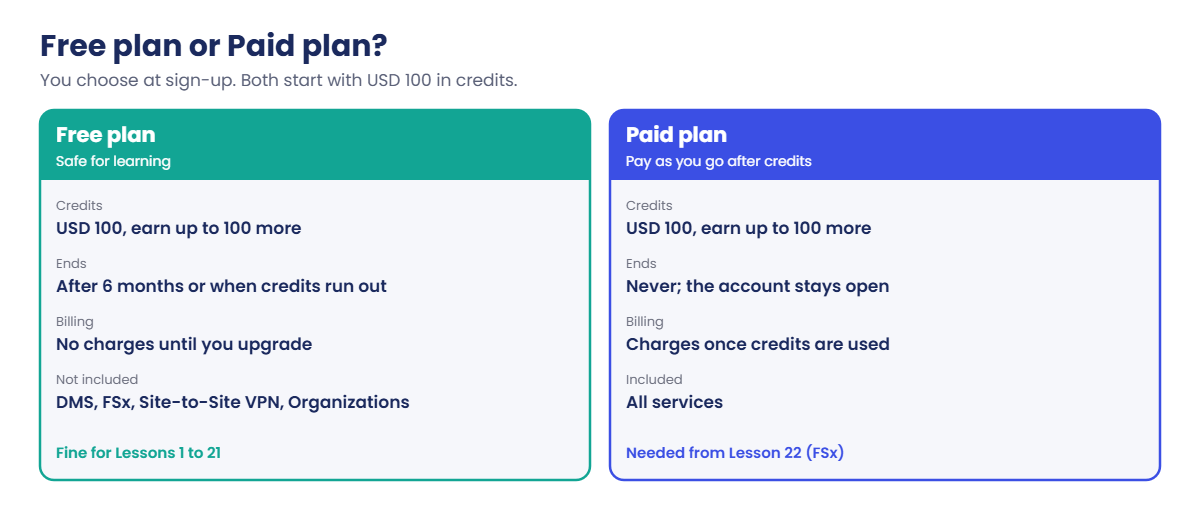
Plans and credits: new accounts choose a Free plan or a Paid plan at sign-up, and both get USD 100 in credits, with up to USD 100 more for completing set-up activities. The Free plan has no charges until you upgrade, but it ends after six months or when the credits are used, and it leaves out some services this course needs later (DMS, FSx, Site-to-Site VPN, Organizations). AWS keeps a Free plan account’s data for 90 days after it ends, so you can still upgrade.
Rules change, so read the AWS Free Tier FAQs on the day you sign up.
Budgets watch your spend and email you. A zero spend budget alerts you as soon as you spend anything beyond the Free Tier limits. A monthly cost budget alerts you before you pass an amount you choose.
Budgets with email alerts cost nothing, but they are alerts, not a hard limit.
How it works, step by step
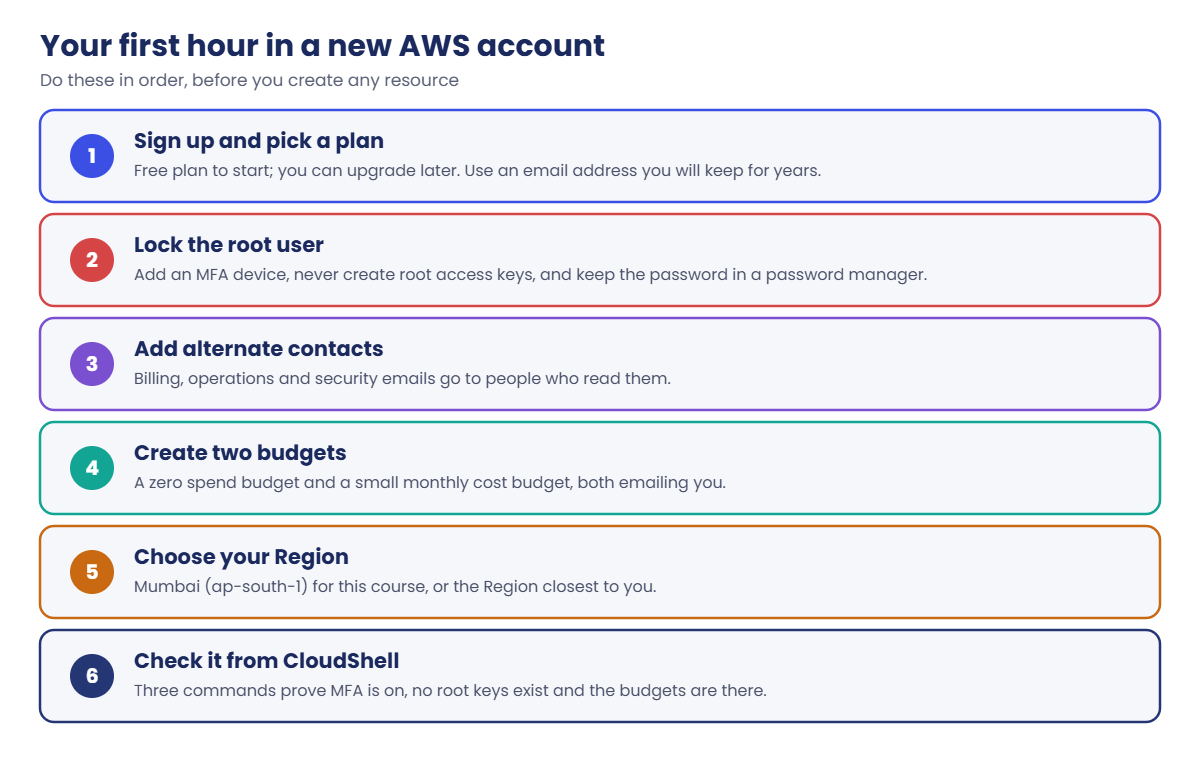
The order matters. Every step closes a door before the next step opens one.
1Sign up and choose a plan
Use an email address you control for years, ideally one only for AWS (for example yourname+awslab@gmail.com). For a company account, use a team mailbox, never one person’s address. If your billing address is in India, AWS usually sets up the account with Amazon Internet Services Pvt.
Ltd. (AISPL) and bills in rupees; the steps are the same.
2Lock the root user
Add an MFA device to root: a passkey, a security key or an authenticator app. Don’t create access keys for root, ever. Store the root password in a password manager and write down where the MFA device is.
3Add alternate contacts
AWS sends billing, security and operations messages to these addresses. If you set them, a warning about a leaked key reaches a person who reads email, not an old inbox.
4Create two budgets
The zero spend budget is your smoke alarm. The monthly cost budget, for example USD 5, is your fuel gauge. Both email you.
5Choose your Region and check from CloudShell
Switch the console to Asia Pacific (Mumbai), ap-south-1, or the Region closest to you. Then open CloudShell, a browser terminal with the AWS CLI already installed, and check your setup with commands instead of trusting the screen.
Before you sign up, decide on your plan. The comparison below shows why the Free plan is a good start but won’t carry you through the whole course.
Our suggestion: start on the Free plan. You can’t be charged while you learn Phases 0 and 1. Upgrade to the Paid plan when you reach Lesson 22 (FSx for Windows), keep your budgets on, and delete everything at the end of each lab.
✅ Checkpoint: You can explain what the root user is, why it needs MFA, and the difference between the Free plan and the Paid plan.
Hands-on lab: AWS account setup, step by step
Work slowly here. Every later lesson assumes this account is set up exactly like this. Where AWS screens differ a little from what you read, follow the meaning, not the button names.
1Create the account
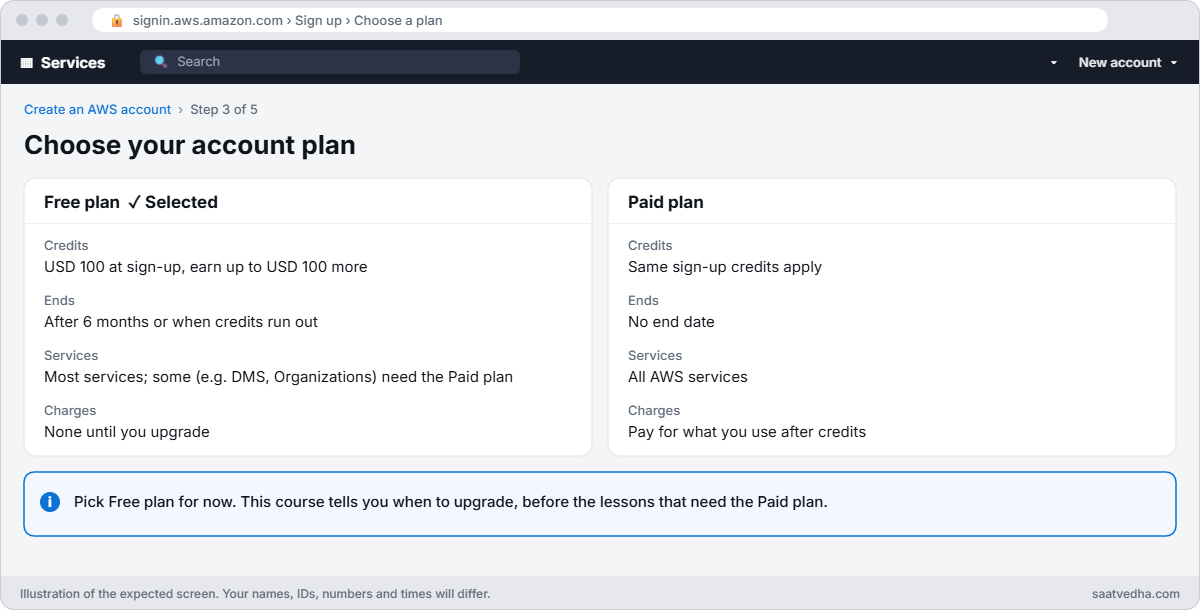
Go to aws.amazon.com and choose Create an AWS account. Enter your email and an account name such as saatvedha-lab. Verify the email, set a long root password, choose Free plan, then complete the contact, card and phone verification steps.
2Turn on MFA for root
Sign in as the root user. Open the account menu (top right) and choose Security credentials. Under Multi-factor authentication (MFA), choose Assign MFA device, pick a passkey, security key or authenticator app, and finish the steps.
Sign out and sign back in to prove it works.
3Set alternate contacts
From the account menu, choose Account, scroll to Alternate contacts and fill in Billing, Operations and Security. For a lab, your own email in all three is fine.
4Create the zero spend budget
Open Billing and Cost Management, then Budgets, then Create budget. Choose Use a template (simplified), pick Zero spend budget, name it zero-spend, add your email and choose Create budget.
5Create the monthly cost budget
Create another budget from the template Monthly cost budget. Name it monthly-5usd, set the amount to 5 (USD) and add your email. AWS will email you when your actual spend, or the forecast, goes past that amount.
6Switch to Mumbai and open CloudShell
In the Region menu (top right), choose Asia Pacific (Mumbai) ap-south-1. Then choose the CloudShell icon (a small terminal symbol) in the top bar and wait for the prompt.
7Prove the setup with three commands
Type this at the CloudShell prompt:
aws sts get-caller-identityYou should see something like this (with your own 12-digit account number):
{
"UserId": "123456789012",
"Account": "123456789012",
"Arn": "arn:aws:iam::123456789012:root"
}The :root at the end of the ARN tells you that you are signed in as the root user. That is the last time in this course you’ll work as root after setup.
Now check MFA and root access keys:
aws iam get-account-summary --query 'SummaryMap.{MFA:AccountMFAEnabled,RootKeys:AccountAccessKeysPresent}'You should see this:
{
"MFA": 1,
"RootKeys": 0
}MFA: 1 means root has an MFA device. RootKeys: 0 means root has no access keys, which is what you want.
Finally, list your budgets:
ACCT=$(aws sts get-caller-identity --query Account --output text)
aws budgets describe-budgets --account-id $ACCT --query 'Budgets[].[BudgetName,TimeUnit,BudgetType]' --output textYou should see something like this:
monthly-5usd MONTHLY COST
zero-spend MONTHLY COST
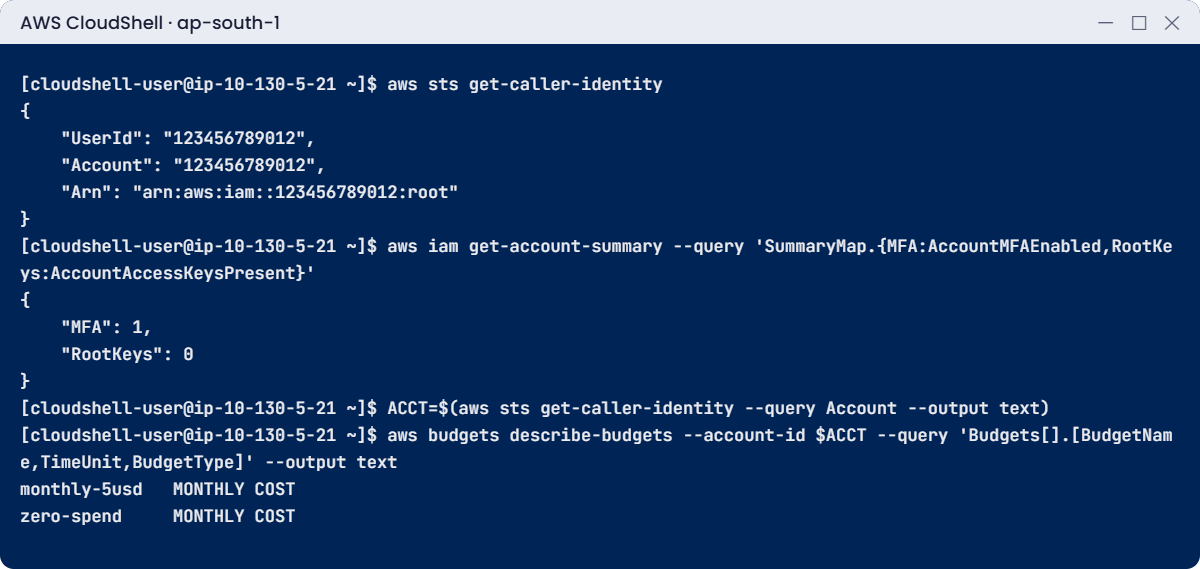
✅ Checkpoint: Root has MFA ("MFA": 1), no root access keys ("RootKeys": 0), and both budgets are listed. Sign out of root when you finish.
Break It, Then Fix It
CloudShell and the AWS CLI are strict about two things: required parameters and the exact spelling of field names. One gives a clear error. The other gives you a quiet null.
1Break it: leave out a required parameter
Run this:
aws budgets describe-budgetsYou’ll get this error:
usage: aws [options] <command> <subcommand> [<subcommand> ...] [parameters]
To see help text, you can run:
aws help
aws <command> help
aws <command> <subcommand> help
aws: error: the following arguments are required: --account-idFix: read the last line. Budgets need the account ID, which is why the lab stored it in $ACCT first. Run aws budgets describe-budgets help any time you’re not sure which parameters a command needs.
2Break it: one wrong letter in a query
Run this (lowercase “a” in accountMFAEnabled):
aws iam get-account-summary --query 'SummaryMap.accountMFAEnabled'You should see this:
null
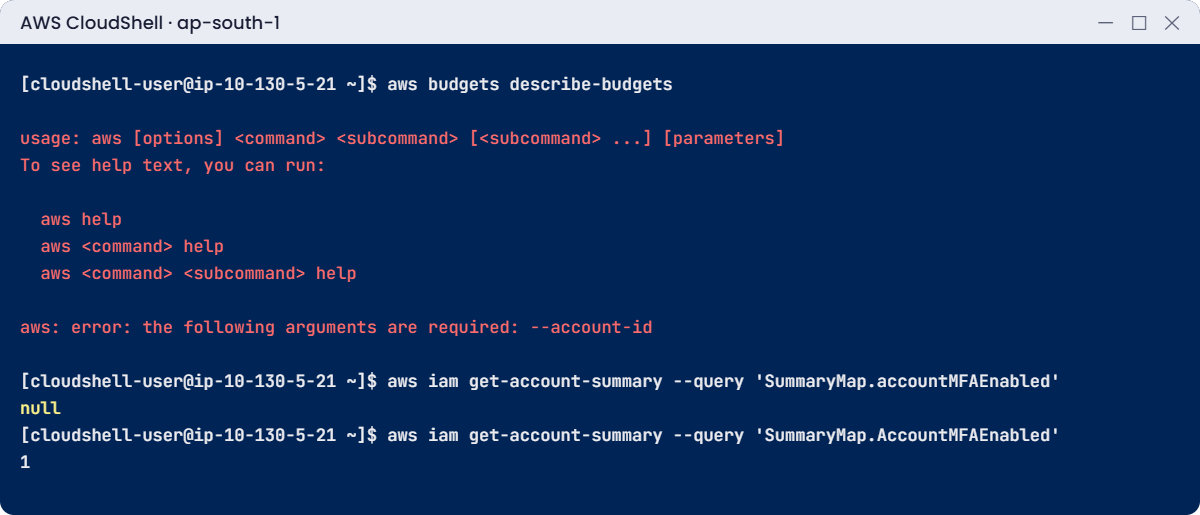
No error. The --query option uses JMESPath, and JMESPath is case-sensitive, so a field with a slightly different name simply doesn’t exist. A security check that prints null instead of 1 could make someone think MFA is off, or worse, a script could treat “not 0” as “fine”.
Fix the case and run it again:
aws iam get-account-summary --query 'SummaryMap.AccountMFAEnabled'You should see this:
1✅ Checkpoint: You saw the “arguments are required” error and fixed it, and you turned a silent null into 1 by matching the field name exactly.
This happened at work
The root email nobody could open
A small software company opened its AWS account years ago with a developer’s personal email as root. The developer left. Nobody updated the email, nobody had the MFA device, and there were no alternate contacts.
One Saturday, an access key that someone had pushed to a public code repository was used to start large EC2 instances in several Regions to mine cryptocurrency. AWS sent warnings to the root email and opened a support case, but the messages went to the old inbox. The team found out on Tuesday, when the credit card was declined for a bill many times larger than normal.
Getting back into root took days of identity checks with AWS Support. Afterwards, the company changed four things: root email moved to a team mailbox, MFA devices were kept in a safe with two named owners, alternate contacts were set, and a monthly budget plus a zero spend budget on every account sent alerts to the team chat.
Common mistakes and troubleshooting
| Mistake | What happens | What to do |
|---|---|---|
| Using a personal or shared-by-everyone email for root | No one can recover the account when that person leaves | Use a team mailbox you will keep; note who owns it |
| Creating access keys for root | A leaked key can do anything, even close the account | Never create them. If one exists, delete it today |
| Doing daily work as root | Every mistake has full power behind it | Use root only for setup; Lesson 6 gives you a daily user |
| Thinking a budget stops spending | Alerts arrive but resources keep running and costing | A budget is an alarm. Delete resources after every lab |
| Choosing the Free plan and planning to do the whole course on it | Lessons 22, 33, 37 and 47 need services the Free plan doesn’t include | Upgrade to the Paid plan before Lesson 22, keep budgets on |
| Ignoring the Region selector | Resources appear “missing” or get created far away | Check the Region every time you open the console |
Interview questions
Click a question to open it. Each one is written the way an interviewer would ask it. Under it you will see why they ask it and one way you could answer, in your own words.
Fresher level
1. Can you tell me in simple words what the AWS root user is, and why you wouldn’t use it every day?
Why they ask this: They want to know you understand the most powerful identity in an account. They also want to hear how you protect it.
How you might answer: The root user is the identity created with the account email. It can do everything, including billing and closing the account, and IAM policies can’t restrict it.
So I protect it with MFA, I never create access keys for it, and I use IAM Identity Center users for daily work.
2. You’ve just opened a new AWS account for practice. How would you make sure you don’t get a surprise bill?
Why they ask this: They want to see that you think about cost from day one. They also check that you know alerts alone don’t save money.
How you might answer: On day one I’d set up budgets with email alerts, a zero spend budget and a monthly budget. I’d tag my resources and look at Cost Explorer once a week.
Budgets only send alerts, so I still delete my lab resources as soon as I’m finished.
3. How would you explain to a non-technical friend what MFA protects them from?
Why they ask this: They want to see that you understand the basic security idea and can explain it plainly. Explaining things simply is part of the job.
How you might answer: I’d say MFA protects you when your password gets stolen or guessed. The attacker also needs your phone, security key or passkey, so the password alone isn’t enough to sign in.
2–5 years experience
4. A teammate tells you, “I set a 50 dollar budget, so we can never spend more than 50.” What would you say to them?
Why they ask this: They want to check that you know budgets are alerts, not spending limits. This mistake causes real surprise bills.
How you might answer: I’d tell them that’s not right. A budget sends alerts when actual or forecast spend passes a threshold, but the resources keep running.
If they want something to happen automatically, they need budget actions, like applying a deny policy, or their own automation. And someone still has to clean up.
5. How would you check that the root user has MFA and no access keys, without opening the console?
Why they ask this: They want to see that you use the CLI for checks that can be repeated. A check you can script is one you’ll actually run every week.
How you might answer: I’d run aws iam get-account-summary and look at two values. AccountMFAEnabled should be 1 and AccountAccessKeysPresent should be 0.
It’s one command, so it’s easy to add to a weekly check script.
6. Why do companies bother keeping production and test in separate AWS accounts? Isn’t one account simpler?
Why they ask this: They want to know you understand that an account is a security and billing boundary. It shows whether you think about limiting damage.
How you might answer: An account is a security and billing boundary. If someone makes a mistake in test, or a test user gets compromised, they can’t touch production resources.
It also makes costs easy to split, and I can put stricter rules on production without slowing down test.
Senior level
7. You take over an AWS account and nobody knows the root password. What do you do?
Why they ask this: They want to see how calmly you handle a real account-recovery problem. They also want to know what you’d secure while recovery is in progress.
How you might answer: First I’d find out who controls the root email. If we control it, I’d use the password reset and then register a new MFA device through the recovery process. If we don’t, I’d open a case with AWS Support so they can verify ownership.
Meanwhile I’d make sure IAM admin access exists and set alternate contacts and budgets. Later I’d move the account into AWS Organizations with centralised root management.
8. A new company asks you to set up their first AWS accounts. Walk me through what you’d do on day one.
Why they ask this: They want to see that you think beyond a single account and plan for security, logs and cost from the start. It shows design judgement.
How you might answer: I’d create the management account with a team mailbox and MFA, then turn on AWS Organizations. I’d create separate accounts for production, test, security tools and logs, and use IAM Identity Center for people.
Every account gets budgets and CloudTrail. Then I’d apply service control policies that block risky actions, like leaving the organization or turning off CloudTrail.
Quick quiz
Q1. Which identity can close an AWS account and change its payment method?
- Any IAM user with AdministratorAccess
- The root user
- An IAM role
- The billing contact
Show answer
B — The root user has complete access, including account-level tasks that IAM permissions can’t grant.
Q2. Your query returns null instead of 1. What is the most likely cause?
- MFA is off
- The field name in the query has the wrong case
- CloudShell is broken
- The account is new
Show answer
B — JMESPath is case-sensitive. A misspelled field returns null without an error.
Q3. What does a monthly cost budget do when you pass the amount?
- Stops all resources
- Deletes resources
- Sends an alert
- Blocks new sign-ins
Show answer
C — Budgets are alerts. Resources keep running unless you take action.
Q4. Which service from this course is not included in the Free plan?
- Amazon EC2
- AWS CloudShell
- Amazon FSx
- AWS Backup
Show answer
C — FSx (and DMS, Site-to-Site VPN and Organizations) need the Paid plan.
Q5. How many root access keys should your account have?
- One, for scripts
- Two, for rotation
- Zero
- As many as admins
Show answer
C — Root access keys are too powerful to risk. Scripts use IAM roles or IAM Identity Center credentials.
Quick recap
- The root user is the master key: MFA on, no access keys, used only for setup.
- Free plan: no charges until you upgrade, ends after six months or when credits run out, and leaves out some services (upgrade before Lesson 22).
- Alternate contacts make sure AWS warnings reach a real person.
- Two budgets (zero spend and USD 5 monthly) email you early. Budgets alert; they don’t stop spending.
- CloudShell proved the setup: get-caller-identity, get-account-summary and describe-budgets.
Next lesson
Lesson 3: Your AWS lab toolkit: CLI, CloudShell, profiles → You’ll install the AWS CLI on your laptop and connect it to this account the safe way.
Further reading: AWS account setup
Want to go deeper into AWS account setup? AWS’s own checklist is in Root user best practices for your AWS account, and budget templates are explained in Using a budget template. You can also see the full plan for this course on the AWS Cloud Administration course page.
