Systems Manager Session Manager: servers with no open ports

Lessons 11 and 12 opened SSH and RDP to your IP. That works, but it means keys, passwords and open ports to look after. AWS Session Manager, part of Systems Manager, gives you a shell on Linux and Windows servers with no inbound ports, no public IP and no SSH keys, and every session is checked by IAM and logged.

You’ll launch app01 in a private subnet with no internet at all, connect to it through VPC endpoints, and fix the two errors that stop most first sessions. From now on, this is how the course reaches its servers.

TimeYou needBy the end you can
60 minutes (endpoints and instance running for under an hour)saat-vpc with saat-app-sg, your laptop signed in with aws login --profile saat-admin. Cost: about USD 0.08 if you clean up within an hour.Create an instance role for Systems Manager, add the VPC endpoints a private server needs, install the Session Manager plugin, open sessions from the CLI and fix “TargetNotConnected” and “plugin not found”.

What it is, in one line

AWS Session Manager opens a shell on your servers through the SSM Agent, so no SSH or RDP port ever has to be open.

In Simple Words

A phone line that only rings outwards

Imagine a secure office with no front door at all. Nobody can walk in. Inside sits a helper who keeps a phone line open to head office.

When you need something done inside, you call head office, they check your ID badge, and they pass your words down the line the helper already opened. The helper does the work and tells you what happened. Every call is recorded.

The helper is the SSM Agent, head office is Systems Manager, and your ID badge is IAM. No door was ever opened.

Engineer's View

What has to be in place

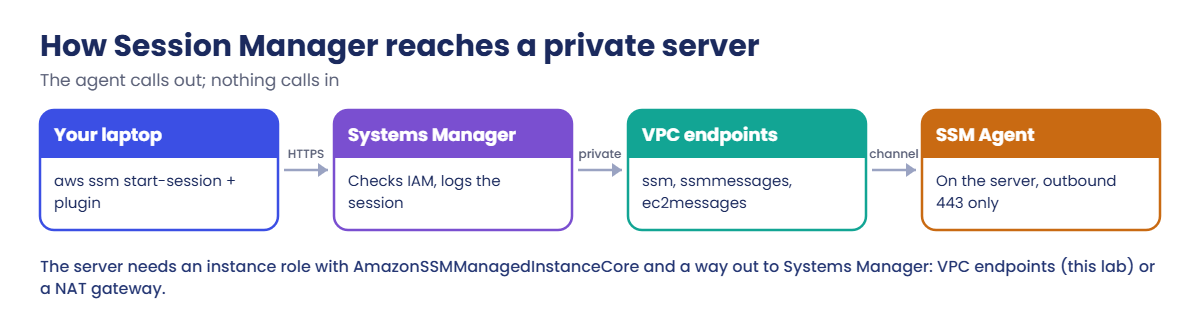
The SSM Agent comes installed on Amazon Linux and Amazon’s Windows AMIs. It makes outbound HTTPS connections to Systems Manager; nothing connects in to it. To be allowed to talk to Systems Manager, the instance needs credentials, which normally come from an instance profile with a role that has the AmazonSSMManagedInstanceCore policy.

(An account-wide setting called Default Host Management Configuration can do this without a role per instance.)

The agent also needs a network path: a NAT gateway, or interface VPC endpoints for ssm, ssmmessages and ec2messages with private DNS turned on and a security group allowing 443 from the instance. Endpoints charge per hour per zone, so in this lab you put them in one zone and delete them afterwards.

On your laptop, aws ssm start-session needs the separate Session Manager plugin. Linux sessions log in as ssm-user with sudo rights; Windows sessions open PowerShell. Port forwarding (for example AWS-StartPortForwardingSession to reach RDP on 3389) uses the same channel.

Who may start a session is decided by IAM (ssm:StartSession, scoped by instance or tag), and sessions appear in CloudTrail. You can also send full session output to S3 or CloudWatch Logs.

How it works, step by step

Four pieces have to line up for a session to open.

1Instance role

saat-ec2-ssm-role with AmazonSSMManagedInstanceCore, wrapped in the instance profile saat-ec2-ssm-profile. You’ll reuse it for every server from now on.

AWS Session Manager: how a session reaches a private server through VPC endpoints

2A path to Systems Manager

app01 has no internet. Three interface endpoints in saat-private-a, with saat-endpoint-sg allowing 443 from the VPC, give the agent its way out.

3The agent registers

Within a minute or two of boot, the agent shows as Online in describe-instance-information. If it never appears, one of steps 1 and 2 is missing.

4You connect

Your laptop calls Systems Manager over HTTPS with your IAM identity. The plugin carries the shell over the channel the agent already opened.

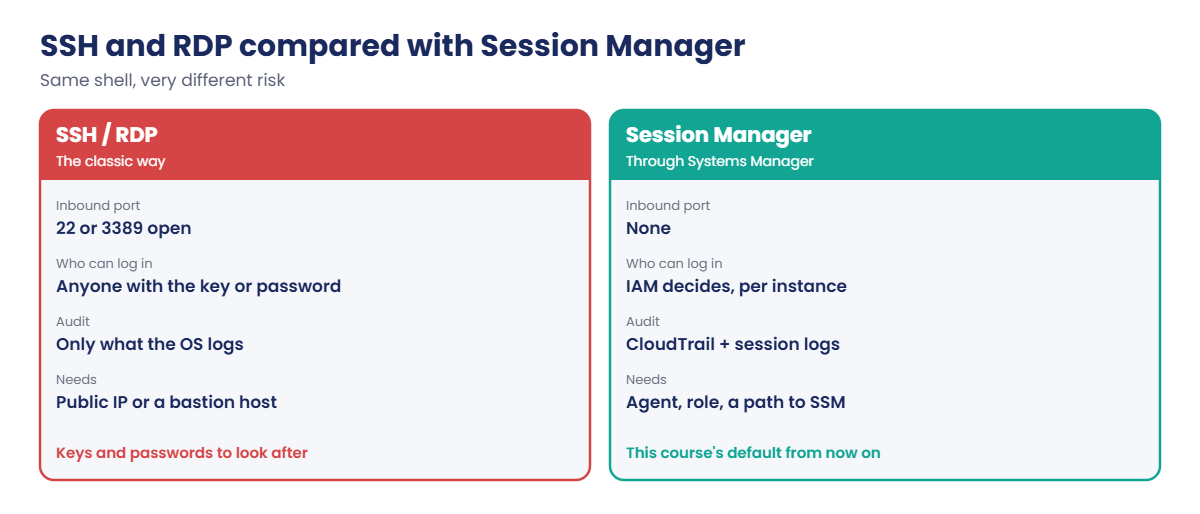
Compared with SSH and RDP, the difference is mostly in what you no longer have to protect.

AWS Session Manager compared with SSH and RDP

From this lesson on, the course doesn’t open 22 or 3389 again. If a later lab needs a desktop on Windows, you’ll use port forwarding through Session Manager or Fleet Manager in the console.

✅ Checkpoint: You can name the four pieces a session needs and explain why no inbound rule is required.

Hands-on lab: AWS Session Manager to a private server

Start as usual and load the network:

cd C:\aws-lab
aws login --profile saat-admin
$env:AWS_PROFILE = 'saat-admin'
$v = Get-Content C:\aws-lab\saat-vpc.json | ConvertFrom-Json

1Create the instance role and profile (keep these)

Paste this whole block:

@'
{ "Version": "2012-10-17", "Statement": [{ "Effect": "Allow", "Principal": { "Service": "ec2.amazonaws.com" }, "Action": "sts:AssumeRole" }] }
'@ | Set-Content ec2-trust.json
aws iam create-role --role-name saat-ec2-ssm-role --assume-role-policy-document file://ec2-trust.json --tags Key=course,Value=saatvedha-aws Key=lesson,Value=13 | Out-Null
aws iam attach-role-policy --role-name saat-ec2-ssm-role --policy-arn arn:aws:iam::aws:policy/AmazonSSMManagedInstanceCore
aws iam create-instance-profile --instance-profile-name saat-ec2-ssm-profile | Out-Null
aws iam add-role-to-instance-profile --instance-profile-name saat-ec2-ssm-profile --role-name saat-ec2-ssm-role

2Create the endpoint security group (keep it)

Paste this whole block:

$epSg = aws ec2 create-security-group --group-name saat-endpoint-sg --description "HTTPS from saat-vpc to interface endpoints" --vpc-id $v.VpcId --tag-specifications 'ResourceType=security-group,Tags=[{Key=Name,Value=saat-endpoint-sg},{Key=course,Value=saatvedha-aws},{Key=lesson,Value=13}]' --query GroupId --output text
aws ec2 authorize-security-group-ingress --group-id $epSg --protocol tcp --port 443 --cidr 10.20.0.0/16 | Out-Null
$v | Add-Member -NotePropertyName EndpointSg -NotePropertyValue $epSg -Force
$v | ConvertTo-Json | Set-Content C:\aws-lab\saat-vpc.json

3Create the three interface endpoints (the clock starts now)

Paste this whole block. The loop waits until all three are available, usually two to three minutes:

$eps = foreach ($svc in 'ssm','ssmmessages','ec2messages') {
  aws ec2 create-vpc-endpoint --vpc-id $v.VpcId --vpc-endpoint-type Interface --service-name "com.amazonaws.ap-south-1.$svc" --subnet-ids $v.PrivateA --security-group-ids $epSg --private-dns-enabled --tag-specifications "ResourceType=vpc-endpoint,Tags=[{Key=Name,Value=saat-$svc-endpoint},{Key=course,Value=saatvedha-aws},{Key=lesson,Value=13}]" --query VpcEndpoint.VpcEndpointId --output text
}
do { Start-Sleep 20; $states = aws ec2 describe-vpc-endpoints --vpc-endpoint-ids $eps --query "VpcEndpoints[].State" --output text } until (($states -split '\s+' | Where-Object { $_ -ne 'available' }).Count -eq 0)
$states

You should see this:

available       available       available

4Launch app01 in the private subnet, with no key and no public IP

Paste this whole block:

$ami = aws ssm get-parameter --name /aws/service/ami-amazon-linux-latest/al2023-ami-kernel-default-x86_64 --query Parameter.Value --output text
Start-Sleep 15
$id = aws ec2 run-instances --image-id $ami --instance-type t3.micro --subnet-id $v.PrivateA --security-group-ids $v.AppSg --iam-instance-profile Name=saat-ec2-ssm-profile --metadata-options HttpTokens=required --tag-specifications 'ResourceType=instance,Tags=[{Key=Name,Value=app01},{Key=course,Value=saatvedha-aws},{Key=lesson,Value=13},{Key=owner,Value=yourname.admin}]' --query "Instances[0].InstanceId" --output text
do { Start-Sleep 20; $ping = aws ssm describe-instance-information --filters "Key=InstanceIds,Values=$id" --query "InstanceInformationList[0].PingStatus" --output text } until ($ping -eq 'Online')
aws ssm describe-instance-information --filters "Key=InstanceIds,Values=$id" --query "InstanceInformationList[0].[PingStatus,PlatformName,AgentVersion]" --output text

You should see something like this:

Online  Amazon Linux    3.3.2746.0

The Start-Sleep 15 gives IAM time to make the new instance profile visible to EC2. Without it, a launch right after creating the profile can fail with “Invalid IAM Instance Profile name”.

5Install the Session Manager plugin

Run this:

winget install --id Amazon.SessionManagerPlugin -e
$env:Path += ';C:\Program Files\Amazon\SessionManagerPlugin\bin'
session-manager-plugin

The last line should print:

The Session Manager plugin was installed successfully. Use the AWS CLI to start a session.

Adding the folder to $env:Path saves you from opening a new window and losing your variables.

6Open a session

Run this, then type the commands after the sh prompt:

aws ssm start-session --target $id

Type this at the sh-5.2$ prompt:

whoami
curl -m 5 https://checkip.amazonaws.com
exit

You should see something like this:

Starting session with SessionId: yourname.admin-0a1b2c3d4e5f67890
sh-5.2$ whoami
ssm-user
sh-5.2$ curl -m 5 https://checkip.amazonaws.com
curl: (28) Connection timed out after 5001 milliseconds
sh-5.2$ exit

Exiting session with sessionId: yourname.admin-0a1b2c3d4e5f67890.

You have a shell on a server that can’t reach the internet, has no public IP and has no inbound rule for SSH. The session ID starts with your user name, and it appears in CloudTrail as StartSession.
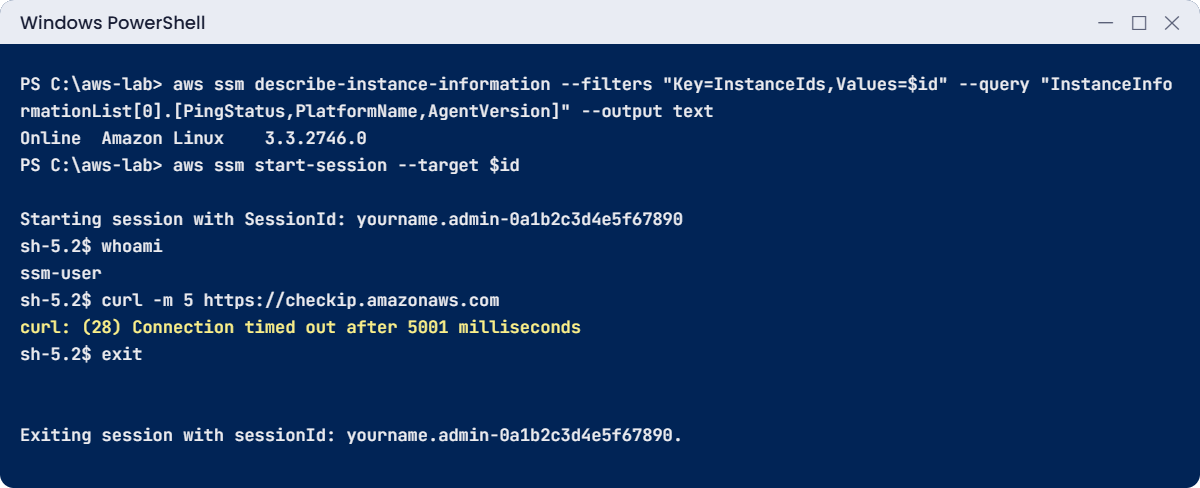
AWS Session Manager lab: managed instance online and a session as ssm-user
app01 registered, then a session as ssm-user with no internet. Something like this.

✅ Checkpoint: app01 shows Online, the session opened as ssm-user, and curl to the internet failed, proving the path went through the endpoints. Keep app01 and the endpoints for the break lab.

Break It, Then Fix It

The two messages almost everyone sees on their first day with Session Manager.

1Break it: a server without an instance role

Launch app02 the same way but without the instance profile, wait three minutes, then try to connect:

$id2 = aws ec2 run-instances --image-id $ami --instance-type t3.micro --subnet-id $v.PrivateA --security-group-ids $v.AppSg --metadata-options HttpTokens=required --tag-specifications 'ResourceType=instance,Tags=[{Key=Name,Value=app02},{Key=course,Value=saatvedha-aws},{Key=lesson,Value=13}]' --query "Instances[0].InstanceId" --output text
Start-Sleep 180
aws ssm start-session --target $id2

You’ll get this error (something like this):

An error occurred (TargetNotConnected) when calling the StartSession operation: i-0e2f3a4b5c6d7e8f9 is not connected.

The agent is running, but it has no credentials, so Systems Manager has never heard from it. “Not connected” doesn’t tell you which piece is missing; the checklist from “How it works” does. Fix: attach the profile, restart the instance so the agent picks it up quickly, and wait for Online:

aws ec2 associate-iam-instance-profile --instance-id $id2 --iam-instance-profile Name=saat-ec2-ssm-profile | Out-Null
aws ec2 reboot-instances --instance-ids $id2
do { Start-Sleep 20; $ping = aws ssm describe-instance-information --filters "Key=InstanceIds,Values=$id2" --query "InstanceInformationList[0].PingStatus" --output text } until ($ping -eq 'Online')
$ping

You should see this:

Online

2Break it: the plugin isn’t on the PATH

Remove the plugin folder from this window’s PATH and try again:

$env:Path = ($env:Path -split ';' | Where-Object { $_ -notmatch 'SessionManagerPlugin' }) -join ';'
aws ssm start-session --target $id

You’ll get this error:

SessionManagerPlugin is not found. Please refer to SessionManager Documentation here: http://docs.aws.amazon.com/console/systems-manager/session-manager-plugin-not-found
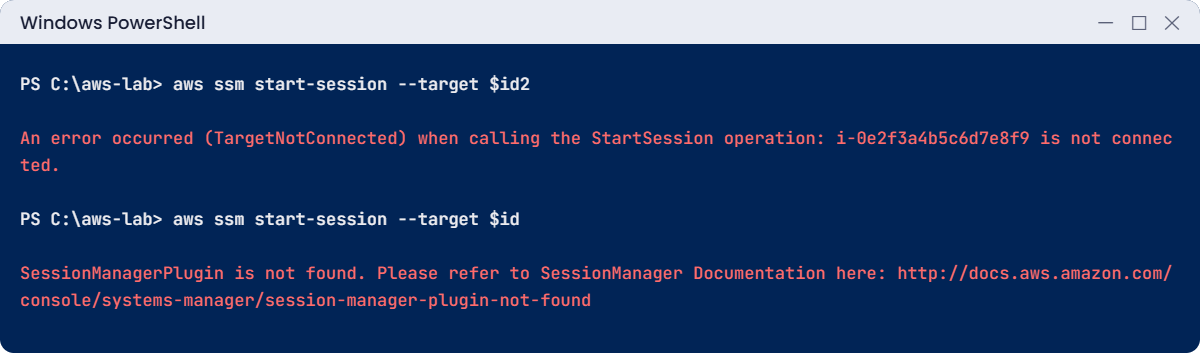
AWS Session Manager break lab: target not connected and plugin not found
Both errors from this break lab. The plugin message is exact.

The CLI itself works; it just can’t find the separate plugin program. This is the normal result on a new laptop or after installing the plugin without opening a new window. Fix: add the folder back (or open a new PowerShell window).

$env:Path += ';C:\Program Files\Amazon\SessionManagerPlugin\bin'
aws ssm start-session --target $id

3Clean up

Paste this whole block:

aws ec2 terminate-instances --instance-ids $id $id2 | Out-Null
aws ec2 delete-vpc-endpoints --vpc-endpoint-ids $eps | Out-Null
aws ec2 wait instance-terminated --instance-ids $id $id2
.\Find-LabResources.ps1

Keep saat-ec2-ssm-role, saat-ec2-ssm-profile and saat-endpoint-sg; they cost nothing. The three interface endpoints are deleted because they charge by the hour; later labs that need private access create them again or use a short-lived NAT gateway.

✅ Checkpoint: You fixed a server with no instance role and a missing plugin, and deleted both instances and all three endpoints.

This happened at work

The bastion key that fifteen people shared

A SaaS company reached its private servers through one bastion host, with one SSH key shared by fifteen engineers. The key had been copied to laptops, a build server and at least one contractor’s machine. Nobody could say how many copies existed.

One morning a production log folder was deleted. The bastion’s logs showed only “ec2-user” from the office IP. Rotating the key took a day, because every script and laptop had to be updated, and the deletion was never traced to a person.

The team removed the bastion and closed port 22 everywhere. Engineers now use Session Manager with their own IAM identities, sessions are logged to CloudWatch Logs and S3, and an IAM condition limits who can start sessions on production instances by tag. The next audit took an afternoon instead of a week.

Common mistakes and troubleshooting

MistakeWhat happensWhat to do
No instance profile, or one without AmazonSSMManagedInstanceCoreTargetNotConnected; instance never appears as managedAttach the profile; reboot or wait for the agent to retry
No path to Systems ManagerAgent can’t registerNAT gateway, or ssm + ssmmessages + ec2messages endpoints
Endpoints without private DNSAgent still tries public endpoints and failsCreate interface endpoints with private DNS enabled
Endpoint security group without 443 from the instanceAgent times outAllow 443 from the VPC or the instance’s subnet
Plugin not installed or not on PATHSessionManagerPlugin is not foundInstall it; open a new window or add it to PATH
Launching right after creating an instance profileInvalid IAM Instance Profile nameWait a few seconds for IAM to catch up

Interview questions

Click a question to open it. Each one is written the way an interviewer would ask it. Under it you will see why they ask it and one way you could answer, in your own words.

Fresher level

1. Can you explain in simple words what Session Manager is and why teams like it?

Why they ask this: They want to know you’re familiar with modern server access. Many companies have closed SSH and RDP completely.

How you might answer: Session Manager is a Systems Manager feature that gives me a shell on Linux and Windows instances through the SSM Agent. I don’t need to open inbound ports or manage SSH keys.

Access is controlled with IAM, and every session can be logged.

2. You launch a new instance and want to connect with Session Manager. What does the instance need for that to work?

Why they ask this: They want to check you know the three prerequisites. Most “it won’t connect” problems come from missing one of them.

How you might answer: It needs a running SSM Agent, and an instance role with AmazonSSMManagedInstanceCore, or Default Host Management Configuration turned on.

It also needs a network path to Systems Manager, through the internet, a NAT gateway or VPC endpoints.

3. When you start a session on a Linux instance, which user are you logged in as?

Why they ask this: They want to see a small practical detail that shows hands-on use. It matters when file permissions or audit logs come up.

How you might answer: By default it’s ssm-user, which has sudo rights. If we need a specific OS user instead, I can configure Run As.

2–5 years experience

4. An instance doesn’t show up in Fleet Manager, so you can’t connect. How do you troubleshoot it?

Why they ask this: They want to see systematic debugging. Checking role, network and agent in order is faster than guessing.

How you might answer: First I’d check the instance role and its policy. Then the network path: a route to NAT, or the three endpoints with private DNS and a security group that allows 443.

Then I’d confirm the agent is running and check its version. If needed, I’d read /var/log/amazon/ssm/amazon-ssm-agent.log, or the Windows equivalent, through the serial console.

5. Only the ops team should be able to open sessions on production servers. How would you set that up?

Why they ask this: They want to see that you can use IAM conditions in a real situation. Production access is always a sensitive topic.

How you might answer: I’d write an IAM policy that allows ssm:StartSession only on instances tagged env=prod, only for the ops group, and only with MFA. Everyone else gets an explicit deny.

Session documents can also limit what a session is allowed to do.

6. You need to RDP to a Windows server in a private subnet, and opening 3389 isn’t allowed. How would you do it?

Why they ask this: They want to see that you know port forwarding with Session Manager. It solves a very common daily problem.

How you might answer: I’d use Session Manager port forwarding with the AWS-StartPortForwardingSession document, mapping a local port like 13389 to 3389 on the instance. Then I connect mstsc to localhost:13389.

Another option is Fleet Manager Remote Desktop in the console.

Senior level

7. Walk me through how you’d design admin access for 500 servers across 20 accounts, with no inbound ports at all.

Why they ask this: They want to see you put the pieces together at scale. They also check for logging and guardrails, not only access.

How you might answer: In every account, infrastructure code sets up Default Host Management Configuration or a standard instance role, plus VPC endpoints or NAT in each VPC. Session Manager preferences send logs to a central S3 bucket and CloudWatch Logs, encrypted with KMS.

IAM Identity Center permission sets allow sessions by tag. SCPs deny any security group rule that opens 22 or 3389.

8. For Systems Manager traffic, would you use interface endpoints or a NAT gateway? What are the trade-offs?

Why they ask this: They want to see cost and security thinking together. There’s no single right answer, so they want to hear your reasoning.

How you might answer: Endpoints keep traffic private without opening general internet access, but they charge per endpoint, per zone, per hour, and that adds up across many VPCs. A NAT gateway is one hourly charge per zone, but it opens general internet access.

Across many VPCs, I’d look at shared endpoints in a central VPC with Route 53 Resolver to bring the cost down.

Quick quiz

Q1. Which inbound port must be open for Session Manager?

  1. 22
  2. 3389
  3. 443
  4. None
Show answer

D — The agent connects out. No inbound rule is needed on the instance.

Q2. Which managed policy does the instance role need?

  1. AdministratorAccess
  2. AmazonSSMManagedInstanceCore
  3. ReadOnlyAccess
  4. AmazonEC2FullAccess
Show answer

B — AmazonSSMManagedInstanceCore lets the agent register and receive sessions.

Q3. Which interface endpoints does a server without internet access need for Session Manager?

  1. s3 only
  2. ssm, ssmmessages, ec2messages
  3. sts and kms
  4. ec2 and iam
Show answer

B — These three endpoints let the agent talk to Systems Manager privately.

Q4. start-session fails with TargetNotConnected. What is a likely cause?

  1. Wrong Region in the browser
  2. The instance has no instance role
  3. Port 22 is closed
  4. The plugin is too new
Show answer

B — Without credentials the agent can’t register, so the target is not connected.

Q5. What does “SessionManagerPlugin is not found” mean?

  1. The instance has no agent
  2. The plugin isn’t installed or isn’t on your laptop’s PATH
  3. The endpoints are missing
  4. IAM denied the session
Show answer

B — The CLI needs the separate plugin program on your laptop.

Quick recap

  • Session Manager gives a shell with no inbound ports, no keys and no public IP.
  • The instance needs the SSM Agent, a role with AmazonSSMManagedInstanceCore and a path out (NAT or the ssm, ssmmessages and ec2messages endpoints).
  • Your laptop needs the Session Manager plugin; sessions are authorised by IAM and logged.
  • TargetNotConnected means a missing role or path; “plugin not found” means your laptop.
  • saat-ec2-ssm-profile and saat-endpoint-sg stay for later lessons; interface endpoints are deleted after each lab.

Next lesson

Lesson 14: EBS volumes: gp3, io2, snapshots and resizing → You’ll add, grow and back up disks on a running server without downtime.

Further reading: AWS Session Manager

Want to go deeper into AWS Session Manager? Read AWS Systems Manager Session Manager and Improve the security of EC2 instances by using VPC endpoints for Systems Manager. You can also see the full plan for this course on the AWS Cloud Administration course page.

Scroll to Top