Auto Scaling groups

Servers fail, traffic spikes, and new versions need rolling out. An AWS Auto Scaling group handles all three: it keeps a set number of healthy servers, adds or removes them as load changes, and replaces them one by one when you ship a new launch template.

You’ll join the launch template idea from Lesson 15 with the load balancer from Lesson 20. Then you’ll kill a server and watch it come back, add a CPU target, roll out version 2 with an instance refresh, and fix two errors that stop groups from scaling.

TimeYou needBy the end you can
75 minutes (load balancer and two or three small instances for about an hour)Lessons 15 and 20 done, saat-vpc with saat-web-sg and saat-app-sg, saat-ec2-ssm-profile, your laptop signed in as saat-admin. Cost: about USD 0.15.Create an Auto Scaling group behind an ALB with ELB health checks, prove self-healing, add a target tracking policy, run an instance refresh and troubleshoot failed launches from scaling activities.

What it is, in one line

An AWS Auto Scaling group is a set of EC2 instances that AWS keeps at the size you ask for, launching, replacing and removing servers from a launch template.

In Simple Words

The school bus manager

A school needs two buses on the morning route, never fewer, and up to four on exam days. The bus manager doesn’t drive. They make sure the right number of working buses is on the road.

If a bus breaks down, the manager sends a spare from the depot, built to the same plan. If more children turn up, a third bus goes out. When the school buys newer buses, the manager swaps them in one at a time, so the route never runs empty.

The Auto Scaling group is that manager. The launch template is the plan every bus is built from.

Engineer's View

How an Auto Scaling group really works

A group has min, max and desired capacity, a launch template version, subnets across Availability Zones and optional target groups. It continually compares running instances with desired capacity and launches or terminates to close the gap, balancing across zones.

With health check type ELB, an instance that fails the target group’s health check is replaced, not only one whose EC2 status checks fail. The grace period gives new instances time to boot before checks count. Target tracking creates CloudWatch alarms for you and adjusts desired capacity to keep a metric, such as average CPU, near a target.

Instance refresh replaces instances in batches while keeping a minimum healthy percentage, which is how teams roll out a new AMI. Every action is recorded as a scaling activity with a cause and status message; that is the first place to look when a group won’t launch. Using $Default for the template version means the group picks up a new version only when you choose to make it the default.

How it works, step by step

Here is what keeps the web tier running.

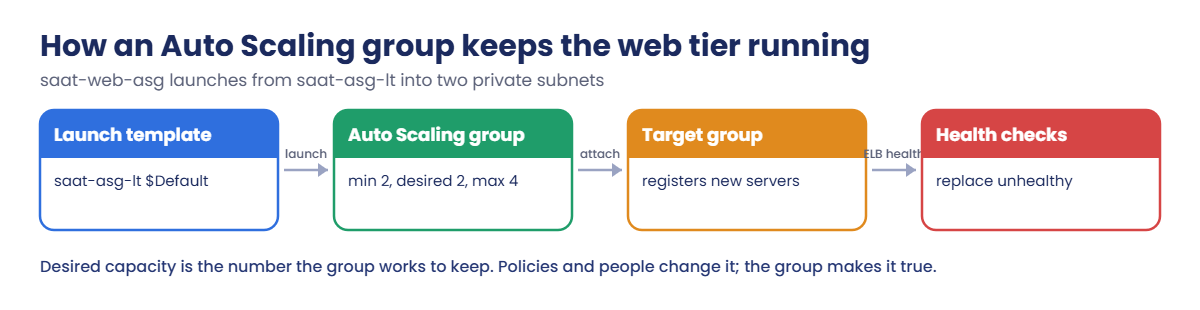
1The group launches from the template

saat-web-asg reads saat-asg-lt at its default version and starts two instances, one in each private subnet.

AWS Auto Scaling group flow: launch template, group, target group, health checks

2New instances join the target group

Because the group is attached to saat-web-tg, each instance is registered automatically and removed automatically when it terminates. You never call register-targets again.

3Health checks drive replacement

After the 60-second grace period, an instance that is terminated, fails EC2 checks or fails the ALB health check is replaced with a fresh one.

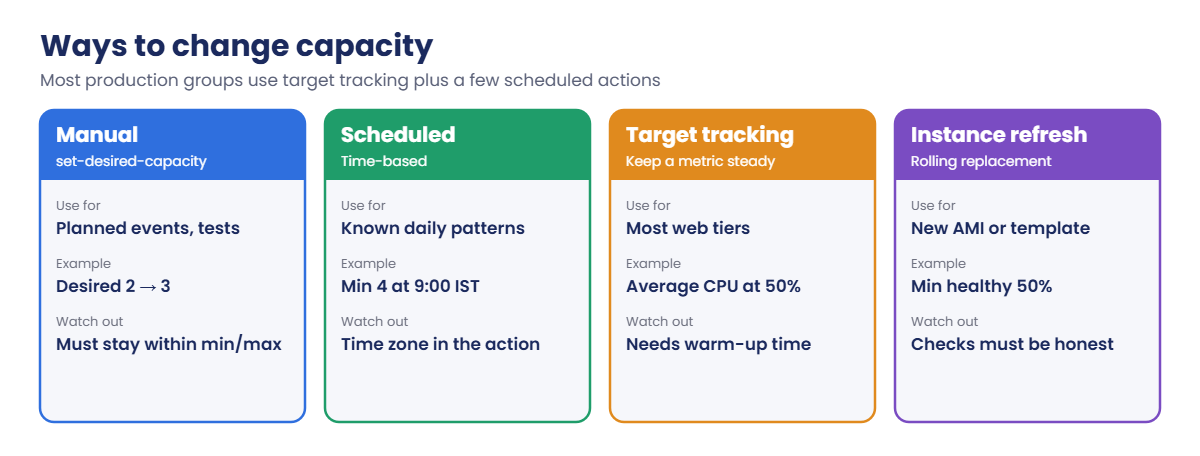
4Policies change desired capacity

The group only works toward desired capacity. People, schedules and policies are what change that number:

Auto Scaling capacity options: manual, scheduled, target tracking, instance refresh

Instance refresh doesn’t change capacity. It swaps old instances for new ones while keeping at least the healthy percentage you set, which is why honest health checks matter so much.

✅ Checkpoint: You can explain min, max and desired capacity, why ELB health checks matter, and where to look when a group fails to launch.

Hands-on lab: an AWS Auto Scaling group behind the ALB

Sign in, load saat-vpc and define two helpers: one builds launch template data for a page version, one waits for healthy targets.

cd C:\aws-lab
aws login --profile saat-admin
$env:AWS_PROFILE = 'saat-admin'
$v = Get-Content C:\aws-lab\saat-vpc.json | ConvertFrom-Json
$base = aws ssm get-parameter --name /aws/service/ami-amazon-linux-latest/al2023-ami-kernel-default-x86_64 --query Parameter.Value --output text
$ud = @'
#!/bin/bash
mkdir -p /srv/www/health
TOKEN=$(curl -s -X PUT http://169.254.169.254/latest/api/token -H "X-aws-ec2-metadata-token-ttl-seconds: 300")
AZ=$(curl -s -H "X-aws-ec2-metadata-token: $TOKEN" http://169.254.169.254/latest/meta-data/placement/availability-zone)
echo "<h1>saat-web VERSION from $(hostname) in $AZ</h1>" > /srv/www/index.html
echo ok > /srv/www/health/index.html
cat > /etc/systemd/system/saat-web.service <<'UNIT'
[Unit]
Description=saat web test server
After=network-online.target
[Service]
ExecStart=/usr/bin/python3 -m http.server 8080 --directory /srv/www
Restart=always
[Install]
WantedBy=multi-user.target
UNIT
systemctl daemon-reload
systemctl enable --now saat-web
'@
$lt = @'
{
  "ImageId": "AMI_ID",
  "InstanceType": "t3.micro",
  "SecurityGroupIds": ["APP_SG"],
  "IamInstanceProfile": { "Name": "PROFILE_NAME" },
  "MetadataOptions": { "HttpTokens": "required" },
  "TagSpecifications": [ { "ResourceType": "volume", "Tags": [ { "Key": "course", "Value": "saatvedha-aws" }, { "Key": "lesson", "Value": "21" } ] } ],
  "UserData": "USER_DATA"
}
'@
function New-LtData([string]$Ver, [string]$Prof, [string]$File) {
  $u = ($ud -replace 'VERSION', $Ver) -replace "`r`n", "`n"
  $b64 = [Convert]::ToBase64String([Text.Encoding]::UTF8.GetBytes($u))
  $lt -replace 'AMI_ID', $base -replace 'APP_SG', $v.AppSg -replace 'PROFILE_NAME', $Prof -replace 'USER_DATA', $b64 | Set-Content $File
}
function Wait-Healthy([int]$Count) {
  do { Start-Sleep 20; $n = [int](aws elbv2 describe-target-health --target-group-arn $tg --query 'length(TargetHealthDescriptions[?TargetHealth.State==`healthy`])' --output text) } until ($n -ge $Count)
  "$n healthy"
}

Launch template user data must be base64-encoded, which New-LtData does for you. The LF line endings matter, just as in Lesson 11.

1Rebuild the load balancer from Lesson 20

Paste this whole block (about three minutes):

$tg = aws elbv2 create-target-group --name saat-web-tg --protocol HTTP --port 8080 --vpc-id $v.VpcId --health-check-path /health/ --health-check-interval-seconds 10 --healthy-threshold-count 2 --unhealthy-threshold-count 2 --tags Key=course,Value=saatvedha-aws Key=lesson,Value=21 --query "TargetGroups[0].TargetGroupArn" --output text
aws elbv2 modify-target-group-attributes --target-group-arn $tg --attributes Key=deregistration_delay.timeout_seconds,Value=30 | Out-Null
$alb, $dns = (aws elbv2 create-load-balancer --name saat-web-alb --type application --scheme internet-facing --subnets $v.PublicA $v.PublicB --security-groups $v.WebSg --tags Key=course,Value=saatvedha-aws Key=lesson,Value=21 --query "LoadBalancers[0].[LoadBalancerArn,DNSName]" --output text) -split '\s+'
aws elbv2 wait load-balancer-available --load-balancer-arns $alb
aws elbv2 create-listener --load-balancer-arn $alb --protocol HTTP --port 80 --default-actions "Type=forward,TargetGroupArn=$tg" | Out-Null
$dns

You should see something like this:

saat-web-alb-1234567890.ap-south-1.elb.amazonaws.com

2Create the launch template and the group

Paste this whole block:

New-LtData -Ver v1 -Prof saat-ec2-ssm-profile -File lt-v1.json
aws ec2 create-launch-template --launch-template-name saat-asg-lt --version-description v1 --launch-template-data file://lt-v1.json --query "LaunchTemplate.DefaultVersionNumber" --output text
aws autoscaling create-auto-scaling-group --auto-scaling-group-name saat-web-asg --launch-template 'LaunchTemplateName=saat-asg-lt,Version=$Default' --min-size 2 --max-size 4 --desired-capacity 2 --vpc-zone-identifier "$($v.PrivateA),$($v.PrivateB)" --target-group-arns $tg --health-check-type ELB --health-check-grace-period 60 --default-instance-warmup 60 --tags 'Key=Name,Value=asg-web,PropagateAtLaunch=true' 'Key=course,Value=saatvedha-aws,PropagateAtLaunch=true' 'Key=lesson,Value=21,PropagateAtLaunch=true'
Wait-Healthy 2
aws autoscaling describe-auto-scaling-groups --auto-scaling-group-names saat-web-asg --query "AutoScalingGroups[0].Instances[].[InstanceId,AvailabilityZone,LifecycleState,HealthStatus]" --output text
(Invoke-WebRequest -UseBasicParsing "http://$dns/").Content

You should see something like this:

1
2 healthy
i-0c1d2e3f4a5b60011      ap-south-1a     InService       Healthy
i-0c1d2e3f4a5b60012      ap-south-1b     InService       Healthy
<h1>saat-web v1 from ip-10-20-11-58.ap-south-1.compute.internal in ap-south-1a</h1>

You never launched an instance or registered a target. The group did both, one per zone.
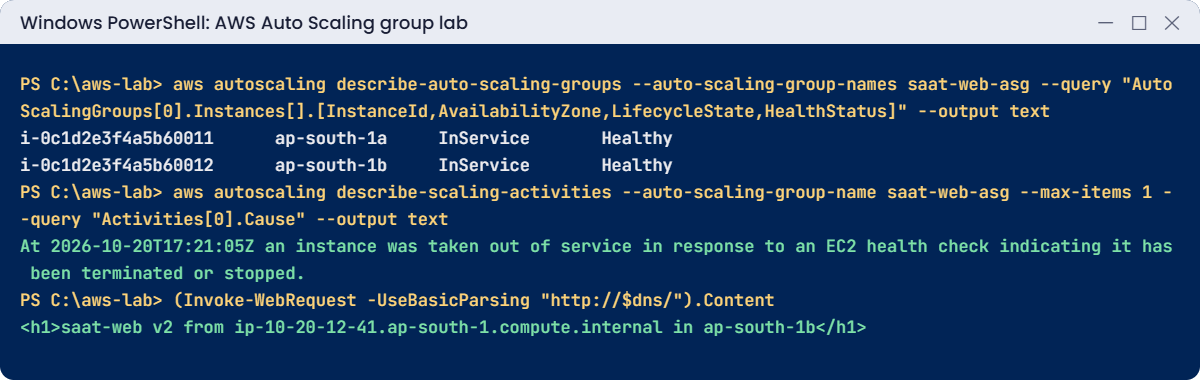
AWS Auto Scaling group lab output: instances, replacement activity and v2 page
Group instances, the replacement activity and the v2 page. Something like this.

3Kill a server and watch it heal

Paste this whole block (about three minutes):

$victim = aws autoscaling describe-auto-scaling-groups --auto-scaling-group-names saat-web-asg --query "AutoScalingGroups[0].Instances[0].InstanceId" --output text
aws ec2 terminate-instances --instance-ids $victim | Out-Null
Start-Sleep 60
Wait-Healthy 2
aws autoscaling describe-scaling-activities --auto-scaling-group-name saat-web-asg --max-items 2 --query "Activities[].[Description,StatusCode]" --output text

You should see something like this:

2 healthy
Launching a new EC2 instance: i-0c1d2e3f4a5b60013        Successful
Terminating EC2 instance: i-0c1d2e3f4a5b60011    Successful

This is self-healing. At 3 a.m. nobody has to notice a dead server; the group sees desired 2, running 1, and fixes it.

4Add a CPU target and roll out version 2

Paste this whole block (the refresh takes about six minutes):

'{ "PredefinedMetricSpecification": { "PredefinedMetricType": "ASGAverageCPUUtilization" }, "TargetValue": 50.0 }' | Set-Content tt.json
aws autoscaling put-scaling-policy --auto-scaling-group-name saat-web-asg --policy-name cpu50 --policy-type TargetTrackingScaling --target-tracking-configuration file://tt.json | Out-Null
aws cloudwatch describe-alarms --alarm-name-prefix TargetTracking-saat-web-asg --query "MetricAlarms[].AlarmName" --output text
New-LtData -Ver v2 -Prof saat-ec2-ssm-profile -File lt-v2.json
aws ec2 create-launch-template-version --launch-template-name saat-asg-lt --source-version 1 --version-description v2 --launch-template-data file://lt-v2.json | Out-Null
aws ec2 modify-launch-template --launch-template-name saat-asg-lt --default-version 2 | Out-Null
aws autoscaling start-instance-refresh --auto-scaling-group-name saat-web-asg --preferences MinHealthyPercentage=50,InstanceWarmup=60 | Out-Null
do { Start-Sleep 30; $r = aws autoscaling describe-instance-refreshes --auto-scaling-group-name saat-web-asg --query "InstanceRefreshes[0].[Status,PercentageComplete]" --output text; $r } until ($r -match 'Successful|Failed|Cancelled')
(Invoke-WebRequest -UseBasicParsing "http://$dns/").Content

You should see something like this:

TargetTracking-saat-web-asg-AlarmHigh-1a2b3c4d   TargetTracking-saat-web-asg-AlarmLow-5e6f7a8b
InProgress      0
InProgress      50
Successful      100
<h1>saat-web v2 from ip-10-20-12-41.ap-south-1.compute.internal in ap-south-1b</h1>

Target tracking created both alarms for you; you never edit them by hand. The refresh replaced one server at a time, so the site kept answering throughout. Load the page a few times during a refresh and you’ll see v1 and v2 side by side.

✅ Checkpoint: saat-web-asg keeps two healthy instances, replaced a terminated one by itself, has a cpu50 policy with two alarms, and serves v2 after a successful instance refresh. Keep everything for the break lab.

Break It, Then Fix It

Two reasons a group doesn’t do what you asked: limits you set yourself, and a template that can’t launch.

1Break it: ask for more than max

Your manager asks for five servers for a sale:

aws autoscaling set-desired-capacity --auto-scaling-group-name saat-web-asg --desired-capacity 5

You’ll get this error:

An error occurred (ValidationError) when calling the SetDesiredCapacity operation: New SetDesiredCapacity value 5 is above max value 4 for the AutoScalingGroup.

Max is a safety limit, and policies can’t go past it either. During a real spike, a group sitting at max with high CPU is a sign the limit, not AWS, is the bottleneck. Fix: raise max first (and check your EC2 quotas), or stay within it.

For the lab, stay within it:

aws autoscaling set-desired-capacity --auto-scaling-group-name saat-web-asg --desired-capacity 3

2Break it: a template version that can’t launch

Someone saves version 3 with a typo in the instance profile and makes it the default, then the group scales out:

New-LtData -Ver v3 -Prof saat-ec2-ssm-profil -File lt-v3.json
aws ec2 create-launch-template-version --launch-template-name saat-asg-lt --source-version 1 --version-description "v3 typo" --launch-template-data file://lt-v3.json | Out-Null
aws ec2 modify-launch-template --launch-template-name saat-asg-lt --default-version 3 | Out-Null
aws autoscaling set-desired-capacity --auto-scaling-group-name saat-web-asg --desired-capacity 4
Start-Sleep 30
aws autoscaling describe-scaling-activities --auto-scaling-group-name saat-web-asg --max-items 1 --query "Activities[0].[StatusCode,StatusMessage]" --output text

You should see something like this:

Failed  Value (saat-ec2-ssm-profil) for parameter iamInstanceProfile.name is invalid. Invalid IAM Instance Profile name. Launching EC2 instance failed.
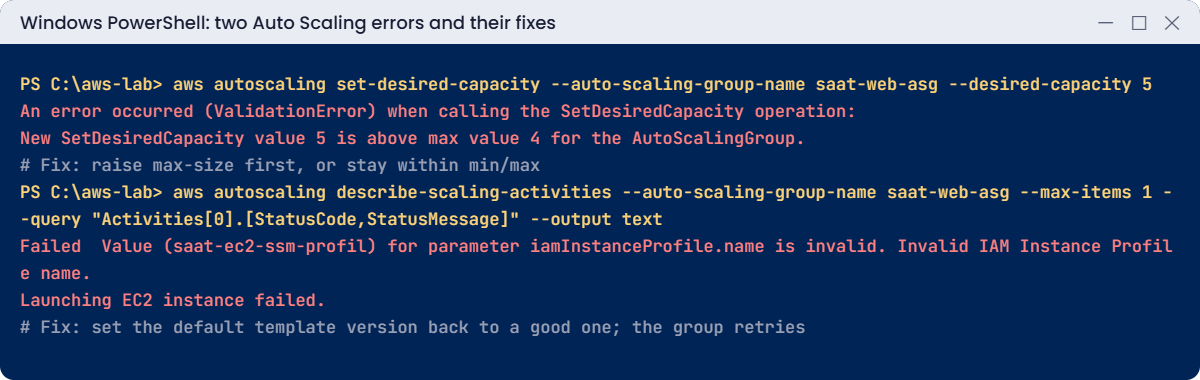
Auto Scaling errors: desired capacity above max and failed launch, with fixes
Both errors and their fixes. Something like this.

No error came back to your command; set-desired-capacity succeeded. The failure only shows in scaling activities, and the group keeps retrying with growing delays. In production this is the group that silently can’t scale during a spike.

Fix: point the default back at a good version. The group’s next retry succeeds:

aws ec2 modify-launch-template --launch-template-name saat-asg-lt --default-version 2 | Out-Null
Wait-Healthy 4

Within a few minutes you should see:

4 healthy

Now clean up. Deleting the group with --force-delete terminates its instances and removes the scaling policy and its alarms:

aws autoscaling delete-auto-scaling-group --auto-scaling-group-name saat-web-asg --force-delete
do { Start-Sleep 20; $left = aws autoscaling describe-auto-scaling-groups --auto-scaling-group-names saat-web-asg --query "length(AutoScalingGroups)" --output text } until ($left -eq '0')
aws elbv2 delete-load-balancer --load-balancer-arn $alb
aws elbv2 wait load-balancers-deleted --load-balancer-arns $alb
Start-Sleep 15
aws elbv2 delete-target-group --target-group-arn $tg
aws ec2 delete-launch-template --launch-template-name saat-asg-lt | Out-Null
Remove-Item lt-v*.json, tt.json
.\Find-LabResources.ps1

✅ Checkpoint: You saw max capacity block a request and found a failed launch in scaling activities, then fixed both. The group, its instances, the load balancer, target group and launch template are gone.

This happened at work

The group that could not grow on result day

An exam results portal ran in an Auto Scaling group with max 30 and target tracking on CPU. A week before results day, an engineer created a new launch template version for a security patch and made it the default. It referenced a subnet-specific security group from a test VPC.

Nothing failed that week, because traffic was low and the group never launched anything. On results morning, CPU hit 90 percent and target tracking asked for 30 servers. Every launch failed with an invalid security group, and the existing six servers took the full load.

Students waited minutes for pages; many saw timeouts.

The team found it in scaling activities after 25 minutes and set the default back. Now every template change triggers a test launch of one instance from that version, and an EventBridge rule alerts the on-call engineer on any EC2 Instance Launch Unsuccessful event.

Common mistakes and troubleshooting

MistakeWhat happensWhat to do
Health check type EC2 behind an ALBApp-broken servers stay in serviceUse ELB health checks with a sensible grace period
Grace period shorter than boot timeHealthy servers are replaced in a loopSet grace period longer than app start-up
Template version $Latest in the groupUntested versions launch automaticallyUse $Default or a fixed version
Only checking command output, not activitiesFailed launches go unnoticedRead describe-scaling-activities and alert on launch failures
Max size too low for peaksScaling stops while CPU stays highSize max for peak and check EC2 quotas
Editing target tracking alarms by handChanges are overwritten or break the policyChange the policy, never its alarms

Interview questions

Click a question to open it. Each one is written the way an interviewer would ask it. Under it you will see why they ask it and one way you could answer, in your own words.

Fresher level

1. Can you explain in simple words what an Auto Scaling group does?

Why they ask this: They want to check basic EC2 scaling knowledge. It’s how most AWS apps stay up and handle load.

How you might answer: An Auto Scaling group is a set of EC2 instances that AWS keeps at a desired number, somewhere between a minimum and a maximum. It launches instances from a launch template.

If an instance becomes unhealthy, the group replaces it on its own.

2. How would you explain min, max and desired capacity to a new team member?

Why they ask this: They want to see that you understand the core settings. Mixing them up leads to groups that never scale or scale too far.

How you might answer: I’d say min and max are the limits. Desired is the number the group keeps running right now.

Scaling policies, schedules and people change the desired number, but only inside those limits.

3. Say you terminate one instance in an Auto Scaling group by hand. What happens next?

Why they ask this: They want to check that you understand self-healing. It’s the whole reason the group exists.

How you might answer: The group sees it has fewer instances than desired, so it launches a replacement. It also registers the new instance with any target groups attached to it.

2–5 years experience

4. Your Auto Scaling group uses EC2 health checks. Why might you switch it to ELB health checks?

Why they ask this: They want to see that you think about real availability, not just whether a server is powered on. A running server with a dead app still means an outage.

How you might answer: EC2 health checks only see whether the instance is running and reachable. ELB health checks see whether the app actually answers correctly.

With ELB checks, a server whose app has crashed gets replaced too.

5. You have a new AMI with security patches. How would you roll it out to a running Auto Scaling group?

Why they ask this: They want to see safe deployment habits. Replacing every server at once is how patches cause outages.

How you might answer: I’d create a new launch template version with the new AMI, test it, and make it the default. Then I’d start an instance refresh with a minimum healthy percentage and a warm-up time.

For larger groups I’d use checkpoints or auto rollback.

6. Traffic is climbing, but your Auto Scaling group won’t scale out. Where do you look?

Why they ask this: They want to see a clear troubleshooting order. The answer is usually in the scaling activity history.

How you might answer: I’d check the scaling activities for failed launches and read their messages. Then I’d compare the current desired count with max, and check the state of the policies and alarms.

I’d also look at EC2 quotas and capacity in the zones, and whether any processes are suspended on the group.

Senior level

7. Your site gets a known 10x traffic spike every day at 10 a.m. How would you design the scaling?

Why they ask this: They want to see capacity planning, not just reacting. Waiting for alarms during a known spike is too slow.

How you might answer: I’d add a scheduled action that raises min well before 10, and use target tracking for the rest of the day. Warm pools or pre-baked AMIs help new instances start fast, and max is sized for the peak with quota headroom.

We’d run load tests in advance. I’d set alarms for when the group hits max and for launch failures.

8. Instances in a group keep getting replaced every few minutes. What do you think is happening, and what do you do?

Why they ask this: They want to see deep troubleshooting under pressure. Replacement loops waste money and hide the real error.

How you might answer: Most likely they’re failing ELB health checks. The grace period could be shorter than start-up time, the health check path could be wrong, the readiness check could depend on something that’s down, or a security group changed.

I’d check the scaling activities, the target health reasons and the boot logs. While I investigate, I’d suspend ReplaceUnhealthy so the loop stops.

Quick quiz

Q1. What does an Auto Scaling group work to keep?

  1. Max capacity
  2. Desired capacity
  3. Min capacity only
  4. One instance per Region
Show answer

B — The group keeps running instances equal to desired capacity.

Q2. Which health check type replaces servers whose app fails the ALB check?

  1. EC2
  2. ELB
  3. None
  4. Route 53
Show answer

B — ELB health checks use the target group’s check.

Q3. Where do failed launches show up?

  1. The CLI command output
  2. Scaling activities
  3. The ALB access log
  4. Billing
Show answer

B — set-desired-capacity succeeds; the launch failure is in scaling activities.

Q4. What does instance refresh do?

  1. Changes max size
  2. Replaces instances in batches with a new template
  3. Deletes the group
  4. Reboots instances
Show answer

B — It rolls instances while keeping a minimum healthy percentage.

Q5. Why did desired capacity 5 fail?

  1. The ALB was full
  2. It was above max size 4
  3. The template was wrong
  4. The Region was full
Show answer

B — Desired must stay within min and max.

Quick recap

  • A group keeps desired capacity between min and max, across zones.
  • ELB health checks replace servers whose app is broken, after the grace period.
  • Target tracking adjusts desired capacity and manages its own alarms.
  • Instance refresh rolls out a new template version safely.
  • Failed launches appear only in scaling activities, so watch them.

Next lesson

Lesson 22: Shared file storage: EFS and FSx for Windows → You’ll mount a shared EFS file system on Linux servers and see when FSx for Windows File Server is the right choice.

Further reading: AWS Auto Scaling group

Want to go deeper into AWS Auto Scaling group? Read Auto Scaling groups and Use an instance refresh to update instances in an Auto Scaling group. You can also see the full plan for this course on the AWS Cloud Administration course page.

Scroll to Top