Your AWS lab toolkit: CLI, CloudShell and profiles

Almost every check in this course runs from a terminal, so a clean AWS CLI setup on your laptop comes first. In this lesson you install the AWS Command Line Interface (CLI) version 2, connect it to your lab account with aws login, and learn how profiles, Regions and output formats work.

The important part is how you connect. For years people pasted long-lived access keys into a file on their laptop. You won’t.

You’ll use short-lived credentials that expire on their own.

TimeYou needBy the end you can
45 minutesThe lab account from Lesson 2, a Windows laptop with admin rights to install software, and your root MFA device (one last time).Install and update the AWS CLI, sign in without access keys, use named profiles and Regions, choose output formats, and fix the two most common CLI setup errors.

What it is, in one line

An AWS CLI setup is the CLI installed on your laptop plus a profile that tells it which account, which Region and which credentials to use.

In Simple Words

A remote control with a battery that runs out

The AWS console is like walking to the TV and pressing buttons on it. The CLI is a remote control: faster, and you can press the same buttons the same way every time.

Old-style access keys are like a remote control that works forever, even if someone steals it from your bag. aws login gives you a remote whose battery lasts a few hours. If you lose it, it soon stops working on its own.

A profile is the label on the remote: “living room TV” or “bedroom TV”. You pick the label, and the remote talks to the right TV.

Engineer's View

What the CLI really does

The AWS CLI turns a command like aws ec2 describe-instances into a signed HTTPS request to the EC2 endpoint of a Region, for example ec2.ap-south-1.amazonaws.com. To sign the request it needs credentials. It looks for them in a fixed order: command-line options, environment variables (such as AWS_PROFILE), then the profile in %USERPROFILE%\.aws\config and credentials.

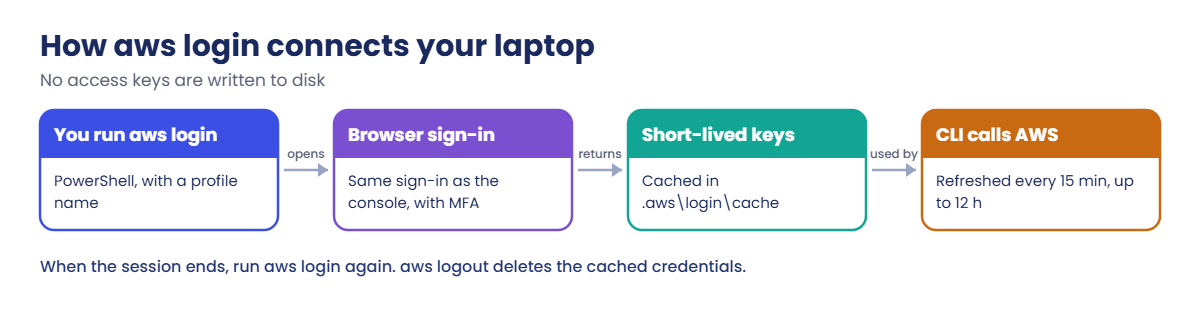
aws login (CLI 2.32.0 or later) uses your normal console sign-in, including MFA, and writes only a login_session line to the config file. The temporary credentials sit in %USERPROFILE%\.aws\login\cache, refresh every 15 minutes and stop after the principal’s session length (12 hours at most). Root needs no extra permission for this; IAM users need the SignInLocalDevelopmentAccess policy or the two signin: actions it contains.

Every command also needs a Region. It comes from --region, the AWS_REGION variable or the profile. A wrong Region name doesn’t give an “invalid Region” message; the CLI tries to reach an endpoint that doesn’t exist.

CloudShell is the backup plan: a browser terminal with the CLI already installed and signed in as whoever opened the console. Use it when you can’t install software on a work laptop.

How it works, step by step

Here is what happens between typing aws login and getting your first answer back from AWS.

1Install and check the version

Install CLI version 2 with the Windows installer or winget, then confirm the version is 2.32.0 or later. Older versions don’t have aws login.

AWS CLI setup: how aws login gets short-lived credentials through the browser

2Sign in through the browser

aws login --profile saat-root opens your browser at the AWS sign-in page. You sign in as you normally would, with MFA, and the browser hands short-lived credentials back to the CLI.

3Use the profile

Every command with --profile saat-root (or with $env:AWS_PROFILE set) uses those credentials. The CLI refreshes them quietly in the background until the session ends.

4Choose how answers look

--output json is the default and best for scripts. --output table is easy to read. --output text is easy to pass to other commands. --query picks out only the fields you need, before anything is printed.

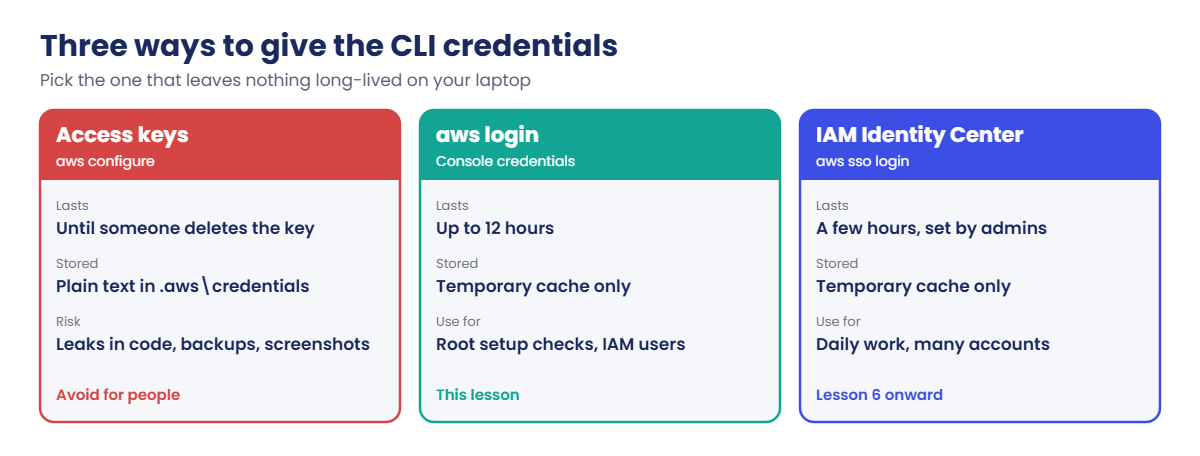
Here are the three ways people give the CLI credentials. Only the first one leaves a permanent secret on your laptop.

AWS CLI setup: access keys compared with aws login and IAM Identity Center

In this course you’ll use aws login with the root user just for this lesson’s checks. In Lesson 6 you’ll switch to IAM Identity Center for daily work and delete the root profile.

✅ Checkpoint: You can explain why aws login is safer than an access key and where the CLI looks for its Region.

Hands-on lab: AWS CLI setup on Windows

All commands run in Windows PowerShell on your laptop. Close and reopen PowerShell after installing, so it finds the new aws command.

1Install the AWS CLI version 2

Run this in PowerShell (it installs the official package from Amazon through winget):

winget install --id Amazon.AWSCLI -e

If winget isn’t available, download and run AWSCLIV2.msi from AWS instead. Then close and reopen PowerShell.

Check the version:

cd C:\aws-lab
aws --version

You should see something like this (any 2.32.0 or later is fine):

aws-cli/2.32.4 Python/3.13.9 Windows/11 exe/AMD64

2Sign in with aws login

Run this:

aws login --profile saat-root

Because the profile is new, the CLI first asks for a Region. You’ll see something like this:

No AWS region has been configured. The AWS region is the geographic location of
your AWS resources.
...
        AWS Region [us-east-1]:

Type ap-south-1 (or your nearest Region) and press Enter. Your browser opens at the AWS sign-in page. Sign in as root with your MFA device, approve the request, and wait until the browser says the CLI is ready.

Then go back to PowerShell.

3Check who you are

Run this:

aws sts get-caller-identity --profile saat-root

You should see something like this:

{
    "UserId": "123456789012",
    "Account": "123456789012",
    "Arn": "arn:aws:iam::123456789012:root"
}

4Look at what was saved

Run this:

Get-Content $env:USERPROFILE\.aws\config
Test-Path $env:USERPROFILE\.aws\credentials

You should see something like this:

[profile saat-root]
login_session = arn:aws:iam::123456789012:root
region = ap-south-1
False

The config file holds only the session name and the Region. False means there is no credentials file, so there are no access keys on your laptop.

5Ask AWS a real question

Run this:

aws ec2 describe-availability-zones --profile saat-root --query 'AvailabilityZones[].ZoneName' --output text

You should see this:

ap-south-1a     ap-south-1b     ap-south-1c

Mumbai has three Availability Zones. You’ll use all three when you build the network in Lesson 8.
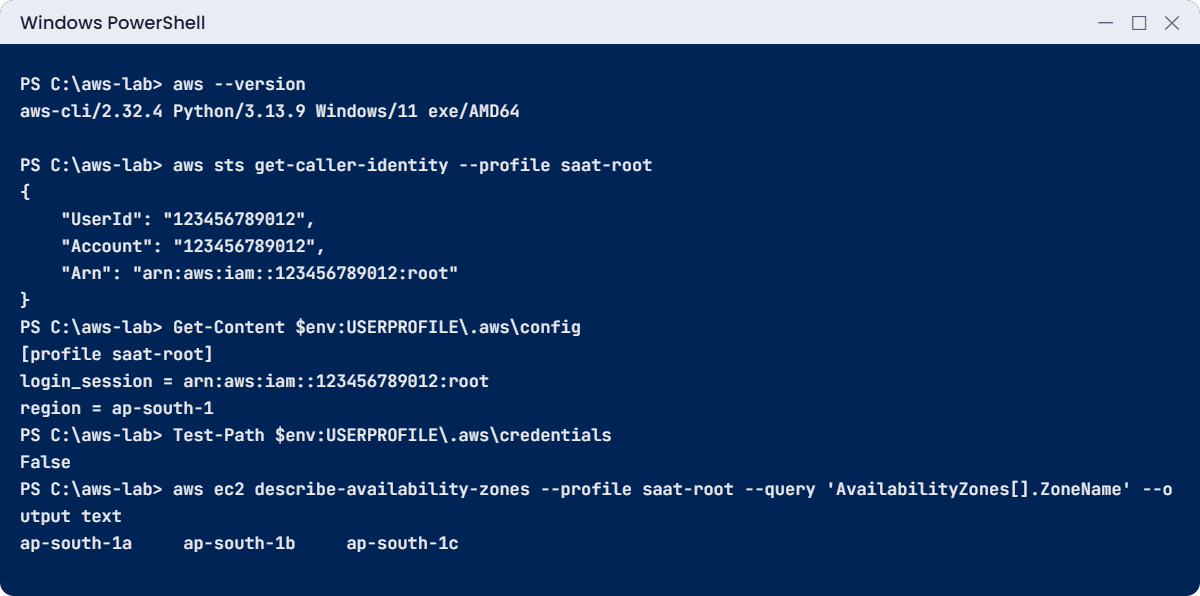
AWS CLI setup check: version, caller identity, config file and Mumbai Availability Zones
Example output. Your account number and CLI version will be different.

6Try the three output formats

Run these one at a time and compare:

aws ec2 describe-regions --profile saat-root --region-names ap-south-1 --output json
aws ec2 describe-regions --profile saat-root --region-names ap-south-1 --output table
aws ec2 describe-regions --profile saat-root --region-names ap-south-1 --query 'Regions[0].Endpoint' --output text

The last one should print exactly this:

ec2.ap-south-1.amazonaws.com

7Sign out when you finish

Run this:

aws logout --profile saat-root

This deletes the cached credentials. The profile stays in the config file, ready for the next aws login.

✅ Checkpoint: aws --version shows 2.32.0 or later, get-caller-identity showed your account, there is no .aws\credentials file, and Mumbai showed three zones.

Break It, Then Fix It

Most “the CLI is broken” tickets are one of these two: the CLI is using a profile you didn’t mean, or it is calling a Region that doesn’t exist. Sign in again first with aws login --profile saat-root.

1Break it: a profile name typo in an environment variable

Run this:

$env:AWS_PROFILE = 'saat-rot'
aws sts get-caller-identity

You’ll get this error:

The config profile (saat-rot) could not be found

The environment variable wins over everything in the config file, so every command in this PowerShell window now fails, even ones that don’t mention a profile. This is common after copying a command from a colleague.

Fix it by removing the variable (or setting the right name):

Remove-Item Env:AWS_PROFILE
aws sts get-caller-identity --profile saat-root

2Break it: a Region that doesn’t exist

Run this (missing dash in the Region):

aws ec2 describe-availability-zones --profile saat-root --region ap-south1

You’ll get this error:

Could not connect to the endpoint URL: "https://ec2.ap-south1.amazonaws.com/"
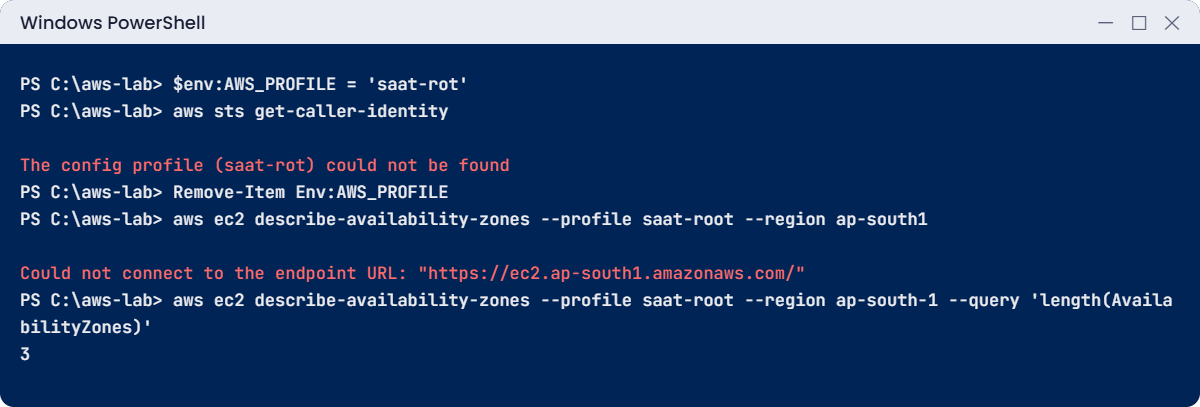
AWS CLI setup break lab: profile not found and a wrong Region endpoint
Both errors in one PowerShell window. The error lines are exact.

The CLI built a web address from the Region name and found nothing there. It looks like a network problem, so people often check proxies and firewalls first. Read the URL in the message: the Region is spelled wrong.

Fix the Region and count the zones:

aws ec2 describe-availability-zones --profile saat-root --region ap-south-1 --query 'length(AvailabilityZones)'

You should see this:

3

✅ Checkpoint: You fixed a bad AWS_PROFILE and a bad Region by reading the error message, not by reinstalling anything. Run aws logout --profile saat-root when you finish.

This happened at work

The cleanup script that ran on the wrong account

A developer at a travel company had two sets of access keys on her laptop: test and production. Production was the [default] profile because she had set it up first, years ago. One evening she ran a script to “clean old files from the S3 bucket” and forgot to add --profile test.

The script deleted about 40,000 old booking PDFs from the production bucket. Customers started getting “document not found” when they opened old bookings the next morning. Luckily the bucket had versioning turned on, so the team restored the files from previous versions in a few hours.

The team changed three things. Nobody keeps long-term keys on laptops any more; people sign in through IAM Identity Center and get a few hours of access. There is no default profile, so a command without --profile fails instead of guessing.

And the PowerShell prompt now shows the active profile in red when it points at production.

Common mistakes and troubleshooting

MistakeWhat you seeWhat to do
CLI version older than 2.32.0aws login isn’t a known commandReinstall the latest version 2 (winget or the MSI)
Forgetting to reopen PowerShell after installingaws is not recognizedClose and reopen the window so PATH is reloaded
A leftover AWS_PROFILE variableEvery command fails with “config profile could not be found”Remove-Item Env:AWS_PROFILE, or set the right name
Region typo“Could not connect to the endpoint URL”Read the URL in the error; fix the Region name
Long-term access keys in .aws\credentialsA secret that never expires on your laptopUse aws login now and IAM Identity Center from Lesson 6
Production as the default profileCommands without --profile hit productionHave no default profile; always name the profile

Interview questions

Click a question to open it. Each one is written the way an interviewer would ask it. Under it you will see why they ask it and one way you could answer, in your own words.

Fresher level

1. When you run an AWS CLI command, how does it decide which credentials to use?

Why they ask this: They want to know you understand the credential chain. Most “wrong account” problems come from not knowing which source won.

How you might answer: It checks in order. First command-line options, then environment variables like AWS_PROFILE or AWS_ACCESS_KEY_ID, then the profile in the config and credentials files. On AWS compute it finally uses the instance or container role.

The first one it finds wins, so a leftover environment variable can quietly override my profile.

2. Can you explain in simple words what a named profile is and why you’d use one?

Why they ask this: They want to see that you can work with more than one account or role safely. Nearly every real job involves at least test and production.

How you might answer: A named profile is a section in the .aws\config file with its own credentials source and Region. I pick it with --profile or AWS_PROFILE.

That way the same laptop can talk to test and production without mixing them up.

3. The CLI can print json, table or text output. When would you pick each one?

Why they ask this: They want to check that you’re comfortable with the CLI in daily work. Choosing the right output saves time in scripts and in tickets.

How you might answer: I use JSON when I need the full data, for scripts or for jq. Table is easiest for people to read, so I use it when I’m looking at results myself.

Text is tab-separated, which is handy for passing a value into the next command. And I use --query to filter the data before any of them print.

2–5 years experience

4. A colleague says every CLI command fails with “Could not connect to the endpoint URL”. How would you help them?

Why they ask this: They want to see a methodical approach that starts from the error message. Good engineers read the error before guessing.

How you might answer: First I’d read the URL in the message, because a wrong Region name is the most common cause. I’d check --region, AWS_REGION and the Region in their profile.

If the Region is right, I’d look at proxy settings and whether the network allows outbound HTTPS to amazonaws.com.

5. Why would you tell a teammate to use aws login instead of aws configure with access keys?

Why they ask this: They want to know you understand the risk of long-term keys and the value of temporary credentials. It’s one of the most common security gaps.

How you might answer: aws configure stores a long-term key in plain text until someone deletes it. aws login uses the console sign-in with MFA and only stores short-lived credentials.

Those refresh every 15 minutes and stop after at most 12 hours. So if someone copies the file, it’s worth very little to them.

6. Say you’re worried someone on the team will run a command against production by mistake. What would you put in place?

Why they ask this: They want to see that you think about safe defaults instead of trusting people to be careful. Accidents happen to good engineers too.

How you might answer: I’d remove the default profile and keep production in a separate account. People get read-only roles by default and switch to an elevated role only when needed.

I’d also set the shell prompt to show the active profile, and push changes through reviewed code instead of one-off scripts.

Senior level

7. Your company has 200 IAM users with access keys on laptops. How would you move everyone off them without breaking their work?

Why they ask this: They want to see that you can plan a real migration in steps. They also check that you think about the people affected, not only the end state.

How you might answer: I’d start with the credential report to find every key and when it was last used. Then I’d set up IAM Identity Center with groups and permission sets, and move teams over one at a time with aws sso login.

I’d disable unused keys first, and delete the rest after a short grace period. Keys stay only for systems that can’t use roles, and those get rotated.

8. Everyone has a local CLI now. When would you still reach for CloudShell?

Why they ask this: They want to see judgement about tools, not loyalty to one. Knowing when each fits shows real experience.

How you might answer: I’d use CloudShell when a laptop is locked down and I can’t install software, or for quick checks during an incident from any browser. It’s also useful when I want to be sure I’m running as exactly the identity in my console session.

For daily scripting I still prefer my local CLI, with my own tools and history.

Quick quiz

Q1. Which minimum AWS CLI version supports aws login?

  1. 1.29
  2. 2.0.0
  3. 2.32.0
  4. Any version
Show answer

C — aws login arrived in CLI 2.32.0. Older versions don’t know the command.

Q2. After aws login, what does .aws\config contain for the profile?

  1. An access key and secret key
  2. A login_session line and the Region
  3. Your password
  4. Nothing
Show answer

B — Only the session name and Region are saved. The temporary credentials live in the login cache.

Q3. Every command fails with “The config profile (saat-rot) could not be found”. What is the quickest fix?

  1. Reinstall the CLI
  2. Remove or correct the AWS_PROFILE variable
  3. Create a new account
  4. Change the output format
Show answer

B — A wrong AWS_PROFILE environment variable affects every command in that window.

Q4. What does “Could not connect to the endpoint URL: https://ec2.ap-south1.amazonaws.com/” most likely mean?

  1. EC2 is down
  2. The Region name is wrong
  3. You need MFA
  4. The CLI is too new
Show answer

B — The CLI builds the endpoint from the Region name. ap-south1 isn’t a Region.

Q5. How many Availability Zones does the Mumbai Region (ap-south-1) list?

  1. 1
  2. 2
  3. 3
  4. 6
Show answer

C — describe-availability-zones shows ap-south-1a, ap-south-1b and ap-south-1c.

Quick recap

  • Install AWS CLI version 2 (2.32.0 or later) with winget or the MSI, then reopen PowerShell.
  • aws login signs in through the browser with MFA and keeps only short-lived credentials (refresh every 15 minutes, 12 hours at most).
  • A profile stores the session and the Region. AWS_PROFILE beats the config file, so a typo there breaks every command.
  • A wrong Region shows up as “Could not connect to the endpoint URL”. Read the URL.
  • Use --output and --query to get exactly the answer you need. aws logout deletes the cached credentials.

Next lesson

Lesson 4: Regions, Availability Zones and AWS billing → You’ll learn how Regions and zones affect speed, failure and cost, and write a cleanup script you’ll use after every lab.

Further reading: AWS CLI setup

Want to go deeper into AWS CLI setup? The official guides are Installing or updating the AWS CLI and Login for AWS local development using console credentials. You can also see the full plan for this course on the AWS Cloud Administration course page.

Scroll to Top