IAM Identity Center and MFA for daily work
-
Phase 0: Before you start
-
Phase 1: The foundation
-
Phase 2: Operations and security
-
Phase 3: SQL Server on AWS
-
Phase 4: Troubleshooting step by step
-
Phase 5: Final project and career
Companies give people access to AWS through IAM Identity Center: one sign-in, one MFA, and access to every account they need. In this lesson you learn how it works and why it beats separate IAM users, and you set up your own daily admin sign-in with MFA so you never use root on the CLI again.
There is one catch for learners. Identity Center needs AWS Organizations to give access to accounts, and AWS warns that creating an organization from a Free Tier account switches it to the Paid plan and ends the Free Tier credits at once. So in your lab you’ll use an MFA-protected admin user now, and move to Identity Center in Lesson 33.
| Time | You need | By the end you can |
|---|---|---|
| 50 minutes | The lab account, your laptop with the AWS CLI, an authenticator app on your phone, and root access one last time. | Explain Identity Center, permission sets and the access portal, create a daily admin user with MFA, check it with a credential report, and retire the root CLI profile. |
What it is, in one line
IAM Identity Center gives people one sign-in, with MFA, to all the AWS accounts and roles they are allowed to use.
In Simple Words
One company ID card instead of a key ring
Imagine a company with ten buildings. In the old way, every building gives you its own key. When you leave the company, someone has to remember to collect ten keys.
In the new way, you get one ID card from HR. Each building’s door checks with HR’s list. When you leave, HR cancels one card and every door stops opening for you that same minute.
IAM users are the key ring. IAM Identity Center is the ID card. For one small lab building, a single good key with a PIN (MFA) is enough, and that is what you’ll set up today.
Engineer's View
How Identity Center works
Identity Center is enabled once, in the management account of an AWS organization, in one Region. People live in its own directory or come from your company directory (Microsoft Entra ID, Okta, Active Directory) through SAML and SCIM.
You create permission sets, such as AdministratorAccess or ReadOnlyAccess, and assign a user or group plus a permission set to an account. Identity Center then creates a role in that account named like AWSReservedSSO_AdministratorAccess_1a2b3c.... Signing in through the AWS access portal or aws sso login gives short-lived credentials for that role.
A standalone account can only get an account instance of Identity Center, which works for some AWS applications but can’t give access to the AWS account itself. The organization instance can, and enabling it creates an organization with your account as the management account. Read the Free Tier warning in the intro before you do that in your lab.
Until then, the safe single-account setup is an IAM user for you, in an admin group, with an MFA device, signing in to the CLI through aws login. No access keys exist anywhere.
How it works, step by step
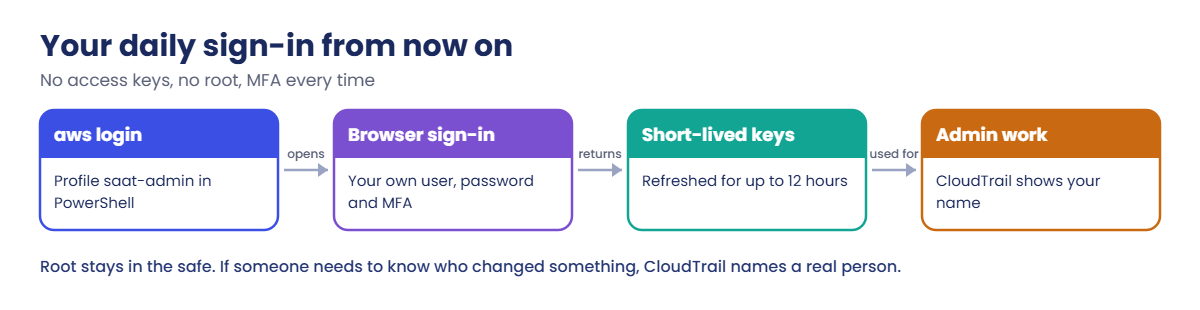
Here is what changes in your daily routine after this lesson.
1Root goes into the safe
You stop using root on the CLI. Root keeps its MFA and is used only for the few account-level tasks that need it.
2You get your own admin identity
yourname.admin is in the lab-admins group with AdministratorAccess, and it must use MFA at sign-in. In a company, this identity would come from Identity Center with a permission set instead.
3You sign in with aws login
Every lab from Lesson 7 starts with aws login --profile saat-admin. The browser asks for your password and MFA code, and the CLI gets credentials that expire.
4You check access regularly
The IAM credential report lists every user, whether MFA is on and whether access keys exist. It is the first thing an auditor or a new admin looks at.
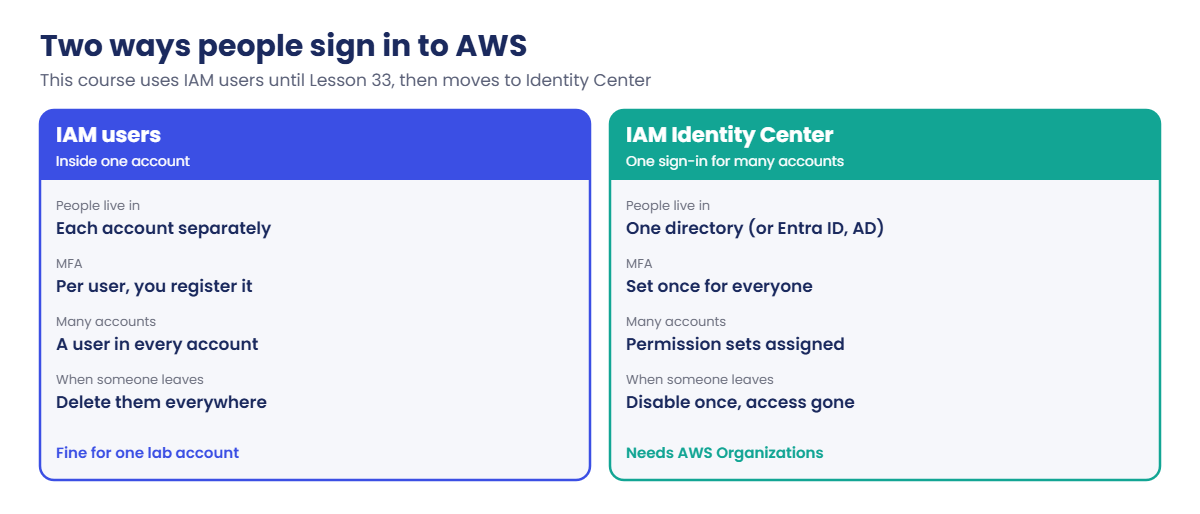
The comparison below is the reason companies move to Identity Center as soon as they have more than one account or more than a few people.
Look at the last row of each card. Offboarding is where IAM users fail in real companies: one forgotten user in one account is enough for a former employee or a stolen password to keep working.
✅ Checkpoint: You can explain why Identity Center needs Organizations, what a permission set is, and why your lab uses an MFA-protected IAM user for now.
Hands-on lab: an MFA admin user now, IAM Identity Center later
Work in PowerShell from C:\aws-lab. Replace yourname with your real first name in the first command; everything after it uses the variable.
1Sign in as root for the last time
Run this:
aws login --profile saat-root
$env:AWS_PROFILE = 'saat-root'
$acct = aws sts get-caller-identity --query Account --output text
$me = 'yourname.admin'2Create the admin group and your user
Paste this whole block:
aws iam create-group --group-name lab-admins
aws iam attach-group-policy --group-name lab-admins --policy-arn arn:aws:iam::aws:policy/AdministratorAccess
aws iam attach-group-policy --group-name lab-admins --policy-arn arn:aws:iam::aws:policy/SignInLocalDevelopmentAccess
aws iam create-user --user-name $me --tags Key=course,Value=saatvedha-aws --query User.Arn --output text
aws iam add-user-to-group --user-name $me --group-name lab-admins
$pw = 'Lab-' + [guid]::NewGuid().ToString('N').Substring(0,16) + '!a1'
aws iam create-login-profile --user-name $me --password $pw --password-reset-required --query LoginProfile.UserName --output text
"First password: $pw"You should see something like this:
arn:aws:iam::123456789012:user/yourname.admin
yourname.admin
First password: Lab-8d2e0f41a7c93b55!a13Register an MFA device for the user
Create a virtual MFA device and save its QR code as a picture:
$serial = aws iam create-virtual-mfa-device --virtual-mfa-device-name $me --outfile C:\aws-lab\mfa-qr.png --bootstrap-method QRCodePNG --query VirtualMFADevice.SerialNumber --output text
$serial
Start-Process C:\aws-lab\mfa-qr.pngScan the QR code with your authenticator app (Google Authenticator, Microsoft Authenticator or similar). Wait for one 6-digit code, then wait for the next code, and use both:
aws iam enable-mfa-device --user-name $me --serial-number $serial --authentication-code1 111111 --authentication-code2 222222
aws iam list-mfa-devices --user-name $me --query 'MFADevices[].SerialNumber' --output text
Remove-Item C:\aws-lab\mfa-qr.pngReplace 111111 and 222222 with your two codes. The second command should show something like this:
arn:aws:iam::123456789012:mfa/yourname.adminDelete the QR picture as shown; anyone with it could copy your MFA device.
4Sign in as yourself
Run this, then sign in at your alias sign-in page as yourname.admin in the browser (change the password, enter your MFA code):
Remove-Item Env:AWS_PROFILE
aws login --profile saat-admin
$env:AWS_PROFILE = 'saat-admin'
aws sts get-caller-identity --query Arn --output textYou should see something like this:
arn:aws:iam::123456789012:user/yourname.admin5Check everyone with the credential report
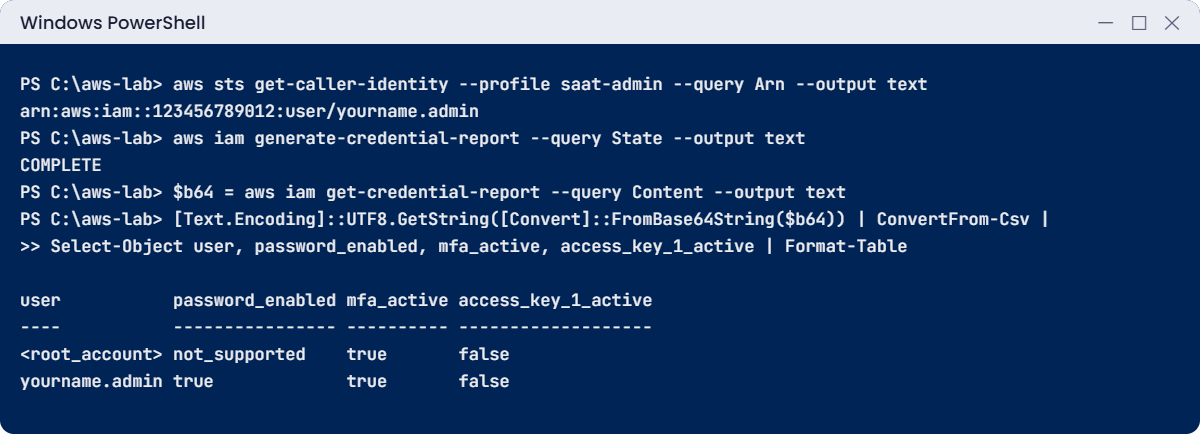
Run this (run the first line again if it says STARTED):
aws iam generate-credential-report --query State --output text
$b64 = aws iam get-credential-report --query Content --output text
[Text.Encoding]::UTF8.GetString([Convert]::FromBase64String($b64)) | ConvertFrom-Csv |
Select-Object user, password_enabled, mfa_active, access_key_1_active | Format-TableYou should see something like this:
user password_enabled mfa_active access_key_1_active
---- ---------------- ---------- -------------------
<root_account> not_supported true false
yourname.admin true true falseEvery human row should say mfa_active true and access_key_1_active false. Root shows not_supported for the password column; that is normal.
6Retire the root profile
Sign root out and open the config file:
aws logout --profile saat-root
notepad $env:USERPROFILE\.aws\configDelete the three lines of [profile saat-root], save and close. From now on, every lab starts with aws login --profile saat-admin.
7Look at Identity Center (don’t enable it yet)
In the console, open IAM Identity Center. Read the enable page, including the note about AWS Organizations, but choose Cancel. You’ll enable it in Lesson 33, after deciding about the plan and credits.
✅ Checkpoint: get-caller-identity shows your admin user, the credential report shows MFA on and no access keys, and [profile saat-root] is gone from your config.
Break It, Then Fix It
Both of these happen to almost everyone once.
1Break it: the same MFA code twice
When you enable a virtual MFA device, AWS needs two consecutive codes to prove the clock on your phone is in step. Entering one code twice (or two codes far apart) fails. Try it with a test device:
$serial2 = aws iam create-virtual-mfa-device --virtual-mfa-device-name test-mfa --outfile C:\aws-lab\test-qr.png --bootstrap-method QRCodePNG --query VirtualMFADevice.SerialNumber --output text
aws iam enable-mfa-device --user-name $me --serial-number $serial2 --authentication-code1 482913 --authentication-code2 482913You’ll get this error (something like this):
An error occurred (InvalidAuthenticationCode) when calling the EnableMFADevice operation: Authentication code for device is not valid.Fix: wait for a fresh code, then the next one, and enter them in order. If codes are always rejected, check that your phone’s time is set automatically. For this test, just delete the unused device:
aws iam delete-virtual-mfa-device --serial-number $serial2
Remove-Item C:\aws-lab\test-qr.png2Break it: an old script still uses the root profile
Create a tiny script the way people do in week one, then run it:
"aws sts get-caller-identity --profile saat-root --query Arn --output text" | Set-Content .\old-report.ps1
.\old-report.ps1You’ll get this error:
The config profile (saat-root) could not be found
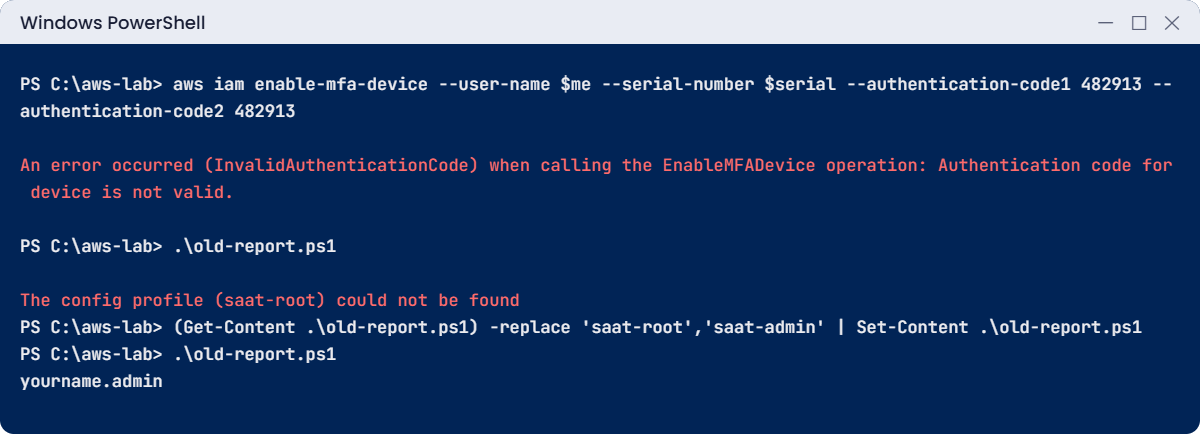
Good. This is the result you want: anything still built on root breaks loudly, and you find it. Fix: point the script at your own profile.
(Get-Content .\old-report.ps1) -replace 'saat-root','saat-admin' | Set-Content .\old-report.ps1
.\old-report.ps1You should see something like this:
arn:aws:iam::123456789012:user/yourname.admin✅ Checkpoint: You fixed an MFA enable error by using two fresh consecutive codes, and found and fixed a script that still pointed at root.
This happened at work
The contractor who never really left
A media company had twelve AWS accounts and created IAM users in each one by hand. A contractor finished his project and was removed from the company’s directory on his last day. Nobody remembered his IAM users.
Three of the twelve accounts were cleaned up; nine weren’t.
Four months later, Amazon GuardDuty raised a finding: one of his old access keys was listing S3 buckets from an IP address in another country. He hadn’t done it; his laptop had been sold without being wiped. Nothing was deleted, but the team spent a week proving what had and hadn’t been read.
The company moved everyone to IAM Identity Center connected to its directory with SCIM, so turning someone off in the directory removes their AWS access everywhere within minutes. A service control policy now blocks creating new IAM users with console passwords or keys, except for a short list of service accounts.
Common mistakes and troubleshooting
| Mistake | What happens | What to do |
|---|---|---|
| Using root on the CLI “just for this week” | Every mistake has full power and no limits | Use your own admin user (now) or Identity Center (Lesson 33) |
| Enabling Identity Center on the Free plan without reading the warning | The account switches to the Paid plan and Free Tier credits end | Wait for Lesson 33 and decide on purpose |
| Same MFA code entered twice | InvalidAuthenticationCode | Two fresh, consecutive codes; phone time set automatically |
| Keeping the MFA QR code picture | Anyone with the file can copy your MFA | Delete it right after scanning |
| IAM users created by hand in many accounts | Leavers keep access in the accounts you forget | Identity Center with a company directory and SCIM |
Old scripts with --profile saat-root | They break after root is retired | Search scripts for the profile name and change it to saat-admin |
Interview questions
Click a question to open it. Each one is written the way an interviewer would ask it. Under it you will see why they ask it and one way you could answer, in your own words.
Fresher level
1. Can you tell me in simple words what IAM Identity Center is?
Why they ask this: They want to know you’re familiar with the current way people sign in to AWS. Many teams still use old IAM users, so this shows you’re up to date.
How you might answer: It’s the AWS service for staff sign-in. People sign in once with MFA and get access to the accounts and permission sets assigned to them, using temporary credentials.
It can use its own directory, or a company directory like Entra ID.
2. A new teammate keeps signing in as root because it’s easier. What would you tell them?
Why they ask this: They want to see basic security habits. They also check you can explain the risk without lecturing.
How you might answer: I’d explain that root has unlimited power and IAM policies can’t limit it, so any mistake or stolen session could be a disaster. Root is only for a few account-level tasks.
For daily work they should use their own named identity with MFA.
3. How would you explain a permission set to someone who has only used IAM users before?
Why they ask this: They want to check you know the Identity Center vocabulary and how it maps to normal IAM. That link helps when debugging access.
How you might answer: I’d say a permission set is a template of policies, like AdministratorAccess or ReadOnlyAccess. When you assign it to a user or group for an account, Identity Center creates a matching role in that account.
2–5 years experience
4. Your security lead asks for a list of users who have no MFA or old access keys. How would you get it?
Why they ask this: They want to see practical auditing skills. Being able to answer security questions with data is a daily task.
How you might answer: I’d generate the IAM credential report and read columns like mfa_active, password_last_used, access_key_1_active and access_key_1_last_used_date for every user.
If we have an organization, I’d also use IAM Access Analyzer and AWS Config rules to check across all the accounts.
5. What’s the difference between an organization instance and an account instance of Identity Center, and when would you use each?
Why they ask this: They want to see up-to-date product knowledge. Picking the wrong instance type can block access to accounts later.
How you might answer: An organization instance lives in the management account and can give people access to every account in the organization. That’s the one I’d use for staff access to AWS.
An account instance is tied to one account and is meant for application access. It can’t give people access to the AWS account itself.
6. Someone leaves the company today. With Identity Center and SCIM in place, what happens to their AWS access?
Why they ask this: They want to know you understand offboarding from start to end. They also check whether you know about sessions that are already open.
How you might answer: HR or IT disables them in the company directory, SCIM syncs that to Identity Center, and they can’t sign in anymore.
But sessions that are already open only end when the session duration runs out. That’s why I keep shorter sessions for sensitive roles.
Senior level
7. A company has 40 accounts with IAM users everywhere. How would you plan the move to Identity Center?
Why they ask this: They want to see a safe, step-by-step migration plan. They also check that you lock the door behind you so old habits don’t come back.
How you might answer: I’d turn on the organization instance, connect the company directory with SCIM, and design a few permission sets per job, assigned by groups. I’d test with one team first, then move teams over and disable their IAM users after a short overlap.
App keys get replaced with roles. Finally I’d use SCPs to stop new IAM users being created, and run credential reports to catch anyone left behind.
8. How would you protect the root users across 40 accounts without 40 MFA devices in a drawer?
Why they ask this: They want to know if you’re aware of centralised root access management. It shows you can solve security problems at scale.
How you might answer: I’d use the AWS Organizations centralised root access feature to remove root credentials from the member accounts, so nobody can sign in as root there at all. The management account does the rare root tasks for them.
The management account root keeps strong MFA, with the device stored safely and two named owners.
Quick quiz
Q1. What does IAM Identity Center need to give people access to AWS accounts?
- An account instance
- An organization instance in AWS Organizations
- Access keys for every user
- A VPN
Show answer
B — Only an organization instance can give access to AWS accounts through permission sets.
Q2. What does AWS warn about creating an organization from a Free Tier account?
- Nothing changes
- It switches to the Paid plan and Free Tier credits end
- It deletes all resources
- It disables MFA
Show answer
B — The Identity Center documentation warns that the account moves to the Paid plan and the credits expire.
Q3. When enabling a virtual MFA device, what must the two codes be?
- The same code twice
- Two consecutive codes
- Any two codes from that day
- The account number
Show answer
B — Two consecutive codes prove your device clock matches AWS.
Q4. In the credential report, which values do you want for a human user?
- mfa_active false, access key true
- mfa_active true, access key false
- password_enabled false
- not_supported everywhere
Show answer
B — People should have MFA and no long-term access keys.
Q5. What should you do with the MFA QR code image after scanning it?
- Email it to yourself
- Keep it in the lab folder
- Delete it
- Upload it to S3
Show answer
C — The picture holds the secret. Anyone with it can generate your codes.
Quick recap
- IAM Identity Center gives people one sign-in with MFA to many accounts through permission sets.
- It needs an organization instance; creating an organization from a Free Tier account ends the credits, so your lab moves to it in Lesson 33.
- Your daily identity now is yourname.admin with MFA, signing in with aws login
--profilesaat-admin. - The credential report shows MFA and access keys for every user. Humans should have MFA on and keys off.
- Root is retired from the CLI. Old scripts that still use it fail loudly, which is what you want.
Next lesson
Lesson 7: IAM policies in depth → You’ll write your own JSON policies with conditions and test them before giving them to anyone.
Further reading: IAM Identity Center
Want to go deeper into IAM Identity Center? Read What is IAM Identity Center? and Getting credential reports for your AWS account. You can also see the full plan for this course on the AWS Cloud Administration course page.
