EC2 and EBS Performance: Find the Ceiling
-
Phase 0: Before you start
-
Phase 1: The foundation
-
Phase 2: Operations and security
-
Phase 3: SQL Server on AWS
-
Phase 4: Troubleshooting step by step
-
Phase 5: Final project and career
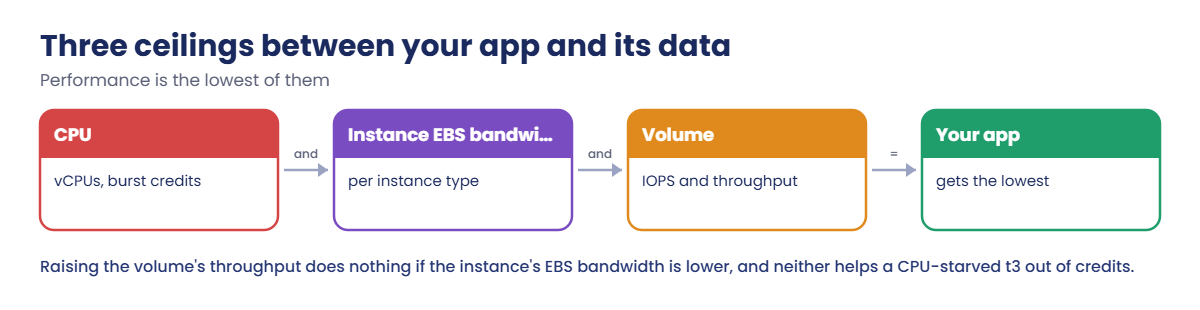
“The server is slow” usually means it hit a ceiling: CPU, the volume’s IOPS or throughput, or the instance’s own EBS bandwidth. EC2 performance troubleshooting is finding which ceiling, with numbers, before anyone buys a bigger instance that fixes nothing.
You’ll launch a small server with a gp3 data volume, measure CPU and disk with a benchmark and fio, and read the CloudWatch metrics that matter. Then you’ll run out of CPU credits on purpose and hit the gp3 throughput cap, and fix each one properly.
| Time | You need | By the end you can |
|---|---|---|
| 60 minutes | Lessons 11, 14, 23 and 43 done (EC2, EBS, CloudWatch, storage for SQL Server), signed in as saat-admin. Cost: a few cents (a t3.micro for an hour, a 20 GiB gp3 volume, and a little extra throughput for a few minutes). | Read CPU credit and steal time, measure EBS IOPS and throughput with fio, use the volume and instance “exceeded” metrics, raise gp3 performance with modify-volume, and know when the instance type is the real limit. |
What it is, in one line
EC2 performance troubleshooting means measuring CPU, volume and instance limits to find which one is capping your workload, then raising the right one.
In Simple Words
The road, the bridge and the car
Your delivery van is slow. Is it the engine (CPU), the road out of the depot (the volume’s speed limit), or the narrow bridge every van must cross (the instance’s EBS bandwidth)?
Widening the road doesn’t help if the bridge is narrower. A faster van doesn’t help on a road jammed at walking speed.
Burstable instances are like vans with a battery boost: fast for a while, then slow once the battery is flat. That flat battery is the CPU credit balance.
Engineer's View
The ceilings and their metrics
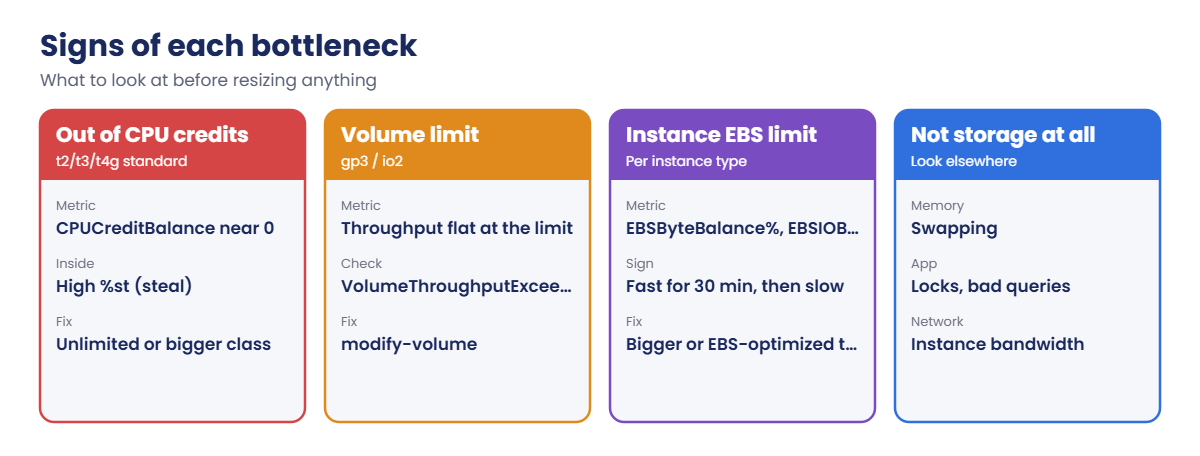
CPU: burstable types (t3, t4g) earn credits below a baseline and spend them above it. In standard mode, an empty balance caps CPU at the baseline (10% per vCPU for t3.micro), and inside the guest you see high steal time (%st). In unlimited mode (the t3 default) the instance keeps bursting and you pay for surplus credits.
Volume: gp3 gives 3,000 IOPS and 125 MiB/s whatever its size, adjustable with modify-volume up to much higher limits, and io2 is provisioned. VolumeIOPSExceededCheck and VolumeThroughputExceededCheck report 1 when your app tries to go past the volume’s limits, and VolumeAvgWriteLatency shows the effect.
Instance: every type has a maximum EBS bandwidth and IOPS, and smaller sizes burst for about 30 minutes a day (EBSByteBalance%, EBSIOBalance%); InstanceEBSThroughputExceededCheck says when you hit it. A volume modification can be made once every 6 hours. When the ceiling is the instance, change the instance type.
How it works, step by step
Here is the order to check a slow instance.
1CPU first
CPUUtilization and CPUCreditBalance from CloudWatch, steal time from inside. A t3 at “10%” with high steal is starved, not idle.
2Then the volume
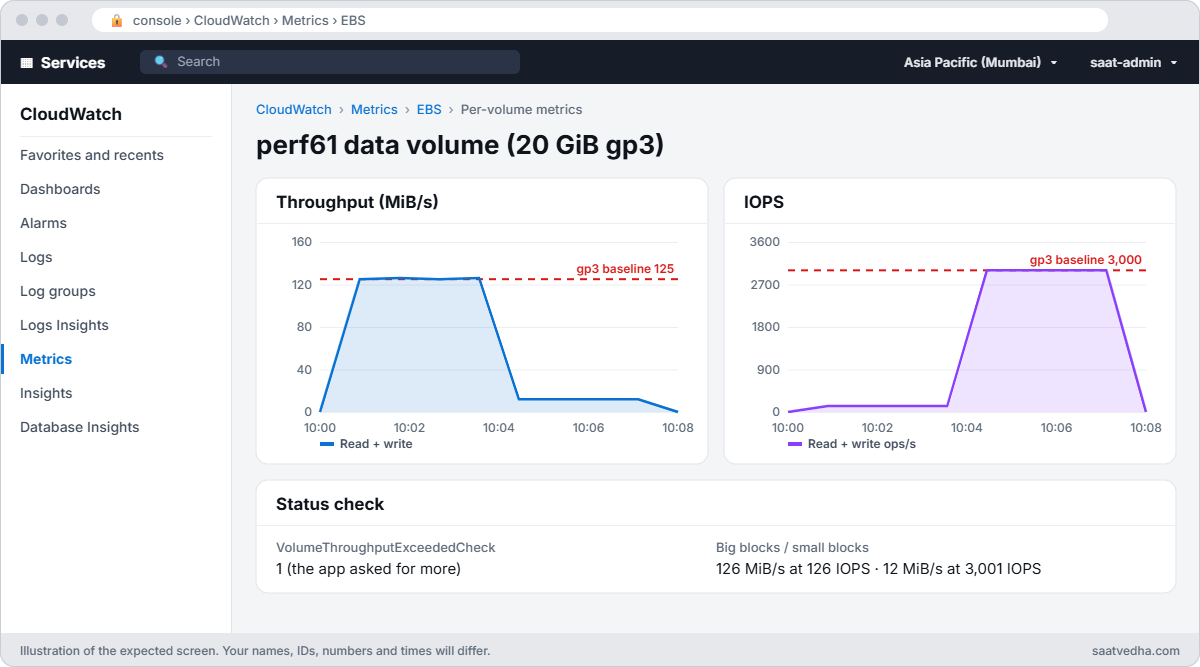
Throughput and IOPS against the volume’s limits, the “exceeded” checks, and latency. Flat lines at exactly 125 MiB/s or 3,000 IOPS are a giveaway.
3Then the instance
If raising the volume doesn’t help, check the instance’s EBS limits and burst balances. Then look beyond storage: memory, network, the app.
4Know the signs
Each bottleneck leaves its own fingerprints:
Measure before and after every change. A number that didn’t move tells you the ceiling is somewhere else.
✅ Checkpoint: You can name the three ceilings, the metric for each, and what high steal time on a t3 means.
Hands-on lab: measure perf61 and hit two ceilings
Sign in and launch perf61 with a separate gp3 data volume:
cd C:\aws-lab
aws login --profile saat-admin
$env:AWS_PROFILE = 'saat-admin'
$v = Get-Content C:\aws-lab\saat-vpc.json | ConvertFrom-Json
'[{"DeviceName":"/dev/sdf","Ebs":{"VolumeSize":20,"VolumeType":"gp3","Encrypted":true,"DeleteOnTermination":true}}]' | Set-Content bdm61.json
$ami = aws ssm get-parameter --name /aws/service/ami-amazon-linux-latest/al2023-ami-kernel-default-x86_64 --query Parameter.Value --output text
$id = aws ec2 run-instances --image-id $ami --instance-type t3.micro --credit-specification CpuCredits=unlimited --subnet-id $v.PublicA --security-group-ids $v.WebSg --iam-instance-profile Name=saat-ec2-ssm-profile --metadata-options HttpTokens=required --block-device-mappings file://bdm61.json --user-data "#!/bin/bash
dnf install -y fio" --tag-specifications 'ResourceType=instance,Tags=[{Key=Name,Value=perf61},{Key=course,Value=saatvedha-aws},{Key=lesson,Value=61}]' 'ResourceType=volume,Tags=[{Key=course,Value=saatvedha-aws},{Key=lesson,Value=61}]' --query "Instances[0].InstanceId" --output text
do { Start-Sleep 20; $p = aws ssm describe-instance-information --filters "Key=InstanceIds,Values=$id" --query "InstanceInformationList[0].PingStatus" --output text } until ($p -eq 'Online')
$vol = aws ec2 describe-instances --instance-ids $id --query "Reservations[0].Instances[0].BlockDeviceMappings[?DeviceName=='/dev/sdf'].Ebs.VolumeId | [0]" --output text
aws ec2 describe-volumes --volume-ids $vol --query "Volumes[0].[VolumeType,Size,Iops,Throughput]" --output textYou should see something like this:
gp3 20 3000 125perf61 sits in a public subnet so it reaches Systems Manager without endpoints; it has no inbound rules. The data volume has gp3’s default 3,000 IOPS and 125 MiB/s.
1Measure CPU
Paste this whole block. It adds helpers, then runs a single-core benchmark and reads CPU steal:
function Invoke-Linux([string]$Id, [string[]]$Lines) {
@{ commands = $Lines; executionTimeout = @('900') } | ConvertTo-Json | Set-Content lx-cmd.json
$cmd = aws ssm send-command --document-name AWS-RunShellScript --instance-ids $Id --parameters file://lx-cmd.json --query Command.CommandId --output text
do { Start-Sleep 5; $st = aws ssm get-command-invocation --command-id $cmd --instance-id $Id --query Status --output text 2>$null } until ($st -in 'Success', 'Failed', 'TimedOut')
aws ssm get-command-invocation --command-id $cmd --instance-id $Id --query StandardOutputContent --output text
}
$bench = 'python3 -c "import time; t = time.time(); s = sum(i * i for i in range(30000000)); print(round(time.time() - t, 1), \"seconds\")"; top -bn2 -d1 | grep "%Cpu" | tail -1'
$parse = ' --output-format=json | python3 -c ''import json, sys; j = json.load(sys.stdin)["jobs"][0]["write"]; print(round(j["bw"] / 1024), "MiB/s", round(j["iops"]), "IOPS")'''
$seq = 'fio --name=seq --filename=/dev/nvme1n1 --rw=write --bs=1M --direct=1 --ioengine=libaio --iodepth=32 --runtime=30 --time_based' + $parse
$rand = 'fio --name=rand --filename=/dev/nvme1n1 --rw=randwrite --bs=4k --direct=1 --ioengine=libaio --iodepth=64 --runtime=30 --time_based' + $parse
function Get-Metric([string]$Ns, [string]$Name, [string]$DimName, [string]$DimValue, [string]$Stat = 'Maximum') {
$e = (Get-Date).ToUniversalTime(); $s = $e.AddMinutes(-10)
aws cloudwatch get-metric-statistics --namespace $Ns --metric-name $Name --dimensions "Name=$DimName,Value=$DimValue" --start-time $s.ToString('o') --end-time $e.ToString('o') --period 60 --statistics $Stat --query "max_by(Datapoints, &Timestamp).$Stat" --output text
}
Invoke-Linux $id @($bench)You should see something like this:
2.9 seconds
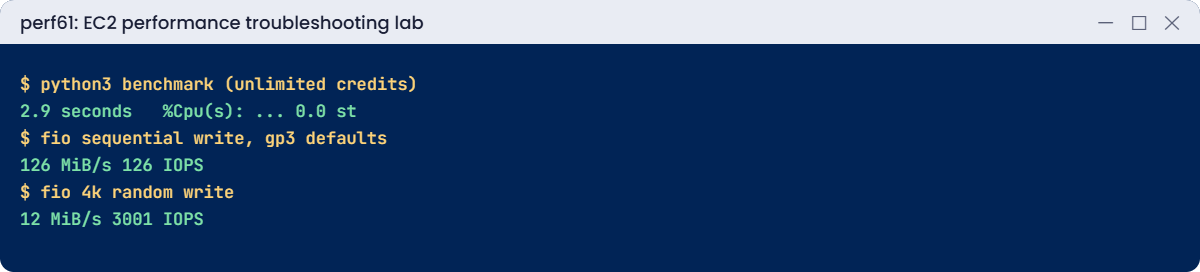
%Cpu(s): 50.2 us, 0.3 sy, 0.0 ni, 49.5 id, 0.0 wa, 0.0 hi, 0.0 si, 0.0 stAbout 3 seconds, one of two vCPUs busy, and 0.0 st (steal). This is your baseline. In unlimited mode, a t3 can run at 100% as long as it likes; you just pay for the surplus.
2Measure the data volume
Paste this whole block. fio writes to the empty data volume for 30 seconds each, in big and small blocks:
Invoke-Linux $id @('lsblk -o NAME,SIZE,MOUNTPOINT /dev/nvme1n1', $seq, $rand)
"VolumeThroughputExceededCheck = $(Get-Metric AWS/EBS VolumeThroughputExceededCheck VolumeId $vol)"You should see something like this:
NAME SIZE MOUNTPOINT
nvme1n1 20G
126 MiB/s 126 IOPS
12 MiB/s 3001 IOPS
VolumeThroughputExceededCheck = 1.0Big blocks stop at gp3’s 125 MiB/s; small blocks stop at 3,000 IOPS. Two different limits on the same volume, and CloudWatch confirms the app tried to go faster. fio on a raw device is only safe on an empty volume like this one.
3Read the CloudWatch side
Paste this whole block:
"CPUUtilization max = $(Get-Metric AWS/EC2 CPUUtilization InstanceId $id)"
"CPUCreditBalance = $(Get-Metric AWS/EC2 CPUCreditBalance InstanceId $id Average)"
"VolumeAvgWriteLatency = $(Get-Metric AWS/EBS VolumeAvgWriteLatency VolumeId $vol) ms"
"InstanceEBSThroughputExceededCheck = $(Get-Metric AWS/EC2 InstanceEBSThroughputExceededCheck InstanceId $id)"You should see something like this:
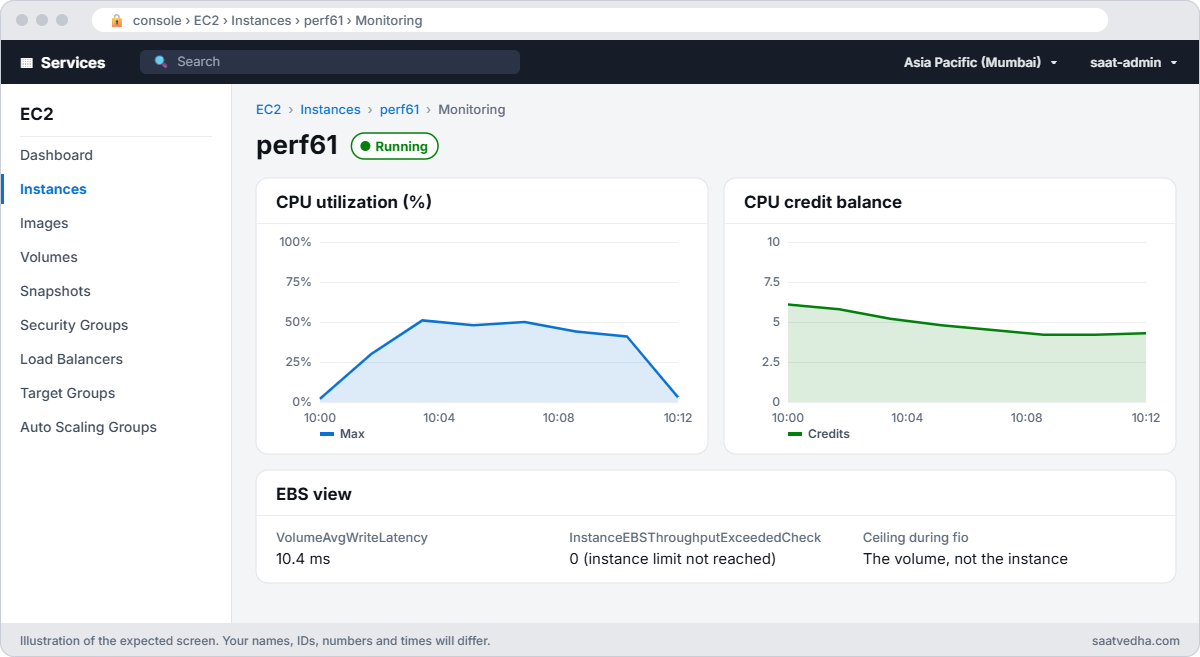
CPUUtilization max = 50.8
CPUCreditBalance = 4.2
VolumeAvgWriteLatency = 10.4 ms
InstanceEBSThroughputExceededCheck = 0.0The volume, not the instance, was the ceiling during fio. Credit metrics arrive every 5 minutes, so the balance may show None at first; run it again later.
✅ Checkpoint: The benchmark takes a few seconds with 0 steal, fio stops at about 125 MiB/s and 3,000 IOPS, and VolumeThroughputExceededCheck shows 1.
Break It, Then Fix It
Two ceilings that cause most “it was fast last week” tickets.
1Break it: run out of CPU credits
Switch perf61 to standard credits, burn what’s left for a few minutes, then run the benchmark again:
aws ec2 modify-instance-credit-specification --instance-credit-specifications "InstanceId=$id,CpuCredits=standard" | Out-Null
Invoke-Linux $id @('timeout 300 yes > /dev/null & timeout 300 yes > /dev/null & wait; echo burned') | Out-Null
Invoke-Linux $id @($bench)You’ll get something like this:
31.4 seconds
%Cpu(s): 5.6 us, 0.2 sy, 0.0 ni, 5.5 id, 0.0 wa, 0.0 hi, 0.0 si, 88.7 stTen times slower, with nearly 90% steal: the hypervisor is holding perf61 at its 10% baseline because the balance is empty. CloudWatch would show CPUUtilization around 10%, which looks idle on a dashboard. Fix: go back to unlimited (or move to a non-burstable type if the load is constant):
aws ec2 modify-instance-credit-specification --instance-credit-specifications "InstanceId=$id,CpuCredits=unlimited" | Out-Null
Start-Sleep 10
Invoke-Linux $id @($bench)You should see something like this:
2.9 seconds
%Cpu(s): 50.1 us, 0.3 sy, 0.0 ni, 49.6 id, 0.0 wa, 0.0 hi, 0.0 si, 0.0 st2Break it: the app needs more than gp3’s default
A batch job needs 250 MiB/s. Run the big-block test again, then raise the volume’s throughput and test once more:
Invoke-Linux $id @($seq)
aws ec2 modify-volume --volume-id $vol --throughput 250 | Out-Null
do { Start-Sleep 10; $m = aws ec2 describe-volumes-modifications --volume-ids $vol --query "VolumesModifications[0].ModificationState" --output text } until ($m -in 'optimizing', 'completed')
Invoke-Linux $id @($seq)
"InstanceEBSThroughputExceededCheck = $(Get-Metric AWS/EC2 InstanceEBSThroughputExceededCheck InstanceId $id)"You’ll get something like this:
126 MiB/s 126 IOPS
251 MiB/s 251 IOPS
InstanceEBSThroughputExceededCheck = 0.0
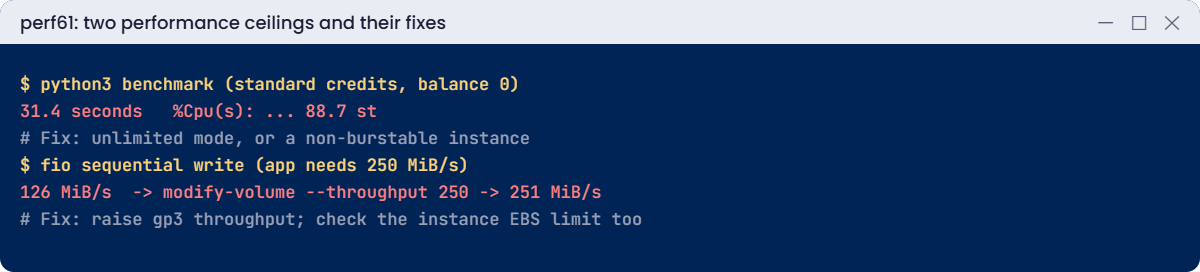
Throughput doubled as soon as the modification reached “optimizing”, with no restart. On a t3.micro this only lasts while the instance’s EBS burst lasts (about 30 minutes a day); for steady 250 MiB/s you’d also need an instance type whose baseline EBS bandwidth is high enough. Remember you can only modify a volume once every 6 hours.
Now clean up (the data volume is deleted with the instance):
aws ec2 terminate-instances --instance-ids $id | Out-Null
aws ec2 wait instance-terminated --instance-ids $id
Remove-Item bdm61.json, lx-cmd.json✅ Checkpoint: You fixed a credit-starved CPU by switching to unlimited and a throughput cap with modify-volume. perf61 and its volume are gone.
This happened at work
The nightly report that ran at 10%
An HR software company ran its payroll reports on a t3.large in standard credit mode to keep costs fixed. The reports took 20 minutes for a year, then suddenly took four hours at every month end.
The CPU graph showed 20% all night, so everyone assumed the database was slow and upgraded it. Nothing changed. A new engineer logged in during a run and saw 75% steal in top: daytime jobs added months earlier were using up the credits, and the report ran at baseline.
They moved the report server to an m7i.large, which cost less than the database upgrade they rolled back. They also added an alarm on CPUCreditBalance for every burstable instance still in standard mode.
Common mistakes and troubleshooting
| Mistake | What happens | What to do |
|---|---|---|
| Reading low CPU% on a t3 as “idle” | Missing credit starvation | Check CPUCreditBalance and steal time |
| Assuming gp3 scales with size | Stuck at 3,000 IOPS / 125 MiB/s | Raise IOPS and throughput with modify-volume |
| Raising the volume when the instance is the limit | No improvement | Check InstanceEBS*ExceededCheck and type limits |
| Benchmarking only for a minute | Burst hides the real baseline | Test longer than the burst window |
| Running fio on a disk with data | Data destroyed | Only on empty volumes, or use files |
| Modifying a volume twice in a day | Error until 6 hours pass | Plan the final size and performance once |
Interview questions
Click a question to open it. Each one is written the way an interviewer would ask it. Under it you will see why they ask it and one way you could answer, in your own words.
Fresher level
1. Can you explain in simple words how CPU credits work on t3 instances?
Why they ask this: They want to check that you understand burstable instances, because credit problems often look like random slowness.
How you might answer: The instance earns credits while it runs below its baseline CPU, and spends them when it goes above. I explain it like a phone data plan: save when you’re quiet, spend when you’re busy.
In standard mode, CPU is held at baseline when the credits run out. In unlimited mode it keeps bursting, and you pay for the extra.
2. What baseline IOPS and throughput do you get with a gp3 volume?
Why they ask this: They want to see that you know the starting numbers for the most common EBS volume type, and that you can tune them.
How you might answer: A gp3 volume gives 3,000 IOPS and 125 MiB/s, no matter how big it is.
If I need more, I can raise IOPS and throughput separately, without making the volume bigger.
3. You run top on a Linux EC2 instance and see high steal time. What does that tell you?
Why they ask this: They want to know you can read a Linux metric and connect it to what’s happening on the AWS side.
How you might answer: Steal time means the hypervisor isn’t giving the guest the CPU time it’s asking for. On EC2 that’s usually credit throttling on a burstable instance.
So I check the CPU credit balance in CloudWatch next.
2–5 years experience
4. An app on EC2 has become slow, but CPU looks low. What would you check?
Why they ask this: They want to see that you look past CPU and check each possible limit in a sensible order.
How you might answer: First I check CPU credits and steal time, then the volume exceeded checks and EBS latency. After that I look at the instance EBS exceeded checks and burst balances.
If those are fine, I check memory and swap, then the network, and only then the app itself.
5. A volume is too slow and the business can’t accept downtime. How would you give it more performance?
Why they ask this: They want to see that you know EBS can be changed live, and that you know the limits of doing it.
How you might answer: I’d use modify-volume to change the size, IOPS, throughput or even the type, while the instance keeps running. The new performance applies during the optimizing state.
I only get one modification per volume every 6 hours, so I pick the right numbers the first time.
6. How do you tell whether you’re hitting a volume limit or an instance limit?
Why they ask this: They want to see that you know where the real bottleneck is before you spend money on a bigger volume.
How you might answer: I compare VolumeIOPSExceededCheck and VolumeThroughputExceededCheck with InstanceEBSIOPSExceededCheck and InstanceEBSThroughputExceededCheck. That shows which side is at its ceiling.
Another clue is if I raised the volume’s performance and nothing changed. Then the instance is the limit.
Senior level
7. A database needs 20,000 IOPS and 800 MiB/s. How would you size the storage and instance?
Why they ask this: They want to see that you size both the disk and the instance, because either one can become the ceiling.
How you might answer: I’d provision gp3 to those values, or use io2 if the workload is very sensitive to latency. Then I’d pick an instance type whose baseline EBS bandwidth is above 800 MiB/s.
I’d only stripe volumes if one volume can’t reach the numbers. After that I’d monitor the exceeded checks and latency.
8. When would you tell a team not to use burstable instances?
Why they ask this: They want to see that you can judge cost against risk and explain why the cheapest option isn’t always right.
How you might answer: I’d avoid them when CPU stays above baseline for long periods, for latency-sensitive production, or for batch jobs that drain the credits.
In those cases I’d move to general-purpose or compute-optimized types instead.
Quick quiz
Q1. A t3 in standard mode with 0 credits runs at?
- Full speed
- Its baseline
- Zero
- Double speed
Show answer
B — It is held at baseline.
Q2. What showed the CPU starvation inside the guest?
- %id
- %st (steal)
- %wa
- %hi
Show answer
B — Steal time.
Q3. gp3 default throughput is?
- 250 MiB/s
- 125 MiB/s
- 1,000 MiB/s
- Depends on size
Show answer
B — 125 MiB/s and 3,000 IOPS.
Q4. Which metric says the instance, not the volume, is the limit?
- VolumeIOPSExceededCheck
- InstanceEBSThroughputExceededCheck
- CPUCreditUsage
- NetworkIn
Show answer
B — Instance-level EBS limit.
Q5. How often can you modify the same EBS volume?
- Any time
- Once every 6 hours
- Once a month
- Never
Show answer
B — There is a cooldown.
Quick recap
- Find the ceiling: CPU, the volume, or the instance’s EBS bandwidth.
- On t3/t4g, check CPUCreditBalance and steal time; unlimited mode avoids starvation.
- gp3 gives 3,000 IOPS and 125 MiB/s by default; raise them with modify-volume.
- Exceeded-check metrics tell you which limit you hit.
- Measure before and after every change.
Next lesson
Lesson 62: Can’t connect to RDS SQL Server → You’ll trace RDS connection timeouts through security groups, routes, Publicly Accessible and Flow Logs.
Further reading: EC2 performance troubleshooting
Want to go deeper into EC2 performance troubleshooting? Read Burstable performance instances and Amazon CloudWatch metrics for Amazon EBS. You can also see the full plan for this course on the AWS Cloud Administration course page.
