IAM basics: users, groups, roles and policies

So far you have used the root user, which is fine for setup and nothing else. AWS IAM basics are how you give people and programs exactly the access they need: users, groups, roles and the policies that connect them.

In this lesson you create a read-only user, watch AWS refuse a write, then give that user a role that allows one small job. Along the way you’ll learn how AWS decides “allow” or “deny” for every single request.

TimeYou needBy the end you can
60 minutesThe laptop setup from Lesson 3 (signed in with aws login --profile saat-root), a second browser profile or private window for signing in as a new user.Create users, groups and roles, read and write simple policies, assume a role from the CLI, and explain implicit deny and explicit deny.

What it is, in one line

AWS IAM basics: identities (users, groups, roles) get permissions from policies, and AWS checks those policies on every request.

In Simple Words

Staff badges in an office

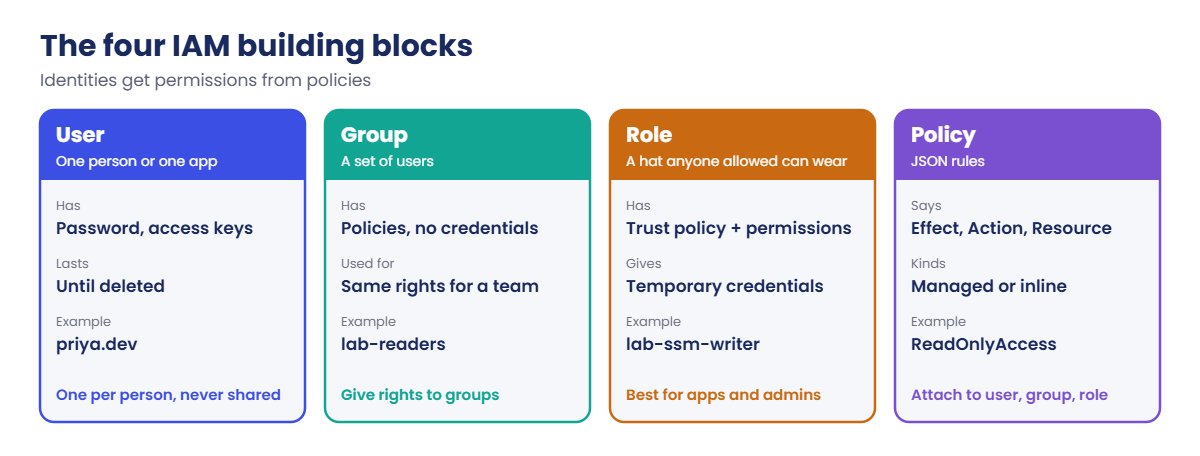
In an office, every employee gets their own badge with their photo. That is an IAM user. The badge opens doors based on the team you’re in, like “Accounts team” or “IT team”.

Those are groups.

Some jobs need a special pass for a short time, like the server room key you sign out from security and return in the evening. That is a role: you borrow it, use it, and it stops working after a while.

The rules printed on the wall (“Accounts team: floors 1 and 2, never the server room”) are policies. A “never” rule always beats an “allowed” rule.

Engineer's View

How IAM really works

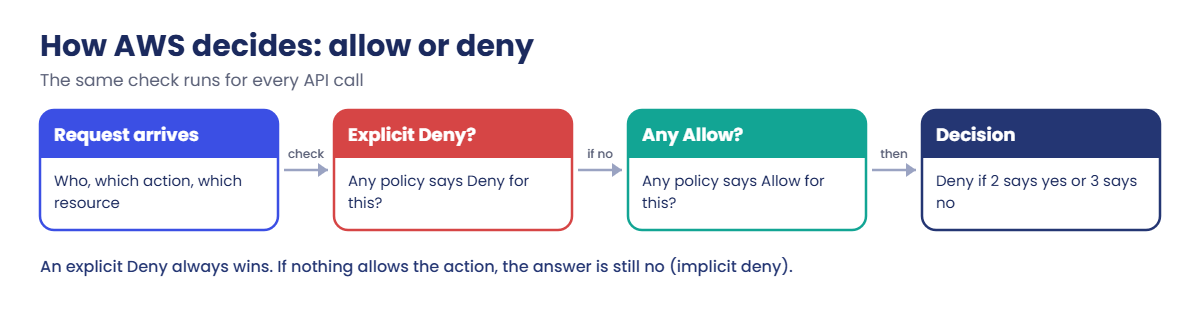
Every request to AWS carries an identity (who), an action like ssm:PutParameter (what) and a resource ARN (on what). IAM gathers every policy that applies and evaluates them. The default answer is deny.

An Allow statement can open it. An explicit Deny anywhere closes it, whatever else says Allow.

A policy is JSON with Effect, Action, Resource and optional Condition. You can attach AWS managed policies (like ReadOnlyAccess), your own customer managed policies, or inline policies that live inside one identity.

A role has two policies: a trust policy that says who may assume it, and a permissions policy that says what it can do. Assuming a role through STS returns temporary credentials (an access key, a secret and a session token) that expire, one hour by default. Apps on EC2 and Lambda use roles this way, and so should admins.

Every identity has an ARN, for example arn:aws:iam::123456789012:user/priya.dev. A role session looks like arn:aws:sts::123456789012:assumed-role/lab-ssm-writer/priya-test, so CloudTrail shows both the role and who is using it.

How it works, step by step

Here is how the pieces work together in the lab you’re about to build.

1Create a group with policies

lab-readers gets ReadOnlyAccess (look at everything, change nothing) and SignInLocalDevelopmentAccess (needed for aws login from the CLI).

AWS IAM basics: user, group, role and policy compared

2Add a user to the group

priya.dev gets a console password and inherits the group’s rights. You never attach policies to single users if a group can do it.

3Create a role for one extra job

lab-ssm-writer trusts only priya.dev and can write parameters under /lab/ in Systems Manager Parameter Store, nothing else.

4Assume the role when needed

Priya stays read-only most of the day. When she needs to write a parameter, she assumes the role, does the job with temporary credentials and drops it.

Every request in those steps goes through the same decision. Learn this picture by heart; it explains almost every “Access Denied” you’ll ever see.

AWS IAM basics: how AWS decides allow or deny, explicit deny first

Two consequences matter at work. First, “I attached AdministratorAccess and it’s still denied” usually means a Deny somewhere else (a service control policy, a permission boundary or a resource policy). Second, removing an Allow is not the same as adding a Deny: removing the Allow only works if nothing else allows the action.

✅ Checkpoint: You can name the four building blocks and say what happens when one policy allows an action and another explicitly denies it.

Hands-on lab: AWS IAM basics with a user, a group and a role

Run everything in PowerShell from C:\aws-lab. Policy files are written with Set-Content on purpose: Out-File in Windows PowerShell 5.1 saves UTF-16, which the CLI can’t read as JSON.

1Sign in as root and note the account number

Run this:

aws login --profile saat-root
$env:AWS_PROFILE = 'saat-root'
$acct = aws sts get-caller-identity --query Account --output text
$acct

You should see your 12-digit account number, for example:

123456789012

2Give the account a sign-in alias

Pick a name nobody else in the world has used, for example saatlab-yourname, and run:

aws iam create-account-alias --account-alias saatlab-yourname
aws iam list-account-aliases --query 'AccountAliases[0]' --output text

Your IAM users now sign in at https://saatlab-yourname.signin.aws.amazon.com/console.

3Create the group and attach two AWS managed policies

Paste this whole block:

aws iam create-group --group-name lab-readers
aws iam attach-group-policy --group-name lab-readers --policy-arn arn:aws:iam::aws:policy/ReadOnlyAccess
aws iam attach-group-policy --group-name lab-readers --policy-arn arn:aws:iam::aws:policy/SignInLocalDevelopmentAccess
aws iam list-attached-group-policies --group-name lab-readers --query 'AttachedPolicies[].PolicyName' --output text

The last command should print:

ReadOnlyAccess  SignInLocalDevelopmentAccess

4Create the user with a console password

Paste this whole block (it makes a random first password that must be changed at first sign-in):

aws iam create-user --user-name priya.dev --tags Key=course,Value=saatvedha-aws Key=lesson,Value=05 --query User.Arn --output text
aws iam add-user-to-group --user-name priya.dev --group-name lab-readers
$pw = 'Lab-' + [guid]::NewGuid().ToString('N').Substring(0,16) + '!a1'
aws iam create-login-profile --user-name priya.dev --password $pw --password-reset-required --query LoginProfile.UserName --output text
"First password: $pw"

You should see something like this:

arn:aws:iam::123456789012:user/priya.dev
priya.dev
First password: Lab-3f9c1a7e2b4d5c60!a1

5Create the role and its two policies

Paste this whole block:

@"
{
  "Version": "2012-10-17",
  "Statement": [{
    "Effect": "Allow",
    "Principal": { "AWS": "arn:aws:iam::$($acct):user/priya.dev" },
    "Action": "sts:AssumeRole"
  }]
}
"@ | Set-Content trust.json

@"
{
  "Version": "2012-10-17",
  "Statement": [{
    "Effect": "Allow",
    "Action": ["ssm:PutParameter", "ssm:GetParameter", "ssm:DeleteParameter"],
    "Resource": "arn:aws:ssm:ap-south-1:$($acct):parameter/lab/*"
  }]
}
"@ | Set-Content ssm-writer.json

$roleArn = aws iam create-role --role-name lab-ssm-writer --assume-role-policy-document file://trust.json --tags Key=course,Value=saatvedha-aws Key=lesson,Value=05 --query Role.Arn --output text
aws iam put-role-policy --role-name lab-ssm-writer --policy-name write-lab-parameters --policy-document file://ssm-writer.json
$roleArn

You should see something like this:

arn:aws:iam::123456789012:role/lab-ssm-writer

6Sign in as Priya from the CLI

Run this, and sign in as priya.dev in the browser that opens. Use the alias sign-in page, then set a new password when asked:

Remove-Item Env:AWS_PROFILE
aws login --profile priya
aws sts get-caller-identity --profile priya --query Arn --output text

You should see something like this:

arn:aws:iam::123456789012:user/priya.dev

If the browser is already signed in as root, use a private window for Priya’s sign-in.

7Try to write as Priya, then through the role

Paste this whole block:

aws ssm put-parameter --profile priya --name /lab/05/test --type String --value hello

$c = aws sts assume-role --profile priya --role-arn $roleArn --role-session-name priya-test --query Credentials --output json | ConvertFrom-Json
$env:AWS_ACCESS_KEY_ID = $c.AccessKeyId; $env:AWS_SECRET_ACCESS_KEY = $c.SecretAccessKey; $env:AWS_SESSION_TOKEN = $c.SessionToken
aws sts get-caller-identity --query Arn --output text
aws ssm put-parameter --name /lab/05/test --type String --value hello

You should see something like this:

An error occurred (AccessDeniedException) when calling the PutParameter operation: User: arn:aws:iam::123456789012:user/priya.dev is not authorized to perform: ssm:PutParameter on resource: arn:aws:ssm:ap-south-1:123456789012:parameter/lab/05/test because no identity-based policy allows the ssm:PutParameter action
arn:aws:sts::123456789012:assumed-role/lab-ssm-writer/priya-test
{
    "Version": 1,
    "Tier": "Standard"
}

The first write failed with an implicit deny: nothing allowed it. The role session then succeeded, and its ARN shows both the role name and the session name. With no --profile and no AWS_PROFILE, the CLI used the three environment variables.
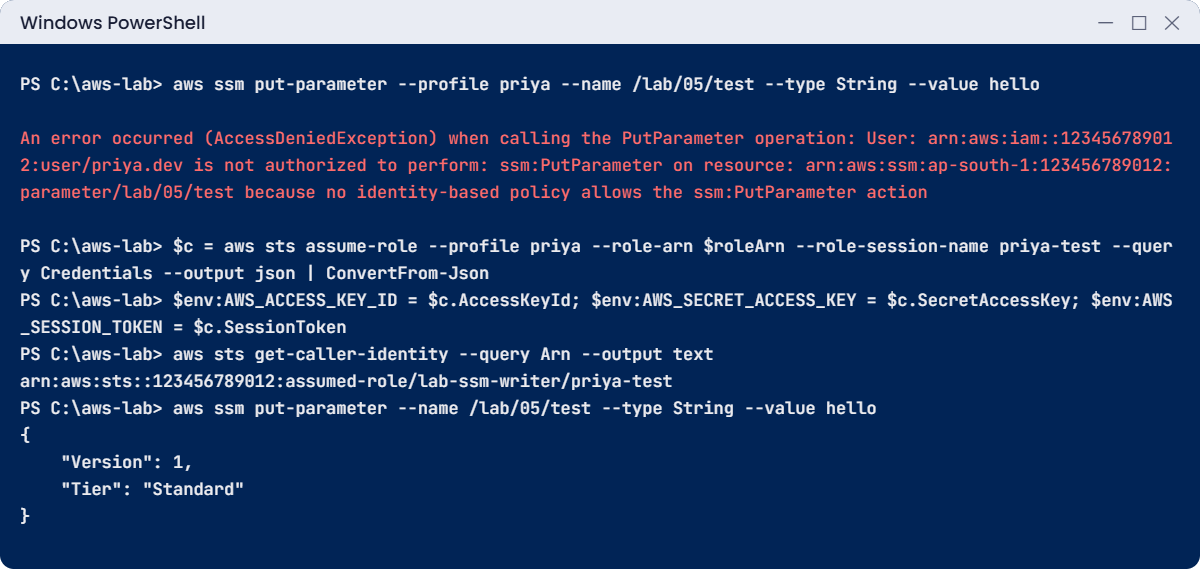
AWS IAM basics lab: read-only user denied, then allowed through a role
Example output. Your account number and session details will be different.

8Ask IAM before you try

Run this as root (the simulator lets you test permissions without making changes):

aws iam simulate-principal-policy --profile saat-root --policy-source-arn "arn:aws:iam::$($acct):user/priya.dev" --action-names ec2:DescribeInstances ec2:TerminateInstances --query 'EvaluationResults[].[EvalActionName,EvalDecision]' --output text

You should see this:

ec2:DescribeInstances   allowed
ec2:TerminateInstances  implicitDeny

✅ Checkpoint: Priya was denied with “no identity-based policy allows”, the role session wrote /lab/05/test, and the simulator shows implicitDeny for terminating instances. Keep everything for the break lab; cleanup is at the end of it.

Break It, Then Fix It

Two IAM errors you’ll meet in your first month at work.

1Break it: a trust policy pointing at a user that doesn’t exist

Make a copy of trust.json with a typo in the user name and try to use it:

(Get-Content trust.json) -replace 'priya.dev','priya.dv' | Set-Content trust-typo.json
aws iam update-assume-role-policy --profile saat-root --role-name lab-ssm-writer --policy-document file://trust-typo.json

You’ll get this error (something like this):

An error occurred (MalformedPolicyDocument) when calling the UpdateAssumeRolePolicy operation: Invalid principal in policy: "AWS":"arn:aws:iam::123456789012:user/priya.dv"

IAM checks that a user or role named as a principal really exists when you save the policy. Fix: correct the ARN. The same error appears when someone deletes a user and later tries to edit a trust policy that still names it.

2Break it: an explicit deny beats an allow

Add a Deny for deleting parameters to the role, then try to delete with the role session from step 7:

@'
{ "Version": "2012-10-17", "Statement": [{ "Effect": "Deny", "Action": "ssm:DeleteParameter", "Resource": "*" }] }
'@ | Set-Content deny-delete.json
aws iam put-role-policy --profile saat-root --role-name lab-ssm-writer --policy-name deny-delete --policy-document file://deny-delete.json
Start-Sleep -Seconds 10
aws ssm delete-parameter --name /lab/05/test

You’ll get this error (something like this):

An error occurred (AccessDeniedException) when calling the DeleteParameter operation: User: arn:aws:sts::123456789012:assumed-role/lab-ssm-writer/priya-test is not authorized to perform: ssm:DeleteParameter on resource: arn:aws:ssm:ap-south-1:123456789012:parameter/lab/05/test with an explicit deny in an identity-based policy
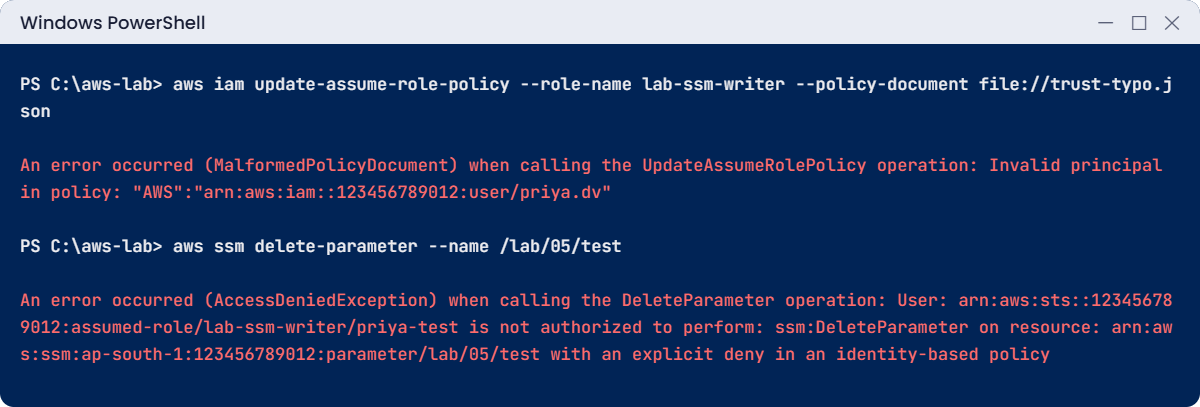
AWS IAM basics break lab: invalid principal and an explicit deny
Both errors from this break lab, something like this.

The role still has the Allow from write-lab-parameters, but the Deny wins. Note two things: the change hit the running session within seconds, and the message tells you exactly which kind of policy denied it.

Fix it by removing the Deny, then delete the parameter:

aws iam delete-role-policy --profile saat-root --role-name lab-ssm-writer --policy-name deny-delete
Start-Sleep -Seconds 10
aws ssm delete-parameter --name /lab/05/test

3Clean up everything from this lesson

Paste this whole block:

Remove-Item Env:AWS_ACCESS_KEY_ID, Env:AWS_SECRET_ACCESS_KEY, Env:AWS_SESSION_TOKEN
aws logout --profile priya
$env:AWS_PROFILE = 'saat-root'
aws iam delete-role-policy --role-name lab-ssm-writer --policy-name write-lab-parameters
aws iam delete-role --role-name lab-ssm-writer
aws iam delete-login-profile --user-name priya.dev
aws iam remove-user-from-group --user-name priya.dev --group-name lab-readers
aws iam delete-user --user-name priya.dev
aws iam detach-group-policy --group-name lab-readers --policy-arn arn:aws:iam::aws:policy/ReadOnlyAccess
aws iam detach-group-policy --group-name lab-readers --policy-arn arn:aws:iam::aws:policy/SignInLocalDevelopmentAccess
aws iam delete-group --group-name lab-readers
.\Find-LabResources.ps1

Keep the account alias; it costs nothing and you’ll use it again. IAM is global, so the finder script may not list IAM items at all; aws iam list-users and aws iam list-roles --query "Roles[?starts_with(RoleName,'lab')]" confirm they are gone.

✅ Checkpoint: You read an invalid-principal error and an explicit-deny error, fixed both, and removed the lab user, group and role.

This happened at work

Who deleted the firewall rule at 3 AM?

An operations team shared one IAM user, ops-admin, with AdministratorAccess. The password sat on an internal wiki page and six people used it, plus a monitoring tool that had its access keys.

One night a rule allowing the payment provider’s IP range disappeared from a security group, and card payments failed for 50 minutes. CloudTrail showed exactly when it happened and that ops-admin did it, from an office IP address. It couldn’t show which of the six people it was, and nobody remembered.

The team moved to one identity per person through IAM Identity Center, with read-only rights by default and an admin role that needs a reason and expires after an hour. The monitoring tool got its own role with only the actions it needed. Now every CloudTrail event names a real person, and a monthly credential report check finds any old keys or unused users.

Common mistakes and troubleshooting

MistakeWhat happensWhat to do
Shared IAM usersNobody knows who did what; leavers keep accessOne identity per person; roles for elevated work
Attaching policies to single usersRights drift; nobody can say who has whatAttach to groups (or permission sets in Lesson 6)
AdministratorAccess “to save time”Any mistake or leak has full powerStart read-only; add only the actions needed
Thinking removing an Allow blocks somethingAnother policy still allows itUse an explicit Deny when something must never happen
Policy files saved with Out-File in PowerShell 5.1The CLI fails to parse the JSONUse Set-Content (or -Encoding ascii)
Trust policy names a deleted userMalformedPolicyDocument: Invalid principalUpdate or remove the principal, then save again

Interview questions

Click a question to open it. Each one is written the way an interviewer would ask it. Under it you will see why they ask it and one way you could answer, in your own words.

Fresher level

1. Can you explain in simple words the difference between an IAM user and an IAM role?

Why they ask this: They want to check your core IAM understanding. Knowing when to use a role instead of a user is the base of good AWS security.

How you might answer: A user is a long-lived identity for one person or app, with a password or access keys. A role has no long-term credentials. Trusted people or services assume it and get temporary credentials.

So for apps running on AWS and for admin work, I use roles.

2. Say no policy mentions a certain action at all. Can the user do it or not?

Why they ask this: They want to see that you know AWS denies by default. This one idea explains many access problems.

How you might answer: No, they can’t. AWS denies everything by default, so some policy has to explicitly allow the action before it works.

3. Your team has 15 developers who need the same permissions. How would you set that up?

Why they ask this: They want to see good admin habits instead of attaching policies to each person. They also check you know what groups can’t do.

How you might answer: I’d create a group, attach the policies to the group, and add the 15 users to it. When someone joins or leaves, I just add or remove them.

I’d keep in mind that groups have no credentials, can’t be assumed and can’t be nested inside other groups.

2–5 years experience

4. A user has AdministratorAccess but still gets AccessDenied. Where would you look?

Why they ask this: They want to know you understand the other policy types that can block access. It separates people who know IAM from people who only know managed policies.

How you might answer: I’d look for an explicit deny somewhere else. That could be a service control policy from AWS Organizations, a permission boundary on the user, a resource-based policy like a bucket or key policy, or a session policy.

The error message often says which type denied it. If not, I’d check CloudTrail and the policy simulator.

5. How would you explain a trust policy to a new team member?

Why they ask this: They want to check you understand how roles get assumed. Trust policy mistakes are a common reason roles don’t work.

How you might answer: I’d say it’s the policy on the role itself that says who is allowed to assume it. That could be a user, another account, or a service like ec2.amazonaws.com.

If the trust policy doesn’t match, nobody can assume the role, no matter what their own permissions say.

6. A developer wants to put access keys on an EC2 instance so their app can read S3. What would you suggest instead?

Why they ask this: They want to see that you use roles in practice, not just in theory. Keys left on servers are a classic security problem.

How you might answer: I’d create a role trusted by ec2.amazonaws.com with only the S3 actions and buckets the app needs. Then I’d attach it to the instance through an instance profile.

The SDK picks up temporary credentials from the instance metadata automatically, so there are no keys to leak or rotate.

Senior level

7. You’re asked to clean up IAM in an account that has grown messy over five years. How would you do it without breaking things?

Why they ask this: They want to see a safe, data-driven approach. Removing access too fast breaks apps, and removing nothing leaves the risk in place.

How you might answer: I’d start with the credential report and access advisor data to find unused users, keys and roles by last-used date. I’d move people to Identity Center, replace user keys in apps with roles, and use IAM Access Analyzer to find unused permissions and external access.

Then I’d remove things in stages: disable first, delete after a waiting period, and tell the owners before each step.

8. Walk me through how AWS decides whether a request is allowed when several policies apply across an organization.

Why they ask this: They want to see deep knowledge of the evaluation logic. Senior engineers are expected to debug access problems that cross accounts and policy types.

How you might answer: AWS looks at every policy that applies: SCPs and resource control policies from Organizations, resource-based policies, identity-based policies, permission boundaries and session policies. Any explicit Deny ends it right there.

Otherwise, SCPs, boundaries and session policies all have to allow the action, and an identity or resource policy has to grant it. So the final permission is the overlap of the limits, plus the grants.

Quick quiz

Q1. One policy allows ssm:DeleteParameter and another explicitly denies it. What happens?

  1. Allowed, because Allow came first
  2. Denied, because explicit Deny wins
  3. It depends on which policy is newer
  4. AWS asks the user
Show answer

B — An explicit Deny always overrides any Allow.

Q2. What does a role’s trust policy control?

  1. What the role can do
  2. Who can assume the role
  3. How long the role exists
  4. Which Region it works in
Show answer

B — The trust policy names the principals allowed to assume the role. The permissions policy says what it can do.

Q3. What do you get when you assume a role?

  1. A new password
  2. Long-term access keys
  3. Temporary credentials with a session token
  4. A new IAM user
Show answer

C — STS returns an access key, a secret key and a session token that expire.

Q4. Priya’s write fails with “because no identity-based policy allows”. What kind of deny is this?

  1. Explicit deny
  2. Implicit deny
  3. Service control policy deny
  4. Network deny
Show answer

B — Nothing allowed the action, so the default deny applied.

Q5. Why should you attach policies to groups instead of single users?

  1. Groups are cheaper
  2. It keeps permissions consistent and easy to review
  3. Users can’t have policies
  4. Groups can be assumed like roles
Show answer

B — Groups give the same rights to a team and make reviews simple.

Quick recap

  • Users are long-lived identities, groups bundle permissions, roles give temporary credentials, policies are the JSON rules.
  • AWS denies by default. An Allow opens an action; an explicit Deny closes it whatever else says.
  • A role has a trust policy (who can assume it) and a permissions policy (what it can do).
  • The error message tells you the deny type: “no identity-based policy allows” (implicit) or “with an explicit deny”.
  • Use Set-Content for JSON files in Windows PowerShell 5.1, and clean up users, groups and roles after each lab.

Next lesson

Lesson 6: IAM Identity Center and MFA → You’ll set up IAM Identity Center so you can stop using root for the CLI and sign in as yourself every day.

Further reading: AWS IAM basics

Want to go deeper into AWS IAM basics? Read Policy evaluation logic and Troubleshoot access denied error messages in the IAM User Guide. You can also see the full plan for this course on the AWS Cloud Administration course page.

Scroll to Top