CloudWatch metrics, alarms and dashboards
-
Phase 0: Before you start
-
Phase 1: The foundation
-
Phase 2: Operations and security
-
Phase 3: SQL Server on AWS
-
Phase 4: Troubleshooting step by step
-
Phase 5: Final project and career
Monitoring that nobody sees is just storage. CloudWatch alarms turn metrics into action: when CPU stays high, memory runs out or a server fails its checks, the right person gets an email or a page before customers notice.
You’ll create the saat-alerts topic you’ll use for the rest of the course, install the CloudWatch agent to get memory metrics, build a CPU alarm and prove it fires with real load, and put the key numbers on one dashboard. Then you’ll fix the two alarm mistakes that make on-call engineers miss real incidents.
| Time | You need | By the end you can |
|---|---|---|
| 75 minutes (one small instance and four interface endpoints for about an hour) | saat-vpc, Start-SsmEndpoints.ps1 and Stop-SsmEndpoints.ps1, saat-ec2-ssm-profile, an email address you can open, your laptop signed in as saat-admin. Cost: about USD 0.20 (endpoints, detailed monitoring and a few custom metrics for an hour). | Create SNS email alerts, collect memory metrics with the CloudWatch agent, write alarms with sensible M of N and missing-data settings, test them safely and build a dashboard. |
What it is, in one line
CloudWatch alarms watch a metric and change state (OK, ALARM, INSUFFICIENT_DATA) when it crosses a threshold, then take actions such as sending an SNS notification.
In Simple Words
The pressure cooker whistle
Nobody stares at a pressure cooker for twenty minutes. You wait for the whistle. A CloudWatch alarm is that whistle for your servers.
A good whistle doesn’t blow for every puff of steam. It blows when pressure stays high. “Two out of three minutes above 40 percent” is the alarm’s way of ignoring a single puff.
And if the whistle itself is blocked, you hear nothing at all. That is INSUFFICIENT_DATA: the alarm has no numbers to judge, so it stays quiet when you most need it.
Engineer's View
How CloudWatch metrics and alarms really work
A metric is a time series identified by namespace, name and dimensions. AWS/EC2 CPUUtilization InstanceId=i-... is one metric; the same name with an extra dimension is a different metric. EC2 sends basic metrics every 5 minutes, or every minute with detailed monitoring.
Memory and disk usage are inside the OS, so EC2 can’t see them; the CloudWatch agent publishes them to the CWAgent namespace.
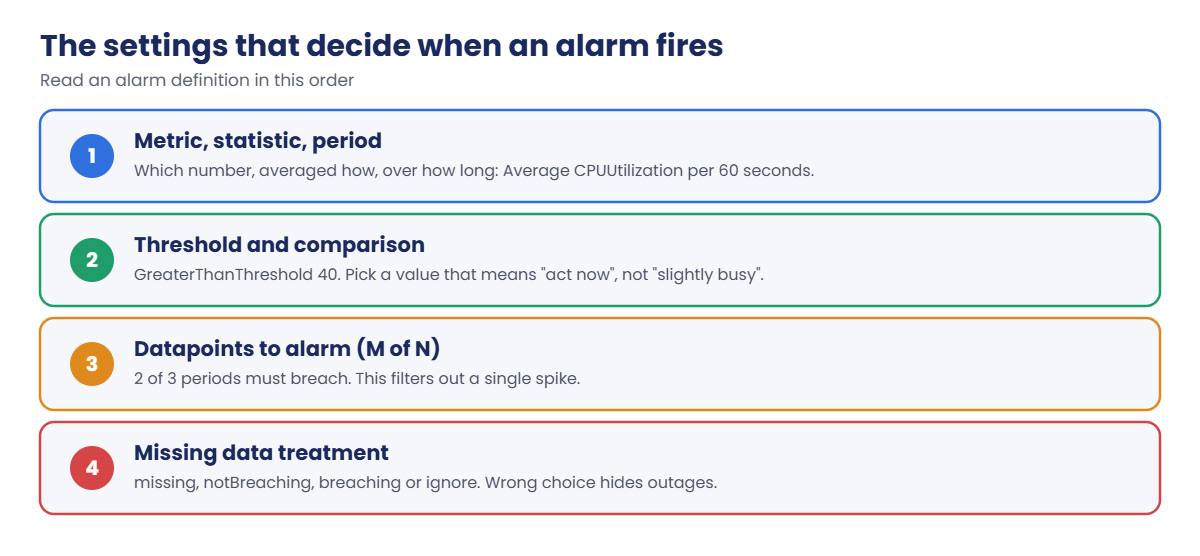
An alarm evaluates a statistic over a period. With “datapoints to alarm” M out of N evaluation periods it ignores short spikes. Missing data can be treated as missing, notBreaching, breaching or ignored.
Alarms act only on state changes, and actions can notify SNS, scale an Auto Scaling group, or stop, reboot or recover an EC2 instance. Actions must be in the same Region as the alarm.
Test the notification path with set-alarm-state; the alarm returns to its real state at the next evaluation. Composite alarms combine several alarms to cut noise, and metric math alarms watch calculated values such as error rate.
How it works, step by step
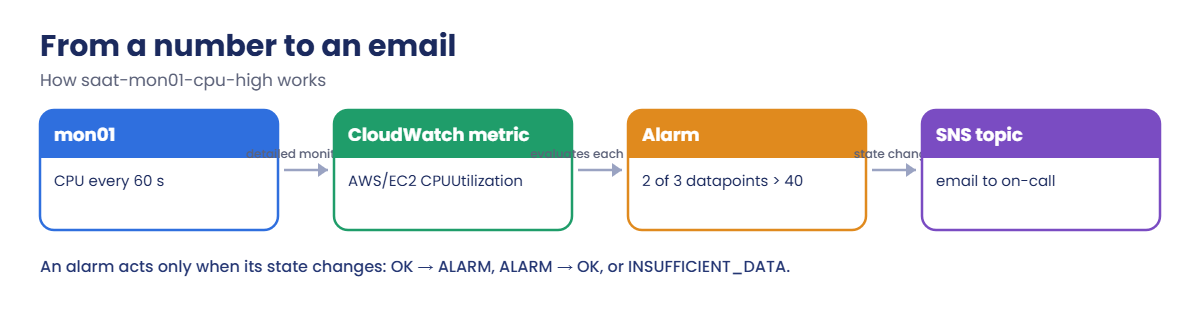
Here is the path from a busy CPU to an email.
1The instance reports a number
With detailed monitoring, EC2 publishes CPUUtilization for mon01 every minute. The agent adds mem_used_percent from inside Linux.
2The alarm evaluates it
Every minute the alarm looks at the last three datapoints. Two above 40 percent means ALARM; anything else means OK.
3A state change triggers actions
OK to ALARM publishes to saat-alerts, and so does ALARM to OK, so the on-call engineer also knows when it’s over.
4Every setting matters
Read any alarm definition in this order:
Most noisy alarms have a threshold that’s too low or M of N set to 1 of 1. Most silent alarms have the wrong dimensions or treat missing data as notBreaching.
✅ Checkpoint: You can explain what makes two metrics different, why memory needs the agent, what M of N does, and why INSUFFICIENT_DATA is dangerous.
Hands-on lab: CloudWatch alarms that reach a person
Start as usual, then set your email address:
cd C:\aws-lab
aws login --profile saat-admin
$env:AWS_PROFILE = 'saat-admin'
$env:Path += ';C:\Program Files\Amazon\SessionManagerPlugin\bin'
$v = Get-Content C:\aws-lab\saat-vpc.json | ConvertFrom-Json
$email = 'you@example.com'
.\Start-SsmEndpoints.ps11Create the alert topic and confirm your email
Paste this whole block, then open your inbox:
$topic = aws sns create-topic --name saat-alerts --tags Key=course,Value=saatvedha-aws --query TopicArn --output text
aws sns subscribe --topic-arn $topic --protocol email --notification-endpoint $email --query SubscriptionArn --output textYou should see this:
pending confirmationClick Confirm subscription in the email from AWS Notifications. Until you do, every alarm will “work” and you will receive nothing. Check it:
aws sns list-subscriptions-by-topic --topic-arn $topic --query "Subscriptions[0].SubscriptionArn" --output textAfter confirming, you should see something like this:
arn:aws:sns:ap-south-1:111122223333:saat-alerts:6f1c2d3e-4a5b-6c7d-8e9f-0a1b2c3d4e5fKeep saat-alerts. Budgets, GuardDuty and backups will send to it in later lessons.
2Prepare the CloudWatch agent
Paste this whole block. It lets the role publish metrics, stores the agent config and adds a monitoring endpoint:
aws iam attach-role-policy --role-name saat-ec2-ssm-role --policy-arn arn:aws:iam::aws:policy/CloudWatchAgentServerPolicy
@'
{
"agent": { "metrics_collection_interval": 60 },
"metrics": {
"namespace": "CWAgent",
"append_dimensions": { "InstanceId": "${aws:InstanceId}", "InstanceType": "${aws:InstanceType}" },
"metrics_collected": {
"mem": { "measurement": [ "mem_used_percent" ] }
}
}
}
'@ | Set-Content cwagent.json
aws ssm put-parameter --name AmazonCloudWatch-saat-linux --type String --value file://cwagent.json --overwrite | Out-Null
$mon = aws ec2 create-vpc-endpoint --vpc-id $v.VpcId --vpc-endpoint-type Interface --service-name com.amazonaws.ap-south-1.monitoring --subnet-ids $v.PrivateA --security-group-ids $v.EndpointSg --private-dns-enabled --tag-specifications 'ResourceType=vpc-endpoint,Tags=[{Key=Name,Value=saat-monitoring-ep},{Key=course,Value=saatvedha-aws},{Key=lesson,Value=23}]' --query VpcEndpoint.VpcEndpointId --output text
do { Start-Sleep 15; $s = aws ec2 describe-vpc-endpoints --vpc-endpoint-ids $mon --query "VpcEndpoints[0].State" --output text } until ($s -eq 'available')
$sYou should see this:
availablePrivate servers have no internet, so the agent reaches CloudWatch through this endpoint. The policy and the parameter stay for Lesson 24; the endpoint is deleted at the end.
3Launch mon01 and build the CPU alarm
Paste this whole block:
[IO.File]::WriteAllText('C:\aws-lab\mon-userdata.sh', "#!/bin/bash`ndnf install -y amazon-cloudwatch-agent`n/opt/aws/amazon-cloudwatch-agent/bin/amazon-cloudwatch-agent-ctl -a fetch-config -m ec2 -s -c ssm:AmazonCloudWatch-saat-linux`n")
$base = aws ssm get-parameter --name /aws/service/ami-amazon-linux-latest/al2023-ami-kernel-default-x86_64 --query Parameter.Value --output text
$i = aws ec2 run-instances --image-id $base --instance-type t3.micro --subnet-id $v.PrivateA --security-group-ids $v.AppSg --iam-instance-profile Name=saat-ec2-ssm-profile --metadata-options HttpTokens=required --monitoring Enabled=true --user-data file://mon-userdata.sh --tag-specifications 'ResourceType=instance,Tags=[{Key=Name,Value=mon01},{Key=course,Value=saatvedha-aws},{Key=lesson,Value=23}]' --query "Instances[0].InstanceId" --output text
aws cloudwatch put-metric-alarm --alarm-name saat-mon01-cpu-high --alarm-description "mon01 CPU above 40% for 2 of 3 minutes" --namespace AWS/EC2 --metric-name CPUUtilization --dimensions "Name=InstanceId,Value=$i" --statistic Average --period 60 --evaluation-periods 3 --datapoints-to-alarm 2 --threshold 40 --comparison-operator GreaterThanThreshold --treat-missing-data missing --alarm-actions $topic --ok-actions $topic
aws cloudwatch set-alarm-state --alarm-name saat-mon01-cpu-high --state-value ALARM --state-reason "Testing the alert path"
aws cloudwatch describe-alarms --alarm-names saat-mon01-cpu-high --query "MetricAlarms[0].[StateValue,StateReason]" --output textYou should see this, and an ALARM email within a minute:
ALARM Testing the alert pathset-alarm-state is how teams test that alerts actually reach people, without breaking anything. A minute later the alarm re-evaluates real data and sends an OK email.
4Cause real load, then build the dashboard
Paste this whole block. The load command keeps the prompt busy for five minutes:
do { Start-Sleep 20; $p = aws ssm describe-instance-information --filters "Key=InstanceIds,Values=$i" --query "InstanceInformationList[0].PingStatus" --output text } until ($p -eq 'Online')
aws ssm start-session --target $i --document-name AWS-StartInteractiveCommand --parameters command="timeout 300 yes > /dev/null"
Start-Sleep 90
aws cloudwatch describe-alarm-history --alarm-name saat-mon01-cpu-high --history-item-type StateUpdate --query "AlarmHistoryItems[].HistorySummary" --output text
$alarmArn = aws cloudwatch describe-alarms --alarm-names saat-mon01-cpu-high --query "MetricAlarms[0].AlarmArn" --output text
@'
{
"widgets": [
{ "type": "metric", "x": 0, "y": 0, "width": 12, "height": 6,
"properties": { "title": "mon01 CPU %", "region": "ap-south-1", "stat": "Average", "period": 60,
"metrics": [ [ "AWS/EC2", "CPUUtilization", "InstanceId", "INSTANCE_ID" ] ] } },
{ "type": "metric", "x": 12, "y": 0, "width": 12, "height": 6,
"properties": { "title": "mon01 memory %", "region": "ap-south-1", "stat": "Average", "period": 60,
"metrics": [ [ "CWAgent", "mem_used_percent", "InstanceId", "INSTANCE_ID", "InstanceType", "t3.micro" ] ] } },
{ "type": "alarm", "x": 0, "y": 6, "width": 24, "height": 3,
"properties": { "title": "Alarms", "alarms": [ "ALARM_ARN" ] } }
]
}
'@ -replace 'INSTANCE_ID', $i -replace 'ALARM_ARN', $alarmArn | Set-Content dash.json
aws cloudwatch put-dashboard --dashboard-name saat-ops --dashboard-body file://dash.jsonYou should see something like this (newest first):
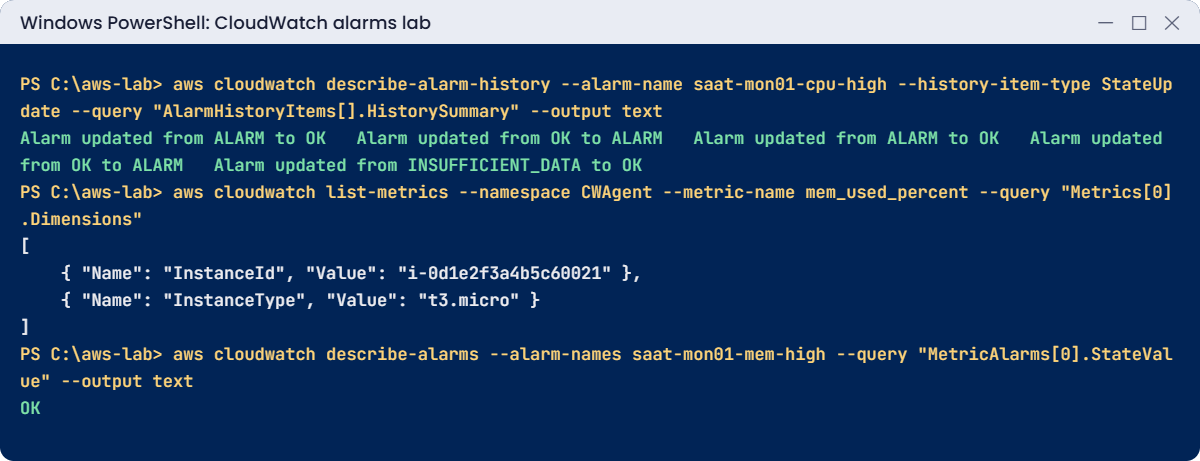
Alarm updated from ALARM to OK Alarm updated from OK to ALARM Alarm updated from ALARM to OK Alarm updated from OK to ALARM Alarm updated from INSUFFICIENT_DATA to OK
{
"DashboardValidationMessages": []
}yes keeps one of the two vCPUs busy, so CPU sat near 50 percent and the alarm fired for real; you got a second ALARM email and then OK. Open CloudWatch, then Dashboards, then saat-ops to see CPU, memory and the alarm on one screen.
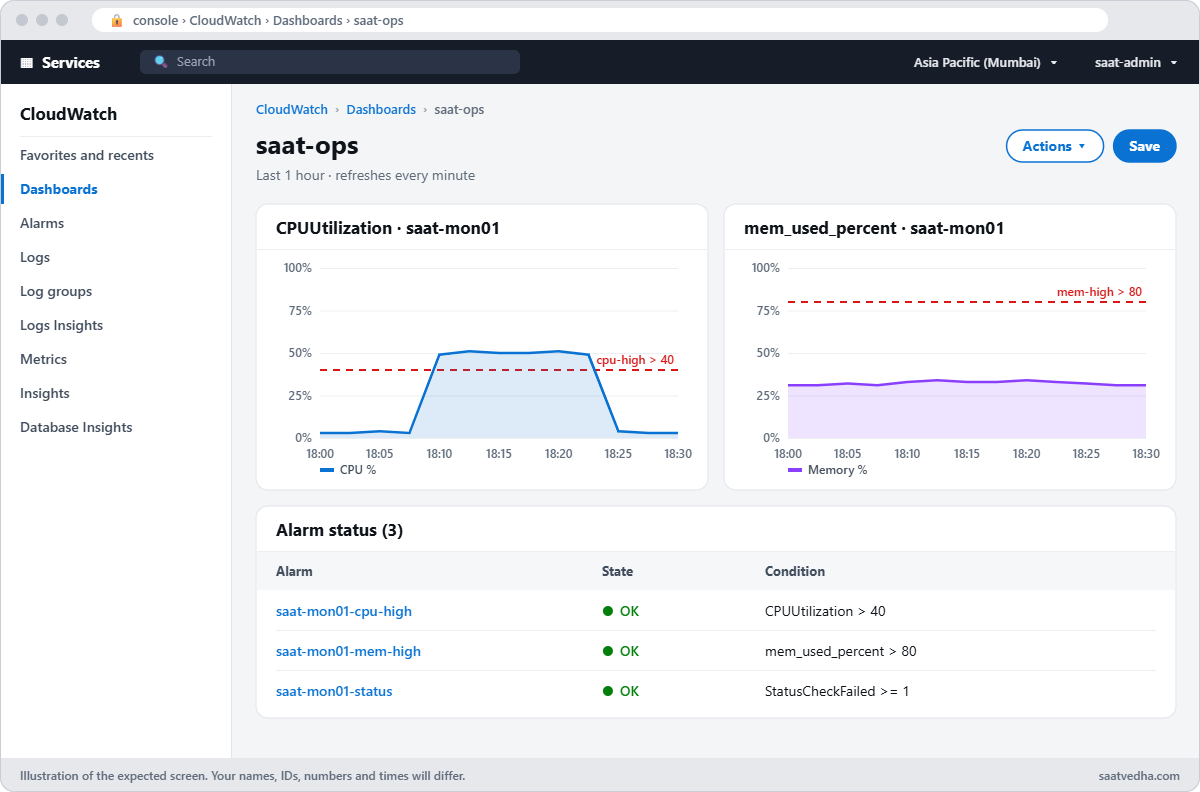
✅ Checkpoint: saat-alerts has a confirmed email, the CPU alarm fired from set-alarm-state and from real load and returned to OK, and saat-ops shows CPU, memory and the alarm. Keep everything for the break lab.
Break It, Then Fix It
Two mistakes that leave alarms silent while something is really wrong.
1Break it: a memory alarm with one dimension missing
Create a memory alarm using only InstanceId, wait four minutes, then check it:
aws cloudwatch put-metric-alarm --alarm-name saat-mon01-mem-high --namespace CWAgent --metric-name mem_used_percent --dimensions "Name=InstanceId,Value=$i" --statistic Average --period 60 --evaluation-periods 3 --threshold 80 --comparison-operator GreaterThanThreshold --alarm-actions $topic
Start-Sleep 240
aws cloudwatch describe-alarms --alarm-names saat-mon01-mem-high --query "MetricAlarms[0].[StateValue,StateReason]" --output textYou should see this:
INSUFFICIENT_DATA Insufficient Data: 3 datapoints were unknown.
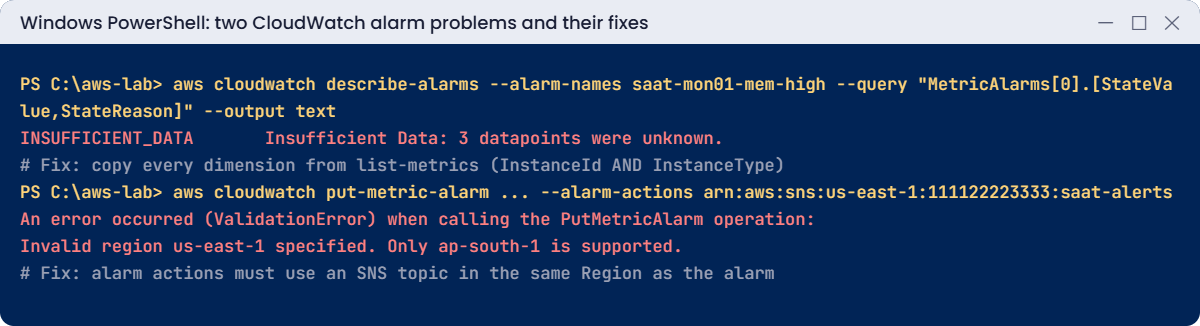
The agent is sending memory data, but with two dimensions. A metric with InstanceId alone doesn’t exist, so the alarm waits forever and would never wake anyone. Fix: ask CloudWatch which dimensions the metric really has, and use all of them:
aws cloudwatch list-metrics --namespace CWAgent --metric-name mem_used_percent --query "Metrics[0].Dimensions"
aws cloudwatch put-metric-alarm --alarm-name saat-mon01-mem-high --namespace CWAgent --metric-name mem_used_percent --dimensions "Name=InstanceId,Value=$i" Name=InstanceType,Value=t3.micro --statistic Average --period 60 --evaluation-periods 3 --threshold 80 --comparison-operator GreaterThanThreshold --alarm-actions $topic
Start-Sleep 180
aws cloudwatch describe-alarms --alarm-names saat-mon01-mem-high --query "MetricAlarms[0].StateValue" --output textYou should see something like this:
[
{
"Name": "InstanceId",
"Value": "i-0d1e2f3a4b5c60021"
},
{
"Name": "InstanceType",
"Value": "t3.micro"
}
]
OK2Break it: send alarms to a topic in another Region
A team copies an alarm script from their N. Virginia account:
$wrongTopic = $topic -replace 'ap-south-1', 'us-east-1'
aws cloudwatch put-metric-alarm --alarm-name saat-mon01-status --namespace AWS/EC2 --metric-name StatusCheckFailed --dimensions "Name=InstanceId,Value=$i" --statistic Maximum --period 60 --evaluation-periods 2 --threshold 1 --comparison-operator GreaterThanOrEqualToThreshold --alarm-actions $wrongTopicYou’ll get this error:
An error occurred (ValidationError) when calling the PutMetricAlarm operation: Invalid region us-east-1 specified. Only ap-south-1 is supported.Alarms and their SNS topics must live in the same Region. Central teams often forget this and end up with alarms in five Regions but a topic in only one. Fix: create a topic in each Region you monitor, or forward with EventBridge.
Rerun with the Mumbai topic:
aws cloudwatch put-metric-alarm --alarm-name saat-mon01-status --namespace AWS/EC2 --metric-name StatusCheckFailed --dimensions "Name=InstanceId,Value=$i" --statistic Maximum --period 60 --evaluation-periods 2 --threshold 1 --comparison-operator GreaterThanOrEqualToThreshold --alarm-actions $topic
aws cloudwatch describe-alarms --alarm-name-prefix saat-mon01 --query "MetricAlarms[].AlarmName" --output textYou should see this:
saat-mon01-cpu-high saat-mon01-mem-high saat-mon01-statusClean up. saat-alerts, the agent parameter and the role policy stay for later lessons:
aws cloudwatch delete-alarms --alarm-names saat-mon01-cpu-high saat-mon01-mem-high saat-mon01-status
aws cloudwatch delete-dashboards --dashboard-names saat-ops
aws ec2 terminate-instances --instance-ids $i | Out-Null
aws ec2 delete-vpc-endpoints --vpc-endpoint-ids $mon | Out-Null
aws ec2 wait instance-terminated --instance-ids $i
.\Stop-SsmEndpoints.ps1
Remove-Item cwagent.json, mon-userdata.sh, dash.json
.\Find-LabResources.ps1✅ Checkpoint: You turned an INSUFFICIENT_DATA alarm into a working one by matching every dimension, and fixed a cross-Region alarm action. Alarms, dashboard, mon01 and endpoints are gone; saat-alerts remains.
This happened at work
The disk alarm that never fired
A payroll company had a disk alarm on every database server: disk_used_percent above 85 percent, page the DBA. It had been green for a year. One Friday, payroll runs failed because a data drive was 100 percent full.
The alarm had been created with dimensions InstanceId and path. After an agent upgrade, the agent also sent device and fstype, so the old metric stopped receiving data. The alarm treated missing data as notBreaching, which showed a calm green OK instead of INSUFFICIENT_DATA.
The DBAs freed space and reran payroll overnight. The team now treats missing data as breaching for critical alarms, has a weekly report of alarms in INSUFFICIENT_DATA, and builds alarms from list-metrics output in code, so dimension changes are caught in review.
Common mistakes and troubleshooting
| Mistake | What happens | What to do |
|---|---|---|
| Missing a dimension | INSUFFICIENT_DATA forever; no alert | Copy every dimension from list-metrics |
| Treating missing data as notBreaching on critical alarms | A dead metric looks healthy | Use breaching or missing, and review INSUFFICIENT_DATA alarms |
| Email subscription never confirmed | Alarms fire, nobody is told | Confirm and test with set-alarm-state |
| 1 of 1 datapoints on a spiky metric | Alert fatigue; people start ignoring pages | Use M of N, such as 3 of 5 |
| Expecting memory and disk without the agent | No such metrics in AWS/EC2 | Install the CloudWatch agent |
| SNS topic in another Region | ValidationError: Invalid region | Use a topic in the alarm’s Region |
Interview questions
Click a question to open it. Each one is written the way an interviewer would ask it. Under it you will see why they ask it and one way you could answer, in your own words.
Fresher level
1. Can you explain in simple words what a CloudWatch alarm is?
Why they ask this: They want to check monitoring basics. Alarms are how a team finds out about problems before users do.
How you might answer: An alarm is a rule that watches one metric, or a metric expression. When the value crosses a threshold, it changes state between OK, ALARM and INSUFFICIENT_DATA.
When the state changes, it can run actions, like sending an SNS notification.
2. A teammate asks why CloudWatch shows CPU for an EC2 instance but not memory. What would you tell them?
Why they ask this: They want to see that you understand what AWS can and can’t see inside a server. It’s one of the first gaps people hit with EC2 monitoring.
How you might answer: Memory and disk usage live inside the guest operating system, and the hypervisor can’t see them. So I’d tell them to install the CloudWatch agent to publish those metrics.
3. You create a new alarm, and it just sits in INSUFFICIENT_DATA. What does that mean?
Why they ask this: They want to check you understand alarm states. An alarm stuck here is not protecting anything.
How you might answer: It means the alarm doesn’t have enough datapoints to decide. Often the metric doesn’t exist with the dimensions I chose, the resource has stopped, or the period is shorter than how often the metric is sent.
So I’d check the dimensions and the period first.
2–5 years experience
4. Your on-call team says they get so many alerts they’ve started ignoring them. How would you fix that without missing real incidents?
Why they ask this: They want to see good alert design. Too many alerts is as dangerous as too few, because people stop reacting.
How you might answer: I’d use M out of N datapoints so one spike doesn’t page anyone, and set thresholds based on user impact. Composite alarms group related signals, and I’d split alerts into warning and paging levels.
Every month we’d review which alarms fired without anyone taking action, and fix or remove them.
5. How would you test that an alarm actually reaches the on-call person, without breaking anything?
Why they ask this: They want to see good operational habits. An alarm that never reaches a person is the same as no alarm.
How you might answer: I’d use aws cloudwatch set-alarm-state to force the alarm into ALARM, then confirm the message arrives in the pager or chat. The alarm goes back to its real state at the next evaluation, so nothing is broken.
6. Besides sending an email, what else can a CloudWatch alarm do for you?
Why they ask this: They want to see that you think about automation, not just notifications. Some problems can be fixed without waking anyone up.
How you might answer: It can notify SNS and run Auto Scaling policies. It can stop, terminate, reboot or recover EC2 instances, and create Systems Manager OpsItems or incidents.
And through EventBridge alarm state change events, it can trigger almost anything else.
Senior level
7. You’re asked to design monitoring for 300 servers across 4 accounts. How would you keep it consistent?
Why they ask this: They want to see standards that work at scale. Hand-made alarms on each server don’t survive growth.
How you might answer: I’d keep a standard agent config in Parameter Store, and define alarms as code per role, like web or database, with consistent naming and tags. Cross-account observability pulls everything into one monitoring account.
Each service gets composite alarms, and each severity goes to one SNS topic or incident tool. A regular report lists alarms stuck in INSUFFICIENT_DATA.
8. After an outage, you find the alarm stayed green the whole time. How do you investigate?
Why they ask this: They want to see honest post-incident analysis. The goal is to close the gap, not to blame anyone.
How you might answer: I’d check the alarm history and the metric graph for that period, and compare the alarm’s dimensions with list-metrics. Then I’d look at the missing data setting, the period versus the metric’s frequency, and whether the threshold matched user impact.
I’d also check that the action and the subscription worked. Then I’d fix the gap and add a test for it.
Quick quiz
Q1. Which namespace holds memory metrics from the CloudWatch agent by default?
- AWS/EC2
- CWAgent
- AWS/Logs
- System/Linux
Show answer
B — The agent publishes to CWAgent unless you change it.
Q2. What does “2 of 3” datapoints to alarm do?
- Fires on any single spike
- Needs 2 breaching periods out of the last 3
- Checks 2 metrics
- Sends 3 emails
Show answer
B — M of N filters out short spikes.
Q3. How do you safely test that alarm emails arrive?
- Stop the instance
- set-alarm-state to ALARM
- Delete the metric
- Raise the threshold
Show answer
B — It forces a state change and reverts at the next evaluation.
Q4. Why did the memory alarm show INSUFFICIENT_DATA?
- The agent was off
- A dimension was missing
- The threshold was too high
- SNS was unconfirmed
Show answer
B — A metric is identified by all its dimensions.
Q5. Where must an alarm’s SNS topic be?
- us-east-1
- The same Region as the alarm
- Any Region
- Another account
Show answer
B — Cross-Region alarm actions are refused.
Quick recap
- A metric is namespace, name and every dimension; miss one and it is a different metric.
- Memory and disk need the CloudWatch agent.
- Use M of N and the right missing-data treatment.
- Confirm SNS subscriptions and test with set-alarm-state.
- Keep alarm actions in the same Region; saat-alerts is your alert topic from now on.
Next lesson
Lesson 24: CloudWatch Logs and Logs Insights → You’ll ship system and app logs with the agent, set retention, and find errors fast with Logs Insights queries.
Further reading: CloudWatch alarms
Want to go deeper into CloudWatch alarms? Read Using Amazon CloudWatch alarms and Collect metrics, logs and traces with the CloudWatch agent. You can also see the full plan for this course on the AWS Cloud Administration course page.
