CloudWatch Database Insights: Find What Slows SQL Server

“The database is slow” is the most common ticket a DBA gets, and the least useful. CloudWatch Database Insights turns it into facts: how many sessions were active, what they were waiting on, which SQL statements and which hosts caused it, minute by minute.

You’ll turn on Database Insights for saat-sql, put real CPU load on it, read the top waits and top SQL from the CLI and the console, and add an alarm. Then you’ll create a blocking chain, find the session at the head of it, and end it.

TimeYou needBy the end you can
75 minutesLessons 42 to 46 done (saat-sql, Start-SqlLab.ps1, Stop-SqlLab.ps1, SNS topic saat-alerts from Lesson 23), your laptop signed in as saat-admin. Cost: a few cents for saat-sql running about an hour; Standard mode keeps 7 days of data at no charge.Explain DB load and average active sessions, turn on Database Insights, read load by waits, SQL and hosts, use the PI API, alarm on DBLoad, and trace blocking to its head blocker.

What it is, in one line

CloudWatch Database Insights shows database load as average active sessions and breaks it down by wait, SQL statement, host and user, so you can see why a database is slow.

In Simple Words

The queue at the bank

A bank has two counters. If four people are standing at the counters or in the queue, the “load” is four, and two of them are waiting.

Database Insights counts people in the bank every second. It also notes why each one is waiting: the counter clerk is busy (CPU), someone is holding the only pen (a lock), or the clerk went to the vault (disk I/O).

If most of the queue is waiting for the pen, hiring more clerks won’t help. You need to find who is holding the pen.

Engineer's View

How Database Insights works

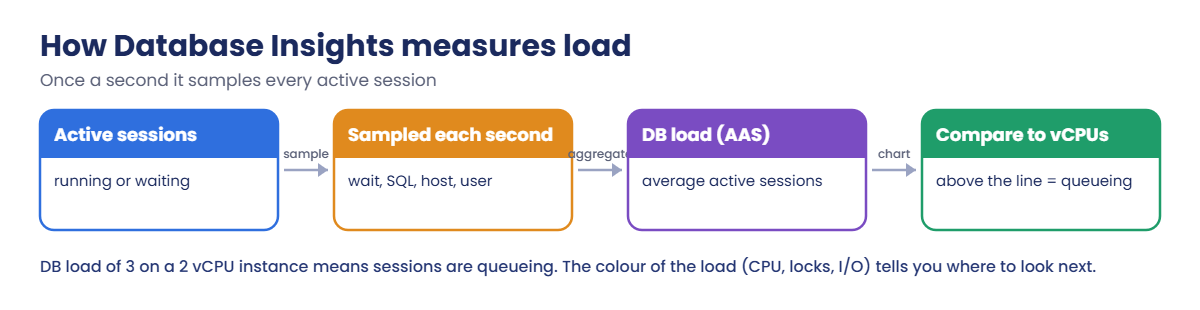
Once a second, RDS samples every active session and records its state: on CPU or waiting, plus the wait type (for SQL Server, things like LCK_M_S, PAGEIOLATCH_SH, WRITELOG), the SQL statement, host, user and database. The average number of active sessions over time is DB load; compare it to the instance’s vCPU count. Load above the vCPU line means queueing.

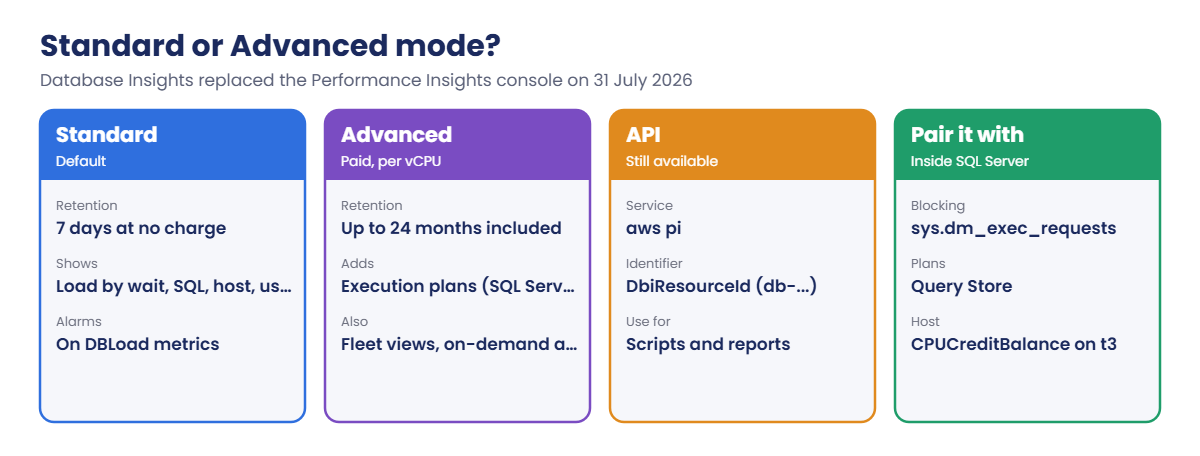
Since the Performance Insights console ended on 31 July 2026, this lives in CloudWatch Database Insights. Standard mode keeps 7 days at no charge (longer retention is paid). Advanced mode is billed per vCPU and adds up to 24 months of history, execution plans for SQL Server, fleet views and on-demand analysis.

The aws pi API still works for scripts, using the instance’s DbiResourceId. DB load is also published to CloudWatch as DBLoad, DBLoadCPU and DBLoadNonCPU, so you can alarm on it. On burstable t3 instances, also watch CPUCreditBalance: when credits run out, CPU is capped and load climbs for no visible reason.

How it works, step by step

Here is how to read Database Insights during an incident.

1Look at the total load

Is DB load above the vCPU line, and since when? That gives you the time window and whether it’s really the database.

How CloudWatch Database Insights measures DB load as average active sessions

2Read the colour of the load

Slice by waits. Mostly CPU means expensive queries or too small an instance; locks mean blocking; I/O waits mean storage limits (Lesson 43).

3Find the SQL and who runs it

Slice by SQL, then by host or user, to find the statement and the app server behind it. Then go inside SQL Server for plans and blocking details.

4Know which mode you need

The options in 2026 look like this:

Database Insights Standard and Advanced modes, the PI API and SQL Server tools

For most teams, Standard mode on every instance plus a DBLoad alarm is the right start. Turn on Advanced mode for the few databases where you need history and plans.

✅ Checkpoint: You can explain DB load, why it’s compared with vCPUs, and what CPU, lock and I/O waits each point to.

Hands-on lab: find the cause of load on saat-sql

Sign in and start the SQL lab:

cd C:\aws-lab
aws login --profile saat-admin
$env:AWS_PROFILE = 'saat-admin'
.\Start-SqlLab.ps1

1Turn on Database Insights and add data

Paste this whole block:

aws rds modify-db-instance --db-instance-identifier saat-sql --enable-performance-insights --performance-insights-retention-period 7 --database-insights-mode standard --apply-immediately --query "DBInstance.DBInstanceStatus" --output text
Start-Sleep 30
aws rds wait db-instance-available --db-instance-identifier saat-sql
$rid = aws rds describe-db-instances --db-instance-identifier saat-sql --query "DBInstances[0].DbiResourceId" --output text
aws rds describe-db-instances --db-instance-identifier saat-sql --query "DBInstances[0].[PerformanceInsightsEnabled,DatabaseInsightsMode,PerformanceInsightsRetentionPeriod]" --output text
sqlcmd -S "127.0.0.1,11433" -U saatadmin -C -d SaatShop -Q "SET NOCOUNT ON; INSERT dbo.Orders (Customer, Amount) SELECT TOP (100000) CONCAT(N'Customer ', ROW_NUMBER() OVER (ORDER BY (SELECT NULL))), CAST(ABS(CHECKSUM(NEWID())) % 500000 / 100.0 AS decimal(10,2)) FROM sys.all_objects a CROSS JOIN sys.all_objects b; SELECT COUNT(*) AS orders FROM dbo.Orders;"
$rid

You should see something like this:

modifying
True    standard        7
orders
-----------
     100003
db-ABCDEFGHIJKLMNOPQRSTUVWXY1

Database Insights is on in Standard mode, with no restart. Note the db-… value: that’s the DbiResourceId the API needs, and it never changes even if you rename the instance.

2Put CPU load on saat-sql

Paste this whole block. Two background jobs run an expensive query again and again for 10 minutes:

$load = {
  param($pw)
  $env:SQLCMDPASSWORD = $pw
  $end = (Get-Date).AddMinutes(10)
  while ((Get-Date) -lt $end) { sqlcmd -S "127.0.0.1,11433" -U saatadmin -C -d SaatShop -Q "SELECT COUNT_BIG(*) FROM dbo.Orders a CROSS JOIN (SELECT TOP (300) OrderId FROM dbo.Orders) b WHERE a.Amount > b.OrderId" | Out-Null }
}
1..2 | ForEach-Object { Start-Job -ScriptBlock $load -ArgumentList $env:SQLCMDPASSWORD } | Out-Null
Get-Job | Select-Object Id, State

You should see something like this:

Id State
-- -----
 1 Running
 2 Running

Open CloudWatch > Insights > Database Insights, choose saat-sql, and watch DB load climb over the next few minutes. The dashed line is the vCPU count (2).
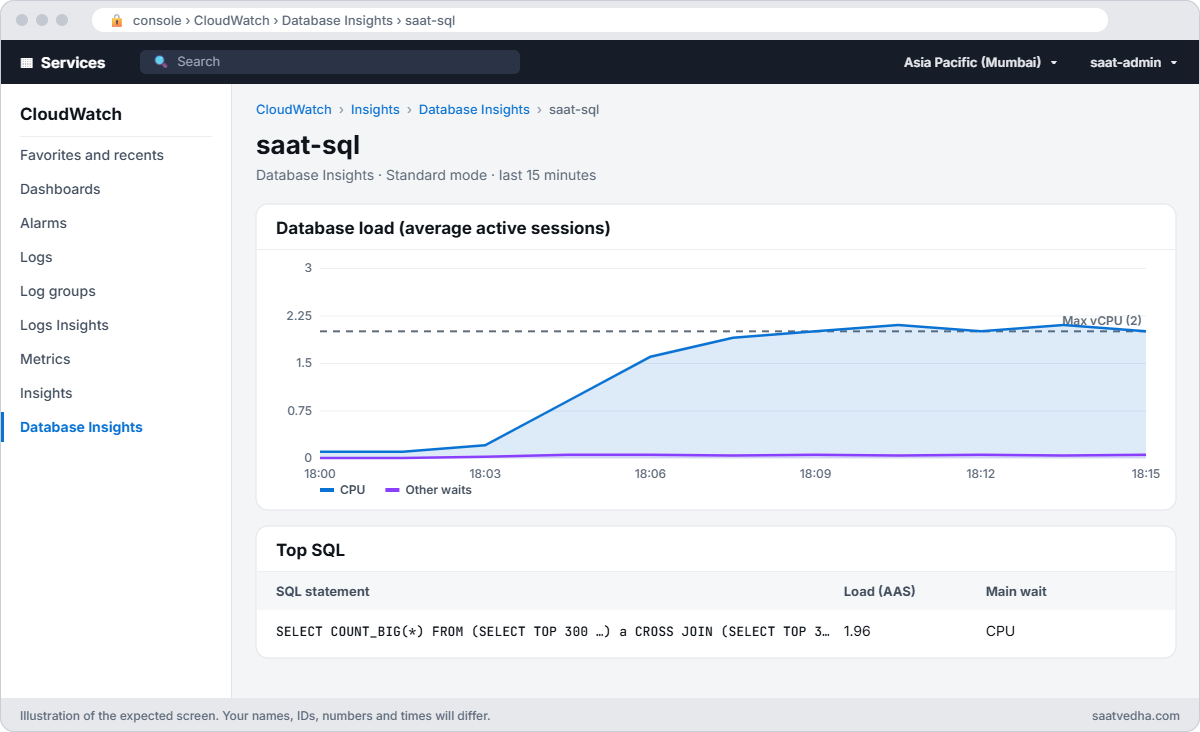
CloudWatch Database Insights for saat-sql showing DB load rising to the vCPU line
Database Insights while the two CPU jobs run: DB load climbs to the vCPU line, almost all of it CPU.

3Read top waits and top SQL from the CLI

Wait about 8 minutes, then paste this whole block:

function Get-TopWaits([int]$Minutes = 15) {
  $e = (Get-Date).ToUniversalTime(); $s = $e.AddMinutes(-$Minutes).ToString('o'); $e = $e.ToString('o')
  '[{"Metric":"db.load.avg","GroupBy":{"Group":"db.wait_event","Limit":5}}]' | Set-Content pi-query.json
  $r = aws pi get-resource-metrics --service-type RDS --identifier $rid --metric-queries file://pi-query.json --start-time $s --end-time $e --period-in-seconds 60 | ConvertFrom-Json
  $r.MetricList | Where-Object { $_.Key.Dimensions } | ForEach-Object { '{0,-25} {1:N2}' -f $_.Key.Dimensions.'db.wait_event.name', (($_.DataPoints.Value | Where-Object { $null -ne $_ } | Measure-Object -Average).Average) }
}
function Get-TopSql([int]$Minutes = 15) {
  $e = (Get-Date).ToUniversalTime(); $s = $e.AddMinutes(-$Minutes).ToString('o'); $e = $e.ToString('o')
  $k = aws pi describe-dimension-keys --service-type RDS --identifier $rid --start-time $s --end-time $e --metric db.load.avg --group-by Group=db.sql_tokenized,Limit=3 | ConvertFrom-Json
  $k.Keys | ForEach-Object { $t = $_.Dimensions.'db.sql_tokenized.statement'; '{0:N2}  {1}' -f $_.Total, $t.Substring(0, [Math]::Min(70, $t.Length)) }
}
Get-TopWaits
Get-TopSql

You should see something like this:

CPU                       1.64
SOS_SCHEDULER_YIELD       0.21
1.79  SELECT COUNT_BIG(*) FROM dbo.Orders a CROSS JOIN (SELECT TOP (?) Orde

Load is almost all CPU, close to the 2 vCPU line, and one statement causes nearly all of it. SOS_SCHEDULER_YIELD shows queries taking turns on busy CPUs. In real life your next step is that query’s plan (Query Store, or Advanced mode’s execution plans) and an index or a rewrite.
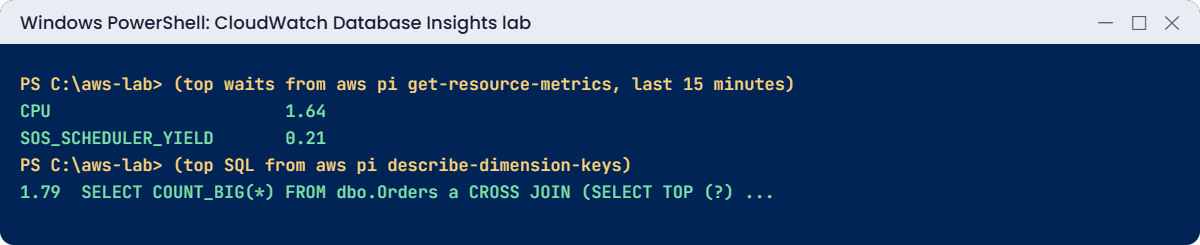
CloudWatch Database Insights lab output: top waits and top SQL
Top waits and top SQL from the API. Something like this.

4Alarm when load passes the vCPU count

Paste this whole block:

$topic = aws sns list-topics --query "Topics[?ends_with(TopicArn, ':saat-alerts')].TopicArn | [0]" --output text
aws cloudwatch put-metric-alarm --alarm-name saat-sql-dbload-high --namespace AWS/RDS --metric-name DBLoad --dimensions Name=DBInstanceIdentifier,Value=saat-sql --statistic Average --period 300 --evaluation-periods 1 --threshold 2 --comparison-operator GreaterThanThreshold --treat-missing-data notBreaching --alarm-actions $topic
Start-Sleep 300
aws cloudwatch describe-alarms --alarm-names saat-sql-dbload-high --query "MetricAlarms[0].[StateValue,StateReason]" --output text

You should see something like this:

ALARM   Threshold Crossed: 1 datapoint [2.06 (20/10/26 16:25:00)] was greater than the threshold (2.0).

You get an email from saat-alerts, as in Lesson 23. A DBLoad alarm catches slowdowns that a CPU alarm misses, such as blocking, where CPU stays low but sessions pile up.

✅ Checkpoint: Database Insights is on in Standard mode, Get-TopWaits shows mostly CPU, Get-TopSql shows the cross-join query, and saat-sql-dbload-high went to ALARM.

Break It, Then Fix It

Two problems you’ll meet the first week you use this for real.

1Break it: the API with the wrong identifier

Call the API with the instance name, as most people try first:

$e = (Get-Date).ToUniversalTime(); $s = $e.AddMinutes(-15).ToString('o'); $e = $e.ToString('o')
aws pi get-resource-metrics --service-type RDS --identifier saat-sql --metric-queries file://pi-query.json --start-time $s --end-time $e --period-in-seconds 60

You’ll get an error like this:

An error occurred (InvalidArgumentException) when calling the GetResourceMetrics operation: Resource identifier saat-sql is invalid.

The PI API wants the DbiResourceId, which stays the same if the instance is renamed or restored under the old name. IAM policies for PI use it too, so a policy written with the instance name silently grants nothing. Fix: look it up and use it, as Get-TopWaits does:

aws rds describe-db-instances --db-instance-identifier saat-sql --query "DBInstances[0].DbiResourceId" --output text

You should see something like this:

db-ABCDEFGHIJKLMNOPQRSTUVWXY1

2Break it: a transaction left open

Stop the CPU jobs, then hold a lock in one session and query the same row from two others:

Get-Job | Stop-Job; Get-Job | Remove-Job
$hold = { param($pw) $env:SQLCMDPASSWORD = $pw; sqlcmd -S "127.0.0.1,11433" -U saatadmin -C -d SaatShop -Q "BEGIN TRAN; UPDATE dbo.Orders SET Amount = Amount WHERE OrderId = 1; WAITFOR DELAY '00:15:00'; COMMIT;" }
$read = { param($pw) $env:SQLCMDPASSWORD = $pw; sqlcmd -S "127.0.0.1,11433" -U saatadmin -C -d SaatShop -Q "SELECT Amount FROM dbo.Orders WHERE OrderId = 1" }
Start-Job -ScriptBlock $hold -ArgumentList $env:SQLCMDPASSWORD | Out-Null
Start-Sleep 5
1..2 | ForEach-Object { Start-Job -ScriptBlock $read -ArgumentList $env:SQLCMDPASSWORD } | Out-Null
Start-Sleep 240
Get-TopWaits -Minutes 4
sqlcmd -S "127.0.0.1,11433" -U saatadmin -C -W -Q "SELECT r.session_id, r.blocking_session_id, r.wait_type, r.wait_time / 1000 AS wait_s FROM sys.dm_exec_requests r WHERE r.blocking_session_id <> 0"

You’ll get something like this:

LCK_M_S                   2.00
CPU                       0.02
session_id blocking_session_id wait_type wait_s
---------- ------------------- --------- ------
63         61                  LCK_M_S   239
64         61                  LCK_M_S   239
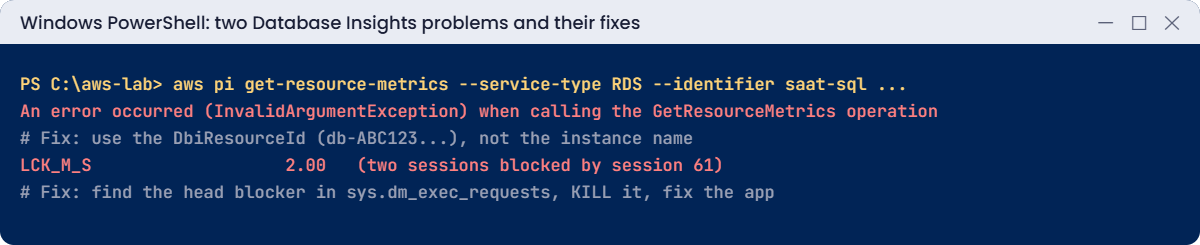
Database Insights problems: wrong identifier and lock waits from blocking
Both problems and their fixes. Something like this.

Load is 2, but CPU is idle: two sessions have waited four minutes for a shared lock held by session 61. A CPU alarm would never fire here, and adding vCPUs wouldn’t help. In apps, this is usually a transaction opened and never committed, or a user’s query window left open in SSMS.

Fix: find the head blocker and end it (its work is rolled back), then fix the code that left it open:

$head = @(sqlcmd -S "127.0.0.1,11433" -U saatadmin -C -h -1 -W -Q "SET NOCOUNT ON; SELECT TOP 1 blocking_session_id FROM sys.dm_exec_requests WHERE blocking_session_id <> 0")[0].Trim()
sqlcmd -S "127.0.0.1,11433" -U saatadmin -C -Q "KILL $head"
Start-Sleep 10
Get-Job | Select-Object Id, State

You should see something like this:

Id State
-- -----
 3 Completed
 4 Completed
 5 Completed

The blocked readers finished as soon as the lock was released. Longer term, READ_COMMITTED_SNAPSHOT ON stops readers waiting for writers, and app timeouts stop forgotten transactions living forever.

Now clean up. Database Insights Standard mode stays on (no charge) and saat-sql keeps its 100,003 orders for Lesson 65:

Get-Job | Remove-Job -Force
aws cloudwatch delete-alarms --alarm-names saat-sql-dbload-high
Remove-Item pi-query.json
.\Stop-SqlLab.ps1

✅ Checkpoint: You fixed an InvalidArgumentException by using the DbiResourceId and lock waits by killing the head blocker. The jobs and the alarm are gone, and saat-sql is stopping.

This happened at work

The upgrade that didn’t help

An online exam platform saw timeouts every weekday at 9 a.m., when thousands of students started tests. CPU on the RDS instance never went above 40%, but the team doubled the instance size anyway. The timeouts stayed.

A DBA finally opened Database Insights for the 9 a.m. window. DB load hit 30 on a 16 vCPU instance, and almost all of it was LCK_M_U. Slicing by SQL showed one statement: a stored procedure that updated a single “seats remaining” row for each exam.

Every student starting the same exam queued for that one row. The fix was a design change, handing out seats in batches, and the instance went back to its old size. The DBLoad alarm they added now pages someone before students notice.

Common mistakes and troubleshooting

MistakeWhat happensWhat to do
Scaling up for every slowdownMoney spent, problem staysRead the waits first: CPU, locks or I/O
Alarming only on CPUUtilizationBlocking goes unnoticedAlarm on DBLoad compared with vCPUs
Using the instance name in the PI API or IAMInvalidArgumentException, or no accessUse the DbiResourceId
Ignoring CPUCreditBalance on t3Sudden slowdowns after busy periodsWatch credits, or use a non-burstable class
Killing sessions blindlyLong rollbacks, angry usersFind the head blocker and know what it was doing
Expecting Advanced features in Standard modeNo execution plans or long historyTurn on Advanced mode where it matters

Interview questions

Click a question to open it. Each one is written the way an interviewer would ask it. Under it you will see why they ask it and one way you could answer, in your own words.

Fresher level

1. Can you explain in simple words what DB load means in Database Insights?

Why they ask this: They want to check that you understand the main number on the dashboard and how to tell if it’s high or normal.

How you might answer: DB load is the average number of active sessions, or AAS. Every second it counts the sessions that are running or waiting.

I always compare it with the vCPU count. If the load is well above the vCPUs, work is queuing up.

2. Someone on your team is still looking for the Performance Insights console. What would you tell them?

Why they ask this: They want to see that you keep up with changes in AWS tooling and don’t rely on old habits.

How you might answer: I’d tell them the Performance Insights console ended on 31 July 2026, and CloudWatch Database Insights has replaced it. That’s where we look at DB load now.

The Performance Insights API still exists, so scripts that call it keep working.

3. You open Database Insights and most of the load shows as LCK_M_S. What does that tell you?

Why they ask this: They want to know you can read a wait type and turn it into a next step.

How you might answer: It means sessions are waiting for shared locks, so there’s blocking going on. Adding CPU won’t help here.

My next step is to find the head blocker, the session at the top of the chain that everyone else is waiting on.

2–5 years experience

4. Users say the app is slow, but CPU on the database looks low. How would you investigate?

Why they ask this: They want to see that you don’t stop at CPU, and that you know slowness often comes from waiting rather than working.

How you might answer: First I compare DB load with the vCPU count in Database Insights. Then I slice the load by waits, looking for locks, I/O or WRITELOG, and then by SQL and by host.

Once I know the wait and the statement, I go deeper with DMVs like sys.dm_exec_requests and check the storage metrics.

5. Database Insights has Standard and Advanced modes. How would you decide which databases get which?

Why they ask this: They want to see that you balance cost against value instead of turning on the most expensive option everywhere.

How you might answer: I’d put Standard mode on everything, because it gives 7 days of load data. Advanced mode is priced per vCPU, so I keep it for critical databases.

Those are the ones where we need long history, execution plans and fleet views.

6. How would you set up an alert that tells you the database is getting slow?

Why they ask this: They want to know you can turn a vague problem like slowness into a clear metric and a sensible threshold.

How you might answer: I’d create a CloudWatch alarm on DBLoad, or DBLoadNonCPU, when it stays above the vCPU count for several minutes. The few minutes stop it from firing on short spikes.

I’d also add alarms on storage and credit metrics, because those cause slowness too.

Senior level

7. You’re asked to set up performance monitoring for 100 RDS instances. How would you design it?

Why they ask this: They want to see that you can build monitoring for a whole fleet in a consistent way, and also plan who acts on the alerts.

How you might answer: I’d enable Database Insights on all of them, with Advanced mode only on the critical ones, and use the fleet views. The DBLoad and storage alarms would be deployed through IaC, so every instance gets the same setup.

I’d add a dashboard per app, Query Store on the SQL Server instances, and runbooks for the top wait types. Once a month we’d review the top SQL together.

8. After a deployment, one query got much slower. How would you prove the cause and fix it?

Why they ask this: They want to see that you use evidence, fix the problem safely, and change the process so it doesn’t happen again.

How you might answer: I’d compare the top SQL and load before and after the release in Database Insights. Then I’d check if the plan changed, using Query Store or the plans in Advanced mode.

Depending on what I find, I force the good plan or add the missing index. Then I add a regression check to the release process.

Quick quiz

Q1. What does DB load measure?

  1. CPU %
  2. Average active sessions
  3. Disk size
  4. Connections
Show answer

B — Sessions running or waiting, averaged.

Q2. DB load is 3 on a 2 vCPU instance. What does that mean?

  1. All fine
  2. Sessions are queueing
  3. Disk is full
  4. Backups are running
Show answer

B — Load above vCPUs means waiting.

Q3. Which identifier does the PI API need?

  1. Instance name
  2. DbiResourceId
  3. Endpoint
  4. ARN of the subnet
Show answer

B — It starts with db-.

Q4. High load with low CPU and LCK_M_S waits means?

  1. Need more CPU
  2. Blocking
  3. Slow network
  4. Full log
Show answer

B — Sessions wait for locks.

Q5. Which mode keeps 7 days of data at no charge?

  1. Advanced
  2. Standard
  3. Both
  4. Neither
Show answer

B — Advanced is billed per vCPU.

Quick recap

  • DB load is average active sessions; compare it with vCPUs.
  • The colour of the load (CPU, locks, I/O) tells you where to look.
  • Standard mode: 7 days at no charge; Advanced adds history and plans.
  • The PI API uses the DbiResourceId; alarm on DBLoad in CloudWatch.
  • Blocking shows as lock waits with low CPU: find and fix the head blocker.

Next lesson

Lesson 52: Backups and DR for RDS SQL Server → You’ll restore saat-sql to a point in time, copy backups to another Region and test a DR restore.

Further reading: CloudWatch Database Insights

Want to go deeper into CloudWatch Database Insights? Read CloudWatch Database Insights and Engine, Region and instance class support for Database Insights. You can also see the full plan for this course on the AWS Cloud Administration course page.

Scroll to Top