
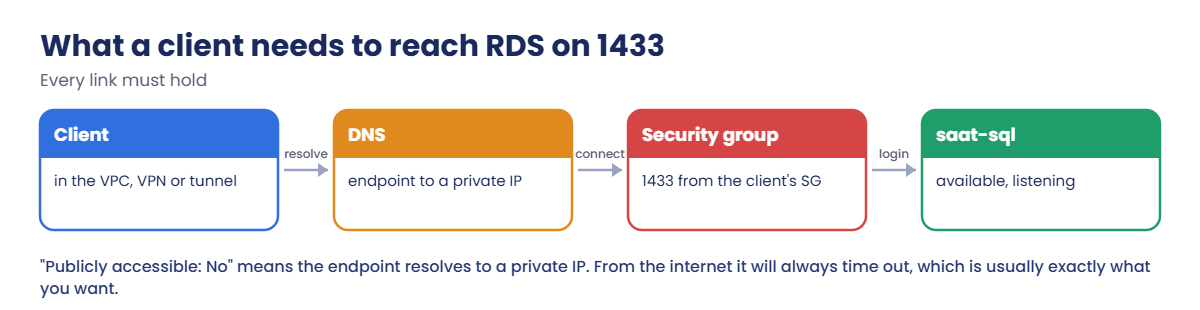
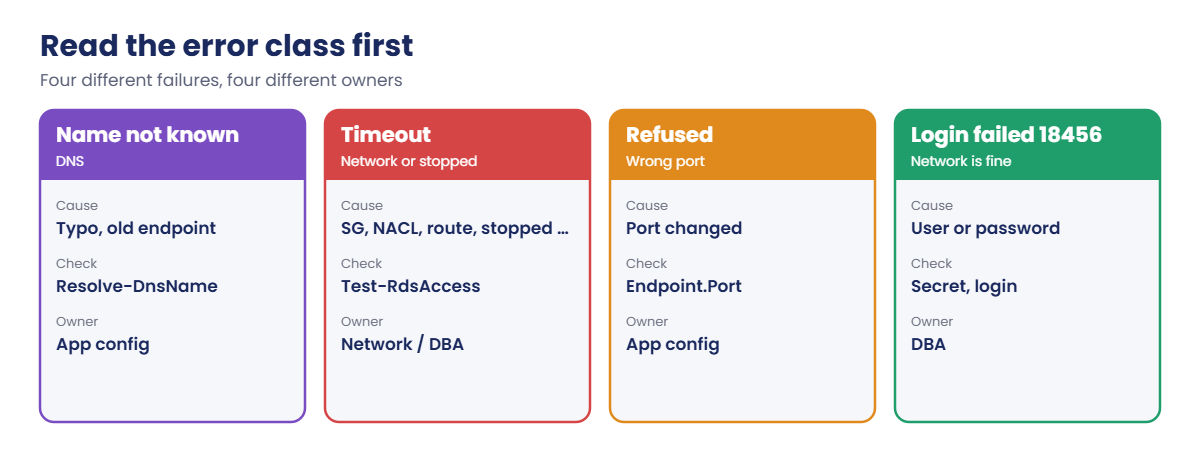
Sign in and start the SQL lab (it starts saat-sql, the endpoints and the tunnel):
cd C:\aws-lab
aws login --profile saat-admin
$env:AWS_PROFILE = 'saat-admin'
$v = Get-Content C:\aws-lab\saat-vpc.json | ConvertFrom-Json
.\Start-SqlLab.ps11See why your laptop can’t connect directly
Paste this whole block. It saves Test-RdsAccess.ps1 (kept for later lessons), tests the endpoint directly from your laptop, then through the tunnel:
$tra = @'
param([string]$Db = 'saat-sql', [string]$SourceInstanceId)
function Test-Cidr([string]$Ip, [string]$Cidr) {
  $net, $bits = $Cidr -split '/'
  $toInt = { param($a) $b = ([Net.IPAddress]$a).GetAddressBytes(); [uint32]$b[0] * 16777216 + [uint32]$b[1] * 65536 + [uint32]$b[2] * 256 + [uint32]$b[3] }
  $mask = if ([int]$bits -eq 0) { [uint32]0 } else { [uint32]([math]::Pow(2, 32) - [math]::Pow(2, 32 - [int]$bits)) }
  ((& $toInt $Ip) -band $mask) -eq ((& $toInt $net) -band $mask)
}
function Test-AclPort($Acl, [bool]$Egress, [string]$Ip, [int]$P) {
  $e = $Acl.Entries | Where-Object { $_.Egress -eq $Egress -and $_.CidrBlock -and (Test-Cidr $Ip $_.CidrBlock) -and ($_.Protocol -eq '-1' -or ($_.Protocol -eq '6' -and $_.PortRange.From -le $P -and $_.PortRange.To -ge $P)) } | Sort-Object RuleNumber | Select-Object -First 1
  $e.RuleAction -eq 'allow'
}
function Show([bool]$Ok, [string]$Text) { if ($Ok) { "[ OK ] $Text" } else { "[FAIL] $Text" } }
$r = aws rds describe-db-instances --db-instance-identifier $Db --query "DBInstances[0]" --output json | ConvertFrom-Json
Show ($r.DBInstanceStatus -eq 'available') "Status: $($r.DBInstanceStatus)"
$ep = $r.Endpoint.Address; $port = [int]$r.Endpoint.Port
"       Endpoint: $($ep):$port  PubliclyAccessible: $($r.PubliclyAccessible)"
$dbIp = (Resolve-DnsName $ep -Type A -ErrorAction SilentlyContinue | Where-Object { $_.Type -eq 'A' } | Select-Object -First 1).IPAddress
Show ([bool]$dbIp) "DNS resolves to $dbIp"
$private = $dbIp -and ((Test-Cidr $dbIp '10.0.0.0/8') -or (Test-Cidr $dbIp '172.16.0.0/12') -or (Test-Cidr $dbIp '192.168.0.0/16'))
if ($private) { "       Private IP: reachable only from inside the VPC, a VPN, or a tunnel" }
if (-not $SourceInstanceId) { return }
$s = aws ec2 describe-instances --instance-ids $SourceInstanceId --query "Reservations[0].Instances[0]" --output json | ConvertFrom-Json
$srcIp = $s.PrivateIpAddress; $srcSgs = @($s.SecurityGroups.GroupId)
"       Source: $SourceInstanceId $srcIp in $($s.SubnetId) with $($srcSgs -join ', ')"
$dbSgIds = @($r.VpcSecurityGroups.VpcSecurityGroupId)
$perms = aws ec2 describe-security-groups --group-ids $dbSgIds --query "SecurityGroups[].IpPermissions[]" --output json | ConvertFrom-Json
$allowed = $perms | Where-Object { ($_.IpProtocol -eq '-1' -or ($_.IpProtocol -eq 'tcp' -and $_.FromPort -le $port -and $_.ToPort -ge $port)) -and (($_.UserIdGroupPairs.GroupId | Where-Object { $srcSgs -contains $_ }) -or ($_.IpRanges.CidrIp | Where-Object { Test-Cidr $srcIp $_ })) }
Show ([bool]$allowed) "DB security group ($($dbSgIds -join ', ')) allows TCP $port from the source"
$dbSubnet = aws ec2 describe-network-interfaces --filters "Name=addresses.private-ip-address,Values=$dbIp" --query "NetworkInterfaces[0].SubnetId" --output text
$dbAcl = aws ec2 describe-network-acls --filters "Name=association.subnet-id,Values=$dbSubnet" --query "NetworkAcls[0]" --output json | ConvertFrom-Json
$srcAcl = aws ec2 describe-network-acls --filters "Name=association.subnet-id,Values=$($s.SubnetId)" --query "NetworkAcls[0]" --output json | ConvertFrom-Json
Show ((Test-AclPort $dbAcl $false $srcIp $port) -and (Test-AclPort $dbAcl $true $srcIp 50000)) "DB subnet NACL ($dbSubnet) in $port / out ephemeral"
Show ((Test-AclPort $srcAcl $true $dbIp $port) -and (Test-AclPort $srcAcl $false $dbIp 50000)) "Source subnet NACL out $port / in ephemeral"
'{ "commands": ["timeout 3 bash -c \"</dev/tcp/HOST/PORT\" 2>&1 && echo open || echo \"closed (exit $?)\""] }'.Replace('HOST', $ep).Replace('PORT', "$port") | Set-Content tcp-test.json
$cmd = aws ssm send-command --document-name AWS-RunShellScript --instance-ids $SourceInstanceId --parameters file://tcp-test.json --query Command.CommandId --output text
do { Start-Sleep 3; $st = aws ssm get-command-invocation --command-id $cmd --instance-id $SourceInstanceId --query Status --output text 2>$null } until ($st -in 'Success', 'Failed', 'TimedOut')
$res = (aws ssm get-command-invocation --command-id $cmd --instance-id $SourceInstanceId --query StandardOutputContent --output text).Trim()
Show ($res -eq 'open') "Live TCP test from the source: $res"
'@
$tra | Set-Content C:\aws-lab\Test-RdsAccess.ps1
.\Test-RdsAccess.ps1
$ep = aws rds describe-db-instances --db-instance-identifier saat-sql --query "DBInstances[0].Endpoint.Address" --output text
Test-NetConnection $ep -Port 1433 -InformationLevel Quiet -WarningAction SilentlyContinue
sqlcmd -S "127.0.0.1,11433" -U saatadmin -C -h -1 -Q "SET NOCOUNT ON; SELECT @@SERVERNAME"
You should see something like this:
[ OK ] Status: available
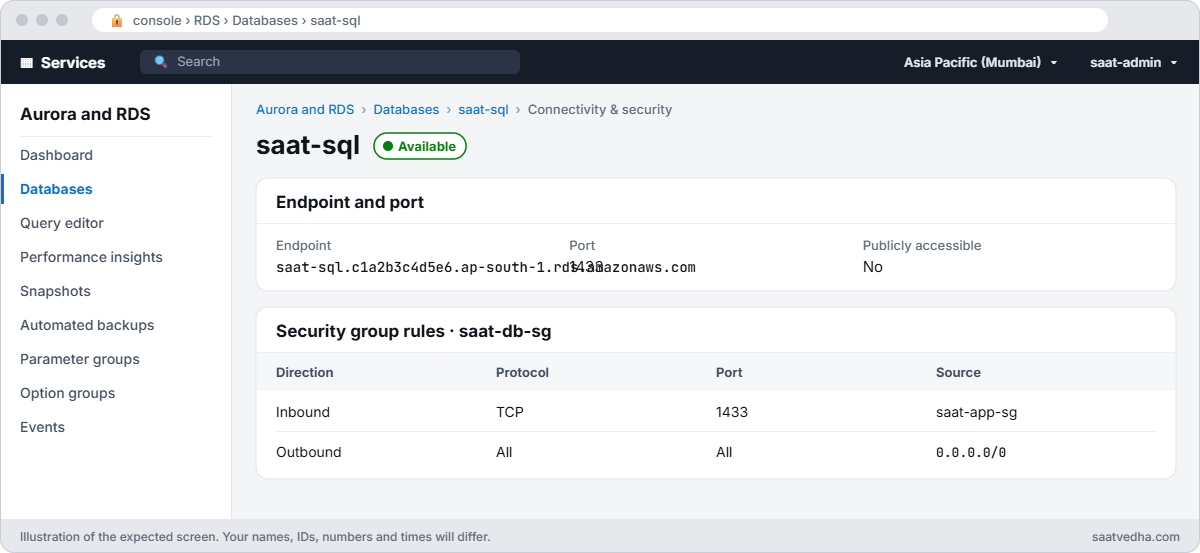
       Endpoint: saat-sql.c1a2b3c4d5e6.ap-south-1.rds.amazonaws.com:1433  PubliclyAccessible: False
[ OK ] DNS resolves to 10.20.21.143
       Private IP: reachable only from inside the VPC, a VPN, or a tunnel
False
EC2AMAZ-ABC123
Your laptop resolves the name to a private 10.20.x.x address it can’t route to, so a direct connection times out. That’s correct and safe; the tunnel through the jump host is the way in. Many “RDS is down” tickets are exactly this.
2Test from a real app server
Paste this whole block. app62 sits in AppSg, which DbSg already allows:
$ami = aws ssm get-parameter --name /aws/service/ami-amazon-linux-latest/al2023-ami-kernel-default-x86_64 --query Parameter.Value --output text
$app = aws ec2 run-instances --image-id $ami --instance-type t3.micro --subnet-id $v.PrivateA --security-group-ids $v.AppSg --iam-instance-profile Name=saat-ec2-ssm-profile --metadata-options HttpTokens=required --tag-specifications 'ResourceType=instance,Tags=[{Key=Name,Value=app62},{Key=course,Value=saatvedha-aws},{Key=lesson,Value=62}]' --query "Instances[0].InstanceId" --output text
do { Start-Sleep 20; $p = aws ssm describe-instance-information --filters "Key=InstanceIds,Values=$app" --query "InstanceInformationList[0].PingStatus" --output text } until ($p -eq 'Online')
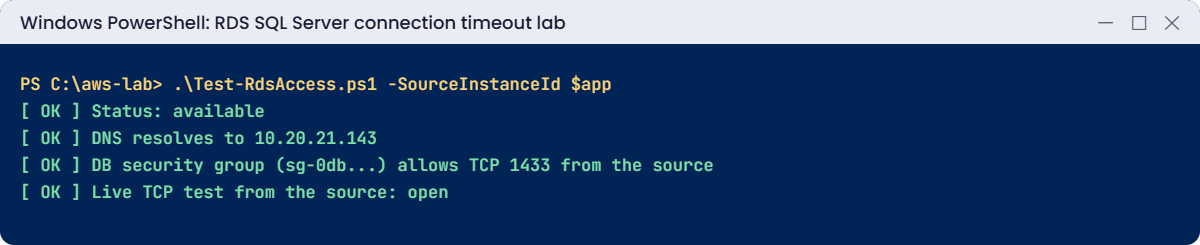
.\Test-RdsAccess.ps1 -SourceInstanceId $app
You should see something like this:
[ OK ] Status: available
       Endpoint: saat-sql.c1a2b3c4d5e6.ap-south-1.rds.amazonaws.com:1433  PubliclyAccessible: False
[ OK ] DNS resolves to 10.20.21.143
       Private IP: reachable only from inside the VPC, a VPN, or a tunnel
       Source: i-0d4e5f6a7b8c90123 10.20.11.88 in subnet-0a1b2c3d4e5f60718 with sg-0app...
[ OK ] DB security group (sg-0db...) allows TCP 1433 from the source
[ OK ] DB subnet NACL (subnet-0f1e2d3c4b5a69788) in 1433 / out ephemeral
[ OK ] Source subnet NACL out 1433 / in ephemeral
[ OK ] Live TCP test from the source: open
Every check passes and the live test from app62 opens port 1433. The script reads exactly what AWS will enforce, then proves it from the client.
3Learn the error classes
Paste this whole block. It shows a DNS failure and a timeout from app62, and a login failure from your laptop:
function Invoke-Linux([string]$Id, [string[]]$Lines) {
  @{ commands = $Lines } | ConvertTo-Json | Set-Content lx-cmd.json
  $cmd = aws ssm send-command --document-name AWS-RunShellScript --instance-ids $Id --parameters file://lx-cmd.json --query Command.CommandId --output text
  do { Start-Sleep 5; $st = aws ssm get-command-invocation --command-id $cmd --instance-id $Id --query Status --output text 2>$null } until ($st -in 'Success', 'Failed', 'TimedOut')
  aws ssm get-command-invocation --command-id $cmd --instance-id $Id --query StandardOutputContent --output text
}
Invoke-Linux $app @(
  'timeout 3 bash -c "</dev/tcp/saat-sql-old.example.internal/1433" 2>&1; echo "dns test exit $?"',
  ('timeout 3 bash -c "</dev/tcp/' + $ep + '/1434" 2>&1; echo "wrong port exit $?"'))
sqlcmd -S "127.0.0.1,11433" -U saatadmin -P "WrongPassword1!" -C -Q "SELECT 1"
You should see something like this:
bash: line 1: saat-sql-old.example.internal: Name or service not known
bash: line 1: /dev/tcp/saat-sql-old.example.internal/1433: Invalid argument
dns test exit 1
wrong port exit 124
Sqlcmd: Error: Microsoft ODBC Driver 18 for SQL Server : Login failed for user 'saatadmin'..
Three different failures: a name that doesn’t resolve, a port the security group doesn’t allow (timeout, exit 124), and a wrong password that reached SQL Server and was refused. Only the middle one is a network ticket.
✅ Checkpoint: Test-RdsAccess.ps1 shows a private IP from your laptop, all OK plus “open” from app62, and you’ve seen DNS, timeout and login failures side by side.
Two timeouts that happen after perfectly normal changes.
1Break it: a new app server in its own security group
A team launches app62b with a new security group, as new services usually get:
$sg2 = aws ec2 create-security-group --group-name saat-app62-sg --description "New billing service" --vpc-id $v.VpcId --query GroupId --output text
$app2 = aws ec2 run-instances --image-id $ami --instance-type t3.micro --subnet-id $v.PrivateA --security-group-ids $sg2 --iam-instance-profile Name=saat-ec2-ssm-profile --metadata-options HttpTokens=required --tag-specifications 'ResourceType=instance,Tags=[{Key=Name,Value=app62b},{Key=course,Value=saatvedha-aws},{Key=lesson,Value=62}]' --query "Instances[0].InstanceId" --output text
do { Start-Sleep 20; $p = aws ssm describe-instance-information --filters "Key=InstanceIds,Values=$app2" --query "InstanceInformationList[0].PingStatus" --output text } until ($p -eq 'Online')
.\Test-RdsAccess.ps1 -SourceInstanceId $app2 | Select-String 'FAIL|OK'
You’ll get something like this:
[ OK ] Status: available
[ OK ] DNS resolves to 10.20.21.143
[FAIL] DB security group (sg-0db...) allows TCP 1433 from the source
[ OK ] DB subnet NACL (subnet-0f1e2d3c4b5a69788) in 1433 / out ephemeral
[ OK ] Source subnet NACL out 1433 / in ephemeral
[FAIL] Live TCP test from the source: closed (exit 124)
DbSg allows AppSg, and app62b isn’t in AppSg. The tempting fix, allowing 0.0.0.0/0 or the whole VPC CIDR, opens the database to everything. Fix: allow the new service’s security group, with a description:
aws ec2 authorize-security-group-ingress --group-id $v.DbSg --ip-permissions "IpProtocol=tcp,FromPort=1433,ToPort=1433,UserIdGroupPairs=[{GroupId=$sg2,Description=1433-from-billing}]" | Out-Null
.\Test-RdsAccess.ps1 -SourceInstanceId $app2 | Select-String 'security group|Live'
You should see something like this:
[ OK ] DB security group (sg-0db...) allows TCP 1433 from the source
[ OK ] Live TCP test from the source: open2Break it: someone stopped the database
Stop saat-sql as a cost-saving schedule might, then test from app62:
aws rds stop-db-instance --db-instance-identifier saat-sql | Out-Null
do { Start-Sleep 30; $st = aws rds describe-db-instances --db-instance-identifier saat-sql --query "DBInstances[0].DBInstanceStatus" --output text } until ($st -eq 'stopped')
.\Test-RdsAccess.ps1 -SourceInstanceId $app | Select-String 'FAIL|OK'
You’ll get something like this:
[FAIL] Status: stopped
[ OK ] DNS resolves to 10.20.21.143
[ OK ] DB security group (sg-0db...) allows TCP 1433 from the source
[ OK ] DB subnet NACL (subnet-0f1e2d3c4b5a69788) in 1433 / out ephemeral
[ OK ] Source subnet NACL out 1433 / in ephemeral
[FAIL] Live TCP test from the source: closed (exit 124)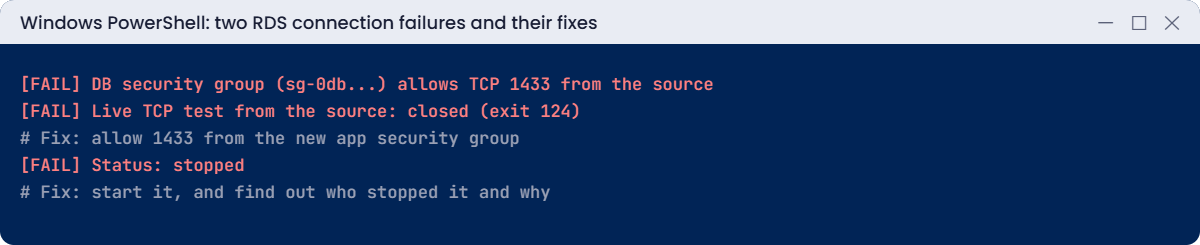
The name still resolves and every rule is fine, which is why stopped databases fool people into chasing the network. Fix: start it, then find who stopped it (Get-RecentChanges.ps1 from Lesson 56) and agree a schedule with the app team:
aws rds start-db-instance --db-instance-identifier saat-sql | Out-Null
aws rds wait db-instance-available --db-instance-identifier saat-sql
.\Test-RdsAccess.ps1 -SourceInstanceId $app | Select-String 'Status|Live'
.\Get-RecentChanges.ps1 -Minutes 30 | Select-String 'StopDBInstance'
You should see something like this:
[ OK ] Status: available
[ OK ] Live TCP test from the source: open
16:41:07 saat-admin rds/StopDBInstance
Now clean up. Test-RdsAccess.ps1 stays:
aws ec2 revoke-security-group-ingress --group-id $v.DbSg --ip-permissions "IpProtocol=tcp,FromPort=1433,ToPort=1433,UserIdGroupPairs=[{GroupId=$sg2}]" | Out-Null
aws ec2 terminate-instances --instance-ids $app $app2 | Out-Null
aws ec2 wait instance-terminated --instance-ids $app $app2
aws ec2 delete-security-group --group-id $sg2
Remove-Item tcp-test.json, lx-cmd.json
.\Stop-SqlLab.ps1
✅ Checkpoint: You fixed a missing security group rule for a new service and a stopped database, and traced who stopped it. app62, app62b, saat-app62-sg and the extra DbSg rule are gone, and saat-sql is stopping.