EBS volumes: gp3 vs io2, snapshots and resizing without downtime
-
Phase 0: Before you start
-
Phase 1: The foundation
-
Phase 2: Operations and security
-
Phase 3: SQL Server on AWS
-
Phase 4: Troubleshooting step by step
-
Phase 5: Final project and career
Every EC2 server stores its operating system and data on network disks called EBS volumes. This lesson on AWS EBS volumes explains the volume types, how snapshots work and how to grow a disk while the server keeps running, which is one of the most common requests a cloud engineer gets.
You’ll add a 10 GiB gp3 data disk to a private server, put a file system on it, snapshot it, grow it to 20 GiB live, and then make the two mistakes that catch people out: changing a volume twice in a row and restoring it in the wrong zone.
| Time | You need | By the end you can |
|---|---|---|
| 60 minutes (server and endpoints running for under an hour) | saat-vpc, saat-ec2-ssm-profile and saat-endpoint-sg from Lesson 13, your laptop signed in with aws login --profile saat-admin and the Session Manager plugin. Cost: about USD 0.10 if you clean up within an hour. | Choose between gp3, gp2 and io2, attach and mount a new volume, take and restore snapshots, resize a live volume, and avoid zone and rate-limit errors. |
What it is, in one line
AWS EBS volumes are network disks for EC2 that live in one Availability Zone, can be resized live and backed up with snapshots.
In Simple Words
External hard disks in a hotel room
Think of the server as a hotel room and EBS volumes as external hard disks you plug into it. You can plug in more disks, swap them to another room on the same floor, or ask for a bigger disk without leaving the room.
A snapshot is a photocopy of a disk stored in the hotel’s safe. The first copy takes a while; after that, only the pages that changed are copied. If a disk breaks, you make a new disk from the photocopy.
One rule: a disk only plugs into rooms on its own floor. That floor is the Availability Zone.
Engineer's View
How EBS really works
An EBS volume is block storage replicated inside one Availability Zone. It attaches to one instance at a time (Multi-Attach for io1/io2 is the exception) in the same zone. On Nitro instances, volumes appear as NVMe devices: the /dev/sdf you ask for usually shows up as /dev/nvme1n1.
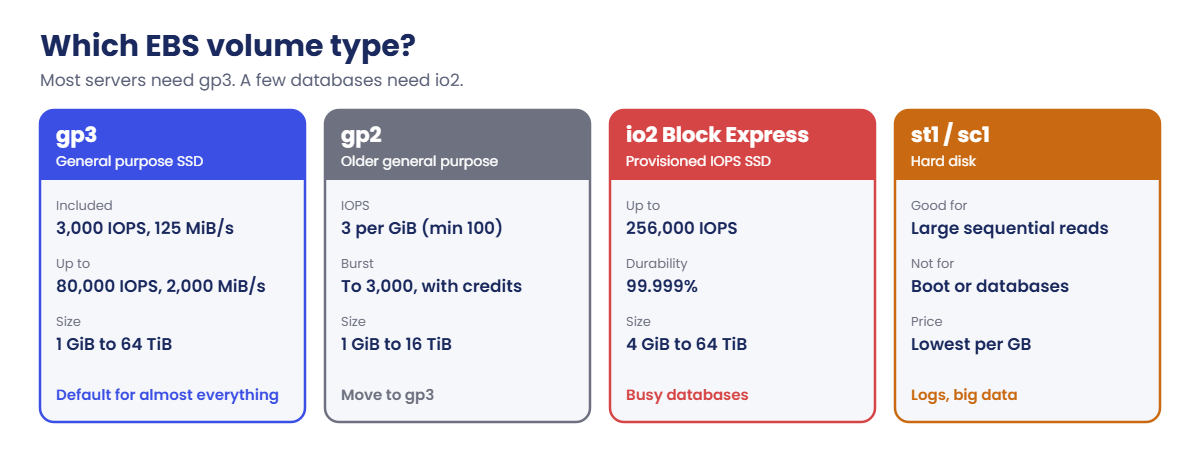
gp3 gives 3,000 IOPS and 125 MiB/s whatever its size, and you can buy more, up to 80,000 IOPS and 2,000 MiB/s, on volumes up to 64 TiB. gp2 ties performance to size (3 IOPS per GiB, minimum 100) and bursts on credits. io2 Block Express is for busy databases: up to 256,000 IOPS with 99.999% durability. HDD types (st1, sc1) suit large sequential reads, never boot disks.
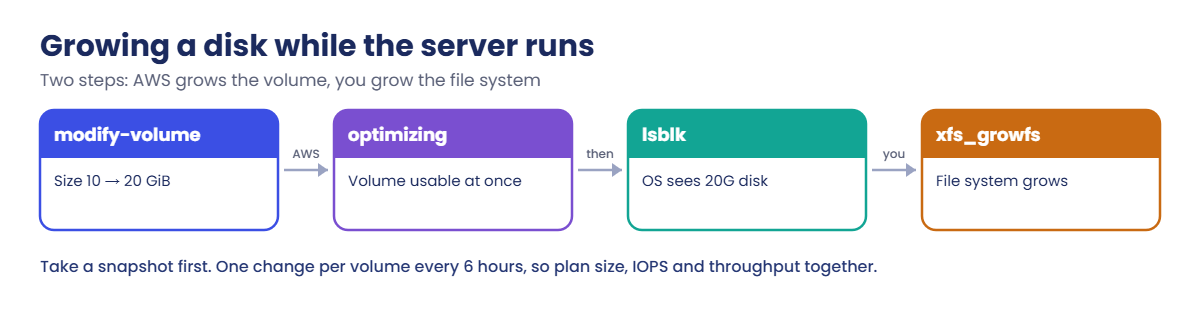
Elastic Volumes lets you change size, type, IOPS and throughput on a live volume. After a change, wait at least 6 hours before changing the same volume again. Growing the volume doesn’t grow the file system; you do that inside the OS (xfs_growfs or resize2fs on Linux, Disk Management or Resize-Partition on Windows).
Volumes can’t shrink.
Snapshots are point-in-time, incremental copies stored in S3 behind the scenes and kept per Region. You can create a new volume from a snapshot in any zone of that Region, copy snapshots to other Regions, and protect them from deletion with Recycle Bin rules. Data volumes you add yourself are not deleted when the instance terminates, unless you set DeleteOnTermination.
How it works, step by step
This is the life of a data disk, from creation to resize.
1Create the volume in the server’s zone
Same zone as the instance (ap-south-1a), encrypted, tagged.
2Attach, format, mount
Attach it, create a file system once, mount it and add it to /etc/fstab by UUID with nofail, so a missing disk never stops the server booting.
3Snapshot before you change anything
A snapshot takes seconds to start and runs in the background. It is your undo button.
4Grow it while it runs
Two steps, one in AWS and one in the operating system.
The 6-hour rule is why experienced engineers change size, type, IOPS and throughput in one modify-volume call, never one after another.
✅ Checkpoint: You can say what gp3 gives you without extra cost, why a volume must be in the same zone as its server, and why you run xfs_growfs after modify-volume.
Hands-on lab: AWS EBS volumes, snapshot and live resize
Start as usual. In step 1 you also save two small helper scripts for the Session Manager endpoints from Lesson 13, so later lessons can switch them on and off with one line.
cd C:\aws-lab
aws login --profile saat-admin
$env:AWS_PROFILE = 'saat-admin'
$env:Path += ';C:\Program Files\Amazon\SessionManagerPlugin\bin'
$v = Get-Content C:\aws-lab\saat-vpc.json | ConvertFrom-Json1Save the endpoint helper scripts and start the endpoints
Paste this whole block:
@'
$v = Get-Content C:\aws-lab\saat-vpc.json | ConvertFrom-Json
$running = aws ec2 describe-vpc-endpoints --filters "Name=tag:lesson,Values=endpoints" "Name=vpc-endpoint-state,Values=pending,available" --query "VpcEndpoints[].VpcEndpointId" --output text
if ($running) { $running -split '\s+' | Set-Content C:\aws-lab\ssm-endpoints.txt; "SSM endpoints already running"; return }
$eps = foreach ($svc in 'ssm','ssmmessages','ec2messages') {
aws ec2 create-vpc-endpoint --vpc-id $v.VpcId --vpc-endpoint-type Interface --service-name "com.amazonaws.ap-south-1.$svc" --subnet-ids $v.PrivateA --security-group-ids $v.EndpointSg --private-dns-enabled --tag-specifications "ResourceType=vpc-endpoint,Tags=[{Key=Name,Value=saat-$svc-endpoint},{Key=course,Value=saatvedha-aws},{Key=lesson,Value=endpoints}]" --query VpcEndpoint.VpcEndpointId --output text
}
$eps | Set-Content C:\aws-lab\ssm-endpoints.txt
do { Start-Sleep 20; $s = aws ec2 describe-vpc-endpoints --vpc-endpoint-ids $eps --query "VpcEndpoints[].State" --output text } until (($s -split '\s+' | Where-Object { $_ -ne 'available' }).Count -eq 0)
"SSM endpoints ready"
'@ | Set-Content C:\aws-lab\Start-SsmEndpoints.ps1
@'
if (-not (Test-Path C:\aws-lab\ssm-endpoints.txt)) { "SSM endpoints already deleted"; return }
$eps = Get-Content C:\aws-lab\ssm-endpoints.txt
aws ec2 delete-vpc-endpoints --vpc-endpoint-ids $eps | Out-Null
Remove-Item C:\aws-lab\ssm-endpoints.txt
"SSM endpoints deleted"
'@ | Set-Content C:\aws-lab\Stop-SsmEndpoints.ps1
.\Start-SsmEndpoints.ps1After two to three minutes you should see:
SSM endpoints ready2Launch data01 and wait for Session Manager
Paste this whole block:
$ami = aws ssm get-parameter --name /aws/service/ami-amazon-linux-latest/al2023-ami-kernel-default-x86_64 --query Parameter.Value --output text
$id = aws ec2 run-instances --image-id $ami --instance-type t3.micro --subnet-id $v.PrivateA --security-group-ids $v.AppSg --iam-instance-profile Name=saat-ec2-ssm-profile --metadata-options HttpTokens=required --tag-specifications 'ResourceType=instance,Tags=[{Key=Name,Value=data01},{Key=course,Value=saatvedha-aws},{Key=lesson,Value=14}]' 'ResourceType=volume,Tags=[{Key=course,Value=saatvedha-aws},{Key=lesson,Value=14}]' --query "Instances[0].InstanceId" --output text
do { Start-Sleep 20; $ping = aws ssm describe-instance-information --filters "Key=InstanceIds,Values=$id" --query "InstanceInformationList[0].PingStatus" --output text } until ($ping -eq 'Online')
"data01 $id is $ping"3Create and attach a 10 GiB gp3 volume
Paste this whole block:
$vol = aws ec2 create-volume --availability-zone ap-south-1a --size 10 --volume-type gp3 --encrypted --tag-specifications 'ResourceType=volume,Tags=[{Key=Name,Value=data01-data},{Key=course,Value=saatvedha-aws},{Key=lesson,Value=14}]' --query VolumeId --output text
aws ec2 wait volume-available --volume-ids $vol
aws ec2 attach-volume --volume-id $vol --instance-id $id --device /dev/sdf --query State --output text
aws ec2 wait volume-in-use --volume-ids $vol
aws ec2 describe-volumes --volume-ids $vol --query "Volumes[0].[VolumeType,Size,Iops,Throughput,Encrypted]" --output textYou should see something like this:
attaching
gp3 10 3000 125 True4Format and mount it inside the server
Open a session with aws ssm start-session --target $id, then type this at the sh-5.2$ prompt:
lsblk -l -o NAME,SIZE,MOUNTPOINTS
sudo mkfs -t xfs /dev/nvme1n1
sudo mkdir /data
sudo mount /dev/nvme1n1 /data
echo "UUID=$(sudo blkid -s UUID -o value /dev/nvme1n1) /data xfs defaults,nofail 0 2" | sudo tee -a /etc/fstab
echo "order 1001" | sudo tee /data/orders.txt
df -h /data | tail -1The last line should show something like this:
/dev/nvme1n1 10G 104M 9.9G 2% /dataCheck that nvme1n1 is the 10G disk in the lsblk list before you format it. Formatting the wrong device destroys its data. Leave the session open.
5Take a snapshot
Back in PowerShell, run this:
$snap = aws ec2 create-snapshot --volume-id $vol --description "data01-data before resize" --tag-specifications 'ResourceType=snapshot,Tags=[{Key=course,Value=saatvedha-aws},{Key=lesson,Value=14}]' --query SnapshotId --output text
aws ec2 wait snapshot-completed --snapshot-ids $snap
aws ec2 describe-snapshots --snapshot-ids $snap --query "Snapshots[0].[SnapshotId,State,VolumeSize]" --output textYou should see something like this:
snap-0c1d2e3f4a5b60718 completed 106Grow the volume to 20 GiB while it runs
Run this:
aws ec2 modify-volume --volume-id $vol --size 20 --query "VolumeModification.ModificationState" --output text
do { Start-Sleep 10; $st = aws ec2 describe-volumes-modifications --volume-ids $vol --query "VolumesModifications[0].ModificationState" --output text } until ($st -in 'optimizing','completed')
$stYou should see this:
modifying
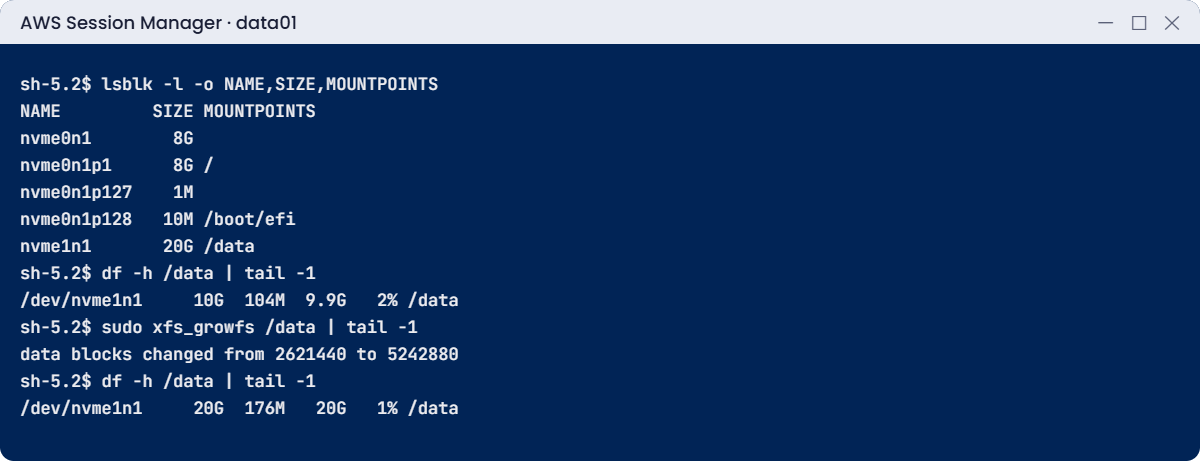
optimizingIn the session, grow the file system:
lsblk -l -o NAME,SIZE,MOUNTPOINTS
df -h /data | tail -1
sudo xfs_growfs /data | tail -1
df -h /data | tail -1
cat /data/orders.txtYou should see something like this:
NAME SIZE MOUNTPOINTS
nvme0n1 8G
nvme0n1p1 8G /
nvme0n1p127 1M
nvme0n1p128 10M /boot/efi
nvme1n1 20G /data
/dev/nvme1n1 10G 104M 9.9G 2% /data
data blocks changed from 2621440 to 5242880
/dev/nvme1n1 20G 176M 20G 1% /data
order 1001The disk showed 20G as soon as AWS reached optimizing, but the file system stayed at 10G until xfs_growfs. Your file was never touched.
7Compare gp2 and gp3 for different sizes
Back in PowerShell, paste this whole block:
foreach ($gib in 20, 100, 1000, 4000) {
[pscustomobject]@{ SizeGiB = $gib; Gp2Iops = [math]::Max(100, [math]::Min(16000, 3 * $gib)); Gp3IncludedIops = 3000 }
} | Format-TableYou should see this:
SizeGiB Gp2Iops Gp3IncludedIops
------- ------- ---------------
20 100 3000
100 300 3000
1000 3000 3000
4000 12000 3000Small gp2 disks are slow unless they burst. gp3 gives 3,000 IOPS at any size, and you add more only when a big disk needs it.
✅ Checkpoint: data01 has a 20 GiB gp3 data disk mounted at /data with orders.txt intact, and a completed snapshot from before the resize. Keep everything for the break lab.
Break It, Then Fix It
Two EBS rules that the console doesn’t warn you about until you break them.
1Break it: change the volume again straight away
Ask for more IOPS on the volume you just resized:
aws ec2 modify-volume --volume-id $vol --iops 4000You’ll get this error (something like this):
An error occurred (VolumeModificationRateExceeded) when calling the ModifyVolume operation: You've reached the maximum modification rate per volume limit. Wait at least 6 hours between modifications per EBS volume.
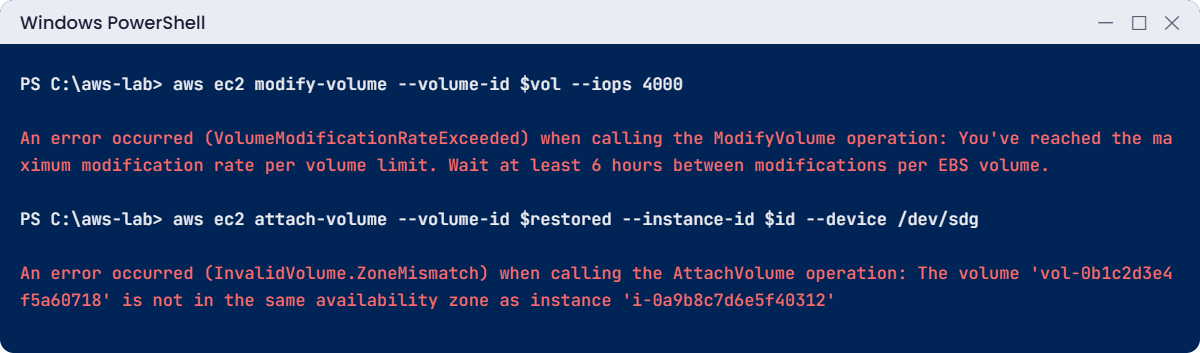
Fix: there isn’t one for the next 6 hours. Plan changes together: --size 20 --iops 4000 --throughput 250 in one call. In an emergency, create a new volume from a snapshot with the settings you need and swap it in.
2Break it: restore a snapshot in the wrong zone
Create a volume from the snapshot in ap-south-1b and try to attach it to data01 (in ap-south-1a):
$restored = aws ec2 create-volume --availability-zone ap-south-1b --snapshot-id $snap --volume-type gp3 --tag-specifications 'ResourceType=volume,Tags=[{Key=course,Value=saatvedha-aws},{Key=lesson,Value=14}]' --query VolumeId --output text
aws ec2 wait volume-available --volume-ids $restored
aws ec2 attach-volume --volume-id $restored --instance-id $id --device /dev/sdgYou’ll get this error (something like this):
An error occurred (InvalidVolume.ZoneMismatch) when calling the AttachVolume operation: The volume 'vol-0b1c2d3e4f5a60718' is not in the same availability zone as instance 'i-0a9b8c7d6e5f40312'Snapshots belong to the Region, volumes belong to a zone. Fix: create the volume in the instance’s zone:
aws ec2 delete-volume --volume-id $restored
$restored = aws ec2 create-volume --availability-zone ap-south-1a --snapshot-id $snap --volume-type gp3 --tag-specifications 'ResourceType=volume,Tags=[{Key=course,Value=saatvedha-aws},{Key=lesson,Value=14}]' --query VolumeId --output text
aws ec2 wait volume-available --volume-ids $restored
aws ec2 attach-volume --volume-id $restored --instance-id $id --device /dev/sdg --query State --output textIn the session, mount the copy read-only. The nouuid option is needed because it has the same XFS ID as /data:
sudo mkdir /restore
sudo mount -o ro,nouuid /dev/nvme2n1 /restore
cat /restore/orders.txtYou should see this:
order 10013Clean up
Type exit in the session, then paste this whole block in PowerShell:
aws ec2 terminate-instances --instance-ids $id | Out-Null
aws ec2 wait instance-terminated --instance-ids $id
aws ec2 describe-volumes --volume-ids $vol $restored --query "Volumes[].[VolumeId,State]" --output text
aws ec2 delete-volume --volume-id $vol
aws ec2 delete-volume --volume-id $restored
aws ec2 delete-snapshot --snapshot-id $snap
.\Stop-SsmEndpoints.ps1
.\Find-LabResources.ps1The describe line shows something like this before you delete them:
vol-0a1b2c3d4e5f60718 available
vol-0b1c2d3e4f5a60718 availableBoth data volumes survived the termination, because volumes you add yourself are kept unless DeleteOnTermination is set. This is exactly how forgotten volumes pile up on real bills.
✅ Checkpoint: You met the 6-hour rule and the zone rule, read the copy from the snapshot, and deleted the instance, both volumes, the snapshot and the endpoints.
This happened at work
1,200 disks nobody owned
A gaming company’s AWS bill kept growing even though the number of servers stayed the same. A cost review found about 1,200 EBS volumes in the available state, attached to nothing. Most were data disks from test servers that had been terminated over three years; terminating them had left the extra volumes behind.
On top of that, a script took daily snapshots of every volume and never deleted any. There were more than 200,000 snapshots. Together the orphaned volumes and snapshots cost more than all the running servers.
The team tagged everything with an owner, deleted unattached volumes after a two-week notice (with a final snapshot of anything unclear), and moved snapshot schedules to Amazon Data Lifecycle Manager with 7 daily and 4 weekly copies kept. An AWS Config rule now flags unattached volumes older than 14 days, and a Recycle Bin rule keeps deleted snapshots for 7 days in case someone needs one back.
Common mistakes and troubleshooting
| Mistake | What happens | What to do |
|---|---|---|
| Creating a volume in a different zone from the server | InvalidVolume.ZoneMismatch | Create it in the instance’s zone; snapshots can restore to any zone |
| Changing size, then IOPS, then throughput | VolumeModificationRateExceeded for 6 hours | Change everything in one modify-volume call |
| Growing the volume but not the file system | df still shows the old size | xfs_growfs or resize2fs (growpart first if partitioned) |
| Mounting by device name in fstab | Server may not boot when names change | Mount by UUID with nofail |
| Formatting the wrong device | Data destroyed | Check lsblk sizes and names before mkfs |
| Forgetting added volumes after terminate | Unattached volumes keep charging | Delete them or set DeleteOnTermination |
| Keeping gp2 out of habit | Slow small disks, burst credit surprises | Use gp3; migrate gp2 with modify-volume |
Interview questions
Click a question to open it. Each one is written the way an interviewer would ask it. Under it you will see why they ask it and one way you could answer, in your own words.
Fresher level
1. How would you explain an EBS volume to someone who has only used a laptop hard disk?
Why they ask this: They want to check basic storage knowledge. Knowing that EBS is tied to one zone explains many later design choices.
How you might answer: I’d say it’s like a disk for your EC2 instance, but it lives on the network, not inside the server. It’s copied within one Availability Zone, and it keeps its data even if the instance goes away.
It can only attach to an instance in the same zone.
2. You find a lot of old gp2 volumes in an account. Why might you move them to gp3?
Why they ask this: They want to see practical cost and performance awareness. This is one of the easiest savings in many accounts.
How you might answer: On gp2, performance depends on size, 3 IOPS per GiB, and small volumes burst on credits. gp3 gives 3,000 IOPS and 125 MiB/s at any size, and I can buy more of each separately.
So gp3 is usually cheaper and more predictable.
3. Can you explain in simple words what an EBS snapshot is?
Why they ask this: They want to check backup basics. Snapshots are behind most EC2 backups and restores.
How you might answer: A snapshot is a point-in-time copy of a volume, and it’s incremental, so only changed blocks are stored after the first one. AWS stores it at the Region level.
I can create a new volume from it in any zone of that Region, or copy it to another Region.
2–5 years experience
4. A Linux server is running out of disk space and you can’t take it down. How would you add space?
Why they ask this: They want to see a daily operations task done safely. Taking a snapshot first shows good habits.
How you might answer: First I’d take a snapshot. Then I’d use modify-volume to set the new size and wait for the volume to reach the optimizing state.
After that I grow the partition with growpart if needed, and the file system with xfs_growfs or resize2fs. No reboot is needed.
5. A database team asks for io2 volumes. When would you agree, and when would you push back?
Why they ask this: They want to see judgement when choosing storage for databases. io2 is often requested when gp3 would do.
How you might answer: I’d agree when the database needs very high or very consistent IOPS beyond what gp3 can give, or needs 99.999% durability or Multi-Attach.
Otherwise I’d suggest gp3 with extra provisioned IOPS, because many workloads run fine on it and it’s cheaper.
6. You restored a volume from a snapshot, and the app is slow for the first hour. Why does that happen?
Why they ask this: They want to see whether you understand how snapshot restores work inside. It matters a lot during an incident.
How you might answer: Blocks are loaded from snapshot storage the first time they’re read, which is called lazy loading. So the first reads are slow.
For restores where speed matters, I’d use Fast Snapshot Restore, or read every block once with something like fio or dd before the app goes live.
Senior level
7. You’re asked to design EBS backup and retention for 300 servers. What would you put in place?
Why they ask this: They want to see operational design at scale. Backups that are never tested, or snapshots that are never cleaned, are both common problems.
How you might answer: I’d use tag-based policies in Amazon Data Lifecycle Manager or AWS Backup, with daily and weekly retention and cross-Region copies for disaster recovery. Recycle Bin rules protect against accidental deletion, and everything is encrypted with KMS.
We’d run restore tests regularly. Reports on unattached volumes and old snapshots keep the cost under control.
8. The DBA says a database server has high disk latency. How would you check whether EBS is the problem?
Why they ask this: They want to see performance troubleshooting. Senior engineers know the instance can be the bottleneck, not only the volume.
How you might answer: I’d look at the volume’s CloudWatch metrics, like VolumeReadOps, VolumeWriteOps, VolumeQueueLength and the latency metrics. I’d also check the instance’s EBSIOBalance% and EBSByteBalance% to see if it’s hitting instance-level limits.
Once I know whether the volume or the instance type is the bottleneck, I’d raise gp3 IOPS and throughput, move to io2, or choose an instance with more EBS bandwidth.
Quick quiz
Q1. How many IOPS does a gp3 volume include at any size?
- 100
- 1,000
- 3,000
- 16,000
Show answer
C — gp3 includes 3,000 IOPS and 125 MiB/s whatever its size.
Q2. After modify-volume grows a disk, what else must you do on Linux?
- Nothing
- Reboot
- Grow the file system (for example xfs_growfs)
- Create a new instance
Show answer
C — AWS grows the block device; the OS has to grow the file system.
Q3. Attaching a volume fails with InvalidVolume.ZoneMismatch. Why?
- The volume is encrypted
- The volume and instance are in different Availability Zones
- The volume is too large
- The snapshot is incomplete
Show answer
B — Volumes attach only to instances in the same zone.
Q4. How long must you wait between modifications of the same volume?
- 1 minute
- 1 hour
- 6 hours
- 24 hours
Show answer
C — EBS allows one modification per volume every 6 hours.
Q5. What happens to a data volume you attached yourself when the instance is terminated?
- Always deleted
- Kept unless DeleteOnTermination is set
- Moved to S3
- Converted to a snapshot
Show answer
B — Added volumes are kept by default, so delete them yourself.
Quick recap
- EBS volumes live in one zone; snapshots belong to the Region and restore to any zone.
- gp3 gives 3,000 IOPS and 125 MiB/s at any size (up to 80,000 IOPS and 2,000 MiB/s); io2 Block Express for the busiest databases.
- Resize live: modify-volume, wait for optimizing, then grow the file system. One change per 6 hours.
- Mount data disks by UUID with nofail; check lsblk before mkfs.
- Added volumes and snapshots outlive instances; delete them or they keep charging. Start-SsmEndpoints.ps1 and Stop-SsmEndpoints.ps1 are ready for later labs.
Next lesson
Lesson 15: AMIs and launch templates → You’ll turn a configured server into your own image and launch identical copies from a template.
Further reading: AWS EBS volumes
Want to go deeper into AWS EBS volumes? Read Amazon EBS volume types and Modify a volume using Amazon EBS Elastic Volumes. You can also see the full plan for this course on the AWS Cloud Administration course page.
