Launch your first EC2 instance (Linux)
-
Phase 0: Before you start
-
Phase 1: The foundation
-
Phase 2: Operations and security
-
Phase 3: SQL Server on AWS
-
Phase 4: Troubleshooting step by step
-
Phase 5: Final project and career
Time to run a real server. In this lesson you use one command to launch EC2 instance web01 into saat-public-a, let a start-up script install a web server, and open the page in your browser. Then you connect over SSH the careful way: only from your own IP address.
You’ll also learn the difference between reboot, stop and terminate, because that difference shows up on every AWS bill.
| Time | You need | By the end you can |
|---|---|---|
| 60 minutes | saat-vpc with saat-web-sg (Lessons 8 to 10), your laptop signed in with aws login --profile saat-admin, and the OpenSSH client (built into Windows 10 and 11). Cost: about USD 0.05 if you terminate within two hours. | Launch an EC2 instance from the CLI with an AMI, type, subnet, security groups, key pair and user data; connect with SSH; read instance metadata; and know what stop and terminate keep. |
What it is, in one line
To launch an EC2 instance is to rent a virtual server: you pick the image, size, network, firewall and key, and AWS starts it in seconds.
In Simple Words
Renting a car at the airport
At the airport rental desk you pick the model (the instance type), the car comes with everything already fitted (the AMI), and you get a key (the key pair). You choose which car park to collect it from (the subnet).
You pay by the hour while you have it. Returning it to the parking lot with the engine off is “stop”: you still pay for the parking space (the disk). Handing back the keys for good is “terminate”.
A note on the dashboard saying “first thing, put the radio on my station” is the user data script. It runs once, the first time you start the car.
Engineer's View
What an instance really is
An EC2 instance is a virtual machine on AWS’s Nitro hypervisor. Its instance type fixes CPU, memory and network speed: t3.micro has 2 vCPUs and 1 GiB of RAM and is burstable, meaning it earns CPU credits while idle and spends them under load (Lesson 61 covers what happens when they run out).
The AMI (Amazon Machine Image) is the starting disk. AWS publishes the latest Amazon Linux 2023 AMI ID in a public Systems Manager parameter, so scripts never hard-code an AMI ID that goes stale. The root disk is an EBS volume (Lesson 14).
A key pair is an SSH key: AWS stores the public key and puts it on the instance at first boot; you keep the private key. User data is a script that cloud-init runs once, as root, at first boot. Instance metadata at 169.254.169.254 tells the instance about itself; require IMDSv2 (token-based) at launch, which blocks a whole class of attacks.
Billing: the instance is charged per second while running (Linux, 60-second minimum), plus its EBS volume all the time, plus its public IPv4 address while it has one. On new accounts this draws from your credits.
How it works, step by step
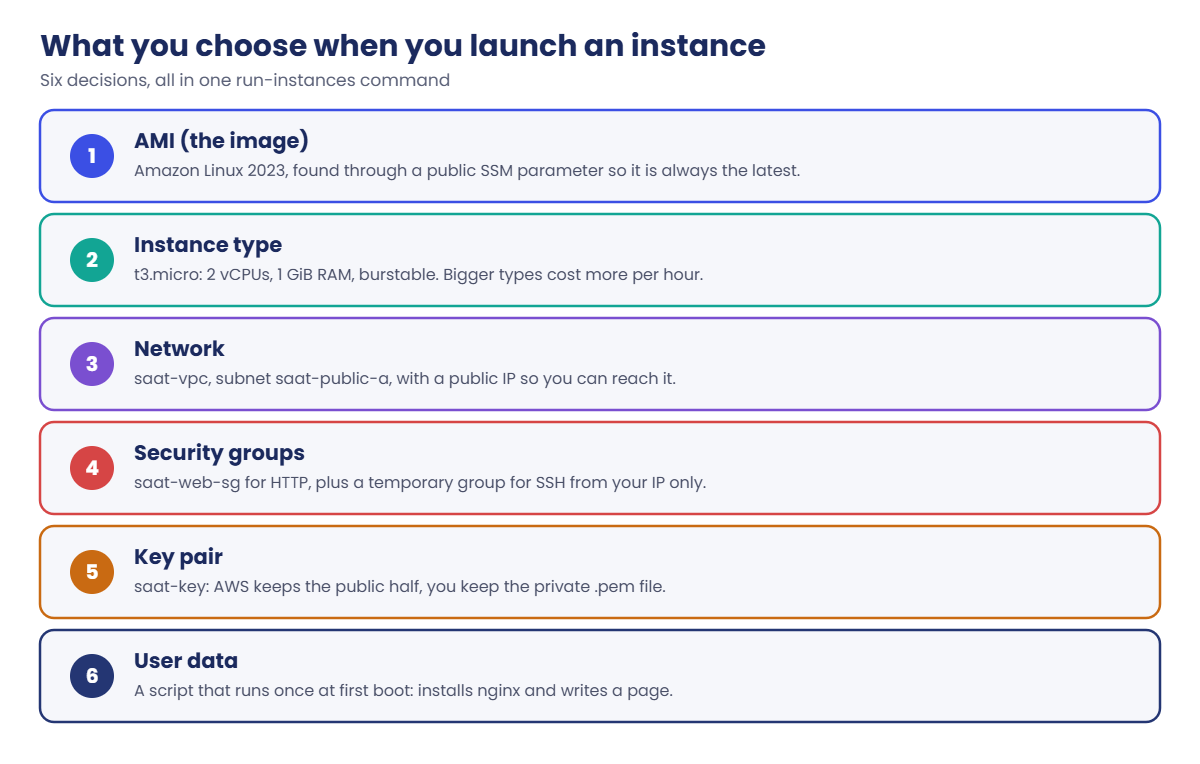
Every launch, console or CLI, makes the same six choices.
1Find the image
Read the AMI ID for the current Amazon Linux 2023 from a public SSM parameter in your Region.
2Prepare access
Create a key pair once and protect the private key file. Open SSH only from your own public IP, in a separate, temporary security group.
3Prepare the first-boot script
The user data script installs nginx and writes a page. It must use Linux line endings, which matters on Windows (you’ll see why in Break It).
4Launch, wait, test
run-instances returns in a second; the instance needs a minute or two to boot and pass its status checks. Then test from outside (HTTP) and inside (SSH).
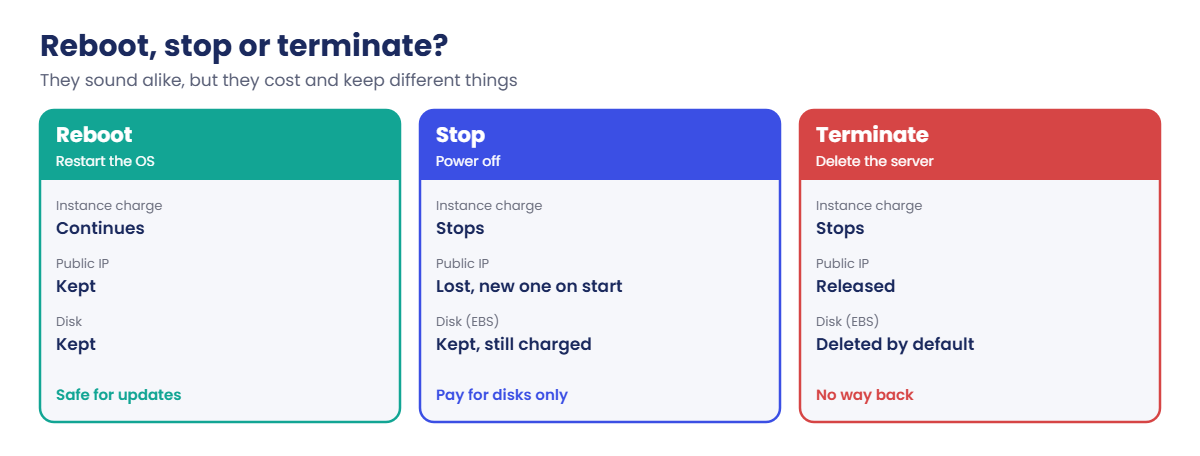
When you’re done for the day, choose carefully between these three.
“Stop” is the most misunderstood. A stopped instance has no compute charge, but its disks still cost money, and when you start it again it usually gets a different public IP. Anything pointing at the old IP breaks.
✅ Checkpoint: You can list the six launch choices and say what reboot, stop and terminate keep and charge.
Hands-on lab: launch EC2 instance web01 from the CLI
Start as usual and load the network:
cd C:\aws-lab
aws login --profile saat-admin
$env:AWS_PROFILE = 'saat-admin'
$v = Get-Content C:\aws-lab\saat-vpc.json | ConvertFrom-Json1Find the latest Amazon Linux 2023 image
Run this:
$ami = aws ssm get-parameter --name /aws/service/ami-amazon-linux-latest/al2023-ami-kernel-default-x86_64 --query Parameter.Value --output text
$amiYou should see something like this (the ID changes as AWS publishes updates):
ami-0a3c14e1ddbe7f23c2Create a key pair and lock down the key file
Paste this whole block:
$key = aws ec2 create-key-pair --key-name saat-key --key-type ed25519 --key-format pem --tag-specifications 'ResourceType=key-pair,Tags=[{Key=course,Value=saatvedha-aws},{Key=lesson,Value=11}]' --query KeyMaterial --output text
[IO.File]::WriteAllText('C:\aws-lab\saat-key.pem', (($key -join "`n") + "`n"))
icacls C:\aws-lab\saat-key.pem /inheritance:r /grant:r "$($env:USERNAME):(R)"The last command should end with:
Successfully processed 1 files; Failed processing 0 filesAWS shows the private key only once. WriteAllText keeps Linux line endings, and icacls removes everyone else’s access, which SSH insists on.
3Allow SSH from your IP only
Paste this whole block:
$myip = (Invoke-RestMethod https://checkip.amazonaws.com).Trim()
$sshSg = aws ec2 create-security-group --group-name saat-ssh-temp --description "SSH from one admin IP (temporary)" --vpc-id $v.VpcId --tag-specifications 'ResourceType=security-group,Tags=[{Key=Name,Value=saat-ssh-temp},{Key=course,Value=saatvedha-aws},{Key=lesson,Value=11}]' --query GroupId --output text
aws ec2 authorize-security-group-ingress --group-id $sshSg --protocol tcp --port 22 --cidr "$myip/32" | Out-Null
"SSH allowed from $myip"4Write the user data script with Linux line endings
Paste this whole block:
$ud = @'
#!/bin/bash
dnf install -y nginx
echo "<h1>Hello from web01</h1>" > /usr/share/nginx/html/index.html
systemctl enable --now nginx
'@
[IO.File]::WriteAllText('C:\aws-lab\web01-userdata.sh', ($ud -replace "`r`n", "`n"))5Launch web01
Paste this whole block (the wait line takes two to three minutes):
$id = aws ec2 run-instances --image-id $ami --instance-type t3.micro --key-name saat-key --subnet-id $v.PublicA --security-group-ids $v.WebSg $sshSg --user-data file://web01-userdata.sh --metadata-options HttpTokens=required --tag-specifications 'ResourceType=instance,Tags=[{Key=Name,Value=web01},{Key=course,Value=saatvedha-aws},{Key=lesson,Value=11},{Key=owner,Value=yourname.admin}]' 'ResourceType=volume,Tags=[{Key=course,Value=saatvedha-aws},{Key=lesson,Value=11}]' --query "Instances[0].InstanceId" --output text
aws ec2 wait instance-status-ok --instance-ids $id
$ip = aws ec2 describe-instances --instance-ids $id --query "Reservations[0].Instances[0].PublicIpAddress" --output text
aws ec2 describe-instances --instance-ids $id --query "Reservations[0].Instances[0].[InstanceId,State.Name,InstanceType,Placement.AvailabilityZone,PublicIpAddress]" --output textYou should see something like this:
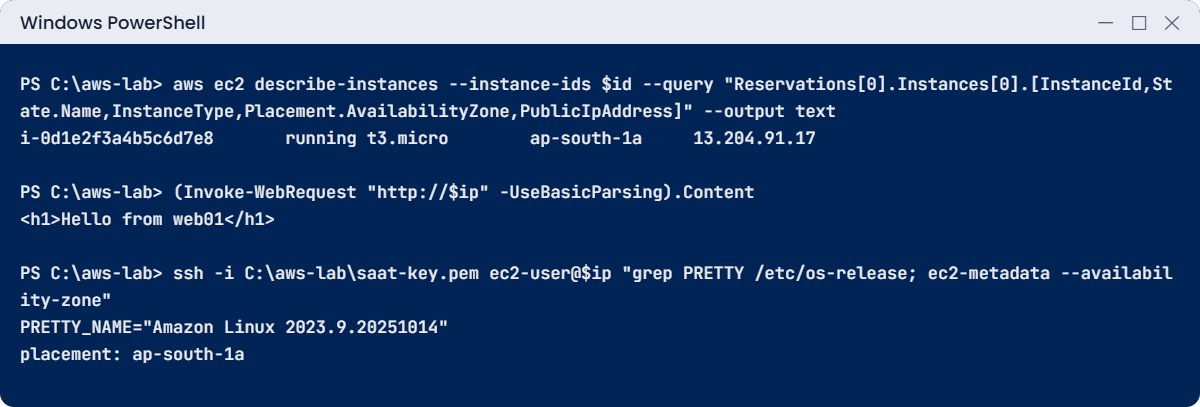
i-0d1e2f3a4b5c6d7e8 running t3.micro ap-south-1a 13.204.91.176Open the page and connect with SSH
Run this:
(Invoke-WebRequest "http://$ip" -UseBasicParsing).Content
ssh -i C:\aws-lab\saat-key.pem ec2-user@$ip "grep PRETTY /etc/os-release; ec2-metadata --availability-zone"Type yes the first time SSH asks about the host key. You should see something like this:
<h1>Hello from web01</h1>
PRETTY_NAME="Amazon Linux 2023.9.20251014"
placement: ap-south-1aYou can also paste http:// plus the IP into your browser. ec2-metadata reads instance metadata with an IMDSv2 token for you.
7Stop and start: watch the IP change
Paste this whole block (about two minutes):
aws ec2 stop-instances --instance-ids $id | Out-Null
aws ec2 wait instance-stopped --instance-ids $id
aws ec2 start-instances --instance-ids $id | Out-Null
aws ec2 wait instance-running --instance-ids $id
$ip2 = aws ec2 describe-instances --instance-ids $id --query "Reservations[0].Instances[0].PublicIpAddress" --output text
"Before: $ip After: $ip2"You should see two different addresses, something like this:
Before: 13.204.91.17 After: 3.110.42.205Lesson 19 puts a DNS name in front of servers, and Lesson 20 a load balancer, so nobody depends on an IP that can change.
✅ Checkpoint: web01 is running, the page says “Hello from web01”, SSH worked only with your protected key, and the public IP changed after stop and start. Keep web01 for the break lab; cleanup is at its end.
Break It, Then Fix It
Two problems that catch almost every Windows user launching Linux servers.
1Break it: a private key anyone can read
Give the Users group read access again, then connect:
$ip = aws ec2 describe-instances --instance-ids $id --query "Reservations[0].Instances[0].PublicIpAddress" --output text
icacls C:\aws-lab\saat-key.pem /grant "Users:(R)"
ssh -i C:\aws-lab\saat-key.pem ec2-user@$ipYou’ll get this error (something like this):
@@@@@@@@@@@@@@@@@@@@@@@@@@@@@@@@@@@@@@@@@@@@@@@@@@@@@@@@@@@
@ WARNING: UNPROTECTED PRIVATE KEY FILE! @
@@@@@@@@@@@@@@@@@@@@@@@@@@@@@@@@@@@@@@@@@@@@@@@@@@@@@@@@@@@
Permissions for 'C:\\aws-lab\\saat-key.pem' are too open.
It is required that your private key files are NOT accessible by others.
This private key will be ignored.
Load key "C:\\aws-lab\\saat-key.pem": bad permissions
ec2-user@13.204.91.17: Permission denied (publickey,gssapi-keyex,gssapi-with-mic).SSH refuses to use a key other people can read, then tries other methods and fails. Fix: lock the file down again with the icacls line from lab step 2.
2Break it: user data with Windows line endings
Launch a second server with a script saved the usual PowerShell way (Set-Content writes CRLF line endings):
$ud | Set-Content C:\aws-lab\web02-userdata.sh
$id2 = aws ec2 run-instances --image-id $ami --instance-type t3.micro --key-name saat-key --subnet-id $v.PublicA --security-group-ids $v.WebSg $sshSg --user-data file://web02-userdata.sh --metadata-options HttpTokens=required --tag-specifications 'ResourceType=instance,Tags=[{Key=Name,Value=web02},{Key=course,Value=saatvedha-aws},{Key=lesson,Value=11}]' --query "Instances[0].InstanceId" --output text
aws ec2 wait instance-status-ok --instance-ids $id2
$ip2 = aws ec2 describe-instances --instance-ids $id2 --query "Reservations[0].Instances[0].PublicIpAddress" --output text
Invoke-WebRequest "http://$ip2" -UseBasicParsing
ssh -i C:\aws-lab\saat-key.pem ec2-user@$ip2 "sudo grep -m1 interpreter /var/log/cloud-init-output.log"You’ll get these errors (something like this):
Invoke-WebRequest : Unable to connect to the remote server
/var/lib/cloud/instance/scripts/part-001: /bin/bash^M: bad interpreter: No such file or directory
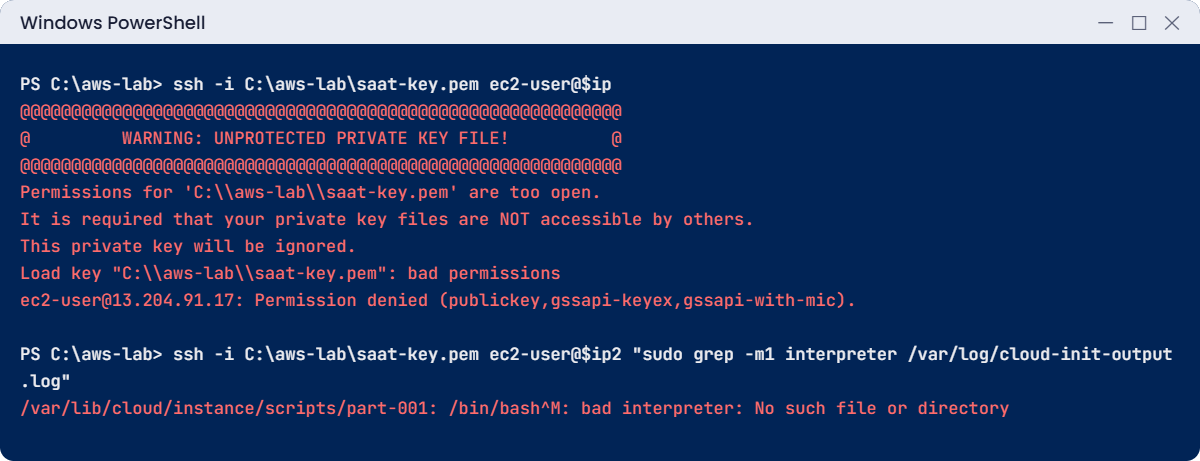
The instance is “running” and passes its status checks, yet nothing was installed. The first line of the script ended with an invisible carriage return (^M), so Linux looked for a program called bash plus that character. Fix: always write user data with -replace "`r`n", "`n" as in lab step 4, and check /var/log/cloud-init-output.log whenever user data “didn’t run”.
User data only runs at first boot, so the real fix is a new instance.
3Clean up
Paste this whole block:
aws ec2 terminate-instances --instance-ids $id $id2 | Out-Null
aws ec2 wait instance-terminated --instance-ids $id $id2
aws ec2 delete-security-group --group-id $sshSg
.\Find-LabResources.ps1Keep the key pair saat-key and saat-key.pem; they cost nothing and Lesson 12 uses them. The finder should show only the things you keep (the VPC parts, security groups, endpoint and key pair).
✅ Checkpoint: You fixed key permissions, found a CRLF user data failure in the cloud-init log, and terminated both instances.
This happened at work
The partner integration that broke after maintenance
A payments company ran a small “callback” server on EC2. A bank partner had whitelisted its public IP address and sent payment confirmations to it. Every Sunday the operations team stopped non-production servers to save money, and one weekend someone added this server to the list by mistake.
On Monday morning it started again, with a new public IP. The bank’s confirmations went to an address that no longer belonged to the company. For six hours, payments looked “pending” to customers, and the support team handled hundreds of calls.
The fix was an Elastic IP address, which stays the same across stop and start, given to the partner. The team also tagged every server with schedule=never-stop or schedule=office-hours so the shutdown script could only touch the right ones. New integrations now go through a load balancer or a NAT gateway with a fixed address, never a plain instance IP.
Common mistakes and troubleshooting
| Mistake | What happens | What to do |
|---|---|---|
| Opening SSH to 0.0.0.0/0 | Thousands of login attempts within hours | Your IP only now; Session Manager with no port 22 from Lesson 13 |
| Losing the .pem file | No SSH access to that instance | Keep it safe; Lesson 13 shows access without keys |
| Key file readable by others | “UNPROTECTED PRIVATE KEY FILE”, bad permissions | icacls ... /inheritance:r /grant:r "$($env:USERNAME):(R)" |
| User data saved with CRLF | bad interpreter, nothing installed | Write with LF; check /var/log/cloud-init-output.log |
| Hard-coding an AMI ID | Old, unpatched images or “AMI not found” in another Region | Read the public SSM parameter each time |
| Stopping instead of terminating test servers | Disks keep charging every month | Terminate what you don’t need; snapshot first if unsure |
| Depending on a public IP | It changes after stop and start | Elastic IP, DNS name or load balancer |
Interview questions
Click a question to open it. Each one is written the way an interviewer would ask it. Under it you will see why they ask it and one way you could answer, in your own words.
Fresher level
1. Can you explain in simple words what an AMI is?
Why they ask this: They want to check basic EC2 vocabulary. You can’t launch or rebuild a server well without understanding images.
How you might answer: An AMI, or Amazon Machine Image, is a template with the operating system and software, plus settings like the root volume. I use it to launch instances.
Amazon Linux, Windows Server and images I build myself are all AMIs.
2. A teammate wants to save money over the weekend. Should they stop the instance or terminate it? What’s the difference?
Why they ask this: They want to see that you think about both cost and data. Terminating by mistake is one of the classic beginner disasters.
How you might answer: Stopping powers it off. There’s no compute charge, the EBS disks are kept and still charged, and the public IP usually changes.
Terminating deletes the instance, and by default its root volume too, and you can’t start it again. For a weekend break I’d tell them to stop it.
3. How would you explain user data to a new team member?
Why they ask this: They want to check you know the basics of automating a server at launch. It shows whether you build servers by hand or by script.
How you might answer: I’d say user data is a script or cloud-init config you pass at launch. It runs once, at first boot, as root.
We use it to install software and configure the server automatically, so nobody has to log in and do it by hand.
2–5 years experience
4. You launch a Linux instance with a user data script, but the software never got installed. How do you find out why?
Why they ask this: They want to see how you troubleshoot first boot. Knowing where the logs live saves a lot of guessing.
How you might answer: I’d connect and read /var/log/cloud-init-output.log and cloud-init.log. The common causes are Windows line endings, a missing shebang, or package installs failing because there’s no internet access.
Another one is a script that calls the instance metadata service and fails on the IMDSv2 token requirement.
5. Your security team wants IMDSv2 required on every instance. Can you explain why it matters?
Why they ask this: They want to see security awareness about instance credentials. This setting blocks a well-known attack path.
How you might answer: IMDSv2 needs a session token from a PUT request before it returns anything. That blocks server-side request forgery attacks, where simple GET requests could read the instance role’s credentials.
I set HttpTokens=required at launch, or change it later on running instances.
6. A team asks you which instance type they should use for a new app. How would you decide?
Why they ask this: They want to see practical sizing skills. They also check that you measure after launch instead of guessing once.
How you might answer: I’d start from the workload: CPU, memory, network, and whether it’s steady or bursty. T types suit small or spiky loads, M is general purpose, C is for CPU-heavy work and R is for memory-heavy work.
After a week I’d check CloudWatch metrics and right-size. If the software supports Arm, Graviton types are often cheaper.
Senior level
7. How would you make sure nobody launches instances without the required tags, or with public IPs in private subnets?
Why they ask this: They want to see that you build guardrails instead of relying on reminders. Senior engineers are expected to make the safe way the easy way.
How you might answer: I’d use tag policies and SCPs that deny RunInstances without the required tags, and IAM conditions on ec2:CreateTags. Launch templates set the approved settings.
AWS Config rules catch public IPs and unencrypted volumes. And infrastructure code is the normal way to launch anything.
8. It’s 2 a.m. and an instance is running but failing its status checks. What does that tell you, and what do you do?
Why they ask this: They want to know you understand the two kinds of status checks. Each one points to a different fix, so reading them right saves time.
How you might answer: A failed system status check means a problem with the AWS host, so I’d stop and start the instance to move it to new hardware. A failed instance status check means the OS is unhealthy, like bad network config, a full disk or a kernel panic.
For that I’d read the system log and use the serial console, then fix or replace the instance.
Quick quiz
Q1. Which is the safest way to find the current Amazon Linux 2023 AMI ID in a script?
- Copy it from a blog
- Read the public SSM parameter
- Use the oldest AMI
- Ask AWS Support
Show answer
B — AWS updates the public SSM parameter whenever it releases a new AMI.
Q2. What happens to the public IP when you stop and start an instance without an Elastic IP?
- It stays the same
- It usually changes
- It becomes private
- The instance loses its network
Show answer
B — A new public IP is assigned when the instance starts again.
Q3. SSH says “UNPROTECTED PRIVATE KEY FILE”. What is wrong?
- The key is expired
- Other users can read the key file
- Port 22 is closed
- The instance is stopped
Show answer
B — OpenSSH refuses keys with open permissions. Lock the file down with icacls.
Q4. User data fails with “/bin/bash^M: bad interpreter”. Why?
- bash isn’t installed
- The script has Windows (CRLF) line endings
- IMDSv2 blocked it
- The AMI is wrong
Show answer
B — The ^M is a carriage return from CRLF line endings.
Q5. What keeps charging after you stop an instance?
- vCPU hours
- The EBS volume
- The key pair
- The AMI ID
Show answer
B — Stopped instances have no compute charge, but EBS volumes are charged per GB-month.
Quick recap
- A launch picks an AMI, an instance type, a subnet, security groups, a key pair and optional user data.
- Read the AMI ID from the public SSM parameter; require IMDSv2 at launch.
- On Windows, write keys and user data with LF endings and lock the key file with icacls.
- Reboot keeps everything; stop keeps disks (still charged) and changes the public IP; terminate deletes.
- When user data “didn’t run”, read /var/log/cloud-init-output.log.
Next lesson
Lesson 12: Windows Server on EC2 → You’ll launch a Windows Server instance, get its Administrator password and connect with Remote Desktop.
Further reading: launch EC2 instance
Want to go deeper into launch EC2 instance? Read Launch an Amazon EC2 instance and Run commands when you launch an EC2 instance with user data input. You can also see the full plan for this course on the AWS Cloud Administration course page.
