
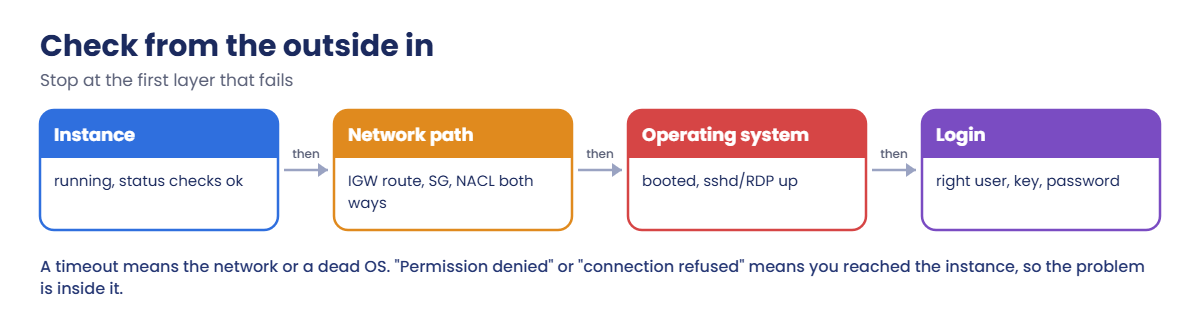
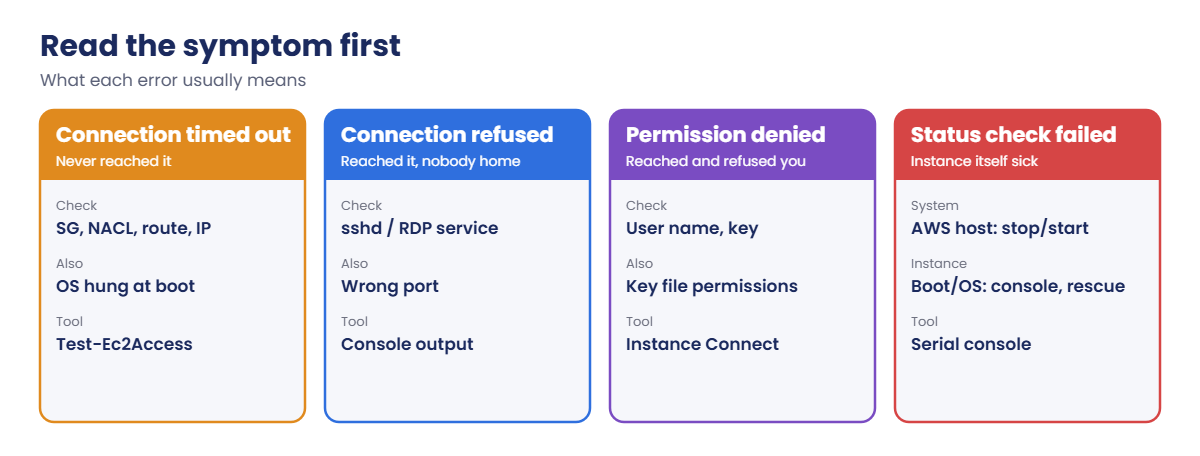
Sign in and launch a test server you can reach with SSH and Session Manager:
cd C:\aws-lab
aws login --profile saat-admin
$env:AWS_PROFILE = 'saat-admin'
$v = Get-Content C:\aws-lab\saat-vpc.json | ConvertFrom-Json
$myIp = (Invoke-RestMethod https://checkip.amazonaws.com).Trim()
$ssh = aws ec2 create-security-group --group-name saat-ssh-57 --description "SSH from my IP" --vpc-id $v.VpcId --query GroupId --output text
aws ec2 authorize-security-group-ingress --group-id $ssh --protocol tcp --port 22 --cidr "$myIp/32" | Out-Null
$ami = aws ssm get-parameter --name /aws/service/ami-amazon-linux-latest/al2023-ami-kernel-default-x86_64 --query Parameter.Value --output text
$id = aws ec2 run-instances --image-id $ami --instance-type t3.micro --subnet-id $v.PublicA --security-group-ids $v.WebSg $ssh --key-name saat-key --iam-instance-profile Name=saat-ec2-ssm-profile --metadata-options HttpTokens=required --tag-specifications 'ResourceType=instance,Tags=[{Key=Name,Value=web57},{Key=course,Value=saatvedha-aws},{Key=lesson,Value=57}]' --query "Instances[0].InstanceId" --output text
aws ec2 wait instance-status-ok --instance-ids $id
$ip = aws ec2 describe-instances --instance-ids $id --query "Reservations[0].Instances[0].PublicIpAddress" --output text
"$id $ip"
You should see something like this:
i-0c3d4e5f6a7b80912 13.234.56.78web57 is in a public subnet, so it reaches Systems Manager over the internet; no endpoints needed this time.
1Save and run the access checklist
Paste this whole block. Test-Ec2Access.ps1 stays in C:\aws-lab for later lessons:
$tea = @'
param([Parameter(Mandatory)][string]$InstanceId, [int]$Port = 22)
function Test-Cidr([string]$Ip, [string]$Cidr) {
  $net, $bits = $Cidr -split '/'
  $toInt = { param($a) $b = ([Net.IPAddress]$a).GetAddressBytes(); [uint32]$b[0] * 16777216 + [uint32]$b[1] * 65536 + [uint32]$b[2] * 256 + [uint32]$b[3] }
  $mask = if ([int]$bits -eq 0) { [uint32]0 } else { [uint32]([math]::Pow(2, 32) - [math]::Pow(2, 32 - [int]$bits)) }
  ((& $toInt $Ip) -band $mask) -eq ((& $toInt $net) -band $mask)
}
function Test-PortRange($Entry, [int]$P) { $Entry.Protocol -eq '-1' -or ($Entry.Protocol -eq '6' -and $Entry.PortRange.From -le $P -and $Entry.PortRange.To -ge $P) }
function Show([bool]$Ok, [string]$Text) { if ($Ok) { "[ OK ] $Text" } else { "[FAIL] $Text" } }
$myIp = (Invoke-RestMethod https://checkip.amazonaws.com).Trim()
$i = aws ec2 describe-instances --instance-ids $InstanceId --query "Reservations[0].Instances[0]" --output json | ConvertFrom-Json
Show ($i.State.Name -eq 'running') "State is $($i.State.Name)"
$st = aws ec2 describe-instance-status --instance-ids $InstanceId --include-all-instances --query "InstanceStatuses[0]" --output json | ConvertFrom-Json
Show ($st.SystemStatus.Status -eq 'ok') "System status check: $($st.SystemStatus.Status)"
Show ($st.InstanceStatus.Status -eq 'ok') "Instance status check: $($st.InstanceStatus.Status)"
Show ([bool]$i.PublicIpAddress) "Public IP: $($i.PublicIpAddress)"
$rt = aws ec2 describe-route-tables --filters "Name=association.subnet-id,Values=$($i.SubnetId)" --query "RouteTables[0]" --output json | ConvertFrom-Json
if (-not $rt) { $rt = aws ec2 describe-route-tables --filters "Name=vpc-id,Values=$($i.VpcId)" "Name=association.main,Values=true" --query "RouteTables[0]" --output json | ConvertFrom-Json }
$igw = $rt.Routes | Where-Object { $_.DestinationCidrBlock -eq '0.0.0.0/0' -and $_.GatewayId -like 'igw-*' -and $_.State -eq 'active' }
Show ([bool]$igw) "Route 0.0.0.0/0 to an internet gateway in $($rt.RouteTableId)"
$sgs = aws ec2 describe-security-groups --group-ids ($i.SecurityGroups.GroupId) --query "SecurityGroups[].IpPermissions[]" --output json | ConvertFrom-Json
$sgOk = $sgs | Where-Object { ($_.IpProtocol -eq '-1' -or ($_.IpProtocol -eq 'tcp' -and $_.FromPort -le $Port -and $_.ToPort -ge $Port)) -and ($_.IpRanges.CidrIp | Where-Object { Test-Cidr $myIp $_ }) }
Show ([bool]$sgOk) "Security group allows TCP $Port from $myIp"
$acl = aws ec2 describe-network-acls --filters "Name=association.subnet-id,Values=$($i.SubnetId)" --query "NetworkAcls[0]" --output json | ConvertFrom-Json
$in = $acl.Entries | Where-Object { -not $_.Egress -and $_.CidrBlock -and (Test-Cidr $myIp $_.CidrBlock) -and (Test-PortRange $_ $Port) } | Sort-Object RuleNumber | Select-Object -First 1
$outRule = $acl.Entries | Where-Object { $_.Egress -and $_.CidrBlock -and (Test-Cidr $myIp $_.CidrBlock) -and (Test-PortRange $_ 50000) } | Sort-Object RuleNumber | Select-Object -First 1
Show ($in.RuleAction -eq 'allow') "Network ACL $($acl.NetworkAclId) inbound TCP $Port (rule $($in.RuleNumber))"
Show ($outRule.RuleAction -eq 'allow') "Network ACL outbound to ephemeral ports (rule $($outRule.RuleNumber))"
$ping = aws ssm describe-instance-information --filters "Key=InstanceIds,Values=$InstanceId" --query "InstanceInformationList[0].PingStatus" --output text
Show ($ping -eq 'Online') "Session Manager agent: $ping"
if ($i.PublicIpAddress) { Show ([bool](Test-NetConnection $i.PublicIpAddress -Port $Port -InformationLevel Quiet -WarningAction SilentlyContinue)) "TCP $Port reachable from this PC" }
'@
$tea | Set-Content C:\aws-lab\Test-Ec2Access.ps1
.\Test-Ec2Access.ps1 -InstanceId $id
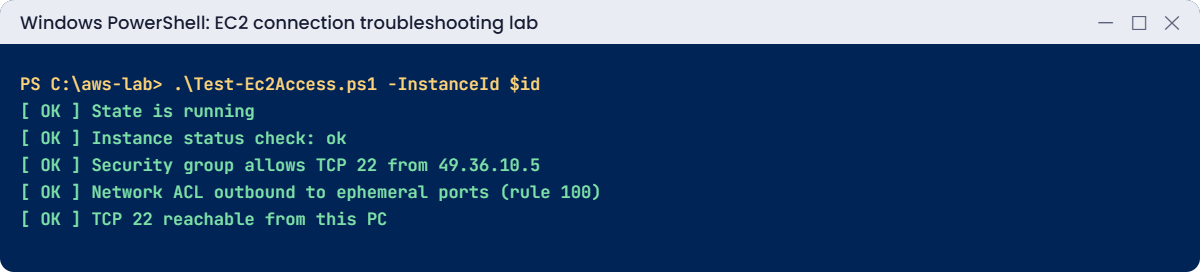
You should see something like this:
[ OK ] State is running
[ OK ] System status check: ok
[ OK ] Instance status check: ok
[ OK ] Public IP: 13.234.56.78
[ OK ] Route 0.0.0.0/0 to an internet gateway in rtb-0a1b2c3d4e5f60718
[ OK ] Security group allows TCP 22 from 49.36.10.5
[ OK ] Network ACL acl-0f1e2d3c4b5a69788 inbound TCP 22 (rule 100)
[ OK ] Network ACL outbound to ephemeral ports (rule 100)
[ OK ] Session Manager agent: Online
[ OK ] TCP 22 reachable from this PC
One command checks what people usually click through five console pages for. The NACL checks follow AWS’s rule: entries are read in rule-number order and the first match wins.
2Log in two ways and read the console
Paste this whole block:
ssh -i C:\aws-lab\saat-key.pem -o StrictHostKeyChecking=accept-new ec2-user@$ip "hostname; systemctl is-active sshd"
function Invoke-Linux([string]$Id, [string[]]$Lines) {
  @{ commands = $Lines } | ConvertTo-Json | Set-Content lx-cmd.json
  $cmd = aws ssm send-command --document-name AWS-RunShellScript --instance-ids $Id --parameters file://lx-cmd.json --query Command.CommandId --output text
  do { Start-Sleep 5; $st = aws ssm get-command-invocation --command-id $cmd --instance-id $Id --query Status --output text 2>$null } until ($st -in 'Success', 'Failed', 'TimedOut')
  aws ssm get-command-invocation --command-id $cmd --instance-id $Id --query StandardOutputContent --output text
}
Invoke-Linux $id @('whoami', 'df -h / | tail -1')
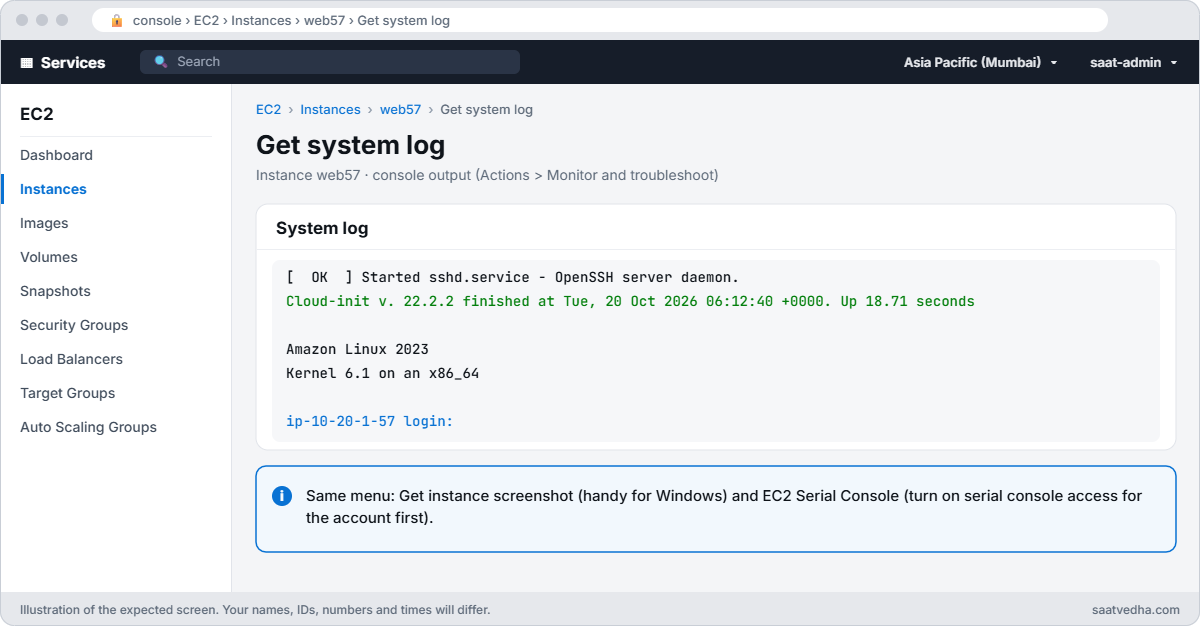
aws ec2 get-console-output --instance-id $id --latest --query Output --output text | Select-String 'login:|Cloud-init.*finished' | Select-Object -Last 2
You should see something like this:
ip-10-20-1-57.ap-south-1.compute.internal
active
root
/dev/nvme0n1p1  8.0G  1.6G  6.4G  20% /
Cloud-init v. 22.2.2 finished at Tue, 20 Oct 2026 06:12:40 +0000. Datasource DataSourceEc2.  Up 18.71 seconds
ip-10-20-1-57 login:
SSH works with the key, Run Command works through the agent (as root), and the console output shows a clean boot ending at a login prompt. Keep these three views in mind: you’ll lose two of them in a moment.
3Know your fallback tools
When both SSH and Session Manager fail, you still have AWS-side tools. In the console, open web57 and look at Actions > Monitor and troubleshoot: Get system log (the console output you just read), Get instance screenshot (useful for Windows), and EC2 Serial Console (needs account-level access turned on and a local user with a password). Systems Manager also has the AWSSupport-ExecuteEC2Rescue runbook, which automates the rescue-volume method you’ll do by hand in Break 1.
✅ Checkpoint: Test-Ec2Access.ps1 shows all OK, SSH and Run Command both work, and the console output ends at a login prompt.
Two failures that look the same from your laptop, a timeout, but sit in different layers.
1Break it: a bad /etc/fstab line
Add a mount for a disk that doesn’t exist, as if someone detached a data volume, and reboot:
ssh -i C:\aws-lab\saat-key.pem ec2-user@$ip "echo 'UUID=deadbeef-0000-0000-0000-000000000000 /data xfs defaults 0 2' | sudo tee -a /etc/fstab; sudo systemctl daemon-reload; sudo reboot"
Start-Sleep 240
ssh -i C:\aws-lab\saat-key.pem -o ConnectTimeout=10 ec2-user@$ip hostname
.\Test-Ec2Access.ps1 -InstanceId $id | Select-String 'status check|agent|reachable'
aws ec2 get-console-output --instance-id $id --latest --query Output --output text | Select-String 'FAILED|emergency' | Select-Object -Last 3
You’ll get something like this:
ssh: connect to host 13.234.56.78 port 22: Connection timed out
[ OK ] System status check: ok
[FAIL] Instance status check: impaired
[FAIL] Session Manager agent: ConnectionLost
[FAIL] TCP 22 reachable from this PC
[FAILED] Failed to mount data.mount - /data.
[DEPEND] Dependency failed for local-fs.target - Local File Systems.
You are in emergency mode. After logging in, type "journalctl -xb" to view system logs
The network layers are fine, but the OS stopped in emergency mode before starting the network, SSH or the agent. The root account is locked on Amazon Linux, so even the serial console can’t give you that emergency shell. This is exactly when you rescue the disk.
Fix: stop web57, move its root volume to a helper instance, remove the line, and move it back:
$vol = aws ec2 describe-instances --instance-ids $id --query "Reservations[0].Instances[0].BlockDeviceMappings[?DeviceName=='/dev/xvda'].Ebs.VolumeId | [0]" --output text
aws ec2 stop-instances --instance-ids $id | Out-Null
$resc = aws ec2 run-instances --image-id $ami --instance-type t3.micro --subnet-id $v.PublicA --security-group-ids $v.WebSg --iam-instance-profile Name=saat-ec2-ssm-profile --metadata-options HttpTokens=required --tag-specifications 'ResourceType=instance,Tags=[{Key=Name,Value=rescue57},{Key=course,Value=saatvedha-aws},{Key=lesson,Value=57}]' --query "Instances[0].InstanceId" --output text
aws ec2 wait instance-stopped --instance-ids $id
aws ec2 detach-volume --volume-id $vol | Out-Null
aws ec2 wait volume-available --volume-ids $vol
do { Start-Sleep 20; $p = aws ssm describe-instance-information --filters "Key=InstanceIds,Values=$resc" --query "InstanceInformationList[0].PingStatus" --output text } until ($p -eq 'Online')
aws ec2 attach-volume --volume-id $vol --instance-id $resc --device /dev/sdf | Out-Null
aws ec2 wait volume-in-use --volume-ids $vol
Start-Sleep 15
Invoke-Linux $resc @(
  'dev=$(lsblk -nrpo NAME,FSTYPE | awk ''$1 ~ /nvme1n1p/ && $2 == "xfs" {print $1}'' | head -1)',
  'mkdir -p /mnt/rescue && mount -o nouuid $dev /mnt/rescue',
  'echo "before: $(tail -1 /mnt/rescue/etc/fstab)"',
  'sed -i ''/deadbeef/d'' /mnt/rescue/etc/fstab',
  'echo "after:  $(tail -1 /mnt/rescue/etc/fstab)"',
  'umount /mnt/rescue')
aws ec2 detach-volume --volume-id $vol | Out-Null
aws ec2 wait volume-available --volume-ids $vol
aws ec2 attach-volume --volume-id $vol --instance-id $id --device /dev/xvda | Out-Null
aws ec2 wait volume-in-use --volume-ids $vol
aws ec2 start-instances --instance-ids $id | Out-Null
aws ec2 wait instance-status-ok --instance-ids $id
$ip = aws ec2 describe-instances --instance-ids $id --query "Reservations[0].Instances[0].PublicIpAddress" --output text
ssh -i C:\aws-lab\saat-key.pem -o StrictHostKeyChecking=accept-new ec2-user@$ip hostname
You should see something like this:
before: UUID=deadbeef-0000-0000-0000-000000000000 /data xfs defaults 0 2
after:  UUID=f2a1c3d4-5b6e-4f70-8a91-b2c3d4e5f607     /boot/efi       vfat    defaults,noatime,uid=0,gid=0,umask=0077,shortname=winnt,x-systemd.automount 0 2
ip-10-20-1-57.ap-south-1.compute.internal
Note the -o nouuid: both root volumes came from the same AMI and share an XFS UUID, so a plain mount fails. The public IP changed because the instance was stopped. In real life, add nofail to data volume lines in fstab so a missing disk never blocks boot.
2Break it: a network ACL with no way back
Give web57’s subnet a custom NACL that allows SSH in but has no outbound rules:
$assoc = aws ec2 describe-network-acls --filters "Name=association.subnet-id,Values=$($v.PublicA)" --query "NetworkAcls[0].Associations[?SubnetId=='$($v.PublicA)'].NetworkAclAssociationId | [0]" --output text
$origAcl = aws ec2 describe-network-acls --filters "Name=association.subnet-id,Values=$($v.PublicA)" --query "NetworkAcls[0].NetworkAclId" --output text
$nacl = aws ec2 create-network-acl --vpc-id $v.VpcId --tag-specifications 'ResourceType=network-acl,Tags=[{Key=Name,Value=saat-nacl-57},{Key=course,Value=saatvedha-aws}]' --query NetworkAcl.NetworkAclId --output text
aws ec2 create-network-acl-entry --network-acl-id $nacl --ingress --rule-number 100 --protocol tcp --port-range From=22,To=22 --cidr-block "$myIp/32" --rule-action allow
$newAssoc = aws ec2 replace-network-acl-association --association-id $assoc --network-acl-id $nacl --query NewAssociationId --output text
ssh -i C:\aws-lab\saat-key.pem -o ConnectTimeout=10 ec2-user@$ip hostname
.\Test-Ec2Access.ps1 -InstanceId $id | Select-String 'Network ACL'
You’ll get something like this:
ssh: connect to host 13.234.101.22 port 22: Connection timed out
[ OK ] Network ACL acl-0a9b8c7d6e5f4a3b2 inbound TCP 22 (rule 100)
[FAIL] Network ACL outbound to ephemeral ports (rule 32767)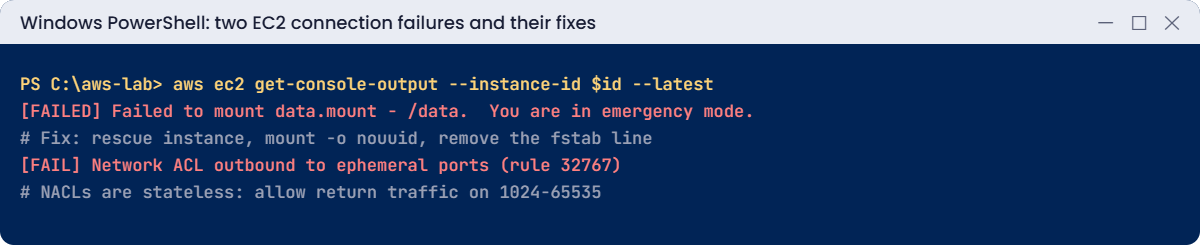
The SYN gets in, but the instance’s reply to your PC’s high port hits the final deny rule. Security groups remember connections; network ACLs don’t, so every rule needs its return path. Fix: allow outbound replies to ephemeral ports, then put the original NACL back:
aws ec2 create-network-acl-entry --network-acl-id $nacl --egress --rule-number 100 --protocol tcp --port-range From=1024,To=65535 --cidr-block "$myIp/32" --rule-action allow
ssh -i C:\aws-lab\saat-key.pem -o ConnectTimeout=10 ec2-user@$ip hostname
aws ec2 replace-network-acl-association --association-id $newAssoc --network-acl-id $origAcl | Out-Null
aws ec2 delete-network-acl --network-acl-id $nacl
You should see something like this:
ip-10-20-1-57.ap-south-1.compute.internalNow clean up. Test-Ec2Access.ps1 stays:
aws ec2 terminate-instances --instance-ids $id $resc | Out-Null
aws ec2 wait instance-terminated --instance-ids $id $resc
aws ec2 delete-security-group --group-id $ssh
Remove-Item lx-cmd.json
✅ Checkpoint: You fixed an unbootable instance with a rescue volume and a stateless NACL with an outbound ephemeral rule. web57, rescue57, saat-ssh-57 and saat-nacl-57 are gone, and PublicA is back on its original NACL.