Shared file storage: EFS and FSx for Windows
-
Phase 0: Before you start
-
Phase 1: The foundation
-
Phase 2: Operations and security
-
Phase 3: SQL Server on AWS
-
Phase 4: Troubleshooting step by step
-
Phase 5: Final project and career
Two web servers need the same uploaded files. A Windows team wants its familiar \\server\share. Choosing between EFS vs FSx comes down to one question: who are the clients and which protocol do they speak?
You’ll build an EFS file system with mount targets in two zones, mount it on two Linux servers and prove they see the same files. Then you’ll compare it with FSx for Windows File Server, which needs Active Directory; you’ll meet that in Lesson 45.
| Time | You need | By the end you can |
|---|---|---|
| 60 minutes (two small instances and the Session Manager endpoints for under an hour) | saat-vpc, Start-SsmEndpoints.ps1 and Stop-SsmEndpoints.ps1, saat-ec2-ssm-profile, your laptop signed in as saat-admin. Works on the Free plan or the Paid plan. Cost: about USD 0.15. | Create an encrypted EFS file system with mount targets and a security group, mount it with TLS through fstab, set lifecycle tiers, and choose between EFS and the FSx family. |
What it is, in one line
EFS is shared NFS storage for Linux; FSx is a family of managed file systems, including FSx for Windows File Server for SMB shares joined to Active Directory.
In Simple Words
The staff room cupboard
Each teacher has a desk drawer, like an EBS volume on one server. Only that teacher uses it. The staff room cupboard is shared: any teacher can put a file in and any other can take it out.
That cupboard is a shared file system.
EFS is a cupboard with labels in one language (NFS), used by Linux servers. FSx for Windows is a cupboard with a guard who checks the school ID card (Active Directory) before you open it, the way Windows offices work.
Each floor of the school gets its own cupboard door, a mount target. Teachers use the door on their floor.
Engineer's View
What EFS and FSx really are
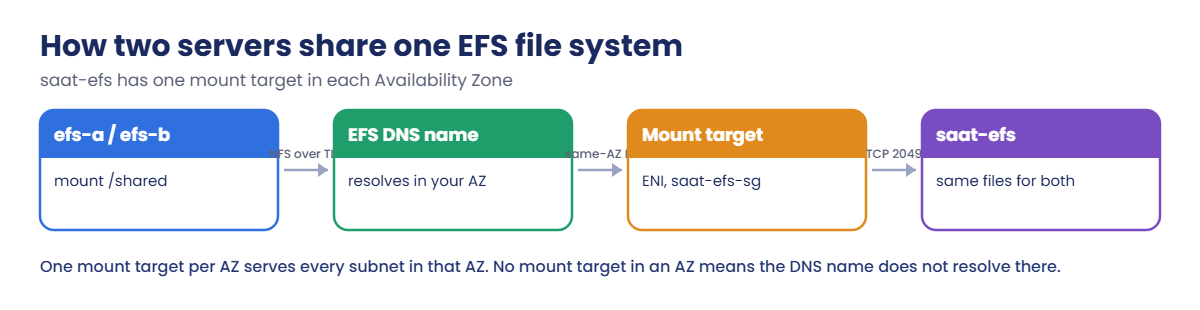
EFS is a Regional, elastic NFS file system: it grows and shrinks with your data, with no size to choose. Clients reach it through mount targets, one network interface per Availability Zone, protected by security groups on TCP 2049. The file system DNS name resolves to the mount target in the client’s own zone.
Storage classes are Standard, Infrequent Access and Archive, with lifecycle policies to move files. Elastic throughput scales automatically and is the usual choice.
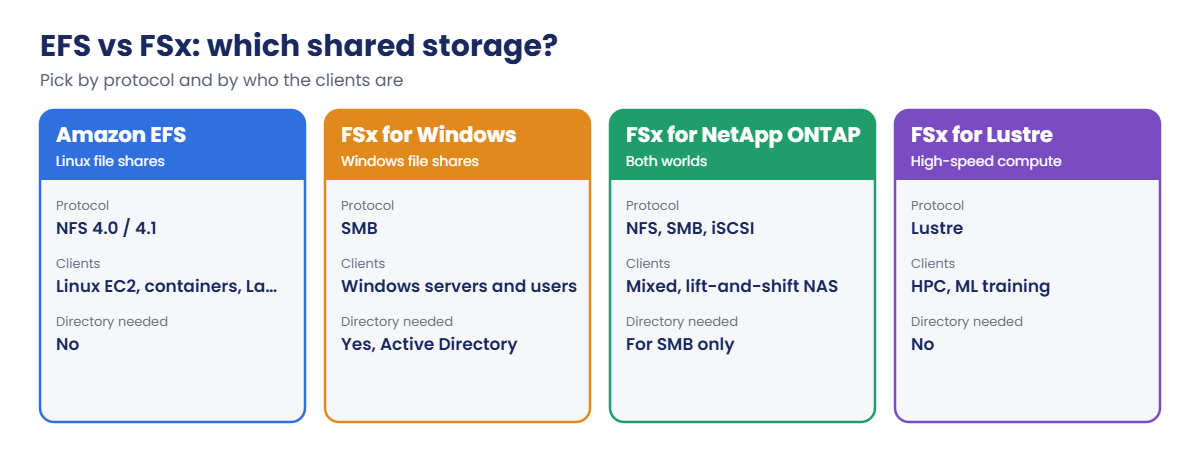
FSx for Windows File Server gives real Windows SMB shares with NTFS permissions, DFS namespaces and shadow copies. It must join an Active Directory (AWS Managed Microsoft AD or your own), comes in Single-AZ or Multi-AZ, and you choose SSD or HDD capacity and throughput. It is not available on the AWS Free plan.
Other FSx types: NetApp ONTAP (NFS, SMB and iSCSI with snapshots and replication, good for moving on-premises NAS), OpenZFS (low-latency NFS) and Lustre (very fast storage for HPC and ML, often linked to S3).
How it works, step by step
Here is what happens when efs-b mounts the file system.
1The mount helper looks up the DNS name
fs-....efs.ap-south-1.amazonaws.com resolves to the mount target IP in ap-south-1b, because efs-b is in ap-south-1b. Traffic stays in the zone.
2It opens an encrypted NFS connection
With the tls option, amazon-efs-utils runs a local proxy and NFS talks to 127.0.0.1, which encrypts everything to the mount target on port 2049. That’s why df shows 127.0.0.1:/.
3The security group decides
saat-efs-sg allows 2049 only from saat-app-sg. A server in another group simply times out.
4Pick the right family
Both servers now see the same files. Whether EFS is right depends on your clients:
A simple rule: Linux and containers use EFS; Windows users and apps that need SMB and NTFS permissions use FSx for Windows; a mixed NAS migration often lands on FSx for NetApp ONTAP.
✅ Checkpoint: You can explain mount targets and why there is one per zone, why the DNS name is zone-aware, and when FSx for Windows is the better choice.
Hands-on lab: EFS vs FSx, starting with a shared EFS mount
Start as usual, with the Session Manager endpoints:
cd C:\aws-lab
aws login --profile saat-admin
$env:AWS_PROFILE = 'saat-admin'
$env:Path += ';C:\Program Files\Amazon\SessionManagerPlugin\bin'
$v = Get-Content C:\aws-lab\saat-vpc.json | ConvertFrom-Json
.\Start-SsmEndpoints.ps11Create the security group and the file system
Paste this whole block:
$efsSg = aws ec2 create-security-group --group-name saat-efs-sg --description "NFS from app servers" --vpc-id $v.VpcId --query GroupId --output text
aws ec2 authorize-security-group-ingress --group-id $efsSg --protocol tcp --port 2049 --source-group $v.AppSg | Out-Null
$fs = aws efs create-file-system --creation-token "saat-efs-$(Get-Date -Format yyyyMMddHHmm)" --encrypted --performance-mode generalPurpose --throughput-mode elastic --tags Key=Name,Value=saat-efs Key=course,Value=saatvedha-aws Key=lesson,Value=22 --query FileSystemId --output text
do { Start-Sleep 5; $st = aws efs describe-file-systems --file-system-id $fs --query "FileSystems[0].LifeCycleState" --output text } until ($st -eq 'available')
"$fs $st"You should see something like this:
fs-0a1b2c3d4e5f67890 availableYou never chose a size. EFS bills for what you store, and an empty file system costs almost nothing.
2Add a mount target in each zone
Paste this whole block (about two minutes):
foreach ($s in @($v.PrivateA, $v.PrivateB)) { aws efs create-mount-target --file-system-id $fs --subnet-id $s --security-groups $efsSg | Out-Null }
do { Start-Sleep 15; $states = aws efs describe-mount-targets --file-system-id $fs --query "MountTargets[].LifeCycleState" --output text } until ($states -notmatch 'creating')
aws efs describe-mount-targets --file-system-id $fs --query "MountTargets[].[AvailabilityZoneName,IpAddress,LifeCycleState]" --output textYou should see something like this:
ap-south-1a 10.20.11.140 available
ap-south-1b 10.20.12.190 available3Launch two servers that mount it at boot
Paste this whole block:
$ud = @'
#!/bin/bash
dnf install -y amazon-efs-utils
mkdir -p /shared
echo "FS_ID:/ /shared efs _netdev,tls,nofail 0 0" >> /etc/fstab
mount -a
'@ -replace 'FS_ID', $fs
[IO.File]::WriteAllText('C:\aws-lab\efs-userdata.sh', ($ud -replace "`r`n", "`n"))
$base = aws ssm get-parameter --name /aws/service/ami-amazon-linux-latest/al2023-ami-kernel-default-x86_64 --query Parameter.Value --output text
$a, $b = foreach ($s in @(@('efs-a', $v.PrivateA), @('efs-b', $v.PrivateB))) {
aws ec2 run-instances --image-id $base --instance-type t3.micro --subnet-id $s[1] --security-group-ids $v.AppSg --iam-instance-profile Name=saat-ec2-ssm-profile --metadata-options HttpTokens=required --user-data file://efs-userdata.sh --tag-specifications "ResourceType=instance,Tags=[{Key=Name,Value=$($s[0])},{Key=course,Value=saatvedha-aws},{Key=lesson,Value=22}]" --query "Instances[0].InstanceId" --output text
}
foreach ($i in @($a, $b)) { do { Start-Sleep 20; $p = aws ssm describe-instance-information --filters "Key=InstanceIds,Values=$i" --query "InstanceInformationList[0].PingStatus" --output text } until ($p -eq 'Online') }
aws ssm start-session --target $b --document-name AWS-StartInteractiveCommand --parameters command="cloud-init status --wait"
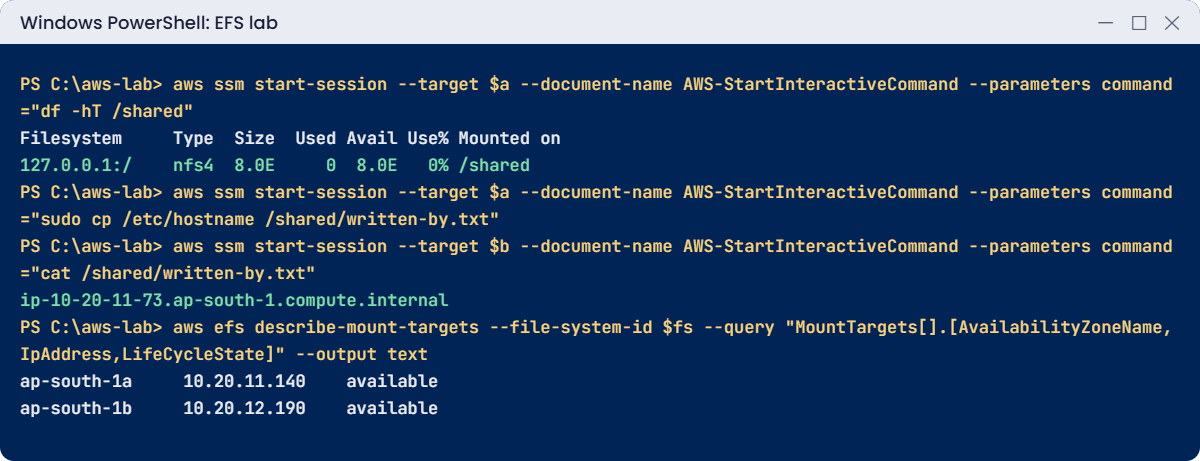
aws ssm start-session --target $a --document-name AWS-StartInteractiveCommand --parameters command="df -hT /shared"You should see something like this (session lines left out):
status: done
Filesystem Type Size Used Avail Use% Mounted on
127.0.0.1:/ nfs4 8.0E 0 8.0E 0% /shared8.0E (exabytes) is EFS saying “no practical limit”. The _netdev and nofail options mean the server waits for the network and still boots if EFS is unreachable, which saves you from instances stuck at boot.
4Write on one server, read on the other
Paste this whole block:
aws ssm start-session --target $a --document-name AWS-StartInteractiveCommand --parameters command="sudo cp /etc/hostname /shared/written-by.txt"
aws ssm start-session --target $b --document-name AWS-StartInteractiveCommand --parameters command="cat /shared/written-by.txt"
aws efs put-lifecycle-configuration --file-system-id $fs --lifecycle-policies TransitionToIA=AFTER_30_DAYS TransitionToArchive=AFTER_90_DAYS TransitionToPrimaryStorageClass=AFTER_1_ACCESSYou should see something like this:
ip-10-20-11-73.ap-south-1.compute.internal
{
"LifecyclePolicies": [
{
"TransitionToIA": "AFTER_30_DAYS"
},
{
"TransitionToArchive": "AFTER_90_DAYS"
},
{
"TransitionToPrimaryStorageClass": "AFTER_1_ACCESS"
}
]
}efs-b, in another zone, read the hostname efs-a wrote. The lifecycle policy moves cold files to cheaper classes and brings a file back to Standard the first time someone reads it.
✅ Checkpoint: saat-efs has available mount targets in ap-south-1a and ap-south-1b, both servers mount /shared at boot over TLS, a file written on efs-a is readable on efs-b, and lifecycle tiers are set. Keep everything for the break lab.
Break It, Then Fix It
Two mount target mistakes that come up whenever EFS meets a new subnet or zone.
1Break it: remove the mount target in one zone
Unmount on efs-b, delete the ap-south-1b mount target, then try to mount again:
aws ssm start-session --target $b --document-name AWS-StartInteractiveCommand --parameters command="sudo umount /shared"
$mtB = aws efs describe-mount-targets --file-system-id $fs --query "MountTargets[?AvailabilityZoneName=='ap-south-1b'].MountTargetId" --output text
aws efs delete-mount-target --mount-target-id $mtB
do { Start-Sleep 15; $n = aws efs describe-mount-targets --file-system-id $fs --query "length(MountTargets)" --output text } until ($n -eq '1')
Start-Sleep 60
aws ssm start-session --target $b --document-name AWS-StartInteractiveCommand --parameters command="sudo mount /shared"You’ll get an error like this:
Failed to resolve "fs-0a1b2c3d4e5f67890.efs.ap-south-1.amazonaws.com" - check that your file system ID is correct, and ensure that the VPC has an EFS mount target for this file system ID.
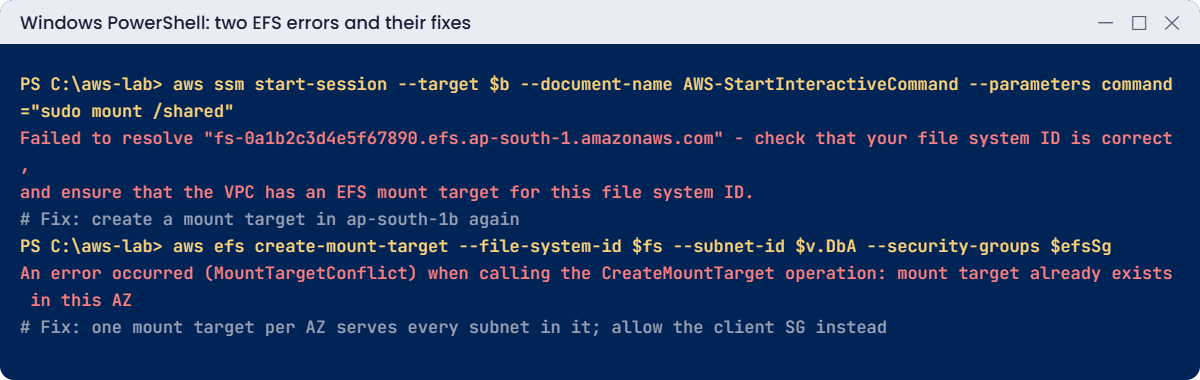
The DNS name only resolves in zones that have a mount target. This is exactly what happens when an Auto Scaling group adds a third zone and nobody adds a mount target there. Fix: create the mount target again and remount:
aws efs create-mount-target --file-system-id $fs --subnet-id $v.PrivateB --security-groups $efsSg | Out-Null
do { Start-Sleep 15; $states = aws efs describe-mount-targets --file-system-id $fs --query "MountTargets[].LifeCycleState" --output text } until ($states -notmatch 'creating')
Start-Sleep 60
aws ssm start-session --target $b --document-name AWS-StartInteractiveCommand --parameters command="sudo mount /shared"
aws ssm start-session --target $b --document-name AWS-StartInteractiveCommand --parameters command="cat /shared/written-by.txt"You should see something like this:
ip-10-20-11-73.ap-south-1.compute.internal2Break it: a second mount target in the same zone
The database team wants EFS “in their subnet” too, so someone adds a mount target in saat-db-a:
aws efs create-mount-target --file-system-id $fs --subnet-id $v.DbA --security-groups $efsSgYou’ll get this error:
An error occurred (MountTargetConflict) when calling the CreateMountTarget operation: mount target already exists in this AZEFS allows one mount target per zone, and saat-private-a already has the ap-south-1a one. Servers in saat-db-a can reach it through the VPC’s local route. Fix: don’t add mount targets; allow the database servers’ security group on saat-efs-sg instead, for example authorize-security-group-ingress --group-id $efsSg --protocol tcp --port 2049 --source-group $v.DbSg.
Now clean up. Mount targets must go before the file system, and their network interfaces before the security group:
aws ec2 terminate-instances --instance-ids $a $b | Out-Null
aws ec2 wait instance-terminated --instance-ids $a $b
aws efs describe-mount-targets --file-system-id $fs --query "MountTargets[].MountTargetId" --output text | ForEach-Object { $_ -split '\s+' } | ForEach-Object { aws efs delete-mount-target --mount-target-id $_ }
do { Start-Sleep 15; $n = aws efs describe-mount-targets --file-system-id $fs --query "length(MountTargets)" --output text } until ($n -eq '0')
aws efs delete-file-system --file-system-id $fs
Start-Sleep 60
aws ec2 delete-security-group --group-id $efsSg
.\Stop-SsmEndpoints.ps1
Remove-Item efs-userdata.sh
.\Find-LabResources.ps1✅ Checkpoint: You fixed a zone without a mount target and learned why a second mount target in the same zone is refused. The file system, mount targets, security group, servers and endpoints are gone.
This happened at work
The uploads that vanished on one server
A news site ran two web servers behind a load balancer. Editors uploaded photos through the CMS, which saved them to /var/www/uploads on whichever server handled the request. Each server had its own EBS disk.
Half the time a new photo showed as a broken image, because the reader’s request went to the other server. The team “fixed” it with sticky sessions, until one server was replaced by Auto Scaling and two weeks of photos disappeared with its disk.
They moved uploads to EFS mounted on every server, with AWS Backup on the file system and access points to keep the CMS in its own directory. A year later they moved new uploads to S3 with CloudFront, keeping EFS for the CMS’s shared cache and config.
Common mistakes and troubleshooting
| Mistake | What happens | What to do |
|---|---|---|
| No mount target in a zone where servers run | Failed to resolve the DNS name | Create one mount target in every zone you use |
| EFS security group without 2049 from clients | Mounts hang and time out | Allow TCP 2049 from the client security groups |
| fstab entry without nofail | Instance hangs at boot if EFS is unreachable | Use _netdev,tls,nofail |
| Mounting without TLS | Data crosses the network unencrypted | Mount with the tls option (amazon-efs-utils) |
| Using EFS for Windows shares | Windows clients can’t use NFS well | Use FSx for Windows File Server with AD |
| Local EBS disks for shared uploads behind a load balancer | Files exist on only one server | Use EFS or, better for media, S3 |
Interview questions
Click a question to open it. Each one is written the way an interviewer would ask it. Under it you will see why they ask it and one way you could answer, in your own words.
Fresher level
1. Can you explain in simple words what Amazon EFS is?
Why they ask this: They want to check basic storage knowledge. Shared file storage comes up whenever several servers need the same files.
How you might answer: EFS is a managed NFS file system that grows and shrinks on its own. Many Linux servers, containers and Lambda functions can mount it at the same time, across Availability Zones.
2. A developer asks whether they should use EBS or EFS for their app. How would you explain the difference?
Why they ask this: They want to see that you can choose the right storage. Picking the wrong one causes problems with sharing or availability later.
How you might answer: I’d explain that EBS is a block disk for one instance in one zone, apart from the special Multi-Attach case. EFS is a shared file system that many instances in many zones mount over NFS.
So if several servers need the same files, I’d point them to EFS.
3. When would you pick FSx for Windows File Server instead of EFS?
Why they ask this: They want to see that you know the Windows storage option. Windows shops have different needs from Linux teams.
How you might answer: I’d pick it when Windows servers or users need SMB shares with NTFS permissions, joined to Active Directory. Good examples are home drives or file shares for a Windows app.
2–5 years experience
4. A new Linux server can’t mount the EFS file system that other servers use fine. What do you check?
Why they ask this: They want to see methodical troubleshooting. When other servers work, the difference is usually the zone, the security group or the client.
How you might answer: First I’d check that a mount target exists in the new server’s zone and is available. Then that the EFS security group allows port 2049 from the server’s security group, and that DNS support is on in the VPC.
After that, I’d confirm amazon-efs-utils is installed, and that the file system policy or access point allows this client.
5. Your manager says the EFS bill is too high. How would you bring it down?
Why they ask this: They want to see cost management on storage. EFS costs grow quietly if nobody watches storage classes.
How you might answer: I’d add lifecycle policies that move files to Infrequent Access and Archive, with transition back when a file is accessed again. I’d use elastic throughput instead of over-provisioned throughput.
Then I’d delete old data and keep an eye on the storage class metrics.
6. Three apps share one EFS file system. How would you keep each app inside its own folder?
Why they ask this: They want to see that you know how to handle multi-tenant access safely. Shared file systems need clear boundaries.
How you might answer: I’d create an EFS access point for each app. An access point enforces a POSIX user and group and a root directory, so each app only sees its own directory.
Access to each access point is controlled with IAM.
Senior level
7. You’re asked to replace an on-premises NAS that both Windows and Linux servers use. How would you design it on AWS?
Why they ask this: They want to see migration design that covers both platforms and the move itself. Senior engineers must plan identity, data transfer and backups together.
How you might answer: If the workloads are mixed, I’d look at FSx for NetApp ONTAP, which serves NFS, SMB and iSCSI, and can use SnapMirror if the current NAS is NetApp. If the Windows and Linux workloads are separate, FSx for Windows plus EFS also works.
I’d plan AD integration, DFS namespaces, DataSync for the move, backups, and Multi-AZ for production.
8. A PHP app on EFS is slow, and the team blames EFS latency. What would you look at?
Why they ask this: They want to see performance thinking. Often the fix is changing what’s stored on EFS, not tuning EFS itself.
How you might answer: PHP apps do many small-file metadata operations, so I’d check that first. I’d look at the performance and throughput modes, the PercentIOLimit and throughput metrics, cross-zone traffic and the client NFS settings.
Often the best fix is moving the code off EFS to local disks or the image, and keeping only shared data on EFS.
Quick quiz
Q1. Which protocol does EFS use?
- SMB
- NFS
- iSCSI
- FTP
Show answer
B — EFS is an NFS file system.
Q2. How many EFS mount targets can one Availability Zone have per file system?
- One
- Two
- One per subnet
- Unlimited
Show answer
A — MountTargetConflict appears if you try a second one in the same zone.
Q3. What does FSx for Windows File Server require?
- A Linux client
- Active Directory
- An S3 bucket
- A NAT gateway
Show answer
B — It joins AWS Managed Microsoft AD or your own AD.
Q4. Why does df show 127.0.0.1:/ for the EFS mount?
- The mount failed
- The tls option uses a local encrypting proxy
- EFS runs on the instance
- The DNS name is wrong
Show answer
B — amazon-efs-utils tunnels NFS through a local TLS proxy.
Q5. Which port must the EFS security group allow?
- 445
- 2049
- 3389
- 1433
Show answer
B — NFS uses TCP 2049.
Quick recap
- EFS is elastic NFS storage for Linux, reached through one mount target per zone.
- The DNS name resolves only in zones with a mount target.
- Mount with tls and use _netdev,nofail in fstab.
- Lifecycle policies move cold files to IA and Archive.
- FSx for Windows gives SMB shares with AD; ONTAP, OpenZFS and Lustre cover other needs.
Next lesson
Lesson 23: CloudWatch metrics, alarms and dashboards → You’ll build alarms that page the right person, install the CloudWatch agent and put the key numbers on one dashboard.
Further reading: EFS vs FSx
Want to go deeper into EFS vs FSx? Read What is Amazon Elastic File System? and What is FSx for Windows File Server?. You can also see the full plan for this course on the AWS Cloud Administration course page.
