
Sign in and load saat-vpc:
cd C:\aws-lab
aws login --profile saat-admin
$env:AWS_PROFILE = 'saat-admin'
$v = Get-Content C:\aws-lab\saat-vpc.json | ConvertFrom-Json
$base = aws ssm get-parameter --name /aws/service/ami-amazon-linux-latest/al2023-ami-kernel-default-x86_64 --query Parameter.Value --output text1Build the “office” network and its VPN device
Paste this whole block. The office uses 10.40.0.0/16, which doesn’t overlap saat-vpc:
$office = aws ec2 create-vpc --cidr-block 10.40.0.0/16 --tag-specifications 'ResourceType=vpc,Tags=[{Key=Name,Value=saat-office},{Key=course,Value=saatvedha-aws},{Key=lesson,Value=37}]' --query Vpc.VpcId --output text
$osub = aws ec2 create-subnet --vpc-id $office --cidr-block 10.40.1.0/24 --availability-zone ap-south-1a --query Subnet.SubnetId --output text
$oigw = aws ec2 create-internet-gateway --query InternetGateway.InternetGatewayId --output text
aws ec2 attach-internet-gateway --internet-gateway-id $oigw --vpc-id $office
$ort = aws ec2 create-route-table --vpc-id $office --query RouteTable.RouteTableId --output text
aws ec2 create-route --route-table-id $ort --destination-cidr-block 0.0.0.0/0 --gateway-id $oigw | Out-Null
aws ec2 associate-route-table --route-table-id $ort --subnet-id $osub | Out-Null
$osg = aws ec2 create-security-group --group-name saat-office-cgw-sg --description "Office VPN device" --vpc-id $office --query GroupId --output text
[IO.File]::WriteAllText('C:\aws-lab\cgw-userdata.sh', "#!/bin/bash`ndnf install -y libreswan`nsystemctl enable ipsec`n")
$cgw = aws ec2 run-instances --image-id $base --instance-type t3.micro --subnet-id $osub --security-group-ids $osg --associate-public-ip-address --iam-instance-profile Name=saat-ec2-ssm-profile --metadata-options HttpTokens=required --user-data file://cgw-userdata.sh --tag-specifications 'ResourceType=instance,Tags=[{Key=Name,Value=cgw01},{Key=course,Value=saatvedha-aws},{Key=lesson,Value=37}]' --query "Instances[0].InstanceId" --output text
$eipAlloc, $eip = (aws ec2 allocate-address --domain vpc --tag-specifications 'ResourceType=elastic-ip,Tags=[{Key=course,Value=saatvedha-aws},{Key=lesson,Value=37}]' --query "[AllocationId,PublicIp]" --output text) -split '\s+'
aws ec2 wait instance-running --instance-ids $cgw
aws ec2 associate-address --instance-id $cgw --allocation-id $eipAlloc | Out-Null
aws ec2 modify-instance-attribute --instance-id $cgw --no-source-dest-check
$tgt = aws ec2 run-instances --image-id $base --instance-type t3.micro --subnet-id $v.PrivateA --security-group-ids $v.AppSg --metadata-options HttpTokens=required --tag-specifications 'ResourceType=instance,Tags=[{Key=Name,Value=target01},{Key=course,Value=saatvedha-aws},{Key=lesson,Value=37}]' --query "Instances[0].InstanceId" --output text
$tip = aws ec2 describe-instances --instance-ids $tgt --query "Reservations[0].Instances[0].PrivateIpAddress" --output text
aws ec2 authorize-security-group-ingress --group-id $v.AppSg --ip-permissions "IpProtocol=icmp,FromPort=-1,ToPort=-1,IpRanges=[{CidrIp=10.40.0.0/16,Description=lab37-office}]" | Out-Null
"office device $eip, target $tip"
You should see something like this:
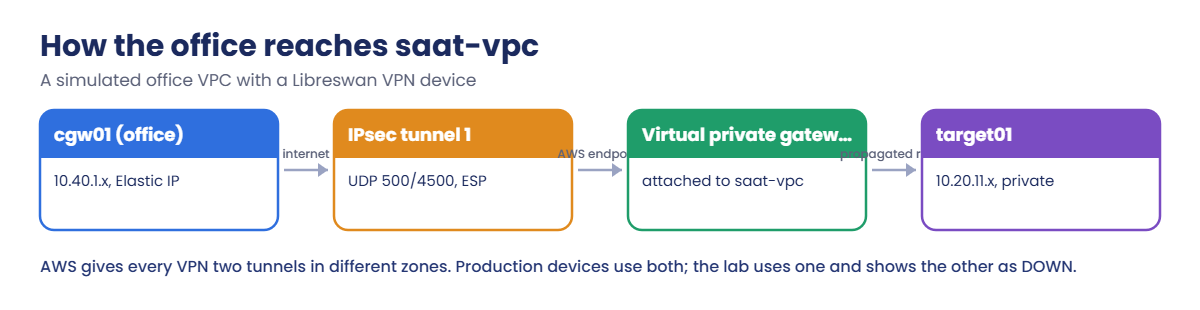
office device 13.234.77.120, target 10.20.11.84cgw01 plays the office router. It reaches Systems Manager over the internet through the office’s internet gateway, so you can configure it without SSH. target01 is an ordinary private server in saat-vpc with no internet access at all.
2Create the AWS side of the VPN
Paste this whole block (the VPN takes 5 to 10 minutes to become available):
$cgwId = aws ec2 create-customer-gateway --type ipsec.1 --public-ip $eip --bgp-asn 65000 --tag-specifications 'ResourceType=customer-gateway,Tags=[{Key=Name,Value=saat-office-cgw},{Key=course,Value=saatvedha-aws}]' --query CustomerGateway.CustomerGatewayId --output text
$vgw = aws ec2 create-vpn-gateway --type ipsec.1 --tag-specifications 'ResourceType=vpn-gateway,Tags=[{Key=Name,Value=saat-vgw},{Key=course,Value=saatvedha-aws}]' --query VpnGateway.VpnGatewayId --output text
aws ec2 attach-vpn-gateway --vpn-gateway-id $vgw --vpc-id $v.VpcId | Out-Null
do { Start-Sleep 10; $att = aws ec2 describe-vpn-gateways --vpn-gateway-ids $vgw --query "VpnGateways[0].VpcAttachments[0].State" --output text } until ($att -eq 'attached')
aws ec2 enable-vgw-route-propagation --route-table-id $v.RtPrivate --gateway-id $vgw
$vpn = aws ec2 create-vpn-connection --type ipsec.1 --customer-gateway-id $cgwId --vpn-gateway-id $vgw --options StaticRoutesOnly=true --tag-specifications 'ResourceType=vpn-connection,Tags=[{Key=Name,Value=saat-office-vpn},{Key=course,Value=saatvedha-aws}]' --query VpnConnection.VpnConnectionId --output text
aws ec2 wait vpn-connection-available --vpn-connection-ids $vpn
aws ec2 create-vpn-connection-route --vpn-connection-id $vpn --destination-cidr-block 10.40.0.0/16
$t1ip, $psk = (aws ec2 describe-vpn-connections --vpn-connection-ids $vpn --query "VpnConnections[0].Options.TunnelOptions[0].[OutsideIpAddress,PreSharedKey]" --output text) -split '\s+'
aws ec2 authorize-security-group-ingress --group-id $osg --protocol udp --port 500 --cidr "$t1ip/32" | Out-Null
aws ec2 authorize-security-group-ingress --group-id $osg --protocol udp --port 4500 --cidr "$t1ip/32" | Out-Null
aws ec2 describe-vpn-connections --vpn-connection-ids $vpn --query "VpnConnections[0].VgwTelemetry[].[OutsideIpAddress,Status]" --output text
You should see something like this (both tunnels down until the device is configured):
13.126.10.21    DOWN
65.0.33.48      DOWN
The pre-shared key is now in a PowerShell variable. Treat it like a password: in production it lives in Secrets Manager, and you’d never paste it into chat or a ticket.
3Configure the office device and bring up tunnel 1
Paste this whole block. It defines a helper that writes the Libreswan config to cgw01 and restarts it:
function Send-VpnConfig([string]$Key) {
  $conf = @"
conn aws-tunnel1
    authby=secret
    auto=start
    ikev2=insist
    left=%defaultroute
    leftid=$eip
    right=$t1ip
    type=tunnel
    ikelifetime=8h
    salifetime=1h
    ike=aes256-sha2_256;dh14
    esp=aes256-sha2_256;dh14
    leftsubnet=10.40.0.0/16
    rightsubnet=10.20.0.0/16
    dpddelay=10
    dpdtimeout=30
    dpdaction=restart
"@
  $secret = @"
$eip $t1ip : PSK "$Key"
"@
  $b64c = [Convert]::ToBase64String([Text.Encoding]::UTF8.GetBytes(($conf -replace "`r`n", "`n")))
  $b64s = [Convert]::ToBase64String([Text.Encoding]::UTF8.GetBytes(($secret -replace "`r`n", "`n")))
  @{ commands = @("echo $b64c | base64 -d > /etc/ipsec.d/aws.conf", "echo $b64s | base64 -d > /etc/ipsec.d/aws.secrets", "chmod 600 /etc/ipsec.d/aws.secrets", "systemctl restart ipsec", "sleep 20", "ipsec trafficstatus") } | ConvertTo-Json | Set-Content vpn-params.json
  $cmd = aws ssm send-command --document-name AWS-RunShellScript --instance-ids $cgw --parameters file://vpn-params.json --query Command.CommandId --output text
  Start-Sleep 40
  aws ssm get-command-invocation --command-id $cmd --instance-id $cgw --query StandardOutputContent --output text
}
Send-VpnConfig -Key $psk
You should see something like this:
006 #2: "aws-tunnel1", type=ESP, add_time=1760982345, inBytes=0, outBytes=0, maxBytes=2^63B, id='13.126.10.21'The config says: authenticate with the shared secret using IKEv2, identify as the Elastic IP, and send traffic between 10.40.0.0/16 and 10.20.0.0/16 through the tunnel. The files travel base64-encoded so no quotes get mangled on the way.
4Ping across the VPN
Paste this whole block:
Start-Sleep 60
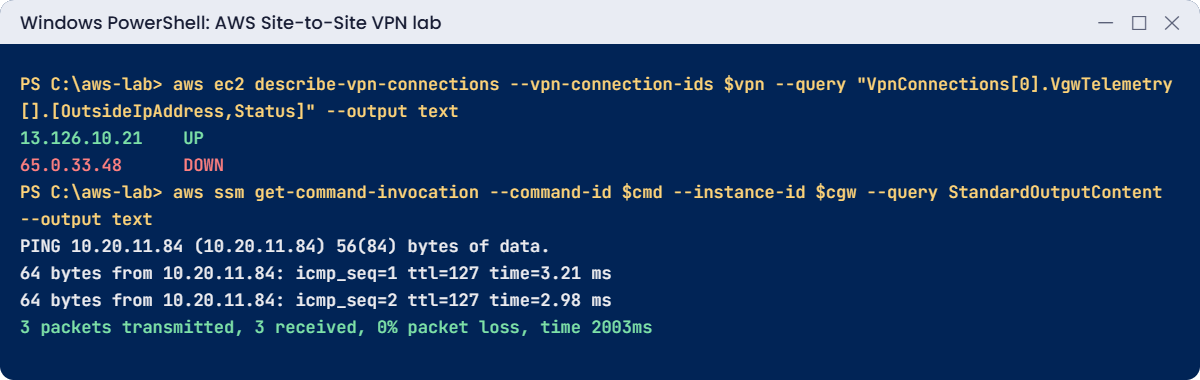
aws ec2 describe-vpn-connections --vpn-connection-ids $vpn --query "VpnConnections[0].VgwTelemetry[].[OutsideIpAddress,Status]" --output text
@{ commands = @("ping -c 3 -W 2 $tip") } | ConvertTo-Json | Set-Content ping-params.json
$cmd = aws ssm send-command --document-name AWS-RunShellScript --instance-ids $cgw --parameters file://ping-params.json --query Command.CommandId --output text
Start-Sleep 15
aws ssm get-command-invocation --command-id $cmd --instance-id $cgw --query StandardOutputContent --output text
You should see something like this:
13.126.10.21    UP
65.0.33.48      DOWN
PING 10.20.11.84 (10.20.11.84) 56(84) bytes of data.
64 bytes from 10.20.11.84: icmp_seq=1 ttl=127 time=3.21 ms
64 bytes from 10.20.11.84: icmp_seq=2 ttl=127 time=2.98 ms
64 bytes from 10.20.11.84: icmp_seq=3 ttl=127 time=3.05 ms

3 packets transmitted, 3 received, 0% packet loss, time 2003ms
The “office” reached a private server that has no internet access at all, through the tunnel. Tunnel 2 is DOWN because the lab configures only one; in production a single DOWN tunnel is an alert, because you’ve lost your redundancy.
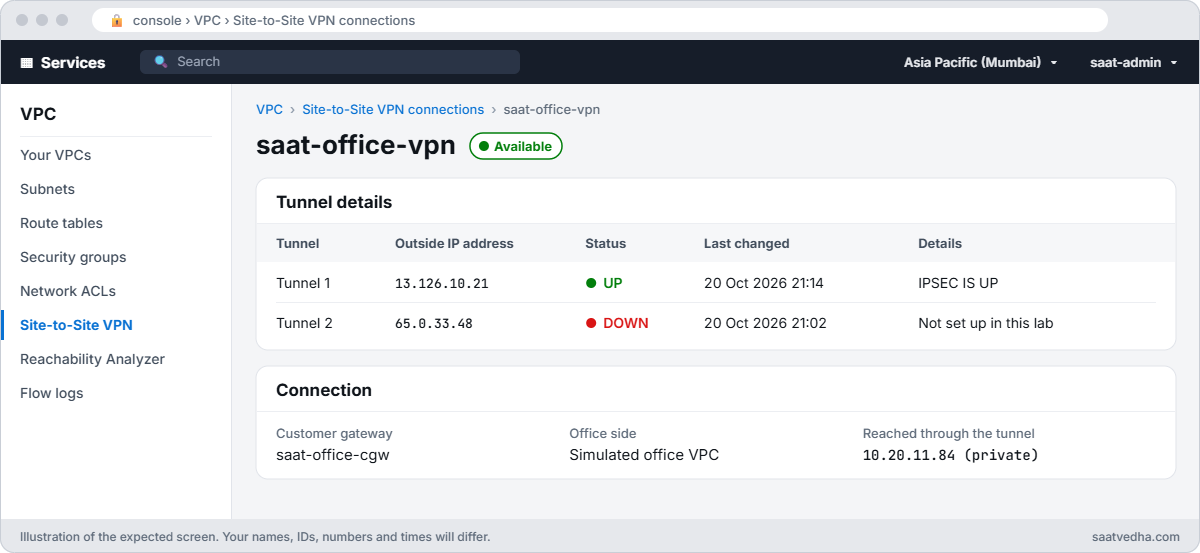
✅ Checkpoint: Tunnel 1 shows UP, tunnel 2 DOWN, and cgw01 pings target01 with 0% loss. Keep everything for the break lab.
The two causes behind most VPN tickets: the tunnel never comes up, or it’s up but nothing gets through.
1Break it: the wrong pre-shared key
Send the device a key with one character changed, then read its log:
Send-VpnConfig -Key ($psk.Substring(0, $psk.Length - 1) + 'x') | Out-Null
@{ commands = @("journalctl -u ipsec --since -3min --no-pager | grep -i authentication | tail -2") } | ConvertTo-Json | Set-Content log-params.json
$cmd = aws ssm send-command --document-name AWS-RunShellScript --instance-ids $cgw --parameters file://log-params.json --query Command.CommandId --output text
Start-Sleep 15
aws ssm get-command-invocation --command-id $cmd --instance-id $cgw --query StandardOutputContent --output text
You should see something like this:
Oct 20 22:14:31 ip-10-40-1-25 pluto[2214]: "aws-tunnel1" #3: IKE SA authentication request rejected by peer: AUTHENTICATION_FAILEDBoth sides must hold exactly the same key for that tunnel. A copied key with a trailing space, or the key for tunnel 2 used on tunnel 1, gives this same result: the tunnel never comes up, and AWS telemetry just says DOWN. Fix: copy the exact key for that tunnel again:
Send-VpnConfig -Key $pskYou should see the tunnel established again:
006 #2: "aws-tunnel1", type=ESP, add_time=1760982901, inBytes=0, outBytes=0, maxBytes=2^63B, id='13.126.10.21'2Break it: no route back to the office
Turn off route propagation on saat-rt-private, then ping again:
aws ec2 disable-vgw-route-propagation --route-table-id $v.RtPrivate --gateway-id $vgw
Start-Sleep 20
$cmd = aws ssm send-command --document-name AWS-RunShellScript --instance-ids $cgw --parameters file://ping-params.json --query Command.CommandId --output text
Start-Sleep 15
aws ssm get-command-invocation --command-id $cmd --instance-id $cgw --query StandardOutputContent --output text | Select-Object -Last 1
You should see this:
3 packets transmitted, 0 received, 100% packet loss, time 2047ms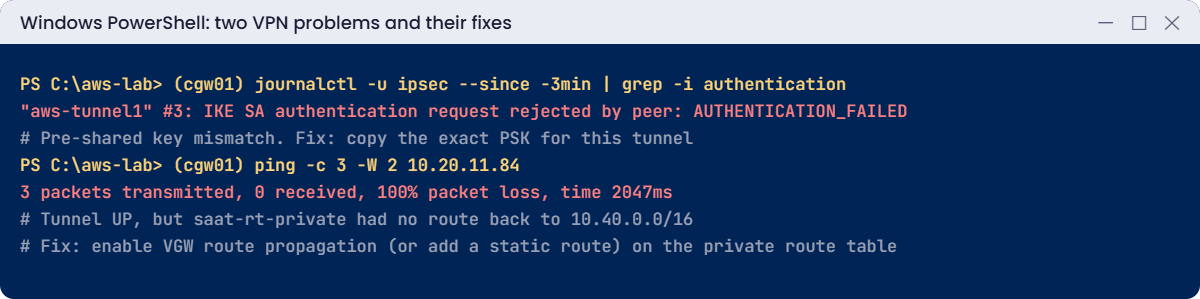
The tunnel is still UP and the pings arrive at target01, but the replies have nowhere to go: saat-rt-private has no route for 10.40.0.0/16. Network teams point at AWS and AWS teams point at the network; the route table settles it. Fix: turn propagation back on (or add a static route to the gateway), and check effective routes:
aws ec2 enable-vgw-route-propagation --route-table-id $v.RtPrivate --gateway-id $vgw
Start-Sleep 20
aws ec2 describe-route-tables --route-table-ids $v.RtPrivate --query "RouteTables[0].Routes[?DestinationCidrBlock=='10.40.0.0/16'].[GatewayId,Origin,State]" --output text
$cmd = aws ssm send-command --document-name AWS-RunShellScript --instance-ids $cgw --parameters file://ping-params.json --query Command.CommandId --output text
Start-Sleep 15
aws ssm get-command-invocation --command-id $cmd --instance-id $cgw --query StandardOutputContent --output text | Select-Object -Last 1
You should see something like this:
vgw-0a1b2c3d4e5f60091    EnableVgwRoutePropagation       active
3 packets transmitted, 3 received, 0% packet loss, time 2003ms
Now clean up everything. The order matters: VPN first, then the gateway, then the office network:
aws ec2 delete-vpn-connection --vpn-connection-id $vpn
aws ec2 wait vpn-connection-deleted --vpn-connection-ids $vpn
aws ec2 disable-vgw-route-propagation --route-table-id $v.RtPrivate --gateway-id $vgw
aws ec2 detach-vpn-gateway --vpn-gateway-id $vgw --vpc-id $v.VpcId
do { Start-Sleep 10; $att = aws ec2 describe-vpn-gateways --vpn-gateway-ids $vgw --query "VpnGateways[0].VpcAttachments[0].State" --output text } until ($att -eq 'detached')
aws ec2 delete-vpn-gateway --vpn-gateway-id $vgw
aws ec2 delete-customer-gateway --customer-gateway-id $cgwId
aws ec2 terminate-instances --instance-ids $cgw $tgt | Out-Null
aws ec2 wait instance-terminated --instance-ids $cgw $tgt
aws ec2 release-address --allocation-id $eipAlloc
aws ec2 revoke-security-group-ingress --group-id $v.AppSg --ip-permissions "IpProtocol=icmp,FromPort=-1,ToPort=-1,IpRanges=[{CidrIp=10.40.0.0/16}]" | Out-Null
aws ec2 delete-security-group --group-id $osg
aws ec2 detach-internet-gateway --internet-gateway-id $oigw --vpc-id $office
aws ec2 delete-internet-gateway --internet-gateway-id $oigw
aws ec2 delete-subnet --subnet-id $osub
aws ec2 delete-route-table --route-table-id $ort
aws ec2 delete-vpc --vpc-id $office
Remove-Item cgw-userdata.sh, vpn-params.json, ping-params.json, log-params.json
.\Find-Waste.ps1
.\Find-LabResources.ps1
✅ Checkpoint: You fixed a tunnel stuck on AUTHENTICATION_FAILED and a tunnel that was UP with no return route. The VPN, gateways, office VPC, instances and Elastic IP are all gone.