Write your own systemd service and timer
-
Phase 0: Before you start
-
Phase 1: The origins and OS architecture
-
Phase 2: Day-to-day administration and the command builder
-
Phase 3: Enterprise infrastructure and storage
-
Phase 4: Troubleshooting step by step
-
Phase 5: Final project and career
A systemd service file is a short text file that tells systemd how to run your own program: which command to start, as which user, what to do if it fails, and when it should start. Pair it with a timer file and systemd also runs it on a schedule, with every run logged in the journal.
In Lesson 26 you controlled services that came with packages. Here you write your own on rocky01: a small script called disk-report.sh, a disk-report.service that runs it and a disk-report.timer that runs it every night at 02:30. Later lessons build on these three files, so keep the names the same as you see them here.
Where this lesson fits
Lesson 27 of 82 in Linux Administration · Phase 2: Day-to-day administration and the command builder · Before this: Lesson 26, systemctl commands · Next: Lesson 28, cron, at and systemd timers
| Time | You need | By the end you can |
|---|---|---|
| About 60 minutes | rocky01 with an SSH session as student (sudo), Lesson 26 done | Write and check a service and a timer, test a schedule with systemd-analyze calendar, read the result in the journal, and fix the two classic start failures (203/EXEC and the SELinux label) |
What it is, in one line
A service file describes how systemd should run one program, and a timer file with the same name tells systemd when to run that service.
In Simple Words
The job card and the alarm clock
At a bus depot, every repair job has a job card: which bus, which mechanic, which tools, and what to do if a part is missing. Nobody starts work without the card, and the card stays in the file so anyone can see who did what and when.
Some jobs are routine, like checking the tyres every night. For those the supervisor sets an alarm for 2:30 at night that says “do tyre-check card now”. If the depot was closed when the alarm went off, the first person in the next morning does the missed check before anything else.
The service file is the job card, the timer is the alarm, and that morning catch-up is the Persistent=true setting.
Engineer's View
The lines in a service file and a timer file
Both files are plain text in INI style: [Section] headers and Key=value lines. Your own units go in /etc/systemd/system/. The service and the timer share a name (disk-report.service and disk-report.timer), which is how the timer knows what to start.
| Line | Section | What it does |
|---|---|---|
Description=, Documentation= | [Unit] | Text shown in status and in the journal, and a link for the next person |
After=, Wants= | [Unit] | Order and soft dependency, for example After=network-online.target for a job that needs the network |
Type= | [Service] | How systemd decides the service has started (table below) |
ExecStart= | [Service] | The command, with a full path. No pipes, redirects or && here: put shell logic in the script |
User=, Group= | [Service] | Run as this account instead of root, for example User=appsvc for an application |
WorkingDirectory=, Environment= | [Service] | Start folder and variables. The service doesn’t read your .bashrc |
Restart=, RestartSec= | [Service] | on-failure restarts after a crash or non-zero exit; for long-running daemons |
WantedBy= | [Install] | Which target gets the symlink on enable: multi-user.target for a daemon, timers.target for a timer |
| Type= | systemd treats it as started when | Use it for |
|---|---|---|
| simple (default) | The process has been forked; it should keep running | A daemon you wrote that runs in the foreground |
| exec | The program has been executed successfully | Same as simple, but a wrong path fails the start straight away |
| oneshot | The process has exited with 0. Status then shows inactive, which is normal | Scripts and jobs that do something and finish, like disk-report.sh |
| forking | The parent exits and leaves a child running (old-style daemons such as chronyd) | Programs that put themselves in the background |
| notify | The program sends READY=1 to systemd | Daemons built with systemd support |
The timer file has a [Timer] section. OnCalendar= takes calendar times such as *-*-* 02:30:00, Mon..Fri 09:00 or daily. OnBootSec= and OnUnitActiveSec= count from boot or from the last run.
Persistent=true stores the last run time on disk and catches up on a missed run at the next boot. RandomizedDelaySec= spreads jobs across many servers, and AccuracySec= (default 1 minute) lets systemd fire anywhere inside that window to save wakeups.
How it works, step by step
Here is what happens between the moment you save the files and the moment the night’s report is in the journal.
1You write the script and test it by hand
The script holds all the logic. It must start with a shebang line such as #!/bin/bash, be executable, and live in a system folder such as /usr/local/bin with the right SELinux label. If it doesn’t work when you run it yourself, systemd won’t make it work.
2The service file wraps the script
The service names the script with a full path in ExecStart= and sets Type=oneshot, because the script finishes. It has no [Install] section, so it shows as static: nothing starts it at boot, only the timer or you. The diagram below shows how the timer, the service, the script and the journal connect.
3You check before systemd runs it
systemd-analyze verify reads the unit files the way systemd would and complains about bad keys, typos in values and commands that aren’t executable. No output means it found nothing wrong. Then daemon-reload loads the new files into memory, as you learned in Lesson 26.
4The timer counts down and starts the service
When you enable and start the timer, systemd works out the next elapse time from OnCalendar= and waits. At that moment it starts disk-report.service, the same as if you had typed systemctl start disk-report.service. A timer never runs the script itself; it only starts the service with the same name, or the one in Unit=.
5Every line of output goes to the journal
Whatever the script prints on standard output or standard error lands in the journal, tagged with the unit name, the script name and the PID. There’s no log file to rotate and no mail to read: journalctl -u disk-report shows each run with its start, its output and the result. The picture below lists the OnCalendar= forms you’ll write most often, with their cron equivalent for Lesson 28.
6Persistent=true covers the nights the server was off
With Persistent=true, systemd writes a stamp file in /var/lib/systemd/timers/ after each run. At boot it compares that time with the schedule, and if a run was missed while the machine was down, it runs the service once soon after boot. Without it, a server that reboots for patching across 02:30 skips that night’s report and nobody notices.
Use systemd-analyze calendar every time you write an OnCalendar= line. It prints the normalised form and the next run in local time and UTC, so you see your mistake before the timer does nothing at the wrong hour. Cron syntax such as 30 2 * * * is not valid here.
Hands-on lab: build disk-report.service and disk-report.timer on rocky01
Before you run any command, double-check it
Read every command twice before you press Enter. Check the target: the server name, the user, the disk or device name, the path and the sizes. These commands are for learning and were tested in our lab, not on your system. At work, run the read-only commands first, follow your change process, make sure a backup exists, and ask a second person to check anything that changes or deletes data. You run them at your own risk.
You’ll create three files on rocky01: /usr/local/bin/disk-report.sh, /etc/systemd/system/disk-report.service and /etc/systemd/system/disk-report.timer. Lessons 28, 39 and 68 come back to them, so keep the names and paths as they are. The times in the outputs are from one run on 27 October; yours will show your own date and time.
1Write the script and run it by hand
Paste this whole block:
sudo tee /usr/local/bin/disk-report.sh > /dev/null <<'EOF'
#!/bin/bash
# disk-report.sh: show how full the local file systems are and warn above a limit.
# SaatVedha Linux Administration, Lesson 27. Runs from disk-report.service.
LIMIT=80
SKIP=(-x tmpfs -x devtmpfs -x efivarfs -x squashfs -x overlay)
echo "Disk report for $(hostname -s) at $(date '+%F %T')"
df -h --output=target,fstype,size,used,avail,pcent "${SKIP[@]}"
warn=0
while read -r mnt pct; do
pct=${pct%\%}
if [ "$pct" -ge "$LIMIT" ]; then
echo "WARNING: $mnt is ${pct}% full (limit ${LIMIT}%)"
warn=1
fi
done < <(df --output=target,pcent "${SKIP[@]}" | tail -n +2)
if [ "$warn" -eq 0 ]; then
echo "OK: every file system is below ${LIMIT}%"
fi
EOF
sudo chmod 755 /usr/local/bin/disk-report.sh
/usr/local/bin/disk-report.shYou should see something like this:
Disk report for rocky01 at 2026-10-27 11:40:18
Mounted on Type Size Used Avail Use%
/ xfs 17G 1.9G 15G 12%
/boot xfs 960M 297M 664M 31%
/boot/efi vfat 599M 8.4M 591M 2%
OK: every file system is below 80%-x leaves out memory-backed file systems such as tmpfs, so only real disks are listed. The while loop reads each mount point and its Use% from a second df, strips the % sign and prints a WARNING line for anything at 80 percent or more. The script needs no root rights to read df, but it will run as root from systemd, which is why it lives in a folder only root can write to.
Your sizes depend on your disk. If any line is above 80 percent you’ll see a WARNING line instead of the OK line, which is the script doing its job.
✅ Checkpoint: The script prints the header, your three file systems and the OK line.
2Check the owner, mode and SELinux label
Run this:
ls -lZ /usr/local/bin/disk-report.shYou should see something like this:
-rwxr-xr-x. 1 root root unconfined_u:object_r:bin_t:s0 684 Oct 27 11:40 /usr/local/bin/disk-report.shOwner root, mode 755 (everyone can run it, only root can change it) and the SELinux type bin_t. The file got bin_t because tee created it inside /usr/local/bin, and new files take the label of their folder. Keep this line in mind for the Break-It section.
✅ Checkpoint: Your file is owned by root, has x bits and shows bin_t.
3Write the service file and verify it
Paste this whole block:
sudo tee /etc/systemd/system/disk-report.service > /dev/null <<'EOF'
[Unit]
Description=Disk usage report for local file systems
Documentation=https://saatvedha.com/lesson/systemd-service-file/
[Service]
Type=oneshot
ExecStart=/usr/local/bin/disk-report.sh
EOF
sudo systemd-analyze verify /etc/systemd/system/disk-report.service && echo 'verify: no problems'You should see this:
verify: no problemsType=oneshot because the script runs and exits. There’s no User= line, so it runs as root, which is fine for a read-only report; for an application you’d add User=appsvc. There’s no [Install] section either, because the timer starts this service. verify printed nothing, which means it found no problem, and the && line only ran because its exit code was 0.
Try it yourself: build a service file, simple or oneshot, in the Command Builder.
✅ Checkpoint: verify reports no problems.
4Start the service once and read the result
Run this:
sudo systemctl daemon-reload
sudo systemctl start disk-report.service
systemctl status disk-report.service --no-pager | head -n 7
journalctl -u disk-report.service --no-pagerYou should see something like this:
○ disk-report.service - Disk usage report for local file systems
Loaded: loaded (/etc/systemd/system/disk-report.service; static)
Active: inactive (dead) since Tue 2026-10-27 11:43:05 IST; 9s ago
Invocation: 3c0e0b8f6a0d4a63b5d1f0e2c7a91d54
Docs: https://saatvedha.com/lesson/systemd-service-file/
Process: 2398 ExecStart=/usr/local/bin/disk-report.sh (code=exited, status=0/SUCCESS)
Main PID: 2398 (code=exited, status=0/SUCCESS)
Oct 27 11:43:05 rocky01 systemd[1]: Starting disk-report.service - Disk usage report for local file systems...
Oct 27 11:43:05 rocky01 disk-report.sh[2398]: Disk report for rocky01 at 2026-10-27 11:43:05
Oct 27 11:43:05 rocky01 disk-report.sh[2398]: Mounted on Type Size Used Avail Use%
Oct 27 11:43:05 rocky01 disk-report.sh[2398]: / xfs 17G 1.9G 15G 12%
Oct 27 11:43:05 rocky01 disk-report.sh[2398]: /boot xfs 960M 297M 664M 31%
Oct 27 11:43:05 rocky01 disk-report.sh[2398]: /boot/efi vfat 599M 8.4M 591M 2%
Oct 27 11:43:05 rocky01 disk-report.sh[2398]: OK: every file system is below 80%
Oct 27 11:43:05 rocky01 systemd[1]: disk-report.service: Deactivated successfully.
Oct 27 11:43:05 rocky01 systemd[1]: Finished disk-report.service - Disk usage report for local file systems.For a oneshot service, inactive (dead) with status=0/SUCCESS is the good result: it ran and finished. systemctl start waited until the script ended, and the journal shows the whole story with the script’s output in between “Starting” and “Finished”. journalctl works without sudo here because student is in wheel, which can read the system journal on Rocky; on Ubuntu the group is adm.
✅ Checkpoint: Status shows static and status=0/SUCCESS, and the journal holds the report lines.
5Write the timer and check the schedule
Paste this whole block:
sudo tee /etc/systemd/system/disk-report.timer > /dev/null <<'EOF'
[Unit]
Description=Run disk-report every day at 02:30
[Timer]
OnCalendar=*-*-* 02:30:00
Persistent=true
[Install]
WantedBy=timers.target
EOF
systemd-analyze calendar '*-*-* 02:30:00'
sudo systemd-analyze verify /etc/systemd/system/disk-report.timer && echo 'verify: no problems'You should see something like this:
Normalized form: *-*-* 02:30:00
Next elapse: Wed 2026-10-28 02:30:00 IST
(in UTC): Tue 2026-10-27 21:00:00 UTC
From now: 14h left
verify: no problemsThe calendar check shows the next run in IST and in UTC, so you can see that rocky01 uses the time zone you set in Lesson 2. Add --iterations=3 to see the next three runs. The timer’s [Install] section says WantedBy=timers.target, which is the target that gathers all timers at boot.
✅ Checkpoint: Next elapse is tomorrow at 02:30 in your local time and verify is clean.
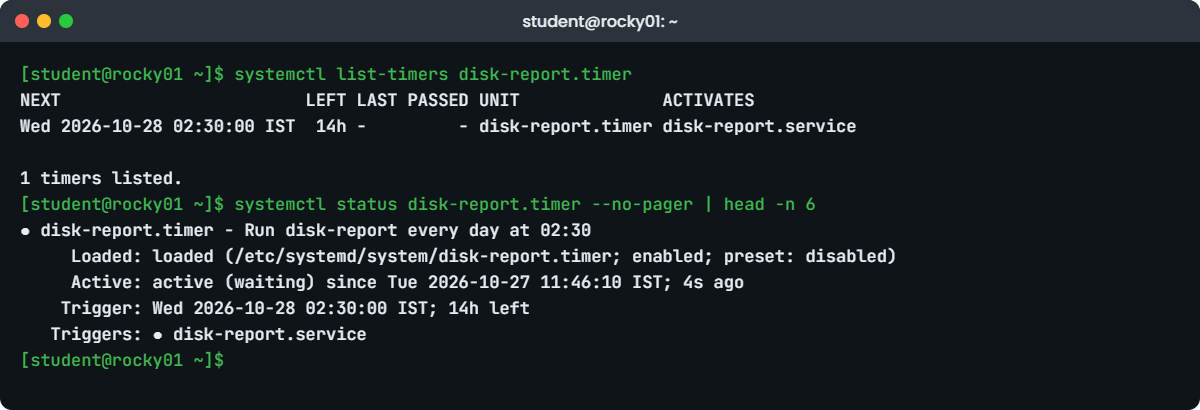
6Enable the timer and see it waiting
Run this:
sudo systemctl daemon-reload
sudo systemctl enable --now disk-report.timer
systemctl list-timers disk-report.timer
systemctl status disk-report.timer --no-pager | head -n 6You should see something like this:
Created symlink '/etc/systemd/system/timers.target.wants/disk-report.timer' → '/etc/systemd/system/disk-report.timer'.
NEXT LEFT LAST PASSED UNIT ACTIVATES
Wed 2026-10-28 02:30:00 IST 14h - - disk-report.timer disk-report.service
1 timers listed.
Pass --all to see loaded but inactive timers, too.
● disk-report.timer - Run disk-report every day at 02:30
Loaded: loaded (/etc/systemd/system/disk-report.timer; enabled; preset: disabled)
Active: active (waiting) since Tue 2026-10-27 11:46:10 IST; 4s ago
Invocation: 9e41d07c2b3a4c5f8d6e1a2b3c4d5e6f
Trigger: Wed 2026-10-28 02:30:00 IST; 14h left
Triggers: ● disk-report.serviceYou enable the timer, never the service. LAST and PASSED show a dash because the timer hasn’t fired yet; starting the service by hand in step 4 doesn’t count. “preset: disabled” is normal for your own units on Rocky, whose default preset is to leave new units disabled until you decide.
Try it yourself: build a service and timer pair for any script in the Command Builder.
✅ Checkpoint: list-timers shows disk-report.timer with NEXT at 02:30 and status says active (waiting).
7Watch the timer fire with a short test schedule
Add a temporary drop-in that runs it every two minutes:
printf '[Timer]\nOnCalendar=\nOnCalendar=*:0/2\n' | sudo systemctl edit --stdin disk-report.timer
sudo systemctl restart disk-report.timer
systemctl list-timers disk-report.timer --no-legendYou should see something like this:
Tue 2026-10-27 11:50:00 IST 1min 32s - - disk-report.timer disk-report.serviceThe empty OnCalendar= clears the 02:30 schedule, the same list rule you met with ExecStart= in Lesson 26. Wait about three minutes, then read the journal:
journalctl -u disk-report.service --since '11:49' --no-pager | grep -E 'Starting|OK|Finished'You should see something like this:
Oct 27 11:50:37 rocky01 systemd[1]: Starting disk-report.service - Disk usage report for local file systems...
Oct 27 11:50:37 rocky01 disk-report.sh[2442]: OK: every file system is below 80%
Oct 27 11:50:37 rocky01 systemd[1]: Finished disk-report.service - Disk usage report for local file systems.It ran at 11:50:37, not 11:50:00, because of AccuracySec= (one minute by default). If you need a job on the exact second, add AccuracySec=1s to the timer. Now remove the test drop-in and go back to the nightly schedule:
sudo rm -r /etc/systemd/system/disk-report.timer.d
sudo systemctl daemon-reload
sudo systemctl restart disk-report.timer
systemctl list-timers disk-report.timer --no-legendWed 2026-10-28 02:30:00 IST 14h Tue 2026-10-27 11:50:37 IST 3min 2s ago disk-report.timer disk-report.service✅ Checkpoint: The journal shows a run started by the timer, and NEXT is back at 02:30 with LAST filled in.
8See what Persistent=true stores
Run this:
sudo ls -l /var/lib/systemd/timers/
systemctl show -p LastTriggerUSec disk-report.timer
systemctl list-unit-files 'disk-report*'You should see something like this:
total 0
-rw-r--r--. 1 root root 0 Oct 27 11:50 stamp-disk-report.timer
-rw-r--r--. 1 root root 0 Oct 27 09:12 stamp-logrotate.timer
LastTriggerUSec=Tue 2026-10-27 11:50:37 IST
UNIT FILE STATE PRESET
disk-report.service static -
disk-report.timer enabled disabled
2 unit files listed.The stamp file is empty; only its modification time matters. If rocky01 is switched off at 02:30 tonight, systemd sees at the next boot that the last run is older than the last scheduled time and starts disk-report.service once. logrotate.timer has a stamp too, because the logrotate package also uses Persistent=true.
✅ Checkpoint: stamp-disk-report.timer exists, and list-unit-files shows the service static and the timer enabled.
Break It, Then Fix It
Snapshot rocky01 first (VBoxManage snapshot rocky01 take before-l27-break on the laptop). The first two failures give the same status code with two different causes, which is what makes them confusing at work, and the third is the most common timer mistake.
1status=203/EXEC: the script isn’t executable
Remove the x bits, as a careless copy or a git checkout can do, and start the service:
sudo chmod 644 /usr/local/bin/disk-report.sh
sudo systemctl start disk-report.serviceYou’ll get this error:
Job for disk-report.service failed because the control process exited with error code.
See "systemctl status disk-report.service" and "journalctl -xeu disk-report.service" for details.Read the journal for this unit:
journalctl -xeu disk-report.service --no-pager | grep -v '^ ' | tail -n 6You should see something like this:
Oct 27 11:58:40 rocky01 systemd[1]: Starting disk-report.service - Disk usage report for local file systems...
Oct 27 11:58:40 rocky01 (eport.sh)[2471]: disk-report.service: Unable to locate executable '/usr/local/bin/disk-report.sh': Permission denied
Oct 27 11:58:40 rocky01 (eport.sh)[2471]: disk-report.service: Failed at step EXEC spawning /usr/local/bin/disk-report.sh: Permission denied
Oct 27 11:58:40 rocky01 systemd[1]: disk-report.service: Main process exited, code=exited, status=203/EXEC
Oct 27 11:58:40 rocky01 systemd[1]: disk-report.service: Failed with result 'exit-code'.
Oct 27 11:58:40 rocky01 systemd[1]: Failed to start disk-report.service - Disk usage report for local file systems.Exit status 203 is systemd’s own code for “could not execute the program”. The “(eport.sh)” name is the short process name systemd uses before the script starts. “Permission denied” sends you to the file’s permissions, and verify would have told you before you started anything:
sudo systemd-analyze verify /etc/systemd/system/disk-report.servicedisk-report.service: Command /usr/local/bin/disk-report.sh is not executable: Permission deniedFix: put the x bits back, clear the failed state and start again.
sudo chmod 755 /usr/local/bin/disk-report.sh
sudo systemctl reset-failed disk-report.service
sudo systemctl start disk-report.service
systemctl show -p Result disk-report.serviceResult=success✅ Checkpoint: The service runs again and Result is success.
2status=203/EXEC again: the SELinux label is wrong
Edit a copy in your home folder, then move it into place, as many people do:
cp /usr/local/bin/disk-report.sh ~/disk-report.sh
echo '# tuned by student' >> ~/disk-report.sh
sudo mv ~/disk-report.sh /usr/local/bin/disk-report.sh
sudo systemctl start disk-report.serviceYou’ll get the same error as before:
Job for disk-report.service failed because the control process exited with error code.
See "systemctl status disk-report.service" and "journalctl -xeu disk-report.service" for details.This time the mode is fine (cp kept 755), and the journal shows the same “Permission denied”. Look at the full label line:
ls -lZ /usr/local/bin/disk-report.sh
sudo ausearch -m avc -ts recent | grep disk-report | tail -n 1You should see something like this:
-rwxr-xr-x. 1 student student unconfined_u:object_r:user_home_t:s0 703 Oct 27 12:03 /usr/local/bin/disk-report.sh
type=AVC msg=audit(1793082803.412:512): avc: denied { execute } for pid=2493 comm="(eport.sh)" name="disk-report.sh" dev="dm-0" ino=17473090 scontext=system_u:system_r:init_t:s0 tcontext=unconfined_u:object_r:user_home_t:s0 tclass=file permissive=0mv keeps the SELinux label a file had where it was created, so the script still carries user_home_t from /home. systemd runs in the init_t domain, and the policy doesn’t let it execute files labelled as user home content. It also kept student as the owner, which means student could now change a script that runs as root.
If ausearch prints nothing on your system, the ls -Z line is still the evidence: any script in /usr/local/bin that isn’t bin_t is a suspect. Lesson 68 goes through every way a custom unit can fail.
Fix: give it back to root and restore the default label for its location.
sudo chown root:root /usr/local/bin/disk-report.sh
sudo restorecon -v /usr/local/bin/disk-report.sh
sudo systemctl reset-failed disk-report.service
sudo systemctl start disk-report.service && echo startedYou should see this:
Relabeled /usr/local/bin/disk-report.sh from unconfined_u:object_r:user_home_t:s0 to unconfined_u:object_r:bin_t:s0
startedNext time, use sudo cp or sudo install -m 755 -o root -g root instead of mv: a new file created in the folder gets the folder’s label.
✅ Checkpoint: ls -lZ shows root root and bin_t, and the service starts again.
3Write a cron line in OnCalendar=
Someone used to cron changes the schedule to “30 2 * * *”:
sudo sed -i 's/^OnCalendar=.*/OnCalendar=30 2 * * */' /etc/systemd/system/disk-report.timer
sudo systemctl daemon-reload
sudo systemctl restart disk-report.timerYou’ll get this error:
Failed to restart disk-report.timer: Unit disk-report.timer has a bad unit file setting.verify tells you why:
sudo systemd-analyze verify /etc/systemd/system/disk-report.timer/etc/systemd/system/disk-report.timer:5: Failed to parse calendar specification, ignoring: 30 2 * * *
disk-report.timer: Timer unit lacks value setting. Refusing.
Unit disk-report.timer has a bad unit file setting.systemd ignored the line it couldn’t parse, which left the timer with no schedule at all, so it refused to load. If the timer had another valid OnCalendar= line, it would have run on that one and silently skipped yours.
Fix: test the expression first, then put the systemd form back.
systemd-analyze calendar '*-*-* 02:30:00' | head -n 2
sudo sed -i 's/^OnCalendar=.*/OnCalendar=*-*-* 02:30:00/' /etc/systemd/system/disk-report.timer
sudo systemctl daemon-reload
sudo systemctl restart disk-report.timer
systemctl is-active disk-report.timerNormalized form: *-*-* 02:30:00
Next elapse: Wed 2026-10-28 02:30:00 IST
active✅ Checkpoint: disk-report.timer is active again with its 02:30 schedule. Leave all three files in place for Lesson 28.
This happened at work
The berth plan that missed one night
The on-call engineer at a container port operator in Chennai told me about this over filter coffee. Every night at 02:00 a script exported the next day’s berth and crane plan from the planning system and dropped it on a share the crane supervisors opened at the 06:00 shift change. A few months earlier the team had moved it from cron to a systemd timer, which everyone agreed was neater.
One Wednesday the 06:00 shift opened the file and found Tuesday’s plan. Two cranes were sent to the wrong berth and a vessel waited about forty minutes before someone noticed. The engineer first ran the script by hand from his own account, which produced a fresh file but owned by him, so the share’s sync job refused to pick it up, and that cost another fifteen minutes.
systemctl list-timers showed the export timer with LAST on Monday night, and the journal showed the server rebooting for patches between 01:55 and 02:10. The timer had worked: at 02:00 the server was down, and the timer file had no Persistent=true, so systemd never caught up on the missed run.
They added Persistent=true and an OnFailure= unit that posts to the operations channel when the export fails, and they moved patch reboots for that server to 04:00. The runbook now says to rerun the export with systemctl start on the service, never by hand as yourself, so it always runs as the right user with the right environment.
Common mistakes and troubleshooting
| Mistake | What happens | What to do instead |
|---|---|---|
| Script not executable, or no shebang line | status=203/EXEC, “Permission denied” or “Exec format error” | Start with #!/bin/bash, chmod 755, and run systemd-analyze verify |
| Script created in /home and moved with mv | 203/EXEC on Rocky because the label is still user_home_t; owner is still the user | Use sudo install -m 755 or cp, then restorecon -v |
| Pipes, redirects or && in ExecStart= | systemd passes them as arguments to the program and the job misbehaves | Put shell logic in the script, or call /bin/bash -c '...' on purpose |
| Type=simple with Restart=always for a script that finishes | The script runs again and again until systemd hits the start limit | Use Type=oneshot for jobs; Restart= is for daemons |
| Enabling the service instead of the timer | The job runs once at boot and never on schedule | Enable the timer: systemctl enable --now NAME.timer |
| Cron syntax in OnCalendar= | The line is ignored and the timer doesn’t load or runs on another line | Test with systemd-analyze calendar first |
| Leaving out Persistent=true for a daily job | A reboot across the run time skips that day silently | Add Persistent=true and check LAST in list-timers |
Interview questions
Click a question to open it. Each one is written the way an interviewer would ask it. Under it you will see why they ask it and one way you could answer, in your own words.
Fresher level
1. How would you make a script run every night at 2:30 with systemd instead of cron?
Why they ask this: A basic hands-on question. They want the two files, the commands to load them, and how you’d check it.
How you might answer: I’d write a service file in /etc/systemd/system with Type=oneshot and ExecStart= pointing to the script with a full path, and a timer with the same name with OnCalendar=*-*-* 02:30:00 and Persistent=true, WantedBy=timers.target.
Then systemd-analyze verify on both, daemon-reload, systemctl enable --now NAME.timer, and systemctl list-timers to see the next run. I’d also start the service once by hand and read journalctl -u.
2. What’s the difference between Type=simple and Type=oneshot?
Why they ask this: They want to know you understand how systemd decides a service has started, which explains a lot of confusing status output.
How you might answer: With simple, systemd considers the service started as soon as the process is forked, and it expects it to keep running, like a daemon in the foreground. With oneshot, systemctl start waits until the program exits with 0, and afterwards the unit shows inactive, which is normal.
So for a script that does a job and finishes I use oneshot, and for a long-running program I use simple, or notify if it supports it.
2–5 years experience
3. Your new service fails with status=203/EXEC on RHEL but the script runs fine by hand. What do you check?
Why they ask this: A real ticket. They want the two or three likely causes in a sensible order.
How you might answer: 203 means systemd couldn’t execute the file, so I check ls -lZ on the ExecStart path: x bits, the shebang line, Windows line endings, and the SELinux type. A script moved from a home folder keeps user_home_t, and init_t can’t run it, while I can because I run unconfined.
For the label I run restorecon -v and confirm with ausearch -m avc -ts recent. I’d also run systemd-analyze verify on the unit, which catches a missing x bit before anyone starts it.
4. A daily timer didn’t run last night. How do you investigate?
Why they ask this: They want to see that you know timers have their own state and logs, separate from the service.
How you might answer: I’d start with systemctl list-timers --all to see LAST and NEXT, then journalctl -u NAME.timer -u NAME.service --since yesterday to see whether the timer fired and what the service did. journalctl --list-boots tells me if the server was down at the time.
If it was down and the timer has no Persistent=true, the run was skipped by design. I’d add it, and check the schedule with systemd-analyze calendar in case the time zone or expression is wrong.
Senior level
5. Why might you move scheduled jobs from cron to systemd timers across a fleet, and what would you watch out for?
Why they ask this: Seniors should weigh the benefits against the migration risks, not just say timers are newer.
How you might answer: Timers give each job a unit with its own logs in the journal, dependencies such as After=network-online.target, resource limits like MemoryMax=, catch-up with Persistent=true, OnFailure= hooks for alerting and list-timers as one view of every schedule. Jobs also run with a clean, known environment.
The risks are environment differences (no MAILTO, a different PATH and HOME), time zone surprises and losing the cron output people relied on. I’d migrate one job at a time, compare outputs for a week, and ship the units with Ansible so every server gets the same files.
6. How do you stop a nightly job from hitting a shared database from 300 servers at the same second?
Why they ask this: They are looking for thinking at fleet scale and knowledge of timer options.
How you might answer: I’d add RandomizedDelaySec=30min to the timer so each server picks a random delay inside the window, and keep Persistent=true for missed runs. Newer systemd also has FixedRandomDelay=true, so each machine keeps the same offset every night, which makes the load and the logs predictable.
For jobs that must not overlap on one server, Type=oneshot already prevents a second start while the first runs. If the job needs a lock across servers, I’d handle that in the application or with a scheduler built for it.
Quick quiz
Q1. Which Type= suits a script that does its work and exits?
- simple
- forking
- oneshot
- notify
Show answer
C — With oneshot, start waits for the script to finish, and inactive with status=0/SUCCESS afterwards is the healthy result.
Q2. Which OnCalendar= value means every day at 02:30?
30 2 * * **-*-* 02:30:00daily 2:30am02:30/1d
Show answer
B — systemd uses its own calendar format; cron syntax is rejected. Check with systemd-analyze calendar.
Q3. What does Persistent=true do in a timer?
- Keeps the service running all the time
- Runs a missed job once after boot if the machine was off at the scheduled time
- Stops the timer from being disabled
- Saves the job’s output to a file
Show answer
B — systemd stores the last run time in /var/lib/systemd/timers and catches up after downtime.
Q4. A script moved from /home into /usr/local/bin fails with status=203/EXEC on Rocky. What is the most likely fix?
systemctl daemon-reloadrestorecon -v /usr/local/bin/script.shsetenforce 0- Add Restart=on-failure
Show answer
B — mv keeps the user_home_t label; restorecon sets bin_t, the label for that folder.
Q5. Which unit do you enable so a scheduled job runs every night?
- The .service
- The .timer
- Both, always
- timers.target
Show answer
B — Enable the timer; it starts the service at the scheduled time. The service is static.
Quick recap
- A service file says what to run (full path in ExecStart=), how (Type=), as whom (User=) and where it belongs at boot (WantedBy=).
- Use Type=oneshot for scripts that finish; inactive with status=0/SUCCESS is a good result.
- A timer with the same name starts the service: OnCalendar=*-*-* 02:30:00, Persistent=true, WantedBy=timers.target, and you enable the timer.
- Check before you run:
systemd-analyze verifyfor units,systemd-analyze calendarfor schedules. - status=203/EXEC means systemd couldn’t run the file: check the x bits, the shebang and, on Rocky, the SELinux label (restorecon).
- Read every run with
journalctl -u disk-report.serviceand every schedule withsystemctl list-timers.
Next lesson
Lesson 28: Scheduling jobs: cron, at and systemd timers → You’ll write crontab lines and /etc/cron.d files, see how anacron runs cron.daily on Rocky, queue one-off jobs with at, and break cron on purpose with PATH and the % sign.
Further reading: systemd service file
Want to go deeper into systemd service file? Read the man pages for systemd.service(5), systemd.timer(5), systemd.time(7) (the OnCalendar= format) and systemd-analyze(1), and Red Hat’s systemd unit files guide for RHEL 10. You can also see the full plan for this course on the undefined course page.
